Discovering storage devices
The topics covered under this section are:
Prerequisites for Device Discovery
The list of storage devices that are monitored by OpManager and their respective supported models, features supported and prerequisites for monitoring are listed below.
| SAN Switches | Storage Arrays | Tape Libraries |
Adding A Device
Note: Only Admin users can add devices, under Settings → Discovery → Add Storage Device.
Steps to adding a Device:
- Click the ‘Settings’ tab in the OpManager client.
- Select ‘Discovery' tab and click on 'Add Storage Device'.
- Enter the IP address of the new device.
- Choose the Device Type: RAID array, FC Switch or a Tape Library.
- Choose the Device model of the storage device.
Depending on the Device model selected, enter the credential as SNMP/SMI/CLI/NetAppAPI/Storage API.
- You can test the device right away from the same window by clicking the Test Connection button.
- Click Add Device button to add it.
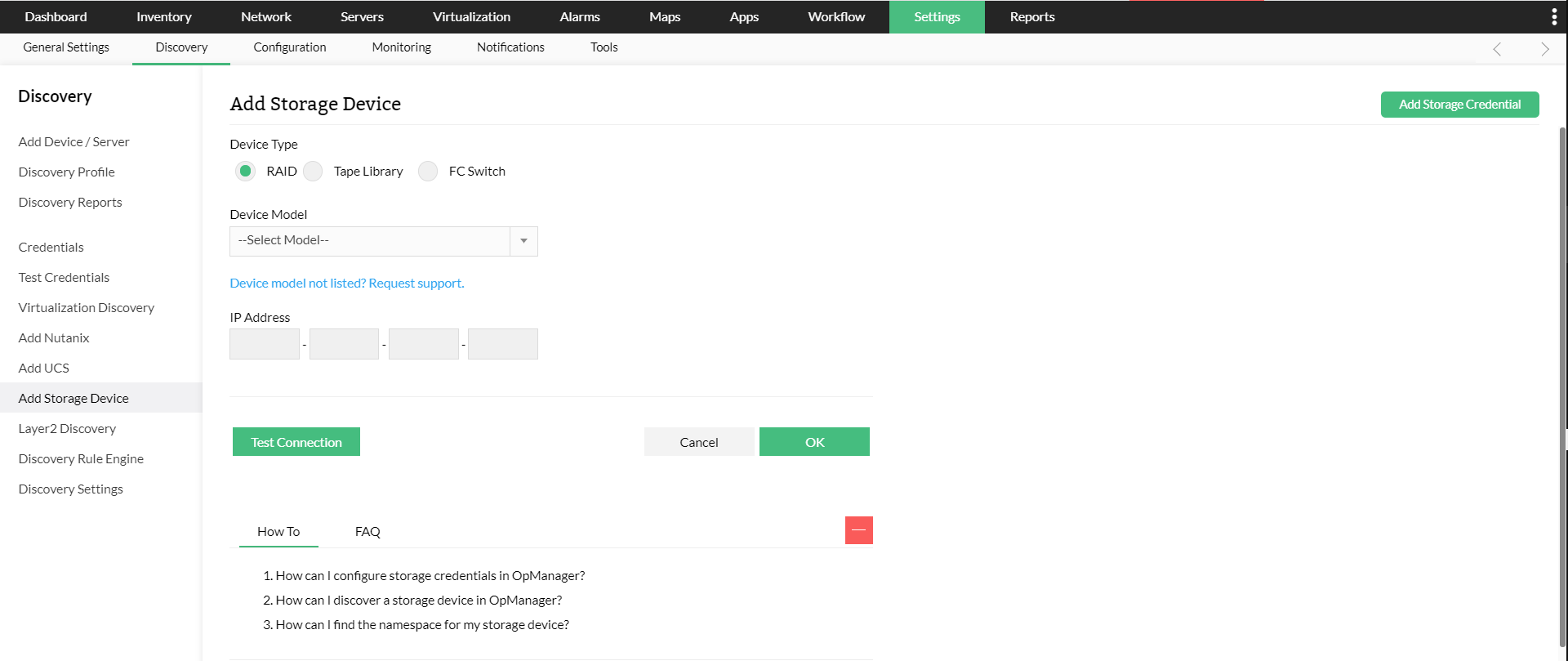
Adding Device Details
Clicking on any device name in the Inventory tab takes you to the device snapshot page. There you can view all the operational stats of the device in a single pane and also its basic details such as IP Address, Device vendor and model, Firmware version, and so on.
To edit the device details
- Go to the Inventory tab, click on ‘Storage’ and then click on the device whose details you want to edit.
- In the device snapshot page that is opened, click on the three-line menu button on the top-right corner of the screen and select Edit Device Details.
- Here, you can change the details of the device namely IP Address, Display name and the monitoring interval.
Frequently asked questions:
- How to discover devices and interfaces in OpManager?
- How to add a new credential?
- Can I add a non-admin user account for WMI?
- Can I add devices using SSH?
- Why are devices discovered as 'Unknown'?
- What are devices supported in OpManager?
- Why are interfaces not discovered for my device?
- How can I associate device templates to a newly discovered device?
- How to associate monitors to the discovered device?
- What is a discovery filter?
- How do I configure a new discovery rule?
- How to manage or unmanage a device?
- How to configure device dependencies?
- How can find the missing VMs and hosts?
- How can I discover a VLAN?.
- How does availability monitoring work in OpManager?
- What are the basic system requirements to install and use OpManager?
- How can I troubleshoot issues with device discovery?
- How can I troubleshoot issues with VCenter/ESX discovery?