Introduction
The usage of browsers is ubiquitous in every organization and as of January 2020, Google Chrome has ascendancy over other browsers with a whopping 68 percent market share. Each browser encompasses multiple extensions or add-ons, and plug-ins, so as to augment the browser functionalities and enhance user experience. Here are a couple of reasons why users install browser extensions:
- Additional features are appended for a surge in productivity
- Habitual services come handy
However, though the world of browser extensions is efficacious beyond question, it can prove to be harmful and is capable of putting an organization in jeopardy. Extensions can snoop on your browsing and capture personally identifiable information. Of all the browsers, Chrome has a thriving extension ecosystem and there’s probably an extension for almost everything you would want to do. That said, Google recently removed and disabled over 500 malicious extensions, and this isn’t the first occurrence.
Browser extensions: The threat they pose
Each browser extension requires a certain degree of permission for optimum usage. At the time of installation, the necessary permissions are granted by the end users without scrutinization. Since these extensions procure access to the end user’s browsing data and classified information, it becomes a walk in the park for cybercriminals to exploit these extensions to exfiltrate sensitive data. Browser extensions are inherently weak in terms of security, and to top all this, lack of visibility over the installed extensions, and the permissions they possess, make it impossible for IT administrators to control them.
Therefore, it is indispensable for every IT administrator to gain a bird’s-eye view over the browsers used in the network, and the add-ons that are installed, besides fortification.
Steps to enable add-on management
Note:Ensure you are using build number 10.0.476 and above versions to reap the benefits of add-on management using Endpoint Central. Download the service pack to upgrade to the latest build.
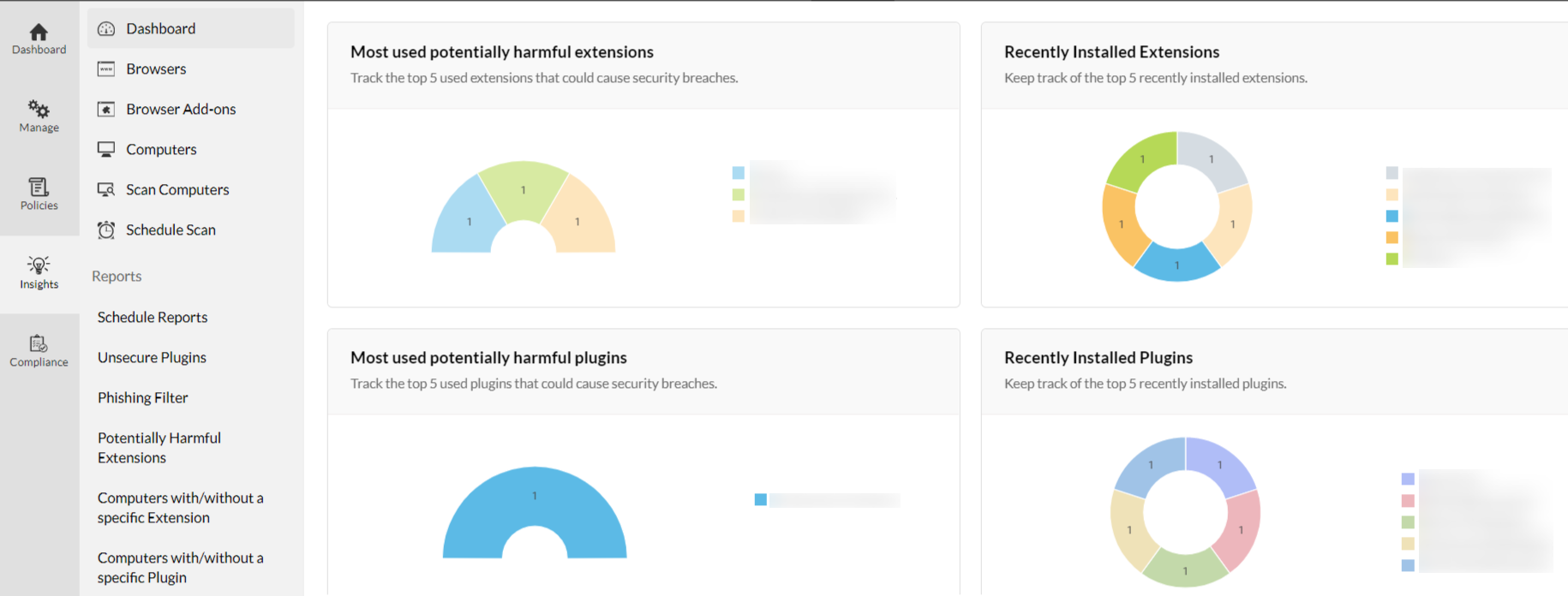
- Navigate to Insights, in the Browsers module of Endpoint Central, to gain comprehensive details on the harmful extensions and plug-ins. Upon clicking any particular extension, you will be able to view the extension details, the number of computers it has been installed on, and the permissions that are used by them.
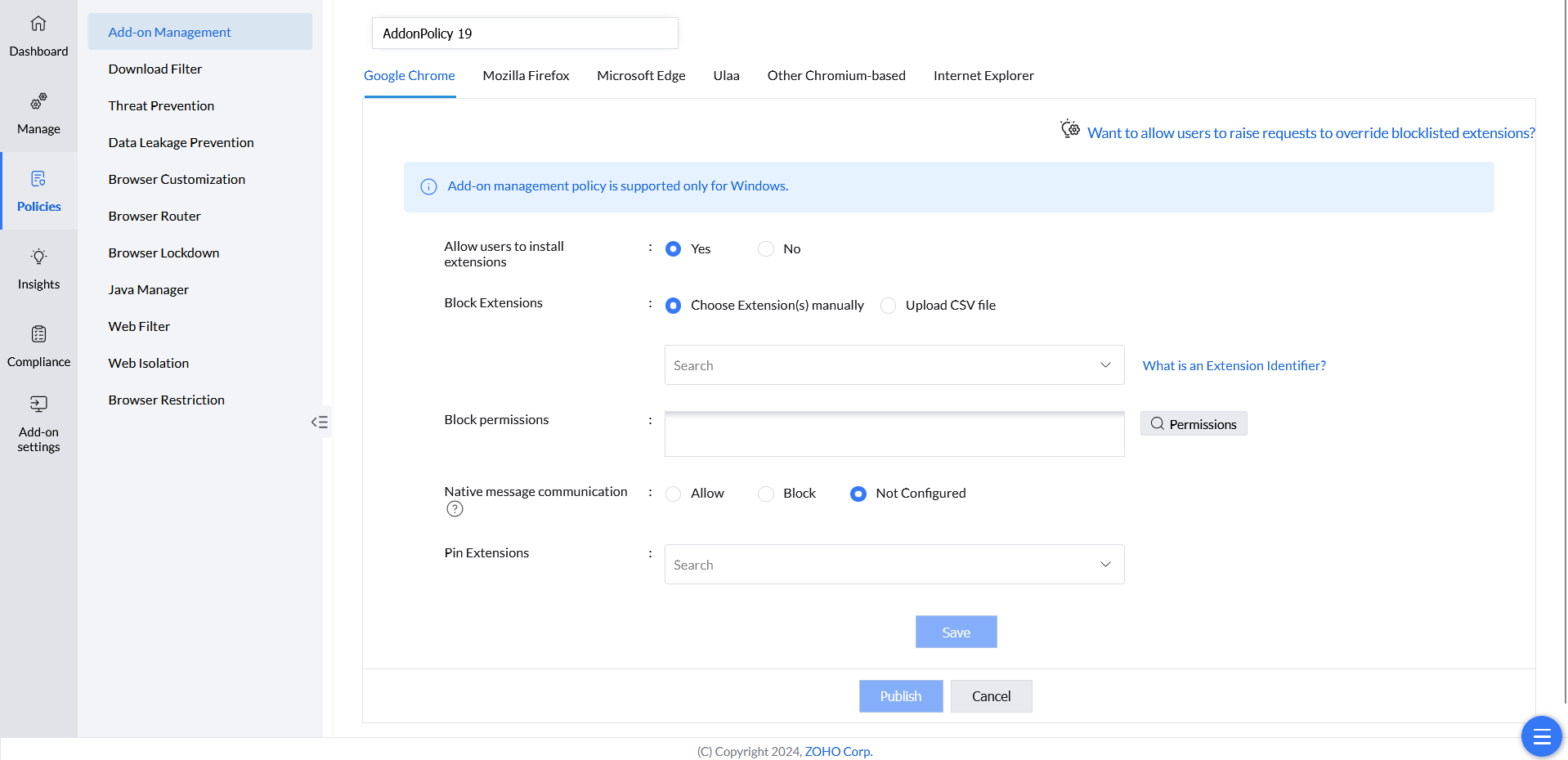
- Navigate to policies and click on Add-on Management. Select a browser of your choice.
- Select the plug-ins that you want to blacklist from the Blacklist Plug-ins drop down list.
- Save and publish the policy. Deploy the policy to computers/groups that you want to apply the changes to.
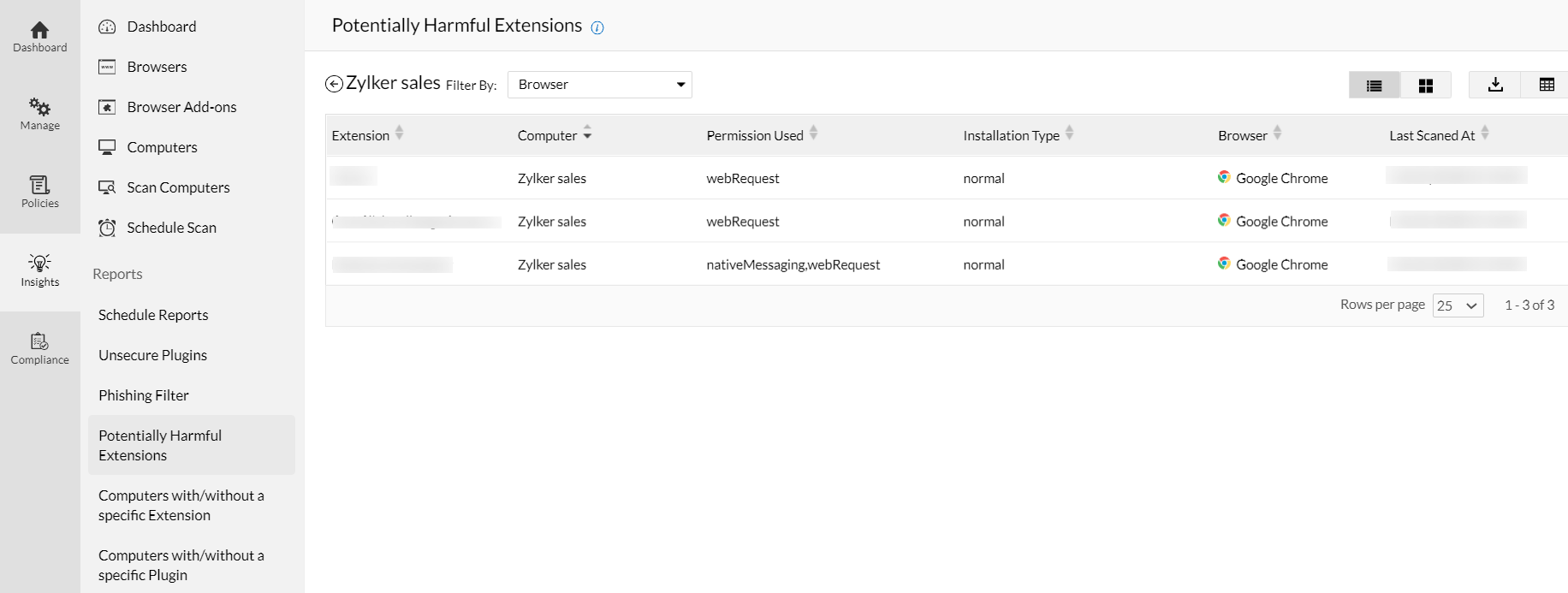
- Reports on the harmful extensions in your network can be procured by navigating to Insights > Reports > Potentially Harmful Extensions. Choose Schedule Reports options to schedule and generate this report periodically.