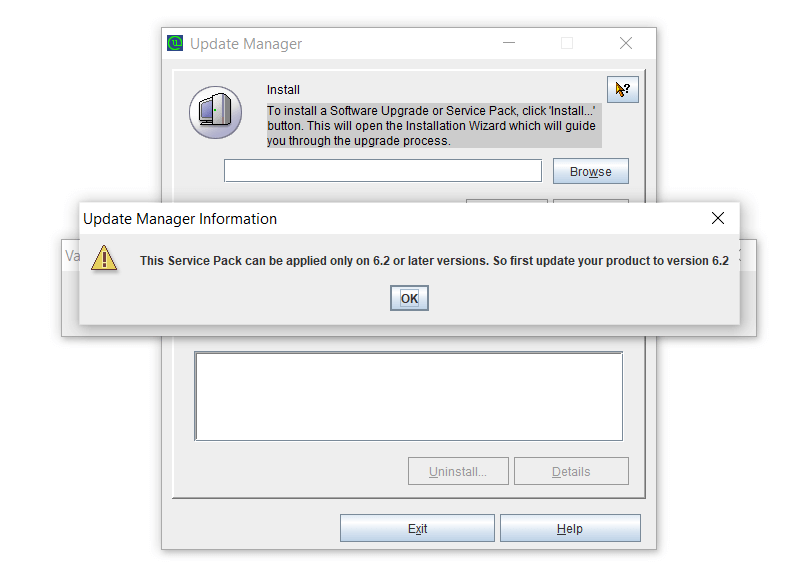
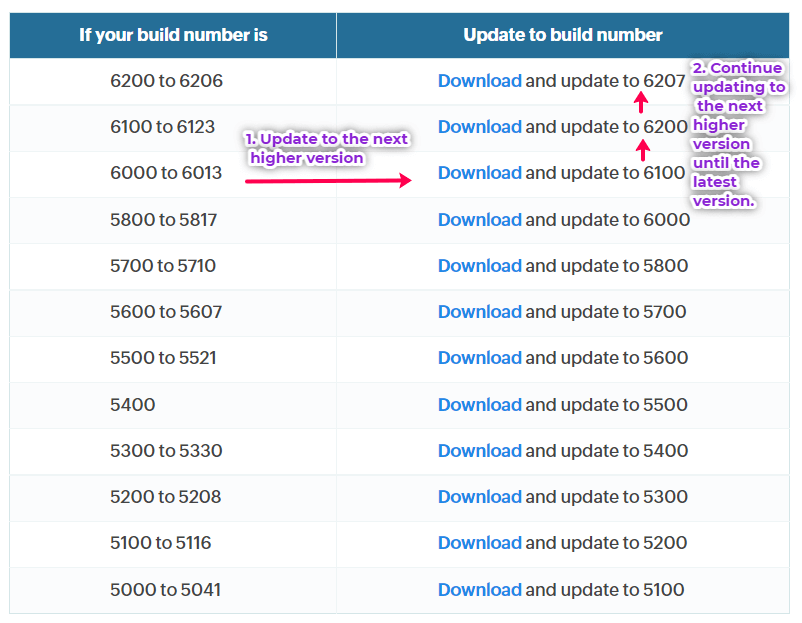
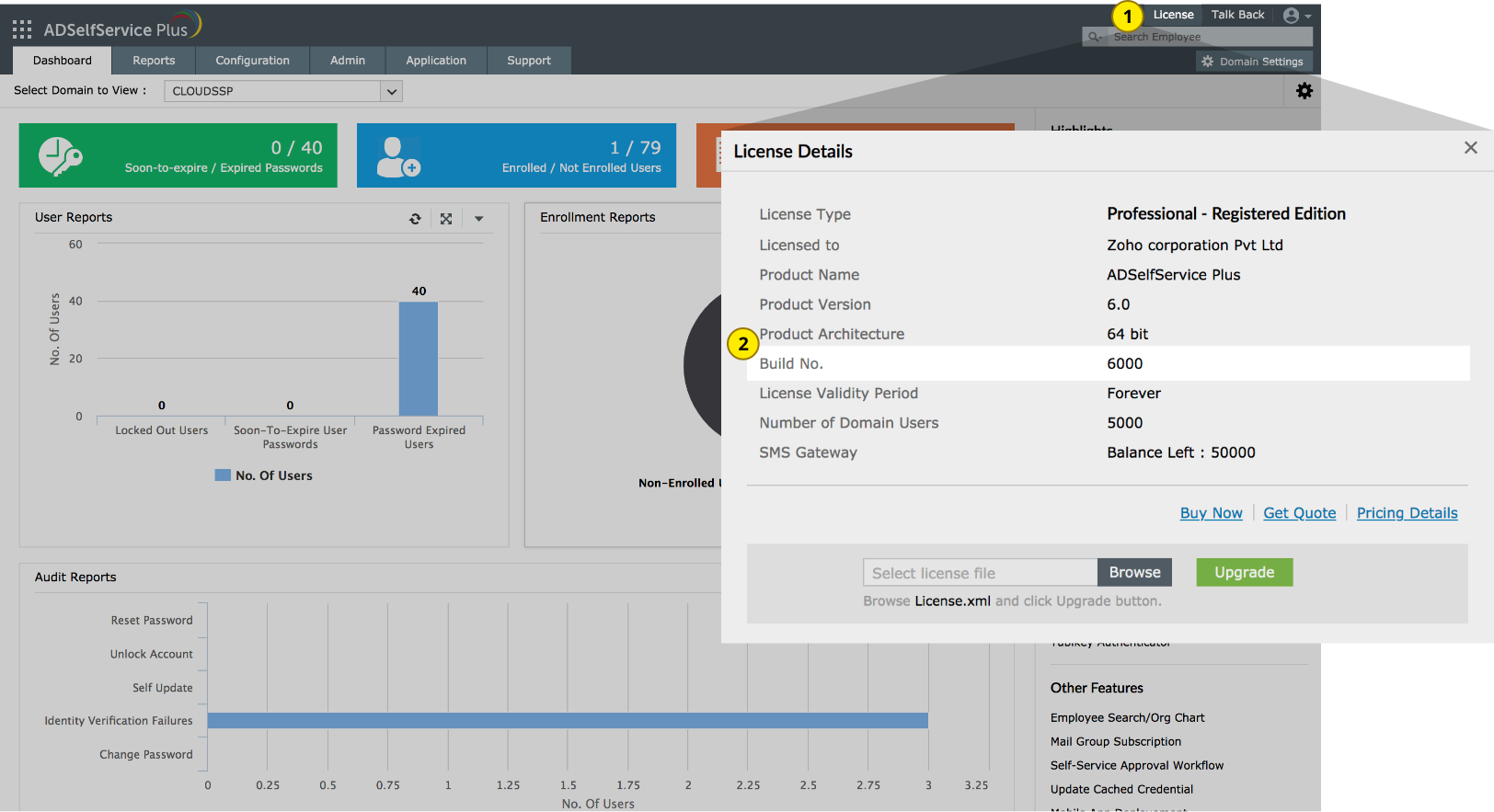
Reason: The server is running an older version of ADSelfService Plus (before version 6201) and cannot connect to the ManageEngine site (blocked port, firewall restrictions, no internet connection, etc). The Update Manager automatically imports the certificate when it is able to connect to the ManageEngine site. However, when it cannot do so, you will need to import the certificate manually.
Fix: Import the certificate manually.
Steps:
- If your version of ADSelfService Plus is older than version 6200, follow all the steps in the section 1 until you have version 6200.
- Now install the next version. If the server is unable to connect to the ManageEngine site, you might get this pop-up:
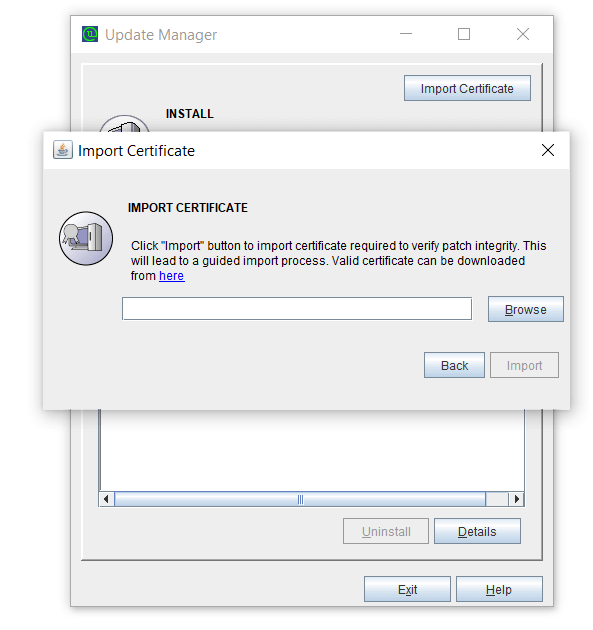
- Since the Update Manager is unable to connect to the ManageEngine site to import the certificate, you will need to import the certificate manually.
- Steps to import the security certificate manually:
- Download the certificate by clicking this link.
Run the UpdateManager.bat file located in <installation_directory>\bin (by default: C:\Program Files\ManageEngine\ADSelfService Plus\bin) from the Command Prompt using the privileges of a domain or local admin account (refer to the requirements for running the initPgsql.bat file mentioned above).
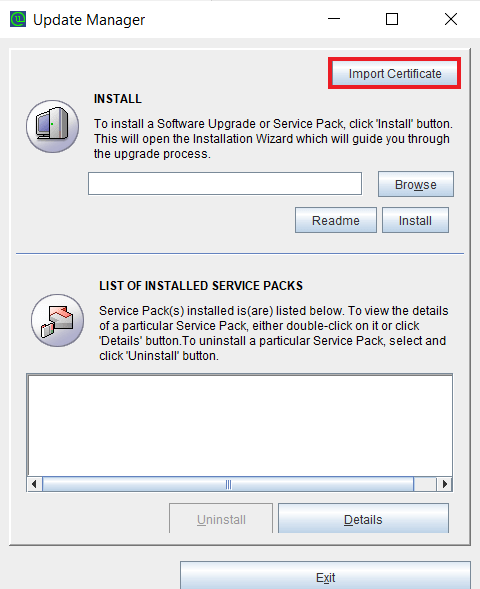
- Now, click Browse and select the downloaded certificate file. Click Import. You should get an information pop-up about the certificate being successfully imported.
Click Browse and select the service pack file ManageEngine_ADSelfService_Plus_x_x_SP-x_x_x.ppm that you have downloaded.
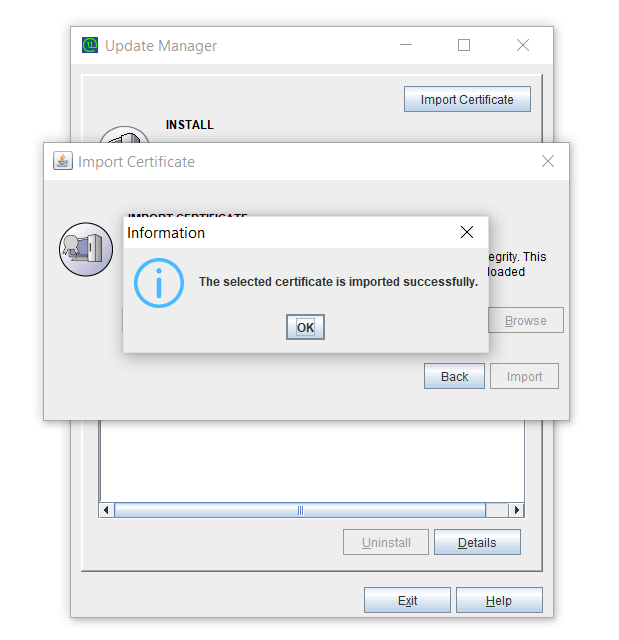
- Once imported, click Browse in the Update Manager and select the relevant PPM file. (greater than version 6200).
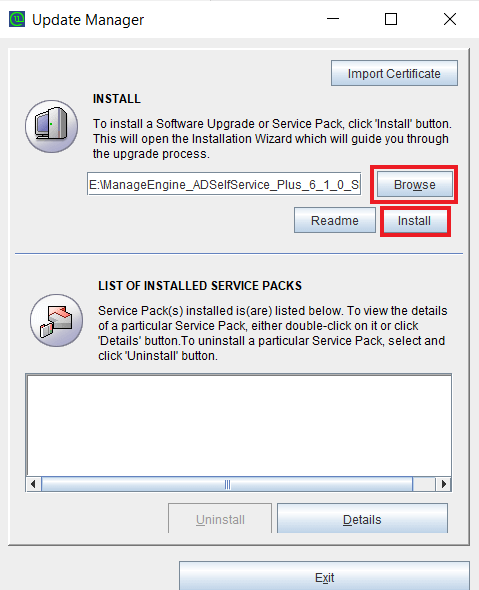
- Click Install. Depending on the amount of data to be migrated, the installation procedure may take a few minutes. Please do not terminate the process before completion.
- Once the installation is complete, click Close.
- Click Exit to quit Update Manager.
- Now, start ADSelfService Plus to use the updated build.