How to automatically back up the ADSelfService Plus database
Last updated on:In this article
Description
The database used in ADSelfService Plus stores some important information that is crucial for the proper functioning of the tool. ADSelfService Plus allows you to automatically back up its built-in PostgreSQL database at specified intervals, as a proactive measure against the loss of data.
If failover or load balancing is configured in your environment, contact the ManageEngine ADSelfService Plus support team for assistance before you begin.
Configuration steps
- Log in to the ADSelfService Plus admin portal and navigate to Admin > Product Settings > Backup Settings.
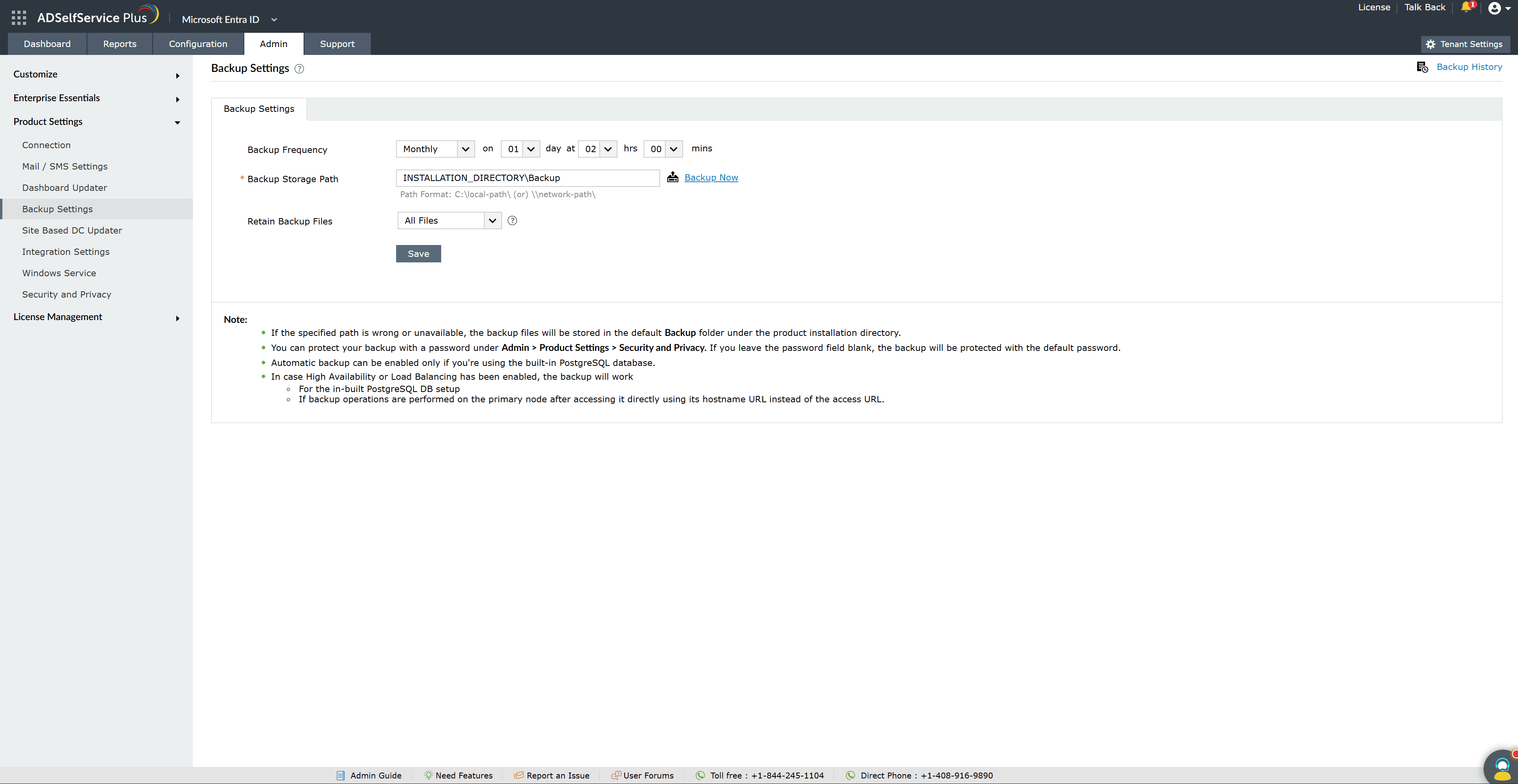
- Under Backup Frequency, schedule the time and frequency of your automatic backup.
- In the Backup Storage Path field, specify the location at which you want the DB backup to be stored.
Note:
If the specified path is wrong or unavailable, the backup file will be stored in the default backup folder under the product installation directory, which is <Install_Dir>/Backup (By default: C:\Program Files\ManageEngine\ADSelfService Plus\Backup).
- Use the Retain Backup Files drop-down to enable auto-cleanup by setting the backup file retention period based on either the number of files or the age of the files (in days).
- Click Save.
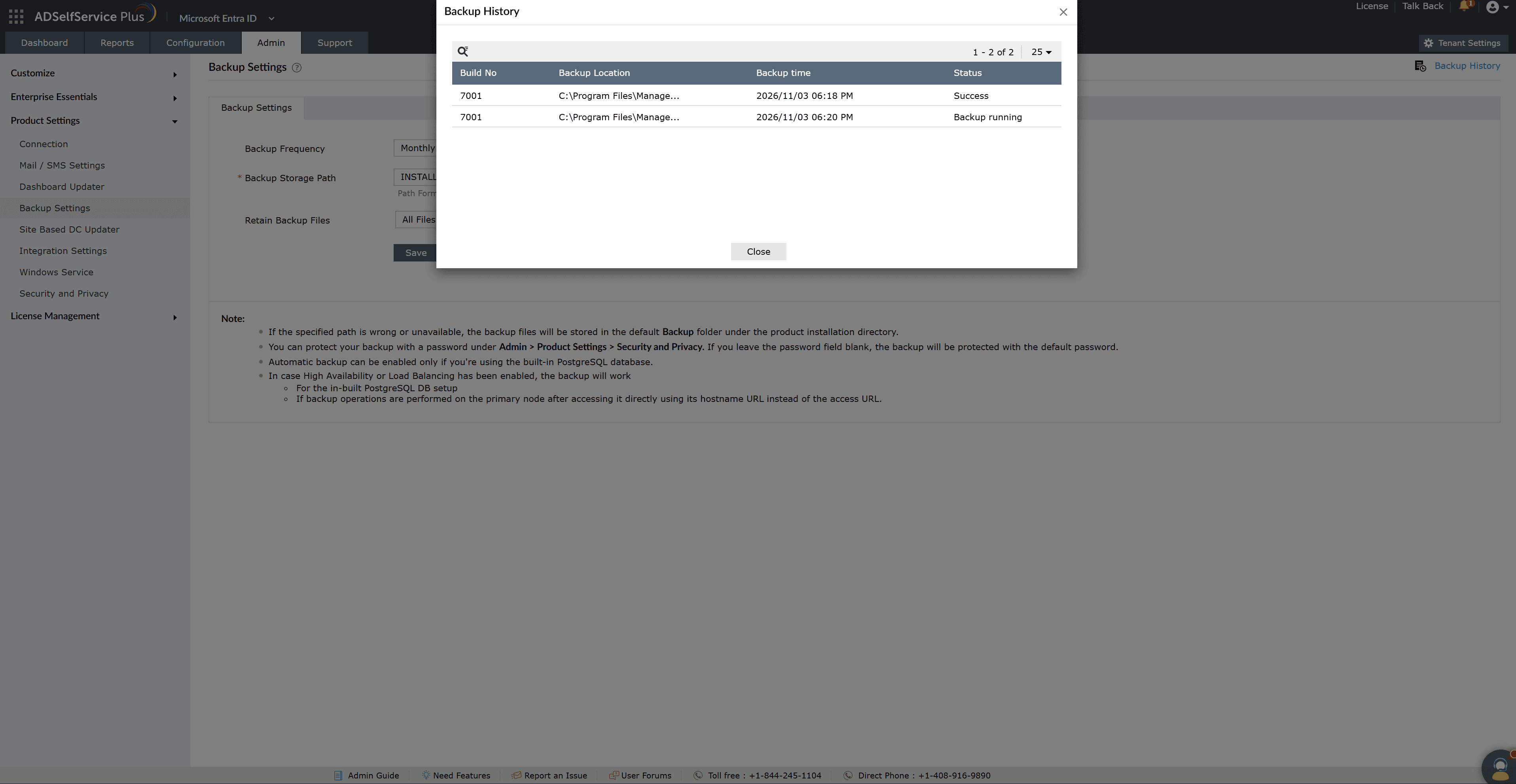
To back up the database immediately, click the Backup Now link. You can view the status, location, and timestamp of previous backups by clicking Backup History at the top-right corner of the page.
You can protect your backup with a password under Admin > Product Settings > Security and Privacy.
To back up the ADSelfService Plus database manually, follow these steps.