
Evaluation Customers in Log360 Cloud MSSP
Last updated on:
The Evaluation customer feature in Log360 Cloud MSSP allows MSSPs the provision to add potential Customers on trial period alongside normal Customers. The feature enhances the MSSP's capability to manage their customer portfolio more effectively, offering flexibility in customer onboarding and management.
With this feature, MSSPs can leverage evaluation Customers to showcase their services and seamlessly transition them to regular Customers, optimizing their service offerings and customer satisfaction.
Listed below are some of the specifications for Evaluation Customers:
1. Trial Duration: The Evaluation Customers are granted a 30-day trial period. Post-trial, these Customers are automatically disabled and require a license to be re-enabled.
2. Storage Considerations: The storage utilized by the Evaluation Customers will not be included in the Storage Summary widget or reflected in the total storage and allocated storage metrics on the MSSP License page.
3. Evaluation Customer Limitation: At any given time, only two Evaluation Customers can be active. To add a new Evaluation customer beyond this limit, an existing Evaluation customer can be disabled/deleted or a customer add-on can be requested via support.
4. Eligibility: The option to add Evaluation Customers is exclusively available to paid MSSP customers.
Managing Evaluation Customers
MSSPs can effectively manage Evaluation Customers alongside their multiple regular Customers, allowing potential customers to experience the capabilities of Log360 Cloud MSSP before committing to a full license. They can add Evaluation Customers, convert them to regular Customers, and manage their license and storage allocation effectively.
Adding an Evaluation customer
MSSPs can add Evaluation Customers to their Log360 Cloud MSSP account with the following steps:
- Login to your Log360 Cloud MSSP account.
- Go to Settings → Configuration → General → Manage Customers.
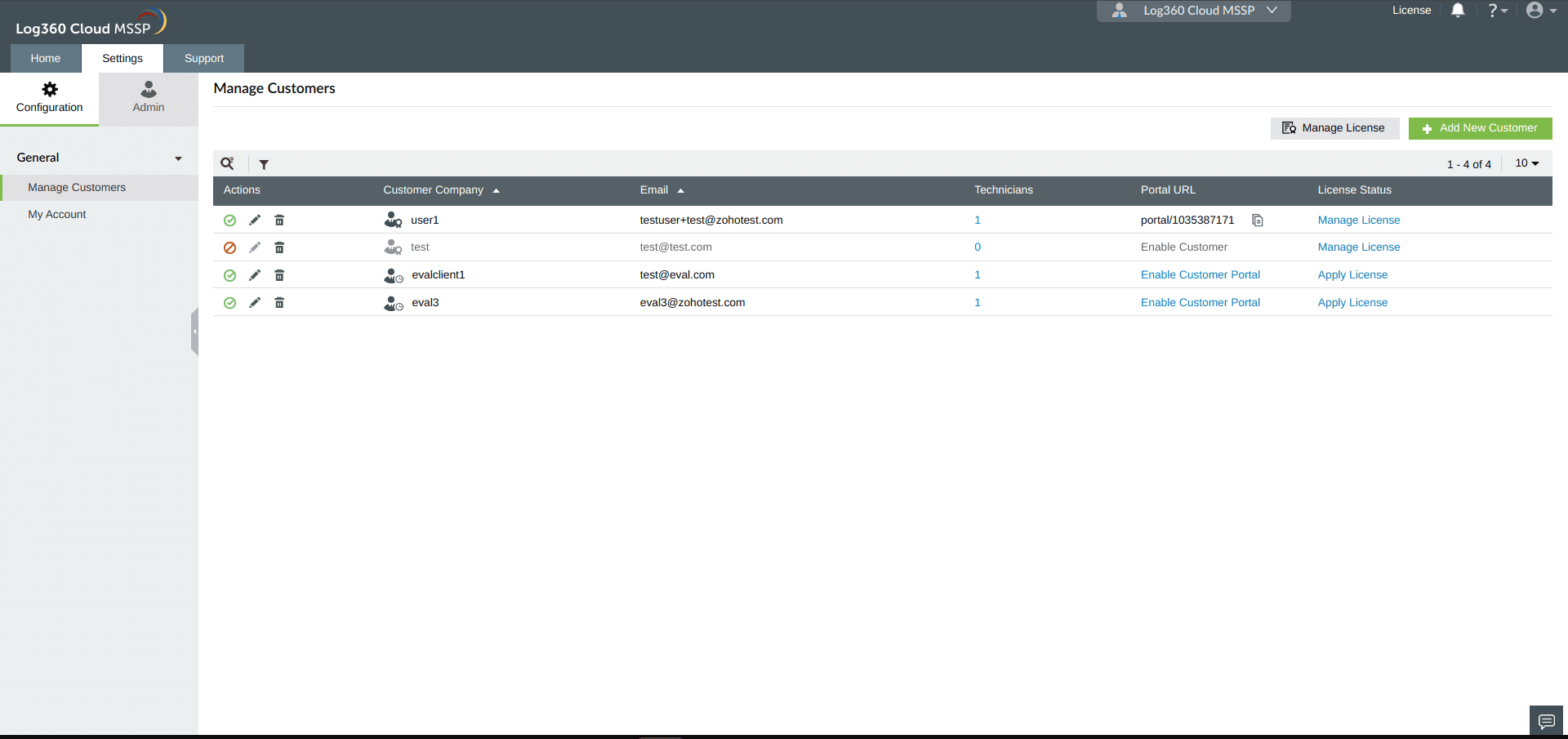
- On the Customers page, click on Add New Customer.
- On the Add New Customer page, fill in your customer's company name, email ID, and upload their logo.
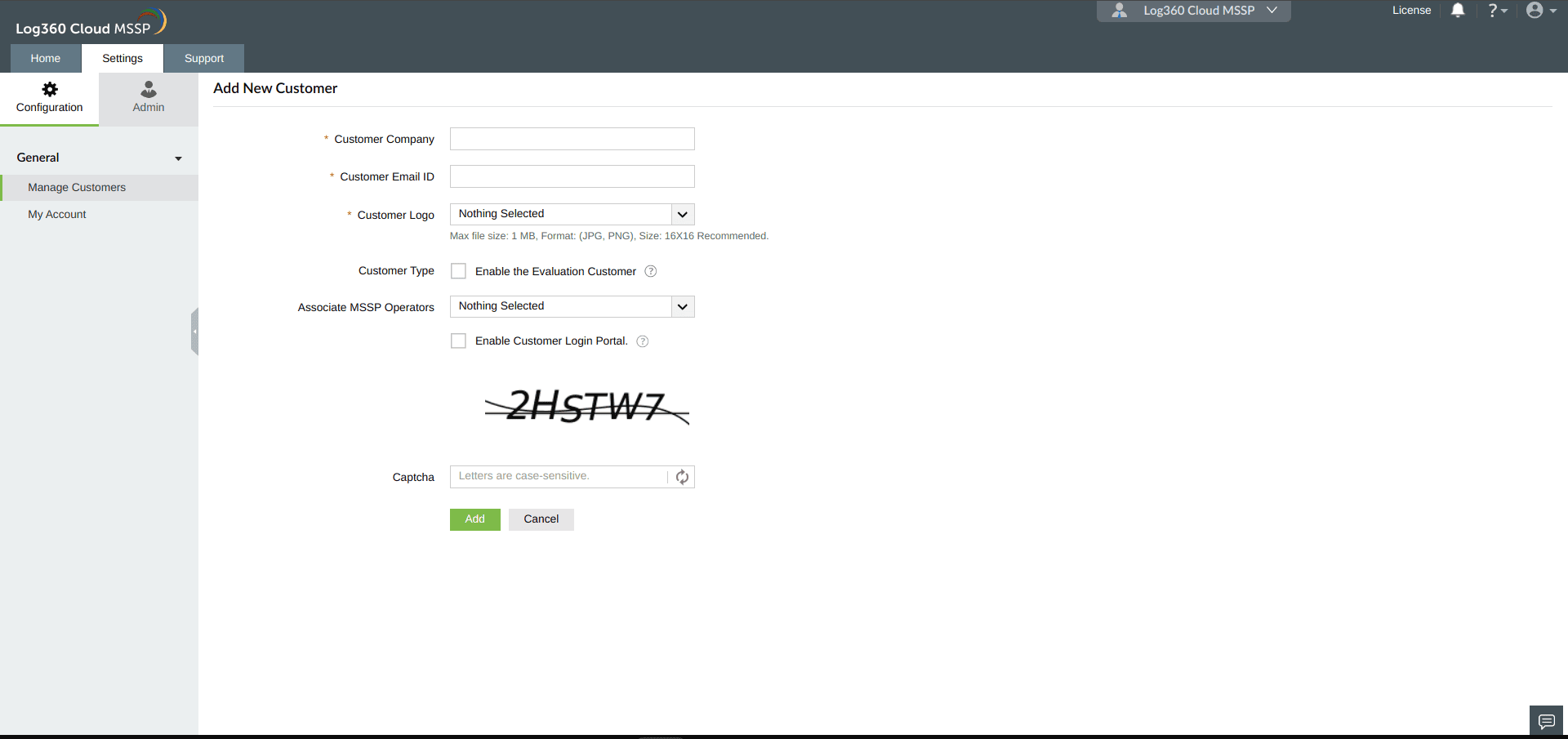
- You can choose the Associate MSSP Operators from the drop-down, if needed.
- In the Customer Type field, you can choose between adding a regular customer or an Evaluation customer. By clicking on the checkbox, you can enable the addition of an Evaluation customer.
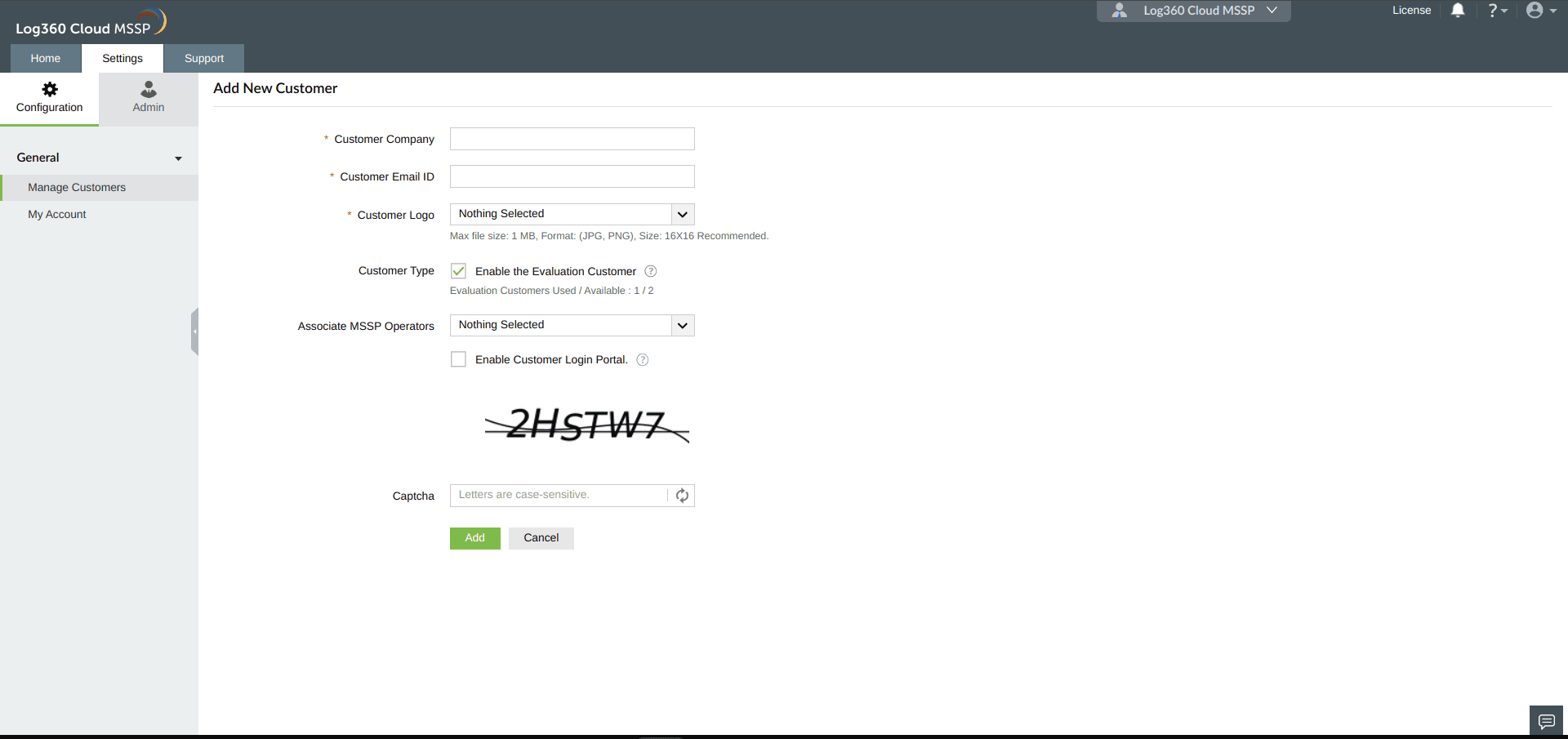
- Type the Captcha and click Add to add the new Evaluation customer. Your customer has been added.
Enabling an Evaluation customer
MSSPs can enable an Evaluation customer account in Log360 Cloud MSSP with the following steps:
- Login to your Log360 Cloud MSSP account.
- Go to Settings → Configuration → General → Manage Customers.
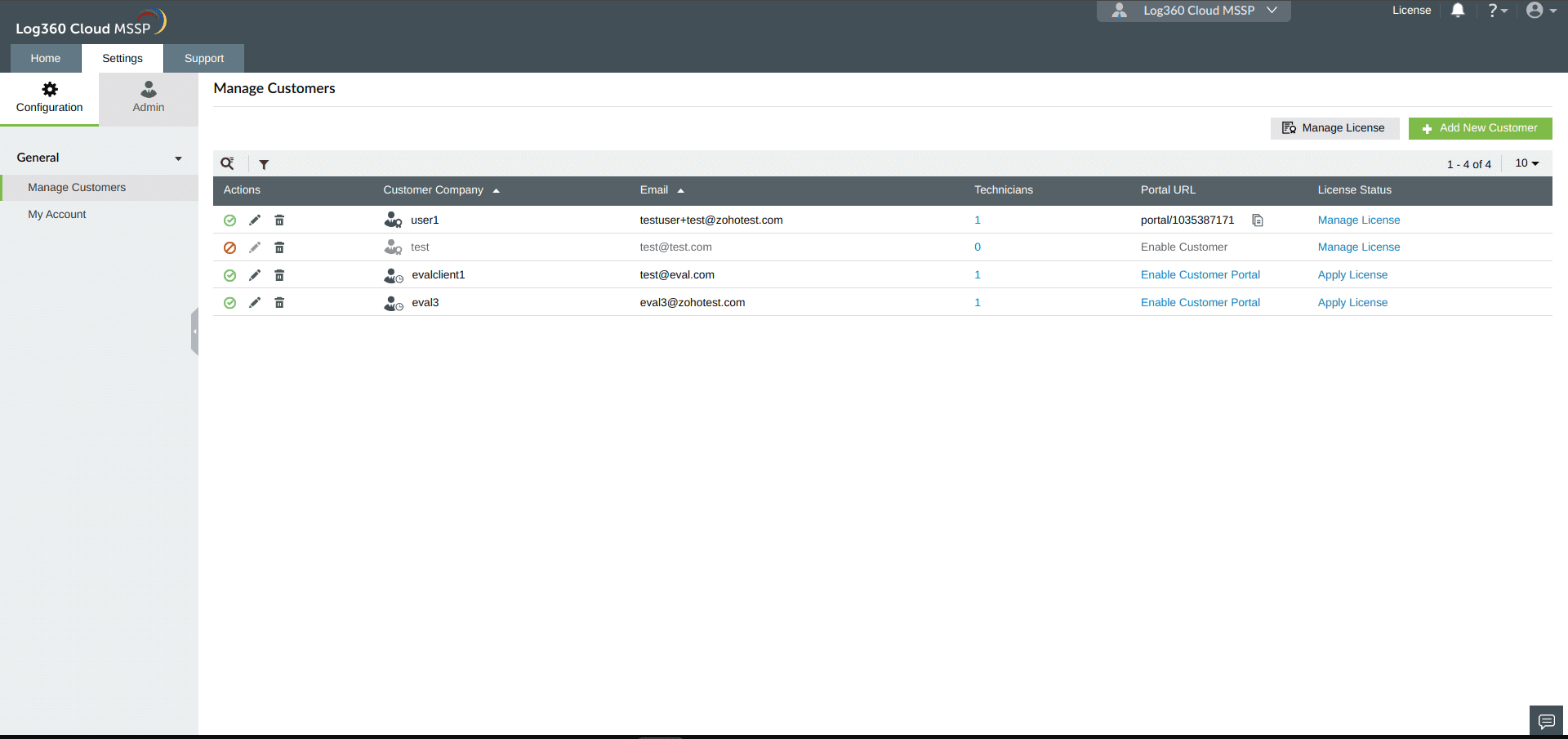
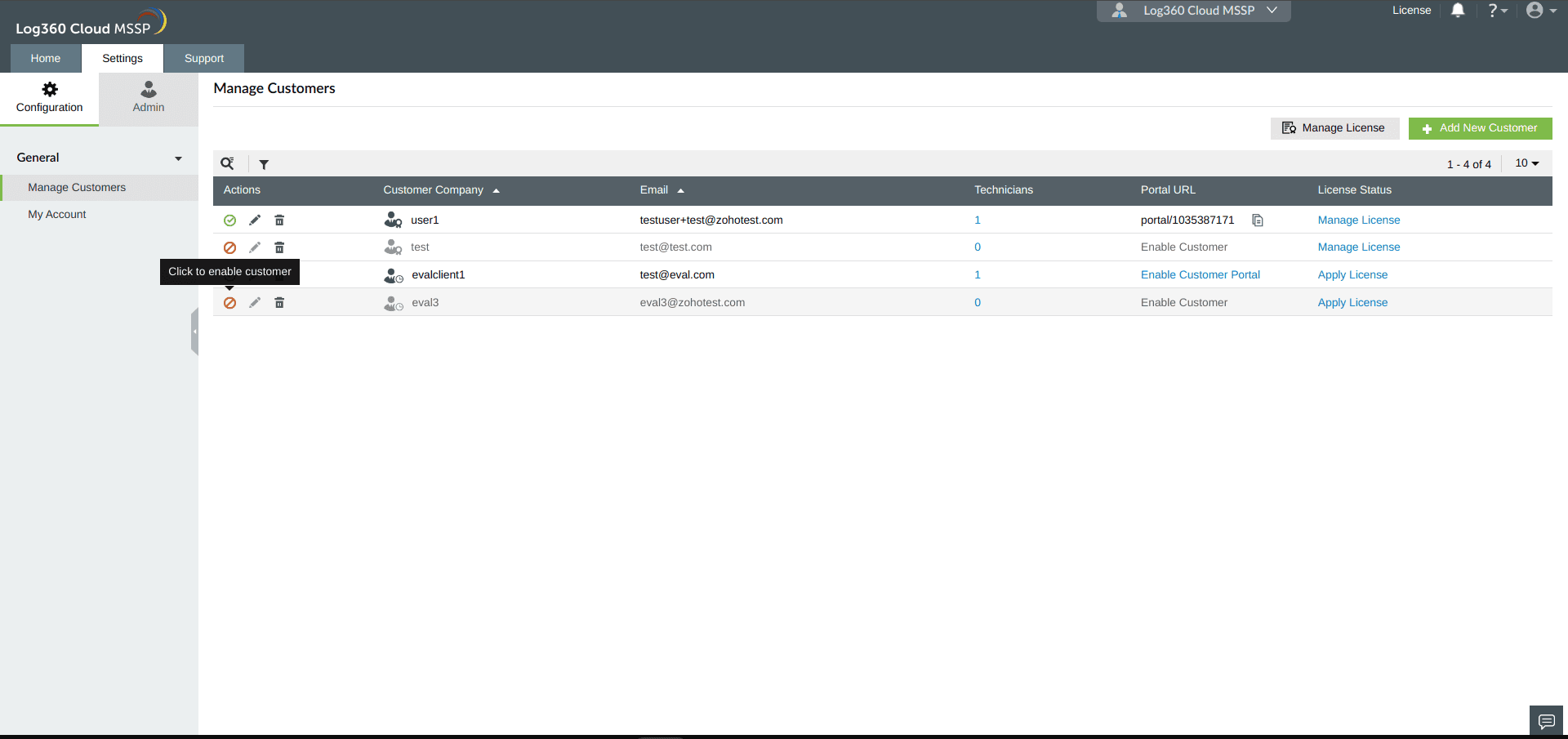
- On the Customers page, choose the Evaluation customer account you want to enable.
- Click on the Disable icon under the Actions tab to enable the Evaluation customer account.
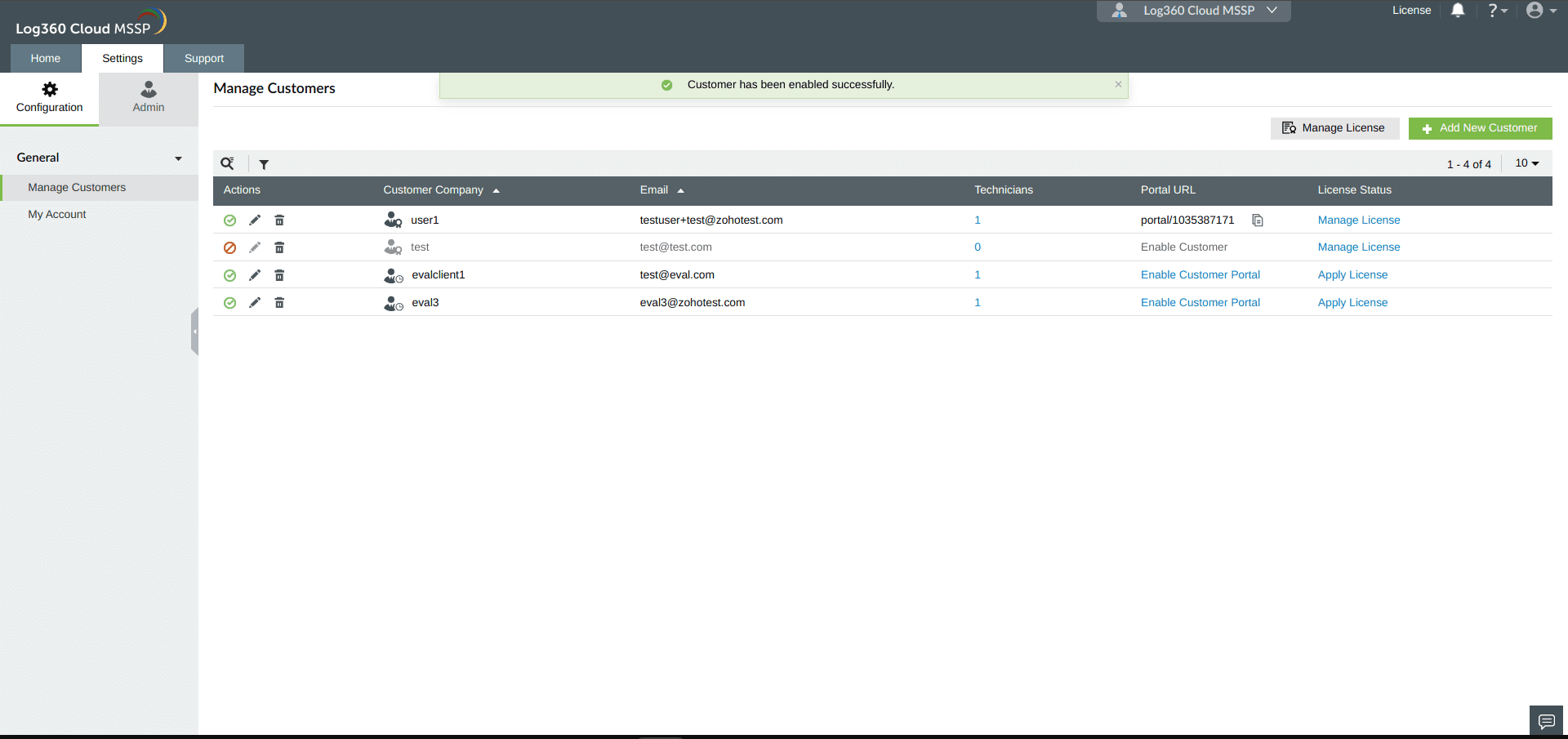
- The Evaluation customer has been enabled successfully.
Disabling an Evaluation customer
MSSPs can disable an Evaluation customer account in Log360 Cloud MSSP with the following steps:
- Login to your Log360 Cloud MSSP account.
- Go to Settings → Configuration → General → Manage Customers.
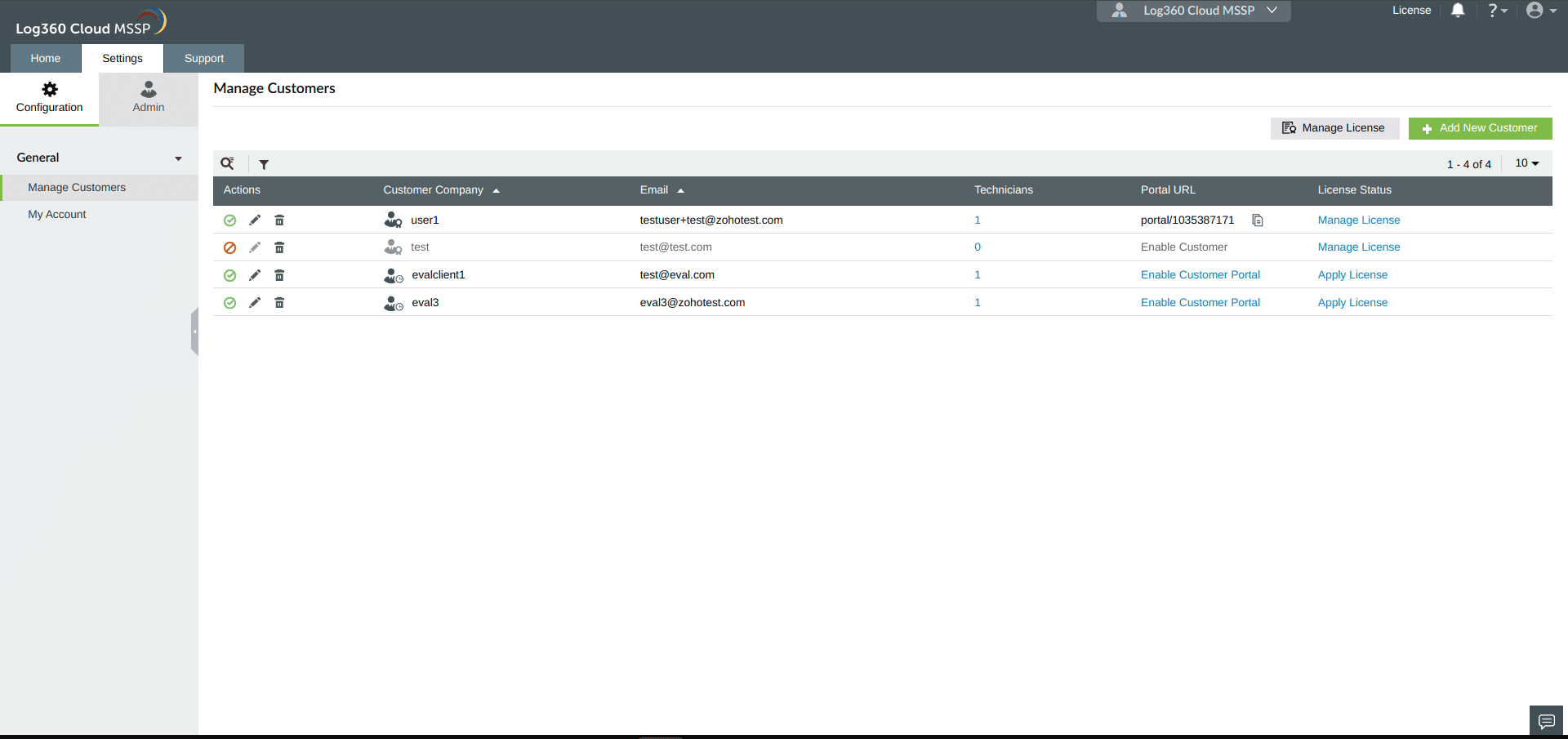
- On the Customers page, choose the Evaluation customer account you want to disable.
- Click on the Enable icon under the Actions tab to disable the evaluation customer account.
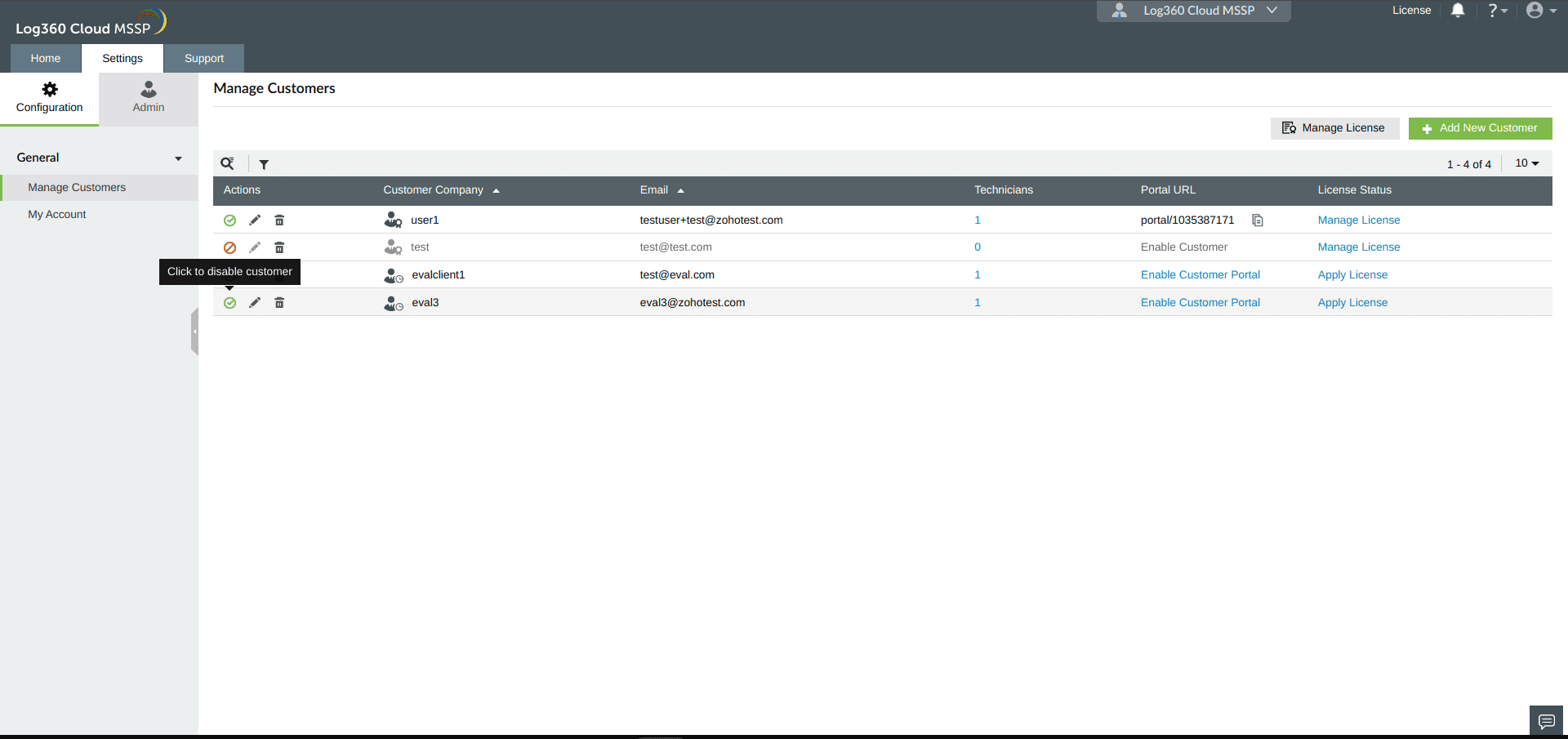
- In the pop-up that appears, click Yes to disable the evaluation customer.
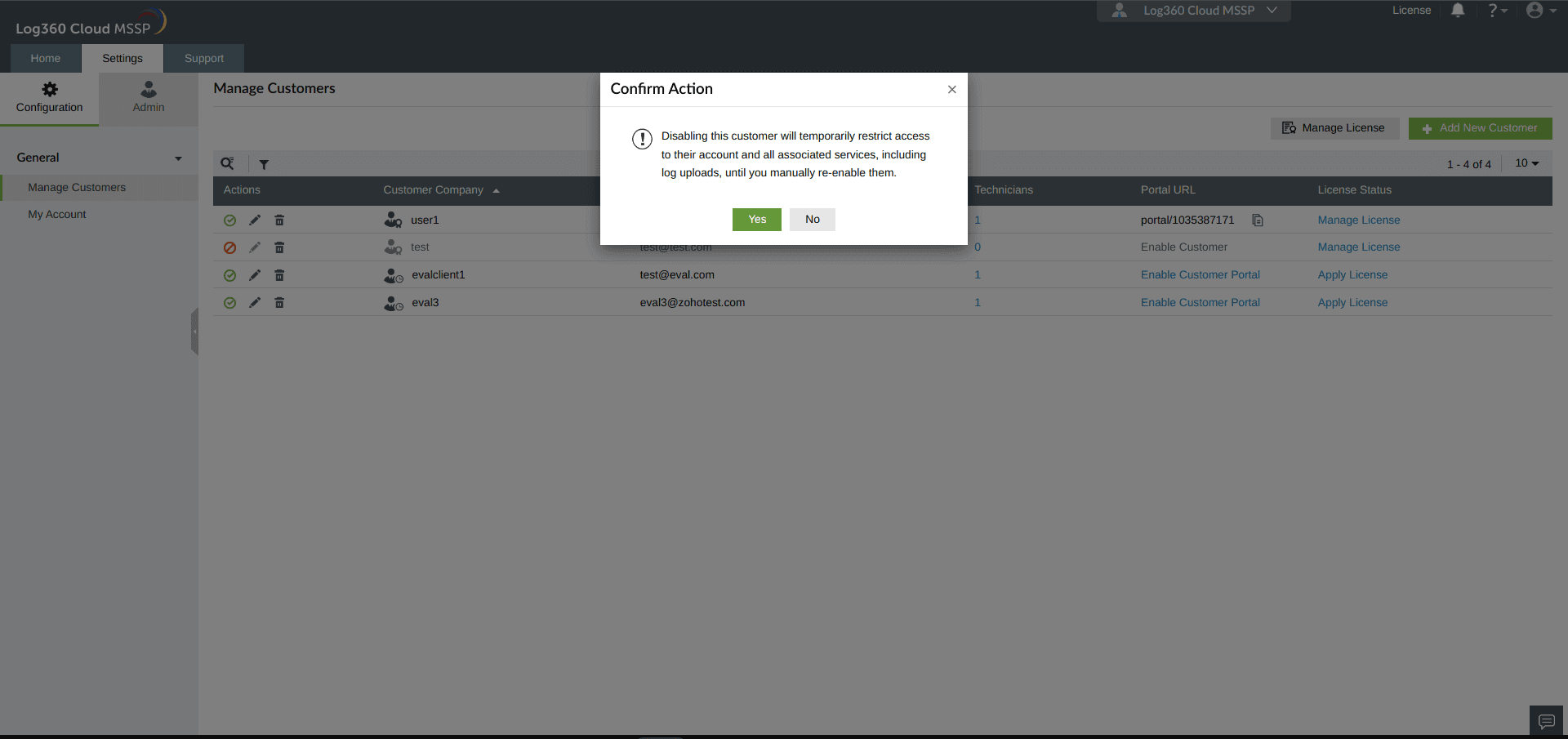
Note By confirming to proceed, you forfeit access to the Evaluation customer and all other services, including log upload temporarily, until you manually enable the customer.
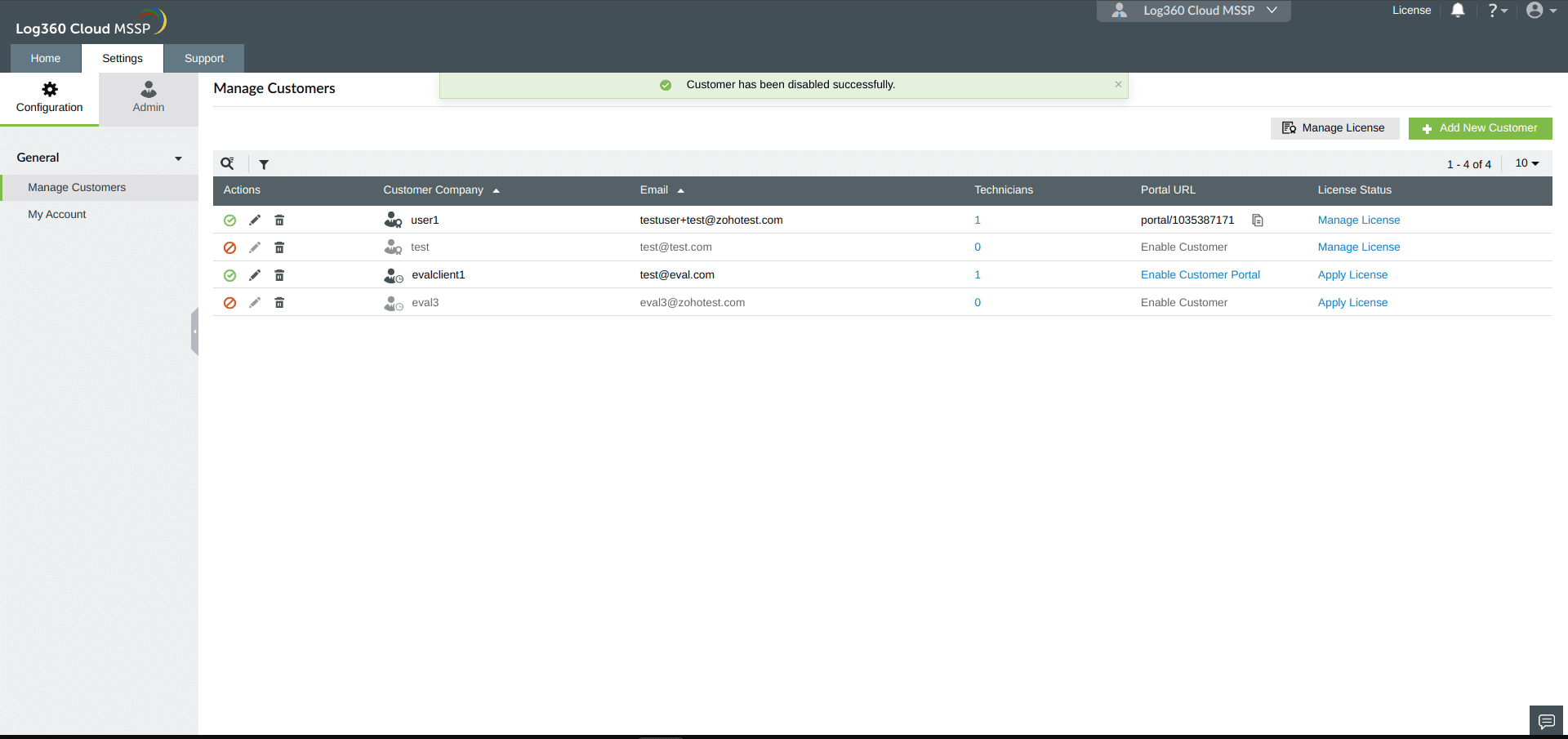
- The Evaluation customer has been disabled successfully.
Deleting an Evaluation customer
MSSPs can delete Evaluation Customers from their Log360 Cloud MSSP account with the following steps:
- Login to your Log360 Cloud MSSP account.
- Go to Settings → Configuration → General → Manage Customers.
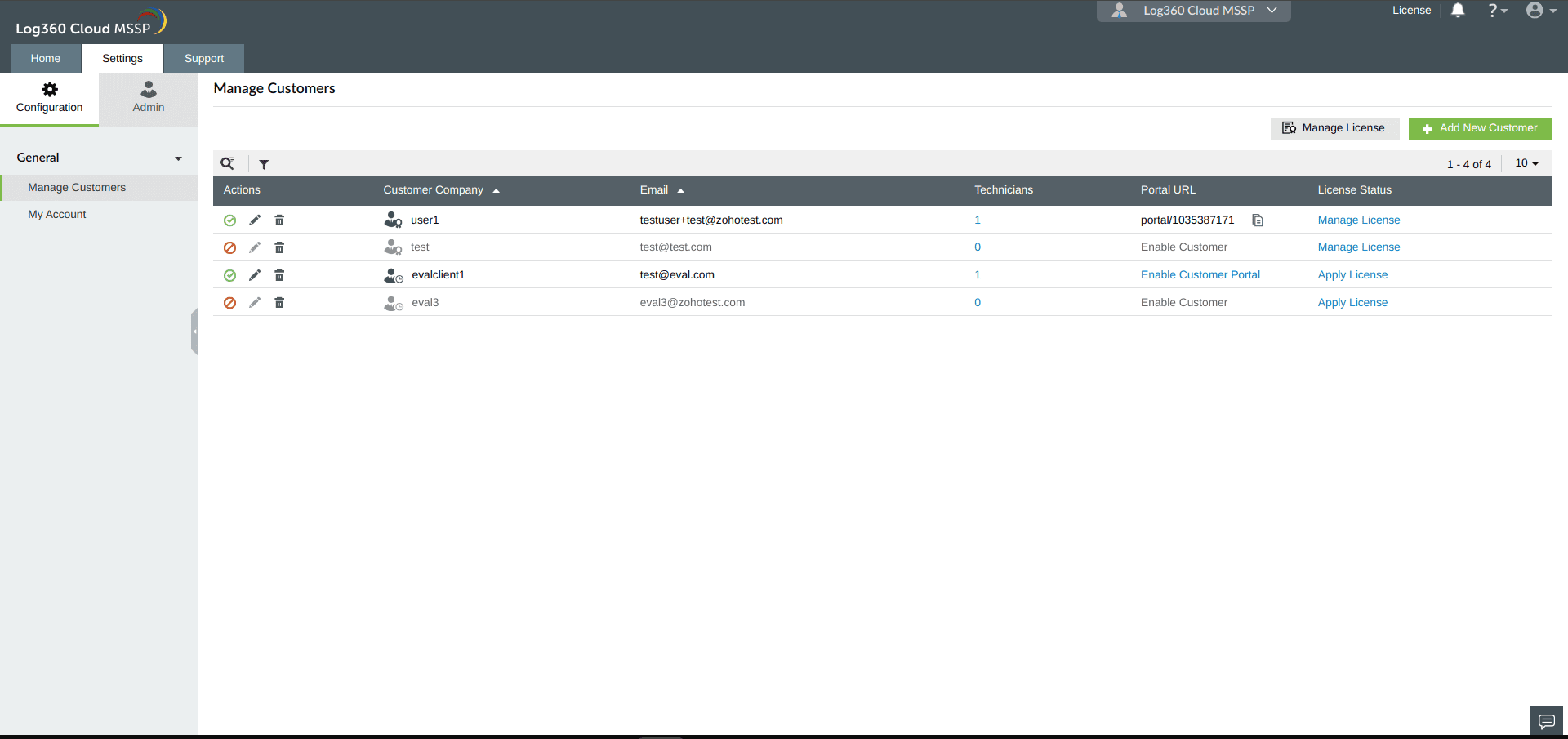
- Choose the Evaluation customer you want to delete and click on the Delete icon under the Actions tab.
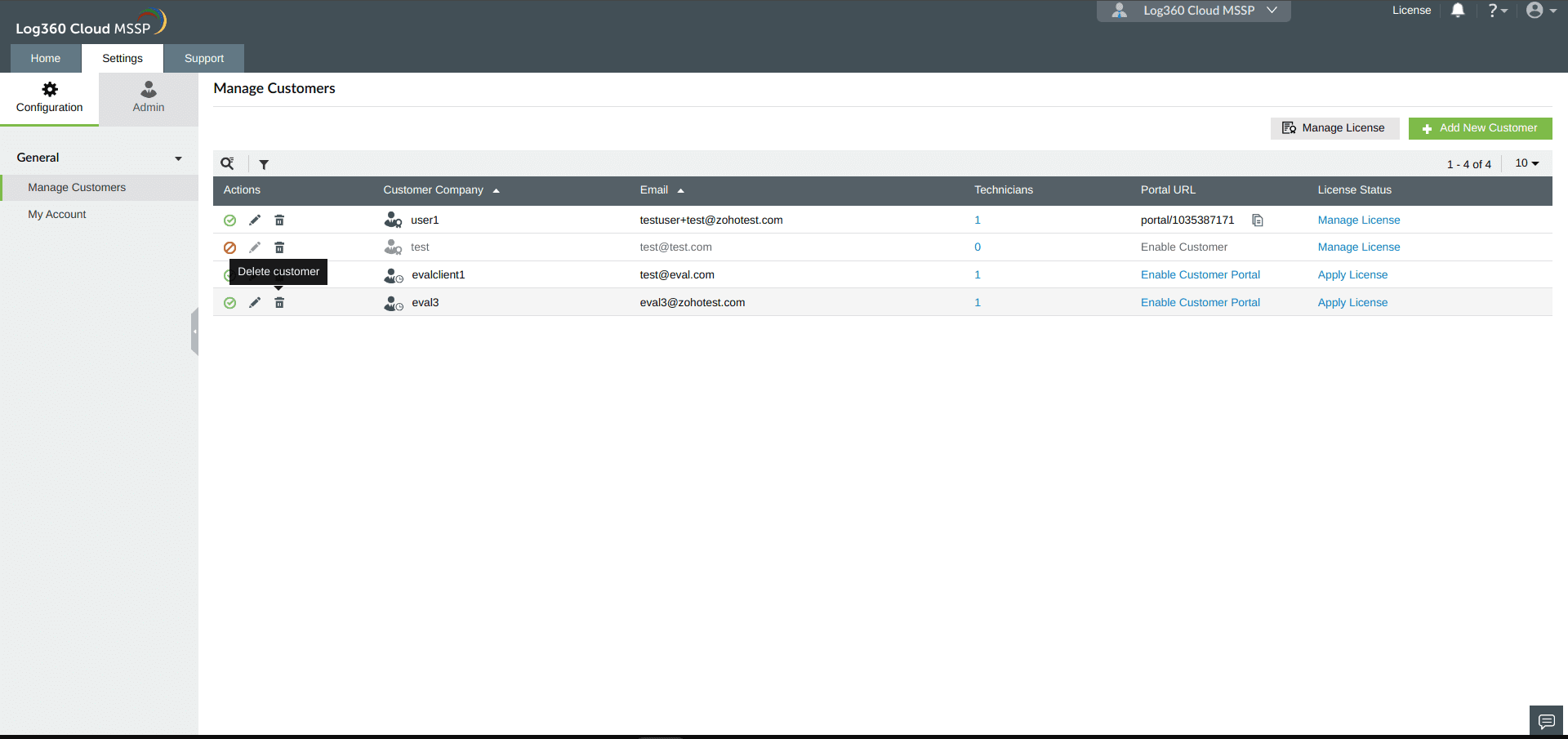
- In the pop-up that appears, click Yes to delete the Evaluation customer.
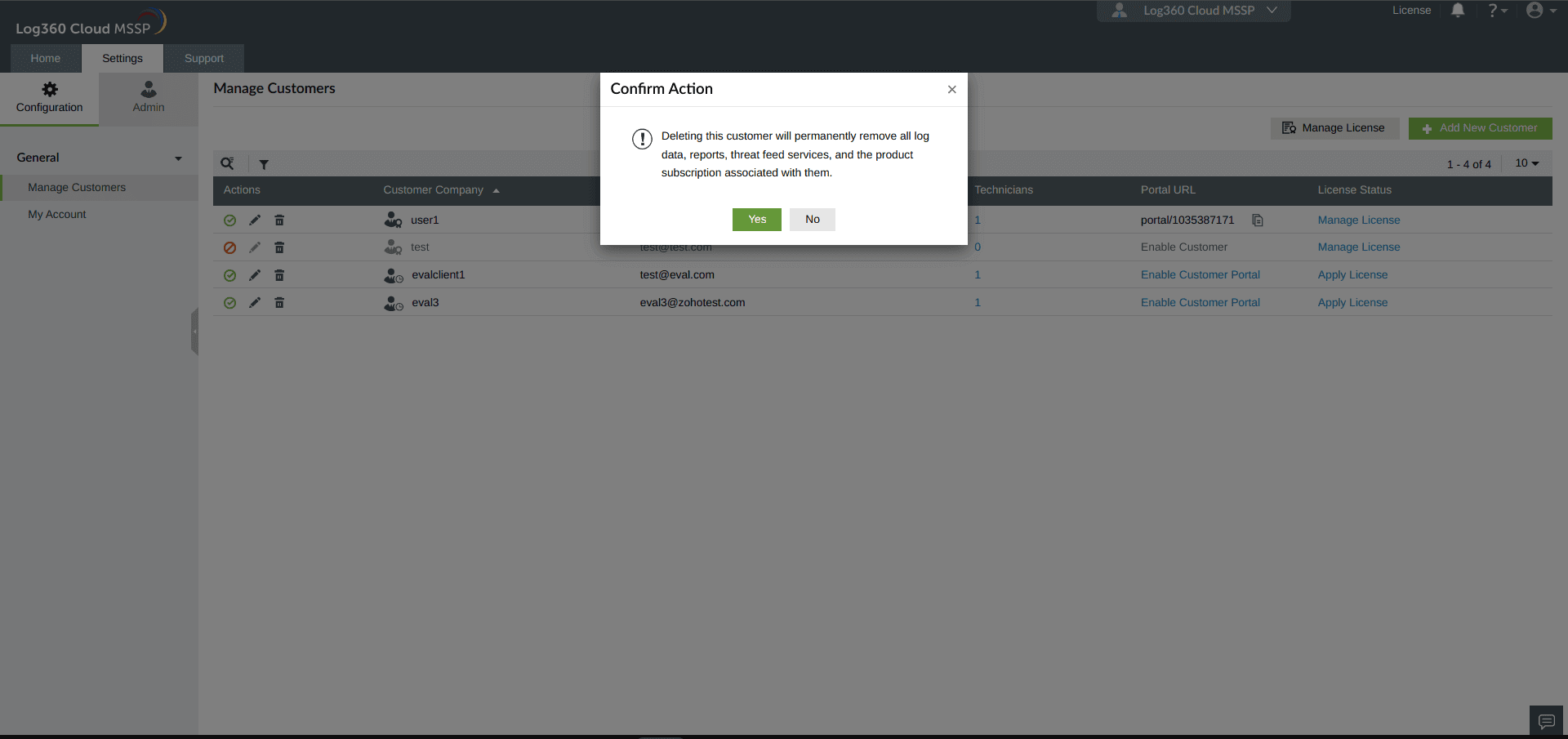
Note By confirming to proceed, you will lose all log data, reports, threat feed services, and the product subscription in this customer.
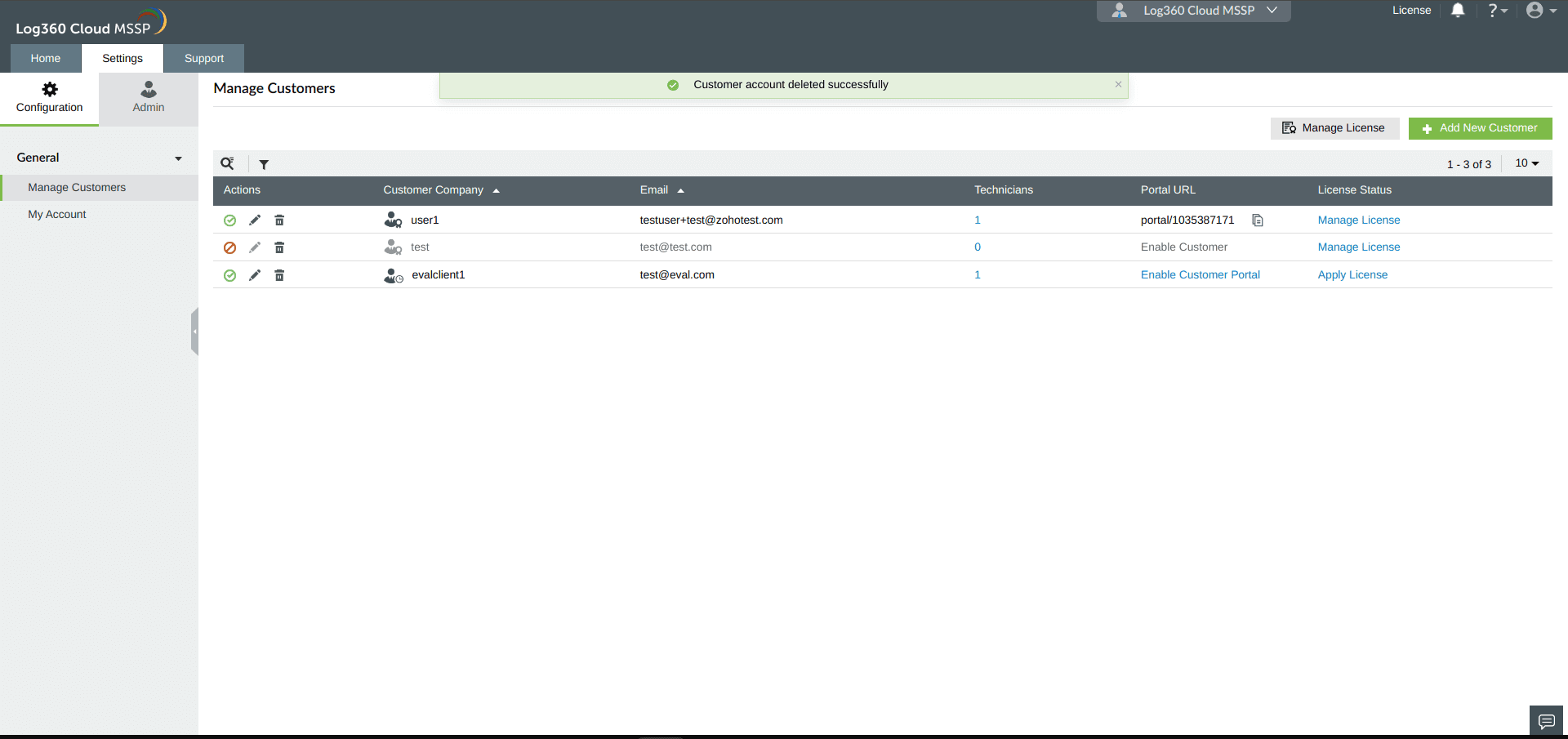
- The Evaluation customer has been deleted successfully.
Managing Evaluation customer Licenses
Evaluation Customers in Log360 Cloud MSSP are provided with the following features during their 30-day trial period, upon account creation.
| Feature | Per Evaluation customer |
|---|---|
| Storage | 50GB |
| Storage Retention | Customizable |
| Search Retention | 90 days |
| Correlation | 10 |
| Alert Profiles | 50 |
| Advanced Threat Analytics | Enabled |
Note The storage allotted for Evaluation Customers does not reflect in dashboards.
Converting Evaluation Customers
MSSPs can convert Evaluation Customers to regular Customers in the Settings page with the following steps:
- Login to your Log360 Cloud MSSP account.
- Go to Settings → Configuration → General → Manage Customers.
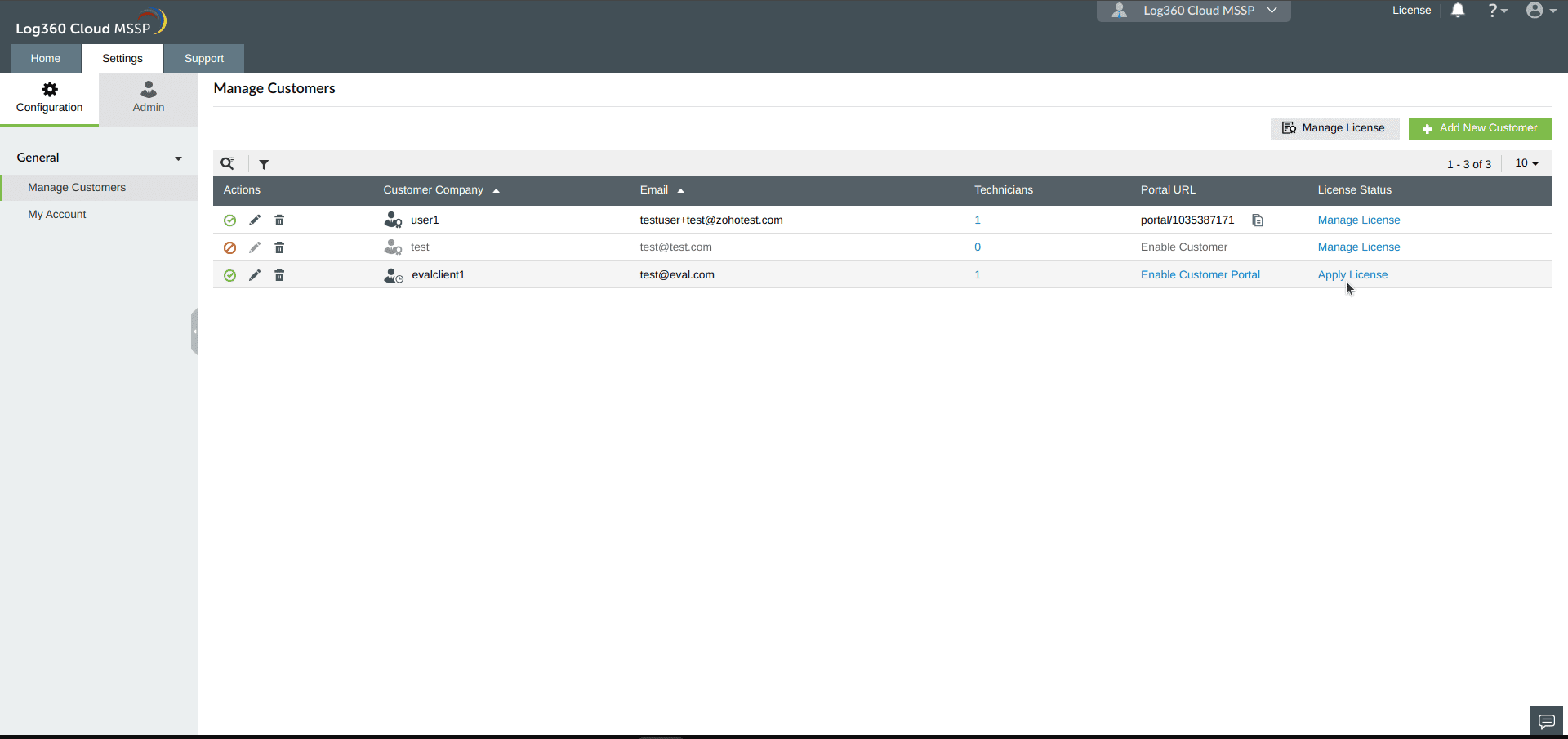
- Choose the Evaluation customer you want to convert.
Note:
- The Evaluation Customers are indicated with a
 icon and the regular Customers are indicated with a
  icon.
icon. - You can differentiate Evaluation Customers from regular Customers with their License Status. The license status is displayed as Manage License for regular Customers and Apply License for Evaluation Customers.
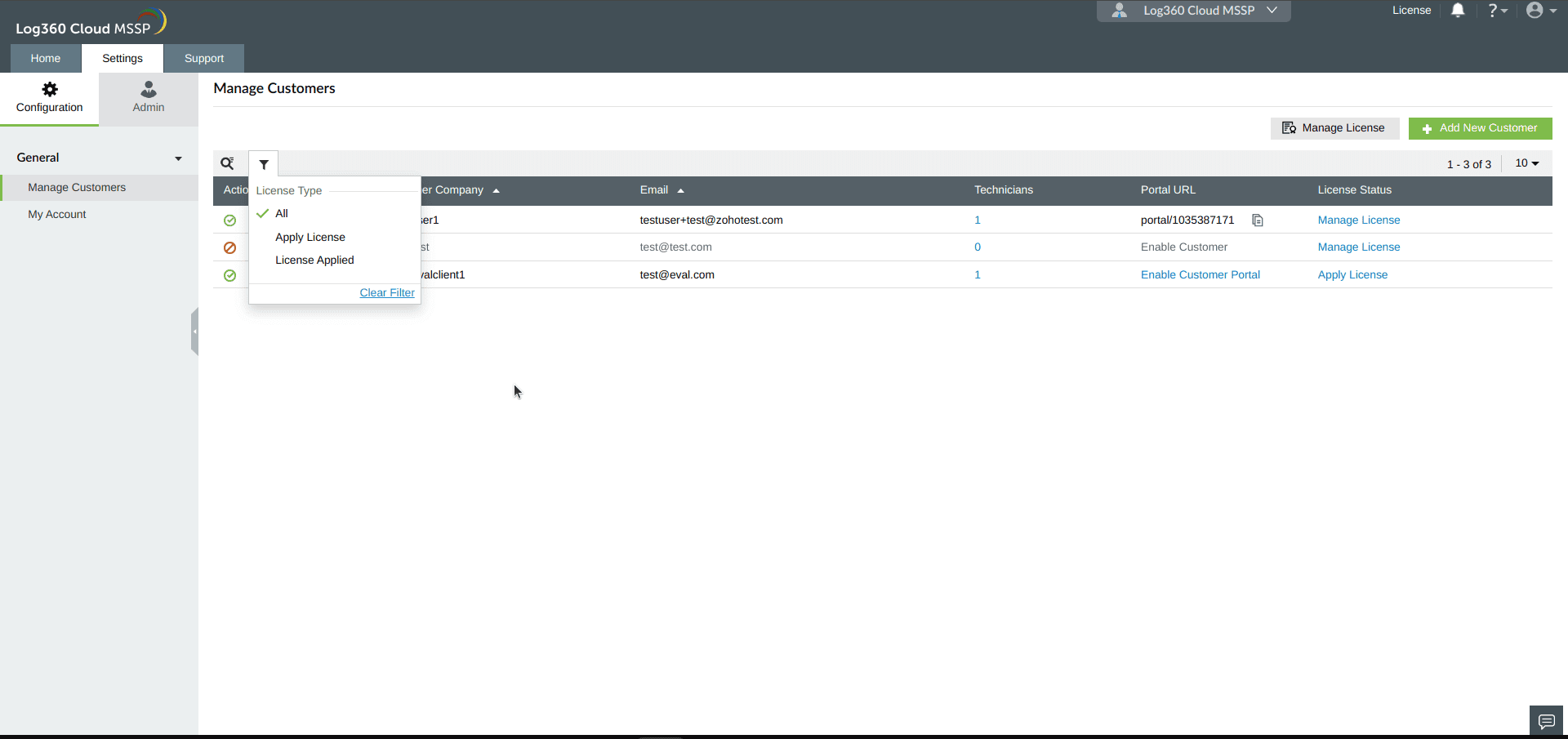
- You can also use the filter option to view the Evaluation Customers and regular Customers separately. Select License Applied to view regular Customers, Apply License for Evaluation Customers, and All to view both regular Customers and Evaluation Customers.
- Click on Apply License under the license status of the particular Evaluation customer you want to convert.
Note By default, an MSSP account can have only three active regular Customers. To convert an Evaluation customer to a regular customer beyond this limit, the MSSP must purchase a customer add-on or an existing customer must be disabled or deleted.
Evaluation Customers can also be converted to regular Customers in the License page with the following steps:
- Login to your Log360 Cloud MSSP account.
- Click on License in the header.
- On the License page, choose the Evaluation customer you want to convert.
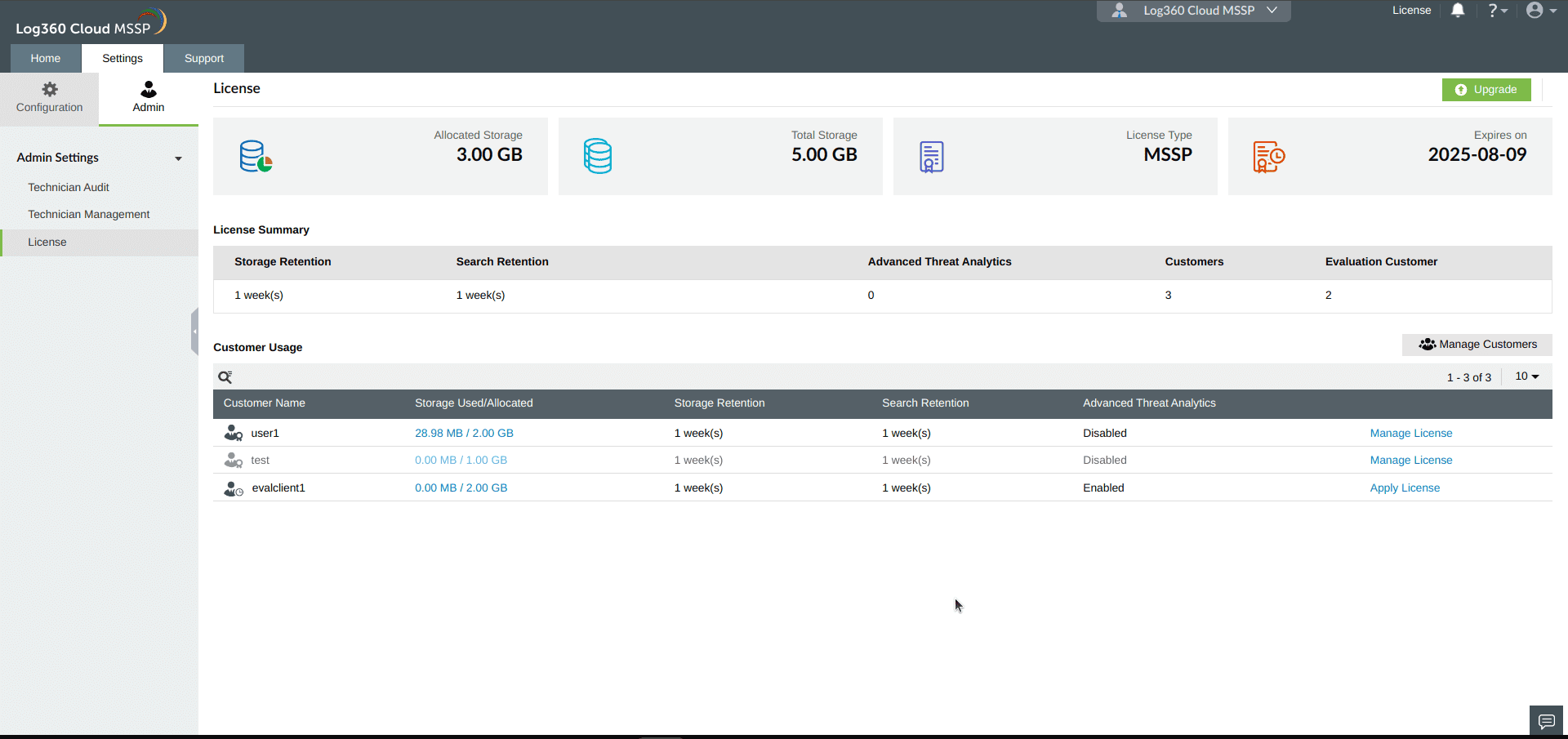
- Click Apply License.
Note When converting an Evaluation customer to a regular customer, the MSSP's storage availability is checked. If the MSSP has enough storage to match or exceed the Evaluation customer's used storage, the required amount is allocated from the MSSP's total storage pool. If not, the conversion is rejected, and the MSSP must purchase additional storage to proceed.