How to reset Admin and Technician user password in Central Server?
This document will help you reset your Central Server password. The following steps will not be applicable for technicians using Active Directory authentication or with a ServiceDesk Plus account. They must contact the Active Directory Administrator/ServiceDesk Plus Administrator to reset the password to access Central Server.
You can also follow the steps mentioned in this document if the domain controller settings have been changed.
- Steps for technician to reset his/her password
- Steps for Administrator to reset Technician/Administrator password manually
- Steps for Administrator to reset his/her password using a Tool
Note: This is applicable only for Central Server builds above # 10.1.2211.1
Steps for technician to reset his/her password
The mail server needs to be configured before-hand to send the password reset mail. Kindly contact the administrator to configure the same
If a technician forgets the password, the technician can reset the password by following the steps mentioned below:
- Click Forgot Password in the console login page.
- Enter your e-mail ID to initiate the password reset.
- A mail will be sent to you for password reset.
- In case of an email delivery failure, contact your administrator. The failure might be because of any one of the following reasons:
- Mail server not reachable
- Invalid email address
- Email address associated with an existing user
- The mail will contain a link to reset your password.
- This link will expire in 30 minutes.
- Click Reset my password link.
- Enter your new password and re-confirm the password.
- Your password is now changed successfully and you will be redirected to the login page.
- If the link has expired, you should enter your mail address again for the password reset mail to be resent.
Steps for Administrator to reset Technician/Administrator password manually
You can reset the password of a Technician/Admininstrator using an admin user role by following the steps mentioned below:
- Login to the console using an account with admin privilege.
- Navigate to the Admin tab.
- Select User under User Administration.
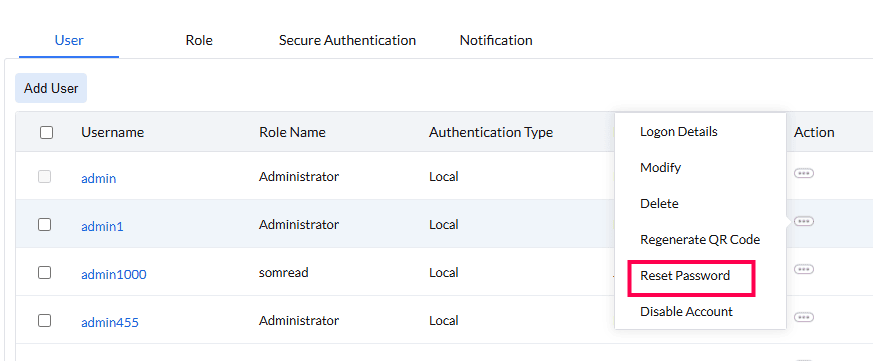
- On the user page, click the three-dotted action button in the action column.
- Select Reset Password.
- A mail will be sent to the user with instructions for password reset.
- The mail will contain a link to reset the user's password.
- This link will expire in 30 minutes.
- If the mail is not delivered due to mail server issues, a Send link manually option appears in the Remarks column of that particular user.
- The administrator can then manually copy and send the password reset link to the user.
A user can also change his password by navigating to the user icon(top right)> Personalize > Change Password.
Steps for Administrator to reset his/her password using a Tool
You can reset the default admin password of Central Server by following the steps mentioned below:
- Go to Services.msc and Stop ManageEngine UEMS - Server service
- Open command prompt in elevated mode andnavigate to C:\Program Files\UEMS_CentralServer\bin directory
- Execute resetPassword.bat
- You will find the options as listed below:
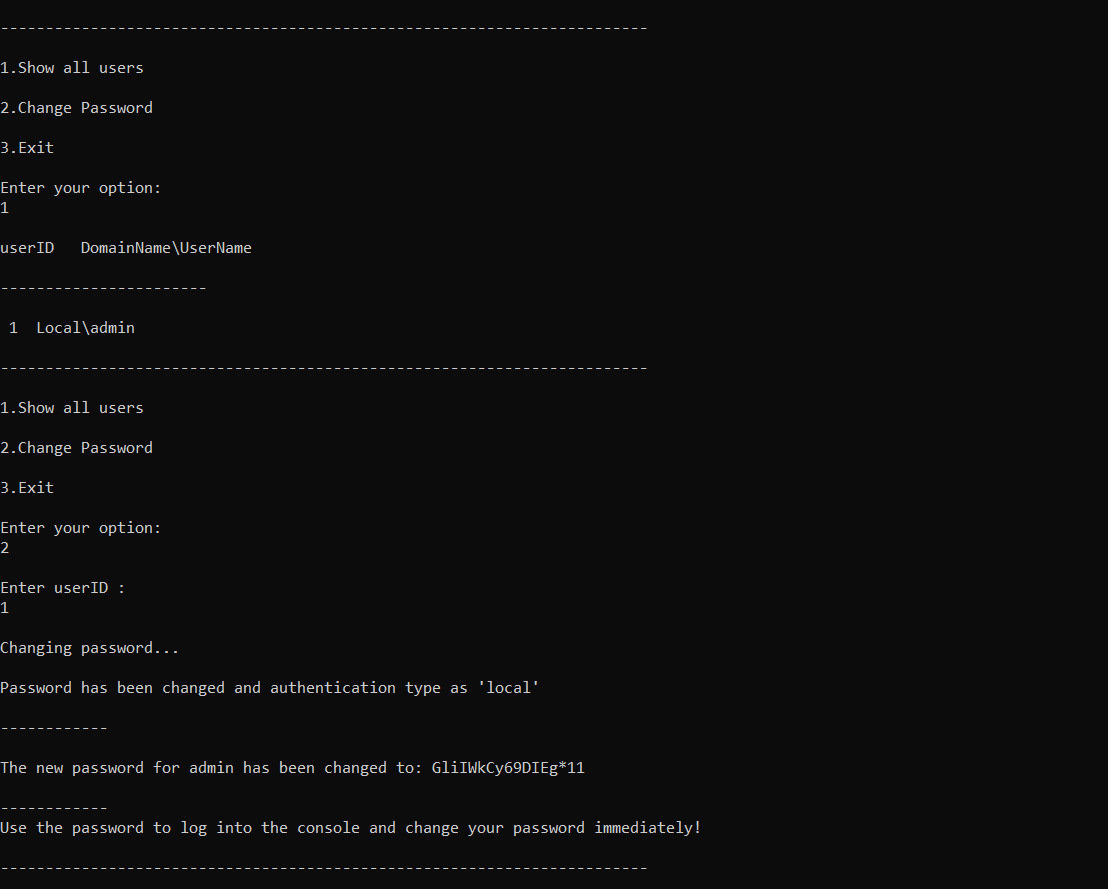
- Choose the operations
- View all existing users > Show all users
- Change password
- Exit
- Choose "1" to show all users
- Choose "2" to reset password
- Specify the user id and press enter.
- A password with random characters will be generated and displayed.
- Start the ManageEngine Endpoint Central Server service from Services.msc.
- Choose Local Authentication and login using the user name and the generated password.
After resetting the password (for local admin user/Domain user), the login will be converted as local authentication. You can modify the authentication as Domain authentication and reset the password using User Administration under Admin tab.