Workflow in Password Manager Pro
If you are an administrator engaged in the job of setting up Password Manager Pro in your environment and managing passwords, following is the ideal work flow:
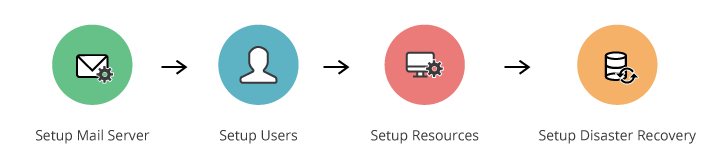
1. Setting up Mail Server
Prior to adding users, the important step to be done is configuring your mail server. Users will be notified of their Password Manager Pro access details through email only, so ensure the mail server is setup properly.
- Click Admin >> General >> Mail Server Setting.
- Enter your mail server name, its port and authentication credentials, the URL that is to be displayed on the mail intimation to users to access Password Manager Pro (access URL). While providing authentication details, you have the option to specify the required username and password manually or you can make use of an user account already stored in Password Manager Pro.
- When you choose the second option Use a user account already stored in Password Manager Pro, the resources and the accounts that appear on your resources tab, will be listed in the drop-down. You can choose the required details.
- Click Save after providing the authentication details.
2. Adding Users
- Add users either manually or import user information from Active Directory, LDAP or CSV file.
- Specify appropriate access roles and password policies for the Password Manager Pro users.
- Group users together for the convenience of performing operations in bulk.
- Enable authentication to any one of AD, LDAP or Local.
Note: Change the password of the default admin user or delete the account after adding another administrator user.
3. Adding Resources
The first step to actual Password Management in Password Manager Pro starts with adding your resource to the Password Manager Pro database. Here, resource denotes the server/application/device whose user accounts and passwords are to be managed by Password Manager Pro.
- Add resources either manually or import from a CSV file along with their user account and password information.
- Setup the password reset method to one of remote or agent-based, if you need.
- Group resources together for the convenience of performing operations in bulk.
- Create Nested Resource Groups: Maintaining resource groups in hierarchical structure (groups, sub-groups) for navigational convenience.
- By default, the passwords added by you could be viewed and edited only by you. If required, share resource passwords with other Password Manager Pro users or user groups.
- Access and modify passwords that are owned by you and that are shared to you.
3.1 Access Control Workflow
After adding the resources, administrators can put in place access control work flow for extra level of security. After successful authentication into Password Manager Pro, users get access to the passwords that are owned by them or shared to them. In some cases, administrators wish to give temporary access to passwords for certain users for a specified period of time. In other instances, there would be requirements to give users exclusive privilege to passwords. That means, only one user should be allowed to use a particular password at any point of time. When more than one user is required to work on the same resource, problems of coordination arise. Access control on concurrent usage would help resolve such issues.
- Set up access control workflow as per the requirements of your organization.
4. Setting up Disaster Recovery
If you are a password user follow the below steps to setup disaster recovery:
- Configure the database backup schedule to backup the entire contents of the Password Manager Pro database.
- Export resource information in the format of your choice to have readable copies of resource information only.
If you are a password user engaged in the job of viewing the passwords allotted to you, there is no need to carry out any configuration. You may directly view the passwords of resources/accounts and edit passwords if you have that permission.