Managing User Roles and Permissions
As Password Manager Pro serves as a repository for the sensitive passwords, fine-grained access restrictions are critical for the secure usage of the product. The solution provides role-based access control to achieve this.
By default, Password Manager Pro has five pre-defined roles that come with specific set of permissions
- Privileged Administrators have the same privileges as an administrator. In addition, they also have the privilege to configure privacy and security controls available under Privacy Settings, IP Restrictions, and Emergency Measures.
- Administrators set up, configure, and manage the Password Manager Pro application. Users with this role can manage all user, resource and password-related operations, as well as access audit records and reports. However, they can view only those resources and passwords that were created by them and the ones shared with them by other users.
- Password Administrators can perform resource and password-related operations. However, they can view only those resources and passwords that were created by them and the ones shared with them by other users.
- Password Auditors have the same privileges as Password Users. In addition, they have access to audit records and reports.
- Password Users can only view passwords that are shared with them by the Administrators and/or Password Administrators. In addition, users with these role can modify passwords shared with them, if the share permission gives them that privilege.
Roles |
Operations |
||||||||
Manage Users |
Manage Resources and Passwords |
View Passwords |
Managing Personal Passwords |
View Audit and Reports |
Privacy and Security Controls |
Remote Access |
|||
Privileged Administrator |
 |
|
|
|
|
|
| ||
Administrator |
|
|
|
|
|
 |
|
||
Password Administrator |
|
|
|
|
|
|
|
||
Password Auditor |
|
|
|
|
|
|
|
||
Password User |
|
|
|
|
|
|
|
||
Note: Irrespective of the role, the personal passwords remain exclusive to the individual user and other users have no control over them.
Note: An Administrator/Password Administrator/Privileged Administrator can be made as a Super Administrator. A super administrator will have the privilege to view and manage all the resources stored in Password Manager Pro, irrespective of which user has added the resource. For security reasons, a user can be made a super administrator only by other Password Manager Pro administrators. For steps on how to create a super administrator role, click here.
Custom Roles
(Feature available only in Enterprise Edition)
In addition to the pre-defined roles in Password Manager Pro, the administrator can also create custom roles for your users. The role customization option allows you to create a new role from scratch, by selecting the desired options from the list of 100+ operations available in Password Manager Pro. As an additional security measure, dual controls are enforced for custom role creation. Any new custom role added by one administrator has to be approved by another administrator.
1. Add Custom Roles
To add a new 'custom' role, follow the steps given below:
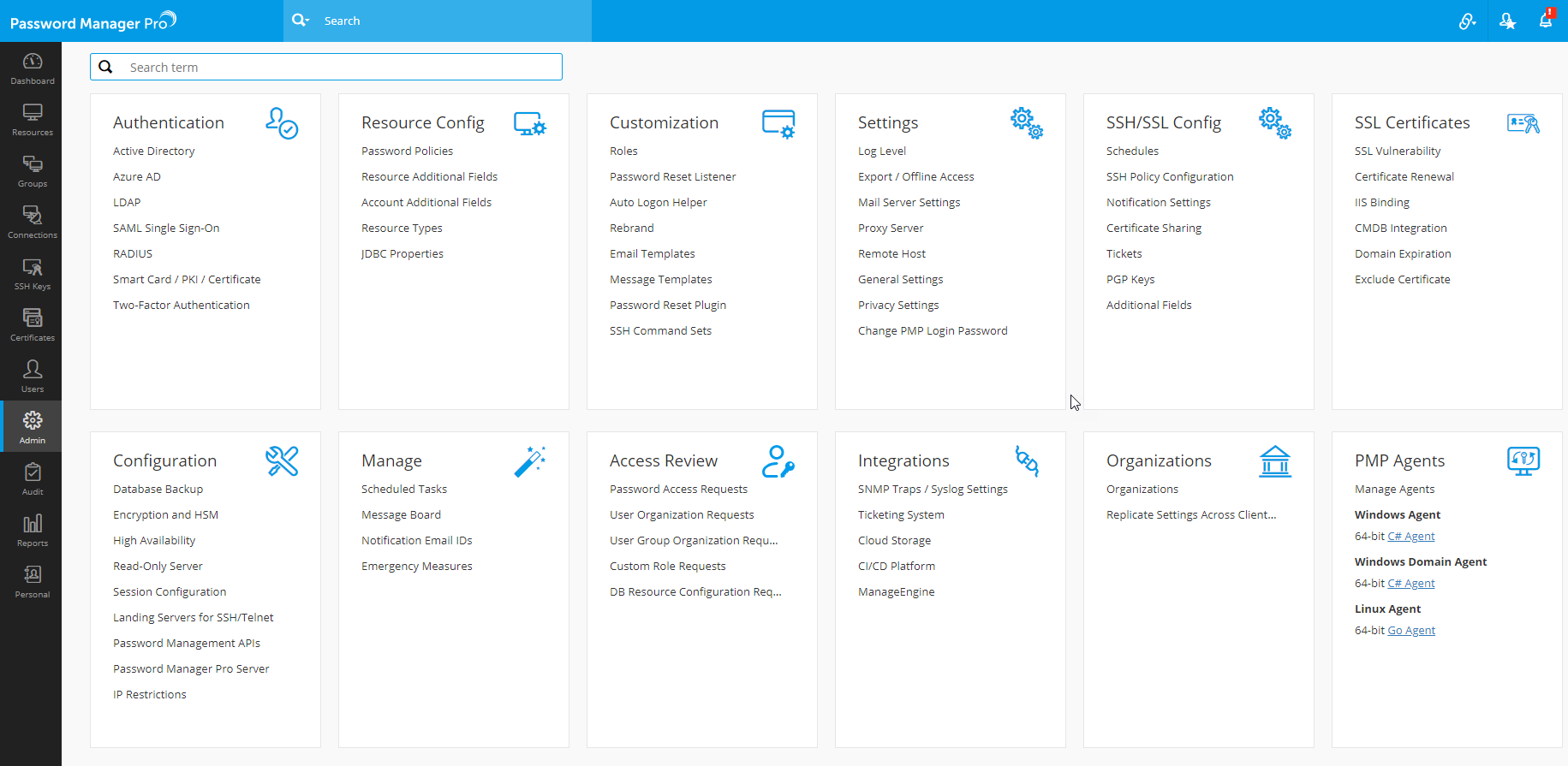
- Go to Admin >> Customization >> Roles.
- In the Roles GUI, click Add Role. A new GUI window will open up. In it, enter a name for the new role you want to create as well as a description, based on your need.
- While creating a new role from scratch, the scope of the role as to what this role can and cannot do in Password Manager Pro should be defined. This is the next step, i.e. defining the role's scope by selecting the desired options from the list of operations available. These operations are categorized under different sections such as Password, Users, Organization, and more (as shown in the column on the left side of the GUI).
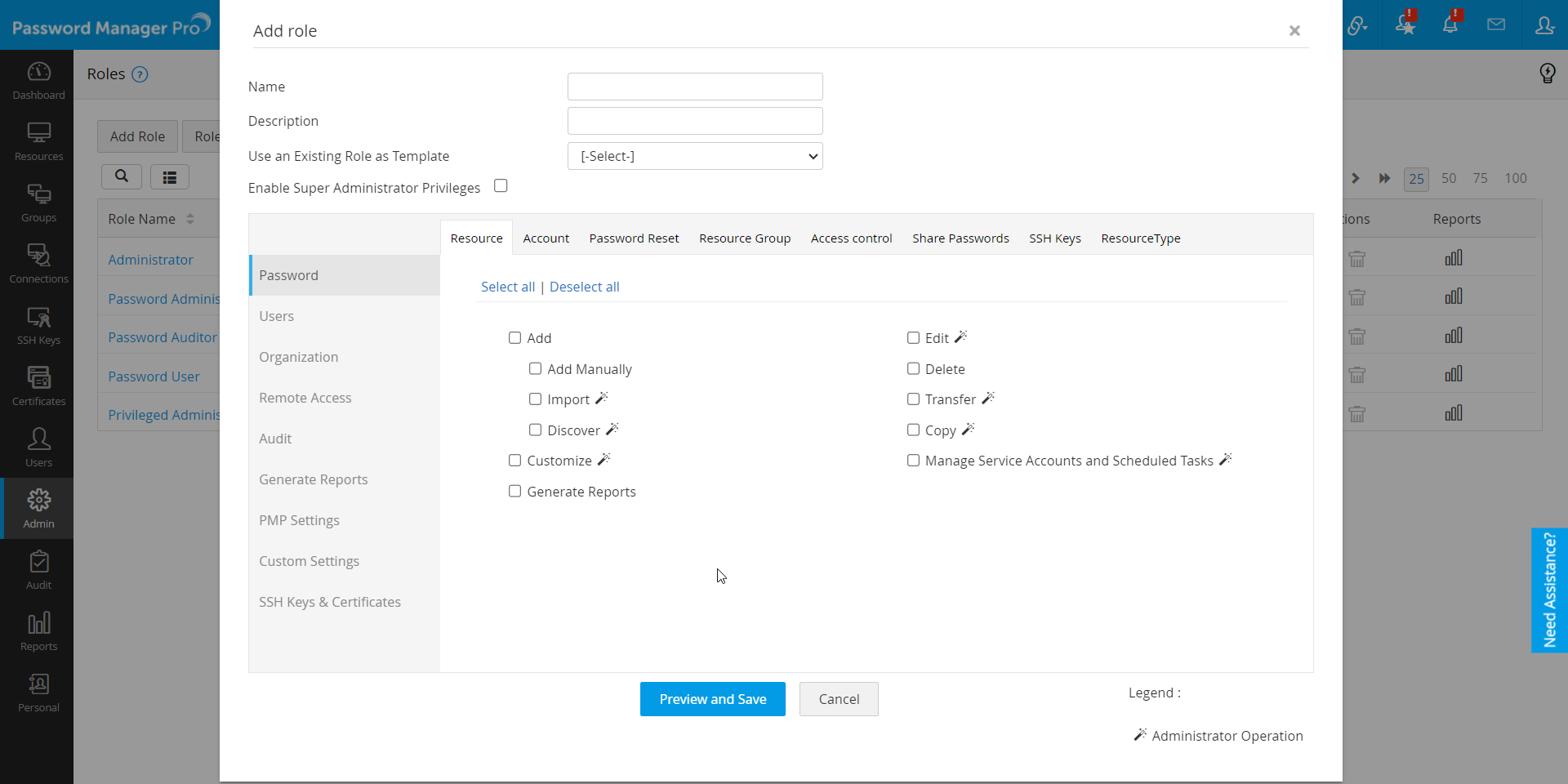
Choose the required operations as per your requirements. For better understanding, here are two custom role examples and the list of operations that should be selected for each example:
1. A role for resource addition and password reset : This role is a perfect fit for a junior technician who maintains a handful of resources in your organization. With this role, the technicians can add resources/accounts from their end, modify or delete owned resources, reset passwords, and connect to the resource via Password Manager Pro. Basic operations to be selected for this type of role include,
- Password
- Resource
- Customize
- Add
- Edit
- Delete
- Generate Reports
- Account
- Customize
- Add
- Edit
- Delete
- Move
- Password Reset
- Find Out of Sync Passwords
- Commands
- Password Reset
- Access Control
- Configure
- Approve Password Access Requests
- Share Passwords
- Share Accounts
- Share Resources
- Share Resource Groups
- Resource Type
- Configure
- Resource
- Remote Access
- Remote Access
- Show Connections Tab
- Remote Connection to Machines
- Remote Session
- Configure session recording for resources owned/managed by a user
- Remote Access
- Custom Settings
- Custom Settings
- Export passwords
- Allow users to manage their personal passwords
- Manage Resource Types
- Manage Password Policies
- Custom Settings
2. User management role: If you would like to create a role for the sole purpose of user administration such as new user addition in Password Manager Pro, edit/delete user profiles, change roles, and transfer resources between users, here are the basic operations that should be selected from the list:
- Users
- Manage web users
- Add users manually
- Import from AD
- Import from LDAP
- Import from Entra ID
- Import from file
- Edit
- Delete
- Manage API Users
- Change user roles
- Transfer resources owned by a user
- Generate Reports
- Manage web users
- User authentication protocols
- Manage Active Directory
- Manage Entra ID
- Manage RADIUS Authentication
- Manage Two-factor Authentication
- Manage LDAP
- Manage SAML Single Sign-on
- Manage Smart Card Authentication
- Manage Browser Extension/Mobile Access for Users
- User groups
- Add
- Modify an Existing Group
- Generate Reports
- Delete
- Manage user group settings
Apart from the above examples, you can customize any role according to your enterprise needs with the appropriate choice of operations.
Optional Step: However, if you do not want to create a new role from scratch, you can select any of Password Manager Pro's pre-defined roles or custom roles created earlier as a basic template for the new role under the option Use an Existing Role as Template. Once you select a role as template from the drop-down, the permission levels preset for that role will be applied for the new role.
Frequently Asked Questions
1. Few operations are marked with a magic wand icon. What does that mean?
Options that are followed by a magic wand denote those that qualify as an Administrator's operation. A custom role created with even one of these wand-marked operations is considered as a role equivalent to an Administrator. You can create as many custom roles as desired with wand-marked operations, but the role will be counted towards license only when it is assigned to a user in Password Manager Pro. For instance, if your licensing enables you to have 10 administrators and you have a custom role with one or more of the wand-marked operation(s), assigning this role to a user will be counted as 1 out of the 10 licenses allotted for your Password Manager Pro installation.
2. Who can create custom roles in Password Manager Pro?
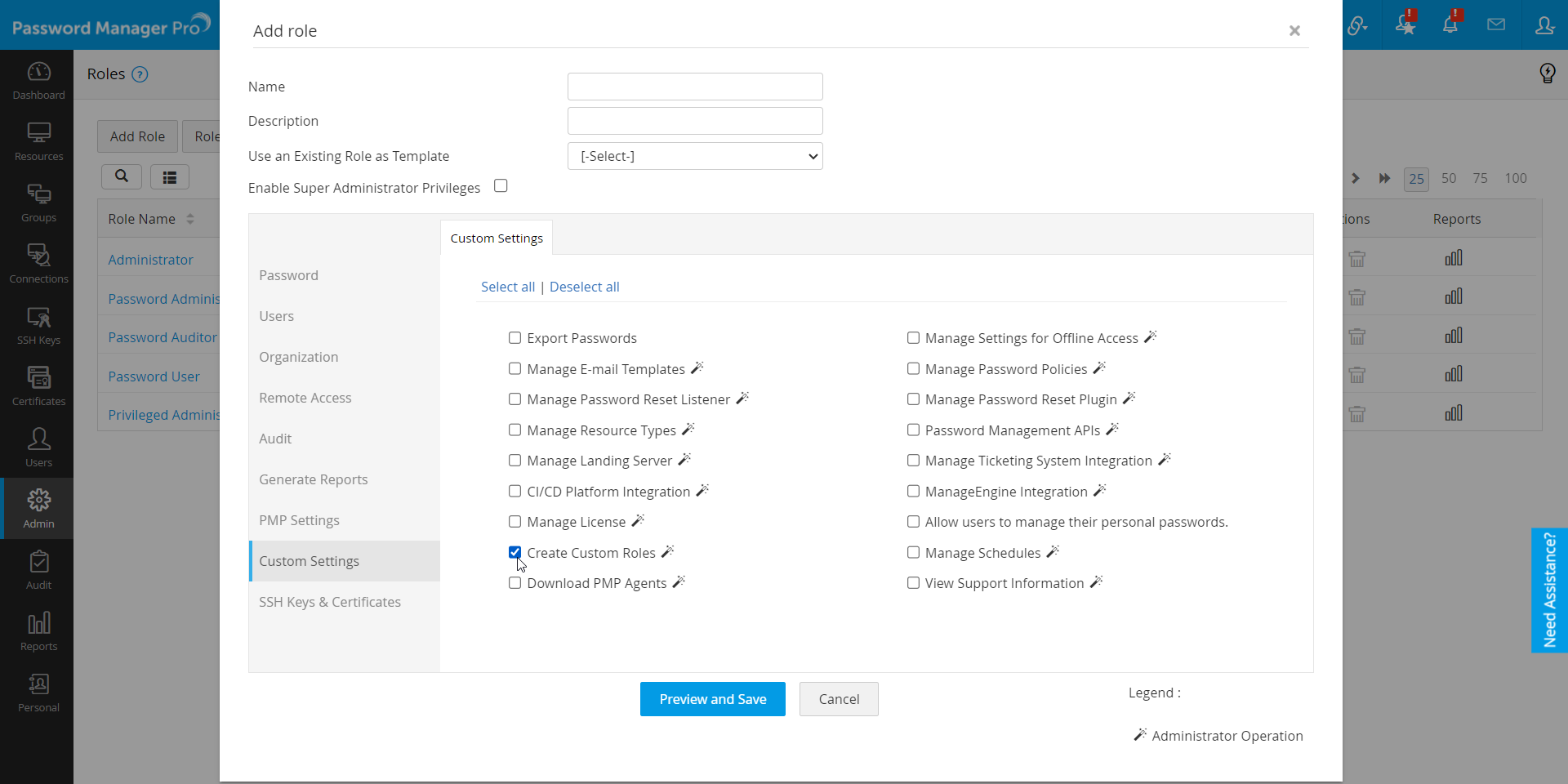
Basically, creating custom roles is an administrative operation. Among Password Manager Pro's pre-defined roles, only the Administrators, Privileged Administrators and the Super Administrator(if you have created one) have the privilege to create custom roles. Apart from that, you can also authorize a custom role with privileges to create future custom roles, by selecting the "Create Custom Roles" options under Custom Settings. (Refer to the image below)
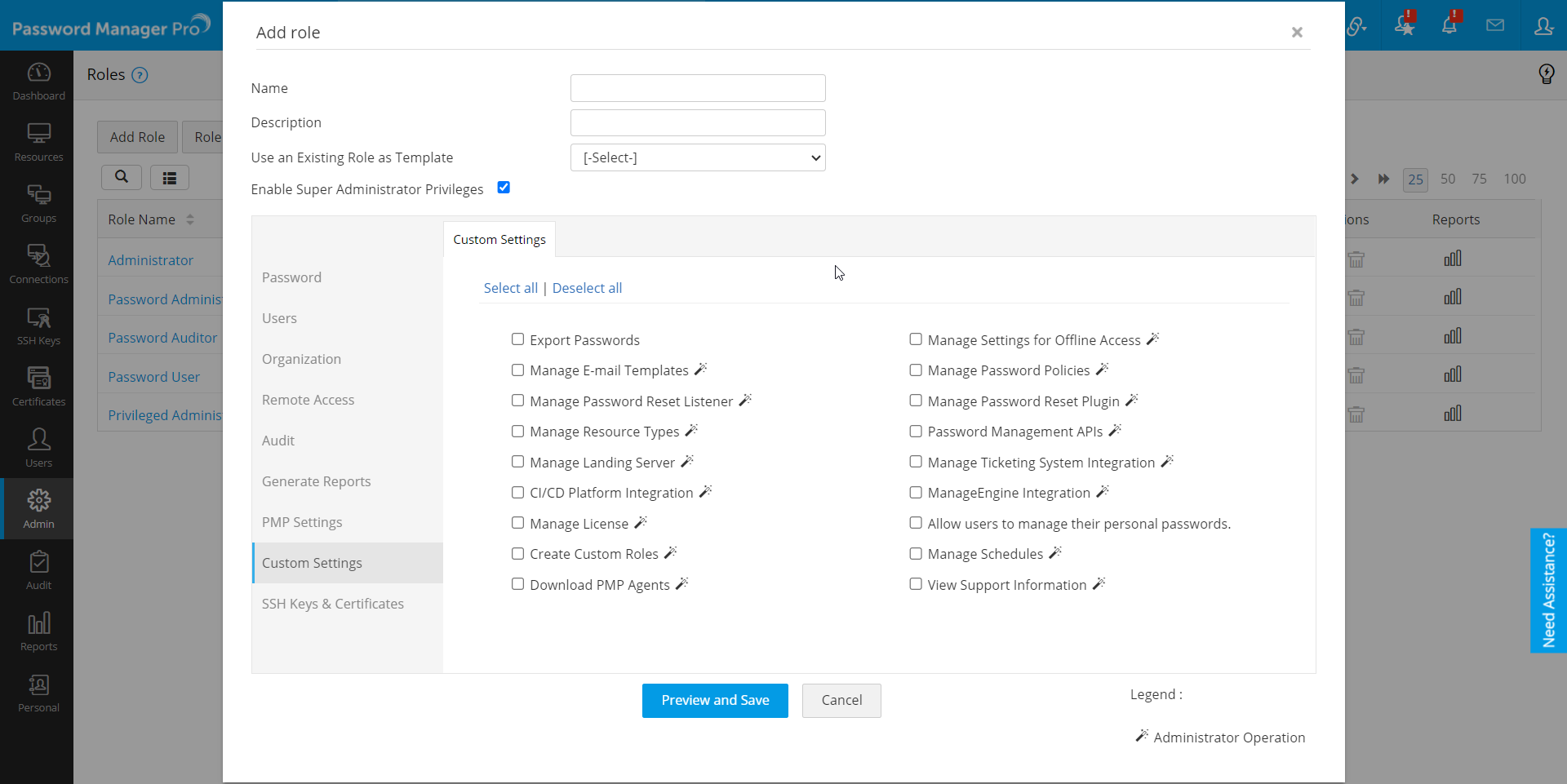
Also, if you would like this new role to have the privilege to be made Super Administrator, check the box Enable Super Admin capabilities for this role. Enabling this option allows users, who are assigned this role, to be made as a super administrator at the time of user creation
- After completing all the steps explained above, click Preview and Save. A preview box will open, listing the operations you have chosen for the role. Verify and click Save. The new role will be created and queued for approval from another administrator. It will be denoted with a Waiting for Approval message beside the role on the Roles page. Users with the respective administrator privilege can view the roles that are pending for approval by navigating to Admin >> Access Review >> Custom Role Requests.
- The administrator will approve the request by navigating to the Custom Role Requests page and clicking Process role creation request >> Approve for your custom role.
- Once the role is reviewed and approved, you can begin assigning it to desired users. To learn how to add new users and assign roles for them, click here.
2. Role Filter
Role filter option allows you to choose the list of roles that should be displayed under the Access Level field in the Add User GUI. Using role filter, you can restrict the roles that should be assigned to users who have been either newly added or changed roles.
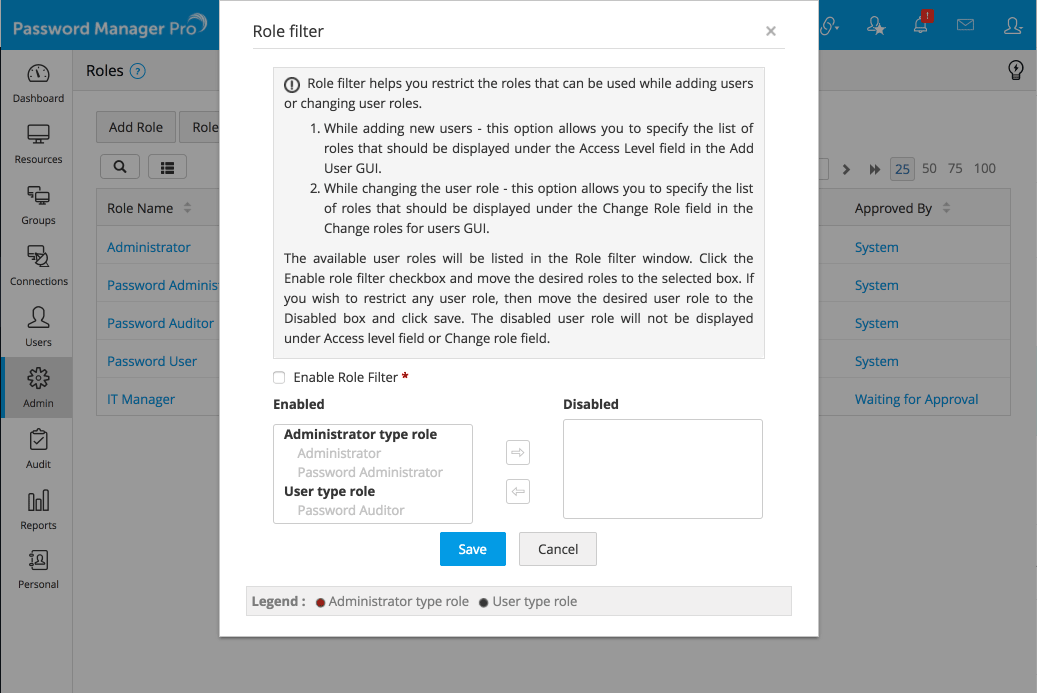
To enable Role Filter,
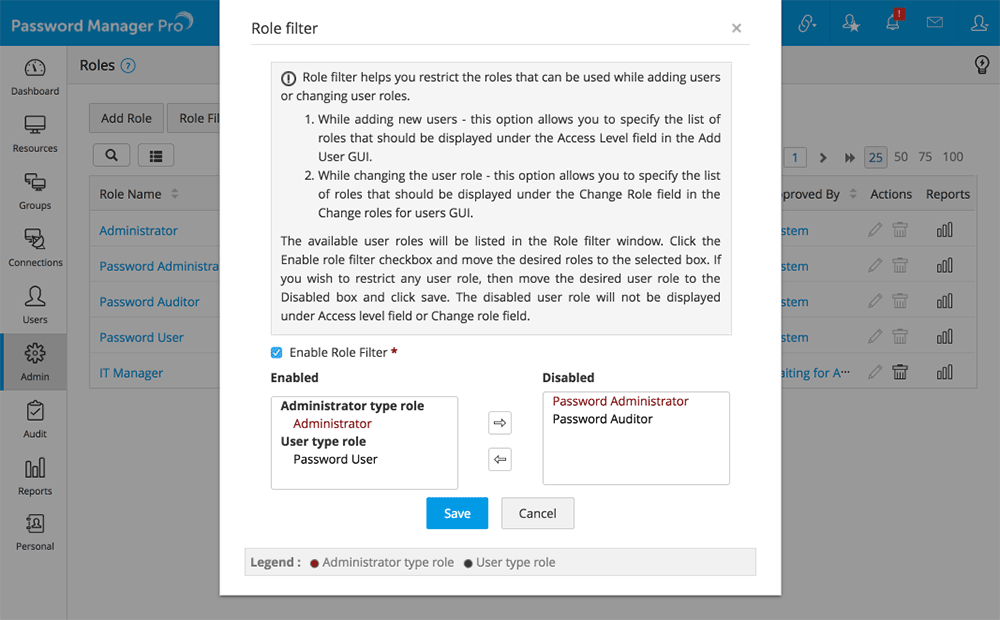
- Go to Admin >> Customization >> Roles >> Role Filter. Check the Enable role filter box.
- Now, you can decide which roles should be enabled/disabled and sort them under respective boxes. Only those roles in Enabled box will be displayed during new user addition or role changes. Once you are done, click Save. The role filter will be applied.
3. Change Roles for Users
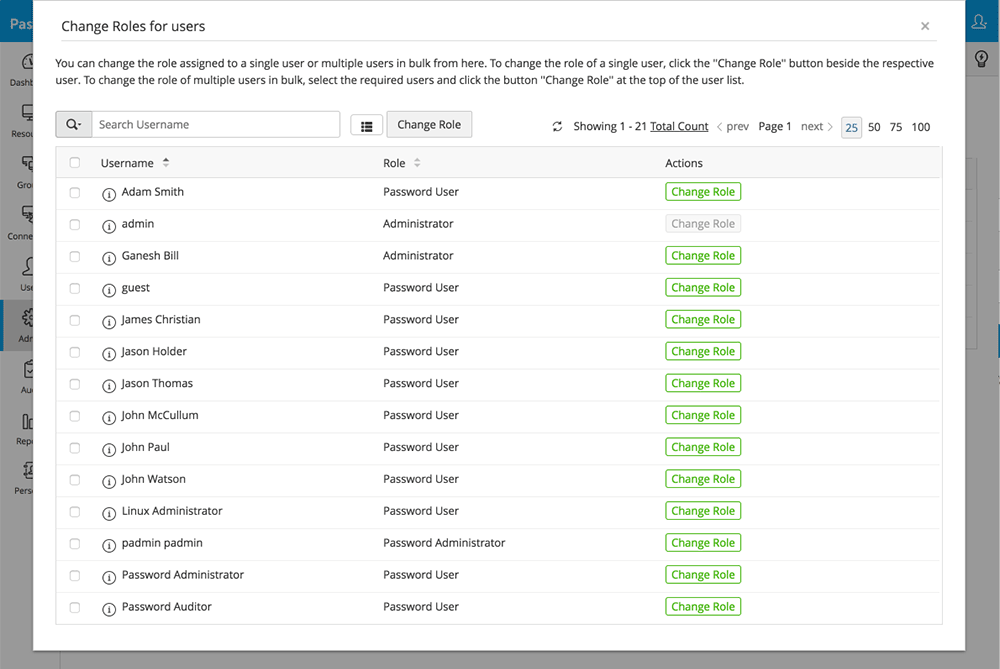
You can easily change the roles assinged for different users in bulk, by following the steps given below
- Go to Admin >> Customization >> Roles >> Change Roles.
- In the new GUI window that opens, if you would like to first view the list of all users belonging to a specific role, use the filter above the table to choose the role. The users associated to that role will be displayed. Select the users whose role has to be changed.
- Now, choose the role which should be assigned for the selected users and click Change Role.
4. Edit/Delete Custom Roles
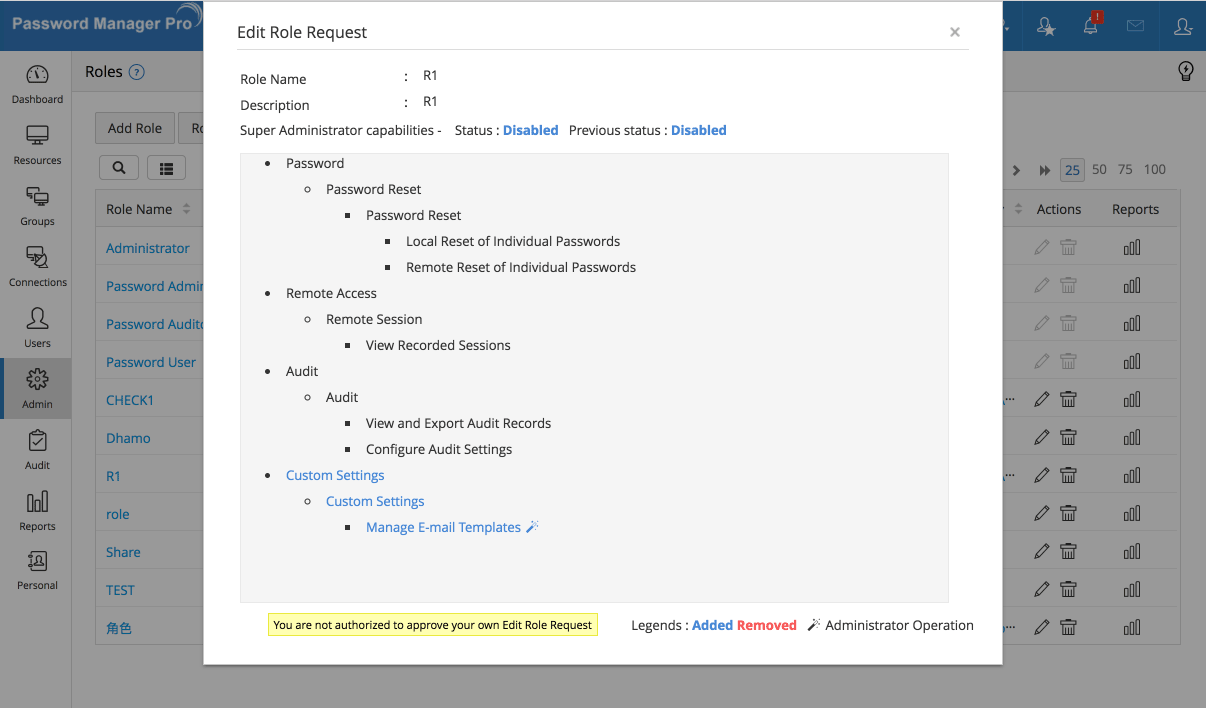
- To edit/modify any custom role, click on the Edit icon beside the particular role and carry out necessary changes. Then, click Preview and Save. Verify the edits and click Save. The edits too, before being applied to the role, will be queued for approval from another administrator. Edits pending approval for a role can be viewed by clicking on [Waiting for approval] option available beside the specific role. In the below image, red denotes operations that have been removed and blue denotes operations that have been added to the role.
- To delete a role, click on the Delete icon. Before deletion, you will be prompted to transfer the users associated with the particular role to another. After mapping the users to another role, click Save and Delete.
Frequently Asked Question
i. I'm unable to delete a custom role. Why?
There are two cases when a role cannot be deleted right away:
- Consider that you want to delete a user-type role. You have 5 users associated with this role, who must be transferred to another role before deletion. The role you choose for transfer can either be a user-type role or even an administrator-type role, as long as you have enough administrator licenses. However, if you have zero administrator licenses left, you will not be able to transfer the users from a user-type role to an administrator-type role. Also, if you do not have an existing user-type role to transfer the associated users, Password Manager Pro will not allow you to delete the selected role. In such cases, you either have to create a new user-type custom role or buy additional licenses.
- Another scenario may be due to Role Filters. Say you have switched on role filter settings and disabled all the existing user-type roles under the filter. Now, when you try to delete a user-type role, you will be able to transfer the associated users only to an administrator-type role due to the filter. However, if you have zero administrator licenses remaining, you cannot complete the transfer or delete the role. In such cases, you either have to enable at least one user-type role under role filter settings or buy additional licenses.
List of operations that require an administrator license
Role Category: Password
- Resource
-
Account
- Discover
- Customize
- Password reset
-
Resource group
- Add
- Delete
- Transfer
- Edit
- Generate reports
-
Access Control
- Configure
- Approve password access requests
-
Share Passwords
- Share accounts (With users and user groups)
- Share resources (With users and user groups)
- Share resource groups (With users and user groups)
- SSH Keys
- SSH Keys
- Resource Type
- Configure Database Resource Type Properties
- Approve Edit Database Resource Type Properties
-
Users
- Manage web users
- Manage API users
- Changes user roles
- Transfer resources owned by a user
- Transfer access control privileges
- Generate reports
-
User authentication protocols
- Manage Active Directory
- Manage Entra ID
- Manage RADIUS authentication
- Manage two-factor authentication
- Manage LDAP
- Manage SAML single sign-on
- Manage Smart Card authentication
- Manage browser extension/mobile access for users
-
User groups
- Add
- Modify an existing group
- Delete
- Manage user group settings
- Generate reports
All operations specified under this category require an administrator license.
Role Category: Remote access
- Remote access
- Remote session
- Configure session recording
- Join active sessions
- Terminate active sessions
- Database backup
- Failover service
- Proxy settings
- SSL Settings (Server Settings)
- Privacy Settings
- Remote Host
- High availability
- Mail server settings
- Event logging settings
- PMP server settings (Change tab preference, rebrand, log level, general settings)
- Security Settings
- Manage JDBC Properties
- Manage email templates
- Manage password reset listener
- Password Management API
- Manage ticketing system integration
- Manage schedules
- View support information
- Manage settings for offline access
- Manage password policies
- Manage resource types
- Manage landing server
- Manage license
- Create custom roles
- Download Password Manager Pro agents