Important: We strongly recommend you to take backups before applying the service pack. This helps prevent accidental loss of data. Service pack installation steps
If the product runs as an application, click Start > All Programs > Exchange Reporter Plus > Stop Exchange Reporter Plus.
2
If the product runs as a Windows service, click Start >Run. Type services.msc, and in the window that opens, Stop ManageEngine Exchange Reporter Plus.
Step 2: Back up Exchange Reporter Plus
1
Execute the stopDB.bat file stored in the <Exchange Reporter Plus>\bin directory.
2
Back up Exchange Reporter Plus by zipping the contents of the <Exchange Reporter Plus> directory.
3
If you're using Microsoft SQL Server, take a backup of the database.
Step 3: Update Exchange Reporter Plus
1
Open Command Prompt as an administrator and execute the UpdateManager.bat file stored in the <Exchange Reporter Plus>\bin directory.
2
Click Browse and select the service pack (.ppm) file that you have downloaded.
3
Click Install. Depending on the amount of data to be migrated, the installation procedure might take a few minutes. Please do not terminate the process prematurely.
Click Close and then Exit to quit the Update Manager tool.
Step 4: Start Exchange Reporter Plus
1
If the product runs as an application, click Start > All Programs > Exchange Reporter Plus > Start Exchange Reporter Plus.
2
If the product runs as a Windows service, click Start > Run. Type services.msc, and in the window that opens, Start ManageEngine Exchange Reporter Plus.
Steps to import the security certificate manually
1
Click the link based on your current build number from the table below to initiate the download process of the appropriate security certificate.
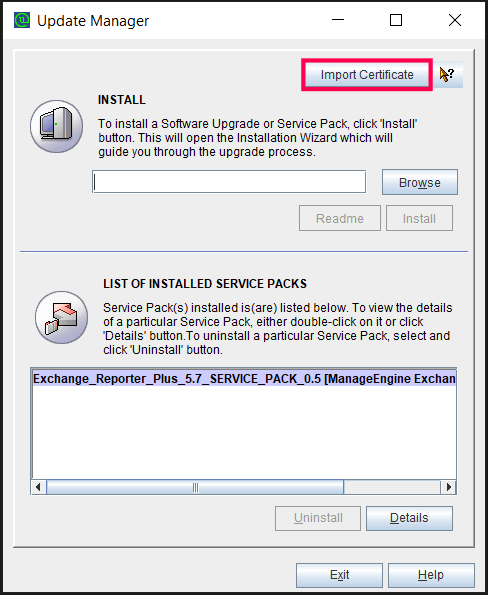
Once the download is complete, click Import Certificate in the UpdateManager to open the Import Certificate wizard.
3
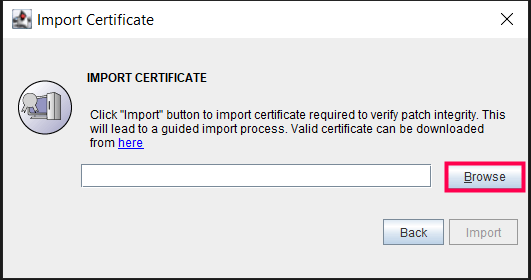
Click Browse and select the previously downloaded certificate.
4
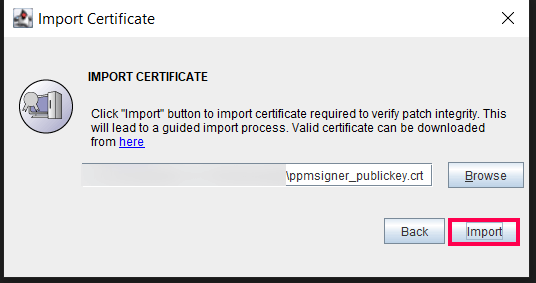
Click Import.
5
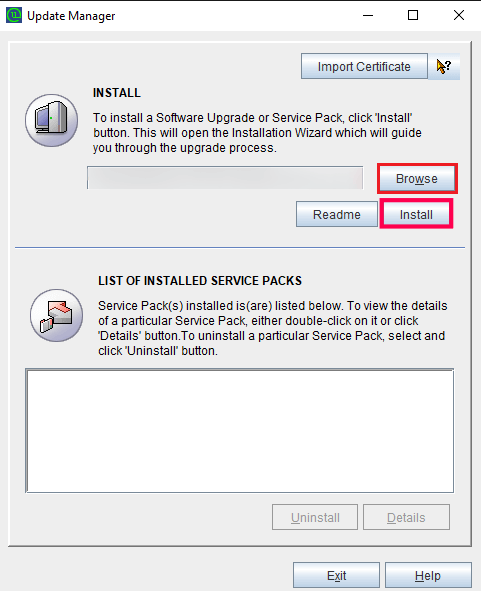
After the certificate has been imported, click Browse and select the downloaded service pack file (.ppm).
6
Click Install. The installation process might take a few minutes depending on the amount of data to be migrated. Please do not terminate this procedure prematurely.
7
After the installation, click Close.
8
Click Exit to quit the UpdateManager tool.
9
Now, start Exchange Reporter Plus to use the updated build.


 Free Edition