Support
 
PhoneGet Quote
 
Support
 
US Sales: +1 888 720 9500
US Support: +1 844 245 1108
Intl: +1 925 924 9500
Aus: +1 800 631 268
UK: 0800 028 6590
CN: +86 400 660 8680

Direct Inward Dialing: +1 408 916 9890


Microsoft 365 delegation made easy with virtual tenants

What are virtual tenants?

M365 Manager Plus' concept of virtual tenants is segmenting users based on domain, group membership, job location, and other user attributes for administrative requirements. Administrators can create virtual tenants pertaining to a specific department, team, project, and every possible user group, and delegate operations to technicians.

Important points to consider

Before you begin, you need to remember that, once enabled, virtual tenant delegation cannot be disabled, and the option to delegate domains to technicians will no longer be available. In which case, admins have to create new virtual tenants with domains added to them and delegate those virtual tenants instead of directly delegating the domains.
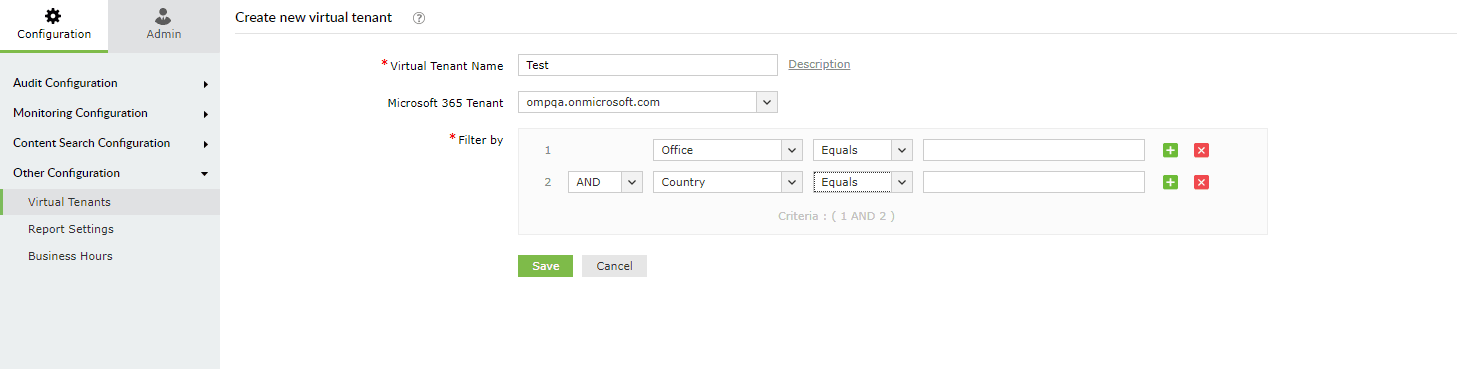

Steps to create virtual tenants

  1. Go to the Settings tab.
  2. Navigate to Configuration → Other Configuration → Virtual Tenants.
  3. Click on Create Virtual Tenant.
  4. Provide a name for the virtual tenant to be created, and choose the Microsoft 365 tenant in which it must be created.
  5. In the Filter by section, set the below condition, based on which the users should be filtered. Use the + option to set multiple conditions.

    Creating virtual tenants using M365 Manager Plus

    Note: Use the below condition to create virtual tenants with domains.

    Virtual tenant filter settings in M365 Manager Plus

  6. In the third text box, add domains using the + option.
  7. Click Save.

Steps to delegate virtual tenants to technicians

  1. Go to the Delegation tab.
  2. Select Help Desk Delegation → Help Desk Technicians in the left pane.
  3. Select Edit Technician in the Actions column corresponding to the technician you want to edit.
  4. In the Delegates To section, select the virtual tenant to be delegated from the drop-down.
  5. Click Save Changes.

Managing mailboxes has never been easier! Handle Exchange Online mailboxes in bulk with M365 Manager Plus.

  Download a free trial now!  Request demo

A holistic Microsoft 365 administration solution