

- Knowledge base
- Active Directory management
- Active Directory reports
- Active Directoy integrations
- Active Directory automation
- Active Directory delegation
- Governance, risk, and compliance
- Microsoft 365 management and reporting
- AD migration
- Access certification
- Identity risk assessment
- Risk exposure management
- FAQs
- Pricing
- Online demo
- Request support
- Get quote
As organizations grow, merge, or collaborate with external partners, managing access across separate Active Directory environments becomes challenging. Users may exist in one domain while the resources they need live in another. Without a structured way to establish trust, administrators are forced to duplicate accounts, manage credentials manually, or compromise security by over-permissioning access.
This is where Active Directory Domains and Trusts becomes essential. While Active Directory Users and Computers (ADUC) handles Active Directory management within a domain, Active Directory Domains and Trusts defines how multiple domains interact, authenticate users, and securely share resources across organizational boundaries.
Active Directory domain trust relationship
A domain trust relationship is a secure connection between two Active Directory domains that allows users in one domain to authenticate and access resources in another. Trusts eliminate the need for duplicate user accounts and enable controlled collaboration across domains and forests.
In simple terms:
- Domains define where identities live.
- Trusts define who can access what across domains.
Key components of Active Directory trust relationships
Domains act as security and administrative boundaries. Each domain maintains its own directory database, policies, and domain controllers. Trusts determine whether identities from one domain are recognized by another.
Trusted and trusting domains
In a trust relationship:
- The trusted domain contains the user accounts.
- The trusting domain contains the resources.
For example, consider the following domains:
- Accounts.corp
- Resources.corp
If Resources.corp trusts Accounts.corp, then:
- Accounts.corp is the trusted domain.
- Resources.corp is the trusting domain.
This allows users from Accounts.corp to authenticate using their existing credentials and access resources such as file shares or applications in Resources.corp, provided the appropriate permissions are granted.
Trust direction
A trust can be:
- One-way trust: Access flows in one direction only.
- Two-way trust: Both domains trust each other and allow mutual access.
If Resources.corp trusts Accounts.corp, users from Accounts.corp can access resources in Resources.corp. However, users from Resources.corp cannot access resources in Accounts.corp unless a separate trust is explicitly created in the opposite direction.
A two-way trust exists when both domains trust each other. In this case, users from either domain can access resources in the other, subject to permissions. Two-way trusts are common in environments where domains require mutual collaboration.
Types of Active Directory trusts
Transitive and non-transitive trust
A transitive trust automatically extends trust beyond two domains. For example, if Accounts.corp trusts Resources.corp and Resources.corp trusts Partners.corp, Accounts.corp also trusts Partners.corp.
Users from Partners.corp can also access resources in Accounts.corp, even though no direct trust was explicitly created between those two domains. This behavior is common in parent-child trusts, tree-root trusts, and forest trusts, where trust relationships are designed to flow across the domain hierarchy.
A non-transitive trust is limited strictly to the two connected domains and does not extend further.
Using the same example, even if Accounts.corp trusts Resources.corp and Resources.corp trusts Partners.corp, Accounts.corp does not trust Partners.corp unless a separate trust is explicitly created. External trusts are typically non-transitive.
Parent-child trust
Automatically created when a child domain is added to a parent domain within the same forest. This trust is two-way and transitive.
Tree-root trust
Automatically created between root domains of different domain trees in the same forest. This trust is also two-way and transitive.
External trust
Manually created between domains in different forests or between an AD domain and a legacy Windows NT domain. External trusts are non-transitive and can be one-way or two-way.
Forest trust
Created between the root domains of two forests. Trust is transitive within each forest but does not extend beyond them. Forest trusts are commonly used after mergers or acquisitions.
Shortcut trust
Manually created within a forest to improve authentication performance between two domains that frequently interact.
Realm trust
Used to establish trust between an Active Directory domain and a non-Windows Kerberos realm, such as UNIX or Linux environments.
How trust relationships work in authentication
When a user attempts to access a resource in a trusted domain, Active Directory validates the user?s credentials through the trust relationship. Authentication can be configured as:
- Domain-wide authentication, where all users in the trusted domain can authenticate.
- Selective authentication, where only explicitly allowed users or groups can access resources.
Selective authentication is strongly recommended in cross-forest or external trust scenarios to reduce security exposure.
How to open Active Directory Domains and Trusts
Active Directory Domains and Trusts does not require a separate installation. It becomes available automatically when Active Directory Domain Services (AD DS) or Remote Server Administration Tools (RSAT) is installed.
Using Server Manager (on a domain controller)
- Log in to the server.
- Open Server Manager.
- Click Manage > Add Roles and Features.
- Select Role-based or feature-based installation.
- Ensure AD DS is installed.
- Complete the wizard and reboot if prompted.
Using RSAT (for remote administration)
- Open Server Manager.
- Click Manage > Add Roles and Features.
- Select Role-based or feature-based installation.
- Under Features, expand Remote Server Administration Tools.
- Enable:
- AD DS Tools
- Active Directory Domains and Trusts Tools
- Complete the wizard.
How to create an Active Directory trust relationship (step by step)
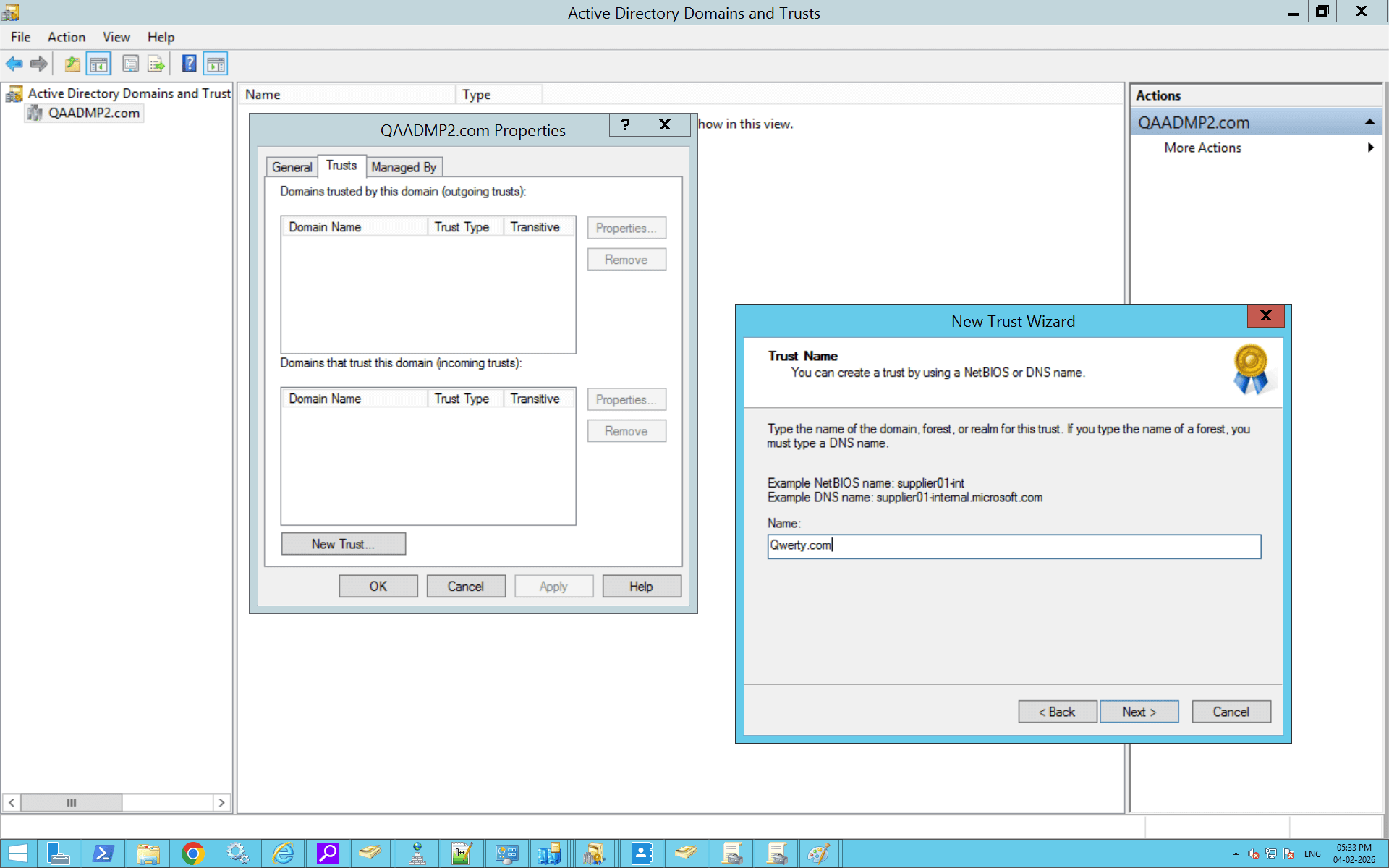
How to manage UPN suffixes using Active Directory Domains and Trusts
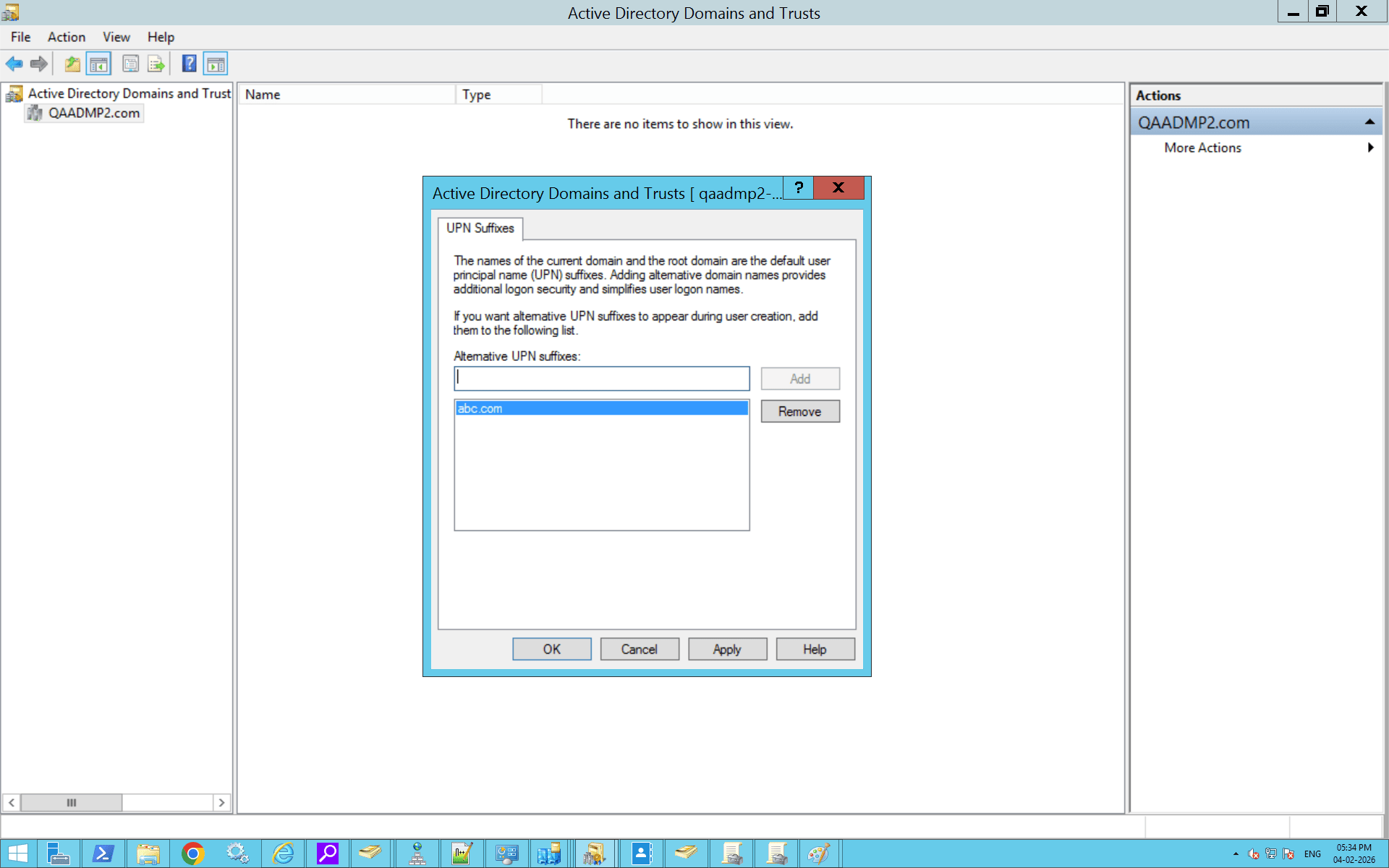
User Principal Name (UPN) suffixes define the sign-in format used by users, such as user@company.com. By default, Active Directory assigns the DNS domain name as the UPN suffix, but organizations often add custom suffixes to simplify logins or align with email domains.
UPN suffixes are managed at the forest level using Active Directory Domains and Trusts.
How to add UPN suffixes using Active Directory Domains and Trusts
- Open Server Manager.
- Navigate to Tools > Active Directory Domains and Trusts.
- Right-click Active Directory Domains and Trusts at the top of the console tree.
- Click Properties.
- In the UPN Suffixes tab, enter the new suffix (e.g., company.com).
- Click Add, then OK.
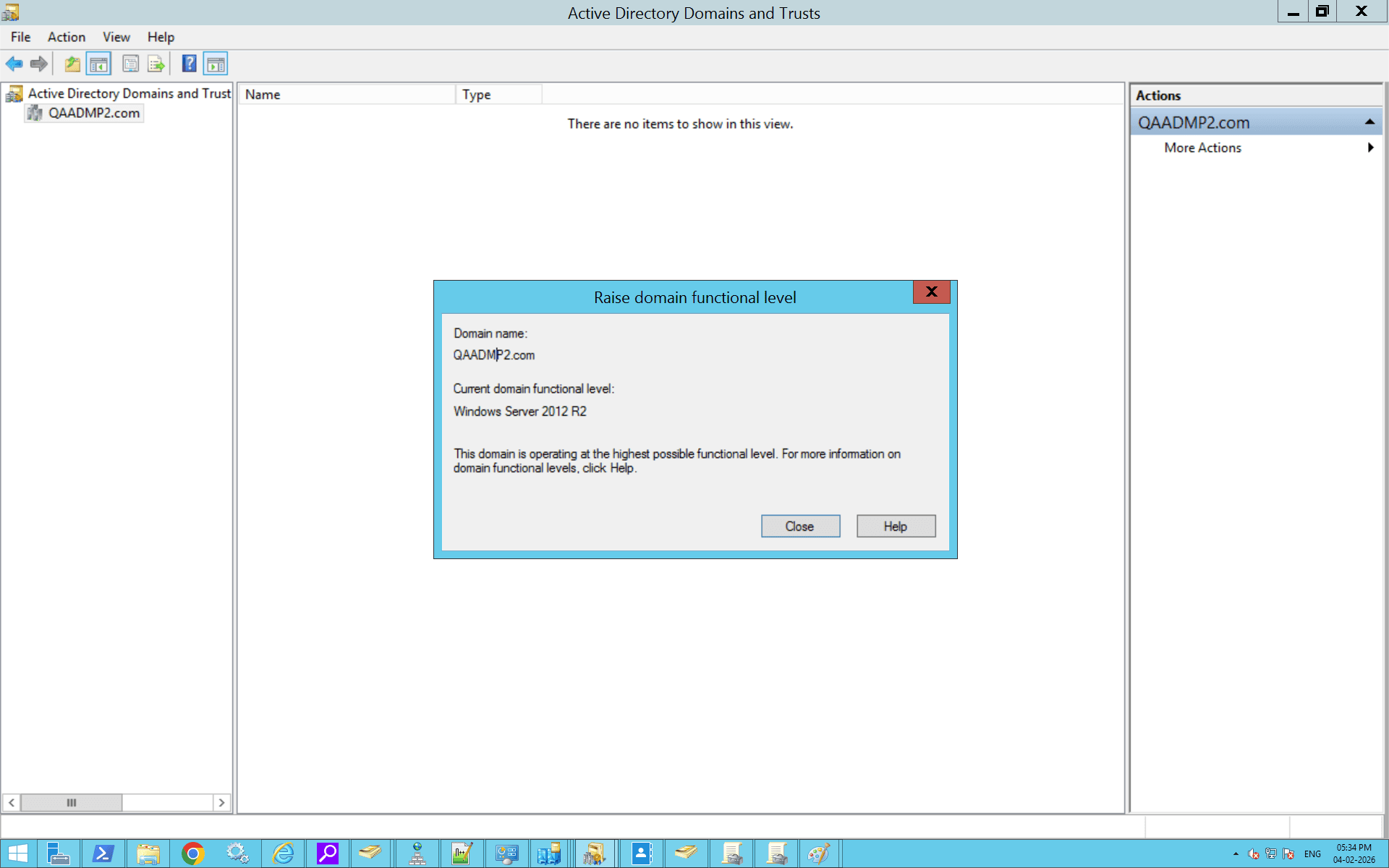
How to raise the domain functional level using Active Directory Domains and Trusts
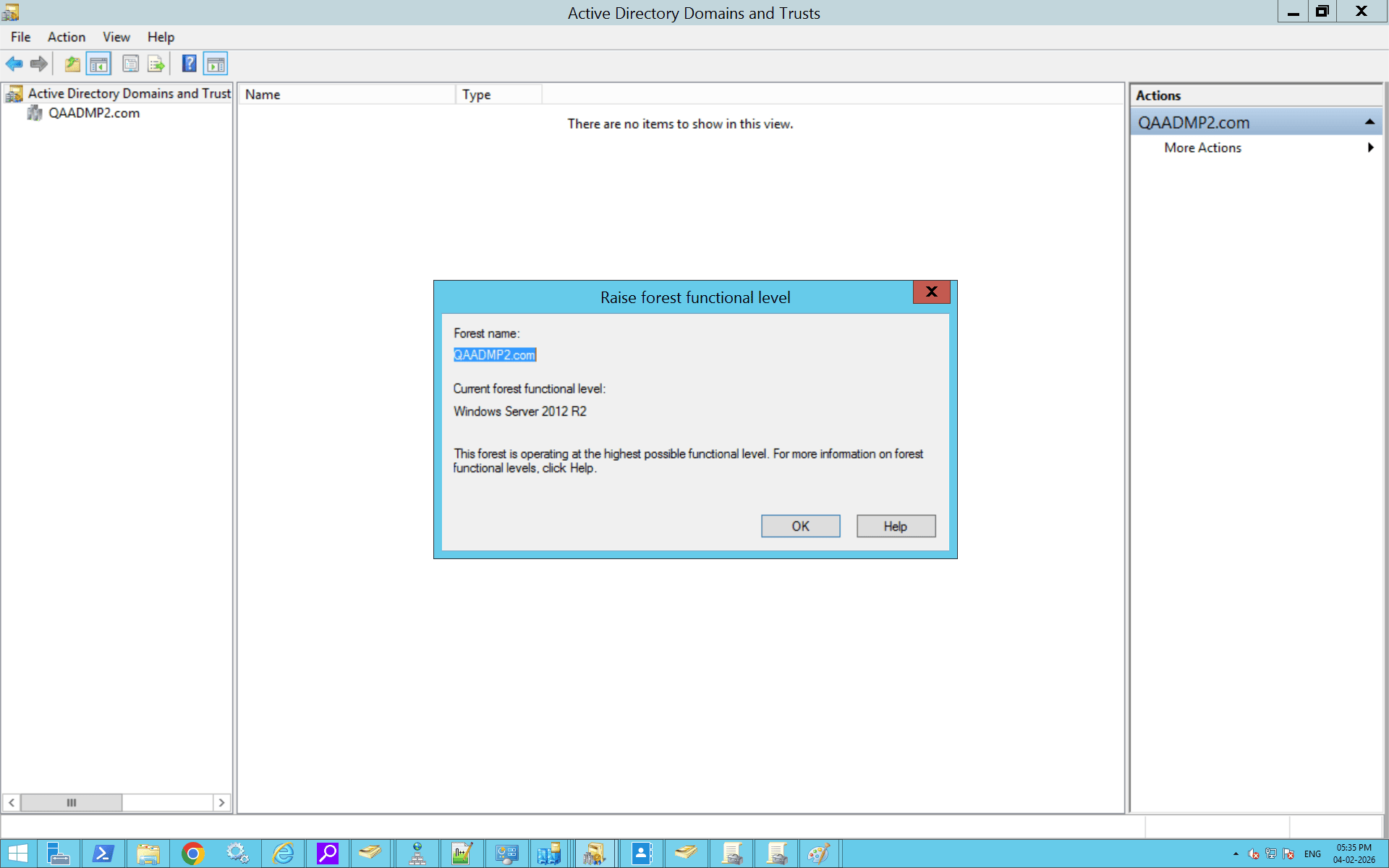
How to raise the forest functional level using Active Directory Domains and Trusts
How to create an Active Directory trust relationship using PowerShell
How do you enable a trust relationship between two Active Directory domains using PowerShell
Active Directory Domains and Trusts best practices
Use the principle of least privilege
Avoid domain-wide authentication wherever possible. Use selective authentication to limit access only to required users and groups.
Limit the number of trusts
Each trust increases the attack surface. Create trusts only when necessary and remove unused or legacy trust relationships.
Enable SID filtering
SID filtering protects against privilege escalation attacks by blocking unauthorized security identifiers, especially in external and forest trusts.
Monitor trust relationships regularly
Trusts can silently become security risks if left unchecked. Regular monitoring help detect misconfigurations, stale trusts, or unauthorized changes.
Keep DNS and time synchronization healthy
Trust failures are often caused by DNS resolution issues or time drift between domain controllers. Ensure both are monitored continuously.
Troubleshooting common Active Directory trust issues
- Error: The trust relationship failed
Solution: Verify DNS resolution between domains and ensure domain controllers can communicate over required ports.
- Error: Access denied during trust creation
Solution: Confirm Domain Admin privileges in both domains and validate credentials.
- Error: Authentication failures across trusted domains
Solution: Check trust direction, authentication type, and ensure selective authentication permissions are configured correctly.
- Error: Users cannot access trusted domain resources
Solution: Verify group membership, permissions, and trust validation status.
How ADManager Plus can complement Active Directory Domains and Trusts
ADManager Plus complements trust relationships by offering comprehensive reporting on users, groups, and permissions across trusted domains. This helps administrators quickly gain visibility into cross-domain group memberships, failed user authentication, and accounts that may no longer be actively used but still retain permissions through existing trusts.
Beyond visibility, ADManager Plus supports periodic access reviews and certifications, enabling organizations to validate whether users should continue to have access across trusted domains. This is especially important in long-lived trust relationships where access requirements often change over time. The platform also helps identify risky accounts that could increase the attack surface introduced by domain and forest trusts.
In addition, ADManager Plus simplifies operational management in multi-domain environments by automating Active Directory tasks such as provisioning, deprovisioning, and cleanup across trusted domains. During organizational changes like mergers, acquisitions, or restructures, it also assists with Active Directory migration and secure task delegation, allowing administrators to manage complex trust-based environments with greater consistency, control, and reduced risk.
FAQ
1. What is the difference between a trusted domain and a trusting domain?
In an Active Directory trust relationship, the trusted domain is the domain that contains the user accounts, while the trusting domain is the domain that hosts the resources. When a trust is established, the trusting domain accepts the authentication of users from the trusted domain and allows them to access its resources, subject to permissions.
The direction of the trust determines which domain grants access to which users.
- In a one-way trust, access flows in a single direction. If Domain A trusts Domain B, then Domain B is the trusted domain and Domain A is the trusting domain. Users from Domain B can access resources in Domain A, but users from Domain A cannot access resources in Domain B unless a separate trust is created in the opposite direction.
- In a two-way trust, both domains trust each other. This means users from either domain can authenticate and access resources in the other domain, subject to permissions.
2. What is the advantage of a trust relationship between Active Directory domains?
A trust relationship allows users in one domain to securely access resources in another domain without requiring duplicate user accounts or separate credentials. This simplifies identity management, supports collaboration across domains or forests, and maintains centralized authentication while enforcing security boundaries. Trusts are especially useful in multi-domain environments, mergers and acquisitions, and partner integrations.
3. How do I check if a trust is working properly?
You can verify a trust by testing access to resources across domains. Add a user or group from the trusted domain to a file share or application and confirm that access works as expected. You can also validate the trust by using command-line tools such as nltest /sc_verify:domain.com or by opening Active Directory Domains and Trusts, navigating to the domain?s Trusts tab, selecting the trust > Validate.
4. What are UPN suffixes?
UPN suffixes are the part of a user sign-in name that appears after the @ symbol, such as user@contoso.com. By default, the UPN suffix matches the domain?s DNS name, but administrators can add custom suffixes using Active Directory Domains and Trusts. This is commonly done to simplify logins or align on-premises identities with email or cloud identities.
5. What is the difference between forest-wide authentication and selective authentication?
Forest-wide authentication allows all users from a trusted forest to authenticate to resources in the trusting forest by default.Selective authentication requires administrators to explicitly grant access to specific servers or resources for cross-forest users. This option is typically used when trusts exist between separate organizations and tighter access control is needed.
6. How do I remove or disable a trust relationship?
To remove a trust, open Active Directory Domains and Trusts, right-click the domain, go to the Trusts tab, select the trust, and remove it. Trusts can also be removed using command-line tools such as netdom trust /remove . After removal, it?s recommended to review and clean up any leftover permissions or SID history related to the trust.
7. How can I view all trust relationships in my forest?
You can view all trusts by opening Active Directory Domains and Trusts, right-clicking the forest root > Properties. Trusts can also be listed using PowerShell with Get-ADTrust or command-line tools like nltest, using switches such as /trusted_domains .
8. How do you enable a trust relationship between two Active Directory domains?
Step 1: Open Active Directory Domains and Trusts
- Log in to a domain controller or a server with RSAT installed.
- Open Server Manager.
- Click Tools > Active Directory Domains and Trusts.
Step 2: Open domain properties
- In the left pane, right-click the domain for which you want to create the trust.
- Click Properties.
- Go to the Trusts tab.
Step 3: Start the New Trust Wizard
- Click New Trust.
- Click Next on the welcome screen.
Step 4: Specify the trusted domain
- Enter the DNS name of the domain you want to trust.
- Click Next.
Step 5: Select the trust type
- Choose the trust type (External trust or Forest trust).
- Click Next.
Step 6: Choose the trust direction
- Select One-way: incoming, One-way: outgoing, or Two-way, depending on access requirements.
- Click Next.
Step 7: Select authentication scope
- Choose Domain-wide authentication or Selective authentication.
- Click Next.
Step 8: Provide credentials (if prompted)
- Enter credentials for the other domain if required.
- Click Next.
Step 9: Confirm and create the trust
- Review the trust settings.
- Click Next, then Finish.
Step 10: Validate the trust
- When prompted, choose Yes, validate the trust.
- Confirm validation for both incoming and outgoing trusts.













