

- Knowledge base
- Active Directory management
- Active Directory reports
- Active Directoy integrations
- Active Directory automation
- Active Directory delegation
- Governance, risk, and compliance
- Microsoft 365 management and reporting
- AD migration
- Access certification
- Identity risk assessment
- Risk exposure management
- FAQs
- Pricing
- Online demo
- Request support
- Get quote
Active Directory Users and Computers (ADUC) is the primary Microsoft Management Console snap-in that systems administrators use to manage routine Active Directory tasks. Whether you are resetting a password, organizing users into organizational units (OUs), or managing group policies, ADUC is your starting point.
While ADUC is the most recognized tool, it is part of a broader suite known as Remote Server Administration Tools (RSAT), and understanding ADUC requires understanding the ecosystem of tools with which it interacts.
ADUC vs. other Active Directory tools
To be an effective admin, you must know when to use ADUC and when to use its companion tools:
- Active Directory Administrative Center: This is the modern successor to ADUC and it includes features that ADUC lacks, such as the Active Directory Recycle Bin and fine-grained password policies.
- Group Policy Management Console (GPMC): ADUC manages objects, but GPMC manages the GPOs linked to those objects.
- Active Directory Domains and Trusts: This is a separate console used to manage forest functional levels and trust relationships between different domains.
- Active Directory Sites and Services: This is used to manage the replication topology and IP subnets.
- ADSI Edit: This allows you to edit raw attributes that are not exposed in the ADUC interface and is often used when ADUC is insufficient.
- Active Directory Migration Tool: This is used to migrate Active Directory users, groups, and computers from one domain to another.

Key functions of ADUC
Common functions of ADUC include:
- Active Directory management: ADUC is primarily used to create, delete, and modify Active Directory objects such as users, computers, groups, and contacts.
- FSMO roles management: ADUC is used to transfer these FSMO roles:
- RID Master
- PDC Emulator
- Infrastructure Master
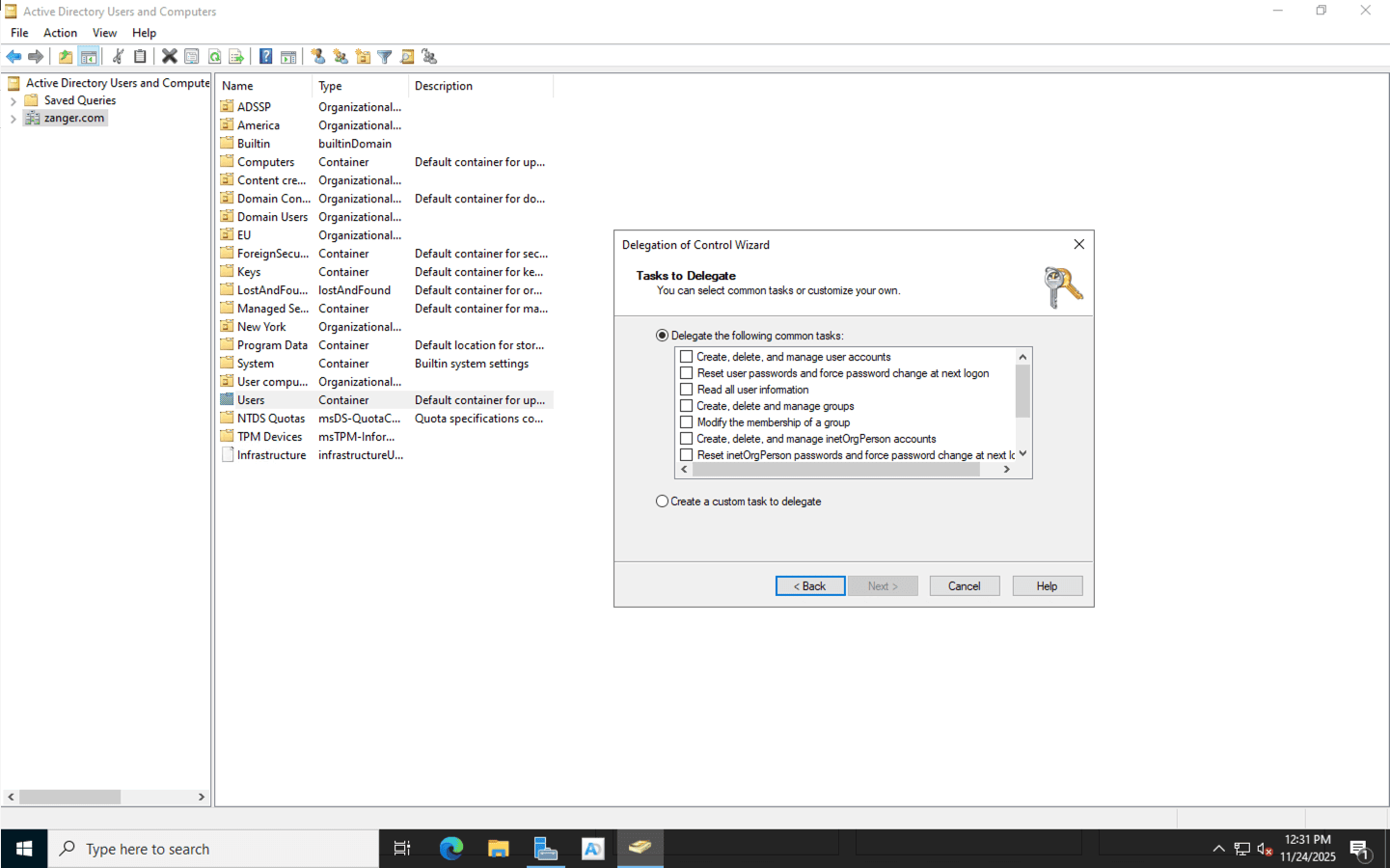
- Delegating control: ADUC includes the Delegation of Control Wizard, allowing admins to grant specific permissions to help desk staff for a specific OU without granting Domain Admins rights.
How to install ADUC
Microsoft has made RSAT a set of Features on Demand.
Installing ADUC on Windows 11 and 10
- Press Win + I or navigate to Start > Settings.
- Navigate to Optional Features:
- Windows 11: Go to System > Optional features.
- Windows 10: Go to Apps > Apps & features > Optional features.
- Click the View features button.
- In the search bar, type RSAT.
- Locate RSAT: Active Directory Domain Services and Lightweight Directory Services Tools.
- Check the box and click Next, then Install.
Installing ADUC using PowerShell
Installing ADUC on Windows Server
Installing ADUC on older Windows versions
How to open ADUC
Once installed, users often struggle to find it. Here are some ways to launch ADUC:
Opening ADUC using the Run command
- Press Windows Key + R on your keyboard.
- Type dsa.msc.
- Press Enter.
Opening ADUC using Windows search
Opening ADUC from Server Manager
Managing Active Directory objects with ADUC
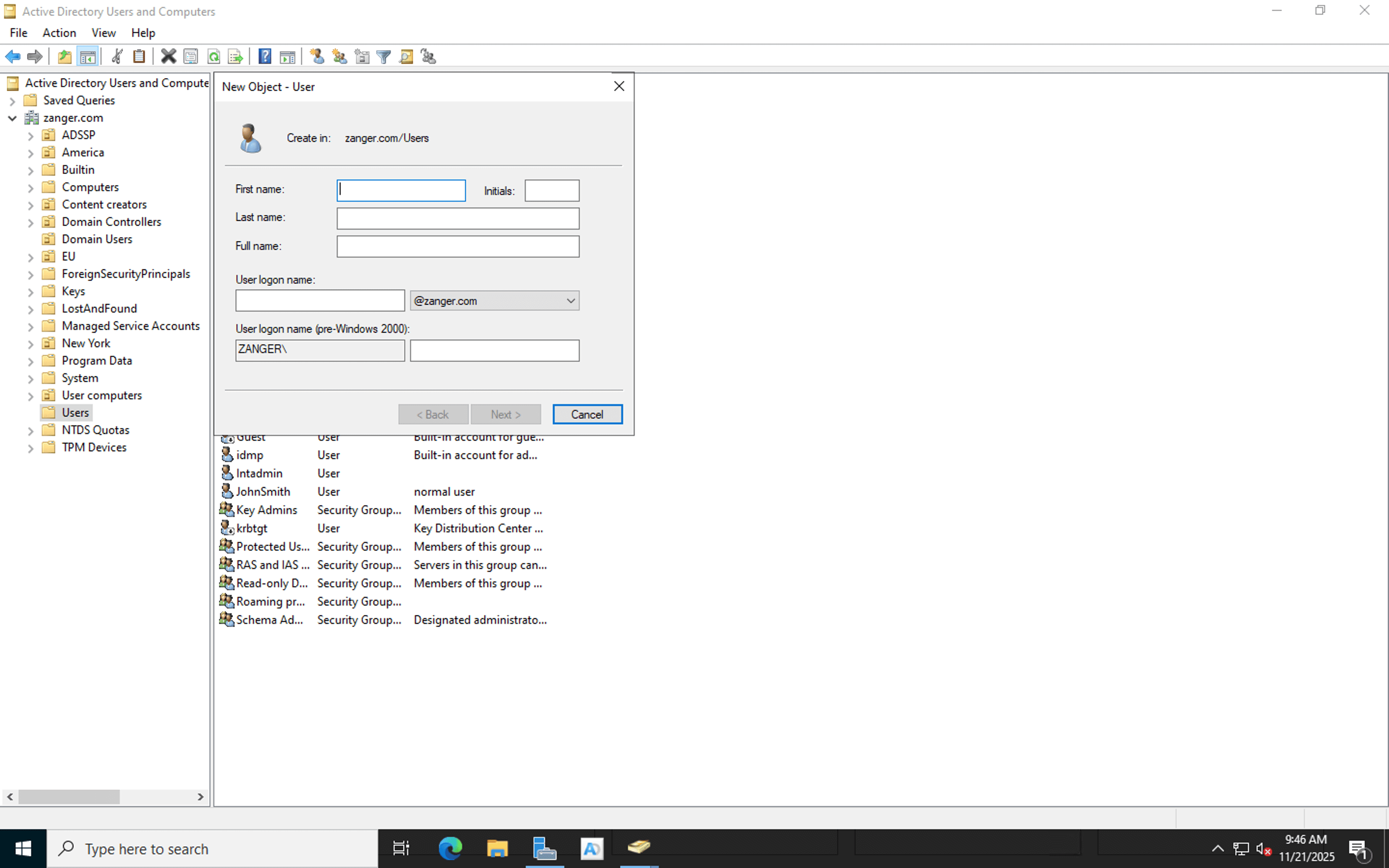
How to add a user to Active Directory
- Right-click the OU where you would like to create a user.
- Hover over New and select User.
- Enter the First Name, Last Name, and User Logon Name.
- Set a temporary password by selecting the User must change password at next logon option.
- Click Finish.
You can also add a user to Active Directory using PowerShell.
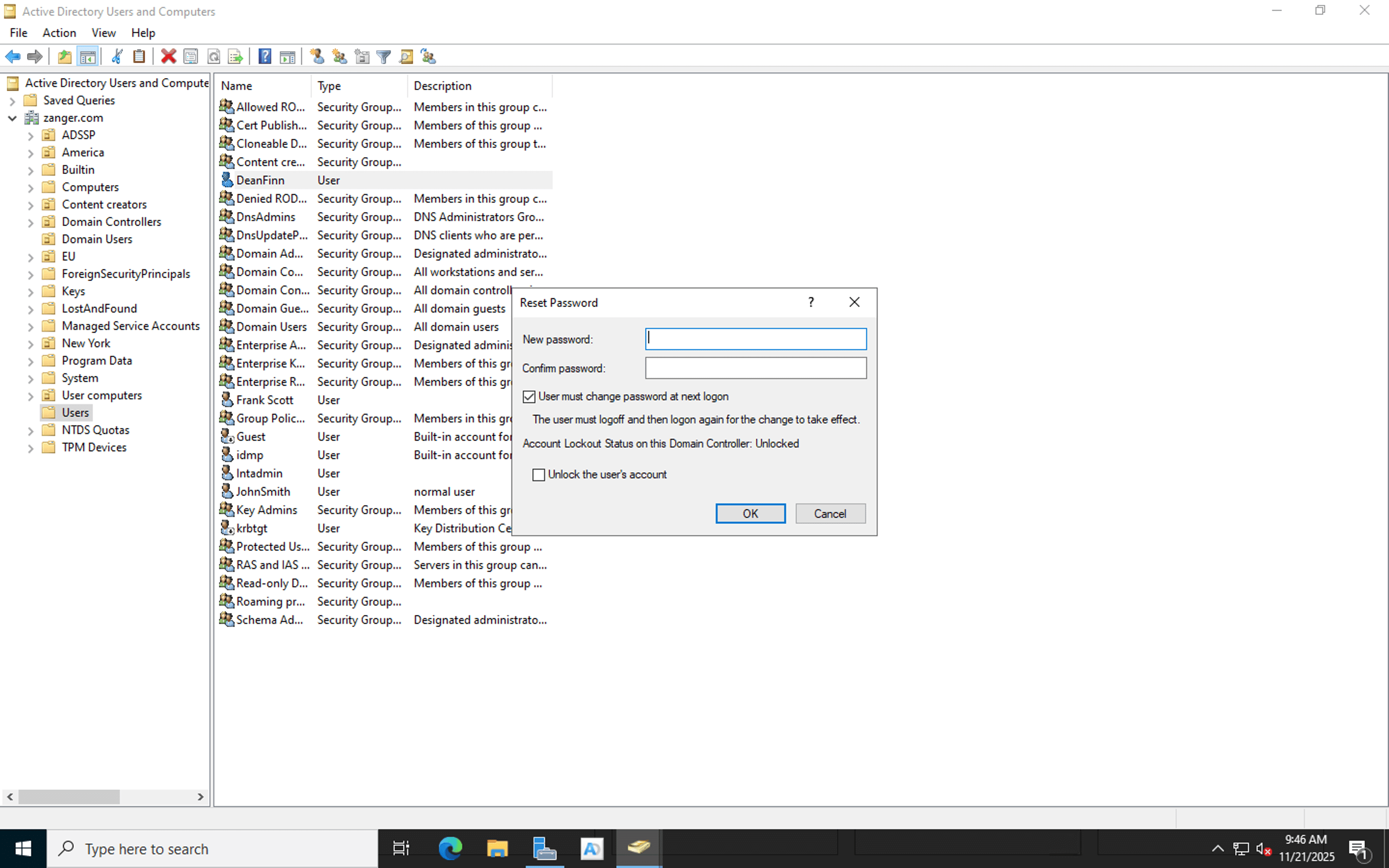
How to reset a user's password
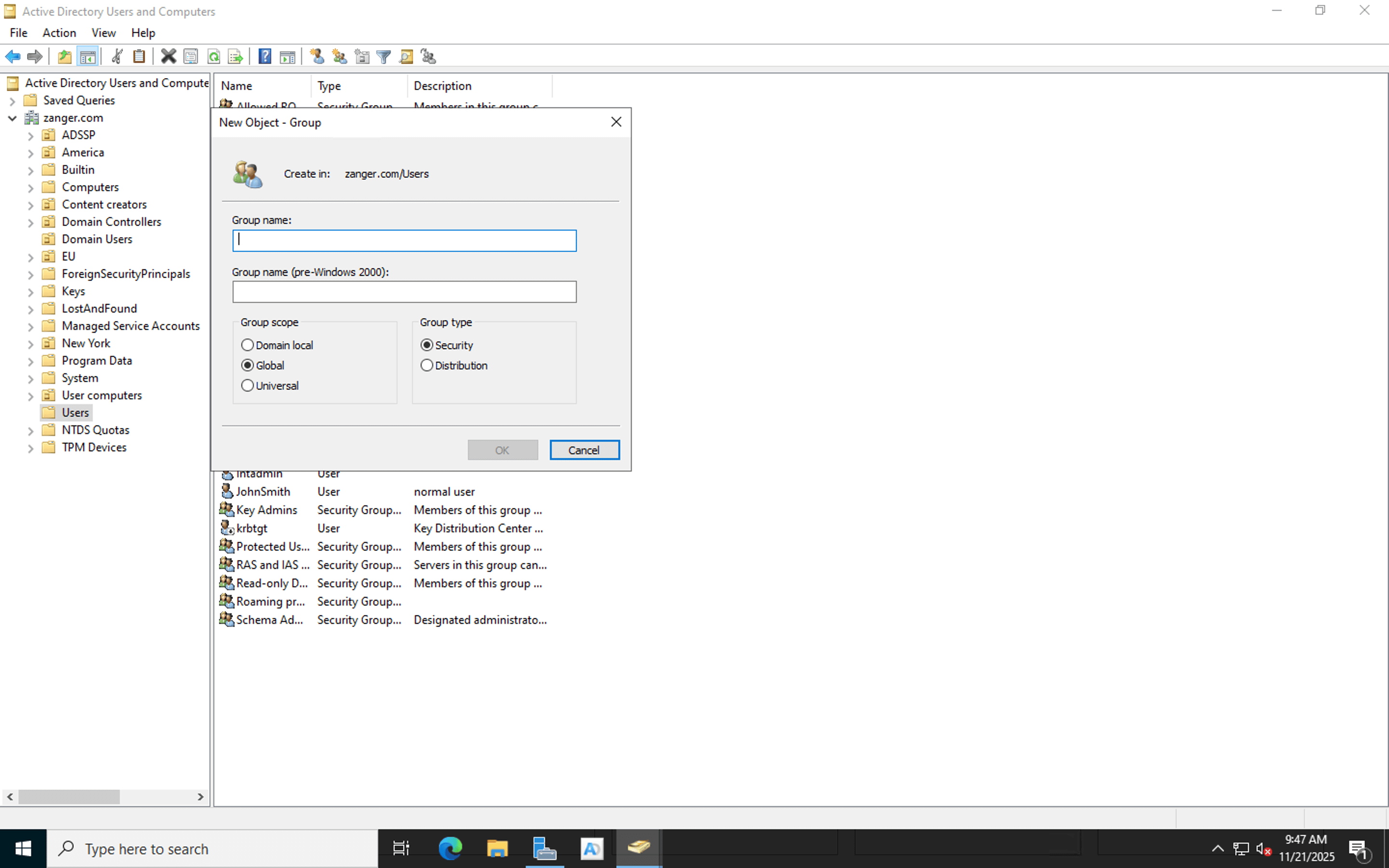
How to create a group in Active Directory
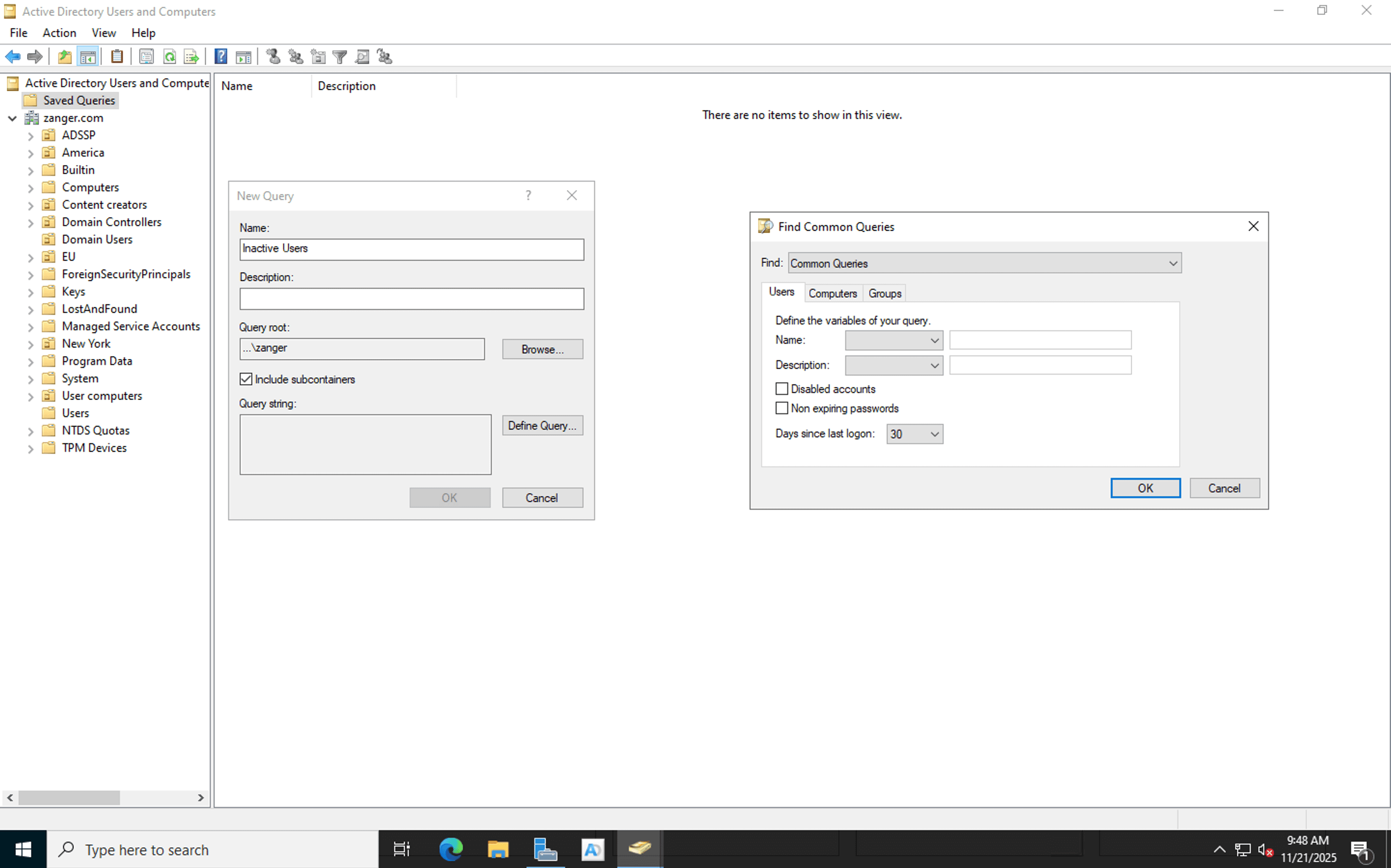
How to use Saved Queries in ADUC
How to clean up inactive users in Active Directory
How to enable Attribute Editor in ADUC
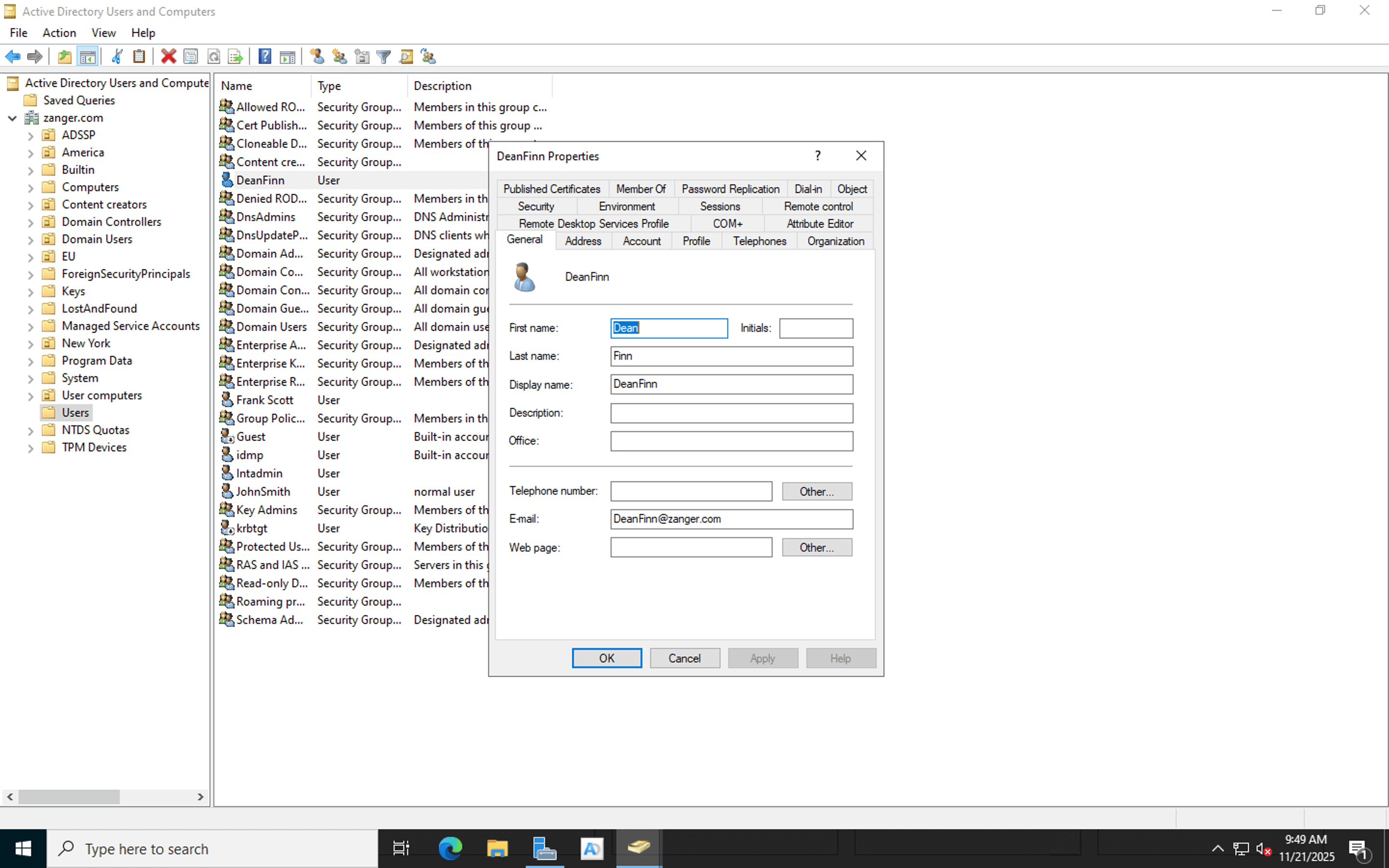
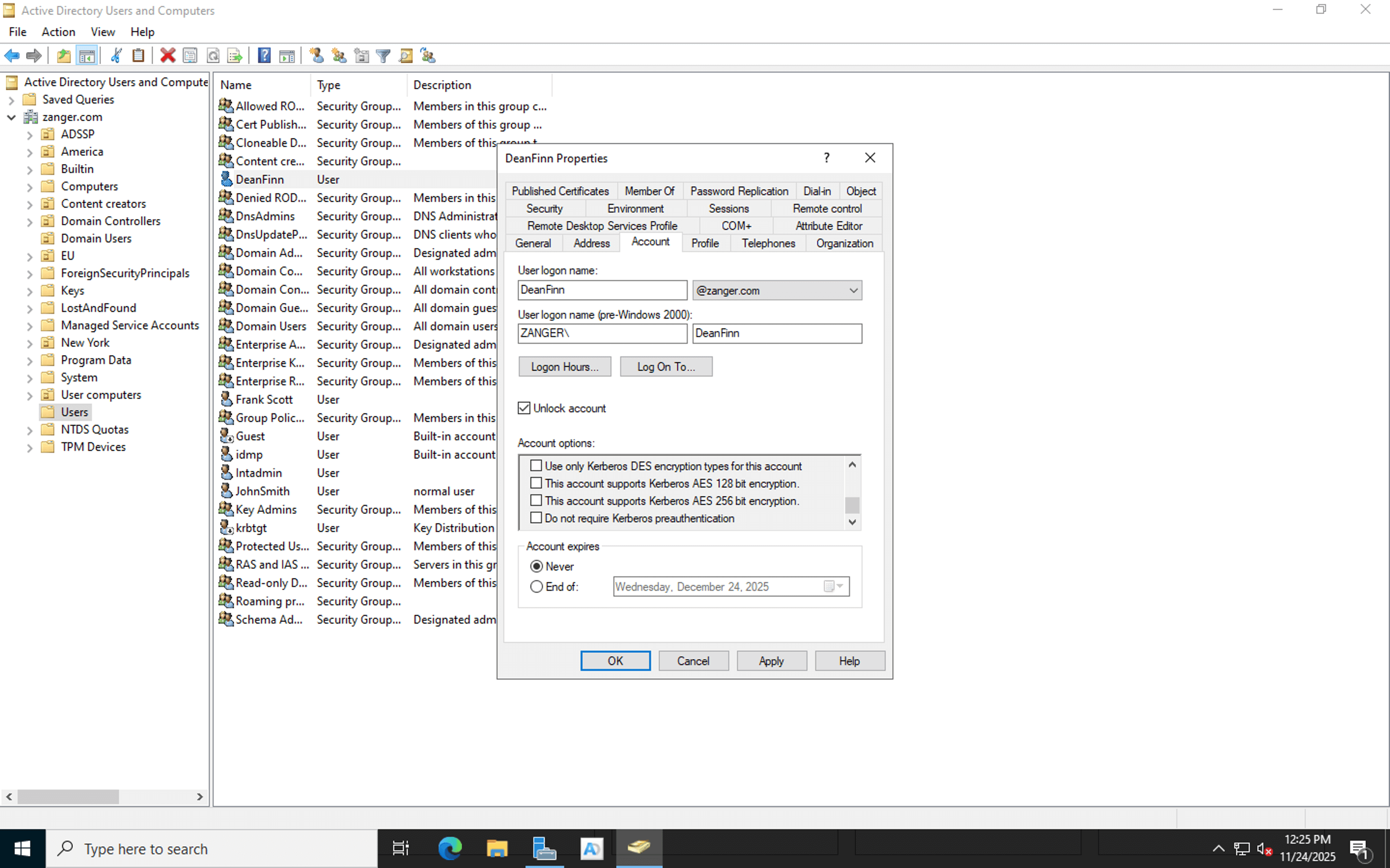
How to unlock a user account in Active Directory
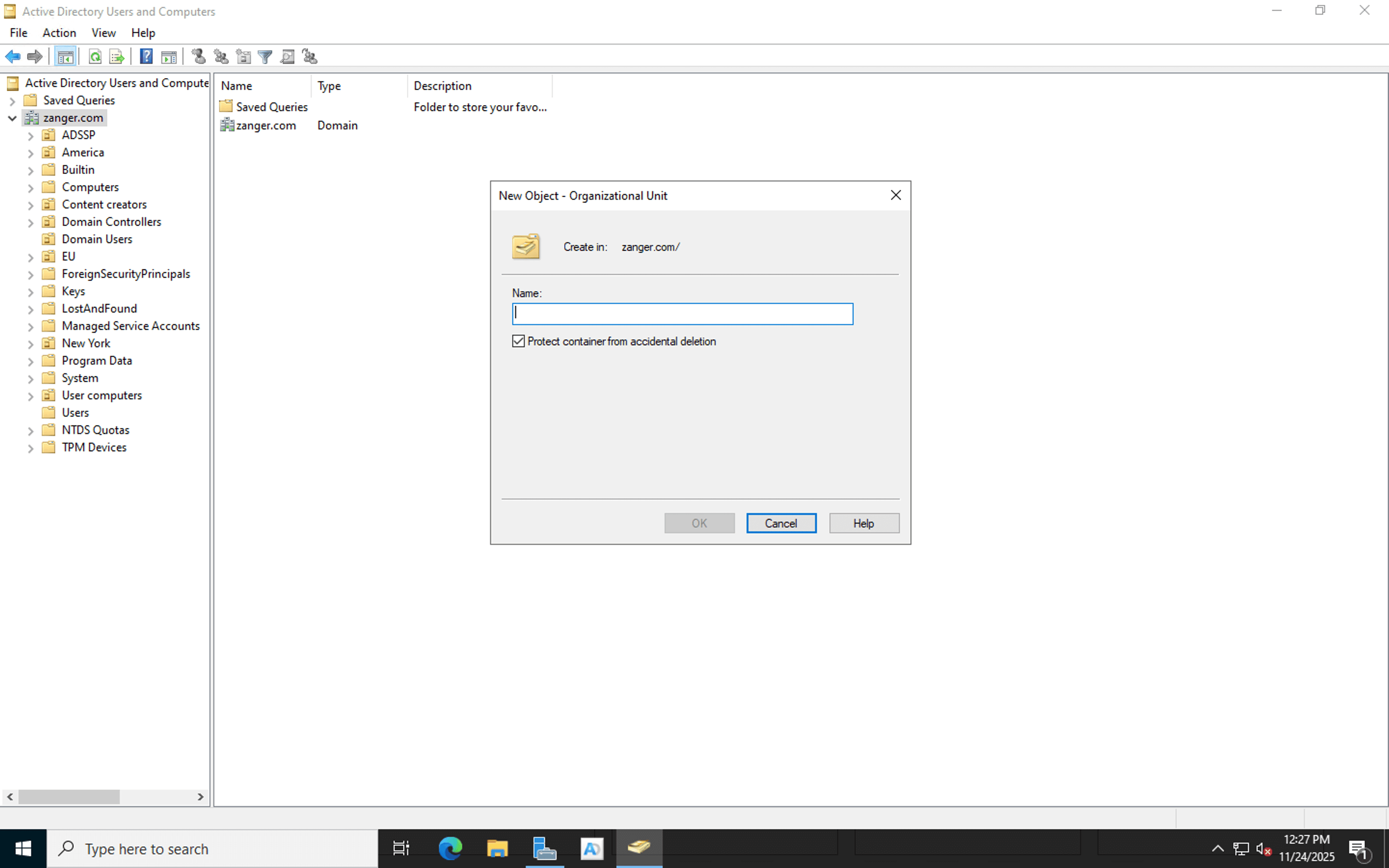
How to create an OU in Active Directory
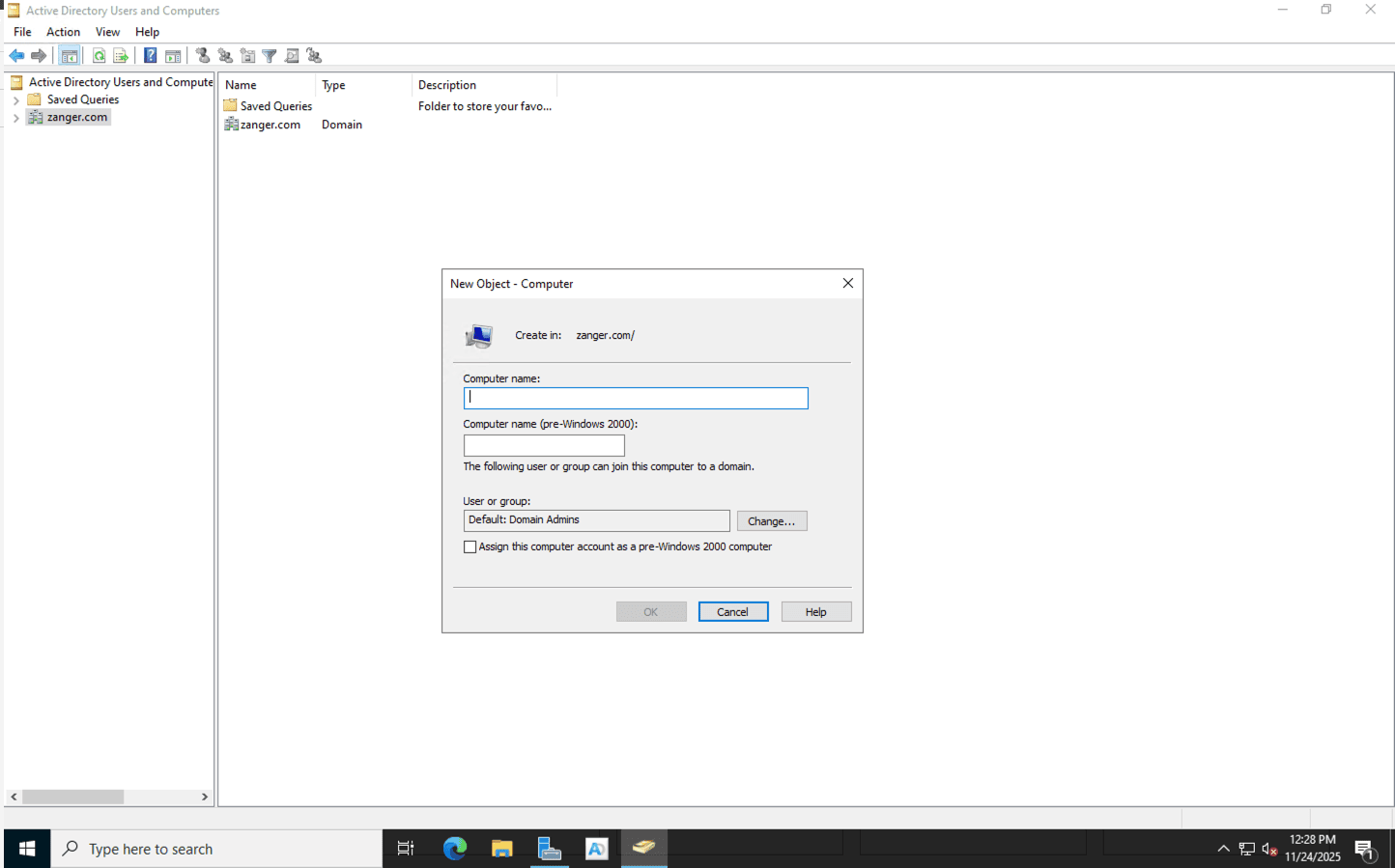
How to create a computer in Active Directory
How to delegate control using ADUC
Troubleshooting common errors
- Error: Naming information cannot be located
Solution: Ensure your computer's DNS is pointing to the DC's IP, not a public DNS like 8.8.8.8.
- Error: The specified domain does not exist
Solution: Check if you are connected to the corporate VPN or physical network.
- Error: Error code 0x800f0954
Solution: Your corporate WSUS policy might be blocking the download. Bypass WSUS to download directly from Microsoft Update.
- Error: Snap-in failed to initialize
Solution: Try reinstalling the RSAT feature or re-enabling ADUC.
- Error: Access is denied
Solution: This typically indicates insufficient permissions. Ensure your account is a member of the appropriate group and, if you are trying to delete or move an object, check if Protect object from accidental deletion is enabled in the object's Object tab.
- Error: The server is not operational
Solution: This error suggests the client cannot contact the DC. Verify that the DC is powered on and connected to the network. Also, check that your machine can ping the DC and that no firewalls are blocking ports required for Active Directory communication.
- Error: The object cannot be found
Solution: This often happens due to replication latency. If an object was created on one DC but you are viewing another, the change may not have replicated yet. You can either change the DC or wait for replication to complete.
ADUC best practices
To maintain a secure and efficient Active Directory environment, administrators should follow these industry-standard best practices when using ADUC:
- Implement a structured OU design: A well-planned OU structure is the foundation of effective Active Directory management. Instead of leaving objects in the default containers where GPOs cannot be linked, you should create specific OUs to apply granular policies. It is best to design your hierarchy based on how you manage resources, such as by department or location, rather than strictly following the company's HR organization chart.
- Enforce the principle of least privilege: To improve security, administrators should avoid using domain admin accounts for daily tasks. Instead, use the Delegation of Control Wizard in ADUC to grant help desk technicians specific rights, such as resetting passwords or modifying group membership, without giving them full domain access.
- Manage permissions with groups: Assigning permissions directly to individual user accounts is inefficient and error-prone. A better approach is to create security groups for specific roles and delegate permissions to those groups. This allows you to manage access simply by adding or removing members from the group rather than hunting down individual access control lists on various objects when a user's role changes.
- Perform regular cleanup: A cluttered Active Directory can lead to security risks and performance issues. It is important to periodically review and delete users and computers that have been inactive for a certain period of time.
- Protect objects from accidental deletion: Accidental deletion of critical OUs can cause significant downtime. For critical OUs and important objects, ensure the Protect object from accidental deletion setting is enabled. This feature prevents administrators from inadvertently deleting an entire structure of users or servers during routine maintenance.
ADUC vs. ADManager Plus: Why modern IT needs more
While ADUC is essential, it is a manual, one-at-a-time tool designed over 20 years ago. For modern enterprises, it lacks automation, auditing, and bulk capabilities.
ADManager Plus is an Active Directory management and reporting solution that simplifies Active Directory administration for help desk technicians. With ADManager Plus, admins can:
- Add users to Active Directory in bulk with smart templates and CSV imports.
- Generate comprehensive reports, gain visibility on their Active Directory environments, and export reports in desired formats.
- Automate Active Directory tasks like user provisioning and deprovisioning and group membership management, reducing manual effort and potential errors.
- Clean up your Active Directory automatically with customized workflows.
- Delegate Active Directory tasks to help desk technicians without affecting native Active Directory permissions.
- Certify users' access rights to Active Directory resources periodically for enhanced security.
- Identify risky objects and mitigate them instantly to secure the Active Directory environment.
FAQ
1. How do I enable ADUC?
On Windows 11 and 10, go to Settings > Optional Features > Add a Feature. Search for RSAT and install AD DS Tools.
2. What's the difference between ADUC and ADAC?
ADAC is a newer, more modern interface introduced in Windows Server 2008 R2. It offers better usability, PowerShell integration, password policy management, and Active Directory Recycle Bin access. ADUC is the traditional, more widely-used tool with extensive functionality. Many administrators use both tools depending on the task.
3. Why can't I see the Attribute Editor tab in ADUC?
The Attribute Editor tab is hidden by default. To enable it, click View in the ADUC menu bar and select Advanced Features. This will display the Attribute Editor tab, hidden containers, and security settings for Active Directory objects.
4. What is dsa.msc?
dsa.msc is the command line shortcut used to launch the ADUC snap-in in your Windows Server. When you run dsa.msc from the Run dialog or Command Prompt on a Windows Server or a Windows machine with RSAT installed, it opens the ADUC console directly.
5. How do I see who created or deleted a user account in Active Directory?
ADUC does not display audit logs directly. To see who created or deleted a user, you must search the Security Event Logs on your DC for specific Event IDs such as 4720 for creation and 4726 for deletion.
6. How do I move a user to a different OU?
In ADUC, right-click the user object you wish to move and select Move. In the dialog box that appears, select the destination OU and click OK. You can also simply drag and drop the user object into the new OU if the console view allows it. However, using ADManager Plus, you can move multiple users in one go in just a few clicks.
7. How do I find the last logon time in Active Directory?
To view a single user's last logon, enable Advanced Features, go to the user's Properties, and check the lastLogon or lastLogonTimestamp attribute in the Attribute Editor tab. To find users based on inactivity (e.g., not logged on in 30 days), you can use the Saved Queries feature in ADUC. Using ADManager Plus, you can simply generate the real last logon report, find a user's last logon time based on inactivity, and manage them instantly, all from the same place.

Related Tools
Talk to our AD experts
Have questions about Active Directory configuration or management? Fill out this form and our specialists will reach out to assist you right away.
Thank you!
We've received your callback request and will get back to you shortly.












