

- Knowledge base
- Active Directory management
- Active Directory reports
- Active Directoy integrations
- Active Directory automation
- Active Directory delegation
- Governance, risk, and compliance
- Microsoft 365 management and reporting
- AD migration
- Access certification
- Identity risk assessment
- Risk exposure management
- FAQs
- Pricing
- Online demo
- Request support
- Get quote
What is AD Explorer?
AD Explorer is an advanced Active Directory (AD) viewer and editor designed to provide a more efficient alternative to the Windows-native tools. Unlike Active Directory Users and Computers (ADUC) or ADSI Edit, AD Explorer is not built into Windows Server or included with RSAT by default and needs to be downloaded separately.
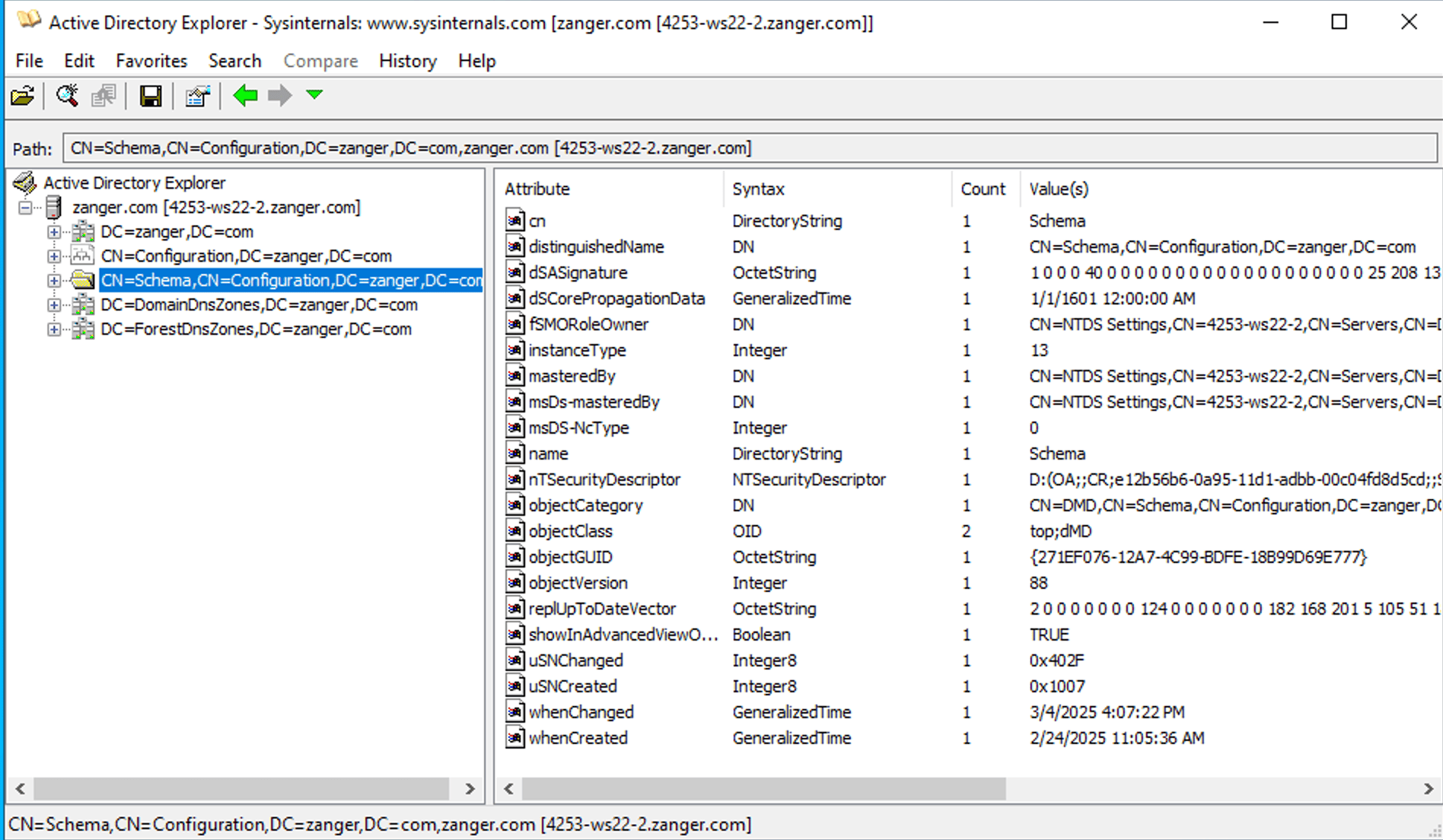
In ADUC, reviewing a single account's attributes often involves navigating through multiple layers and scrolling through a complex list, making the process time-consuming. However, in AD Explorer, clicking any object immediately surfaces all of its attributes and current values in the right-hand panel, with no additional dialogs or navigation steps required. This is particularly useful in troubleshooting scenarios where you need to check dozens of accounts or verify attribute values across multiple OUs.
AD Explorer, however, is not a replacement for ADUC when it comes to routine management work. It does not provide the guided interfaces for creating users, managing Group Policies, or handling the day-to-day administrative tasks that ADUC and similar tools are built for. Its strengths lie in browsing, querying, inspecting schemas, and tracking changes through the snapshot feature.
AD Explorer vs. ADUC and ADSI Edit
The table below summarizes how AD Explorer compares to the two most commonly used built-in AD tools across the capabilities that administrators rely on most.
| Capability | AD Explorer | ADUC | ADSI Edit |
|---|---|---|---|
| Free to use | Yes | Yes (built-in) | Yes (built-in) |
| Installation required | No, installation is needed since it comes as a standalone .exe that runs directly after extraction | Installed with RSAT | Installed with RSAT |
| Browse AD hierarchy | Yes, presents the full AD hierarchy as a fast, expandable tree view | Yes, displays the AD hierarchy through the standard MMC snap-in interface | Yes, allows navigation through the AD hierarchy, though the interface is less intuitive than ADUC |
| View attributes inline | Yes, clicking any object immediately displays all of its attributes and values in the right-hand panel | Requires opening the object's Properties dialog and navigating to the Attribute Editor tab to view attributes | Yes, attributes are visible directly in the interface without opening a separate Properties dialog |
| Advanced search | Yes, supports simple, advanced, and SQL-style LDAP search with the ability to save and reuse queries | Limited to basic search functionality with no support for LDAP filter construction or saved searches | No |
| Save and reuse searches | Yes, searches can be saved by name and re-used in future sessions without rebuilding the filter conditions | No | No |
| Snapshot and compare | Yes, it can save a point-in-time copy of the AD database and compare two snapshots to identify exactly what changed between them | No | No |
| Browse AD schema | Yes, the full AD schema is accessible by navigating to the Schema partition in the tree view | No | Yes, but schema browsing in ADSI Edit is limited and requires manual navigation to the Schema naming context |
| Edit object attributes | Yes, any attribute can be edited directly from the interface, though changes take effect immediately and there is no undo function | Yes (standard fields) | Yes (all attributes) |
Key capabilities of AD Explorer
- Browse and navigate the AD hierarchy: AD Explorer presents the full AD hierarchy as an expandable tree where clicking any object immediately displays all of its attributes and values. It supports drag-and-drop movement of objects between containers, maintains a session history of recently visited items, and allows frequently used containers and OUs to be bookmarked so they persist across sessions.
- Advanced search and query: It offers three levels of search, ranging from a quick search bar for common lookups to an advanced multi-condition filter builder and a full SQL-style LDAP mode for administrators comfortable with LDAP syntax.
- Save and compare snapshots: Snapshots are one of the capabilities that set AD Explorer apart from most other free AD tools. AD Explorer can capture a point-in-time copy of the AD database to a file, which can be opened for offline browsing without any domain controller (DC) connection. Two snapshots can be compared against each other to identify exactly what objects, attributes, and permissions changed between the two states, making it a practical tool for troubleshooting configuration changes and detecting unauthorized modifications.
- View object schema and permissions: It exposes the full AD schema through the Schema partition in the tree view, making it possible to inspect attribute definitions, syntax types, and object class relationships without opening ADSI Edit.
- Bookmark favorite locations: AD Explorer allows frequently used containers and OUs to be bookmarked so that they persist across sessions, removing the friction of re-navigating to deeply nested locations each time the tool is opened. Named connections to specific DCs or snapshot files can also be saved for one-click reconnection.
For organizations that need scheduled, exportable, and compliance-oriented AD reports rather than manual ad-hoc queries, ADManager Plus offers more than 200 built-in reports�covering users, groups, computers, passwords, and GPOs�all exportable to CSV, PDF, XLSX, and other formats.
How to download and set up AD Explorer
Prerequisites
Before installing and using AD Explorer, ensure the following requirements are met:
- You are running Windows 10, Windows 11, or a supported Windows Server version.
- You have access to a domain account to authenticate against AD.
- You have network connectivity to at least one DC in the environment you want to explore or a saved snapshot file if you intend to work offline.
- You have Administrator rights on the local machine, since depending on your environment's configuration you may need to run AD Explorer with elevated permissions to establish an authenticated AD connection on first launch.
Installation
- Download AD Explorer from the Microsoft Sysinternals downloads page.
- Extract the contents of the ZIP file to any folder of your choice on the local machine. AD Explorer ships as a standalone .exe file, so there is no installer to run and no registry footprint left on the system after extraction.
- Open the folder where you extracted the files and double-click ADExplorer.exe to launch it. If your environment requires it, right-click the file and select Run as Administrator instead.
- On first launch, AD Explorer will display the End User License Agreement before the connection dialog appears. Read and accept it to proceed. This step only occurs once per machine and account combination.
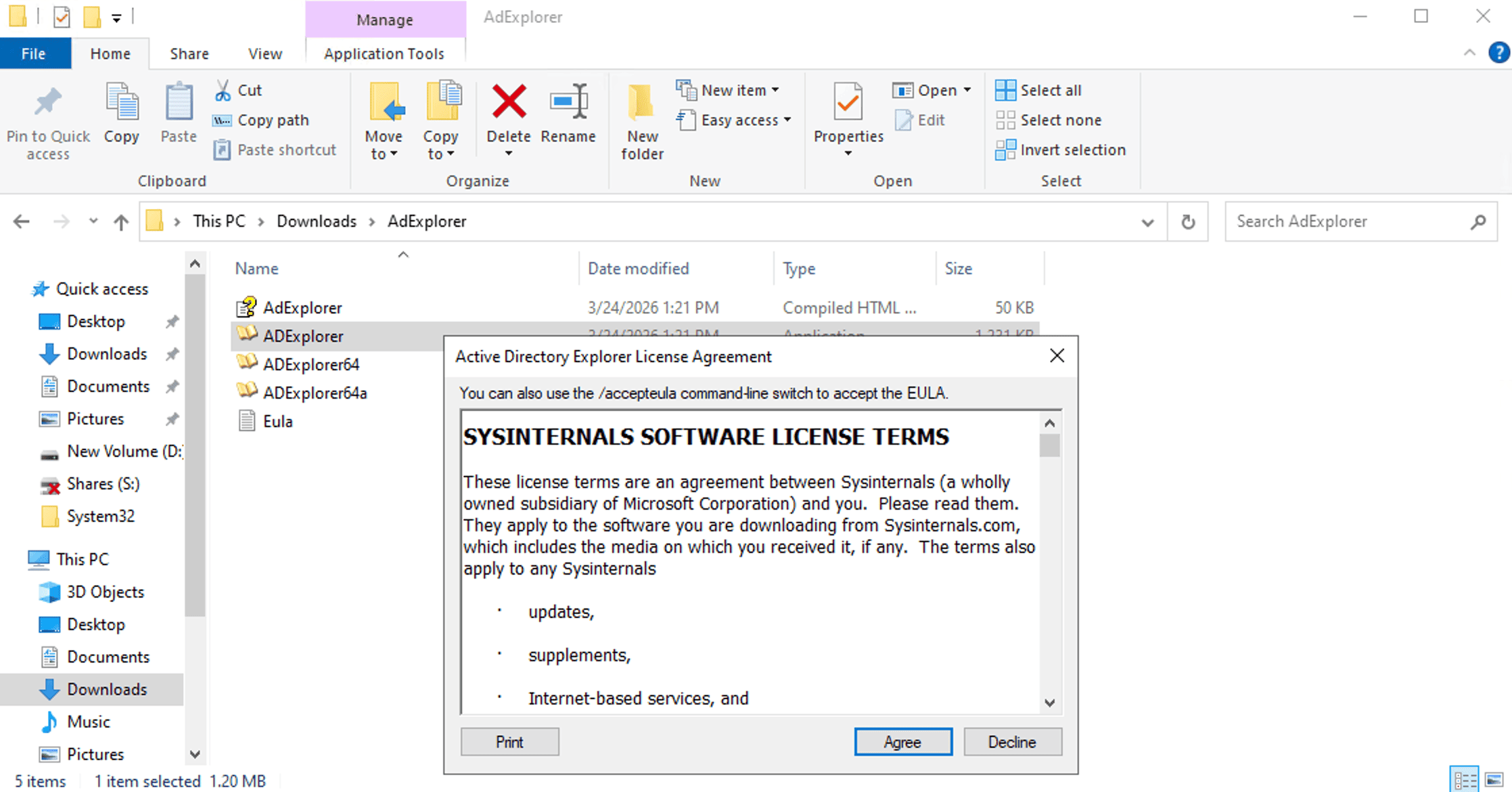
If you prefer not to save the file locally, AD Explorer can be run directly from memory by entering the following path in the Run dialog (Win + R) or the Windows Explorer address bar, then pressing Enter:
How to connect to AD
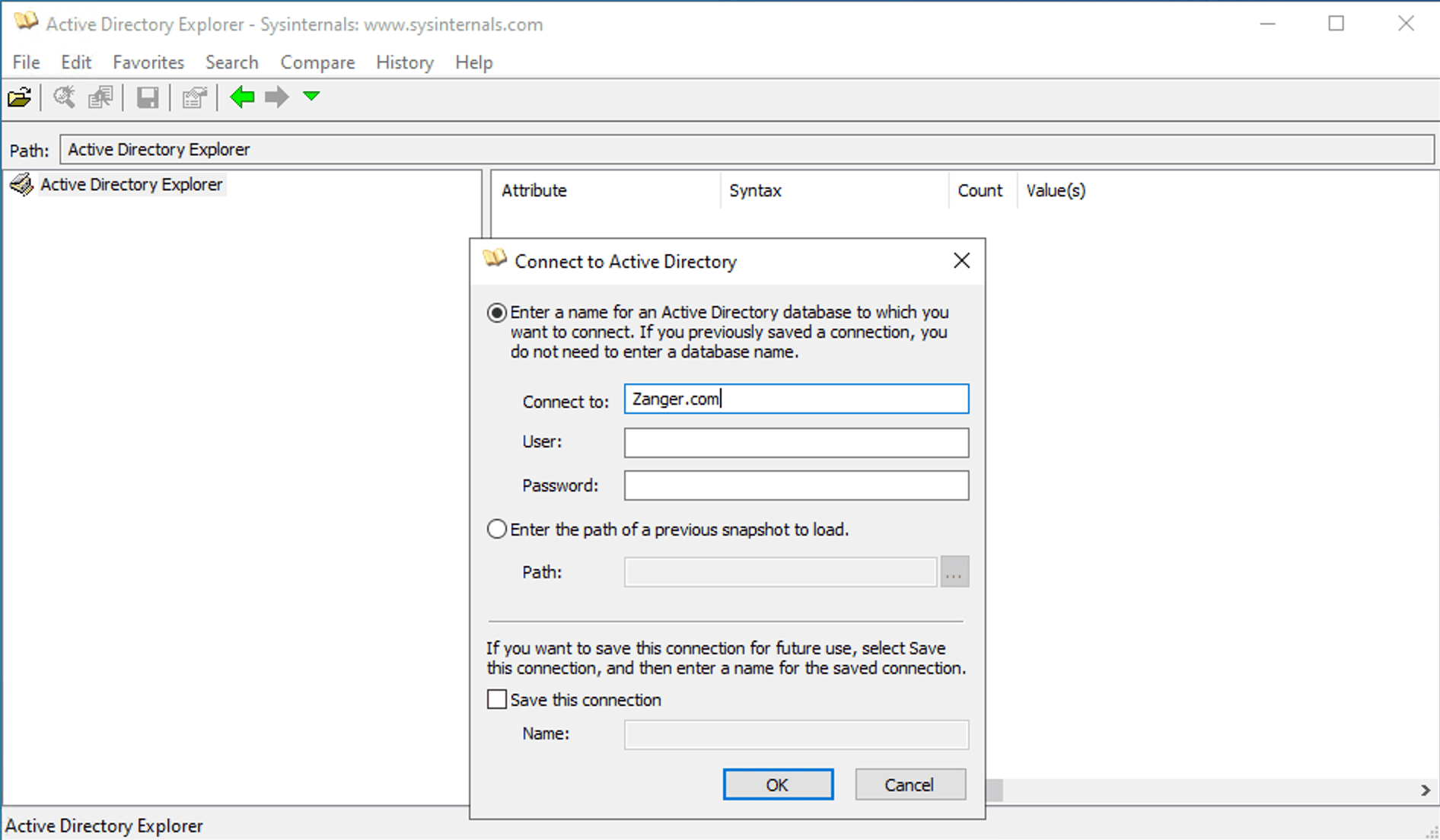
How to use AD Explorer
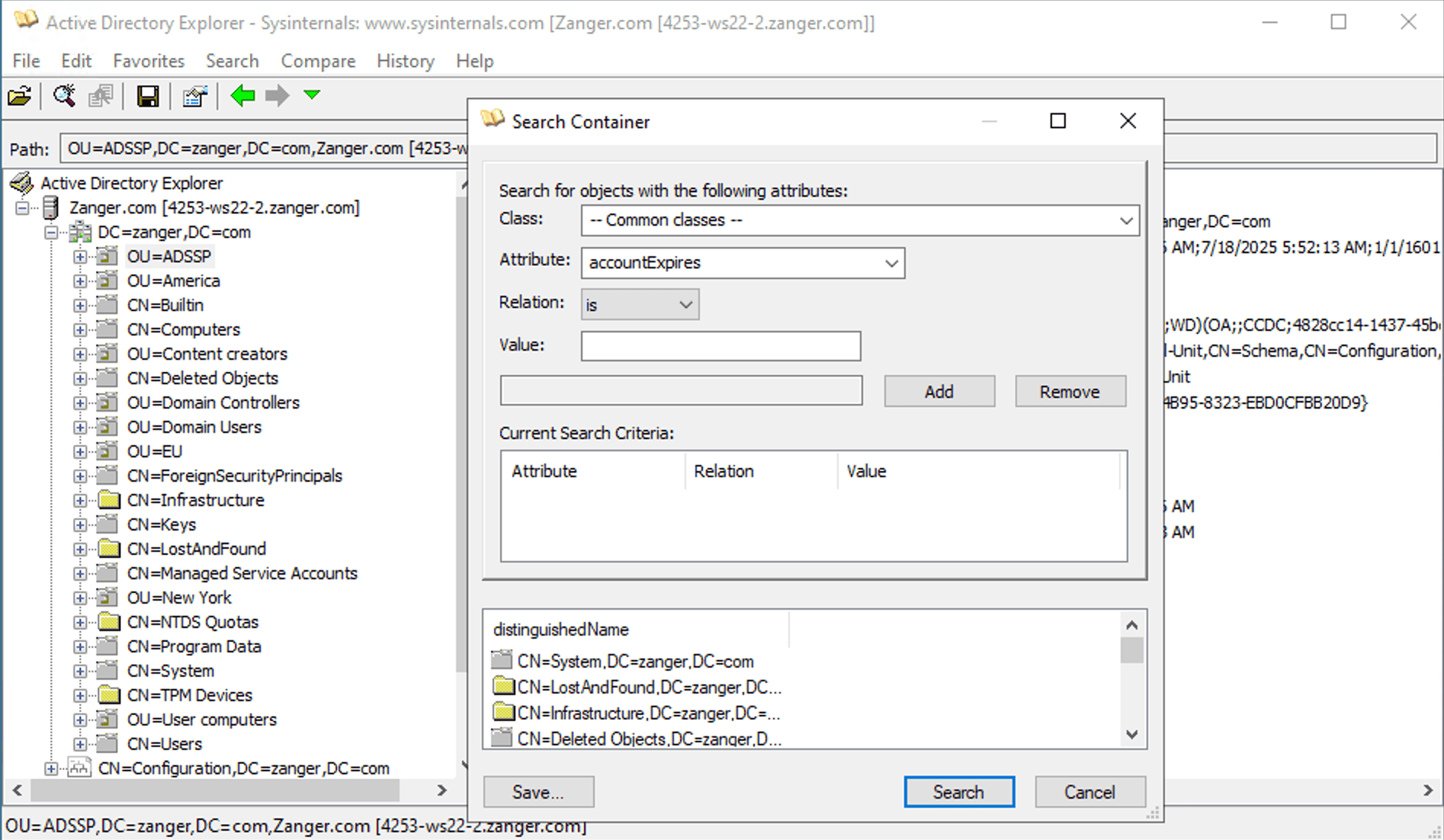
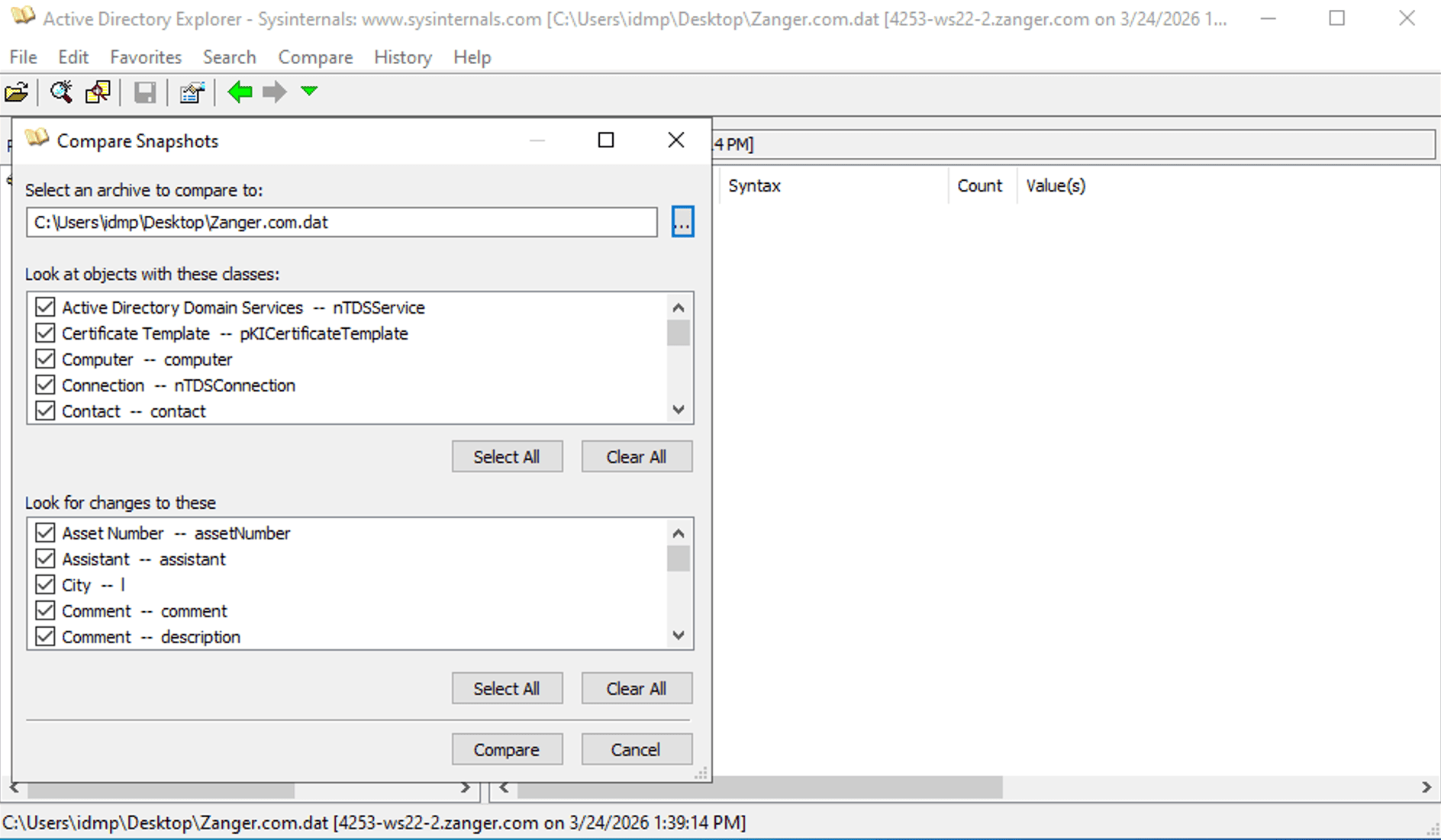
Known limitations of AD Explorer
AD Explorer is purpose-built for searching and viewing AD, but it falls short in anything that goes beyond reading and inspecting data. Understanding these limitations before installing and using AD Explorer will help you identify the right tool:
- No management or automation capabilities: AD Explorer does not support tasks such as user creation, deletion, and modification. Every action requires working with one object at a time, which makes it impractical as a management tool in environments where AD administration is shared across multiple team members.
- No reporting or export infrastructure: There is no built-in mechanism for scheduling searches, generating formatted reports, or automatically exporting results to CSV, XLSX, or PDF. This is a significant constraint in compliance-driven environments where auditors expect regular, consistent, and automated reporting.
- Snapshots are not backups: A snapshot captures a read-only record of the AD database and is useful for comparison and auditing, but cannot be used to restore deleted objects or reverse attribute changes. Tombstone reanimation and full AD recovery require separate tools and a proper backup solution that is entirely independent of AD Explorer.
- Security considerations: AD Explorer grants broad read access to the entire AD database and write access if the connected account has sufficient permissions, so access should be restricted to administrators who genuinely need it and DC auditing should be enabled to log all activity made through the tool.
ADManager Plus addresses all of these limitations, covering bulk user management, automated reporting, AD backup and recovery, and help desk delegation with granular role-based controls�all from a single console.
Tools related to AD Explorer
AD Explorer comes alongside several other free tools in the Windows AD administrator's toolkit and each covers a different part of the tooling landscape.
- LDP.exe is a built-in LDAP client included with Windows Server and RSAT that is more technically oriented than AD Explorer and is useful for testing LDAP bind operations, diagnosing connection issues, and running raw LDAP queries.
- ADSI Edit provides low-level attribute editing comparable to AD Explorer but without the advanced search capabilities or snapshot functionality.
- Ldifde and Csvde are command-line tools included with Windows Server for importing and exporting AD data in LDIF and CSV formats respectively, and they are well-suited to bulk reads and migration scenarios but require more scripting knowledge than a GUI tool.
- The PowerShell Active Directory module�with cmdlets like Get-ADUser, Get-ADGroupMember, and Get-ADComputer�is the standard scripting interface for AD and the most flexible option for complex, repeatable queries and bulk operations, though it requires PowerShell proficiency.
When you need more than an AD viewer
AD Explorer is a capable tool for browsing and auditing your AD environment, but it was never designed to handle the operational demands of managing AD at scale. For organizations that need more than a read-focused explorer, ADManager Plus�an AD management and reporting tool�provides a comprehensive platform that covers everything from day-to-day user administration to compliance reporting and identity lifecycle automation.
ADManager Plus also transforms that data into actionable visibility. Administrators can search and view users, groups, and objects from a single unified interface, explore hidden attributes and security descriptors, and understand the complex web of effective access that defines an organization's security posture�all without the risk of unintended changes that comes with low-level tools.
- Unified AD visibility: ADManager Plus lets you search and view users, groups, and objects from a single, unified interface across all your domains at once, eliminating the need to connect to individual domain controllers or switch between tools. This makes it significantly faster to find what you need, especially in multi-domain environments where AD Explorer requires separate connections for each domain.
- AI-driven insights with Zia: ADManager Plus includes Zia, an AI assistant that turns raw AD data into actionable insight by identifying risky group memberships and privileged group memberships proactively. Rather than manually analyzing attribute data object by object, administrators can rely on Zia to flag issues before they lead to security incidents or compliance gaps.
- Visual access graphs: ADManager Plus uncovers hidden and indirect privilege escalation paths using visual access graphs, giving security teams a clear picture of how permissions flow across groups, nested memberships, and role assignments. This level of visibility is not possible with AD Explorer, which surfaces raw ACL entries but does not map out their effective impact.
- Entitlements tracking: With visibility into entitlements and access relationships, ADManager Plus simplifies access reviews and certifications. Administrators and auditors can review who has access to what, trace how that access was granted, and produce evidence for compliance reporting without any additional tooling.

FAQ
1. What is AD Explorer used for?
AD Explorer is used to browse the AD database hierarchy, search for and inspect user, computer, group, and OU objects, view and edit object attributes and permissions, and take snapshots of your AD for offline analysis and change comparison. It is primarily an auditing and troubleshooting tool rather than a management platform, and works best for tasks where you need to inspect the current state of your AD quickly or identify what changed between two points in time.
2. Is AD Explorer free?
Yes, AD Explorer is a free tool published by Microsoft as part of the Sysinternals Suite. It is available as a standalone download from the Microsoft Sysinternals website, or it can be run directly from the Sysinternals Live UNC path without saving the file locally.
3. Is AD Explorer the same as ADUC?
No, AD Explorer and ADUC are different tools designed for different parts of the administrative workflow. ADUC is the standard console for creating, modifying, and organizing AD objects in day-to-day administration, while AD Explorer is a read-focused browser with advanced search capabilities, inline attribute display, and snapshot and comparison functionality that ADUC does not have.
4. What is the current version of AD Explorer?
The current version is AD Explorer v1.52, published on November 28, 2022. It is available as part of the full Sysinternals Suite download or as a standalone ZIP from the Microsoft Sysinternals downloads page.
5. Can AD Explorer view deleted objects?
Yes, AD Explorer can display tombstoned objects by navigating to the Deleted Objects container in the directory tree. You can inspect the attributes that were preserved at the time of deletion, which is useful for confirming that an object existed and identifying when it was removed. However, AD Explorer cannot reanimate tombstoned objects. Restoring deleted objects requires either the Active Directory Recycle Bin or an AD backup and recovery solution.













