How to link GPOs to OUs in ADManager Plus
Last updated on:Linking Group Policy Objects (GPOs) to Organizational Units (OUs) is a crucial task for administrators to ensure that specific policies are applied to the right groups and computers.
With its user-friendly and intuitive interface, ADManager Plus streamlines the process of managing and linking GPOs to OUs. ADManager Plus, a GPO management tool, enables administrators to maintain control and consistency across their organization's AD environment, ensuring precise policy enforcement through efficient GPO application to OUs.
Steps to link a GPO to an OU in ADManager Plus
- Log in to ADManager Plus.
- Navigate to Management > GPO Management > Manage GPO links.
- Click the New GPO links button on the top-right corner.
- In the pop-up window, select the required domain, OU, or site from the Select objects drop-down.
- Select the GPOs to be linked to the OU.
- Click Link GPO.
For GPOs to be immediately applied on the endpoints, use the Force GPO Update option to skip the wait time.
- To Force update GPO, navigate to Management > GPO Management > Force GPO Update.
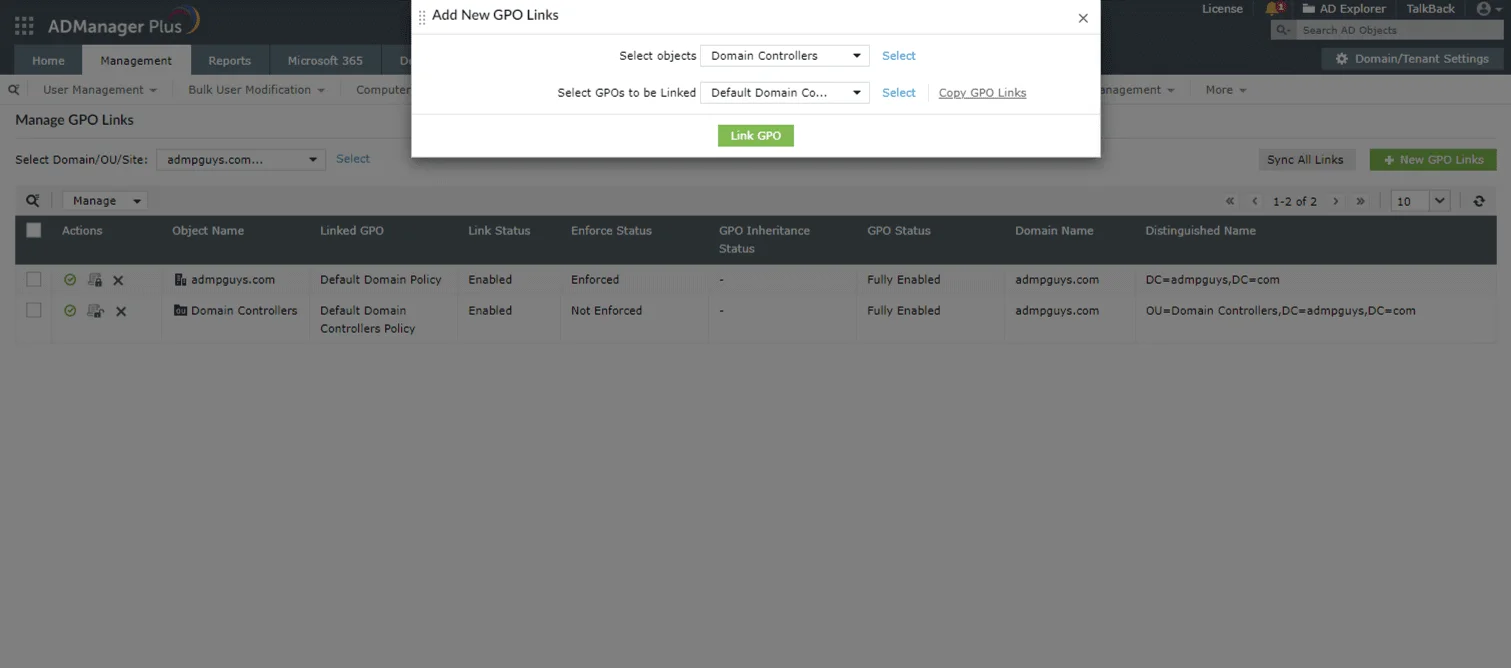
ADManager Plus simplifies managing GPO links, GPO link order, and more from a single console. It also offers built-in GPO reports on GPO status, scope, settings, and more.
 Free Edition