

- Knowledge base
- Active Directory management
- Active Directory reports
- Active Directoy integrations
- Active Directory automation
- Active Directory delegation
- Governance, risk, and compliance
- Microsoft 365 management and reporting
- AD migration
- Access certification
- Identity risk assessment
- Risk exposure management
- FAQs
- Pricing
- Online demo
- Request support
- Get quote
Remote Desktop Services is one of the most practical tools available to IT administrators today, giving them the ability to connect to any domain-joined machine on your network to run diagnostics, push configuration changes, or support end users remotely. The challenge is that enabling it machine by machine through the Windows Settings app does not scale past a handful of devices, which is precisely why Group Policy exists. Using Group Policy Objects (GPOs), you can configure the setting once in the Group Policy Management Console (GPMC), link that GPO to the appropriate OU in AD, and every computer object in its scope will receive and apply the setting automatically at the next refresh interval.
What is the Group Policy setting for Remote Desktop?
There are two independent mechanisms to enable Remote Desktop that must both be configured correctly and which administrators routinely confuse with each other. The first is the service-level policy that enables or disables the Remote Desktop listener process, which is what allows the machine to accept inbound Remote Desktop connections. The second is the access-control policy that determines which user accounts are permitted to establish a session once that listener is running. This is governed by a separate User Rights Assignment setting rather than the same Connections policy. Getting the listener enabled but failing to grant the right users access, or granting access without enabling the listener, are both common sources of confusion when deploying Remote Desktop via GPO for the first time.
Prerequisites before enabling Remote Desktop using GPOs
Before you begin, confirm that the following conditions are in place:
- The machines you want to configure must be members of the AD domain and must be able to communicate with a domain controller (DC) to receive policy updates.
- On Windows Server, GPMC is available through Server Manager under Features. On Windows 10 or Windows 11, you need to install the Remote Server Administration Tools (RSAT) package.
- You must hold Domain Administrator rights or be a member of the Group Policy Creator Owners group with permissions to link GPOs to the relevant OUs.
For organizations managing large numbers of computers across multiple OUs, it is worth knowing which users and groups currently have access to Remote Desktop before enabling it broadly. ADManager Plus provides comprehensive reports on group memberships and GPOs across your AD environment, making it straightforward to identify who would gain Remote Desktop access under a given GPO scope before the policy goes live.
How to enable Remote Desktop via Group Policy
Enabling Remote Desktop using GPMC
This is the most commonly used method by administrators to enable Remote Desktop. To use GPMC to enable Remote Desktop:
- Open GPMC through Server Manager > Tools > Group Policy Management. Alternatively, press Win + R, type gpmc.msc, and press Enter.
- In the left panel, navigate to the domain or OU where you want to apply the Remote Desktop configuration. Right-click the OU and select Create a GPO in this domain, and Link it here. Give the GPO a descriptive name.
- Right-click the existing GPO and select Edit.
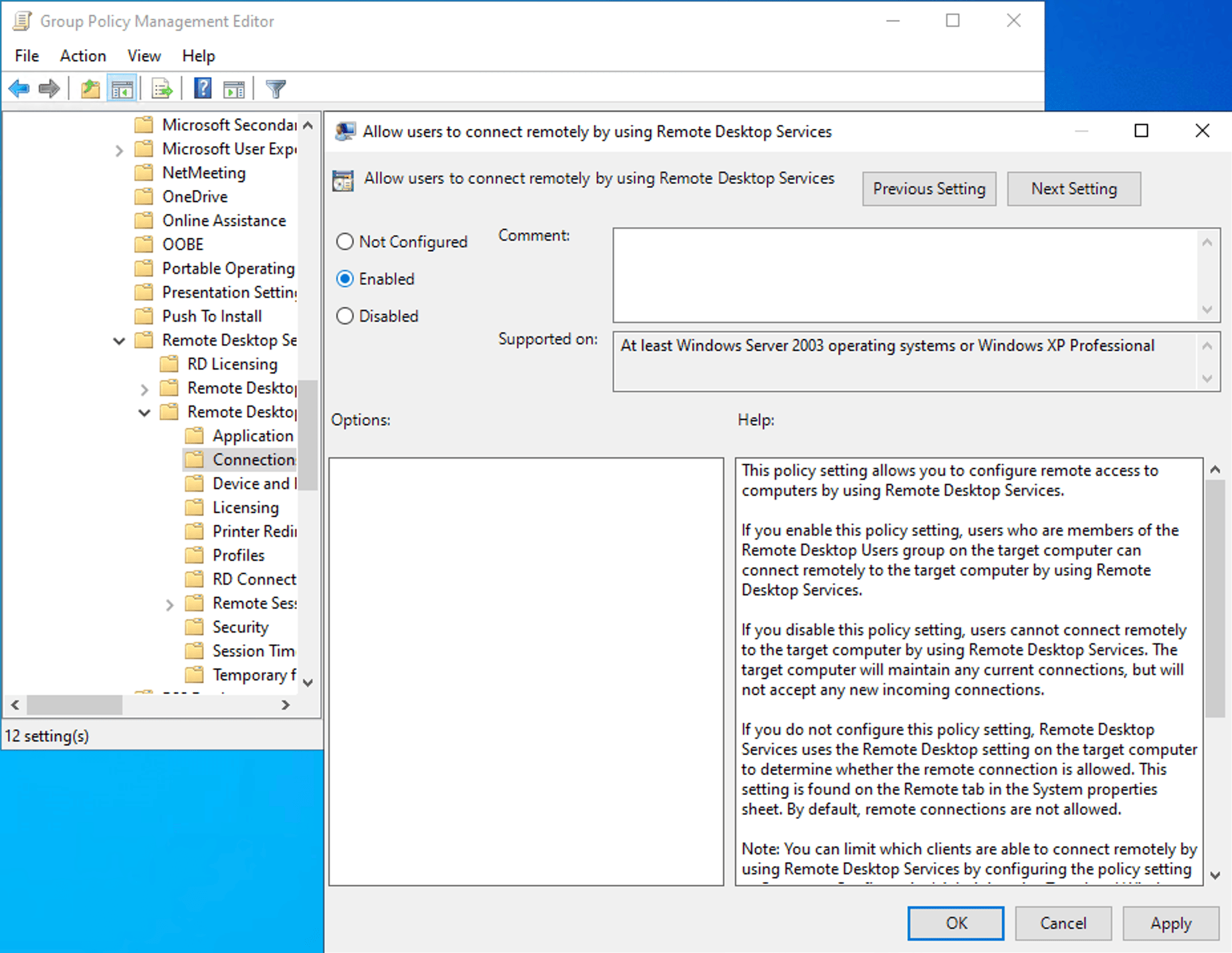
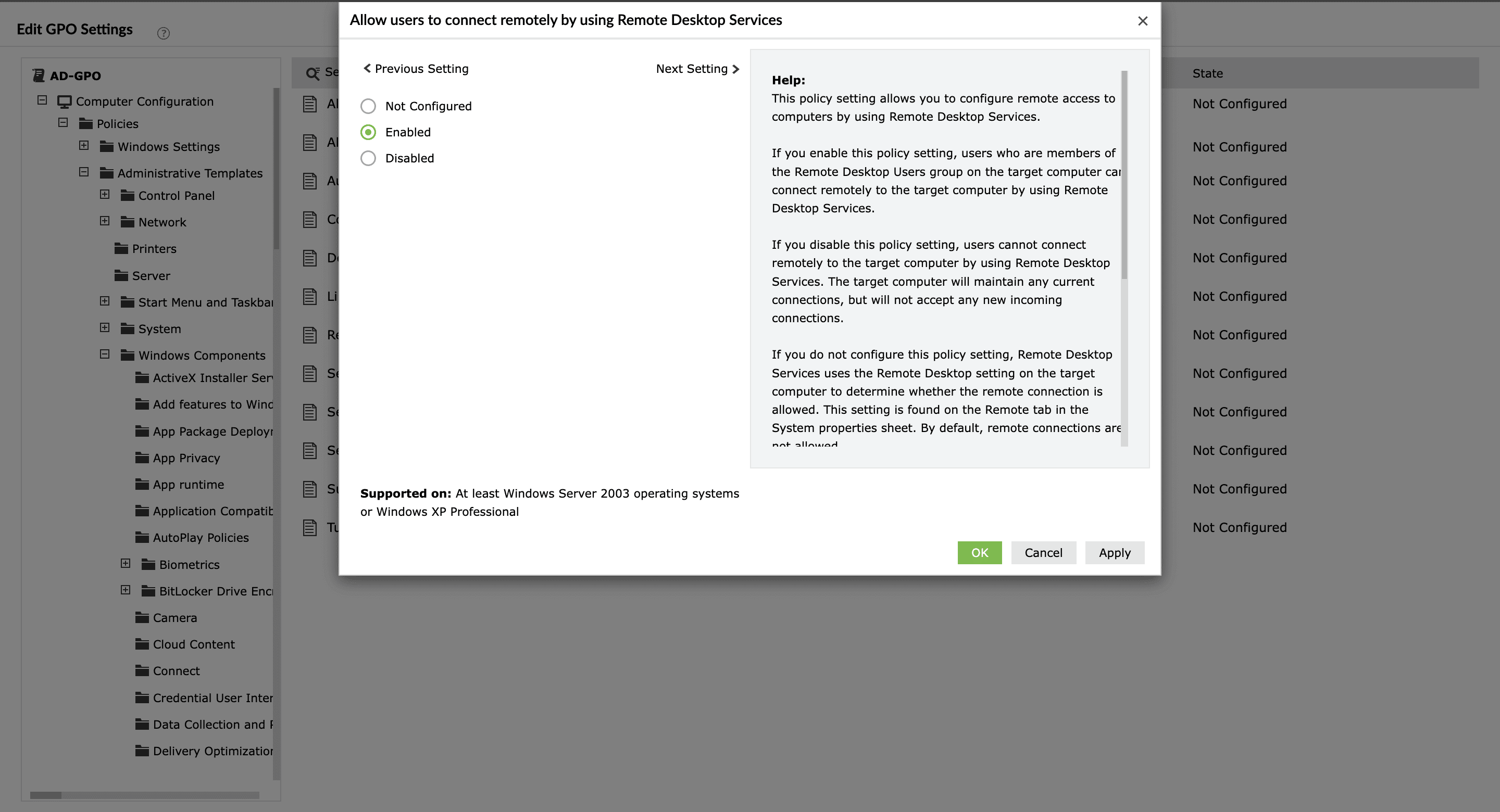
- Navigate to Computer Configuration > Policies > Administrative Templates > Windows Components > Remote Desktop Services > Remote Desktop Session Host > Connections.
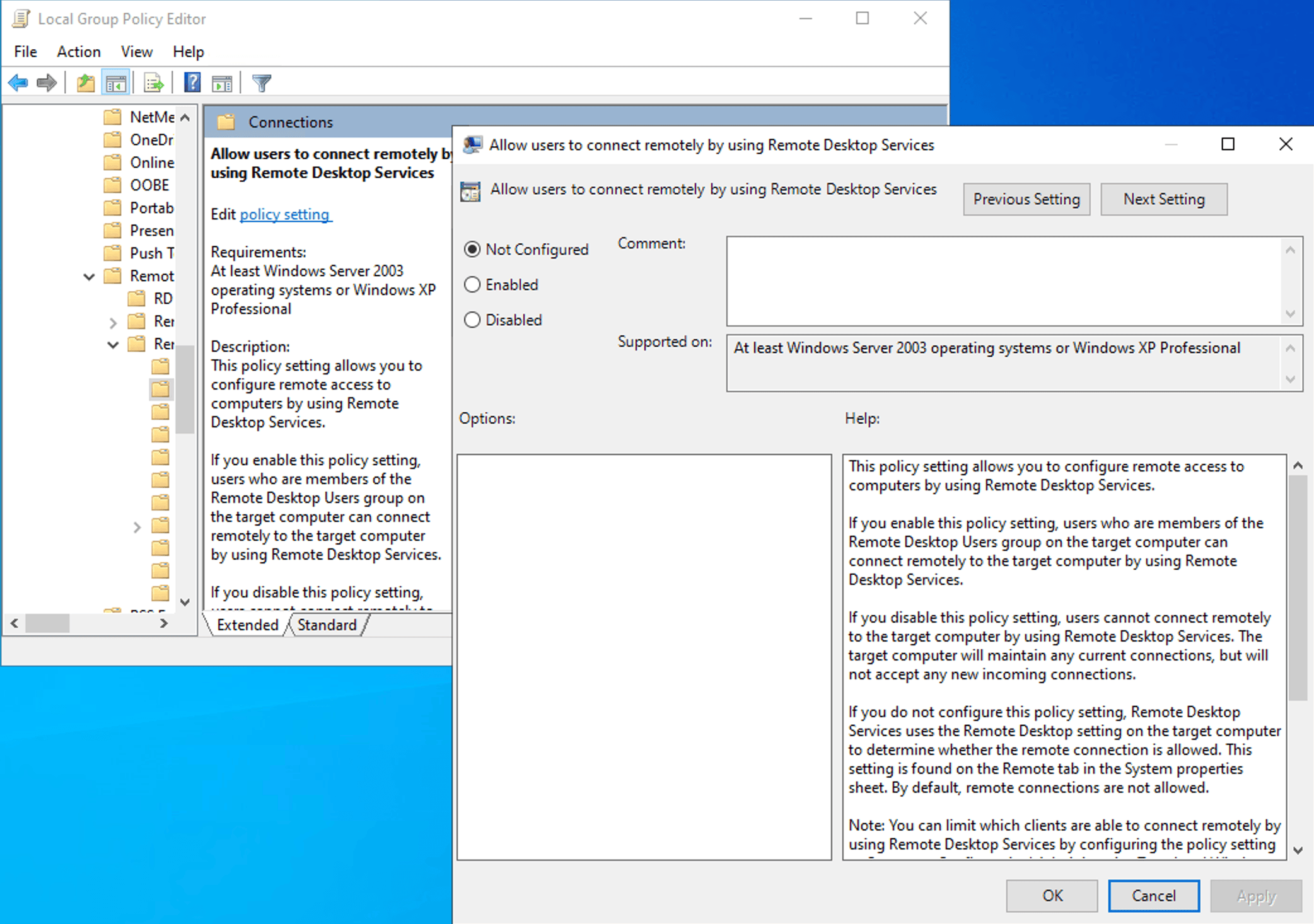
- Double-click Allow users to connect remotely by using Remote Desktop Services.
- Set it to Enabled and click OK.
- Close the editor, return to the GPMC console, and run gpupdate /force on a representative target machine to apply the policy immediately rather than waiting for the default background refresh interval.
- Verify the result by running gpresult /r /scope computer on the target machine, which lists all GPOs currently applied under Computer Settings. Your new GPO should appear in the Applied Group Policy Objects section.
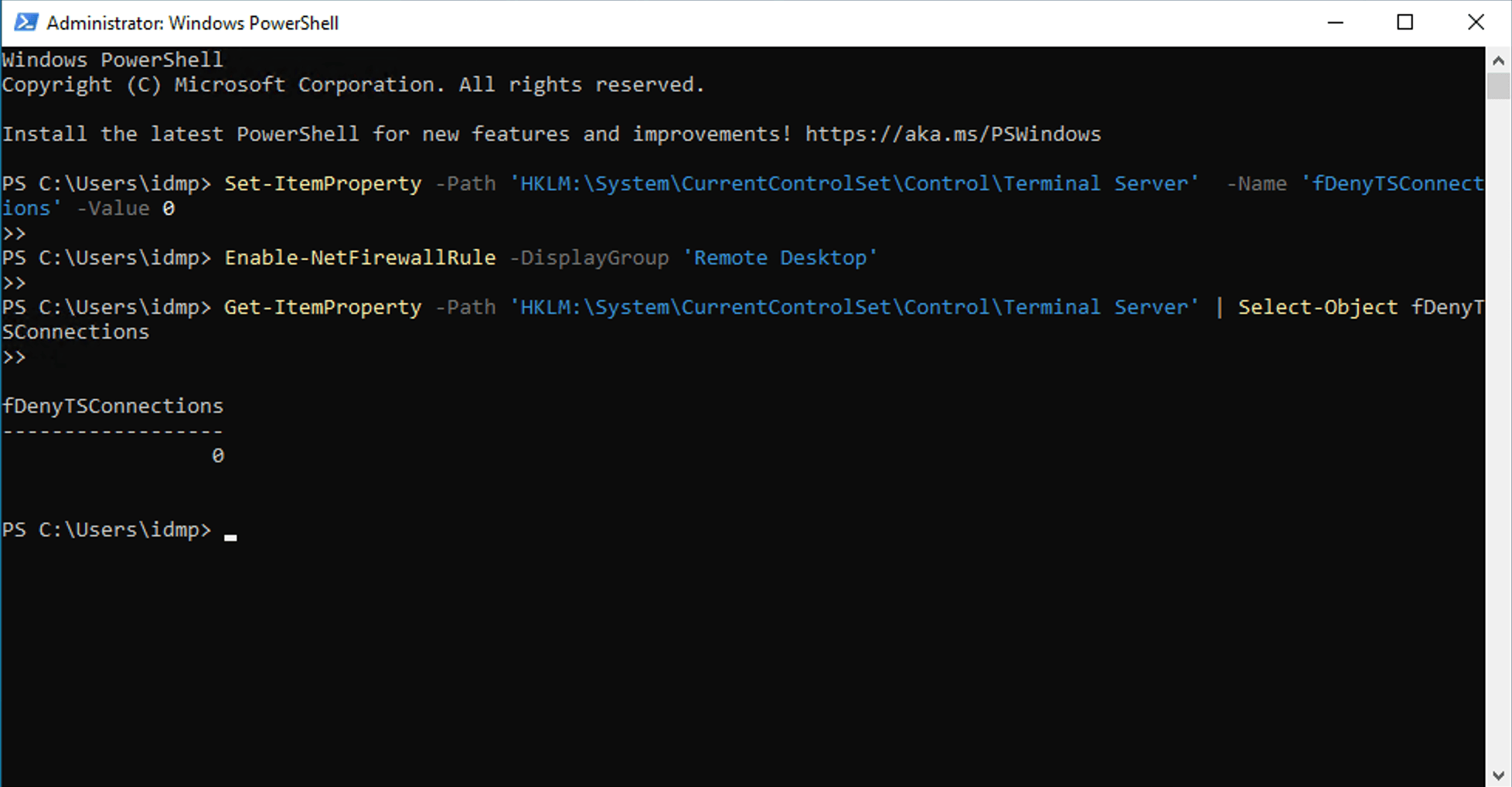
Enabling Remote Desktop via PowerShell
How to enable Remote Desktop via Group Policy on Windows 10 and Windows 11
The Group Policy path and setting name are identical across Windows 10 and Windows 11, so the GPMC procedure applies without modification when targeting Windows 10 and 11 machines. However, there are a few Windows 11-specific behaviors worth noting before deployment.
The Remote Desktop toggle on Windows 10 and Windows 11 becomes read-only and displays the Some settings are managed by your organization message as soon as a GPO has applied the Connections policy, which means the policy is being honored, not that something is broken. Windows 11 Home continues to exclude gpedit.msc and the Group Policy infrastructure, so on Home edition machines within a domain, you must rely on the domain GPO rather than any local override.
How to add users to the Remote Desktop Users group via GPO
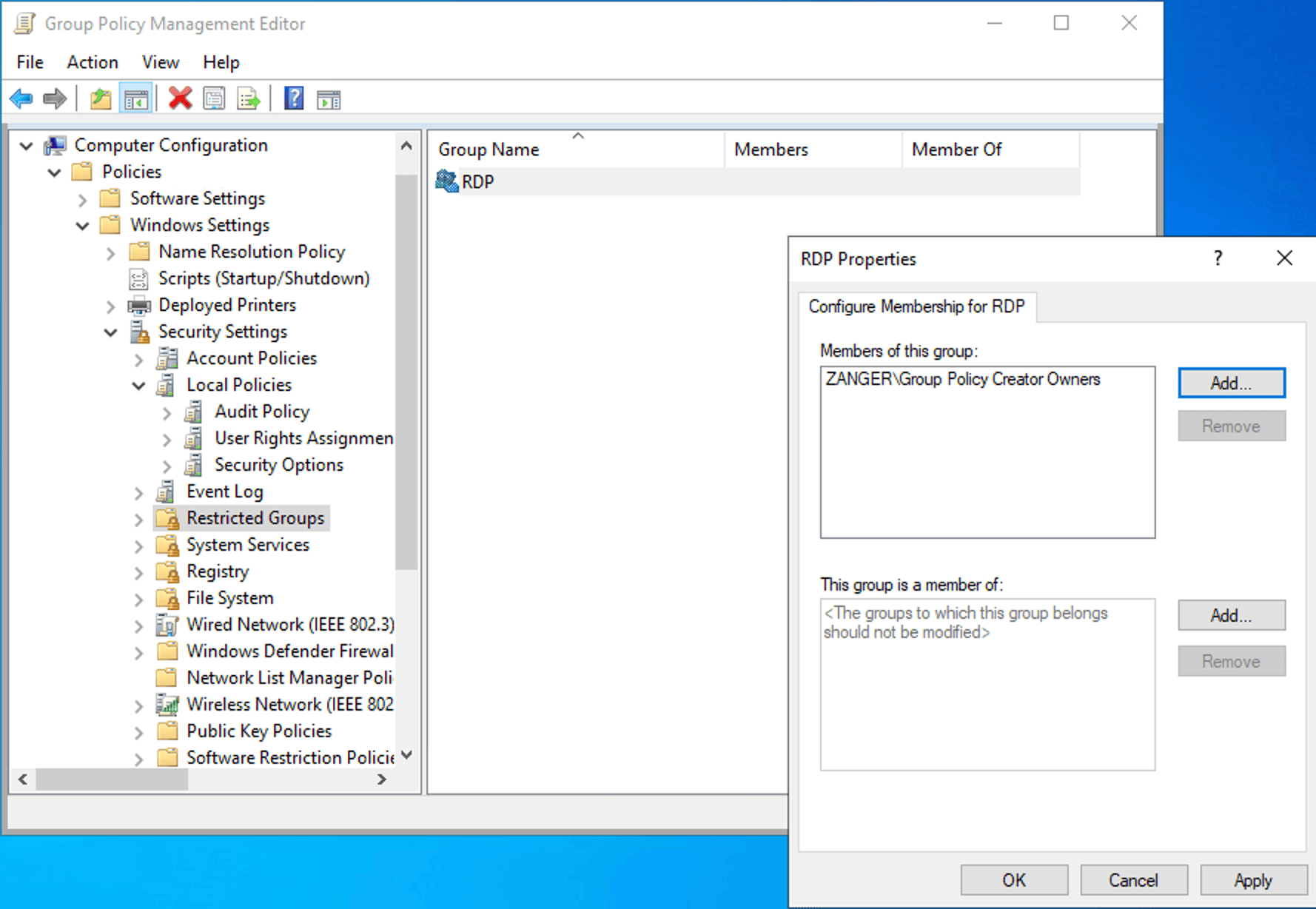
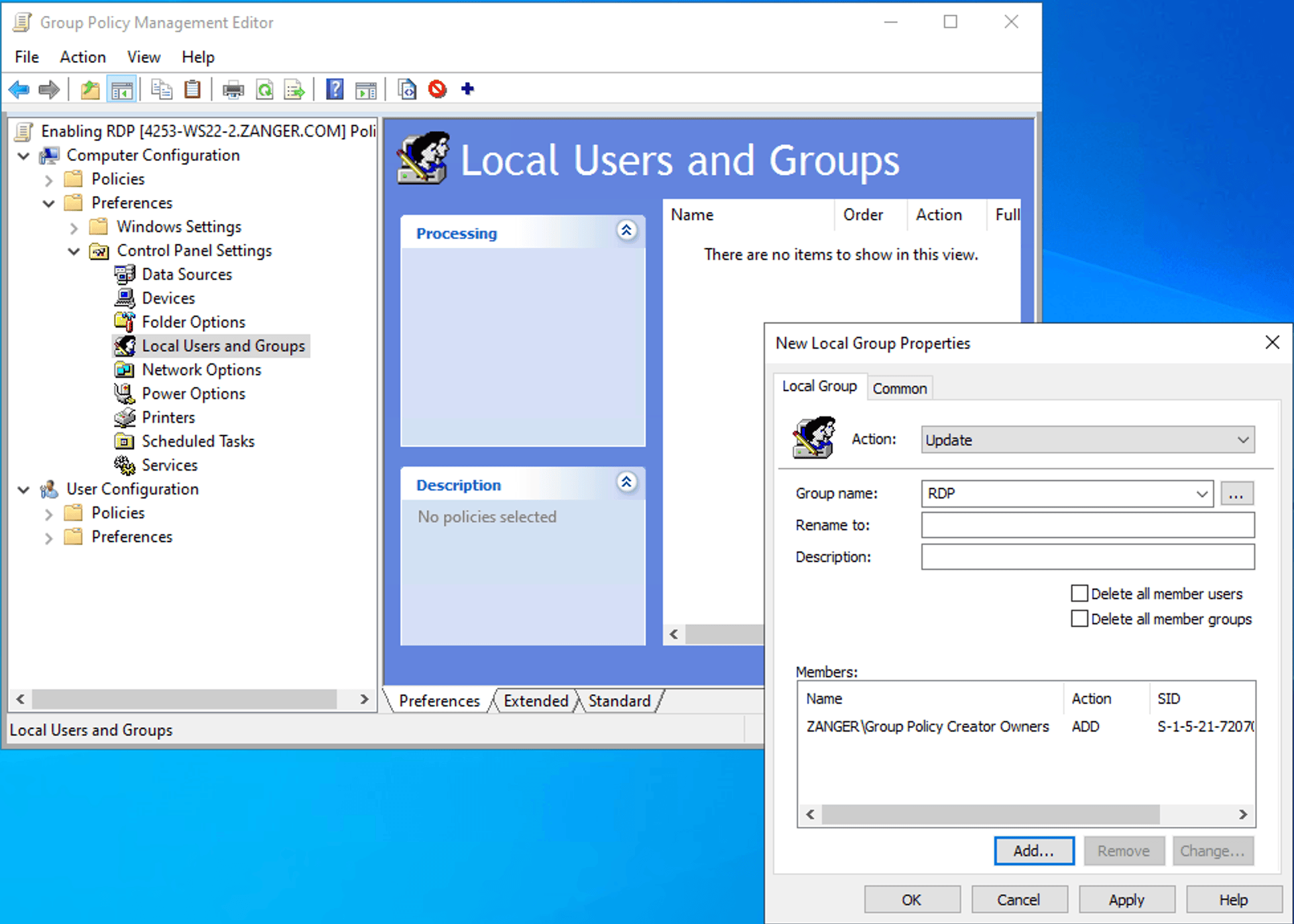
Enabling Remote Desktop via GPO makes Remote Desktop available on the targeted machines, but it does not automatically determine who is permitted to connect. By default, members of the local Administrators group on each machine can always connect via Remote Desktop. For non-administrator users to connect, they must be added to the local Remote Desktop Users group on each machine.
Grant Remote Desktop access to specific users via Group Policy
The most direct way to control which accounts and groups can establish a Remote Desktop session is through the User Rights Assignment section of the security policy, which lets you define the Allow log on through Remote Desktop Services user right at the GPO level. This ensures consistent application across all machines in scope. It is especially useful when you want to grant access to a specific AD security group without adding those accounts to the local administrators group on each machine, which would grant them far broader system privileges than Remote Desktop access requires.
- In the Group Policy Management Editor, navigate to Computer Configuration > Windows Settings > Security Settings > Local Policies > User Rights Assignment and locate Allow log on through Remote Desktop Services in the right pane.
- Double-click the setting and click Add User or Group, then enter the name of the domain security group that should have Remote Desktop access.
- Click OK to save, apply the GPO to the relevant OU, and verify with gpresult /scope computer /r on a target machine after the next policy refresh.
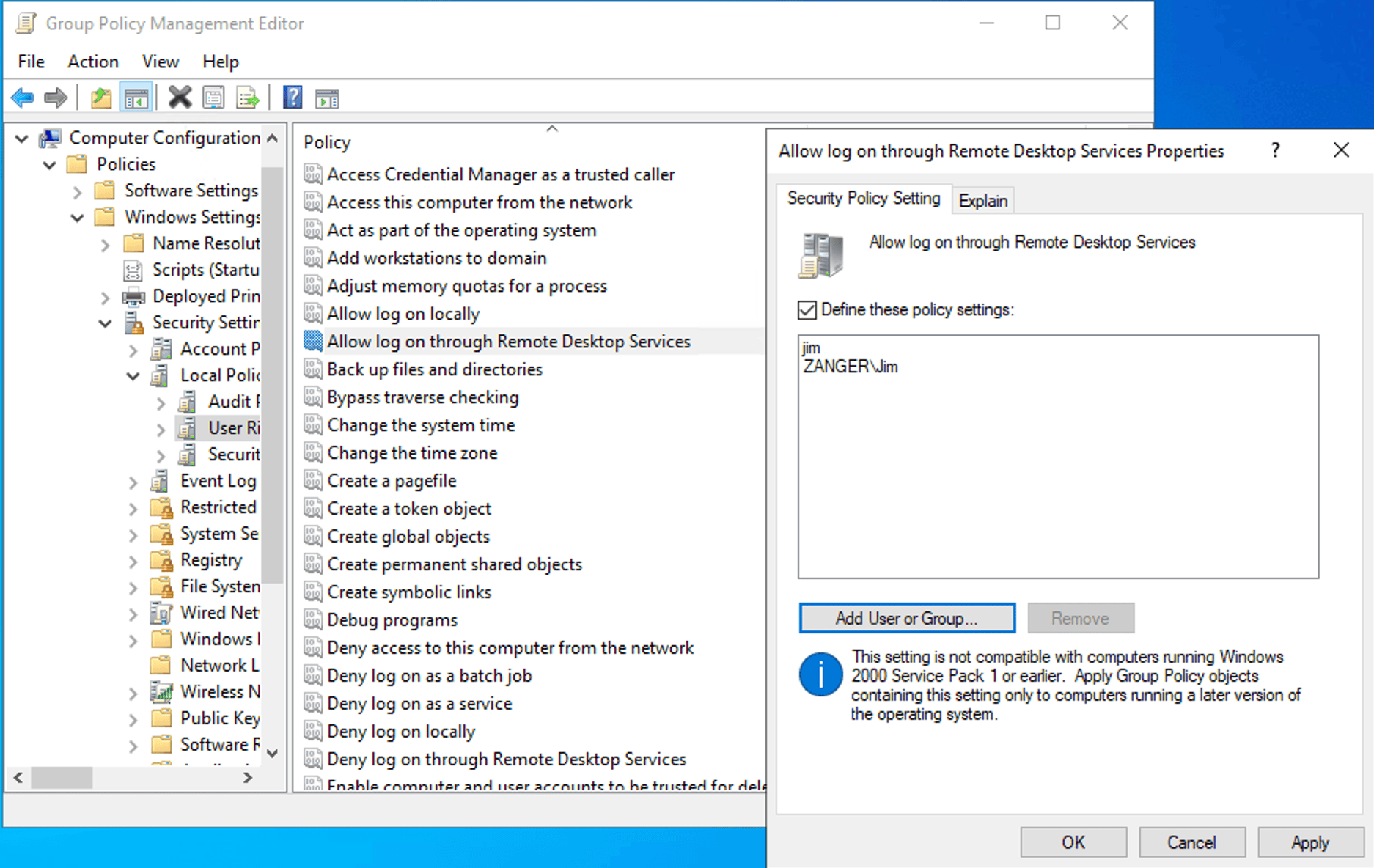
Add Domain Users to the Remote Desktop Users group with GPO
How to enable Remote Desktop via GPO using ADManager Plus
Troubleshooting common errors
- Remote Desktop toggle is grayed out.
When the Remote Desktop toggle appears grayed out and does not respond to clicks, this almost always means that a Group Policy, either from the domain or from the local policy on that machine, is enforcing the Remote Desktop setting and intentionally preventing local users from overriding it, which is expected and correct behavior in a managed environment.
To identify which specific GPO is enforcing the setting:
- Open an elevated command prompt and run gpresult /h C:\GPReport.html, then open the HTML file in a browser and search for Remote Desktop or fDenyTSConnections. The report identifies not only which GPO applied the setting but also its configured value and whether it came from Computer Configuration or User Configuration.
- If the enforcing GPO is unexpected, check the GPMC for GPOs linked to parent OUs or the domain root, and verify whether any of them have the Enforced flag set, which overrides Block Inheritance settings on child OUs and forces the policy down regardless of any exclusions configured below it.
- To check the effective registry value without generating a full report, run the registry query:
Click to copy scriptreg query "HKLM\SYSTEM\CurrentControlSet\Control\Terminal Server" /v fDenyTSConnectionsA value of 0x0 means the listener is enabled, and 0x1 means it is disabled, regardless of what the Settings app UI is showing.
- Remote Desktop shows Some settings are managed by your organization message.
This message appears in Settings > System > Remote Desktop on Windows 10 and Windows 11 when either a GPO or an MDM configuration profile has written a value to the Policies hive of the registry, which causes Windows to render the corresponding Settings control as read-only and display the management notice as an explanation. The message is informational, designed to tell end users that IT is managing this setting centrally, so they should contact the help desk rather than attempting to change it locally.
If the message appears on a machine where you did not intentionally configure a Remote Desktop GPO, check for stale policy residue such as a GPO that was applied and then deleted without first setting the policy to Not Configured may have left values that standard GPO cleanup did not remove.
Why use a dedicated tool for GPO management
GPMC works well for individual tasks, but managing GPOs at scale across multiple OUs, domains, and teams quickly exposes its limits. ADManager Plus closes those gaps with the following benefits:
- No RSAT dependency: Any authorized admin can create, edit, and link GPOs through ADManager Plus without installing additional tools or logging into a DC.
- Script-free GPO updates: Instead of running gpupdate /force on each machine individually, ADManager Plus pushes GPO changes to all targeted computers immediately with a single click.
- GPO visibility: Prebuilt GPO reports show which GPOs are linked to which OUs, which are unlinked or disabled, and which computers fall in scope, without writing a single PowerShell query.
- Granular delegation: ADManager Plus lets you grant specific admins or help desk staff the ability to manage defined GPOs without giving them broader domain-level permissions, reducing the risk of unintended changes.
FAQ
1. Which GPO setting enables Remote Desktop?
The specific policy to be enabled is the Allow users to connect remotely by using Remote Desktop Services. However, this policy alone is not sufficient for functional Remote Desktop access. You also need the Windows Defender Firewall rule for TCP 3389 to be active, and the connecting user must have either local administrator rights or membership in the Remote Desktop Users group on the target machine.
2. How do I enable Remote Desktop on all computers in a domain via GPO?
Link a GPO containing the enabled Connections policy to the domain root in GPMC, which causes it to flow down to all computer objects in the domain at the next Group Policy refresh interval. Linking at the domain root is appropriate when all machines in the organization should have Remote Desktop enabled. For more selective deployments, link the GPO to only the OUs containing the specific machine accounts that should be targeted, which gives you granular control and makes it easier to exclude machines where Remote Desktop should remain disabled.
3. Can I enable Remote Desktop without being a local administrator?
No, you cannot enable Remote Desktop through the Settings app or System Properties, both of which require local administrator privileges to change the Remote Desktop-enabled state. A domain administrator, however, can enable Remote Desktop on any domain-joined machine by configuring a GPO that targets the machine's OU. Standard users who have been added to the Remote Desktop Users group or granted the Allow log on through Remote Desktop Services user right can connect via Remote Desktop once it is enabled, but they cannot change whether it is enabled or disabled.
4. What is the allow.rdp firewall rule?
allow.rdp is the internal group name Windows uses for the predefined set of firewall rules associated with Remote Desktop. For environments where Remote Desktop should be limited to specific source addresses, such as a VPN subnet or management VLAN, you can add a Remote Address restriction to these rules through the firewall GPO or through the rule properties in Windows Defender Firewall with Advanced Security, which provides a meaningful network-level control even when the machine has strong authentication configured.
5. Does enabling Remote Desktop via GPO automatically open the firewall?
No, the Connections policy and the firewall rule are configured through separate GPO nodes and enabling one has no effect on the other. After applying the Connections policy to activate the Remote Desktop listener, you must separately enable the predefined Remote Desktop firewall rule group through the Windows Defender Firewall with Advanced Security node in Group Policy or equivalently via PowerShell's Enable-NetFirewallRule cmdlet. If the listener is enabled but the firewall rule is not active, connection attempts will either time out or be immediately refused without any error message indicating that the firewall is the cause, which makes this challenge to diagnose if you are not aware that the two settings are independent.













