

- Knowledge base
- Active Directory management
- Active Directory reports
- Active Directoy integrations
- Active Directory automation
- Active Directory delegation
- Governance, risk, and compliance
- Microsoft 365 management and reporting
- AD migration
- Access certification
- Identity risk assessment
- Risk exposure management
- FAQs
- Pricing
- Online demo
- Request support
- Get quote
An LDAP search is a directory query performed against a domain controller (DC) to retrieve user, group, or object information from Active Directory.
LDAP searches are critical in enterprise environments because they power authentication, authorization, and directory lookups across applications, systems, and services. Every login, access check, or identity lookup often depends on a well-structured LDAP query.
Every LDAP search requires three key components:
- Search base (Base domain name (DN)): Where to search
- Search scope: How deep to search
- Search filter: What to search for
Without all three, the query will either fail or return incomplete results.
Core LDAP search components
LDAP search filter
LDAP search filters use parentheses and logical operators.
Basic syntax:
(attribute=value)
Example:
(sAMAccountName=jdoe)
LDAP search base
The search base defines where the LDAP query starts.
Example:
DC=company,DC=com
Example OU-based search base:
OU=Users,DC=company,DC=com
If the search base is incorrect, LDAP search results will be empty�even if the object exists.
LDAP search scope
There are three search scope options, with subtree being the most commonly used:
- Base: searches only the specified DN
- OneLevel: searches objects directly inside the container
- Subtree: searches entire directory tree under base
Requested attributes in LDAP search
LDAP queries can control what data is returned.
By default, some tools return multiple attributes, but pulling everything is inefficient. Using * returns all user attributes, which is useful for testing but not ideal in production. Similarly, + retrieves operational attributes like system metadata, which are not included in standard queries.
You can also request attributes specific to an object class using @objectClass, or return no attributes at all using 1.1 when you only need to check if an object exists.
In practice, the best approach is to request only what you need. This reduces response size, improves performance, and lowers load on the directory.
Example:
ldapsearch -x -b "DC=company,DC=com" "(sAMAccountName=jdoe)" mail memberOf
This returns only the email and group membership for the user, making the query faster and more efficient.
LDAP search methods
Method 1: LDAP search using Active Directory Users and Computers (ADUC)
This method performs a basic LDAP search behind the scenes but does not expose full LDAP filter syntax.
- Open ADUC.
- Click View.
- Select Advanced Features.
- Right-click the domain root.
- Select Find.
- Choose the object type:
- Users
- Groups
- Computers
- Enter search criteria.
- Click Find Now.
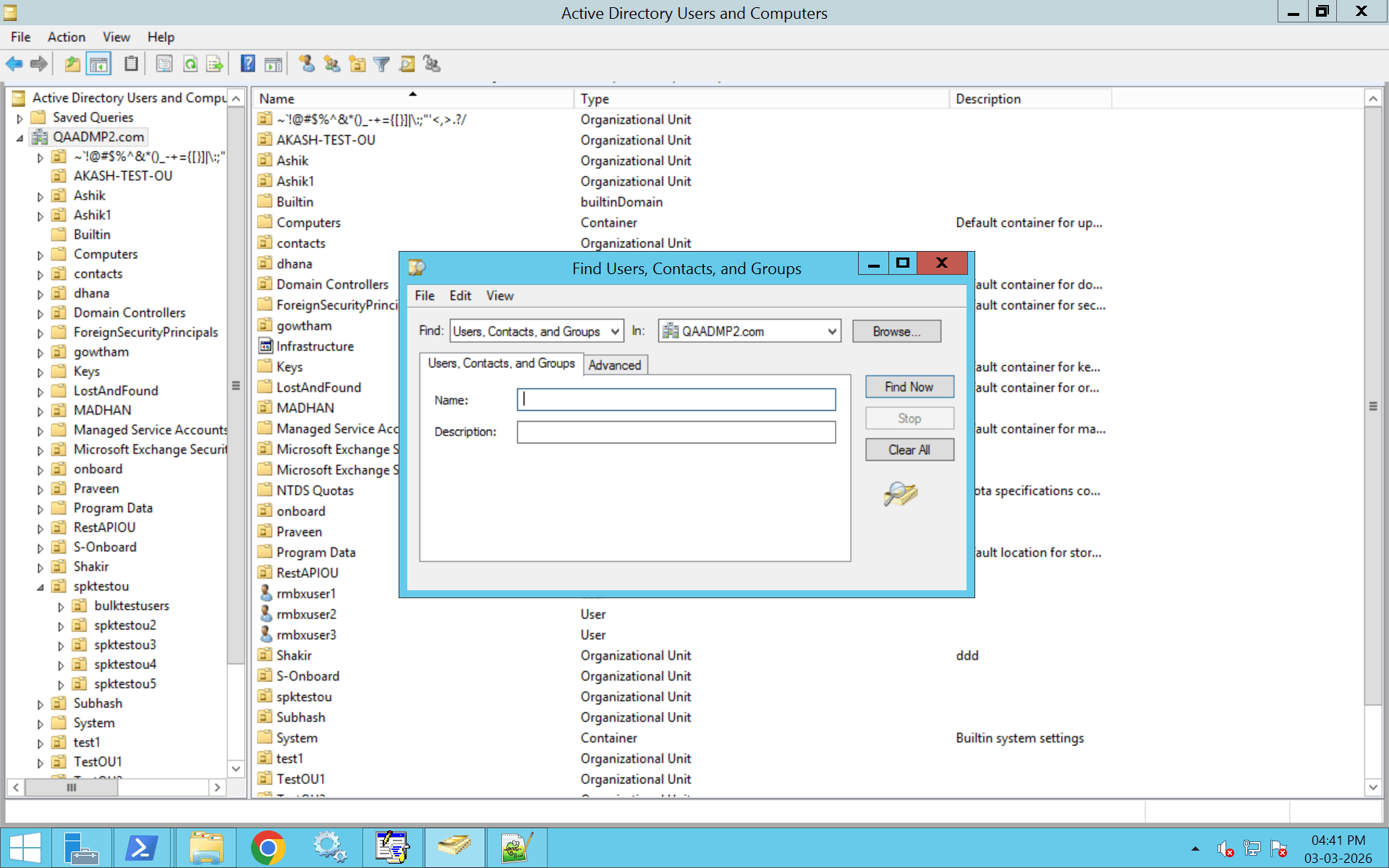
Method 2: LDAP search using Active Directory query tool (LDP.exe)
Method 3: LDAP search using PowerShell
Method 4: LDAP Search using Linux (ldapsearch Command)
Method 5: LDAP search using dsquery (Command line LDAP search)
Method 6: LDAP search using ADManager Plus
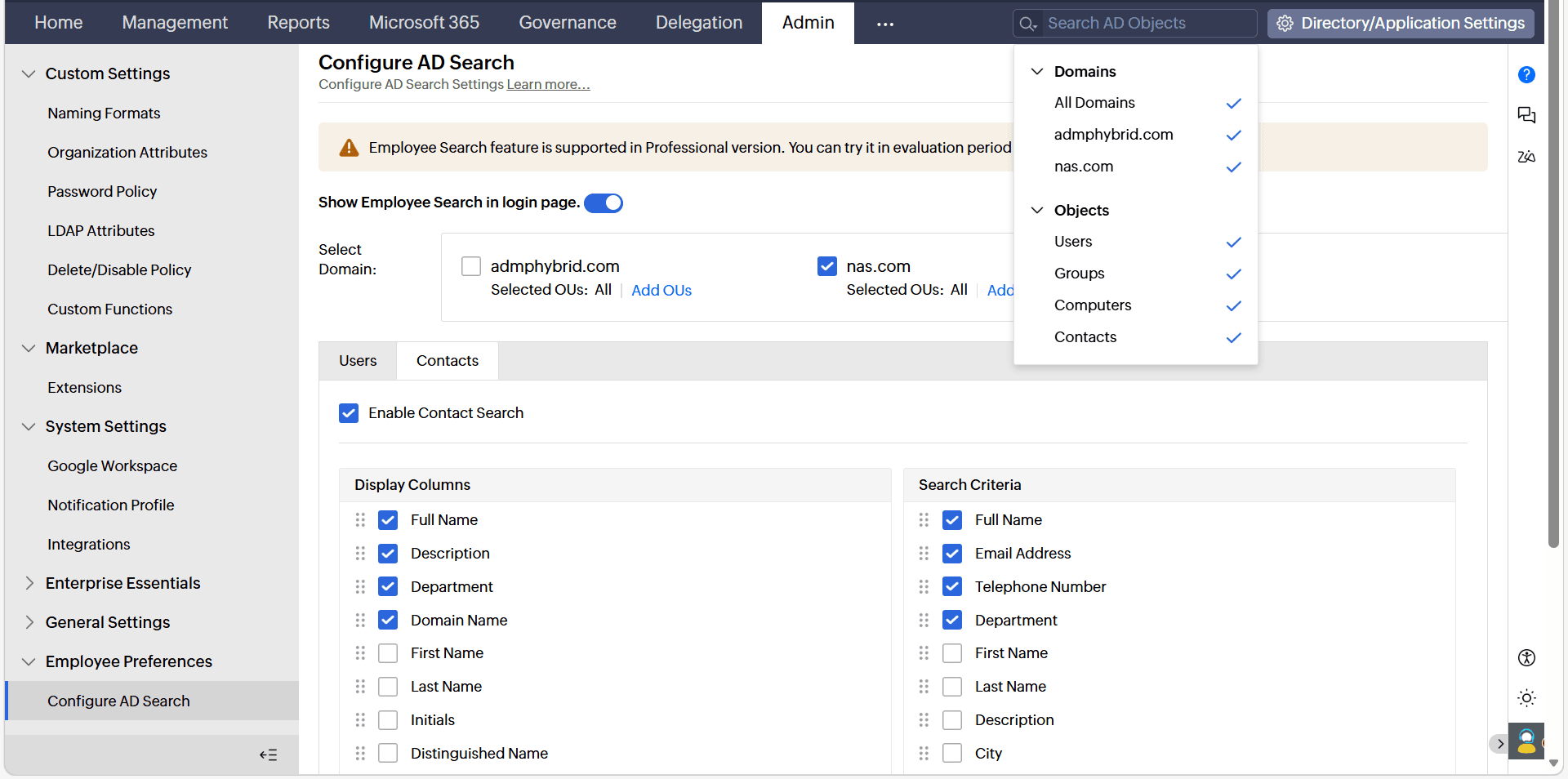
Suspicious LDAP search and AD-CS reconnaissance
High-volume or unusual LDAP search queries can indicate malicious reconnaissance activity in Active Directory.
Examples include:
- Querying all users
- Querying certificate templates
- Enumerating group memberships at scale
- Repeated wildcard searches
Monitoring LDAP search logs on DCs is important to detect suspicious behavior, especially related to AD CS reconnaissance.
Common LDAP search filter examples
Below are the commonly used LDAP search filters and how they work across all methods.
AND filter example
Find users in the IT department using one of the three following methods.
Filter:
(&(objectClass=user)(department=IT))
PowerShell:
Get-ADUser -LDAPFilter "(&(objectClass=user)(department=IT))"
Linux:
ldapsearch -x -b "DC=company,DC=com" "(&(objectClass=user)(department=IT))"
OR filter example
Find users in IT or HR using the following method.
Filter:
(|(department=IT)(department=HR))
Wildcard search example
Find usernames starting with "J" with the following search:
(sAMAccountName=j*)
Search for a specific user example
Search for a specific username:
(sAMAccountName=jdoe)
Search for groups
Search for all groups:
(objectClass=group)
Specific for a specific group:
(cn=Domain Admins)
LDAP search attributes example
Retrieve specific attributes with the following search:
ldapsearch -x -b "DC=company,DC=com" "(sAMAccountName=jdoe)" mail memberOf
Common LDAP search errors and how to fix them
1. Error: �Server Down� or connection timeout
This error means the LDAP server is unreachable.
Possible causes
- Incorrect server name
- Network issue
- Firewall blocking LDAP ports
- LDAP service not running
Solution
- Test connectivity:
Click to copy scriptTest-NetConnection -ComputerName <server> -Port 389
- Verify required ports are open:
- Confirm the server is listening:
Click to copy scriptnetstat -an | find "389"
- Check DC health:
Click to copy scriptdcdiag /test:connectivity
2. Error: �Invalid Credentials�
3. Error: �No Such Object�
4. Error: �Insufficient Access Rights�
5. Error: �Size Limit Exceeded�
6. Error: �Referral� or �Partial Results�
7. Error: �Strong Authentication Required�
8. Error: �Busy� or �Unavailable�
LDAP search best practices
1. Always define a narrow search base
Avoid using the domain root unless necessary. Point your search base directly to the relevant OU to reduce query load and improve performance.
2. Use specific and optimized filters
Avoid broad filters like (objectClass=user) without additional conditions. Combine attributes using AND (&) to narrow results and reduce server processing time.
3. Limit returned attributes
Request only the attributes you need instead of retrieving all attributes. This reduces network traffic and improves response time.
Example in PowerShell:
4. Use subtree scope carefully
Subtree searches are powerful but can impact performance in large directories. Use OneLevel scope when searching within a specific container.
5. Avoid anonymous binds
Disable anonymous LDAP search wherever possible. Use a dedicated bind account with minimal read permissions instead of administrative credentials.
6. Use LDAPS or StartTLS
Always encrypt LDAP traffic using:
- Port 636 (LDAPS)
- StartTLS (where supported)
Unencrypted LDAP exposes credentials and directory data.
7. Enforce LDAP signing and channel binding
Enable LDAP signing and channel binding on DCs to prevent relay and tampering attacks. Simple bind over port 389 should be avoided in production environments.
8. Monitor and log LDAP queries
Detect reconnaissance and abuse patterns by logging:
- Failed bind attempts
- High-frequency search activity
- Broad or suspicious filters
- Repeated group enumeration
9. Implement query paging for large result sets
If querying large datasets, use paging instead of increasing server limits. This prevents �Size Limit Exceeded� errors and reduces directory strain.
Strengthen LDAP search with ADManager Plus
LDAP search is only as reliable as the directory behind it. If user attributes are inconsistent, group memberships are nested excessively, or inactive accounts remain enabled, LDAP queries return inaccurate or risky results.
ADManager Plus strengthens LDAP search reliability by providing centralized visibility into users, groups, attributes, and delegated permissions across Active Directory.
Administrators can:
- Search and locate directory objects instantly using advanced filters
- Review and clean up nested or excessive group memberships
- Detect inactive or stale accounts that still appear in LDAP queries
- Standardize attribute management to prevent inconsistent search results
By automating provisioning, enforcing structured delegation, and conducting periodic access reviews, organizations ensure that LDAP search results reflect current, least-privilege access.
FAQ
1. How do I know if ldapsearch is installed?
Open Command Prompt or PowerShell and run:
If installed, it will display the OpenLDAP version (for example, 2.4.44).
On Windows, ldapsearch is not installed by default. You can install it by adding RSAT tools:
Alternatively, install OpenLDAP binaries for Windows. If you only need to test Active Directory queries, you can use PowerShell:
2. Should I use LDAP or LDAPS?
Use LDAPS (port 636) in production environments. It encrypts LDAP traffic using SSL/TLS and protects credentials from being intercepted.
Standard LDAP (port 389) transmits data in clear text unless StartTLS is used, making it vulnerable on untrusted networks.
When using ldapsearch, specify:
or use StartTLS with:
To verify the server certificate:
3. What is the LDAP search limit?
Active Directory typically enforces a default limit of 1,000 results per query (MaxPageSize). If exceeded, the server returns a �Size Limit Exceeded� error (error 4).
Instead of increasing server limits, refine your filter or use paged searches. Client-side tools like ldapsearch allow result limits using the -z option (use -z 0 for unlimited, if supported).
4. How many types of LDAP are there?
The primary version in use today is LDAPv3, defined in RFC 4510 and used by Active Directory and most other directory services. LDAPv2 is obsolete and not recommended.
Common variants include:
- LDAPS (LDAP over SSL/TLS)
- StartTLS (upgrades LDAP to encrypted session)
- Global Catalog LDAP (ports 3268/3269 in Active Directory)
- CLDAP (connectionless LDAP over UDP, Microsoft-specific)
Modern environments should use LDAPv3 with encryption enabled.
5. How do I test an LDAP search filter?
You can test filters interactively using:
You can also validate filters using:
- Active Directory Users and Computers (Find feature)
- PowerShell:
Ensure proper syntax:
- Use parentheses around conditions
- Use & for AND
- Use | for OR
- Escape special characters like *, (, and )
6. Where is ldapsearch located?
On Windows (after installing RSAT or OpenLDAP), it is typically located in:
On Linux or macOS, it is usually found at:
If the command is not found, install:
- ldap-utils (Debian/Ubuntu)
- openldap-clients (RHEL/CentOS)
- OpenLDAP via Homebrew (macOS)
7. What is Root DSE in LDAP?
Root DSE is a special entry that provides metadata about the directory server such as naming contexts and supported features.
8. How do I handle large LDAP search results?
Use paged results instead of increasing server limits. This improves performance and prevents query failures.













