How to use RSA Cloud as a SAML Authenticator
This page walks you through configuring RSA Cloud as a SAML identity provider (IdP) for MFA via ADSelfService Plus.
This article outlines how to update the Windows login agent to its latest version.
Objective
This guide helps you set up your existing RSA Cloud deployment as a SAML authenticator. This will enable users to authenticate using RSA Cloud for MFA within ADSelfService Plus' workflows.
Prerequisite
Ensure that you have:
- Admin credentials for the RSA Cloud portal.
- Admin credentials for the ADSelfService Plus web console.
Steps to configure RSA Cloud as a SAML authenticator
Step 1: SP configuration
In this step, you will configure ADSelfService Plus to be a service provider (SP) for RSA Cloud.
- Initial setup
- Log in to the ADSelfService Plus web console with admin credentials.
- Navigate to Configuration > Self-Service > Multi-factor Authentication > Authenticators Setup.
- Click SAML Authentication (or click Modify if already configured).
- Configuring RSA Cloud in ADSelfService Plus
- Click the Select IdP drop-down and choose Custom SAML.
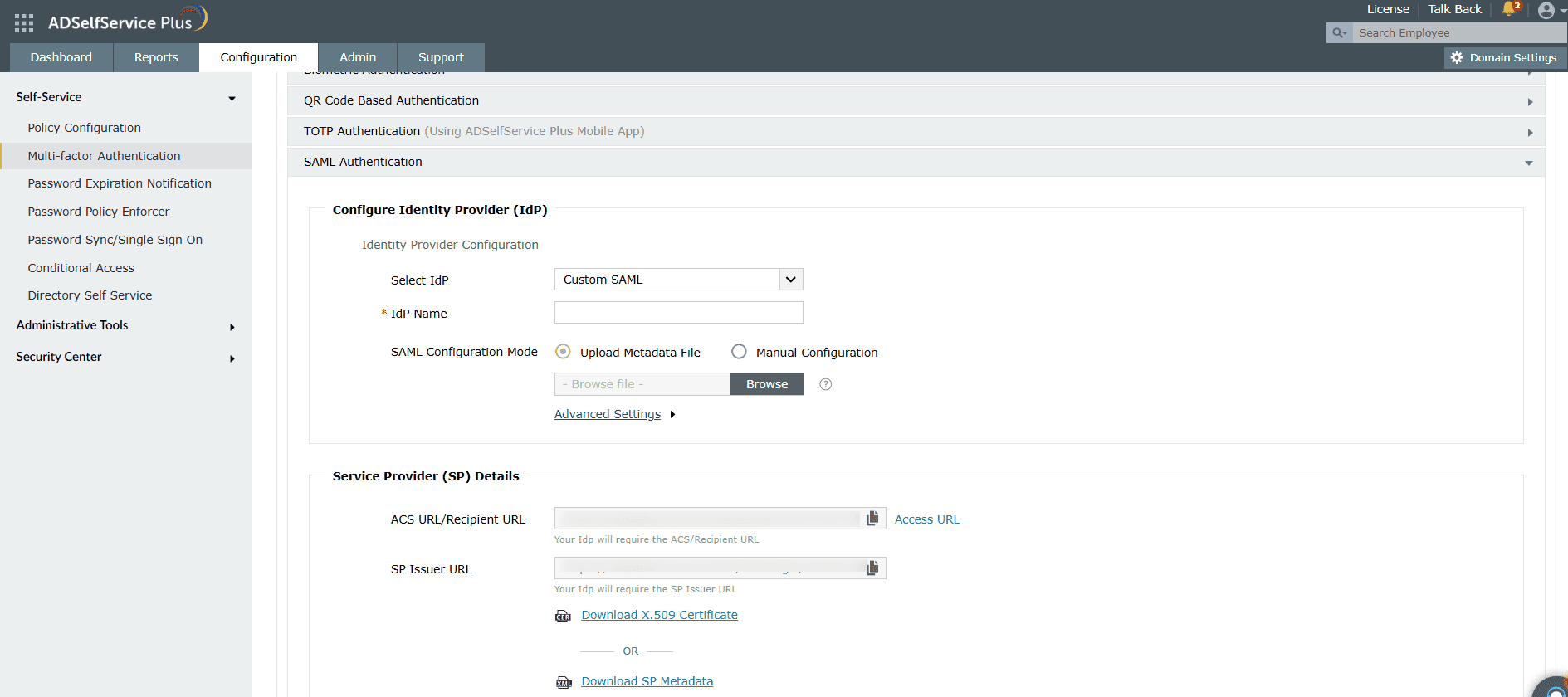
- Choose your configuration mode:
Option A: Upload Metadata File
- Select Upload Metadata File.
- Click Browse to upload the IdP metadata file downloaded from RSA Cloud.
Option B: Manual Configuration
- Select Manual Configuration.
- Enter the Issuer URL/Entity ID URL from RSA Cloud.
- Enter the IdP Login URL from RSA Cloud.
- Paste the X.509-Certificate from RSA Cloud (must begin with -----BEGIN CERTIFICATE----- and end with -----END CERTIFICATE-----).
- Copy the ACS URL/Recipient URL and SP Issuer URL values under Service Provider (SP) Details for later use.
- Configuring advanced settings
- Click Advanced Settings to configure SAML request and response processing.
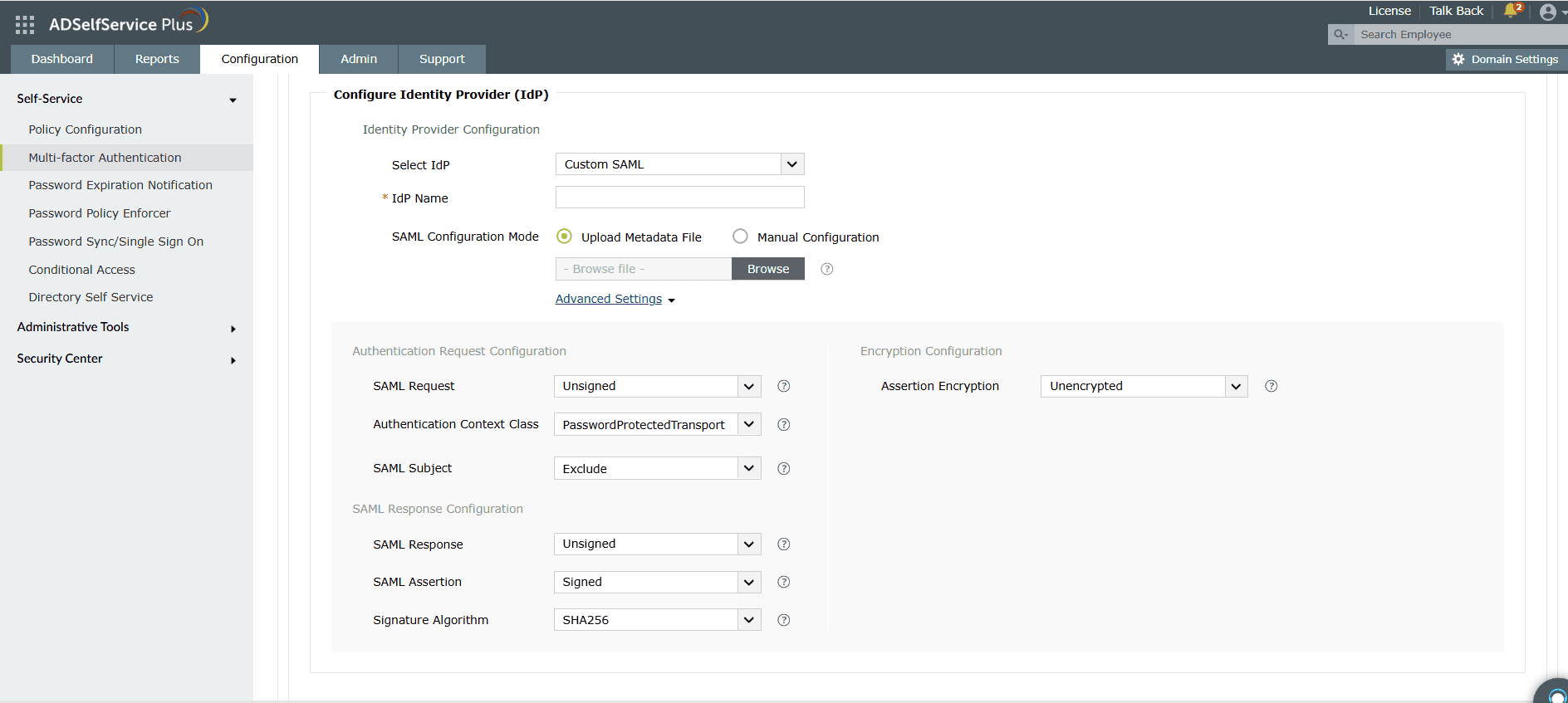
- Configure the SAML Request:
- From the SAML Request drop-down, select whether the request is signed or unsigned.
- Choose the Authentication Context Class from the drop-down.
- Configure SAML Subject inclusion:
- From the SAML Subject drop-down, choose Include if you want users to skip primary authentication during MFA at RSA Cloud.
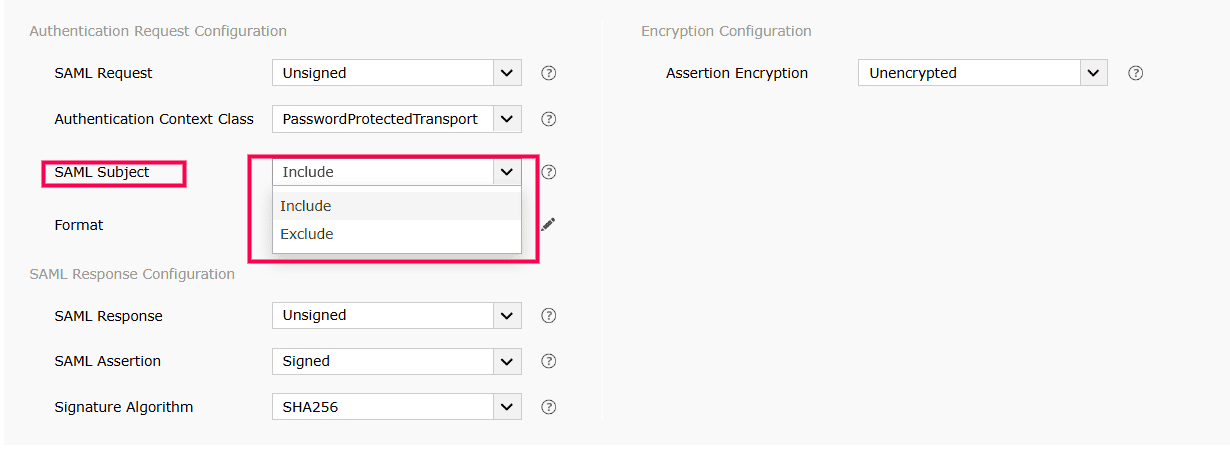
- If included, click the Edit button next to Format and select the appropriate SAML subject pattern, then click Save.
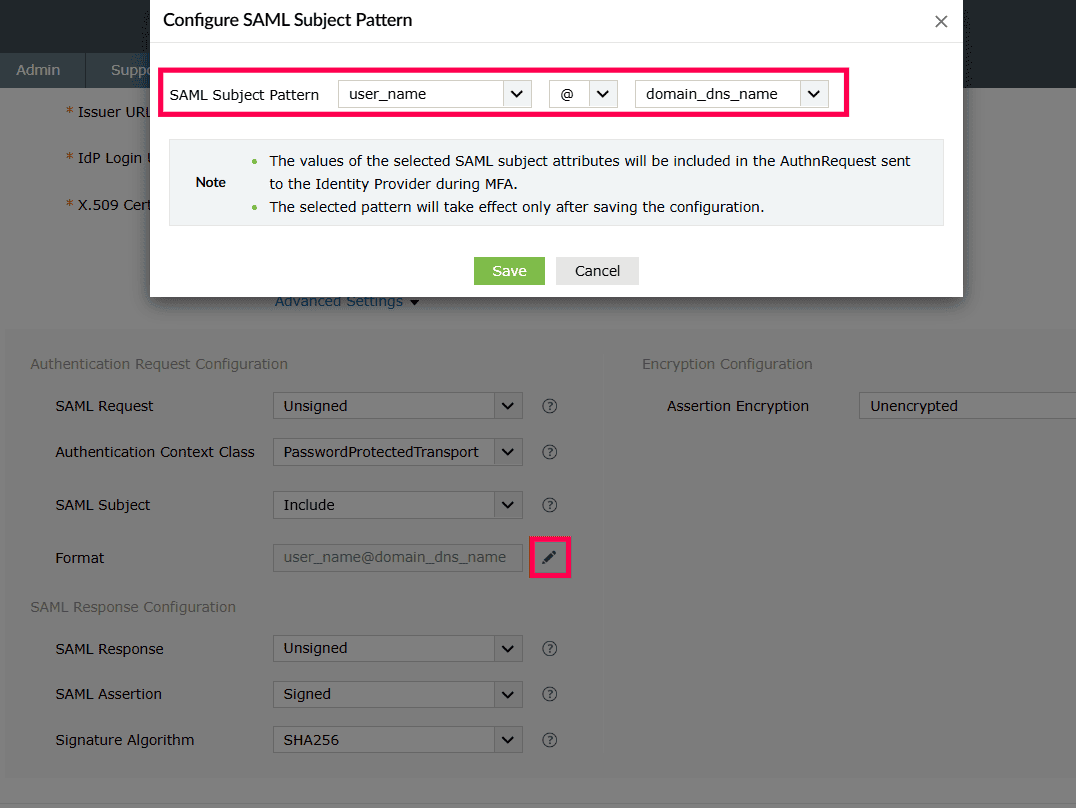
- Choose Exclude if users must complete primary authentication at the IdP before MFA.
- Configure signature settings:
- Select SAML Response signature requirements.
- Select Assertion Signature requirements.
- Choose the Signature Algorithm that RSA Cloud uses.
- Configure Assertion Encryption:
- Select whether assertions are encrypted or unencrypted.
- If encrypted, choose the Encryption Certificate type:
- Self-Signed: Click Download Self-Signed Certificate (needed for RSA Cloud configuration).
- CA-Signed: Upload the CA Public Key and CA Private Key.
- Click Save.
- Download SP metadata
- After saving, click Download SP Metadata to download the metadata file (you'll need this for RSA Cloud configuration).
Step 2: IdP configuration
In this step, you will configure ADSelfService Plus as a custom SAML Application in RSA Cloud.
- Create Relying Party
- Log in to the RSA Cloud portal with admin credentials.
- Navigate to Authentication Clients > My Relying Parties.
- Click Add a Relying Party.
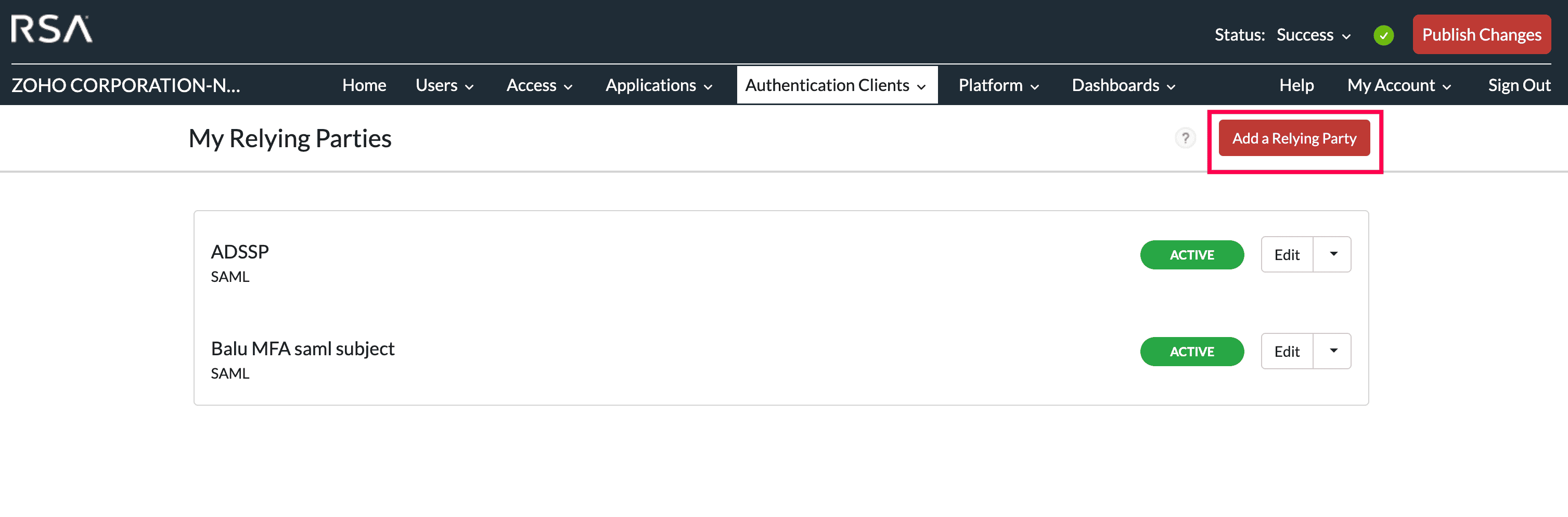
- Under Relying Party Catalog, click Add next to Service Provider SAML.
- Configure basic information
- Under Add Service Provider, enter:
- Name: Provide an easily recognizable name (e.g., ADSelfService Plus).
- Description: Optionally add details about the connection.
- Click Next Step.
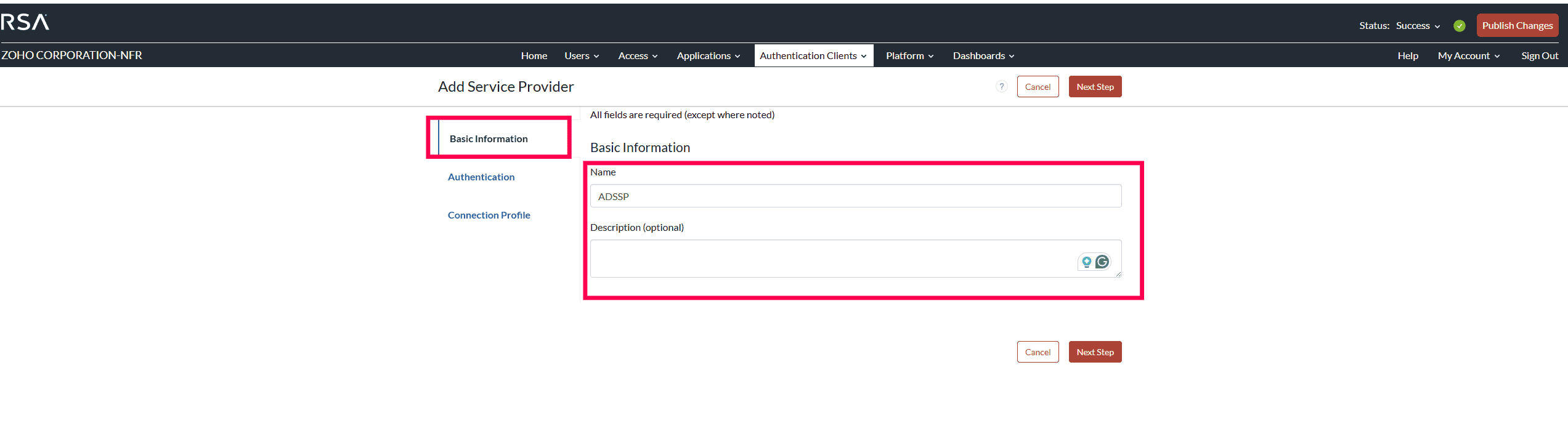
- Configure authentication method
- Choose your authentication method based on SAML Subject configuration:
If you included SAML Subject in step 8 of the SP configuration:
- Select Service provider manages primary authentication, and RSA manages additional authentication.
- Click the 1.0 Access Policy for Additional Authentication drop-down.
- Select the policy defining how RSA handles secondary authentication.
Note: Choosing to include the SAML Subject in the SAML request enables RSA Cloud to bypass first-factor authentication. This will allow users to skip primary authentication during MFA.
If you excluded SAML Subject in step 8 of the SP configuration:
- Select RSA manages all authentication.
- Click the 2.0 Access Policy for Authentication drop-down.
- Select the policy defining how RSA handles both primary and secondary authentication.
- Click Next Step.
- Configure connection profile
- Under Data Input Method, choose your preferred method:
Option A: Import metadata
- Click Import Metadata.
- Click Choose File and import the SP Metadata file from step 8 of the SP configuration.
- Service Provider Entity ID: Enter the ACS URL/Recipient URL value saved in step 5 of the SP configuration
- Audience for SAML Response:
- Choose Default: Service Provider Entity ID.
- Message Protection: Under SAML Response Protection, choose IdP signs assertion within response.
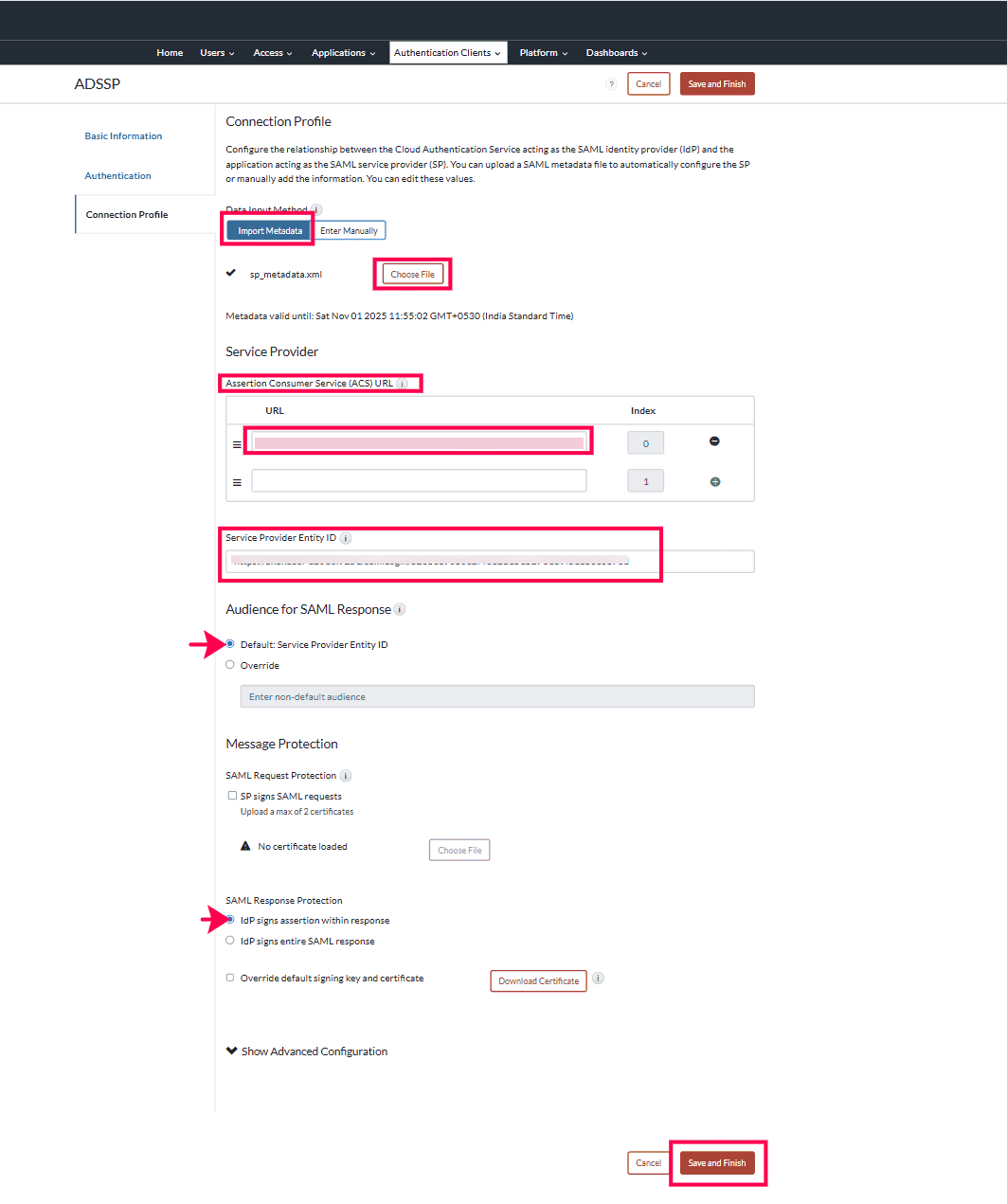
Option B: Enter manually
- Click Enter Manually.
- Assertion Consumer Service (ACS) URL: Paste the ACS URL/Recipient URL value saved in step 5 of the SP configuration and click the + icon.
- Service Provider Entity ID: Paste the SP Issuer URL value saved in step 5 of the SP configuration.
- Audience for SAML Response: Choose Default: Service Provider Entity ID.
- Message Protection: Under SAML Response Protection, choose IdP signs assertion within response.
- Finalize configuration
- Click Save and Finish.
- Click Publish Changes.
- Download IdP metadata
- View your configuration under My Relying Parties.
- Click the drop-down button next to Edit and select Metadata.
- In the pop-up, click Download Metadata File (use this file for ADSelfService Plus configuration if using the Upload Metadata method in step 5 of the SP configuration).
Your RSA Cloud SAML authenticator is now configured. Users will be able to use RSA Cloud for multi-factor authentication when accessing ADSelfService Plus password self-service features or SSO logins.
Validation and confirmation
Test the authentication flow: From the ADSelfService Plus user portal, attempt to perform an action that requires MFA. You should be redirected to RSA Cloud for authentication. Complete the authentication process in RSA Cloud, and verify that you're successfully redirected back to ADSelfService Plus.
Tips
- SAML signing and self-signed encryption certificates expire after one year by default. Use the Regenerate button to renew them when needed.
- Find the complete list of the SAML authentication error codes and their descriptions, here.
- For encrypted assertions, CA-signed certificates are recommended over self-signed certificates.
You can find out more about configuring SAML Authentication using your existing SAML-based IdPs, here.
Highlights of ADSelfService Plus
Allow Active Directory users to self-service their password resets and account unlock tasks, freeing them from lengthy help desk calls.
Get seamless one-click access to 100+ cloud applications. With enterprise single sign-on, users can access all their cloud applications using their Active Directory credentials.
Intimate Active Directory users of their impending password and account expiry via email and SMS notifications.
Synchronize Windows Active Directory user passwords and account changes across multiple systems automatically, including Microsoft 365, Google Workspace, IBM iSeries, and more.
Strong passwords resist various hacking threats. Enforce Active Directory users to adhere to compliant passwords by displaying password complexity requirements.
Enable Active Directory users to update their latest information themselves. Quick search features help admins scout for information using search keys like contact numbers.

 Free Edition