How to configure conditional access MFA in ADSelfService Plus?
In this article:
Objective
This article explains how to configure Conditional Access MFA in ADSelfService Plus to implement adaptive MFA using conditional access policies for secure, context-aware authentication. It enables organizations to enforce or bypass MFA dynamically based on contextual factors such as IP address, device type, location, and time of access. This conditional MFA approach strengthens security while minimizing user friction.
Steps to configure MFA conditional access
Implementing MFA conditional access involves configuring conditional access rules and policies. A conditional access rule is configured using three building blocks:
- Conditions: These are the basics based on which the access will be controlled. ADSelfService Plus provides you an option to control access based on IP address, device, time of access, and geolocation conditions.
- Criteria: The conditions configured can be used to formulate criteria using Boolean operators such as AND, OR, and NOT.
- Associated self-service policy: Self-service policies in ADSelfService Plus govern which features users can utilize. These policies allow you to configure how features should work for different sets of users based on their OU and group membership. By associating the conditions and criteria with one or more self-service policies, you configure a conditional access rule.
Step 1. Configuring a self-service policy
- Navigate to the Configuration tab.
- Click the Add New Policy button on the bottom-right side of the page.
- Enter an appropriate Policy Name.
- From the list of self-service features provided, select features for your user base. You need to select at least one self-service feature.
- Click the Select OU(s)/Groups button.
- Select the domain that the policy will be applied to. Here you have a choice; you can either apply the policy to all users in the selected domain or only to specific users based on their OU or group membership.
- Click OK.
- Click Save Policy.
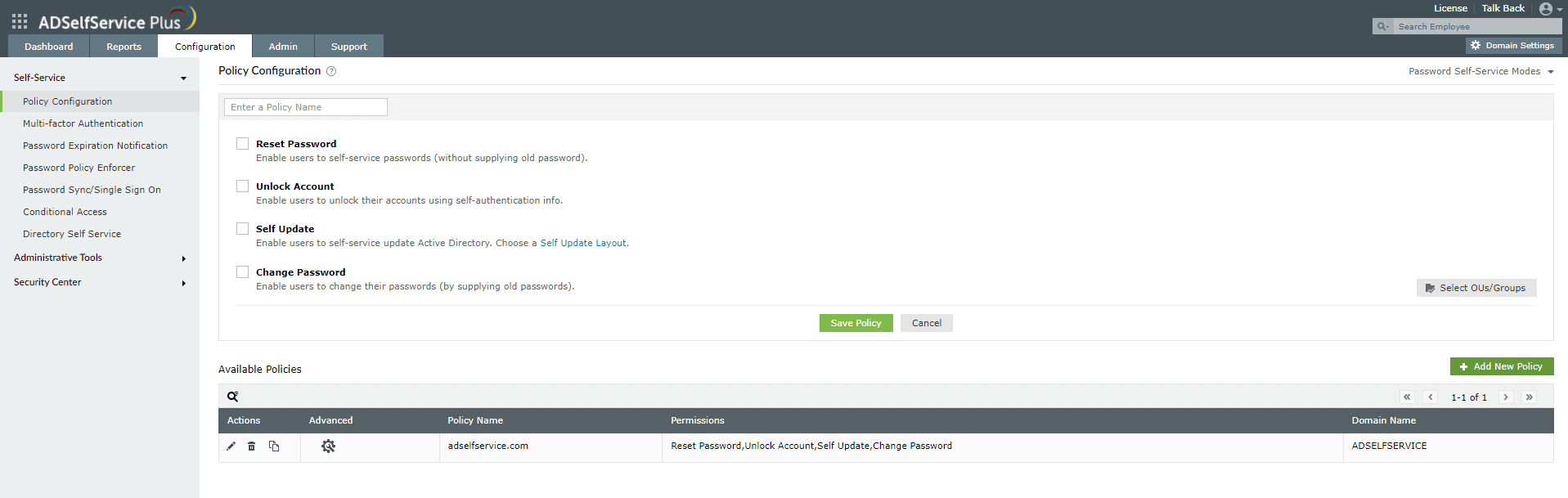
Fig 1: Instructions for creating a self-service policy in ADSelfService Plus.
Note: You can also associate self-service policies with other capabilities, like MFA, SSO, and password synchronization, to ensure users under the policy have access to those features.
Step 2. Configuring conditions
- Navigate to Configuration > Self-Service > Conditional Access > Rule configuration.
- Click Configure New Conditional Access (CA) Rule.
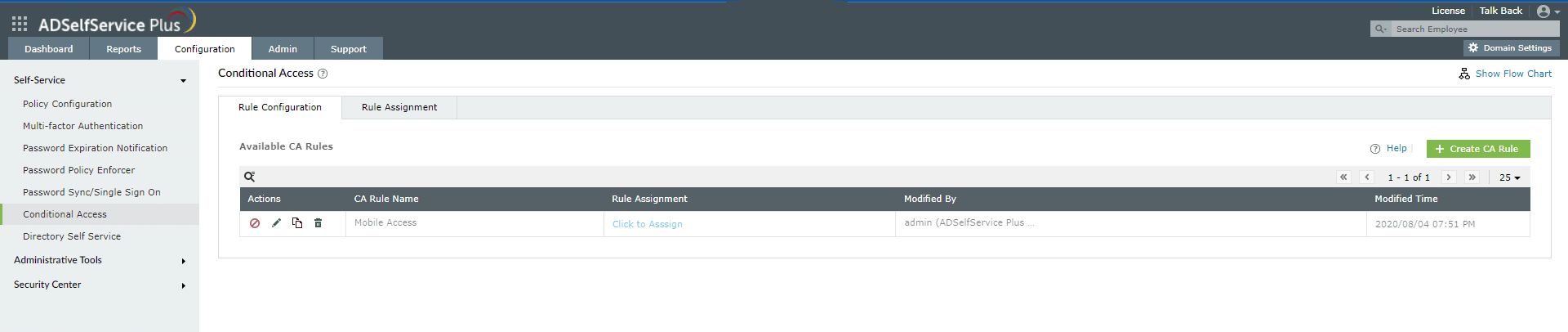
Fig 2: Instructions to configure conditional access MFA rules in ADSelfService Plus.
- Enter a CA Rule Name and Description.
- Configure any of the four conditions with these steps:
- IP Address
- Device
- Select the Computers check box and then click the + icon.
- In the Select Computer dialog box that opens, select the domain and then the computer objects. Click Save.
- Select the Platforms check box and then use the drop-down to select the platform(s). You can choose from Windows, macOS, Linux, the ADSelfService Plus mobile web app, the ADSelfService Plus native mobile app, and ManageEngine applications.
- Business Hours
- Select the Business Hours check box.
- Select Business hours or Non-business hours according to your requirements.
- From the Day and Time range provided, configure your business or non-business hours.
Note: The time will be applied based on the time zone of the solution configured in Admin → Personalize → Time Zone settings.
- Geolocation
- Select the Geolocation check box.
- Select the Countries from the drop-down.
Note: Geolocation-based conditional access relies on the user's IP address to determine the location. Only public IP addresses will be evaluated for geolocation. Access attempts from private IP addresses will be excluded from this condition.
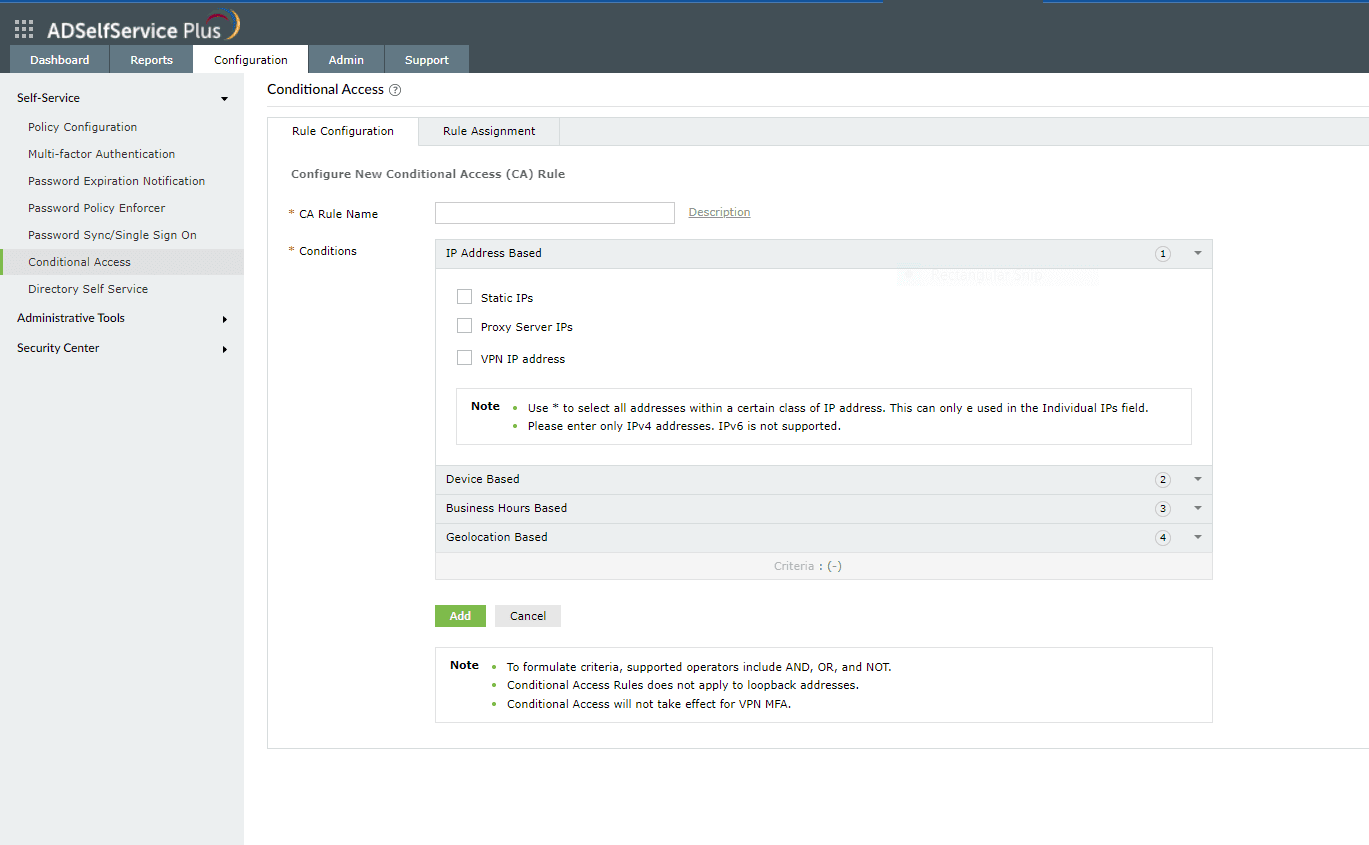
Fig 3: Instructions to configure the conditions for conditional access rule in ADSelfService Plus.
Step 3. Creating criteria
After configuring the conditions, Criteria can be formulated using operators like AND, OR, and NOT. This criteria will decide how the different conditions will be evaluated to determine the access request's result. Each condition is assigned a number: IP Address is 1, Device is 2, Business hours is 3, and Geolocation is 4. You can use these numbers and operators to create the criteria.
For example, 1 AND (2 OR 3) and 1 AND (3 OR (NOT 4))
Step 4. Assigning rules
- Go to Configuration > Self-Service > Conditional Access > Rule assignment.
- Select the rule that you want to assign from the drop-down.
- Select the policy that applies to the users you want to be evaluated.
Note: If a user is part of multiple policies, and at least one has CA enabled, they will only be able to perform actions allowed under the policy where the user meets the CA rule. Example: Consider three self-service policies, A, B, and C, and two CA rules, 1 and 2. Assume a user belongs to policies A and B. Let's say both policies A and C are assigned to rule 1. If a user satisfies rule 1, then only policy A will be assigned to the user, as they have satisfied the CA rule assigned to policy A.
- Allow or block NTLM SSO and ADSelfService Plus portal access. These settings will be applicable wherever the selected rule is satisfied.
Note: The option to allow or block
NTLM SSO will be enabled only if NTLM authentication is configured under
Admin > Customize > Login Settings > Single Sign-On.
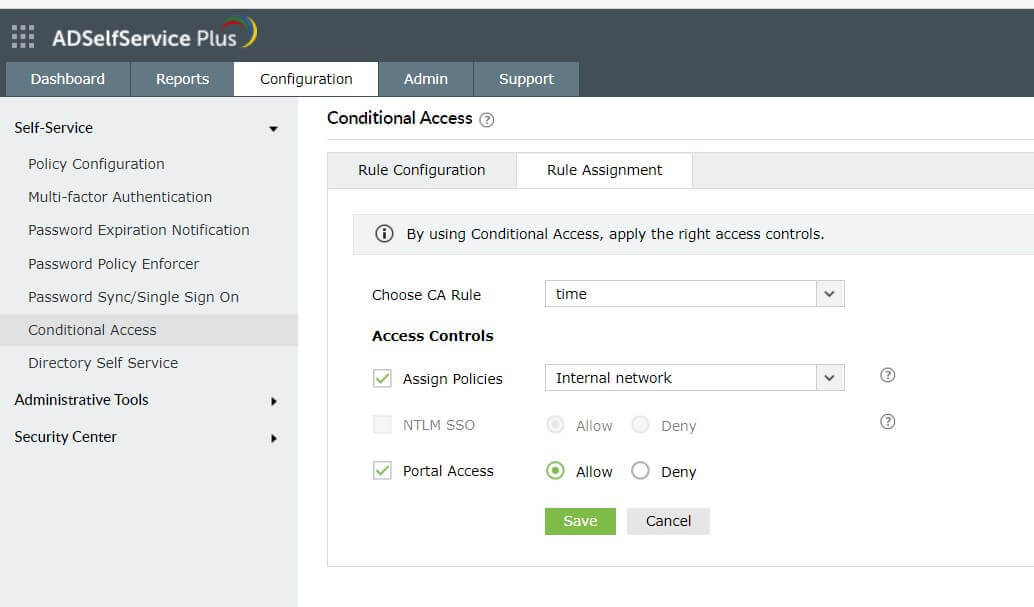
Fig 4: Instructions to assign the conditional access rule in ADSelfService Plus.
Prioritizing conditional access MFA rules
If you have created multiple conditional access MFA rules, you can set priority for each rule so that the rule with the highest priority is applied to users who fall under multiple rules.
To prioritize the rules:
- From the Conditional Access configuration page, click the change priority icon in the top-right corner (next to the Configure New Conditional Access (CA) Rule button).
- All the configured conditional access rules will be listed. Drag and rearrange them based on your requirements. The rule at the top will be given the highest priority.
Editing or deleting the conditional access MFA rules
A conditional access rule can be modified to change the conditions or criteria, copied to create a new rule, disabled, or deleted.
- Go to the Conditional Access configuration page. The configured conditional access rules will be displayed in a table.
- Under the Actions column, click on an icon based on the action you want to perform.
- Toggle the
 and
and  icons to enable or disable a rule. If there is a ☑ icon, it means the rule is enabled, and if there is a ☒ icon, it means the rule is disabled.
- Click the
 icon to modify the rule.
- Click the
 icon to copy the rule and create a new rule from it.
- Click the
 icon to delete a rule.
Validation and confirmation
To validate your MFA conditional access policy configuration in ADSelfService Plus, log in using a test user account that matches your configured self-service policy. Access the portal from different scenarios—such as a trusted versus untrusted IP address, a managed versus unmanaged device, and during business hours versus off-hours. Verify that the conditional access for MFA is enforced or bypassed correctly based on the logic defined in your conditional access rules.
Conditional access MFA best practices
To effectively implement a conditional access MFA in ADSelfService Plus, follow these best practices to strike the right balance between security and usability:
- Define trusted zones
Configure trusted IP addresses and known devices under the conditional access settings. This ensures that users connecting from secure, internal networks or company-managed devices are not unnecessarily challenged with MFA prompts.
- Enforce MFA outside of business hours
Increase access control during high-risk times like nights or weekends, when unauthorized activity is more likely.
- Apply regional restrictions
Limit access to only those countries where your workforce operates. This helps mitigate risks from unknown or suspicious regions.
- Use layered conditions for precision
Combine multiple conditions (IP, device type, time of access, geolocation) to create adaptive MFA rules. This ensures stronger authentication is applied only when risks are elevated.
- Support secure MFA exceptions
Certain users or scenarios may require bypassing Conditional Access MFA. ADSelfService Plus enables this by allowing administrators to create context-aware rules—ensuring secure exceptions without weakening overall security. Examples:
- New employee provisioning
- Emergency (break-glass) accounts
- Logins from secure internal networks
Related topics and articles
Conditional access policy
Adaptive MFA
Bypass conditional access MFA
Highlights of ADSelfService Plus
Allow Active Directory users to self-service their password resets and account unlock tasks, freeing them from lengthy help desk calls.
Get seamless one-click access to 100+ cloud applications. With enterprise single sign-on, users can access all their cloud applications using their Active Directory credentials.
Intimate Active Directory users of their impending password and account expiry via email and SMS notifications.
Synchronize Windows Active Directory user passwords and account changes across multiple systems automatically, including Microsoft 365, Google Workspace, IBM iSeries, and more.
Strong passwords resist various hacking threats. Enforce Active Directory users to adhere to compliant passwords by displaying password complexity requirements.
Enable Active Directory users to update their latest information themselves. Quick search features help admins scout for information using search keys like contact numbers.

 Free Edition