Free Edition
In this article
This article provides step-by-step instructions on configuring Dropbox multi-factor authentication (MFA) using ADSelfService Plus. By the end of this guide, administrators will be able to enable and enforce MFA, also commonly referred to as Dropbox 2FA or Dropbox two-factor authentication, to strengthen Dropbox security and protect user access.
Before configuring Dropbox MFA, ensure that single sign-on (SSO) is set up for Dropbox in ADSelfService Plus:
Note: You can also find the application that you need from the search bar located on the left pane or the alphabet-wise navigation option on the right pane.
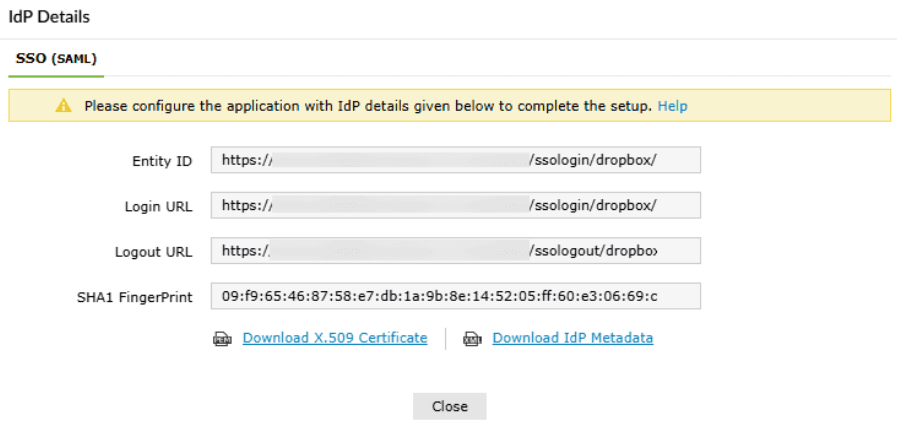
Figure 1. Accessing the IdP details to copy the Login URL and Logout URL and download the X.509 certificate.
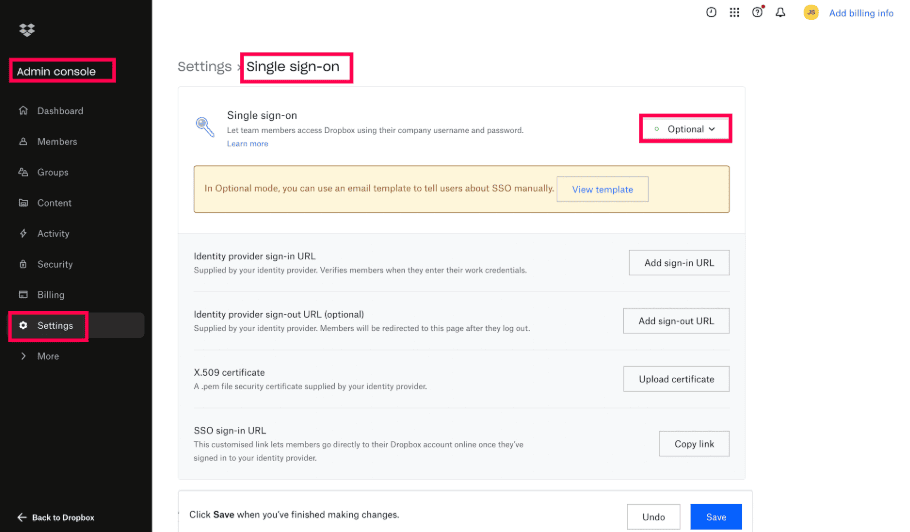
Figure 2. Navigating to the SSO settings in the Dropbox admin console.
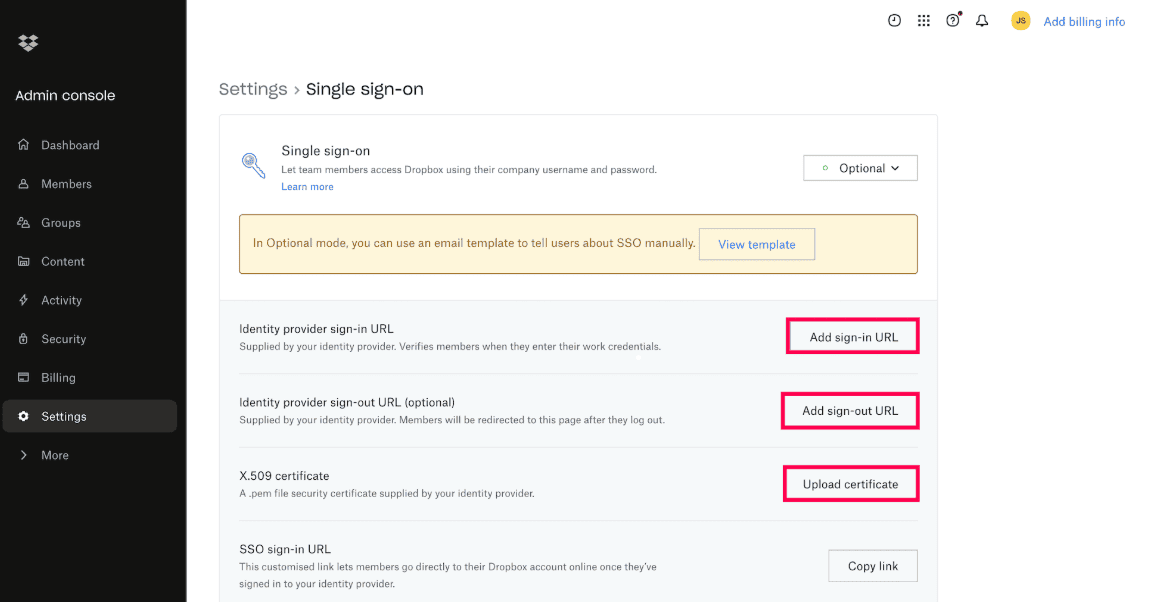
Figure 3. Providing the IdP sign-in and sign-out URLs and uploading the certificate in Dropbox for SSO configuration.
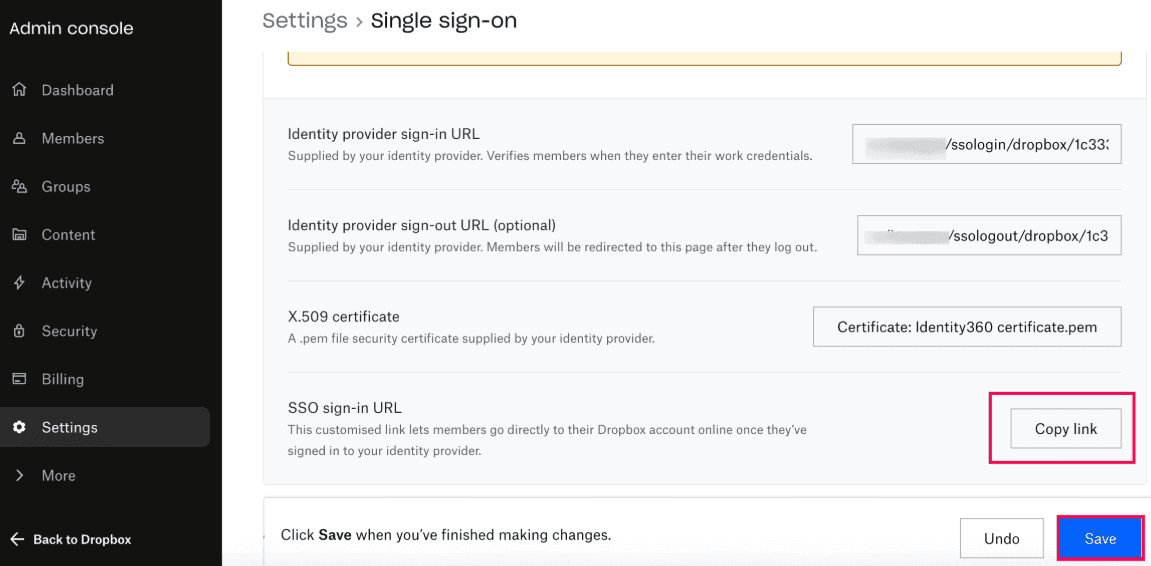
Figure 4. Copying the SSO sign-in URL in Dropbox to complete the configuration.
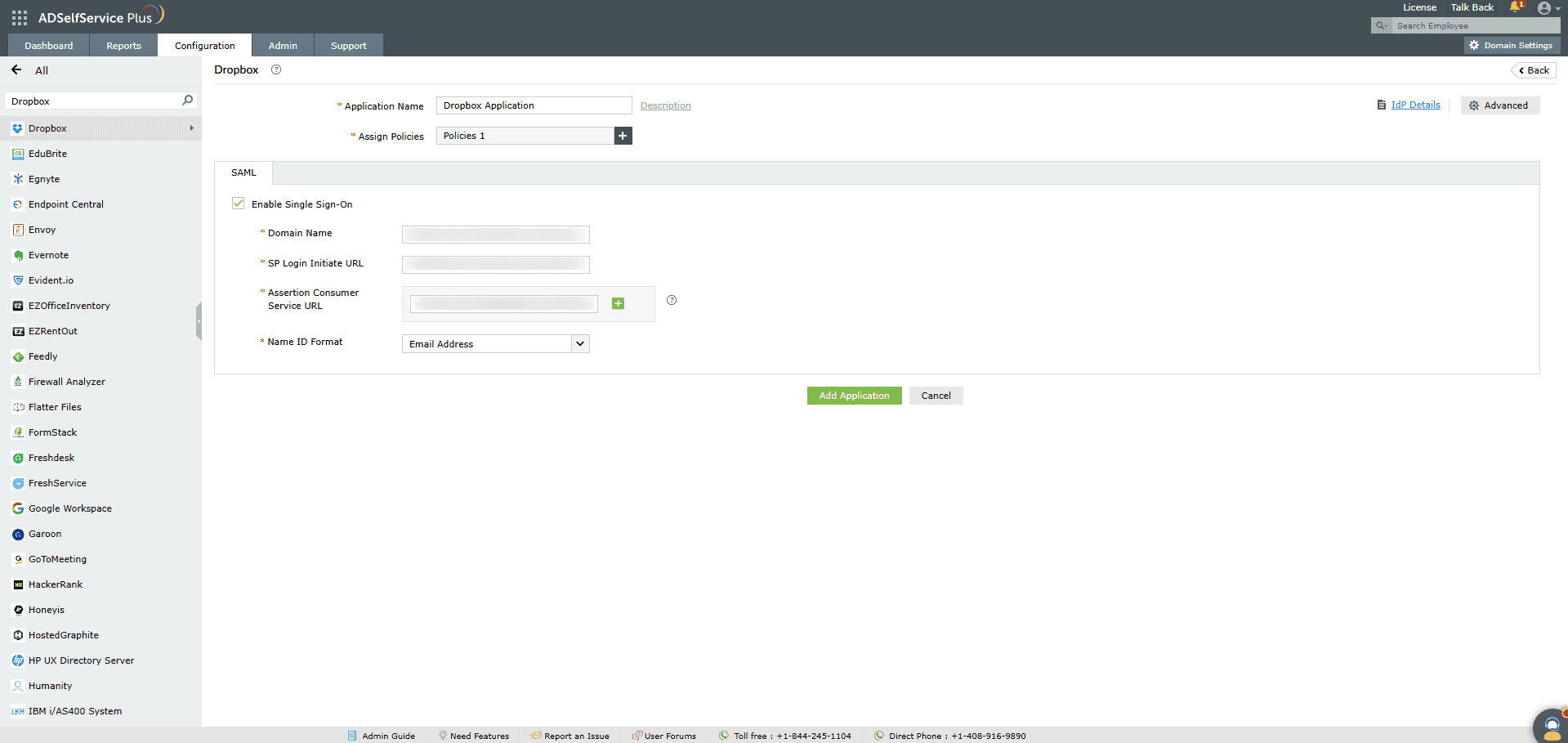
Figure 5. Accessing the Dropbox configuration page in ADSelfService Plus to continue the SSO setup.
Note: ADSelfService Plus allows you to create OU- and group-based policies for your AD domains. To create a policy, navigate to Configuration > Self-Service > Policy Configuration > Add New Policy.
Note: Use Unspecified as the default option if you are unsure about the format of the login attribute value.
Your users should now be able to sign in to Dropbox through ADSelfService Plus.
Note: For Dropbox, both SP- and IdP-initiated flows are supported.
To enhance Dropbox security using MFA, follow the steps below:
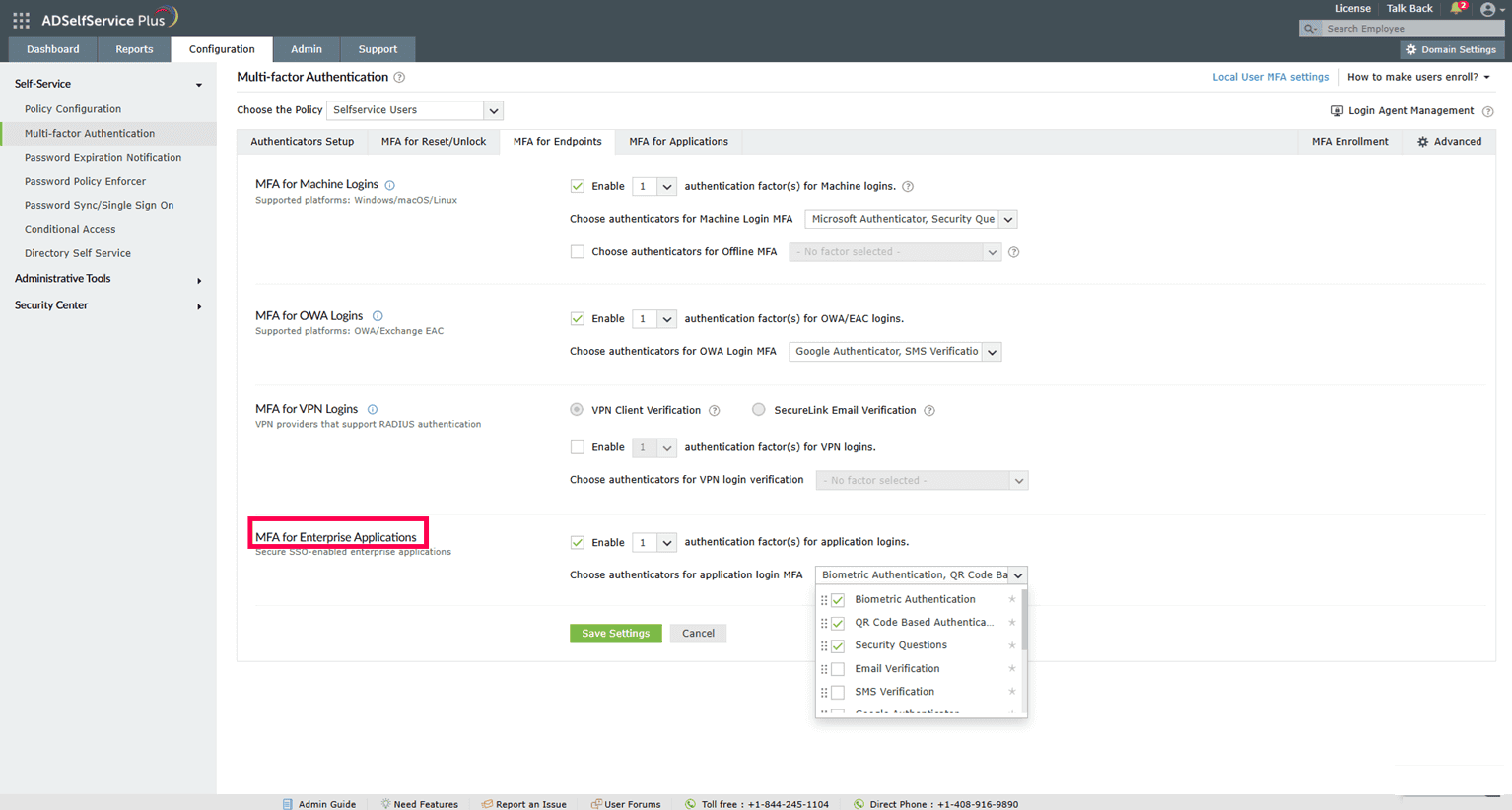
Figure 6. Configuring Dropbox MFA in ADSelfService Plus.
To validate the Dropbox MFA setup, attempt to access the Dropbox application. When the SSO process is initiated, ADSelfService Plus will prompt the user to complete the configured MFA methods before access is granted. After successfully completing the required authentication methods, the user will be seamlessly redirected to their Dropbox account, confirming that MFA enforcement is functioning as expected.
For further assistance, contact our support team here.
Last updated on: Dec. 11, 2025
Need further assistance? Fill this form, and we'll contact you rightaway.
Allow Active Directory users to self-service their password resets and account unlock tasks, freeing them from lengthy help desk calls.
Get seamless one-click access to 100+ cloud applications. With enterprise single sign-on, users can access all their cloud applications using their Active Directory credentials.
Intimate Active Directory users of their impending password and account expiry via email and SMS notifications.
Synchronize Windows Active Directory user passwords and account changes across multiple systems automatically, including Microsoft 365, Google Workspace, IBM iSeries, and more.
Strong passwords resist various hacking threats. Enforce Active Directory users to adhere to compliant passwords by displaying password complexity requirements.
Enable Active Directory users to update their latest information themselves. Quick search features help admins scout for information using search keys like contact numbers.