| » Admin | » General | » Configuration | » Troubleshooting |
| » How it works ? | » Evaluation | » Licensing | » Infrastructure |
Configuration Questions
- How do I import my Customer Information from an existing database/application and how do I synchronize the two at regular intervals?
Click on the below link to view the features,
https://www.manageengine.com/products/support-center/account-contact-management.html#dbsyncTo view the steps to schedule for auto csv import, click the below link,
https://www.manageengine.com/products/support-center/help/
adminguide/configurations/accountsettings/automate-csvimport.html - How do I configure the Request IDs to start from a specific number?
To change the Request ID to a number of your choice follow the steps given below,
- Connect to SupportCenterPlus database.
Please refer here to connect ( PostgreSQL ) database. - Insert a dummy request with requestid and requesterid.
eg: postgres# insert into workorder (WORKORDERID,REQUESTERID,CREATEDTIME,DUEBYTIME,DEPARTMENTID) values (4999,2,0,0,1);
where the requestid is 4999 and requesterid is 2. - Restart SupportCenter Plus.
- The next new request that you create will have the requestid 5000.
- Connect to SupportCenterPlus database.
- How do I integrate 3rd party certification in SupportCenter Plus?
Given below are the instructions to integrate a third-party certificate with Supportcenter Plus:
Change the directory to <SupportCenter_Home>\jre\bin in the command prompt (SupportCenter_Home will be commonly C:\AdventNet\ME\SupportCenter)
Following commands are to be executed,
- keytool -genkey -alias <your_alias_name>[Domain Name] -keyalg RSA -keystore <your_keystore_filename>[scp.keystore]
- keytool -certreq -keyalg RSA -alias <your_alias_name>[Domain Name] -file certreq.csr -keystore <your_keystore_filename>[scp.keystore]
- Using the certreq.csr file, get the certificate file from the CA for web server "tomcat"
- keytool -import -alias root -keystore <your_keystore_filename> [scp.keystore] -trustcacerts -file <filename_of_the_chain_certificate>[Chain Certificate file, that would be given by CA]
- keytool -import -alias <your_alias_name>[Domain Name] -keystore <your_keystore_filename>[scp.keystore] -trustcacerts -file <your_certificate_filename>[Certificate file sent by CA to you is specifically for your domain]
- Copy the scp.keystore file from <SupportCenter_Home>\jre\bin to <SupportCenter_Home>\server\default\conf.
- Execute the changeWebServerPort.bat script to change the connection mode to HTTPS as follows:
cmd> cd <SC+ Home>\bin
cmd> changeWebServerPort.bat <WEBSERVER_PORT> https - Set the password that you had given in Step 1 while generating scp.keystore to "keystorepass " parameter in the file server.xml present under <SupportCenter_Home>\server\default\deploy\jbossweb-tomcat50.sar
- Restart SupportCenterPlus server so that the changes made will get applied.
Notes:
- After editing the server.xml file as mentioned in step 8, if you happen to execute changeWebServerPort script for changing the port number, redo step 8, as server.xml will be overwritten by the changeWebServerPort script.
- Steps from 1 to 8 are to be done continuously for generating the keystore file, the corresponding certificate and to maintain the compatibility between these two files.
- Steps 4 & 5 may vary specific to CA. The steps given here are specific to VeriSign.
- How can I schedule a backup ?Admin >> Backup Scheduling
- How do I customize the fields that I require in the list view page?
Use the calculator like icon on the right hand side of the list view page to customize the fields.
- How do I apply multiple contracts to a single account?
An account can have multiple products and each product can be associated with a contract.
Ex : For an account, you can create one contract without a product.
the 2nd contract should have a product.
the 3rd contract should have a different product.
To create a contract for the same product/account, the time period of the contract should not overlap.
- How do I assign specific solution topics to an account?
Create a template (Solutions Tab >> Topics Template >> Add new template) give the template name and select the topics you would like to show to the users of a particular account.
Eg: Template name: backup issues
Then, go to
Accounts tab -> Select the account name -> click "topics template" and "Assign Template".By doing this, you can filter the topics you want to show the users of an account.
Refer the link provided below to create a Topics Template, https://www.manageengine.com/products/support-center/help/ adminguide/solutions/topics-templates.html - How do I enable the survey feature?
- How do I to hide the availability information of the support team from support rep and contacts
Click on the Admin tab >> Settings under the General Settings block >> People . Enable "yes" or "no" radio button to hide/unhide the Support Team availability information to contacts/ support reps.
- How do I configure the solutions in web portal page for users who are not having an account?
You can configure the solutions in web portal page for users who are not having an account by selecting the options from Admin >> Settings option under General settings block >>Solutions View >> For Users Without Account.
- How do I configure the solutions in web portal page for non logged in users?
You can configure the solutions in web portal page for a non logged in users by selecting the option from Admin >> Settings option under the General Settings block >>Solutions View >> For Non logged in Users.
- How can I enable public/private conversation feature?
Click the Admin tab >> Settings option under the General Settings block >> Conversations feature Settings. Enable/Disable the Public/Private conversation by checking/unchecking 'Do you want to enable conversations pubic/private'.
- I have many Business Units configured in SupportCenter Plus. How do I configure the Incoming Mail Server Settings for all the Business Units?
Let's illustrate this in the form of a scenario.
Assume your organization has 3 Departments dealing with IT, Retail and Telecom. These three departments are configured as Business Units in SupportCenter Plus. The requirements and configurations of a support team in one Business Unit may not be the same in another Business Unit. In this case, the support mails sent by the users differ for each Business Units, and so does the email address of the Business Units.
To configure the Incoming Mail Server Settings,
- Create an account say, 'Support' in your mail server.
- The Incoming mail address of the three Business Units are, support@acme-it.com,support@acme-telecom.com.
- Alias the Incoming mail address of the Business Units to 'Support' account.
- This 'Support' account is configured in the Incoming Mail Server Settings.
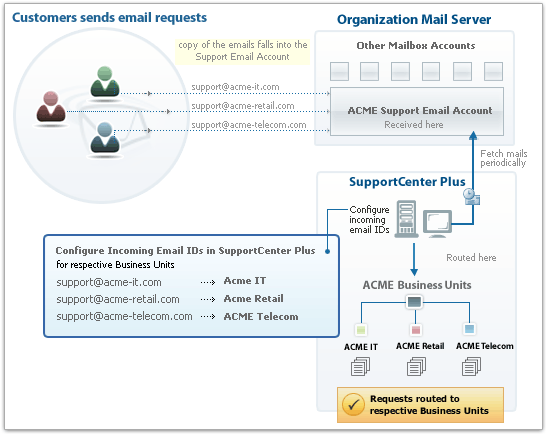
The email address for the respective Business Units is configured under Mail Configuration in SupportCenter Plus application, which routes emails to the particular Business Unit. Mails are fetched at periodic intervals into SupportCenter Plus from the Mail Server and based on the email address, the request is routed to the business unit. If the request is from an unknown contact, the request is routed to the default Buisness Unit.