Defining Targets
Overview
After defining a configuration, it must be deployed to the target client workstations. Targets need to be defined individually for each configuration or collection of configurations. To deploy a configuration, the targets must be added to the Target List, where they can be added, removed, or modified as needed.
There are two types of configurations you can deploy in Endpoint Central:
- Computer Configuration
- User Configuration
Computer Configurations
This type of configuration is applied at the system level and affects the computer regardless of which user is logged in. Examples include installing software, deploying patches, or modifying system-level settings.
Selecting Targets from a Domain
To add target computers and users from an Active Directory-based domain, follow the steps below:
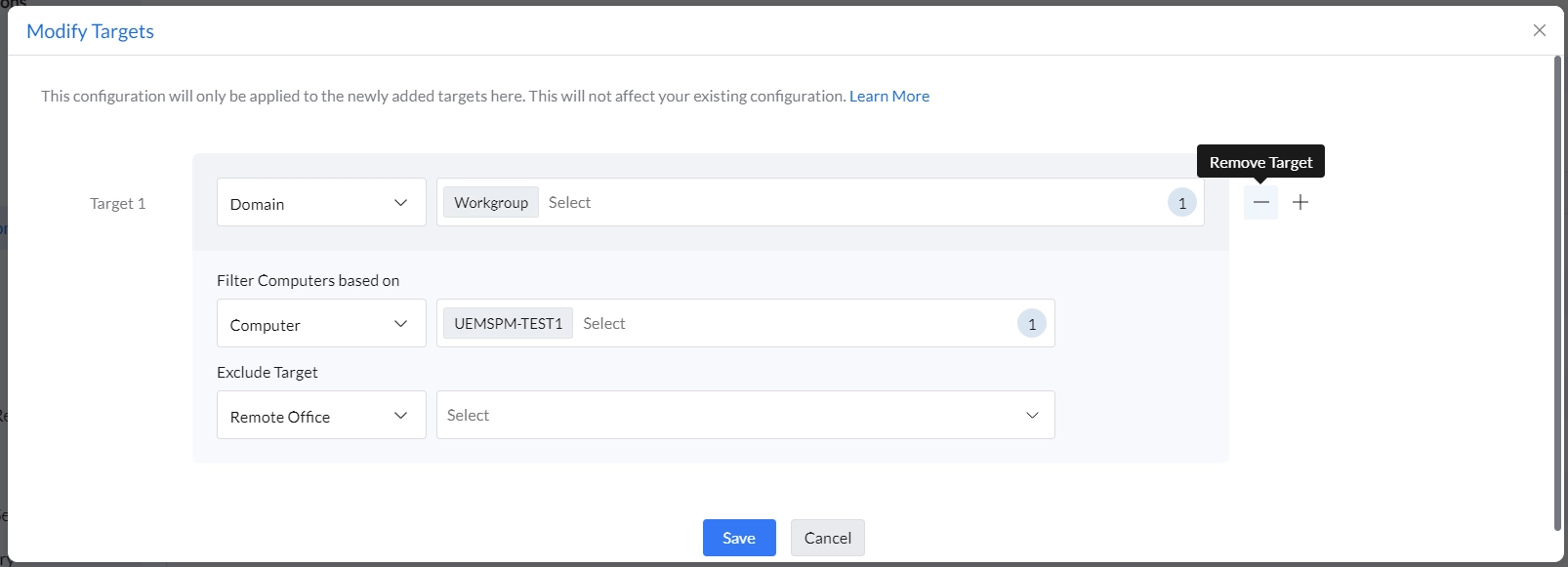
- In the Target 1 tab, select a Domain from the list.
- You can now proceed to narrow down your targets using the Filter icon, which allows you to specify the second-level targets after choosing the Domain.
- You can deploy the configuration to any of the following:
- Site - to deploy the configuration to all the users/computers of that site.
- Remote Office - to deploy the configuration to all the users/computers of that Remote Office.
- Organizational Unit - to deploy the configuration to all the users/computers of that OU.
- Group - to deploy the configuration to all the users/computers of that Group.
- User/Computer - to deploy the configuration to the specified users/computers.
- IP Addresses - to deploy the configuration to the specified IP Addresses.
- Custom Group - to deploy the configuration to all the users/computers of the selected Custom Group.
- Dynamic Custom Group - to deploy the configuration to all the computers of that dynamic custom group.
- IP Range - to deploy the configuration to all the computers belonging to that IP range.
- Processor Architecture - to deploy the configuration to all the computers having that Processor Architecture.
- Operating System - to deploy the configuration to all the computers with that Operating System.
- Machine Type - to deploy the configuration to all the computers with that machine type.
- After adding the target computers, you can specify the filtering criteria to exclude certain types of users/computers from applying the configuration. Specify the criteria as required.
- Click Add More Targets and repeat steps 1 to 3 for adding more targets.
Selecting Targets from a Workgroup
To add target computers and users from a workgroup, follow the steps below:
- Select a workgroup from the list.
- You can deploy the configuration to any of the following:
- Remote Office - to deploy the configuration to all the users/computers of that Remote Office.
- Computer - to deploy the configuration to the specified users/computers.
- IP Addresses - to deploy the configuration to the specified IP Addresses.
- Custom Group - to deploy the configuration to all the users/computers of the selected Custom Group.
- Dynamic Custom Group - to deploy the configuration to all the computers of that dynamic custom group.
- IP Range - to deploy the configuration to all the computers belonging to that IP range.
- Processor Architecture - to deploy the configuration to all the computers having that Processor Architecture.
- Operating System - to deploy the configuration to all the computers with that Operating System.
- Machine Type - to deploy the configuration to all the computers with that machine type.
- After adding the target computers, you can specify the filtering criteria to exclude certain types of users/computers from applying the configuration. Specify the criteria as required.
- Click Add More Targets and repeat steps 1 to 3 for adding more targets.
Selecting Targets in Remote Offices
To add target computers and users from remote offices, follow the steps below:
- In the Target 1 tab, select a Remote Office from the list.
- You can now proceed to narrow down your targets using the Filter icon, which allows you to specify the second-level targets after choosing the Remote Office.
- You can deploy the configuration to any of the following:
- Domain - to deploy the configuration to all the users/computers of that domain.
- Site - to deploy the configuration to all the users/computers of that site.
- Organizational Unit - to deploy the configuration to all the users/computers of that OU.
- Group - to deploy the configuration to all the users/computers of that Group.
- User/Computer - to deploy the configuration to the specified users/computers.
- IP Addresses - to deploy the configuration to the specified IP Addresses.
- Custom Group - to deploy the configuration to all the users/computers of the selected Custom Group.
- Dynamic Custom Group - to deploy the configuration to all the computers of that dynamic custom group.
- IP Range - to deploy the configuration to all the computers belonging to that IP range.
- Processor Architecture - to deploy the configuration to all the computers having that Processor Architecture.
- Operating System - to deploy the configuration to all the computers with that Operating System.
- Machine Type - to deploy the configuration to all the computers with that machine type.
- After adding the target computers, you can specify the filtering criteria to exclude certain types of users/computers from applying the configuration. Specify the criteria as required.
- Click Add More Targets and repeat steps 1 to 3 for adding more targets.
Filter the selected target
You can exclude certain parts of the network which does not require the configuration to be deployed. This is optional when defining the targets. Endpoint Central provides the option to exclude the parts of the Windows network. Select the Exclude Target check box to view the available options:
Exclude if Target Type is
The target types can be excluded by selecting the target in the Select the target type and define field. The target types can be excluded which are in a lower hierarchy than the target selected, meaning select the required domain/remote office. Define the required targets and then define the exclusions. The target type can be excluded using the Browse button. Click the Browse button next to the required target types under the Exclude if Target Type is field to launch Network Browser window. Select the target type to be excluded for configuration deployment and click Select button. This field is mandatory. The target type can be any of the following (varies based on the target options selected):
- Branch - The branch offices to be excluded
- Domain - The domains to be excluded
- Organization Unit - The OUs to be excluded
- Group - The groups to be excluded
- Computer - The computers to be excluded
- IP Address - The IP Addresses to be excluded
- IP Range - The range of IP Addresses to be excluded
- Custom Group - The custom groups to be excluded
Exclude if Operating System is
The targets with specific Windows OS can be excluded for configuration deployment. Select the options under the Exclude if Operating System is field which has to excluded for configuration deployment.
Exclude if Machine Type is
The targets with specific machine type such as Notebook, Tablet PC, Desktop, Member Server, TermServClient, or Domain Controller can be excluded for configuration deployment. Select the options under the Exclude if Machine Type is field which has to excluded for configuration deployment.
User Configurations
This configuration is applied at the user level and is specific to individual user profiles. It comes into effect when the targeted user logs into any computer within the defined scope. Examples include setting desktop wallpaper, configuring Outlook profiles, or configuring desktop shortcuts.
Computer-based exclusion and inclusion in user configuration:
When configuring user-based settings, there may be scenarios where certain computers need to be either excluded from or included in applying these configurations during user login. Endpoint Central allows you to set both computer-based exclusions and inclusions to fine-tune which computers should or should not receive the configurations based on different criteria. The exclusion feature helps prevent configurations from being applied to specific computers, while the inclusion feature ensures that configurations are applied only to the desired systems. This flexibility helps ensure that configurations are precisely applied as intended.
Target Categories:
You can filter users using a second-level filter and further include or exclude specific computers for configuration deployment. This will ensure the configuration is applied only when users log in to the included computers, and it will be ignored on excluded computers.
To facilitate this, Second level targets are split into two:
- User targets - Allows you to select users from a specific remote office or domain main target.
- Domain
- User
- User Custom group
- Computer targets - where selected users login to specific computers criteria can be added.
- Computer
- Domain
- Custom Group
- Dynamic Custom Group
- IP address
- IP range
- Processor Architecture
- Operating System
- Machine Type
Configuration Scenarios
Various scenarios where user and computer filters can be applied are mentioned in table below
To implement computer-based exclusions, there are several configuration scenarios you can use when setting the inclusion and exclusion targets for users and computers. Below are the scenarios in which these exclusions can be applied.
| User Target Include | User Target Exclude | User Target empty | |
|---|---|---|---|
Computer Target Include | If user group u1 in main target mt1 login to computer group c1, apply configuration. | If any user except for user group u1 in the main target mt1 logs in to computer group c1, apply configuration. | If any user in main target mt1 logs in to computer group c1, apply configuration |
Computer Target Exclude | If user group u1 in main target mt1 login to all computers except computer group c1, apply configuration. | If any user except for user group u1 in main target mt1 login to any computers other than computer group c1, apply configuration. | If any user in main target mt1 login to any computers other than computer group c1, apply configuration |
Computer target empty | If user group u1 in main target mt1 login to any computer, apply configuration. | If any user except for user group u1 in the main target mt1 logs in to any computer, apply configuration. | If any user in main target mt1 login to any computers, apply configuration. |
Note for Profession edition: User can be selected as Main Target itself.
Modify Targets
To modify targets in a configuration follow the steps given below:
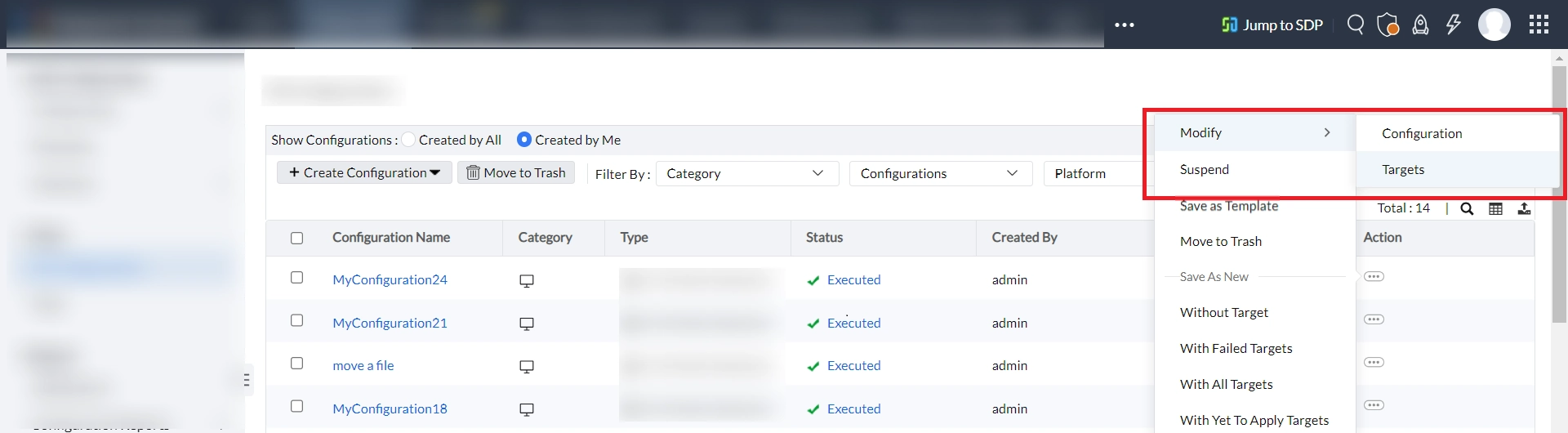
- Select the Actions button in the Configuration that you wish to modify the Targets.
- Select Modify > Targets and do the necessary changes as required and click Save to modify the Target.
Remove Targets
To remove targets in a configuration follow the steps given below:
- Select the Actions button in the Configuration that you wish to remove certain Targets.
- Select Modify > Targets and click the "-" minus sign button near the Target tab to remove the target.