Patch Scanning
Vulnerabilities are increasing at an alarming pace, making accurate and up-to-date patch scans essential for effective risk mitigation. Proactive scanning helps identify systems missing critical patches, allowing for timely remediation and improved security posture. Endpoint Central performs continuous, automated scans without the need for scheduling. The lightweight agent that runs in the background with minimal impact on CPU and memory resources performs this scanning operation. The entire scanning process is quick, typically completing within a few minutes.
The scan detects only supported applications as missing. Installed software that is not on the supported applications list is not listed as missing. Refer to the supported applications list.
Pre-Requisites of Patch Scanning
Vulnerability DB Sync
Before implementing the patch scan in the agent machine, it is required to check if the Vulnerability DB is synced. The Vulnerability Database is automatically updated every day. This can also be updated manually (not required for cloud based servers). To update the Vulnerability DB manually, navigate to the Threats & Patches tab on the Endpoint Central console. In the left pane, go to Update Now tab, and click on Update Now under Update Vulnerability DB. If Threats & Patches is not available, navigate to Patches → Update Now. After the Vulnerability DB has been updated, a patch scan is done. If you wish to change the schedule of Vulnerablity DB Update, click on Change. You will be redirected to the Patch Database Settings page; where you can also select the patches that you wish to manage using Endpoint Central. To learn more about Patch Database Settings, refer to this page.
Agent Onboarding
The agent has to be installed in the endpoint and onboarded. A patch scan can be initiated after the agent installation. This patch scan occurs only if the Perform Patch Scanning checkbox has been enabled. To enable this checkbox, navigate to Admin -> Agent settings -> General Settings tab. Under Actions to be performed after agent installation, enable the checkbox "Perform Patch Scanning".
Validate Patch Scan Status
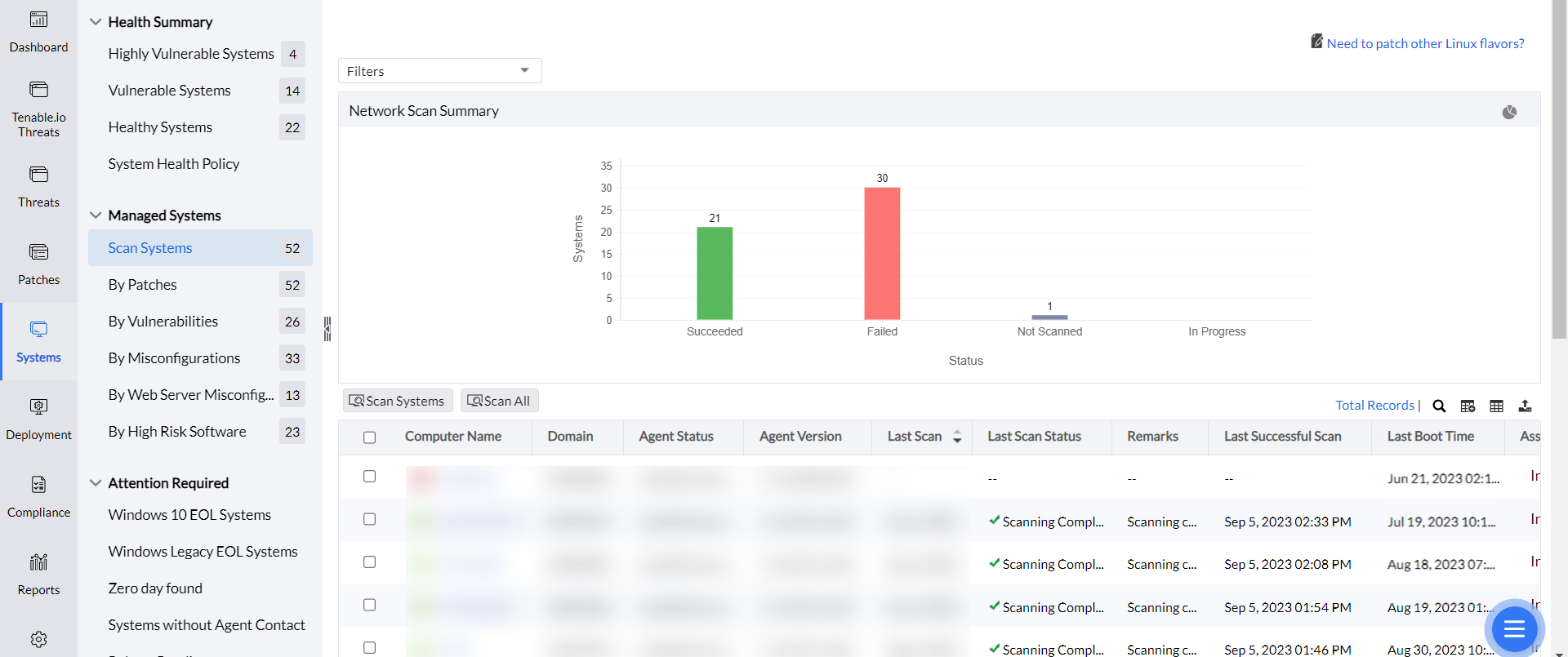
Verify the scan's successful execution by navigating to Systems -> Scan Systems under the Threats & Patches tab. This page displays a graphical representation of the scanned systems, along with the following details for each system:
- Computer Name: The DNS name of the computer being scanned.
- OS Name: The operating system of the computer being scanned.
- Agent Status: Specifies whether the agent is installed in the system or not.
- Agent Version: Specifies the agent version.
- Last Scan Status: The status of the previous scan.
- Last Scan Time: Time at which the scan was performed.
A scan typically takes 12 to 18 minutes. If it runs more than an hour, the agent times out the scan. On the computer, check whether dcpatchscan.exe is running in Task Manager. If the scan stays in progress or resource health is unknown, collect the agent logs from Support → Upload Logs, category Patch Related Issue, for that managed computer.
To confirm the last scan from the endpoint, open C:\Program Files (x86)\ManageEngine\UEMS_Agent\logs\devicescanaccess.log. That log shows the scan result in one line. For the patch-specific upload time, check devicepatchaccess.log; a successful DBSYNC entry identifies when patch scan data was posted.
If scan remarks say the agent cannot download package-manager files, allowlist the Linux vendor domains used by that distribution. Do not catalog vendor hostnames here.
Patch Scan Scenarios
A patch scan is triggered under the following conditions:
- Database Synchronization: After daily automatic or manual updates to the Vulnerability Database.
- Patch Installation: Following patch installation via Install Patch Configuration, APD Deployment or Test and Approve.
- System Reboot: Post-reboot of systems that required a reboot after patch installation.
- APD/Test Group Actions: When patches within an APD task or Test Group are approved, not approved, or declined.
- Manual Scan: Initiated manually through the console or Agent Tray icon.
- Agent Installation: After agent installation, if the Perform Patch Scanning option is enabled in SoM Settings.
On-Demand Patch Scan
The patch scan can also be implemented manually through the console or the Agent Tray icon.
Through Agent Installed Computer
Choose Initiate Patch Scan option by right-clicking on the Agent Tray icon -> Scan -> Initiate Patch Scan.
Through Server Console
To initiate patch scan manually through the console, follow the steps below:
- Open Endpoint Central console and navigate to Threats & Patches -> Systems -> Scan Systems.
- Choose the computers to be scanned for patches and click Scan Systems.
- To scan all the systems, click Scan All. Please note that this option is limited to a maximum of 100 computers.
An out-of-band patch that is already supported can be searched under Supported Patches. It appears under Missing Patches after a patch scan completes on the managed computers.
If a Linux computer appears in Inventory but not under Scan Systems, the distribution may require a later server build. Upgrade the server, then run a patch scan. See Linux Patch Management.
Continuous Scanning
After synchronizing with the patch database, Endpoint Central collects information on the latest patches, newly disclosed vulnerabilities, and supported misconfigurations. Post which the agents will automatically scan the computers for missing patches, unaddressed vulnerabilities, and misconfigurations. The scan happens right after the database is synced. The end-user can go to the patch DB settings to change the sync timings.
Following the first successful scan after agent installation or onboarding, the product identifies the applications installed on the managed endpoint where vulnerabilities are detected or patches are missing. You can view these applications by navigating to Systems -> Scan Systems, clicking on your computer name, and selecting Installed Software.
After that, the agents will scan the endpoints in the above-mentioned scenarios, post which the latest scan data (about detected vulnerabilities, misconfigurations and missing patches) is updated in the product.
The user can get reports of missing patches, detected vulnerabilities and misconfigurations after the scan is completed. Navigate to Reports -> Schedule Reports -> Scan Report. You can get it easily by scheduling the reports to be emailed 2 hours from the database sync. Also, you can configure it at any frequency you wish.