Modern security teams cannot rely only on the logs data to find out potential attacks. We need more information than just what error was triggered, and internal logs will not provide that data for us. The Advanced Threat Analytics (ATA) feature in Log360 Cloud pulls data about malicious IPs, and domains that have an assigned reputation score and uses that to alert the administrators of any suspicious IP tries to connect to your network.
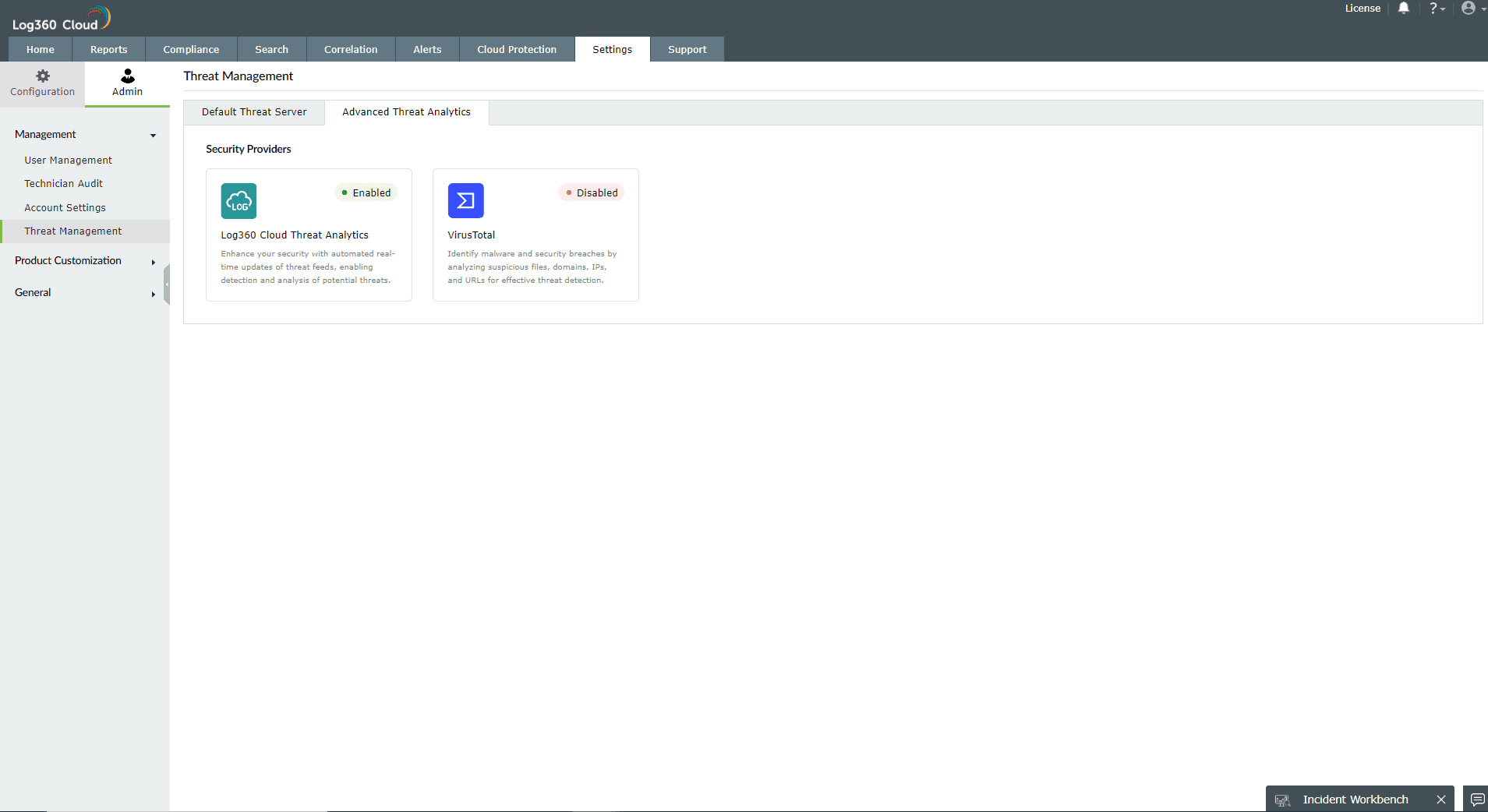
To enable Advanced Threat Analytics, follow the steps below:
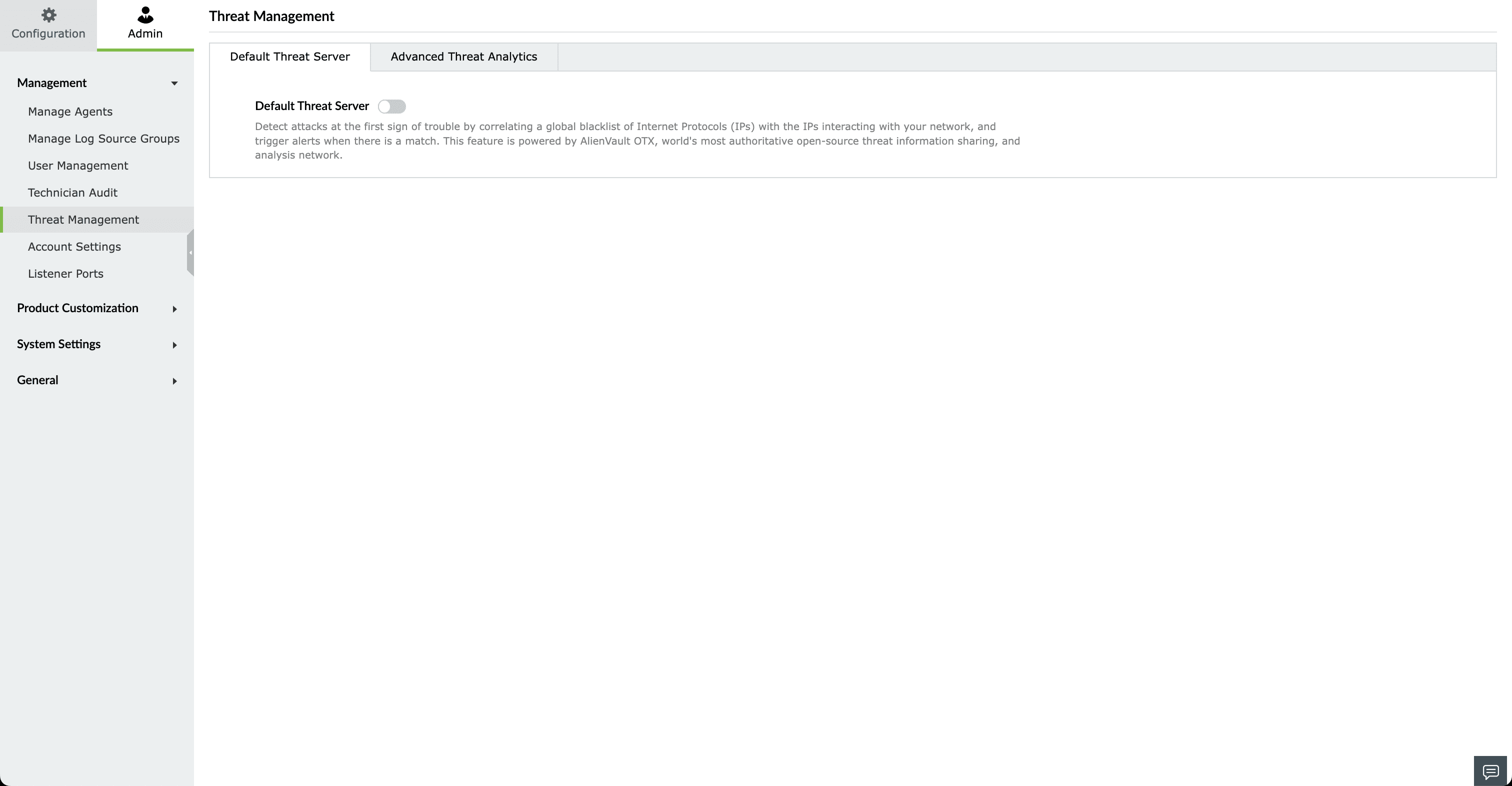
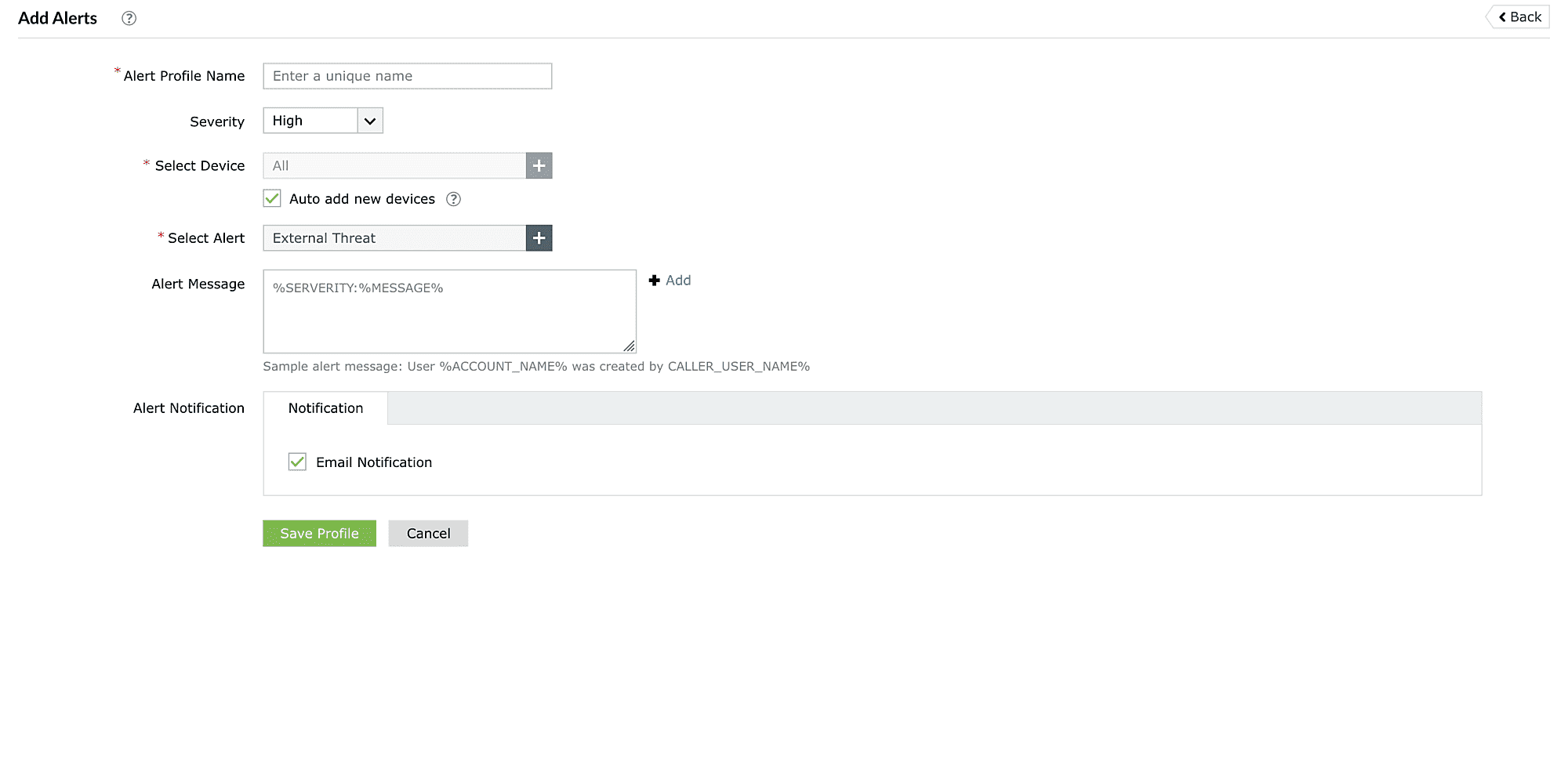
When Enabled, Log360 Cloud correlates the information available in OTX AlienVault, FireHol, PhishTank and ThreatFox to trigger alerts if there's a match. This option only fetches data on the blacklisted IPs.
Overview
The Advanced Threat Analytics feature gives valuable insights into the severity of threats using the reputation score for potentially malicious URLs, domains, and IP addresses.
This option allows Log360 Cloud to provide more context about the potential attack by correlating crucial data from the threat feeds.
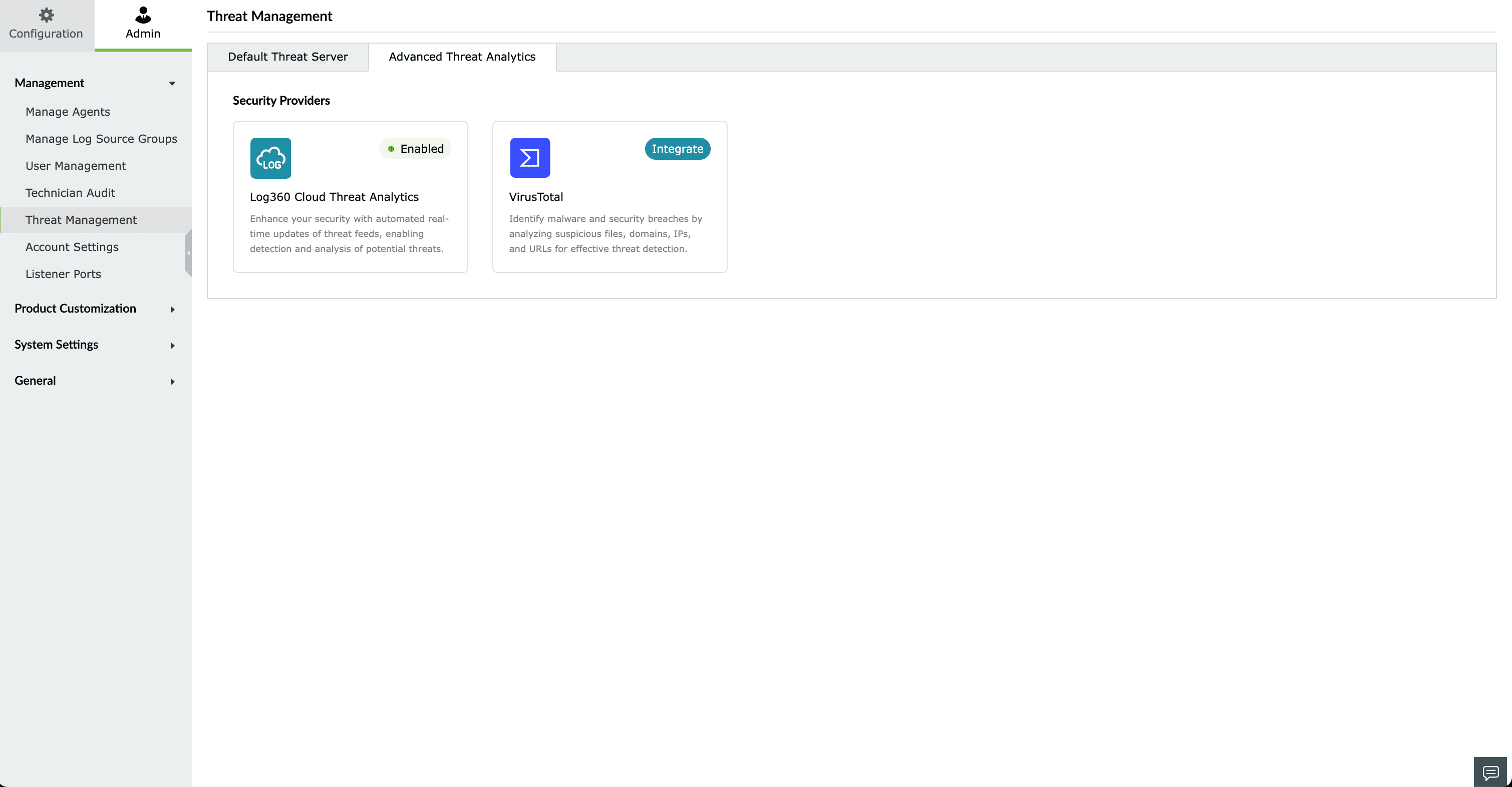
Default integration from Log360 Cloud suite. This can be accessed once the add-on is purchased.
When you purchase Advanced Threat Analytics, you gain access to Dark Web Monitoring. You can configure Dark Web Monitoring using your licensed domain to monitor potential threats associated with your organization.
Third-party threat feed integration. This follows the Bring Your Own Key(BYOK) model. If you have bought VirusTotal access separately, you can use your API key and get the threat analytics information in Log360 Cloud.
Here's how users can access the Advanced Threat Analytics information for different usecases:
The External Threat report contains information on the source of the threat, severity, reputation score, and more.
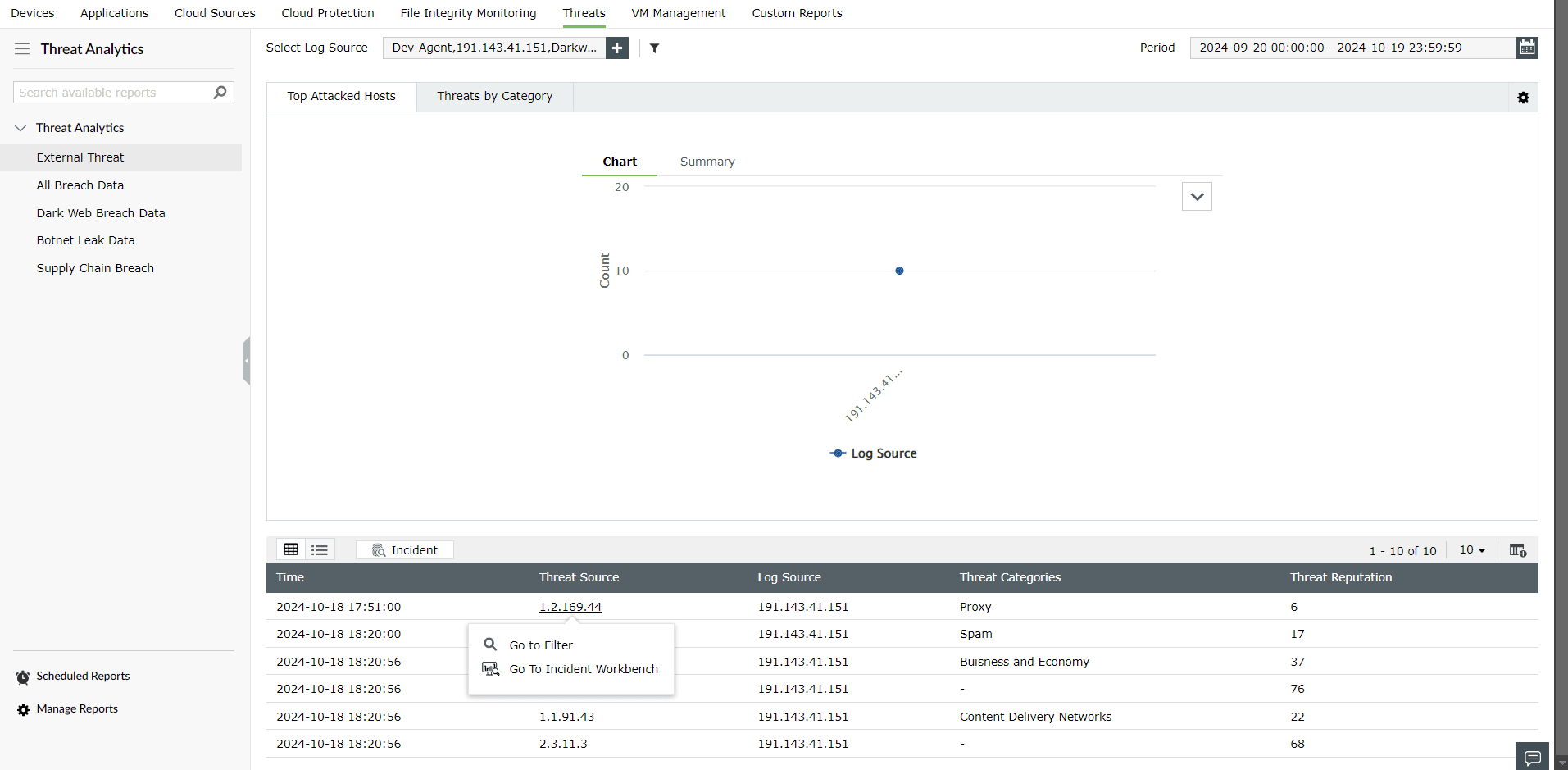
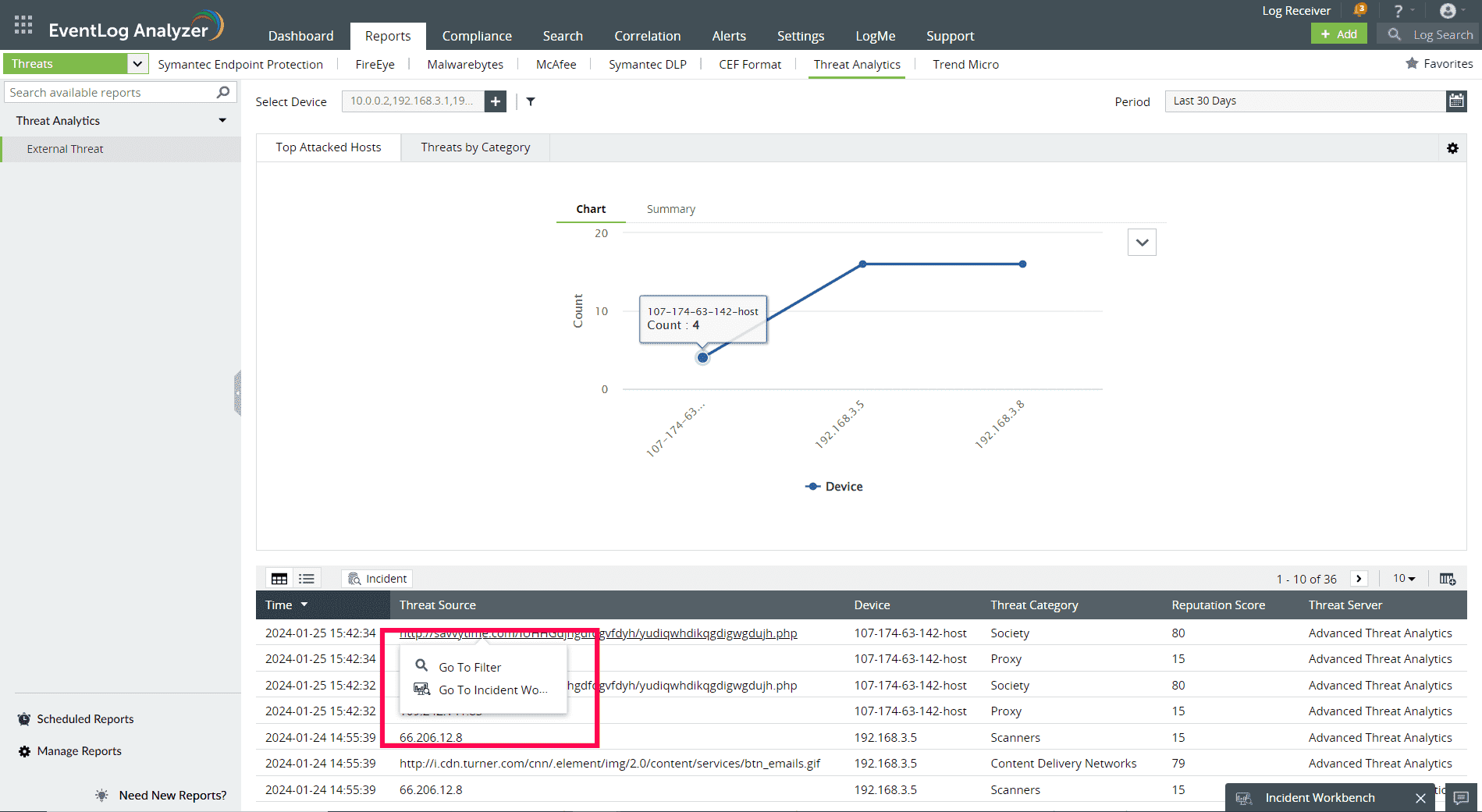
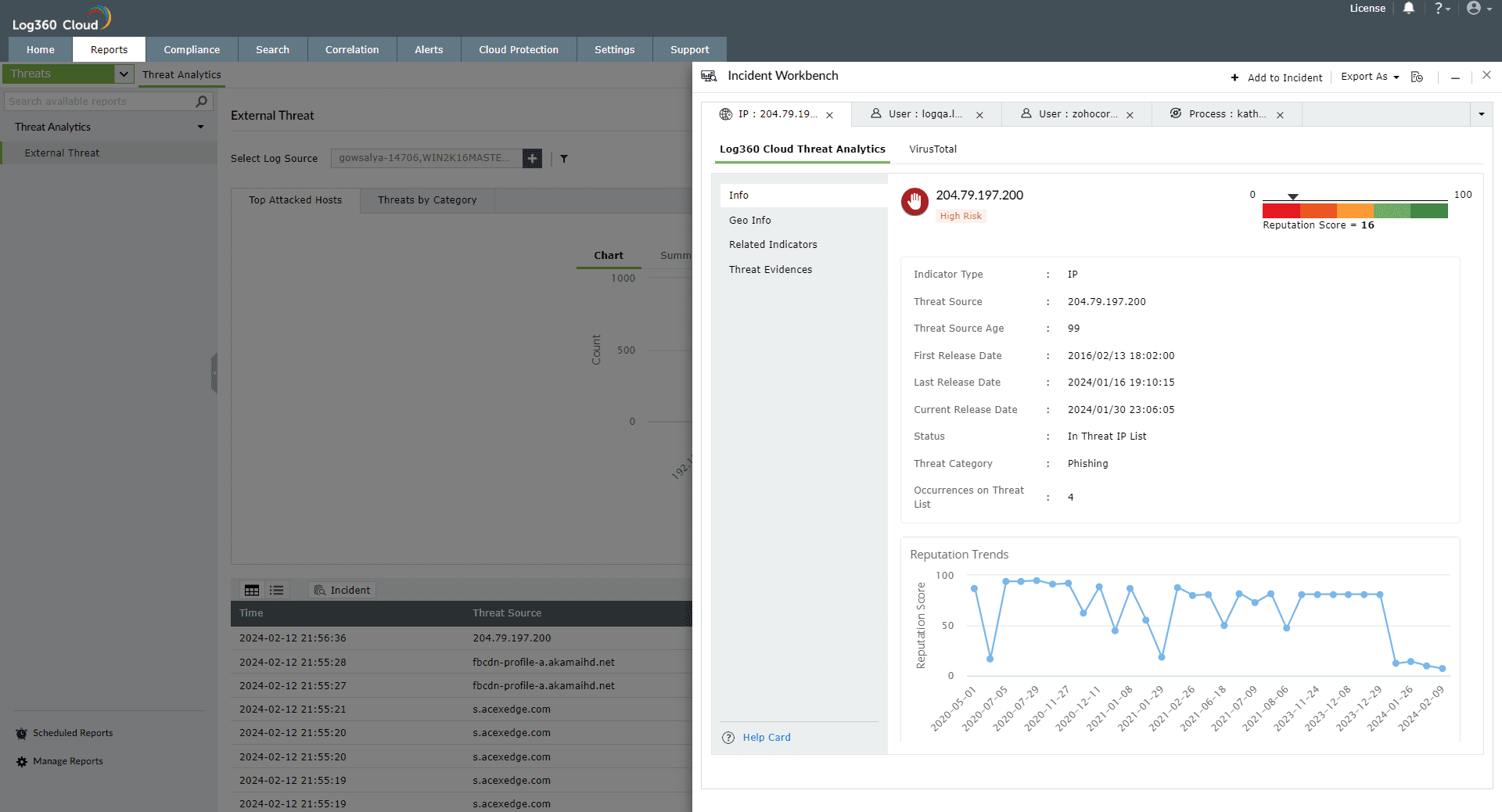
The Log360 Cloud Threat Analytics is available in the Incident Workbench. Learn how to invoke the Incident Workbench from different dashboards of Log360 Cloud.
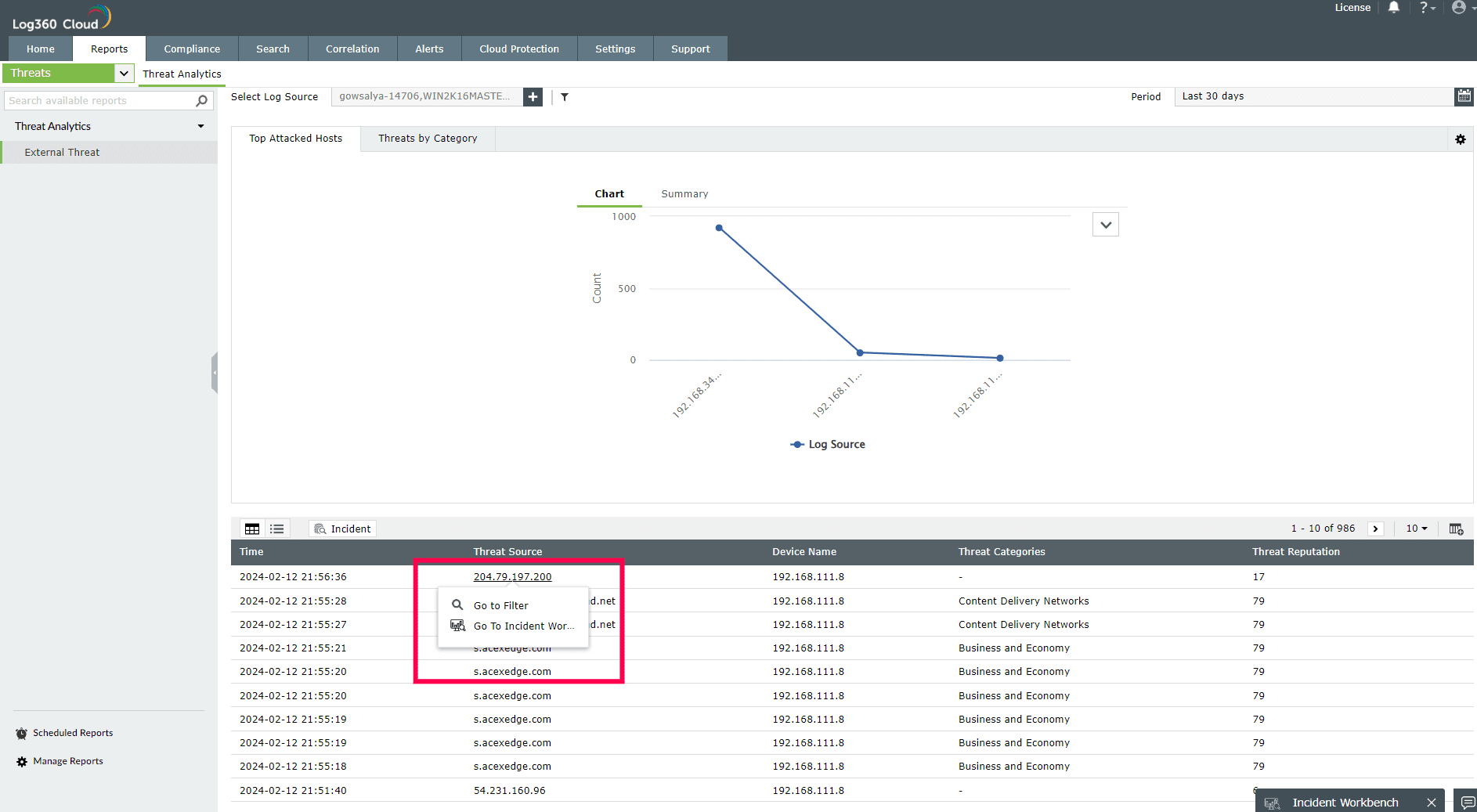
Note: To understand the different terminologies used in the Log360 Cloud Threat Analytics reports, please use the Help Card in the bottom left corner.

Select any IP or Domain to analyze in the Workbench. You can access the following data:
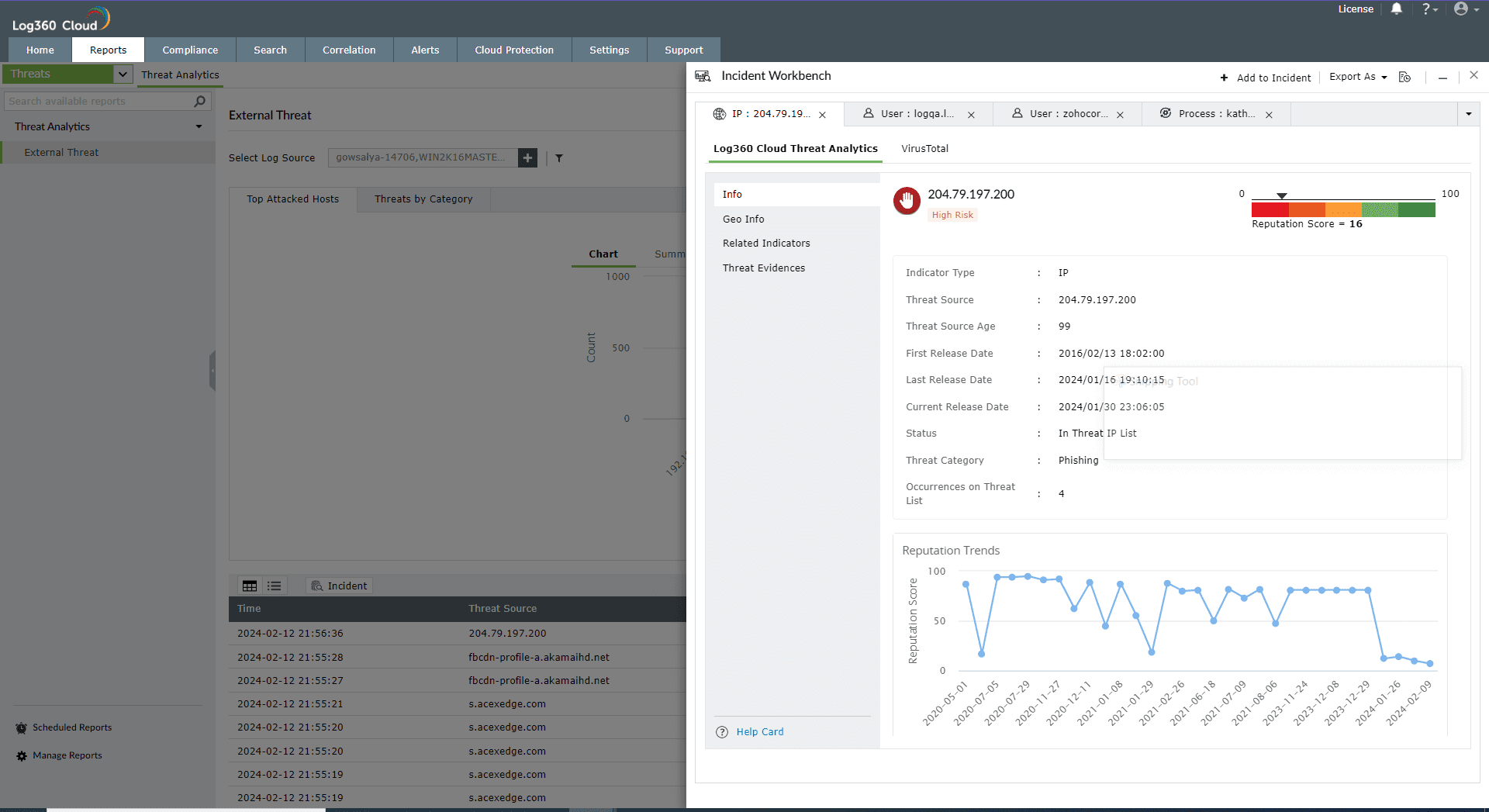
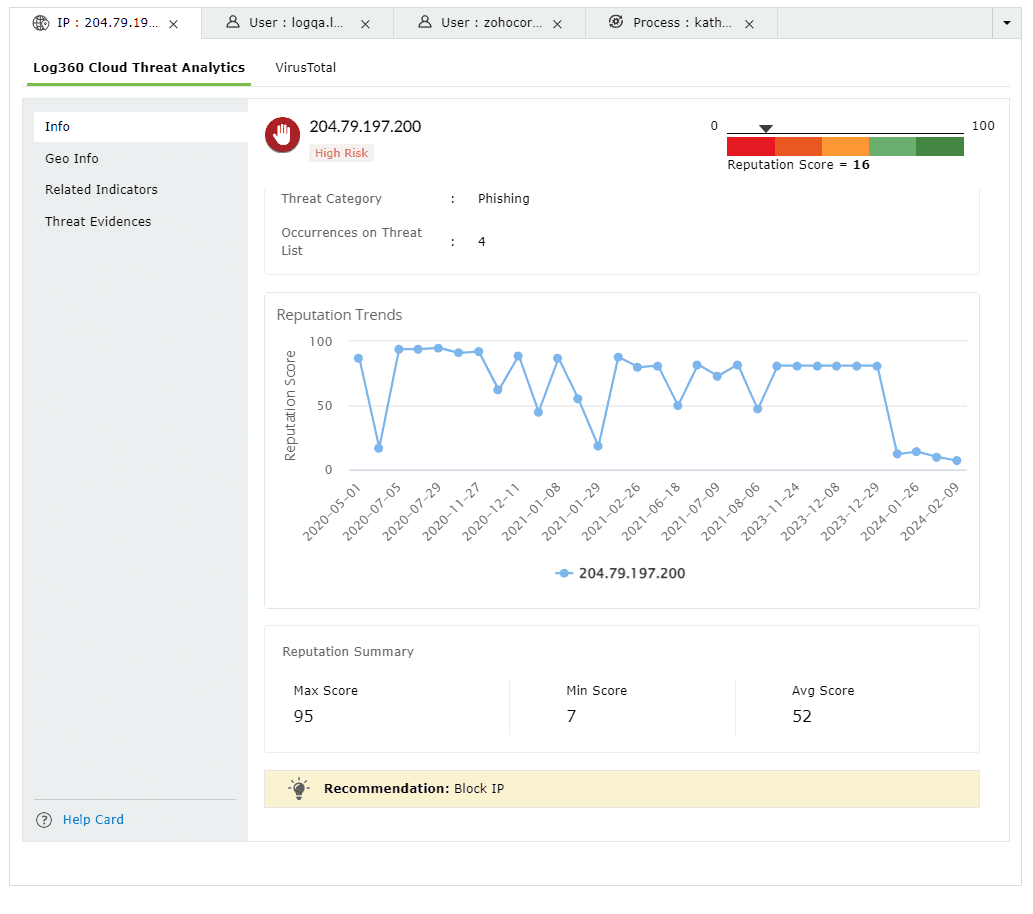
This section contains the Reputation Score of the Threat Source on a scale of 0-100.
You can also view the Reputation Score Trend chart, Status of the Threat Source (whether it's actively part of the threat list), Category, Number of occurrences on threat list, and when the source has been released from the threat list.
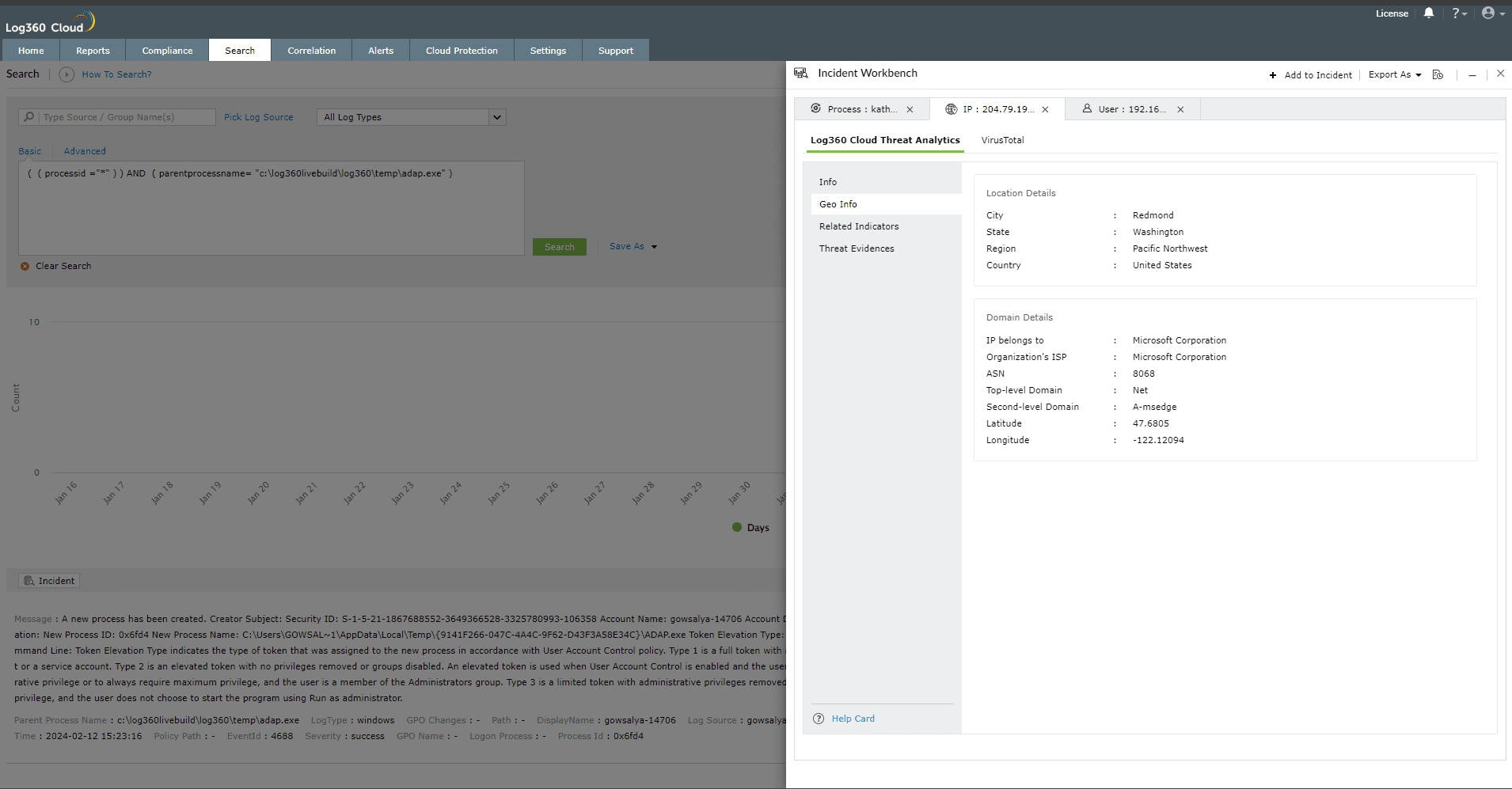
The Geo Info contains location mapping details of the Threat Source such as city, state, region and the Whois information of the domain.
This section contains the risk profile of the related indicators of IPs, and Domains.
The related indicators are produced by tracking the relationships between IPs, URLs, files and mobile apps using predictive threat intelligence to determine whether a new source interacting with this network is malicious or not.
Context: Imagine a scenario where an attack is detected to be originating from a particular IP address. There could potentially be numerous other IP addresses, URLs, files, or mobile apps linked to this initial IP. It is crucial to be aware of these associated sources and identify them if they interact with your network, as the threat actor behind the attack might be controlling them as well.
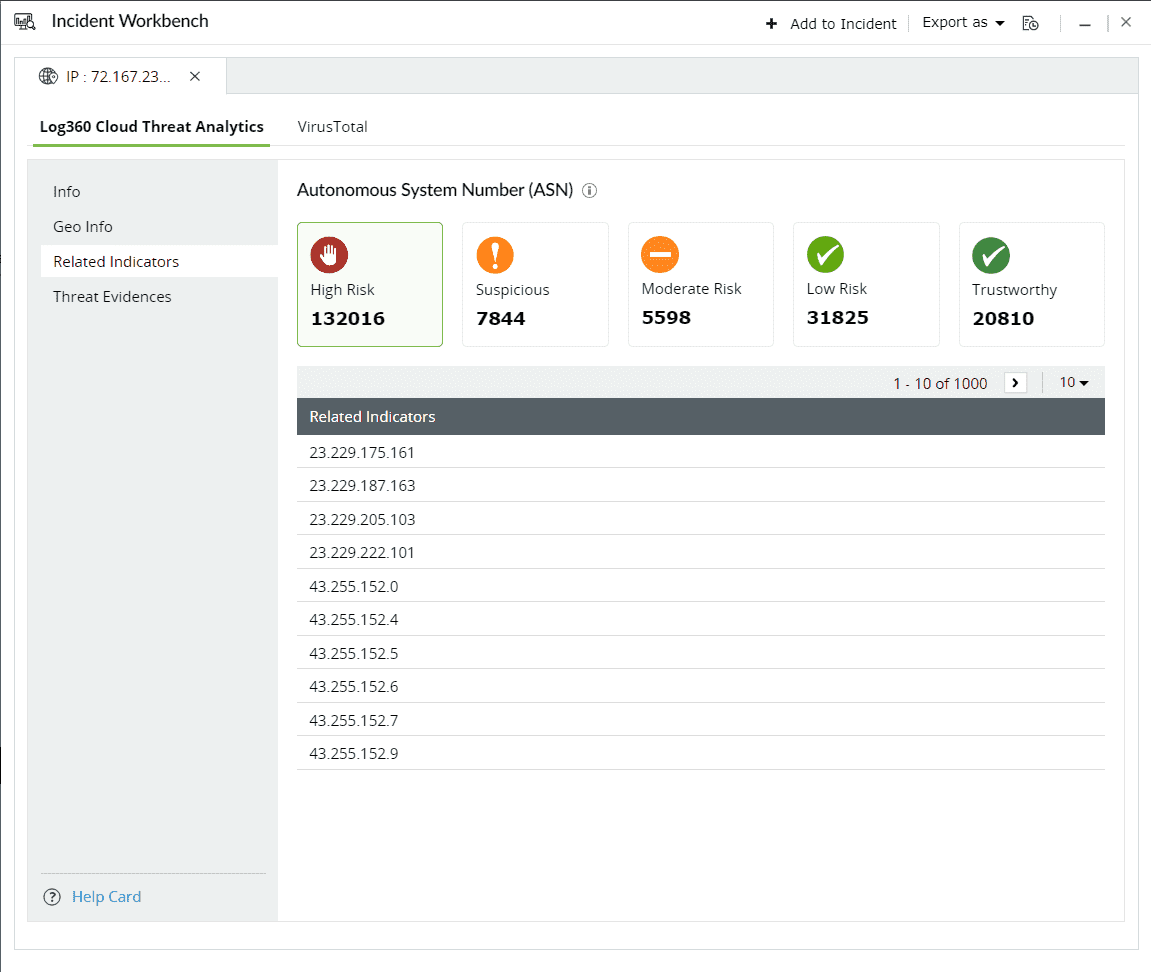
The Contextual Type contains the list of related indicators for the specific threat source. Click on the drop down and select the type of the related indicator.
The threat level categorizes the related indicators based on their risk levels.
The following are the 5 risk levels in descending order:
Here are the threat sources and the related indicators:
Threat source - IP
| Related indicator | Description |
|---|---|
| Hosted URLs | Websites that are mapped to the particular IP address. |
| ASN(Autonomuous System Number) | The related ASN which uniquely identifies the larger group of IPs to which the threat source belongs to. |
| Hosted Files | Files hosted on the specific IP. |
Threat source - Domain
| Related indicator | Description |
|---|---|
| Virtually hosted domains | Websites sharing the same server with unique domain names. |
| Subdomains | Different webpages carrying unique prefixes to a common domain. |
| Hosted Files | Files hosted on the domain |
| Hosted IPs | The IP addresses that can be mapped to the particular domain |
| Common Registrant | Individual or organization that owns and manages the domain. |
This section contains evidences produced by the security vendor for attempted attacks or malicious activities that can be mapped back to the specific threat source.
Threat Evidence covers a list of incidents which caused an IP to be flagged as malicious. The response contains:
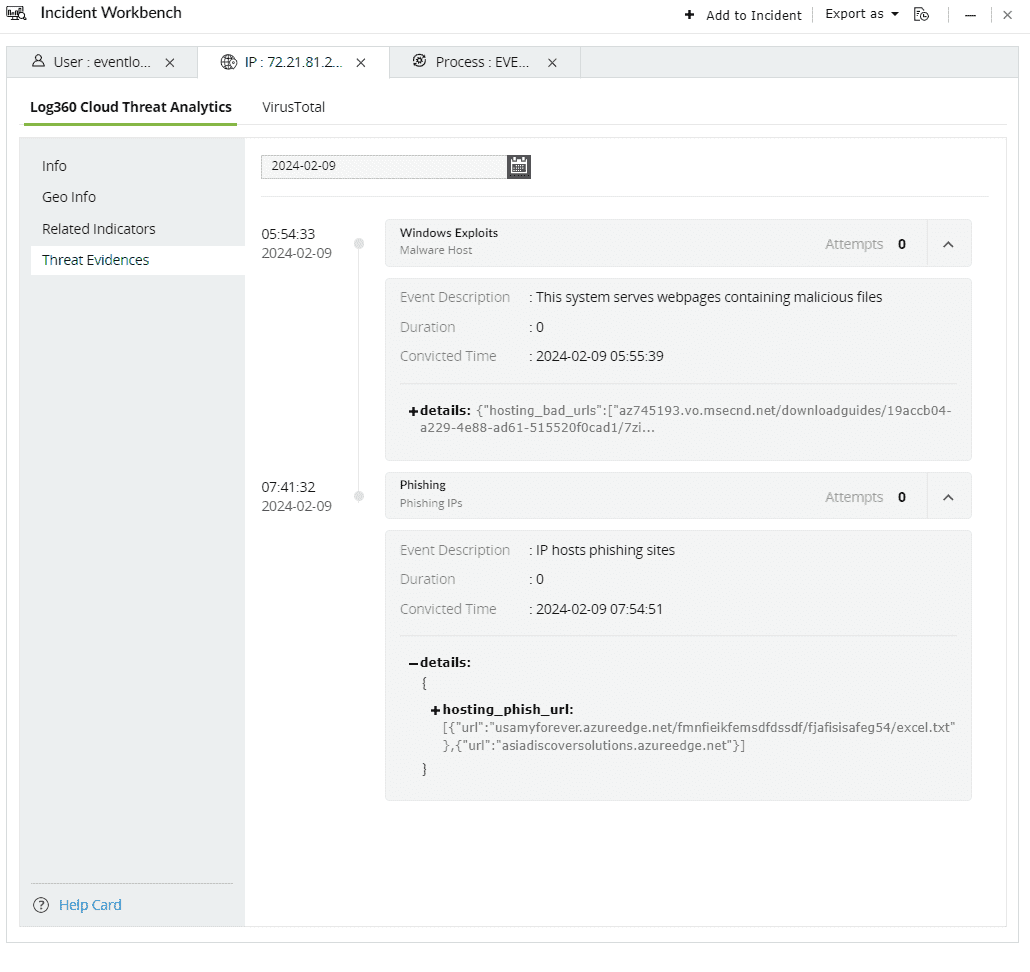

Threat evidence example 1: Phishing

Threat evidence example 2: Files hosted by the domain

Constella Intelligence specializes in digital risk protection, including monitoring the dark web and other online channels, to mitigate threats like fraud, cybercrime, and brand abuse. Integration with Log360 Cloud enhances threat detection, provides a comprehensive view of digital risks, enables proactive brand protection, ensures regulatory compliance, and facilitates efficient incident response.


Breach reports

Email analysis

Users can access VirusTotal API in two ways:
Recommendation: For business workflows, it is recommended to use Premium API for integration.
To learn more about VirusTotal, their terms of service, privacy policy, and API usage, please visit their website.
Once you have purchased the Advanced Threat Analytics add-on and applied the license, head to the Advanced Threat Analytics page.

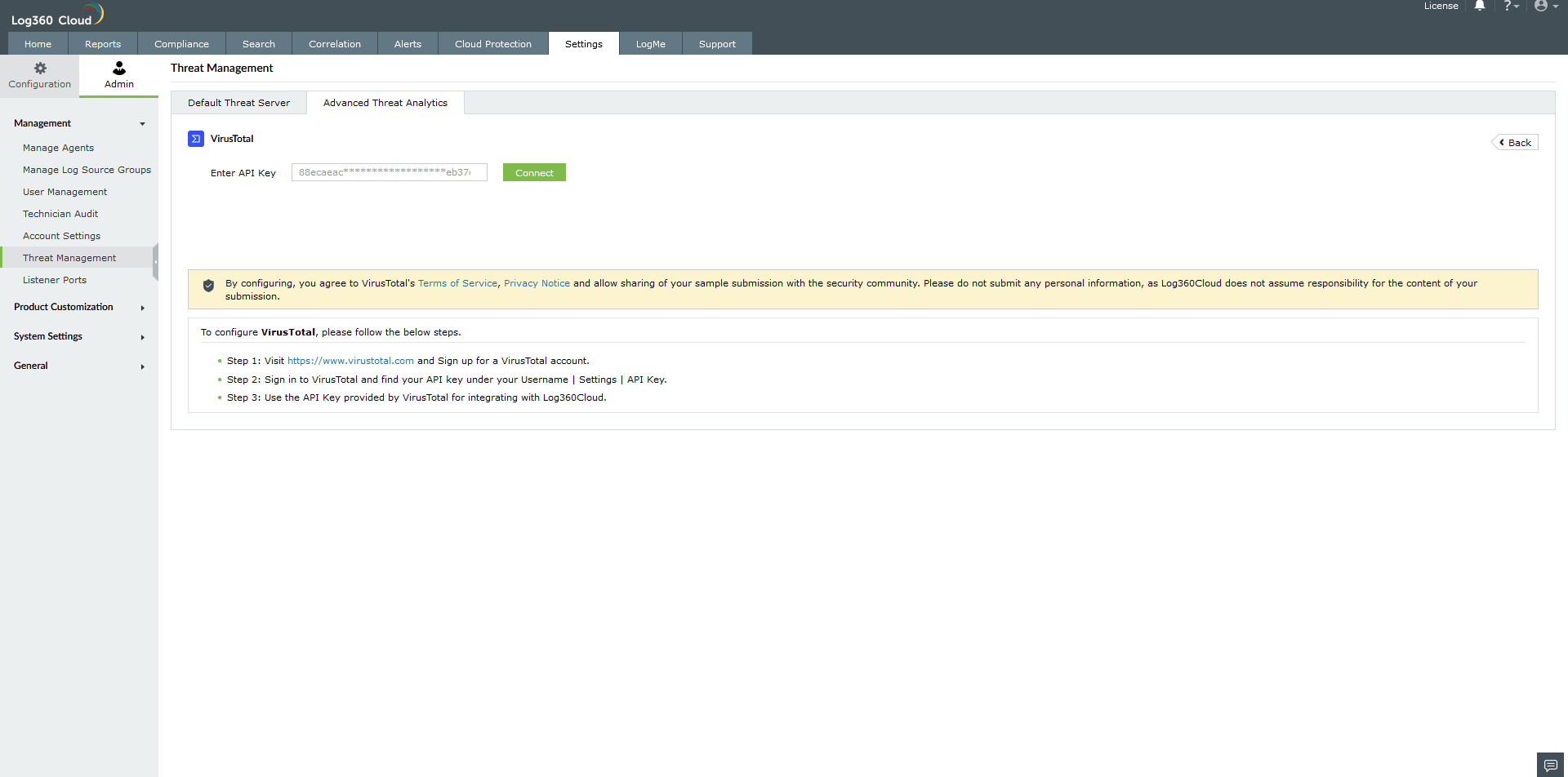
Paste the API key and click on Connect to finish configuring VirusTotal.
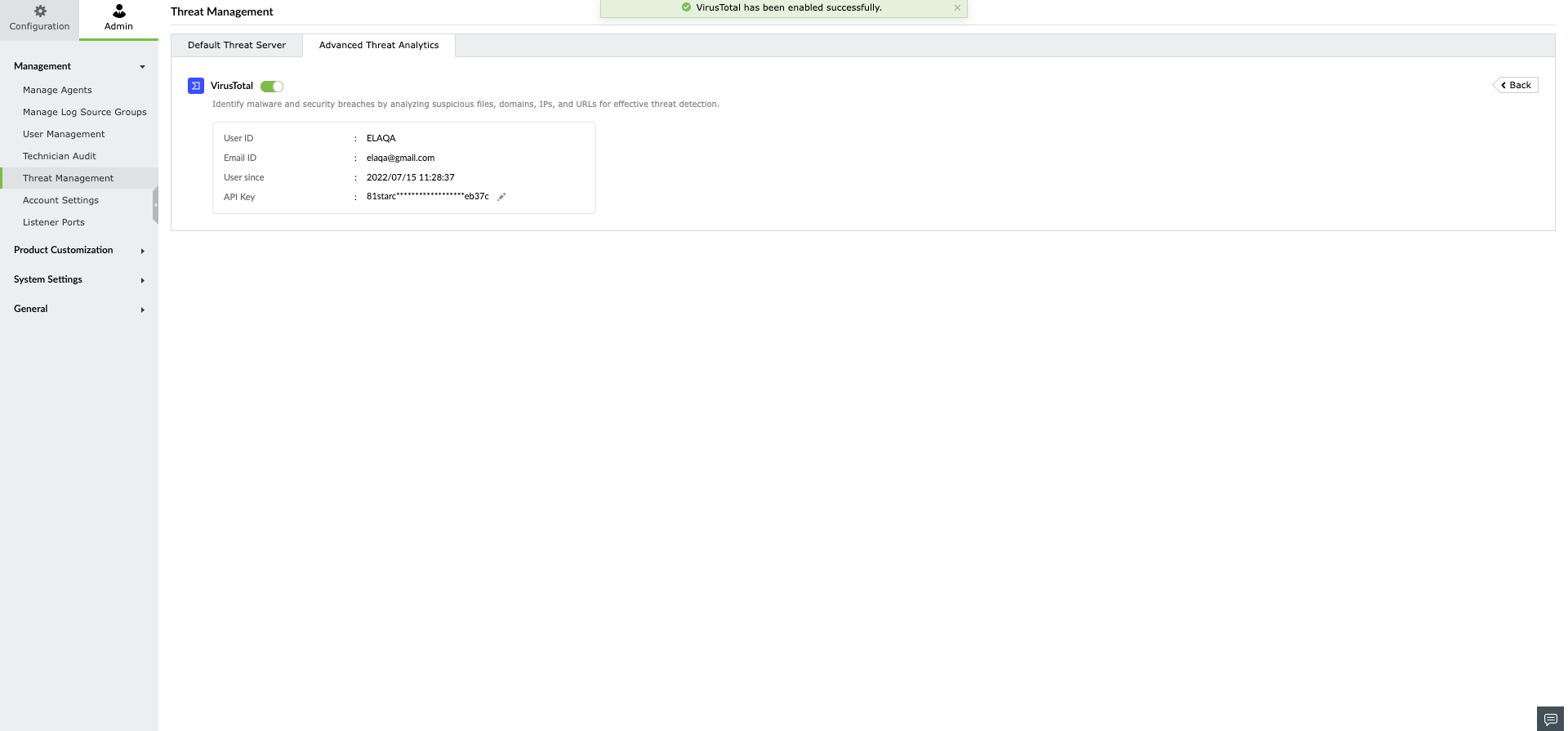
In Log360 Cloud, users can access the data from VirusTotal through the Incident Workbench. Learn how to invoke the Incident Workbench from different dashboards of Log360 Cloud.
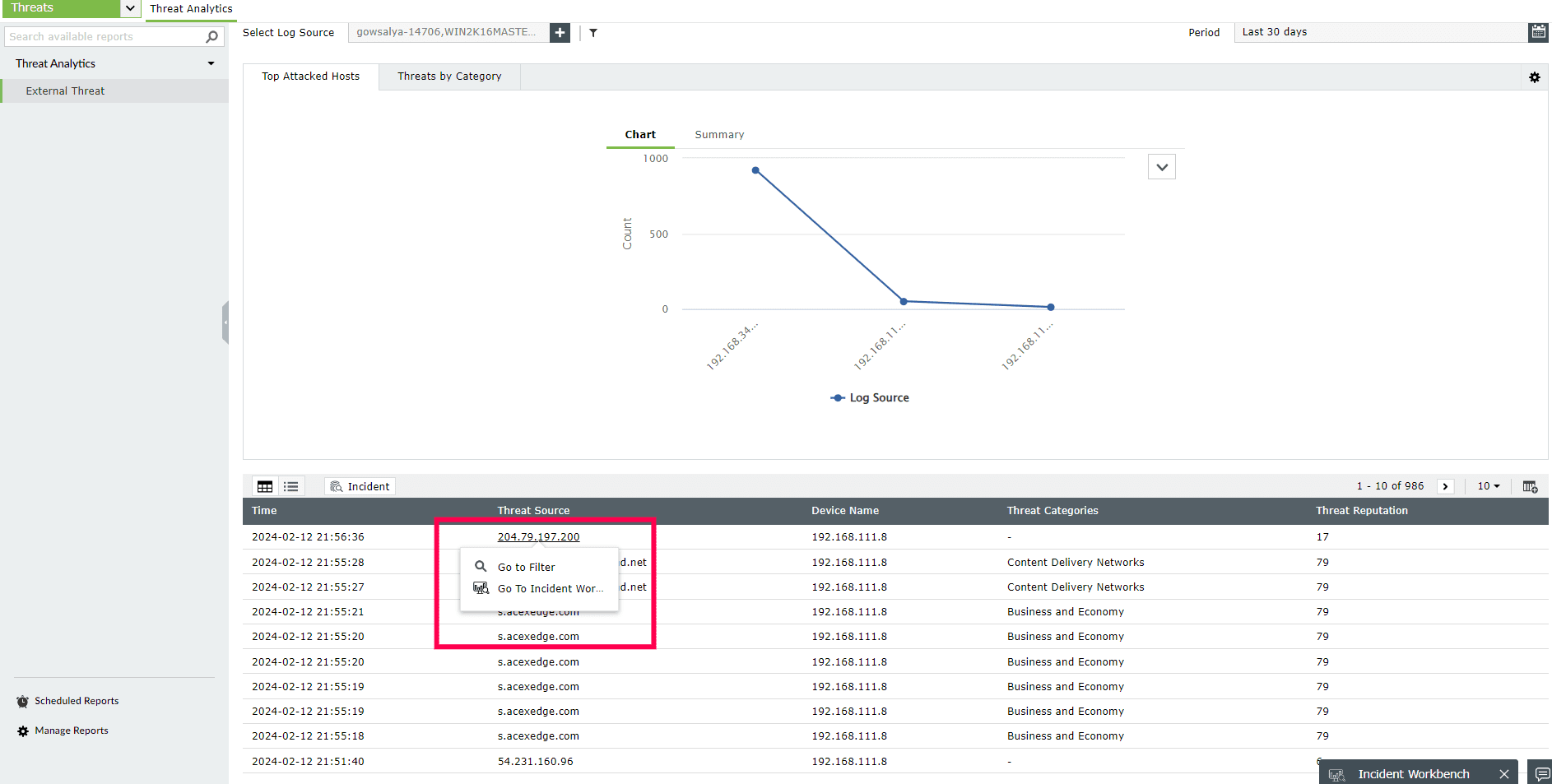
Note: To understand the different terminologies used in the VirusTotal reports, please use the Help Card in the bottom left corner.

Select any IP or Domain to analyze in the Workbench. You can access the following data:
This section contains the Detection Score of the Threat Source, which is the number of security vendors who have flagged the source as risky out of all the security vendors. Along with this, the basic details and the geo info of the Threat Source are also available.
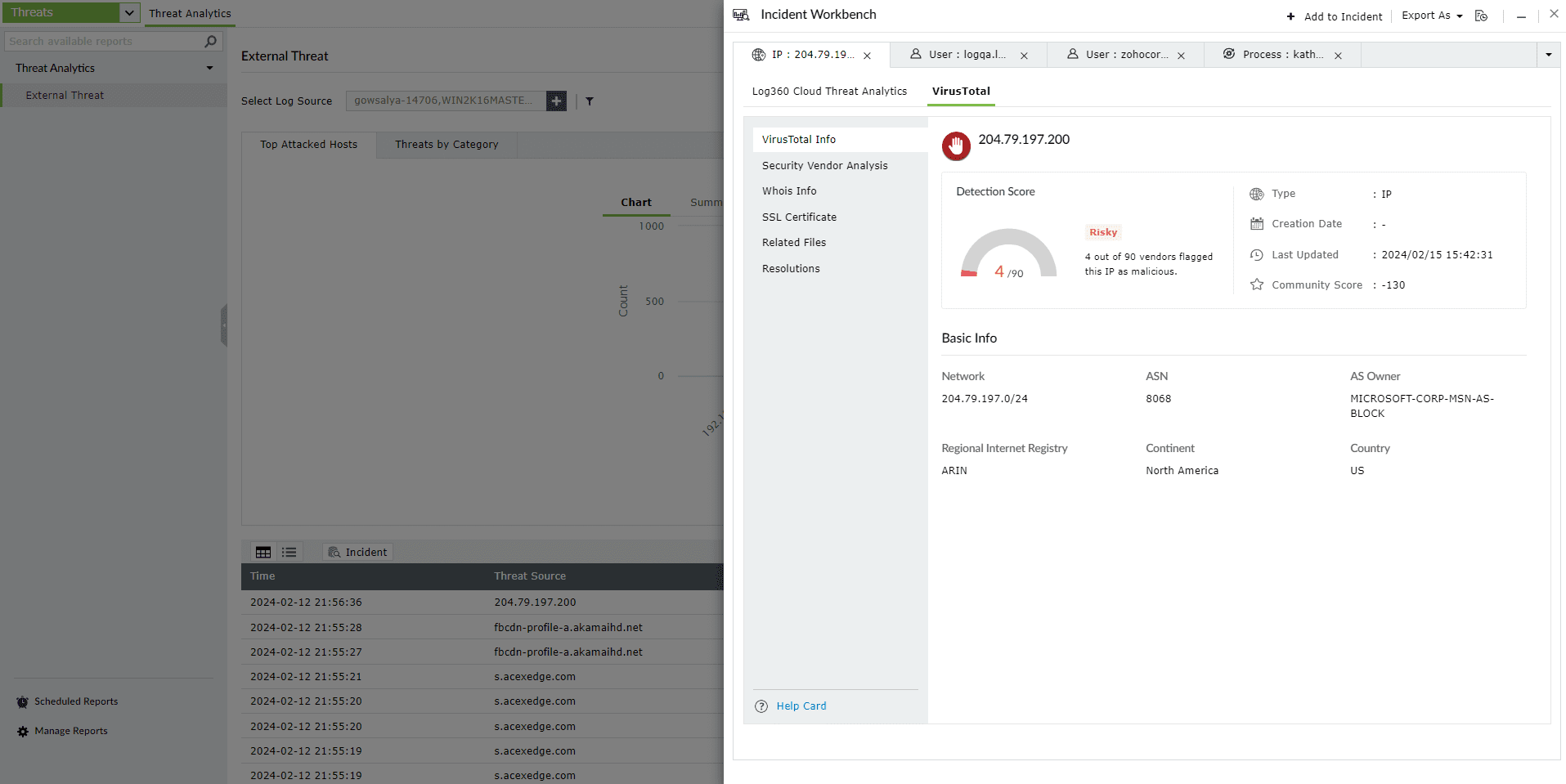
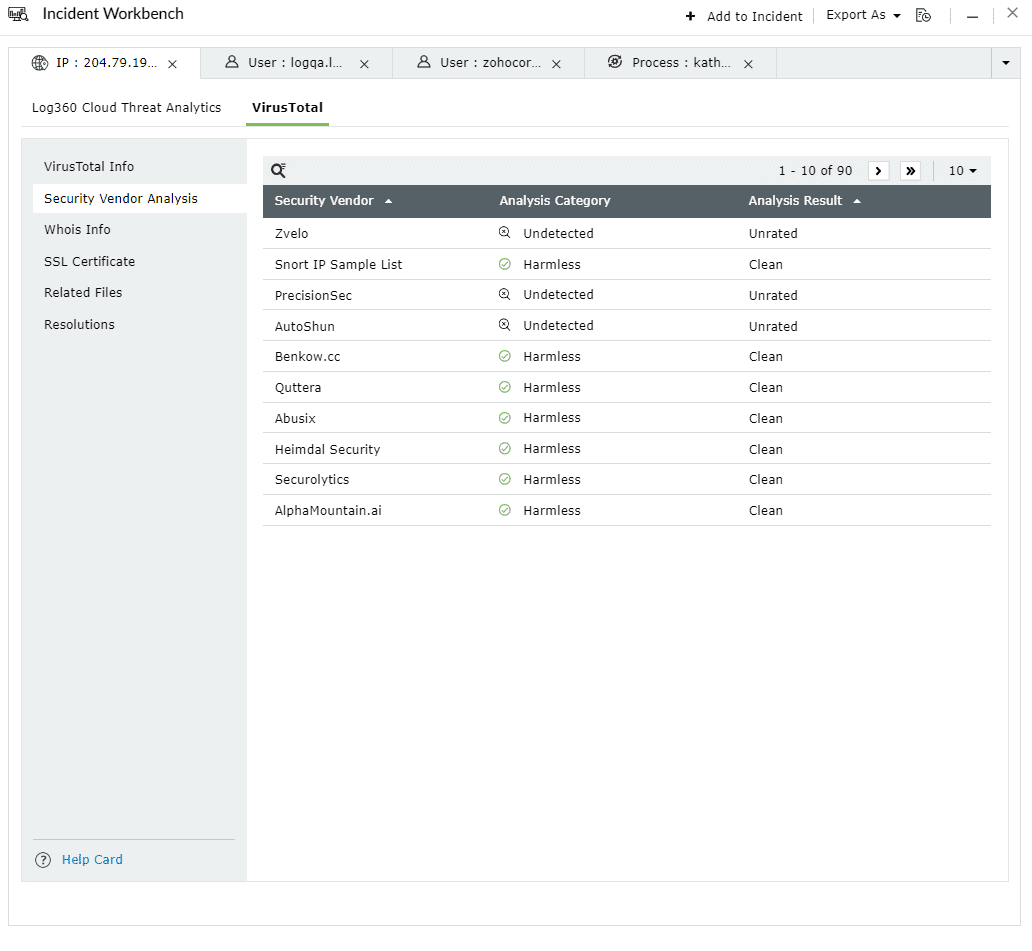
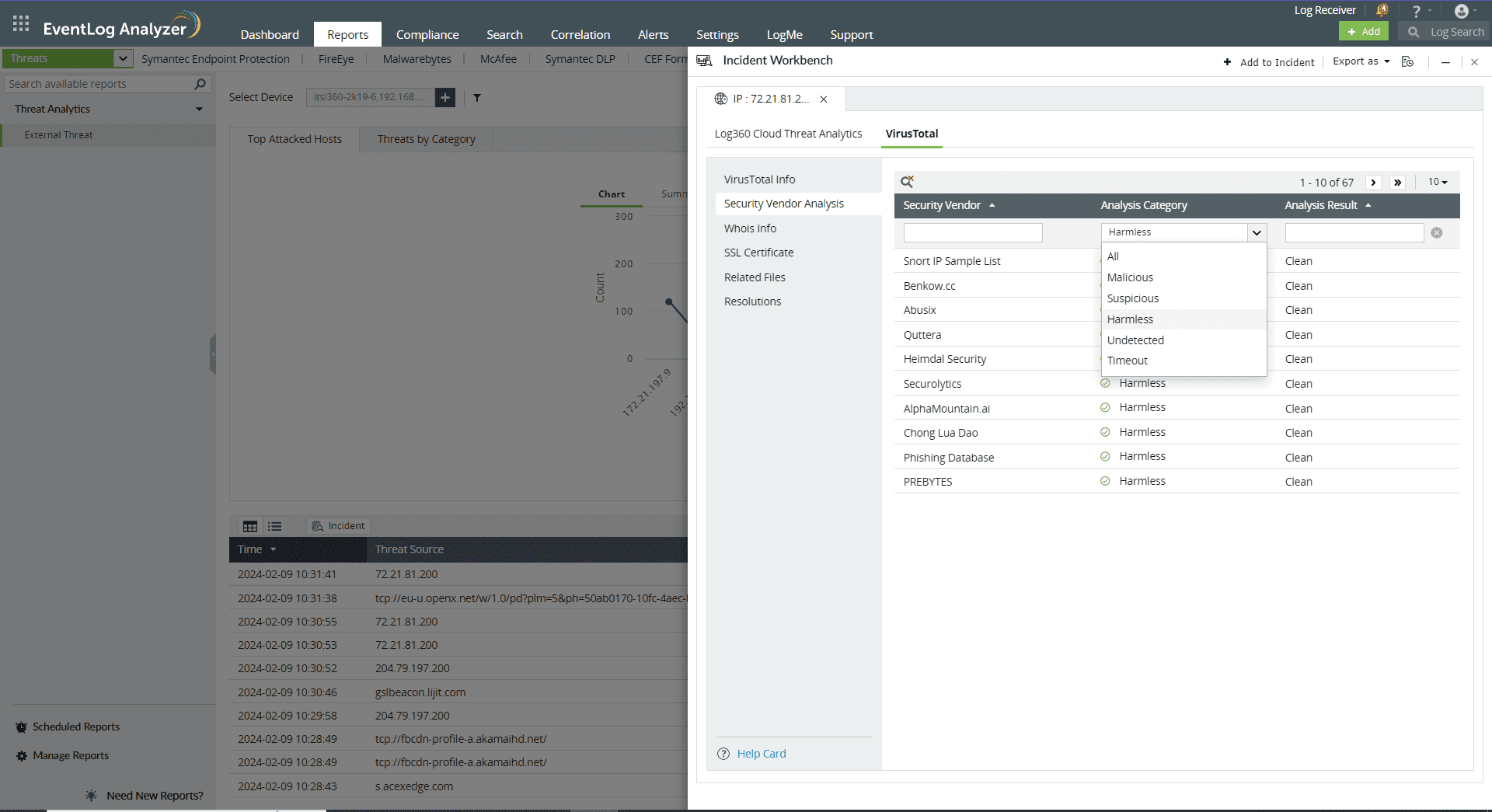
This section contains the individual analysis of 85+ security vendors such as SOCRadar, Fortinet, Forcepoint ThreatSeeker, and ArcSight Threat Intelligence
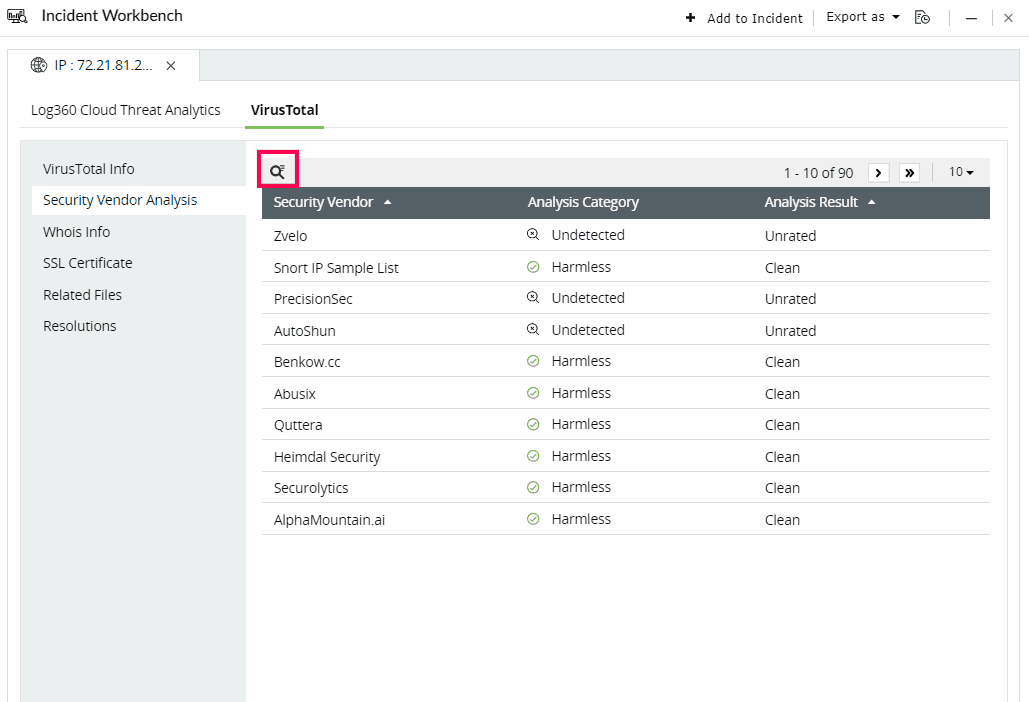
Click on the search icon in the top left corner to filter based on Security Vendor, Analysis Category, and Analysis Result.
Here are the Analysis Categories:
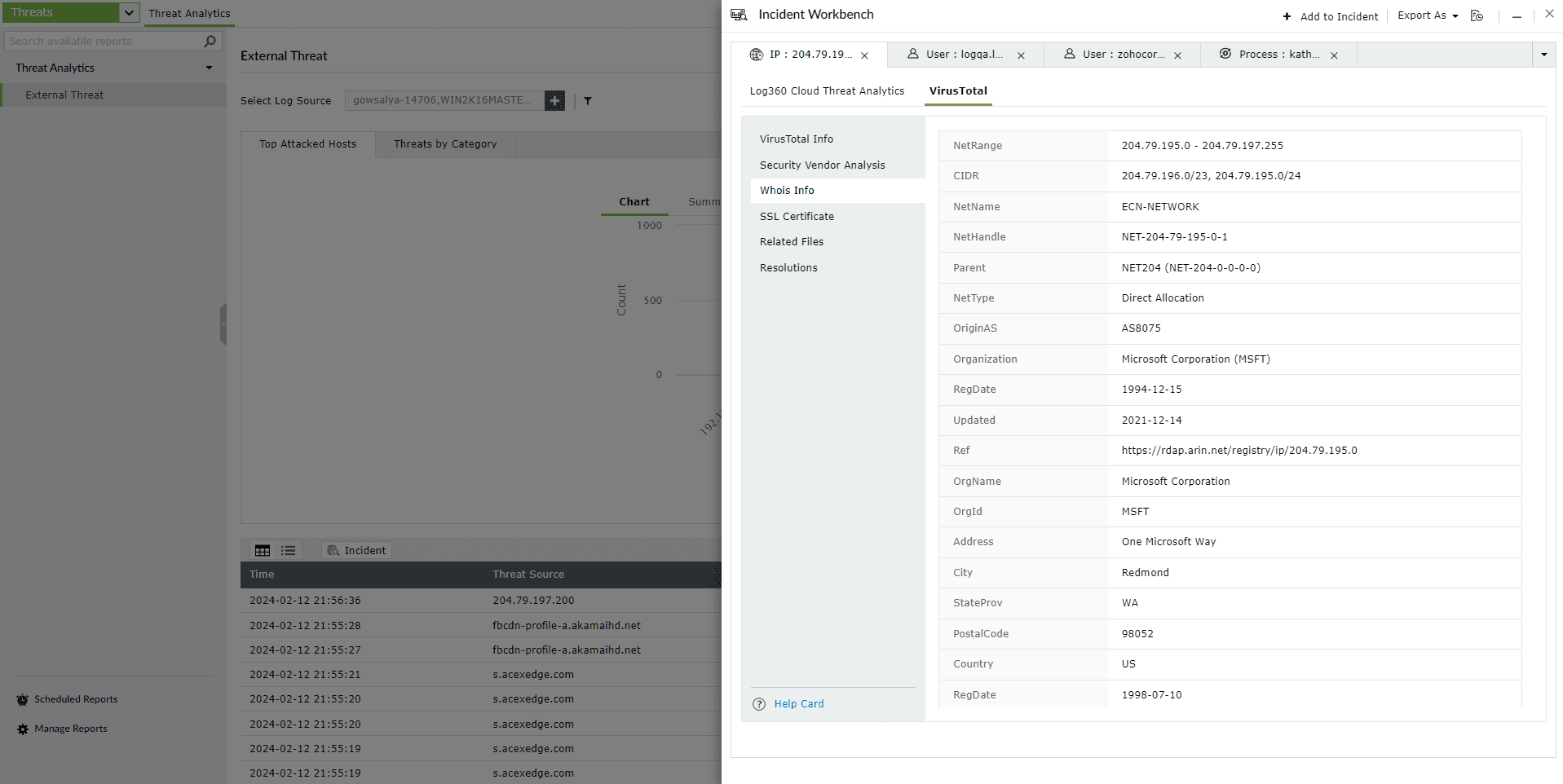
This section contains the Whois information of the threat source domain.
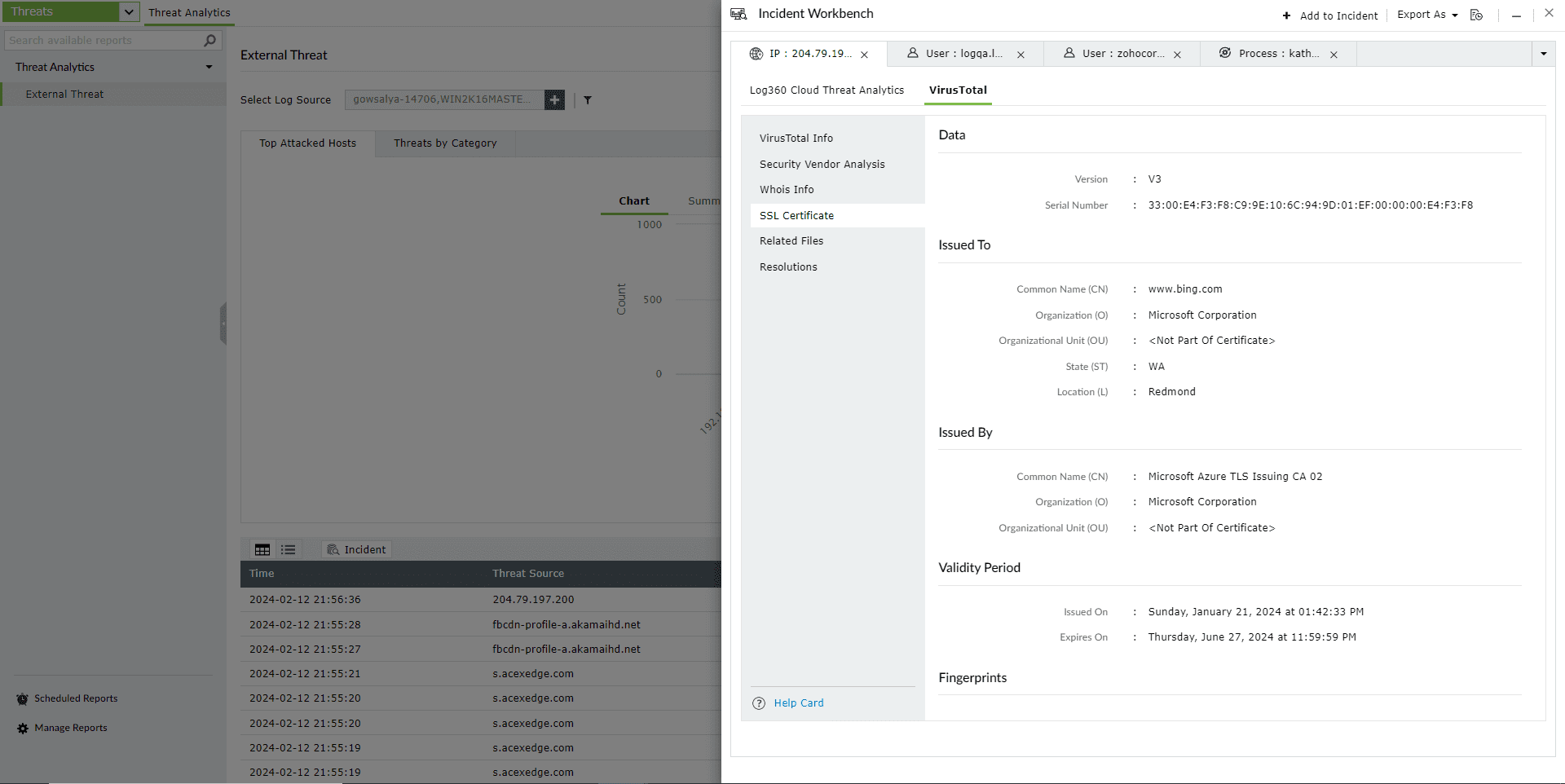
This section contains details of the SSL certificate issued to the Threat Source and who issued it.
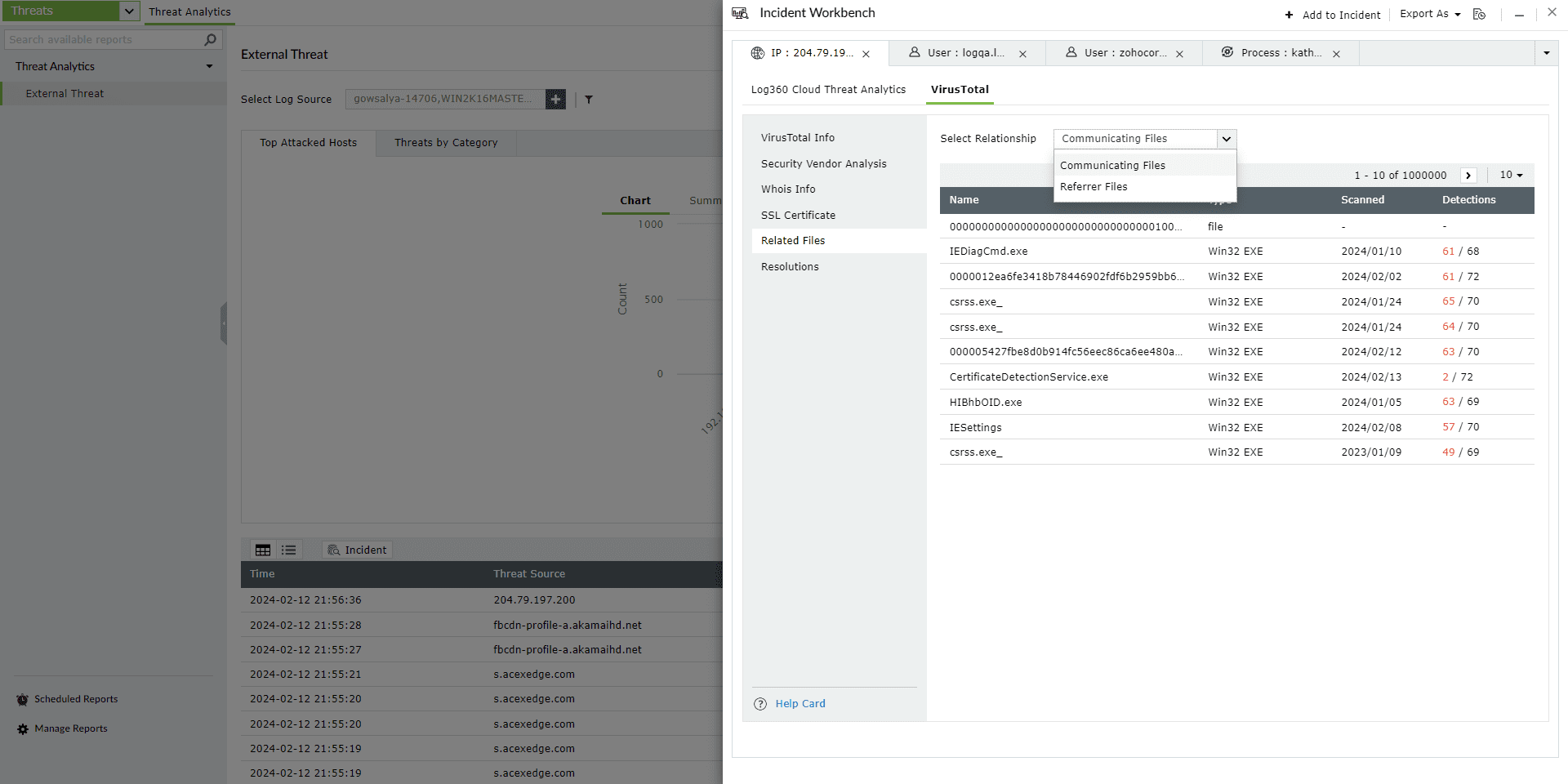
This section maps the relationship of the files to the IP address in the following ways:
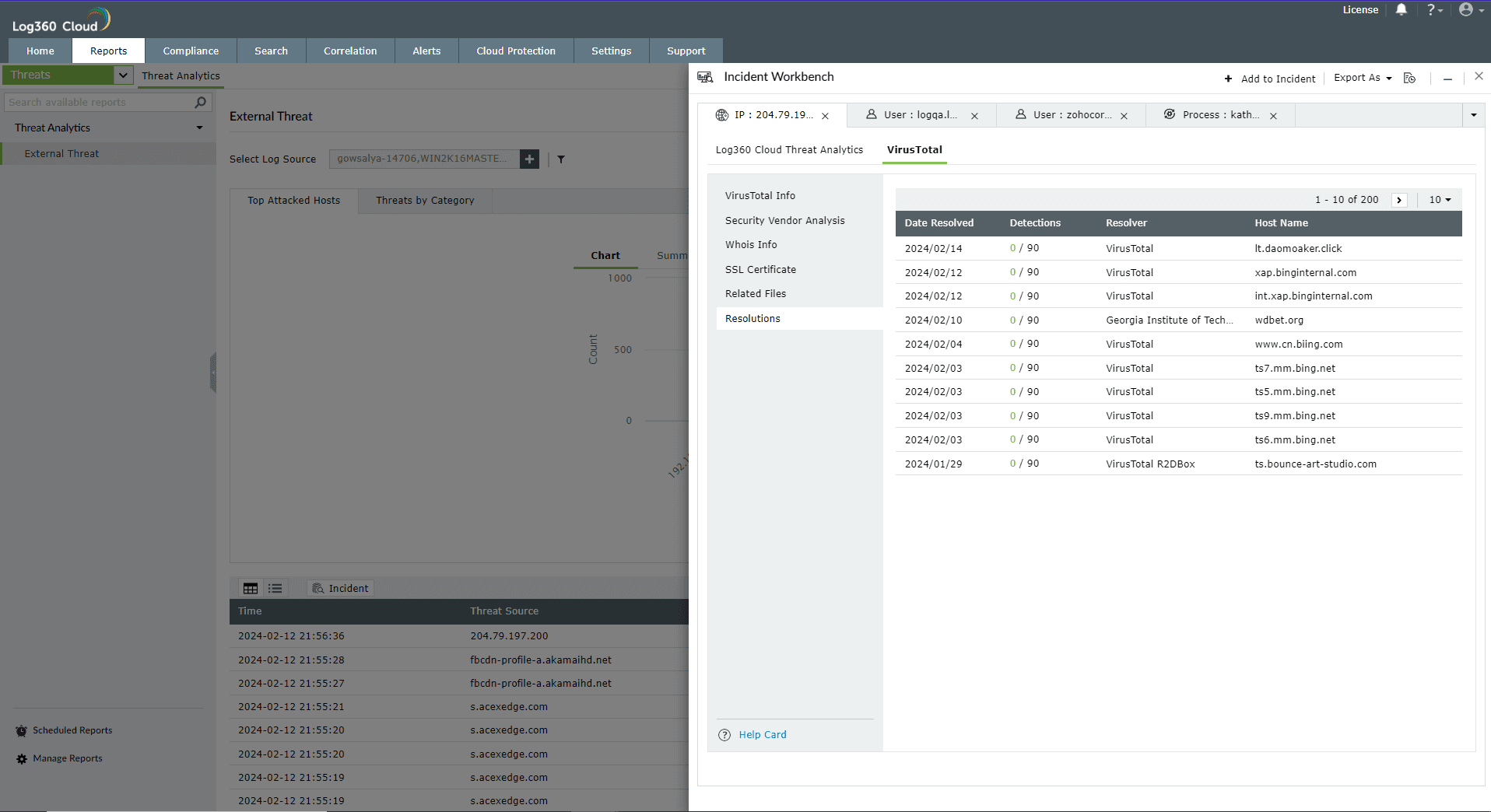
This section contains the past and current IP resolutions for a particular domain.