
Print Server auditing involves the systematic monitoring and logging of print-related activities within an organization. By meticulously tracking print jobs, user activity, and device interactions, organizations gain invaluable insights into potential vulnerabilities and threats. This proactive approach empowers businesses to safeguard sensitive information, detect unauthorized access, and ensure compliance with industry regulations.

Computer Configuration → Administrative Templates → Printers → Allow job name in event logs
Alternatively, you can make the following registry edit:
[HKEY_LOCAL_MACHINE\SOFTWARE\Wow6432Node\Policies\Microsoft\Windows NT\Printers]
"ShowJobTitleInEventLogs" = dword:00000001


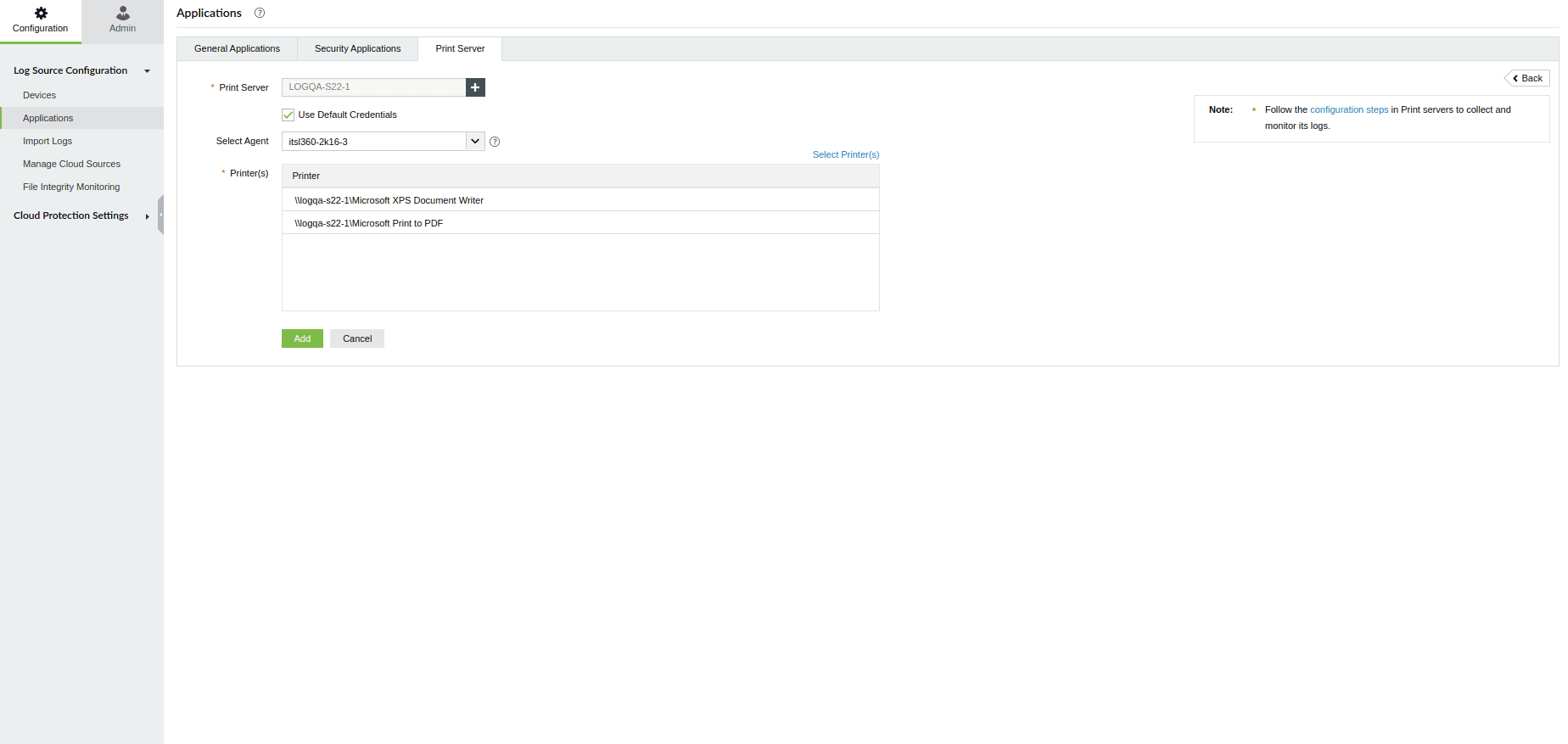
Click Associated Printers to view and manage the printers linked to the selected print server for log collection using enable/disable actions.

Error message: Unable to fetch printers from the selected server: <server name>
1. Reason: No Credentials Available
Cause:
There are no credentials available for the selected server or its associated domain.
Solution:
If default credentials are selected on the Print Server Configuration page, ensure that the device or domain is configured with valid credentials. Alternatively, you can manually enter the credentials on the Print Server Configuration page.
2. Reason: Invalid Credentials
Cause:
The credentials provided are invalid. They may have been entered manually on the Print Server Configuration page or may be linked to the associated device or domain.
Solution:
Ensure that the correct credentials are entered on the Print Server Configuration page. If necessary, update the device credentials under Settings → Log Source Configurations → Device, or update the domain credentials under Settings → Admin → Account Settings → Configure Domains.
3. Reason: Device Not Reachable
Cause:
The selected server cannot be reached using the chosen agent.
Solution:
Ensure that the selected agent and server are in the same domain. Use the ping command to verify the server’s reachability and confirm that the internet connection is active.
4. Reason: Document names are not logged in Event Viewer due to disabled audit policy
Cause:
This issue is due to a misconfiguration in the audit policy.
Solution:
To capture the document name in the event log, you must enable the audit policy at:
Computer Configuration → Administrative Templates → Printers → Allow job name in event logs
Alternatively, you can make the following registry edit:
[HKEY_LOCAL_MACHINE\SOFTWARE\Wow6432Node\Policies\Microsoft\Windows NT\Printers]
"ShowJobTitleInEventLogs" = dword:00000001