Last updated: July 24, 2026
How to manage multiple app tracks in Google Play Console for Google hosted private apps?
This guide explains how to manage multiple test tracks for a Google-hosted private app in the Google Play Console so new versions can be validated before production release. From Device Mgmt > App Repository > Managed Google Play, administrators open the app's advanced edit view in Play Console, create a closed testing track, upload the new APK, assign it to their managed organization, and submit it for Google's review. Once approved, syncing the app in the MDM console retrieves the new version for distribution to managed devices.
Description
MDM supports adding enterprise apps as Private Play Store apps directly from the MDM server via Managed Google Play. This method does not require you to pay any fee to register with Google as a developer. When you publish a private app for the first time, Managed Google Play automatically creates a Play Developer account on behalf of your organization. Refer to this, to know more about publishing private apps in Google Play Store.
Google has introduced App Track Management to manage multiple versions of apps through Android for Work. App developers can add new versions of an app as tracks and make them available to your organization. MDM provides you with the ability to test and deploy any number of custom releases before releasing the production version. You can publish apps to custom testing tracks on the Google Play console, and then distribute these apps to devices.
Deploy multiple app tracks on the Google Play Console
Multiple versions of google hosted private apps can be added to the App repository, by following the steps mentioned below:
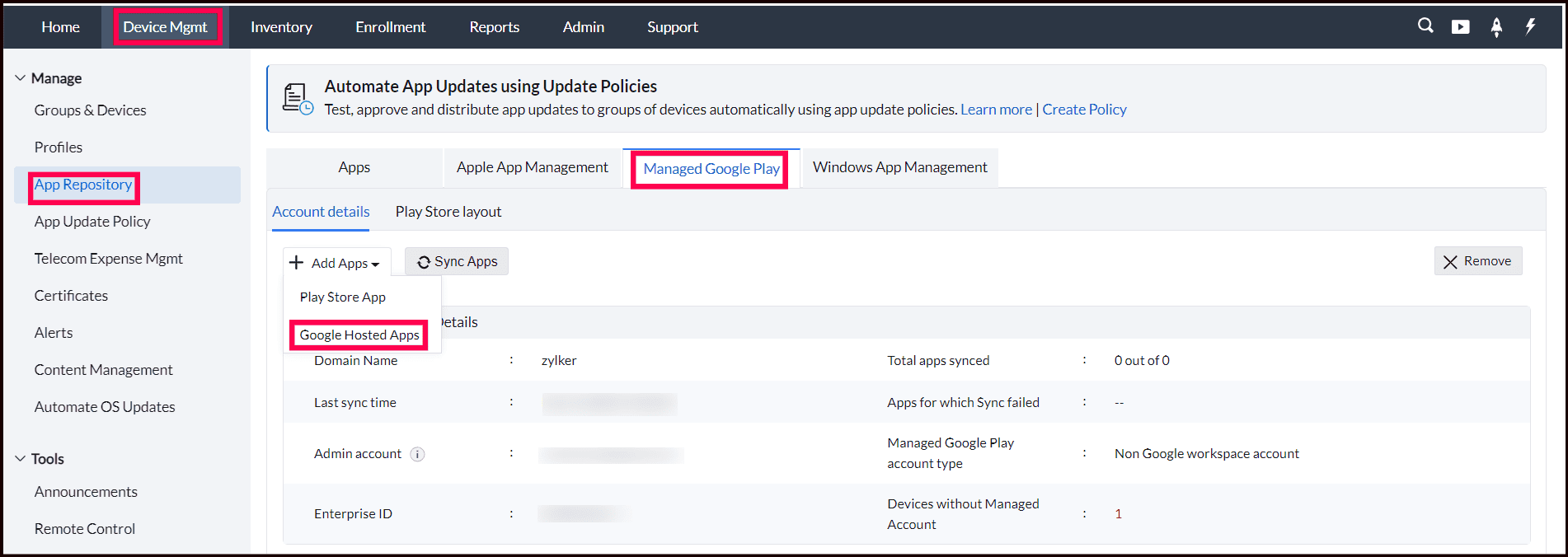
- Navigate to Device Mgmt -> App Repository -> Managed Google Play.
- Click on Add Apps and select Google hosted apps.
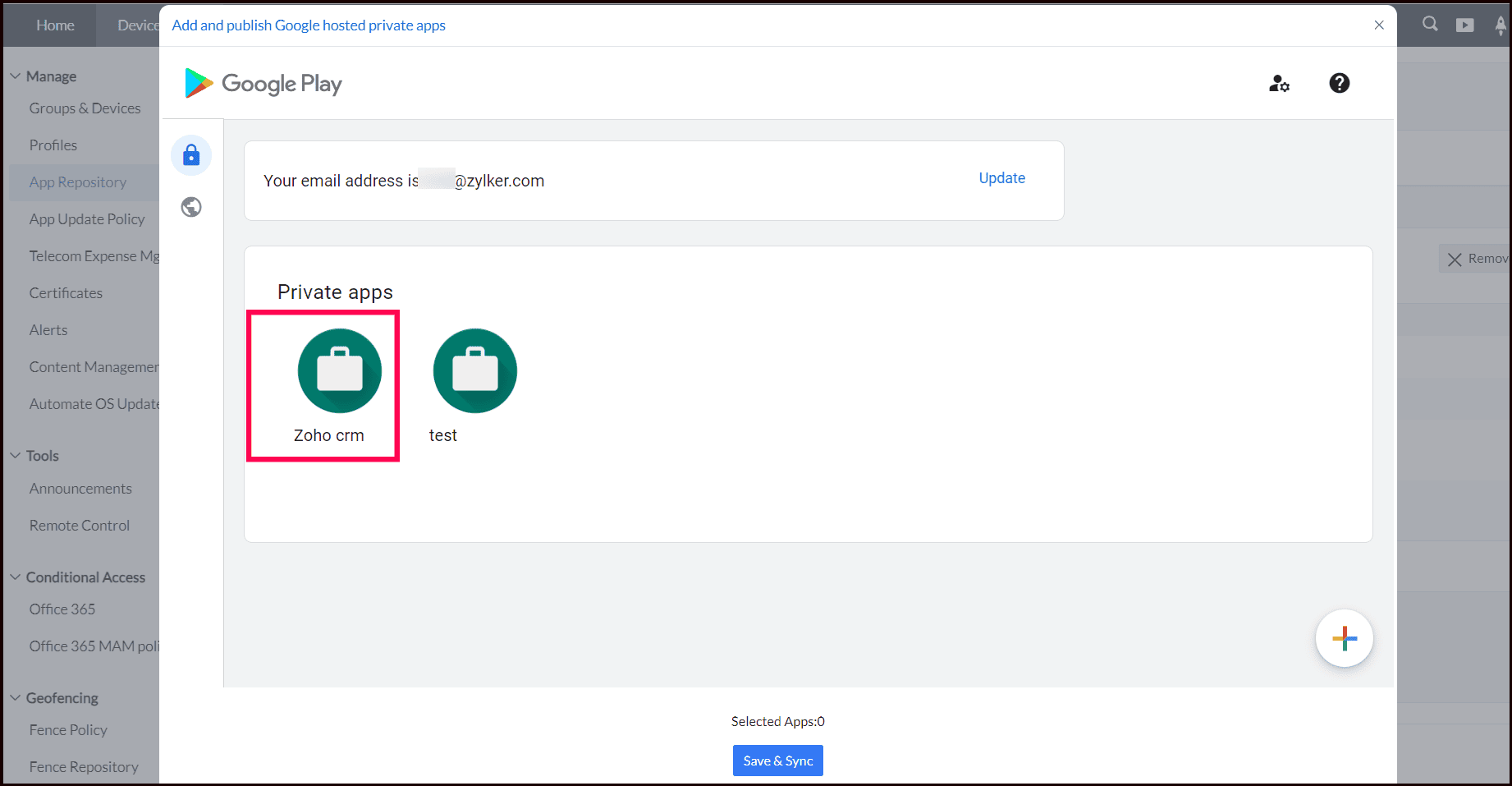
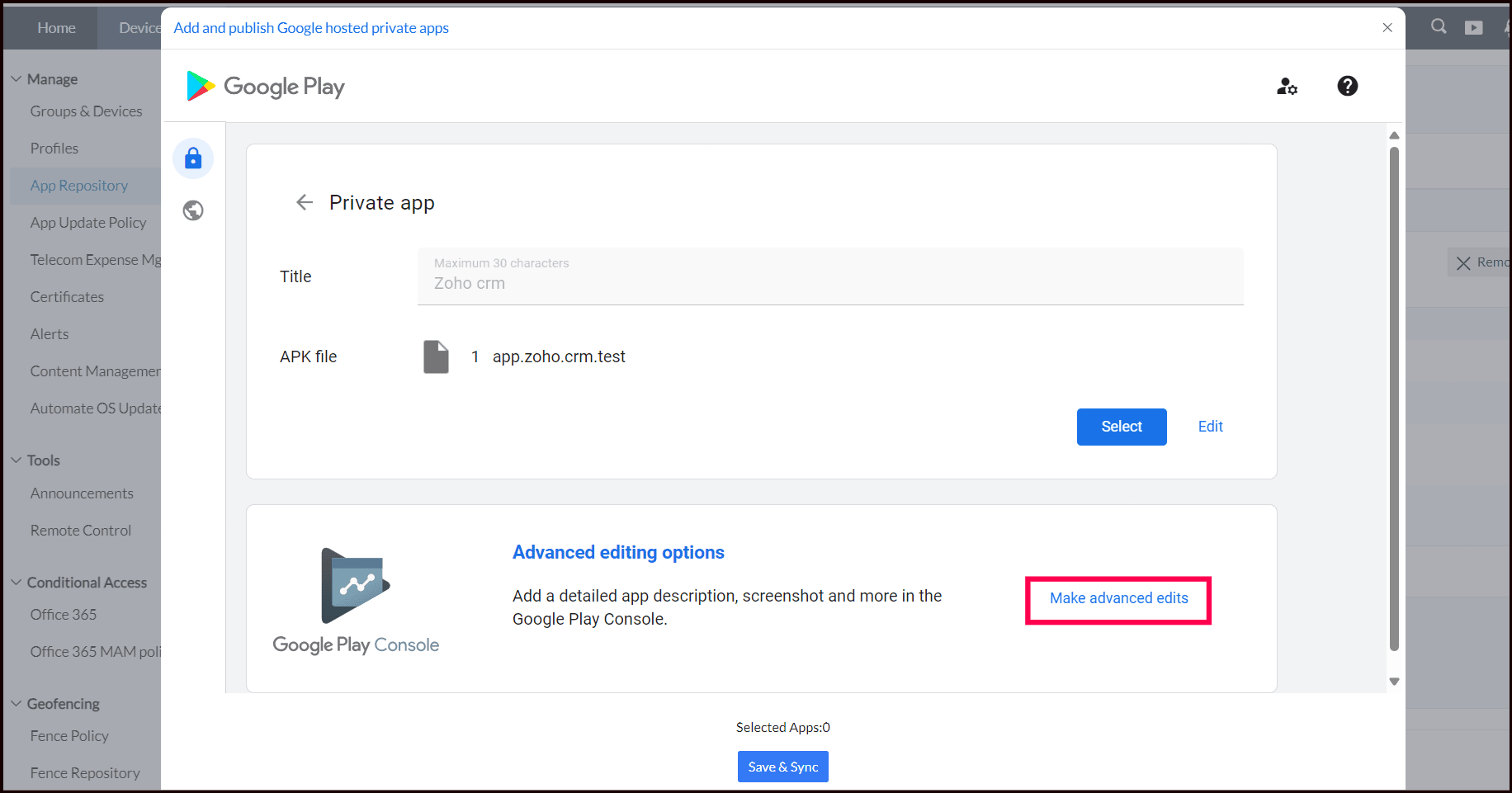
- Select the app and click on Make advanced edits. You will be redirected to the Google Play Console.
- Sign in to the Play Console using the same Google account used for publishing private apps.
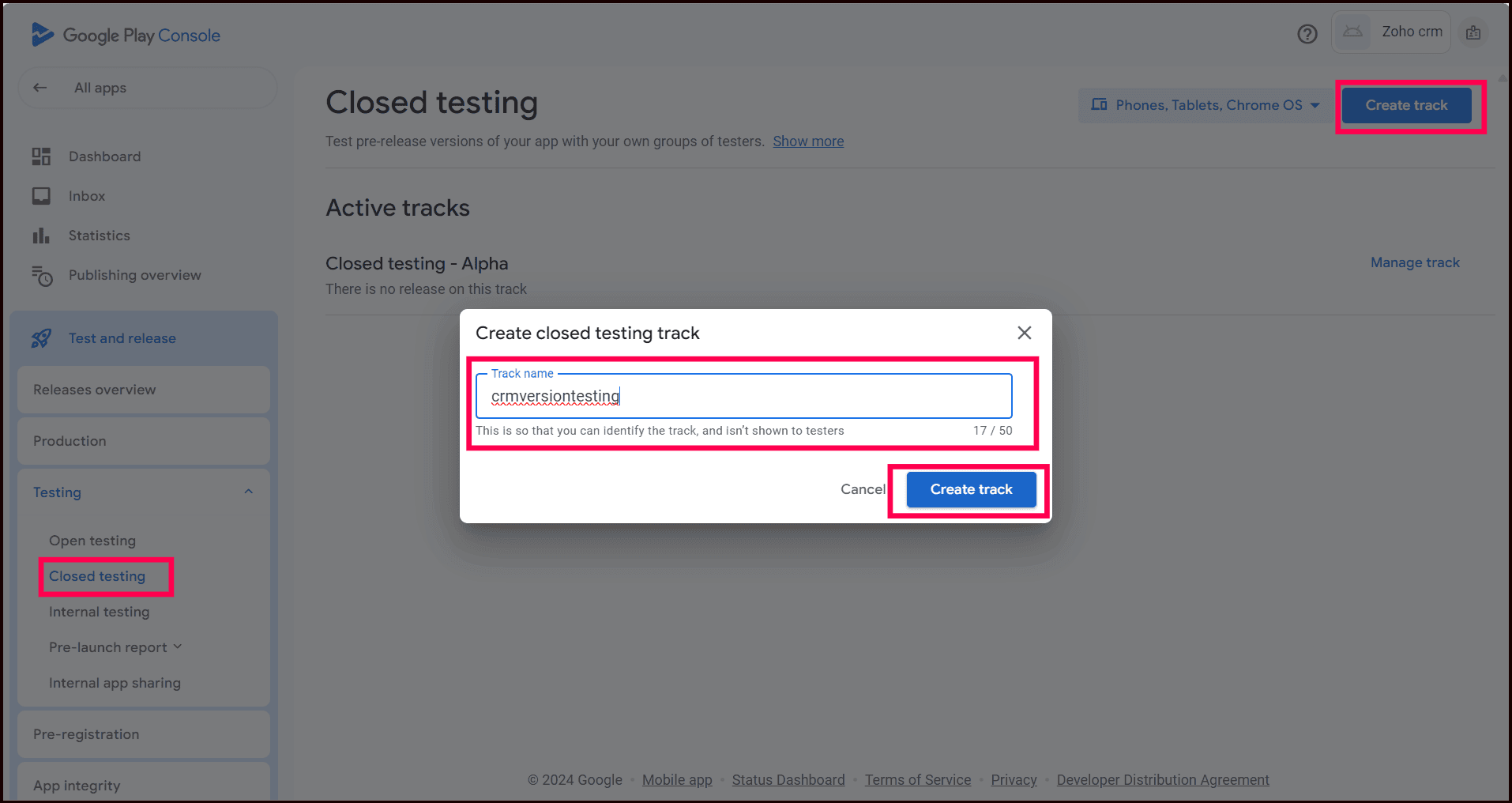
- Go to Release -> Testing -> Closed testing.
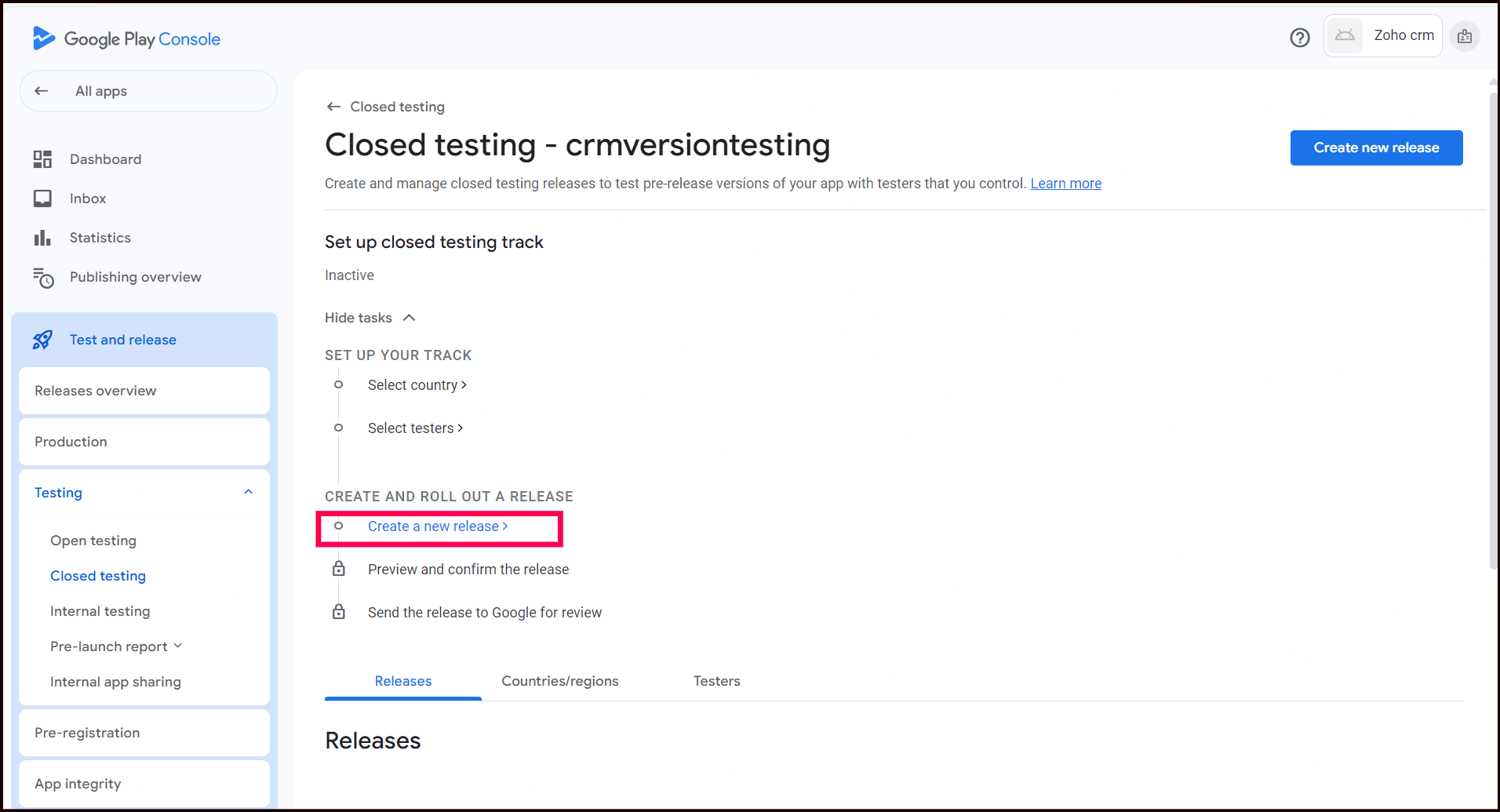
- Click on Create track and provide a Track name (ex:crmversiontesting).
- Click on Create new release and upload the APK file.
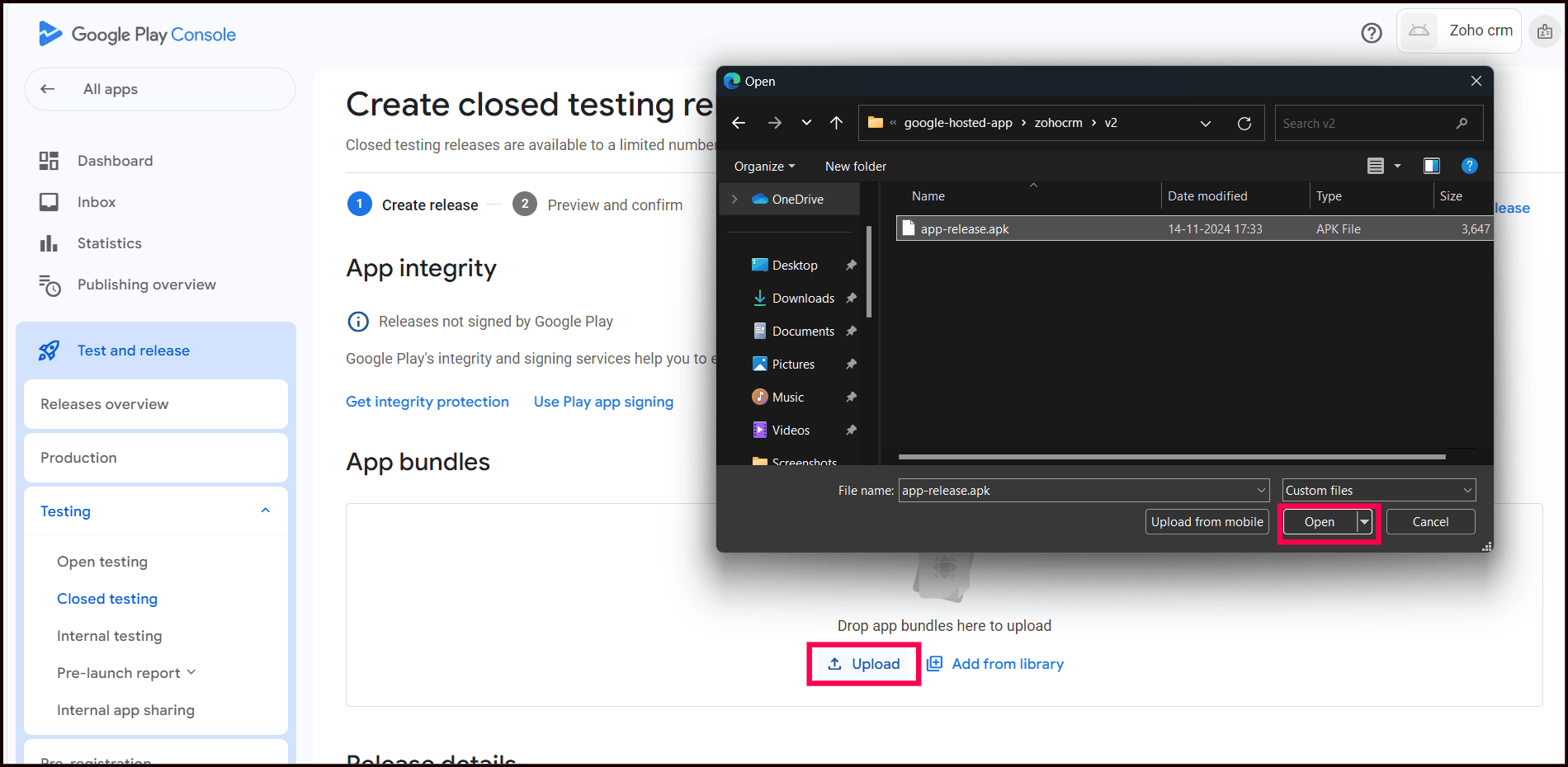
- Once the APK is added, review the version code and file size details.
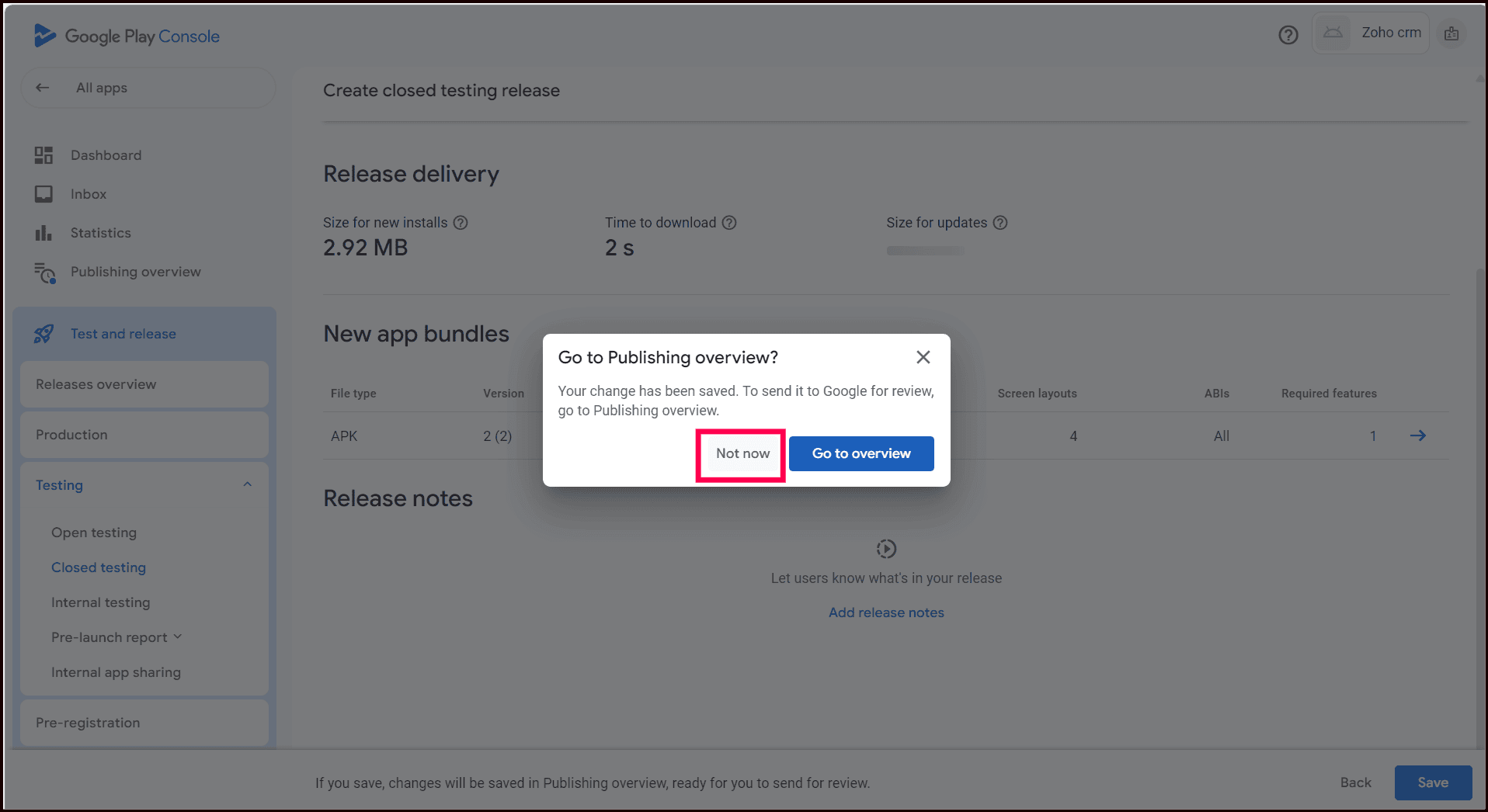
- Click Next, add the release note, and save it.

- Select Not Now to skip publishing immediately.
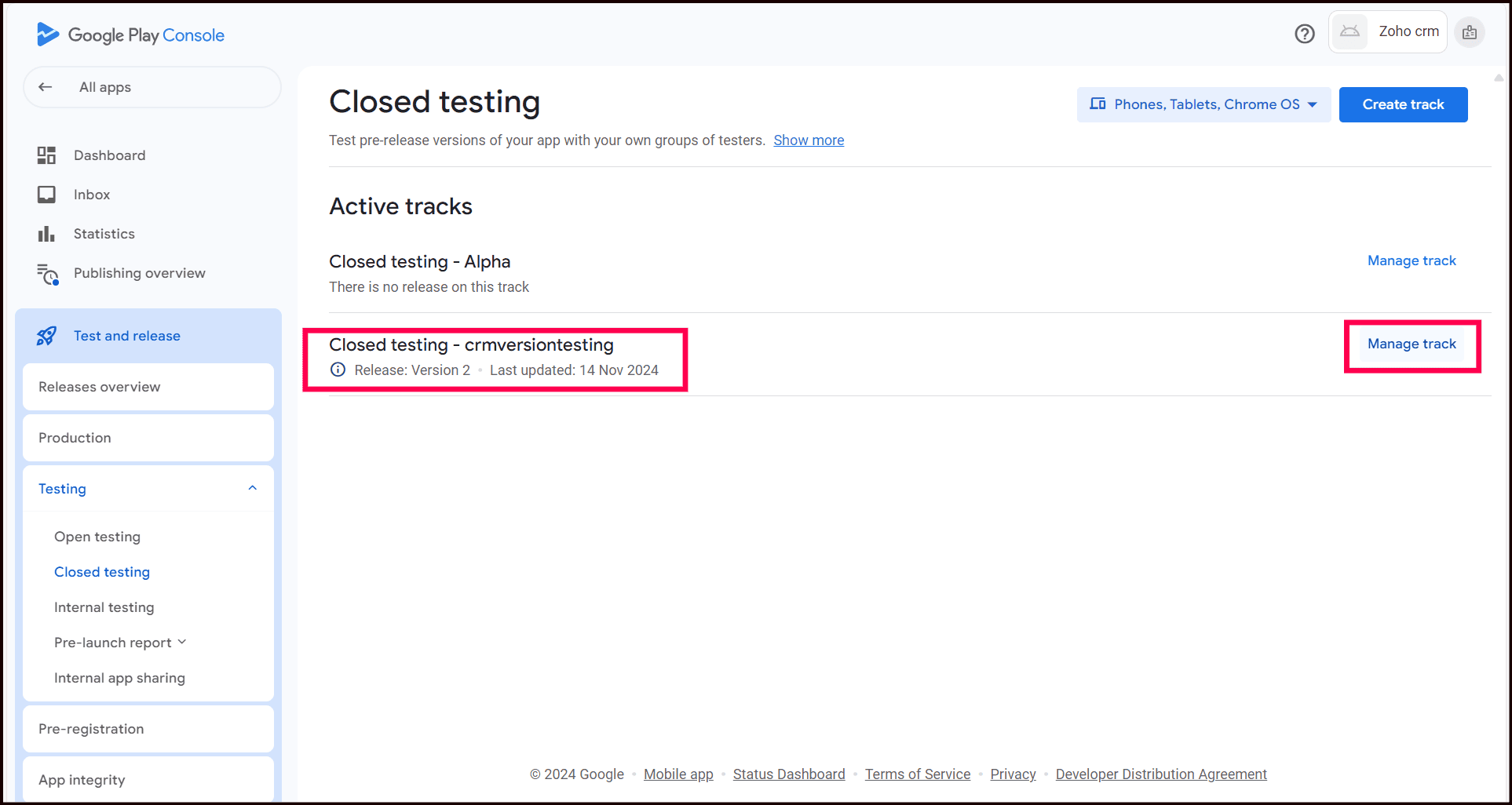
- Navigate back to Release -> Testing -> Closed testing(track created in step 6 :crmversiontesting), then click Manage Track.
- Go to the Tester tab, and under Managed Organization, select your organizationand save the changes.
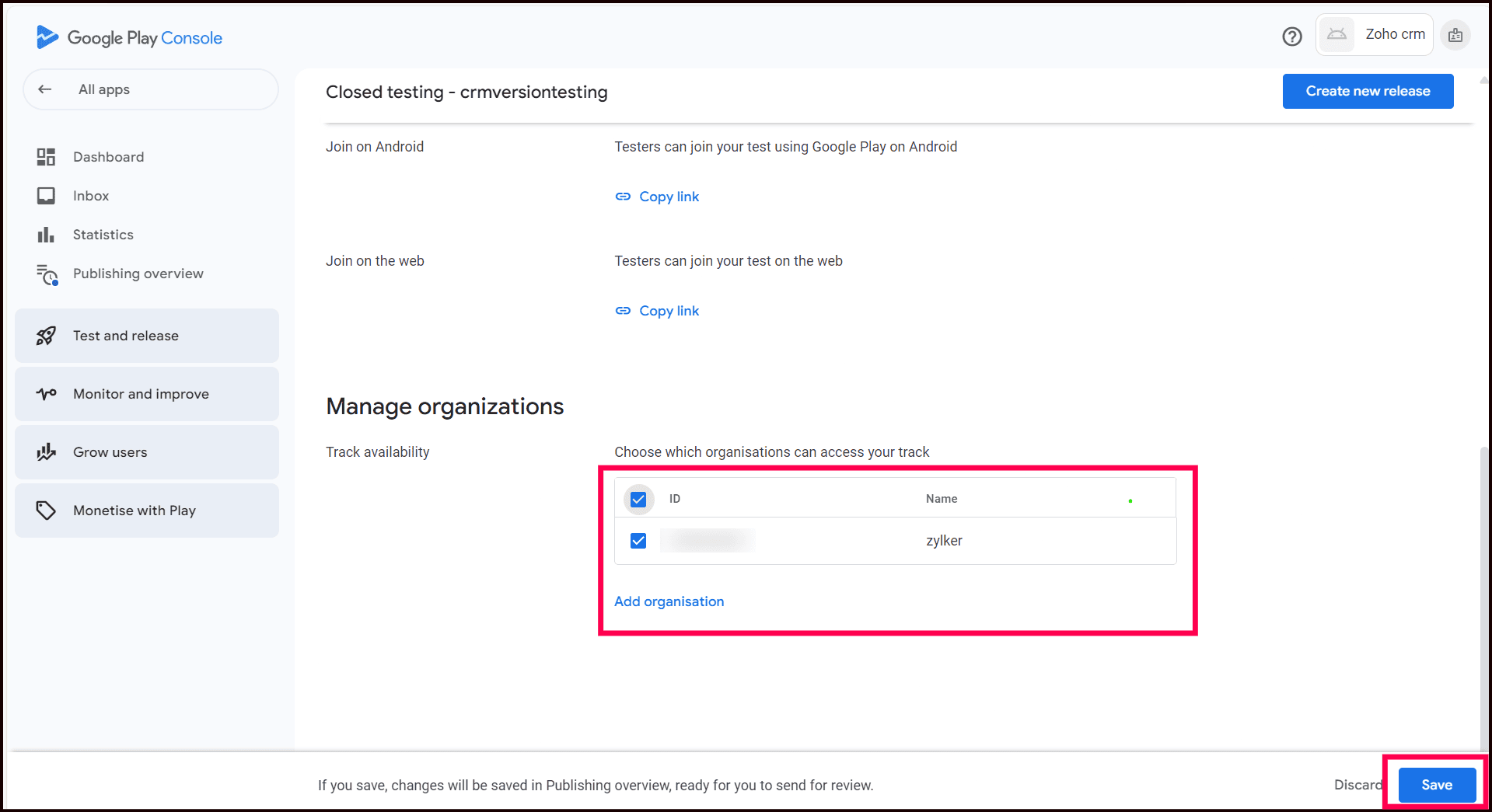
- Click Go To Overview.
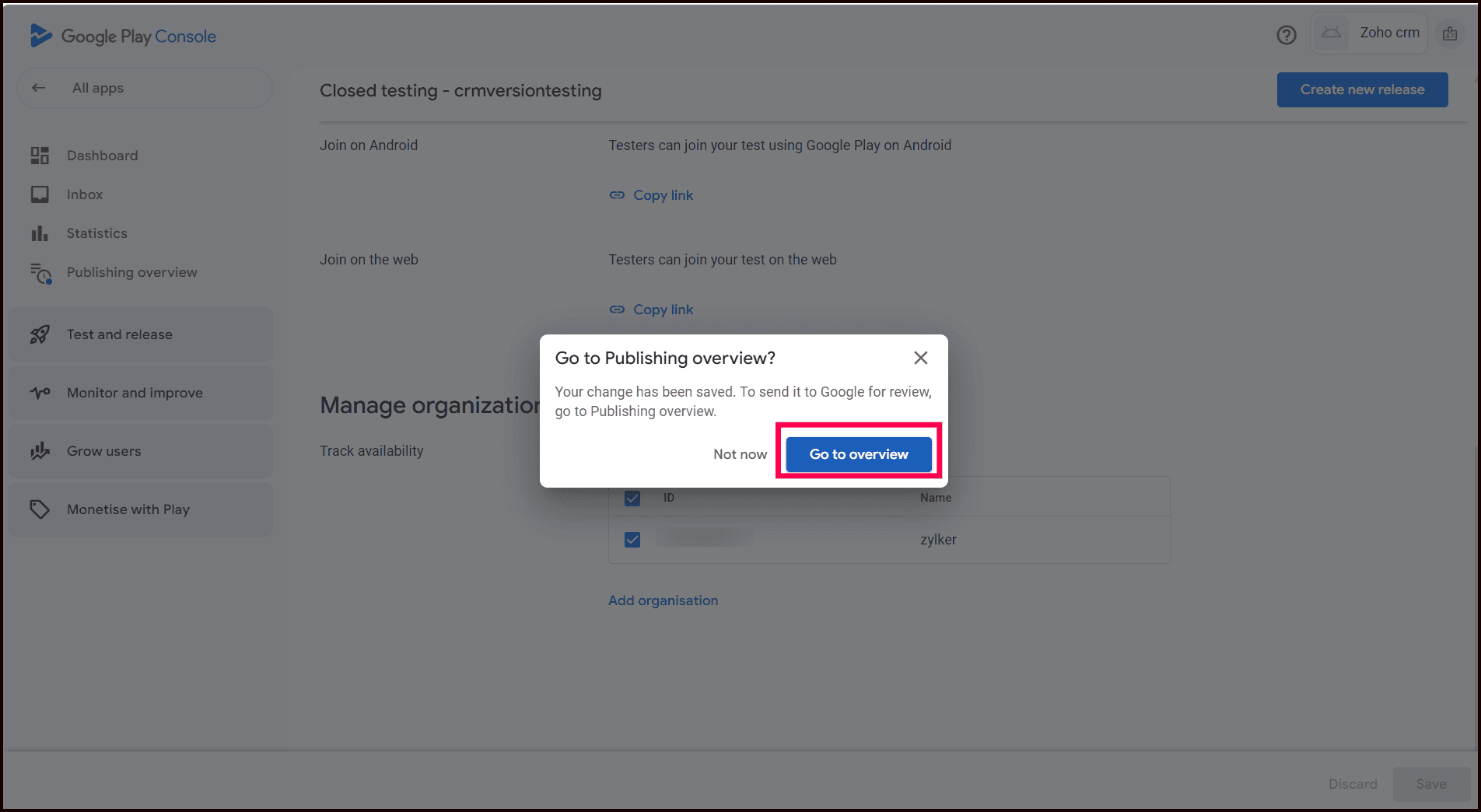
- Submit the release by clicking Send 3 changes for reviewto send the files for Google's review.
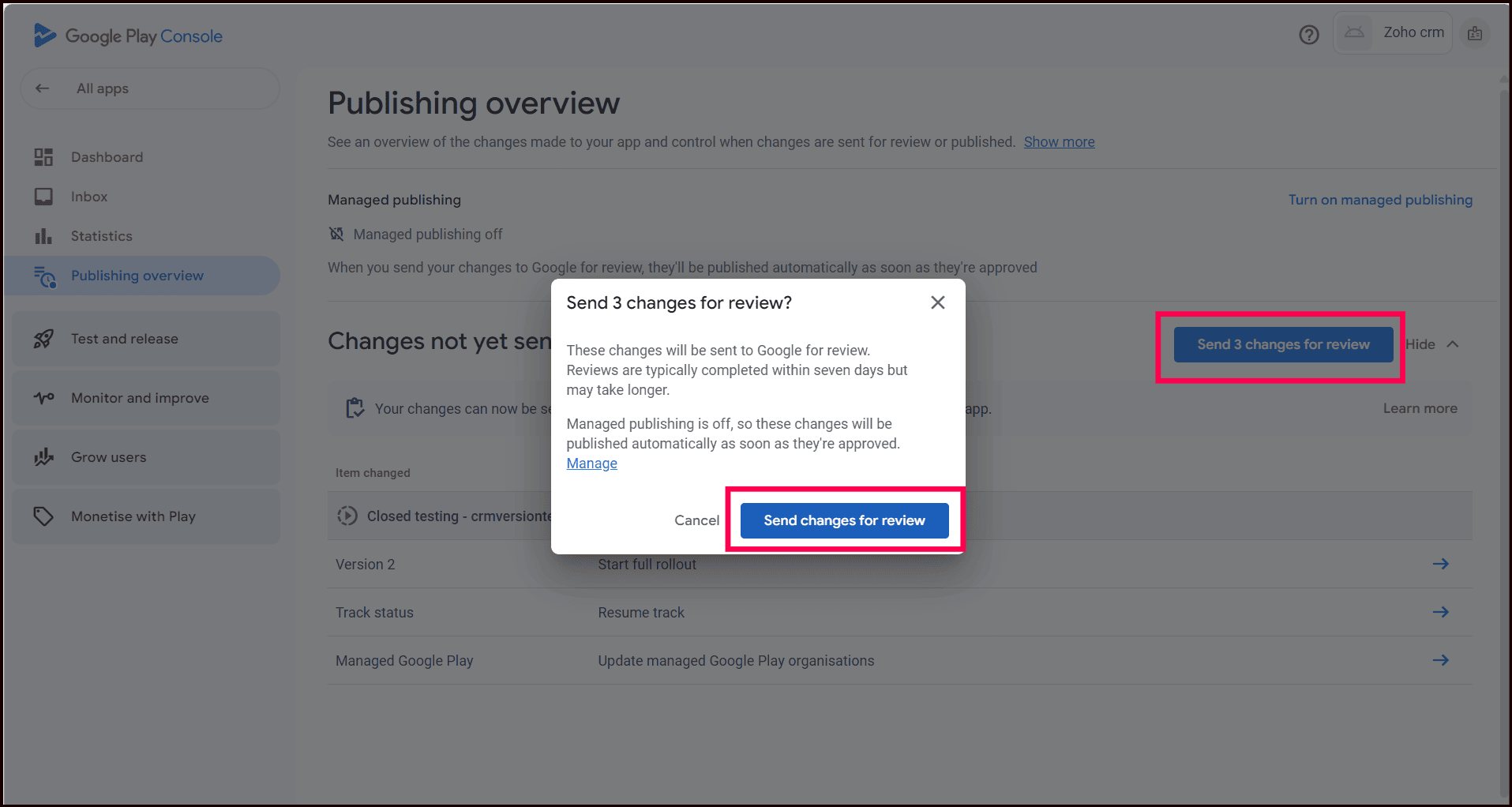
- Once approved, it may take approximately 10 minutes for the app version to appear in the MDM console.
- Navigate to MDM Console -> App Repository, select the app, and sync it to retrieve the latest version.
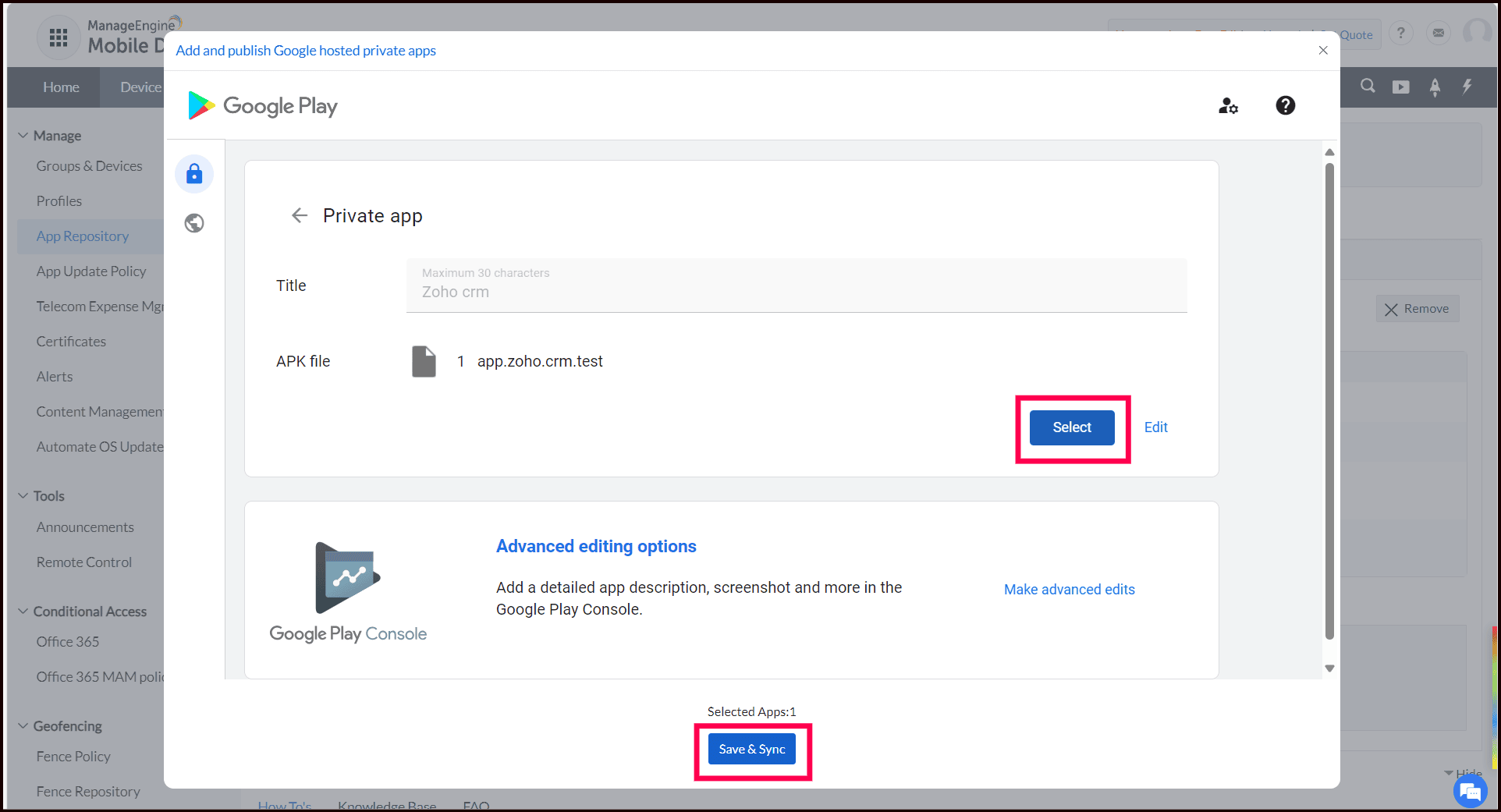
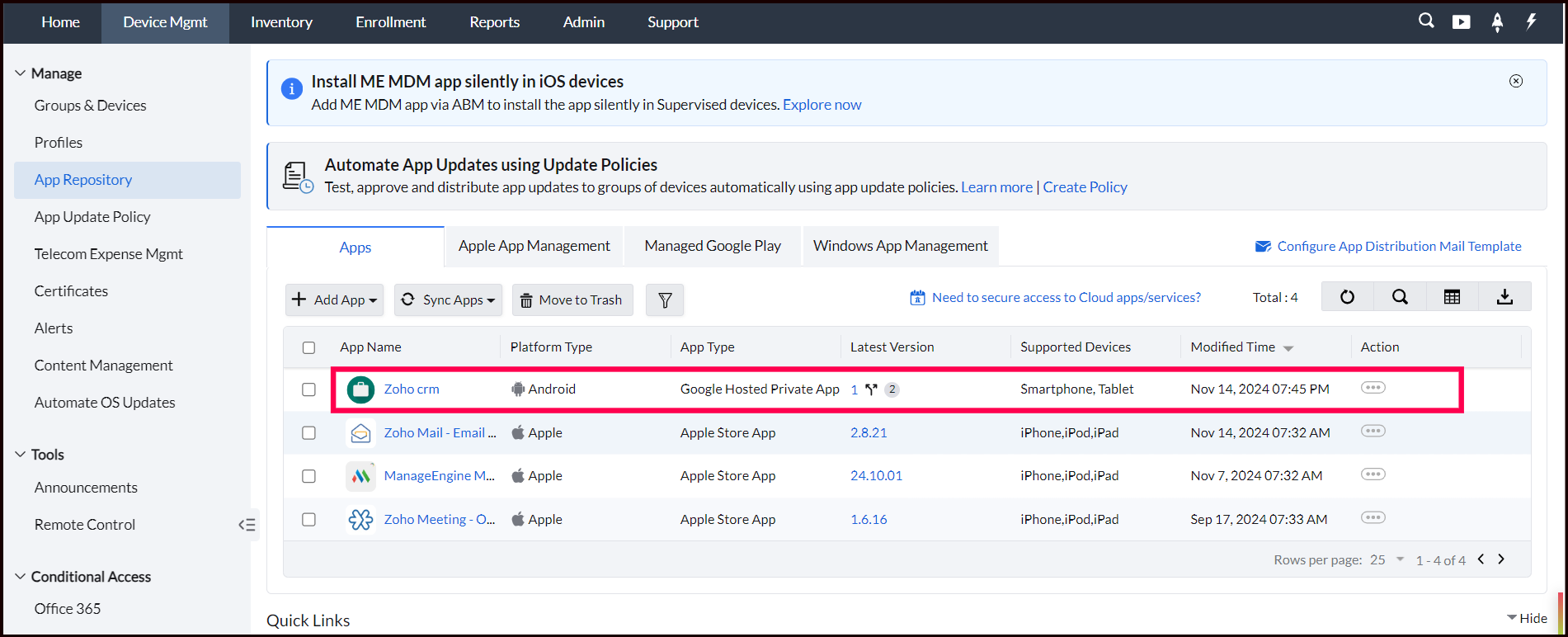
The pre-released app versions will be added to the App Repository and can be distributed to the managed devices as explained here.
Frequently asked questions
Do I need to pay to register as a Google developer to publish private apps?
No. Managed Google Play automatically creates a Play Developer account on your organization's behalf the first time you publish a private app, with no registration fee involved.
How long does it take for a new app track version to reach the MDM console after Google approves it?
It takes approximately 10 minutes after approval for the new version to appear; you then sync the app from the MDM console's App Repository to retrieve the latest version.
Can I test a new app version with a limited group before releasing it to everyone?
Yes. App Track Management lets you publish a version to a Closed testing track in the Google Play Console and distribute it to test devices before releasing the production version to all users.