Support
 
Phone Live Chat
 
Support
 
US: +1 888 720 9500
 
Intl: +1 925 924 9500
Aus: +1 800 631 268
UK: 0800 028 6590
CN: +86 400 660 8680

Direct Inward Dialing: +1 408 916 9393


Service pack installation for ADManager Plus

Update Path Finder


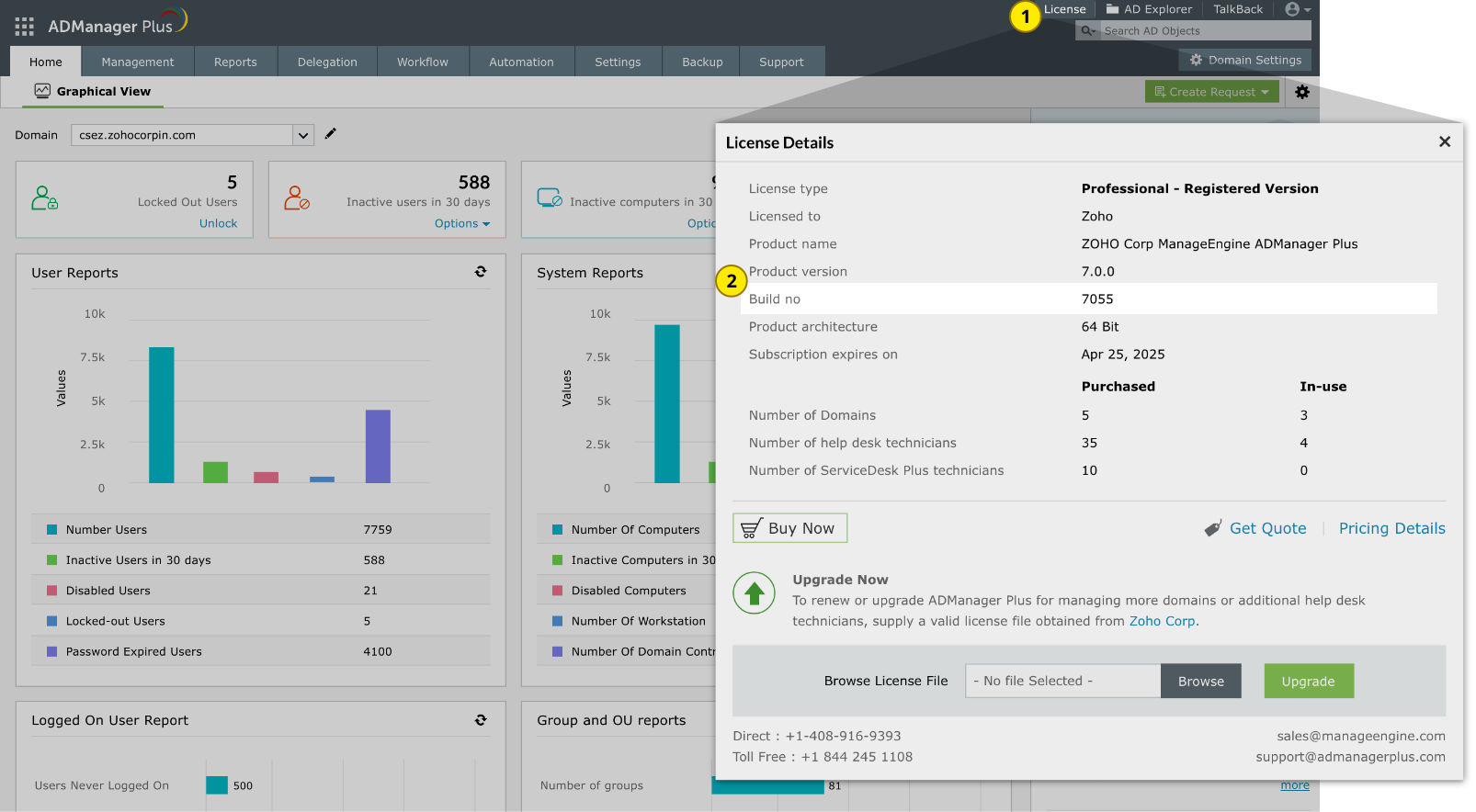
How do I find my current build number?

Important: We strongly recommend you to take backups before applying the service pack. This helps prevent accidental loss of data. Steps to update builds

If High Availability (HA) is enabled, proceed with these steps after applying the service pack.

Alternatively, if Load Balancer (LB) is enabled, follow these steps.

Service packs

If your build number is Update to build number SHA256 Checksum hash value
8043 through 8050
8051Latest
Readme
Download
Note: Upgrading from 8050? Run the pre-check first.
8ca16dbb204a1604145e7c99ce0c38e3a0dcc4b367d189ca754f88275f03a2df
8002 through 8042
8c87c8a9bdfa46babdb9bf1c65dff87274dd82c6c73f671f85e71233dc239503
7222 through 8001
be11d4a23045b78b739b84cb9232bd7adfb346765977f052794f6206927a673a
7203 through 7221
b7de07c6d0e623f1f7235c0b4ba75dd2b9f251e9923aed51605667210f1f010f
7102 through 7202
dfd47a275d9759a8b229db28100d043a6155ee88934a569b6de12247c91d9869
7000 through 7101
4763c9e1e5a0fafe10b0d921ed238b9c91d64a19356363596b176f98040c6894
Builds older than 7000
Please contact our support team or fill out this form for assistance in upgrading to the latest available build 8051

Service pack installation steps

Step 1: Shut down ADManager Plus

  1. If the product runs as an application, click Start > All Programs > ADManager Plus > Stop ADManager Plus.

  2. If the product runs as a Windows service, click Start > Run. Type services.msc and stop ManageEngine ADManager Plus.

Step 2: Stop the built-in PostgreSQL database

If you are using the built-in PostgreSQL database, execute the stopDB.bat file in the <ADManagerPlusHome>\bin to stop the database.

Step 3: Back up ADManager Plus

When using the built-in PostgreSQL database:

  1. Run the initPgsql.bat file located in <ADManagerPlusHome>\bin from the Command Prompt using the privileges of a domain or local admin account.

  2. Run the backupDB.bat file located in <ADManagerPlusHome>\bin directory.

  3. Back up ADManager Plus by zipping the contents of the <ADManagerPlusHome> directory.

Note:

  • If Microsoft SQL Server is configured as the backend database for ADManager Plus, ensure that the SQL Server database is backed up separately. .

Step 4: Update ADManager Plus

  1. Open the Command Prompt and execute the UpdateManager.bat file under the <ADManagerPlusHome>\bin directory.

  2. Click Browse and select the service pack file that you have downloaded.

  3. Click Install. Depending on the amount of data to be migrated, the installation procedure may take a few minutes. Please do not terminate this process prematurely.

    .
  4. Once the service pack is installed, click Close and then Exit to quit the Update Manager.

Step 5: Start ADManager Plus.

  1. If the product runs as an application, click Start > All Programs > ADManager Plus > Start ADManager Plus.

  2. If the product runs as a Windows service, click Start > Run. Type services.msc, and in the window that opens, Start ManageEngine ADManager Plus.

ADManager Plus Trusted By

The one-stop solution to Active Directory Management and Reporting