How to list all mailboxes in Exchange using PowerShell
Last updated on:In this page
Having complete visibility into all mailboxes is essential for audits, compliance checks, and security monitoring. Without it, administrators risk overlooking user or system mailboxes, which can complicate audits and create security blind spots. This article covers three methods to list all mailboxes in Exchange using the Exchange admin center, PowerShell scripts, and specialized Exchange reporting solutions like ManageEngine Exchange Reporter Plus.
- Exchange admin center
- PowerShell
- Exchange Reporter Plus
Method 1: Listing all mailboxes in Exchange using the Exchange admin center
Prerequisite
Before using the Exchange admin center, ensure the account you use to log in is a member of one of these role groups: Organization Management, Recipient Management, or View-Only Organization Management.
Using the Exchange admin center to list all mailboxes
You can list all mailboxes in Exchange through the traditional Exchange admin center with its web interface.
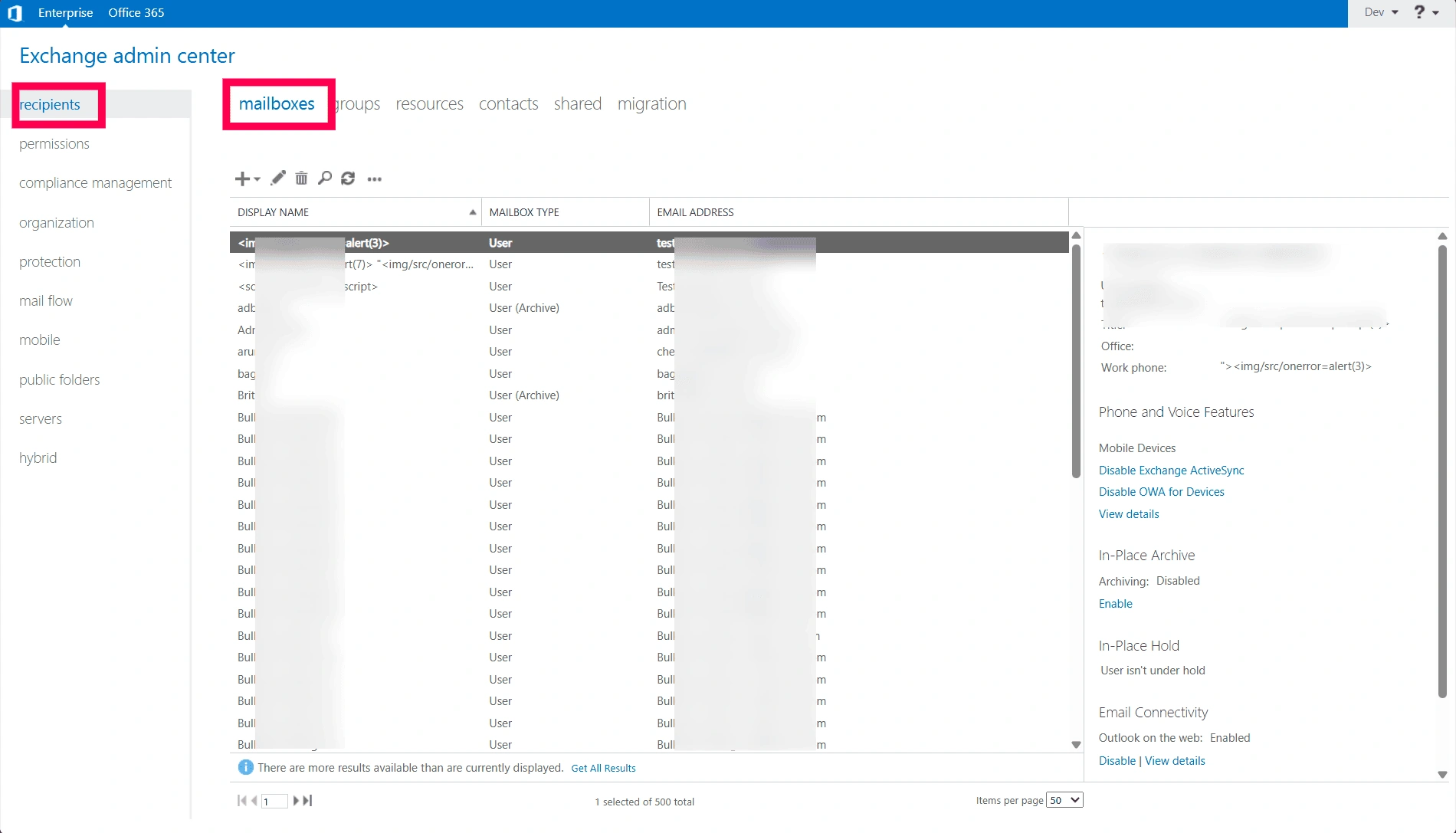
- Open your web browser and navigate to https://servername/ecp (here, replace servername with your Exchange Server name).
- Sign in using your Exchange admin account.
- Navigate to Recipients > Mailboxes.
- Select the mailbox you want to check from the list.
Method 2: List all mailboxes in Exchange using PowerShell (Get-Mailbox)
Prerequisites
Before using the Get-Mailbox cmdlet, please verify that the below mentioned prerequisites are satisfied:
- Exchange Management Shell is installed and accessible on your Exchange Server or management workstation.
- You have appropriate Exchange Server permissions (the Recipient Management, View-Only Organization Management, or Organization Management role).
- PowerShell is being run with administrative privileges.
Using the Get-Mailbox command to list all mailboxes in Exchange
The Get-Mailbox cmdlet is used to retrieve detailed information about mailboxes in an Exchange environment, including user mailboxes, shared mailboxes, and resource mailboxes. The syntax for it is given below:
Get-Mailbox
    [-Anr <String>]
    [-Arbitration]
    [-Archive]
    [-AuditLog]
    [-AuxAuditLog]
    [-Credential <PSCredential>]
    [-DomainController <Fqdn>]
    [-Filter <String>]
    [-GroupMailbox]
    [-IgnoreDefaultScope]
    [-InactiveMailboxOnly]
    [-IncludeAcceptMessagesOnlyFromDLMembersWithDisplayNames]
    [-IncludeAcceptMessagesOnlyFromSendersOrMembersWithDisplayNames]
    [-IncludeAcceptMessagesOnlyFromWithDisplayNames]
    [-IncludeEmailAddressDisplayNames]
    [-IncludeForwardingAddressWithDisplayNames]
    [-IncludeGrantSendOnBehalfToWithDisplayNames]
    [-IncludeInactiveMailbox]
    [-Migration]
    [-Monitoring]
    [-OrganizationalUnit <OrganizationalUnitIdParameter>]
    [-PublicFolder]
    [-ReadFromDomainController]
    [-RecipientTypeDetails <RecipientTypeDetails[]>]
    [-RemoteArchive]
    [-ResultSize <Unlimited>]
    [-SoftDeletedMailbox]
    [-SortBy <String>]
    [-SupervisoryReviewPolicy]
 [<CommonParameters>]
Supported parameters
The table given below lists out some of the Get-Mailbox parameters for listing all mailboxes in Exchange.
| Parameters | Description |
|---|---|
| -Identity | Specifies the mailbox that you want to return statistics for. You can use any value that uniquely identifies the mailbox, such as name, alias, distinguished name (DN), email address, GUID, or SAM account name. |
| -Database | Returns statistics for all mailboxes on the specified database. You can use any value that uniquely identifies the database, such as name, DN, or GUID. |
| -Server | Specifies the server from which you want to obtain mailbox statistics. When you specify a value for the Server parameter, the command returns statistics for all the mailboxes on all the databases for the specified server. |
| -DomainController | Specifies the domain controller that's used by this cmdlet to read data from or write data to AD. |
Example use cases using the Get-Mailbox cmdlet
Getting a list of all mailboxes
Get-Mailbox -ResultSize Unlimited
Getting all mailboxes from a specific database
Get-Mailbox -Database "mailbox_database" | Format-Table DisplayName, Database
For this cmdlet, replace mailbox_database with the actual name of your mailbox database.
Listing all mailboxes in Exchange using Exchange Reporter Plus
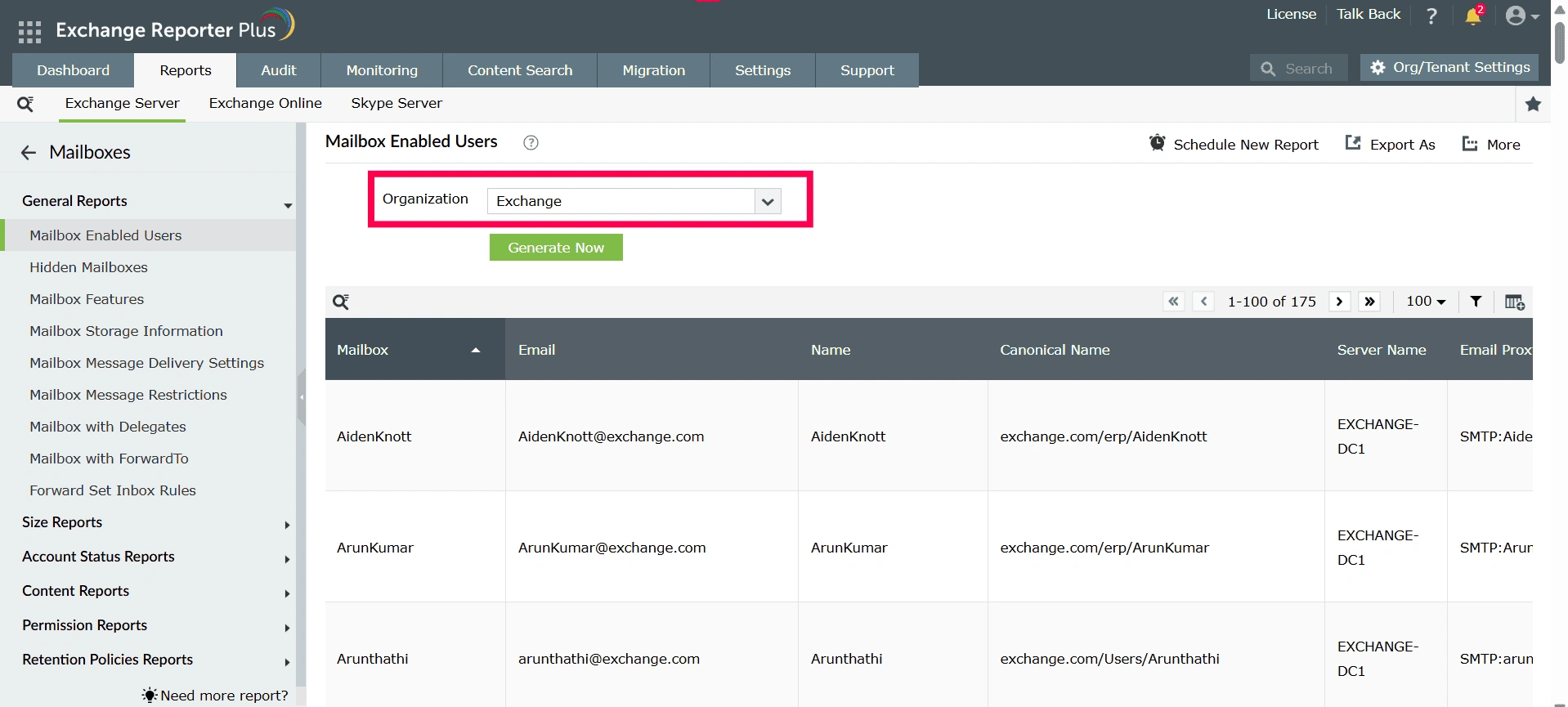
- Log in to Exchange Reporter Plus and go to Reports > Exchange Server > Mailboxes and click Mailbox Enabled Users under General Reports.
- Select the Exchange organization.
Stay informed about inactive Exchange mailboxes
Exchange Reporter Plus empowers administrators with comprehensive visibility into mailbox activity patterns across their Exchange environments. This Exchange reporting solution helps Exchange admins identify inactive Exchange mailboxes with detailed, exportable reports.
Detailed mailbox reports
Access comprehensive mailbox reports covering mailbox databases; quota usage; and enabled features such as ActiveSync, Outlook on the web, and litigation hold.
Visibility into hidden mailboxes
Generate reports that include mailboxes hidden from the Global Address List to ensure complete mailbox inventory for audits.
Important tips
Monitor mailbox growth trends regularly using size and growth reports to plan for storage capacity and prevent mailbox quota issues proactively.
Regularly audit mailbox permissions to ensure only authorized users have access, minimizing security risks and maintaining compliance.
Review disconnected and orphaned mailboxes separately from standard mailboxes, as these may require immediate attention to prevent security vulnerabilities.