Error while remotely connecting to macOS 10.14 (Mojave) and above
Problem
Remotely connecting to Mac computers fails with an error message "Accessibility / screen capturing permissions not configured".
Cause
This might occur when ManageEngine Remote Access component or the Zoho component of Endpoint Central has insufficient privileges to remotely control that computer.
Note: Enabling/ disabling the Screen Recording permission in macOS devices can be done by the standard user when the admin pushes a profile to the device enabling the user to toggle with the above permission. If no profile is pushed, they can still toggle with the permission by giving the admin password.
Resolution
- For Endpoint Central on-premise, to resolve this problem, grant accessibility and screen capturing permissions for ManageEngine Remote Access component to remotely control the computer.
- For Endpoint Central Cloud, to resolve this problem, grant accessibility and screen capturing permissions for Zoho component to remotely control the computer.
Steps
Choose the operating system:
Endpoint Central on-premise
macOS 10.14 Mojave
This issue can be resolved in two ways, either from the problematic machine or directly from the product console. Please choose the method:
- From the problematic machine
- From the product console
In the problematic Mac machine navigate to,
- Attempt to initiate remote control from the ManageEngine console. This will prompt the Mac to display "ManageEngineRemoteAccess" in the Accessibility settings, allowing you to grant necessary permissions.
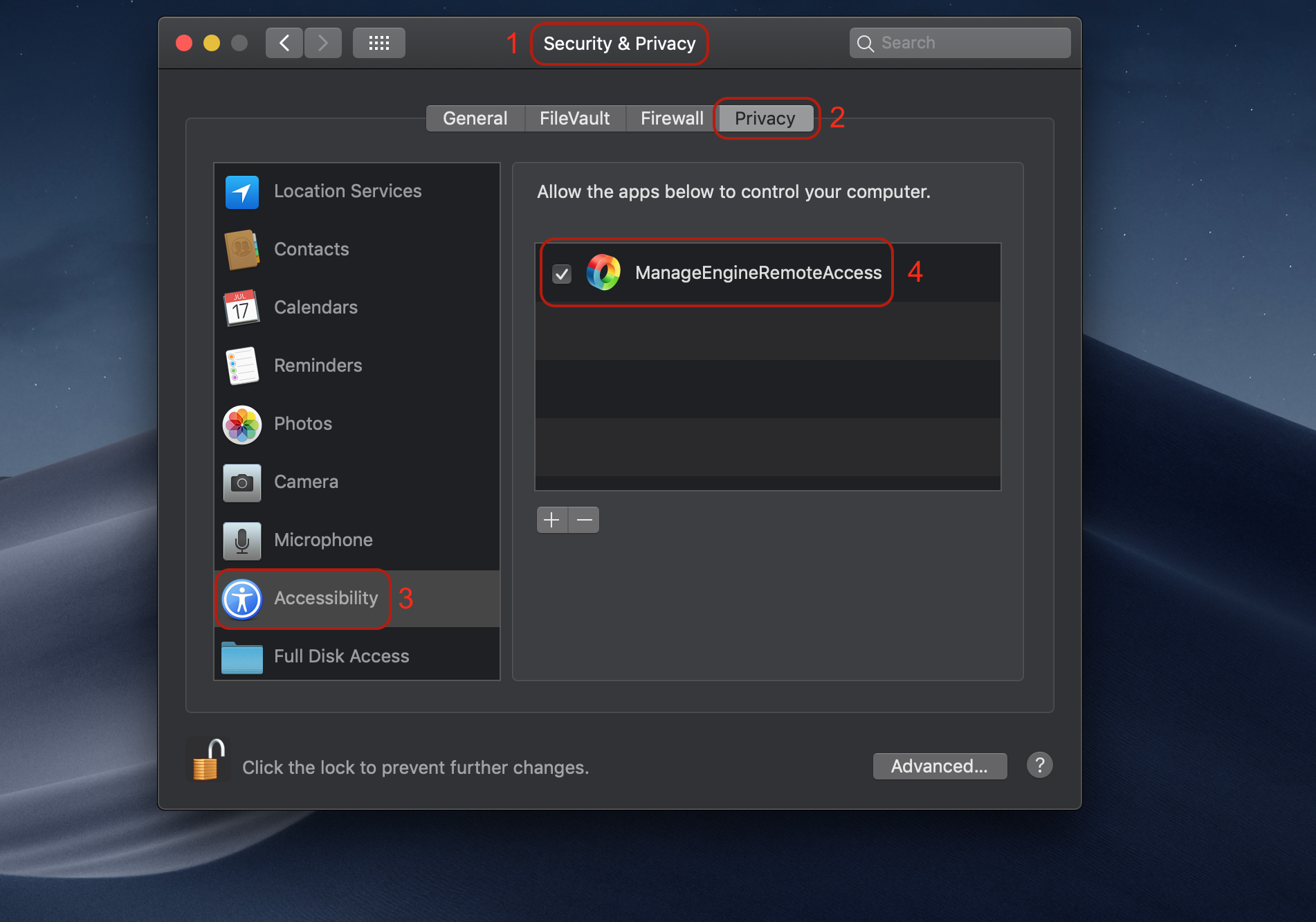
- System Preference -> Security and Privacy -> Privacy -> Accessibility -> Enable access for "ManageEngineRemoteAccess" component. This will resolve the issue if you are using Mac OS version 10.14 - Mojave. If you are using the version 10.15 - Catalina, ensure you follow the next step as well.
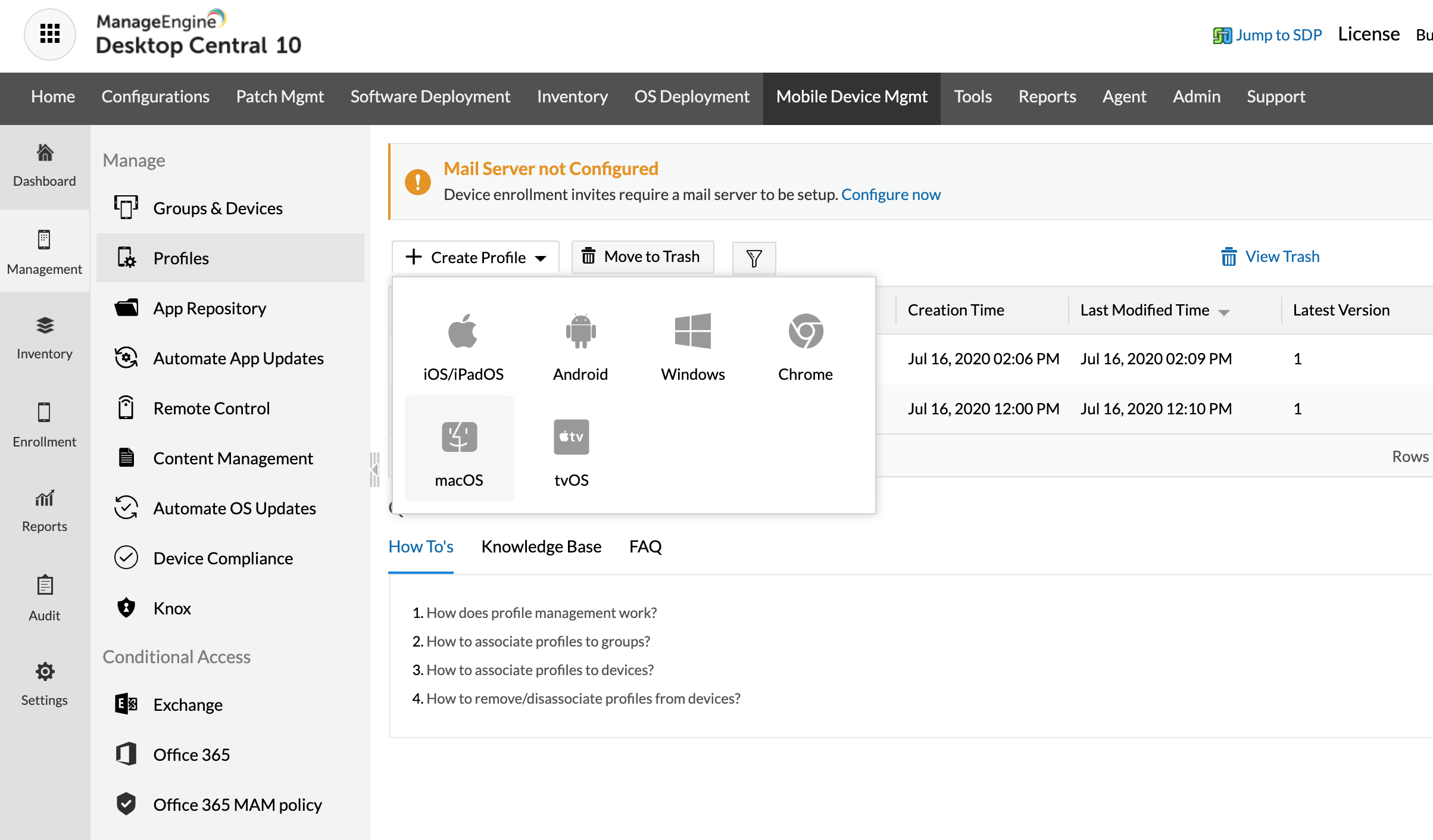
- Under Mobile Device Management, select Management > Profiles.
- Click Create Profile and select MacOS/Apple.
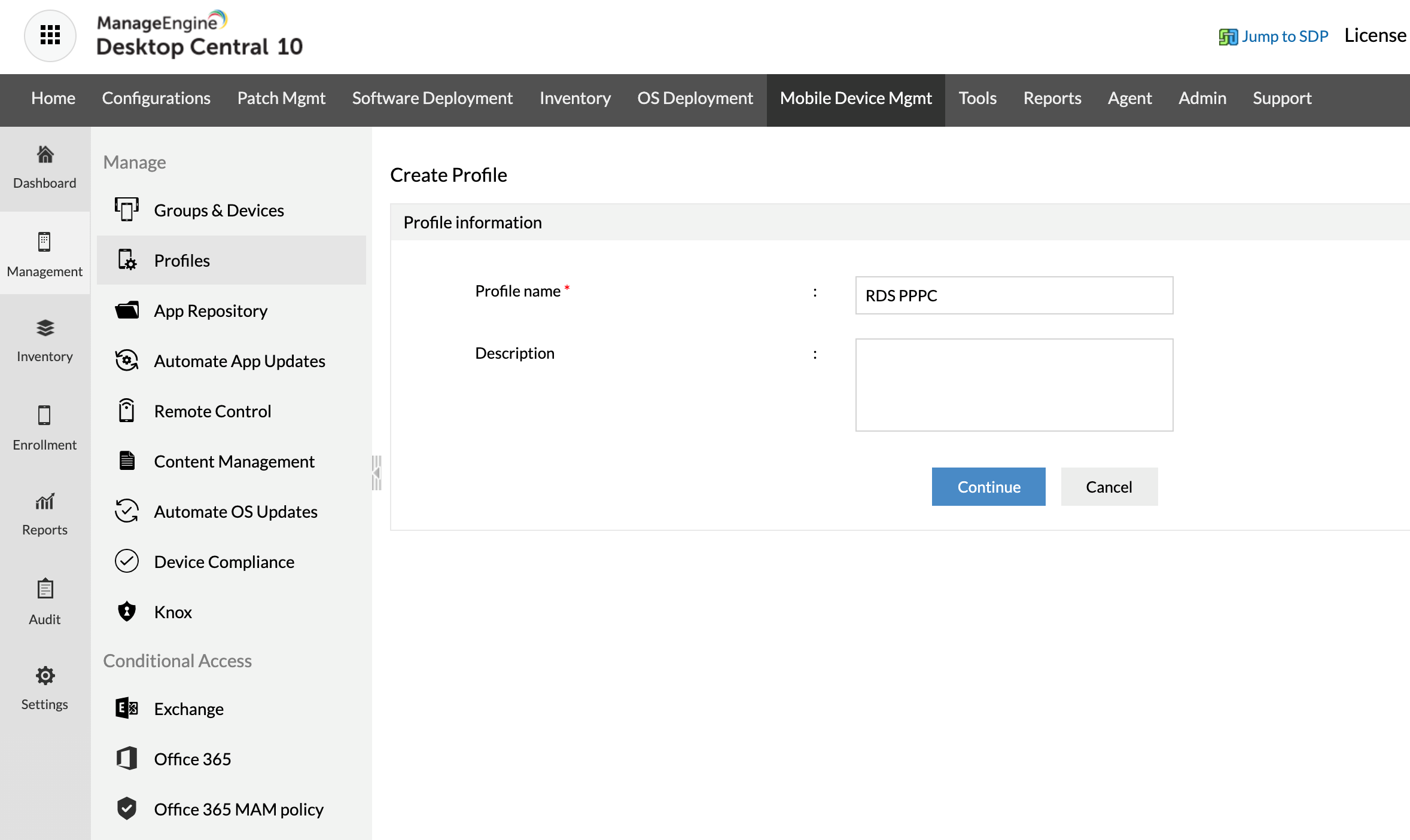
- Provide the Profile name and click Continue.
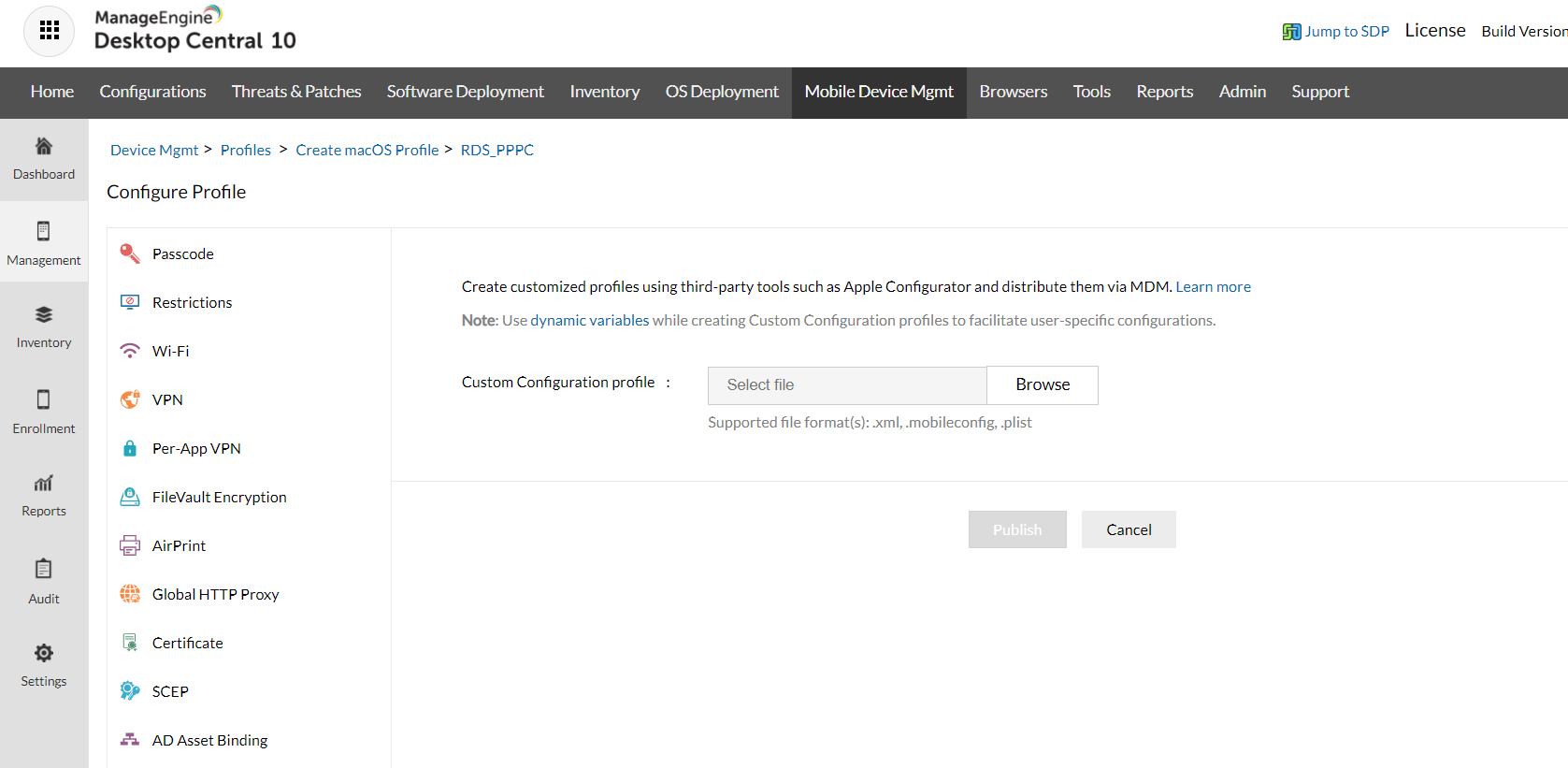
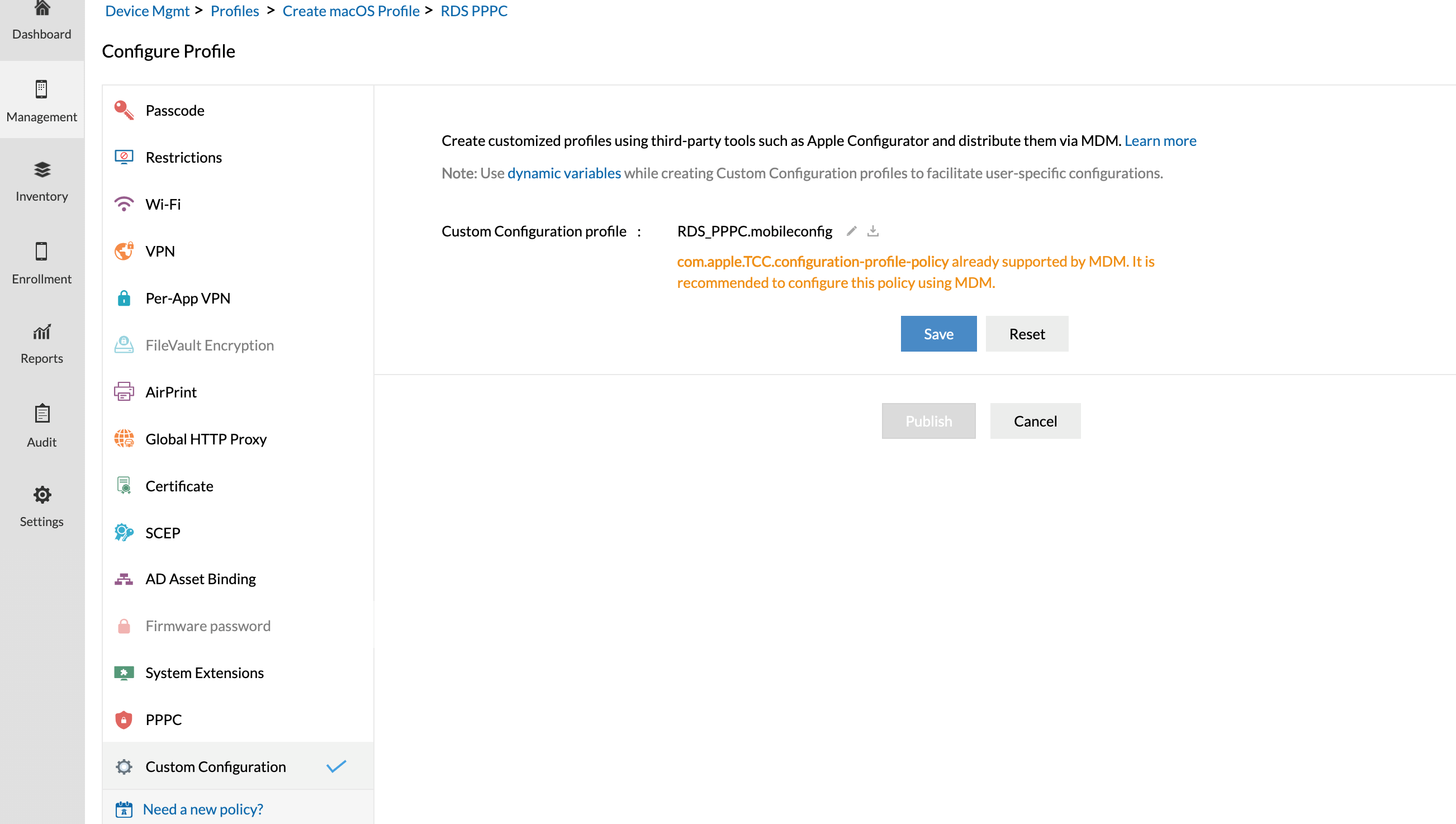
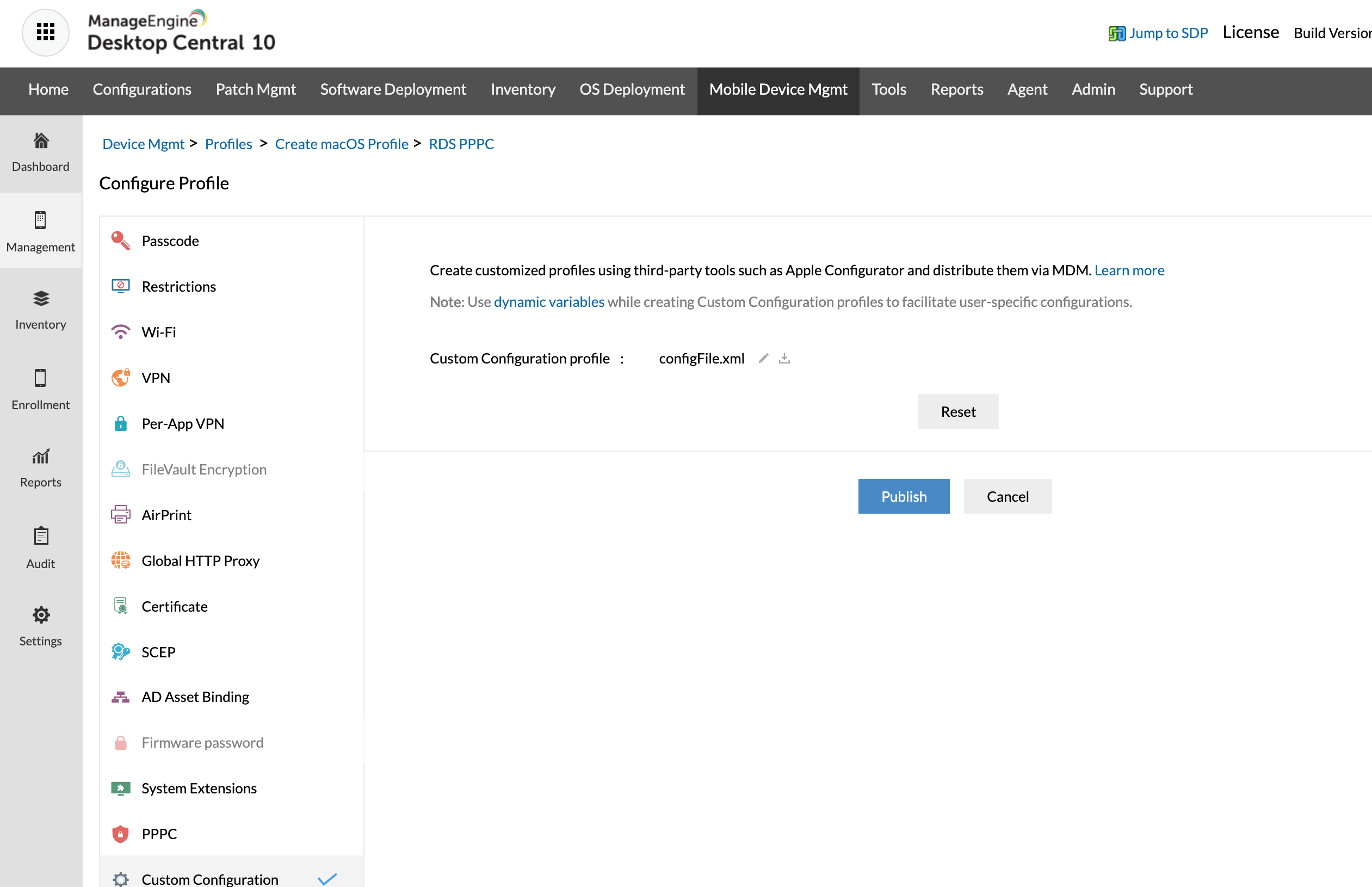
- On the left tree, select Custom Configuration. Download the PPPC file, extract it and upload the PPPC .mobileconfig file.
- Save and Publish this profile.
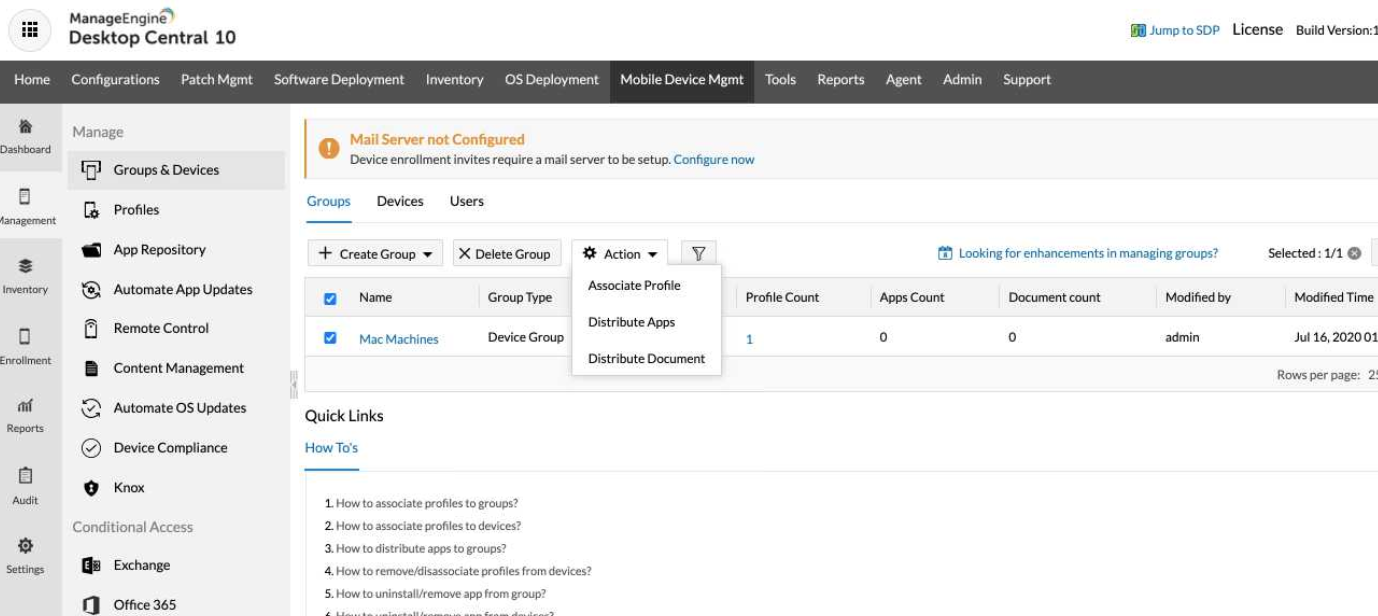
- Navigate to Groups and Devices. Select the required group. Click Action and select Associate Profile.
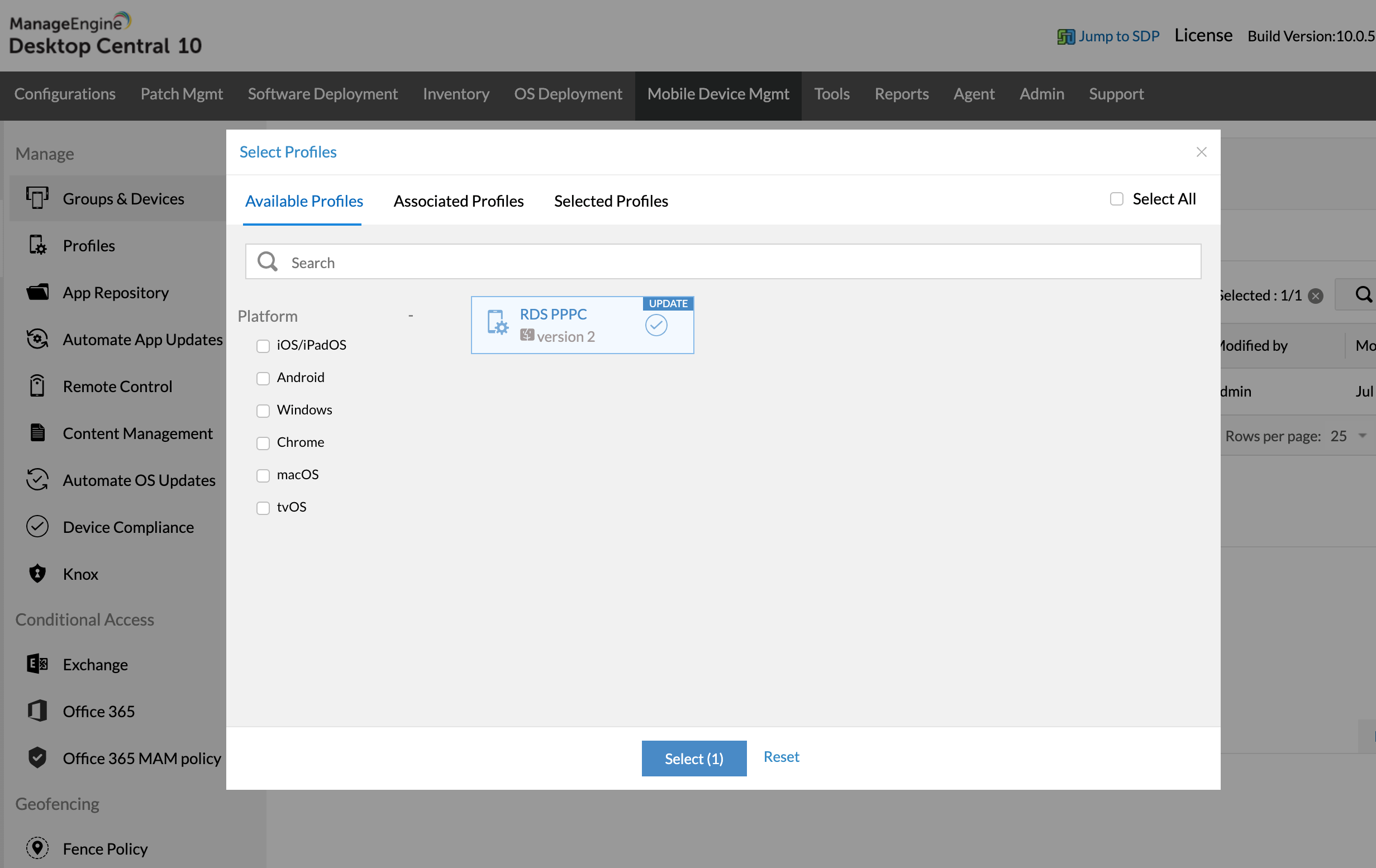
- Select the profile you have just created and associate it.
- Permission for accessibility has been fully configured. Standard users will now have the ability to grant access for screen capturing.
You can now remotely troubleshoot macOS 10.14 Mojave computers in your network.
macOS 10.15 Catalina
This issue can be resolved in two ways, either from the problematic machine or directly from the product console. Please choose the method:
- From the problematic machine
- From the product console
In the problematic Mac machine navigate to,
- Attempt to initiate remote control from the ManageEngine console. This will prompt the Mac to display "ManageEngineRemoteAccess" in the Accessibility settings, allowing you to grant necessary permissions.
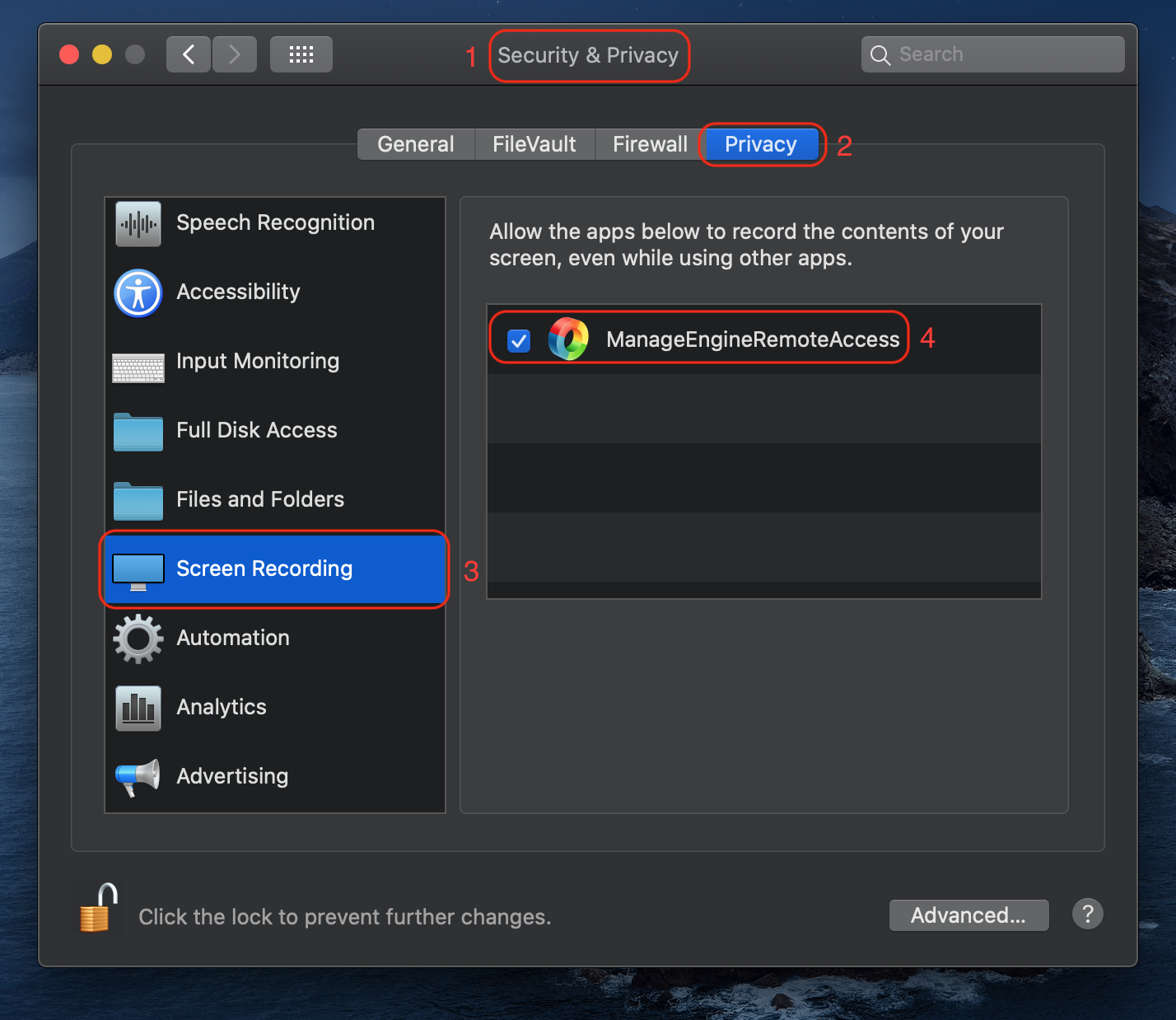
- System Preference -> Security and Privacy -> Privacy -> Accessibility -> Enable access for "ManageEngineRemoteAccess" component.
- System Preference -> Security and Privacy -> Privacy -> Allow the "ManageEngineRemoteAccess" component to record the contents of your screen.
- Under Mobile Device Management, select Management > Profiles.
- Click Create Profile and select MacOS/Apple.
- Provide the Profile name and click Continue.
- On the left tree, select Custom Configuration. Download the PPPC file, extract it and upload the PPPC .mobileconfig file.
- Save and Publish this profile.
- Navigate to Groups and Devices. Select the required group. Click Action and select Associate Profile.
- Select the profile you have just created and associate it.
- Permission for accessibility has been fully configured. Standard users will now have the ability to grant access for screen capturing.
You can now remotely troubleshoot macOS 10.15 Catalina computers in your network.
macOS 11 Big Sur
This issue can be resolved in two ways, either from the problematic machine or directly from the product console. Please choose the method:
- From the problematic machine
- From the product console
In the problematic Mac machine navigate to,
- Attempt to initiate remote control from the ManageEngine console. This will prompt the Mac to display "ManageEngineRemoteAccess" in the Accessibility settings, allowing you to grant necessary permissions.
- System Preference -> Security and Privacy -> Privacy -> Accessibility -> Enable access for "ManageEngineRemoteAccess" component.
- System Preference -> Security and Privacy -> Privacy -> Allow the "ManageEngineRemoteAccess" component to record the contents of your screen.
- Under Mobile Device Management, select Management > Profiles.
- Click Create Profile and select MacOS/Apple.
- Provide the Profile name and click Continue.
- On the left tree, select Custom Configuration. Download the PPPC file, extract it and upload the PPPC .mobileconfig file.
- Save and Publish this profile.
- Navigate to Groups and Devices. Select the required group. Click Action and select Associate Profile.
- Select the profile you have just created and associate it.
- Permission for accessibility has been fully configured. Standard users will now have the ability to grant access for screen capturing.
You can now remotely troubleshoot macOS 11 Big Sur computers in your network.
macOS 12 Monterey
This issue can be resolved in two ways, either from the problematic machine or directly from the product console. Please choose the method:
- From the problematic machine
- From the product console
In the problematic Mac machine navigate to,
- Attempt to initiate remote control from the ManageEngine console. This will prompt the Mac to display "ManageEngineRemoteAccess" in the Accessibility settings, allowing you to grant necessary permissions.
- System Preference -> Security and Privacy -> Privacy -> Accessibility -> Enable access for "ManageEngineRemoteAccess" component.
- System Preference -> Security and Privacy -> Privacy -> Allow the "ManageEngineRemoteAccess" component to record the contents of your screen.
- Under Mobile Device Management, select Management > Profiles.
- Click Create Profile and select MacOS/Apple.
- Provide the Profile name and click Continue.
- On the left tree, select Custom Configuration. Download the PPPC file, extract it and upload the PPPC .mobileconfig file.
- Save and Publish this profile.
- Navigate to Groups and Devices. Select the required group. Click Action and select Associate Profile.
- Select the profile you have just created and associate it.
- Permission for accessibility has been fully configured. Standard users will now have the ability to grant access for screen capturing.
You can now remotely troubleshoot macOS 12 Monterey computers in your network.
macOS 13 Ventura
This issue can be resolved in two ways, either from the problematic machine or directly from the product console. Please choose the method:
- From the problematic machine
- From the product console
In the problematic Mac machine navigate to,
- Attempt to initiate remote control from the ManageEngine console. This will prompt the Mac to display "ManageEngineRemoteAccess" in the Accessibility settings, allowing you to grant necessary permissions.
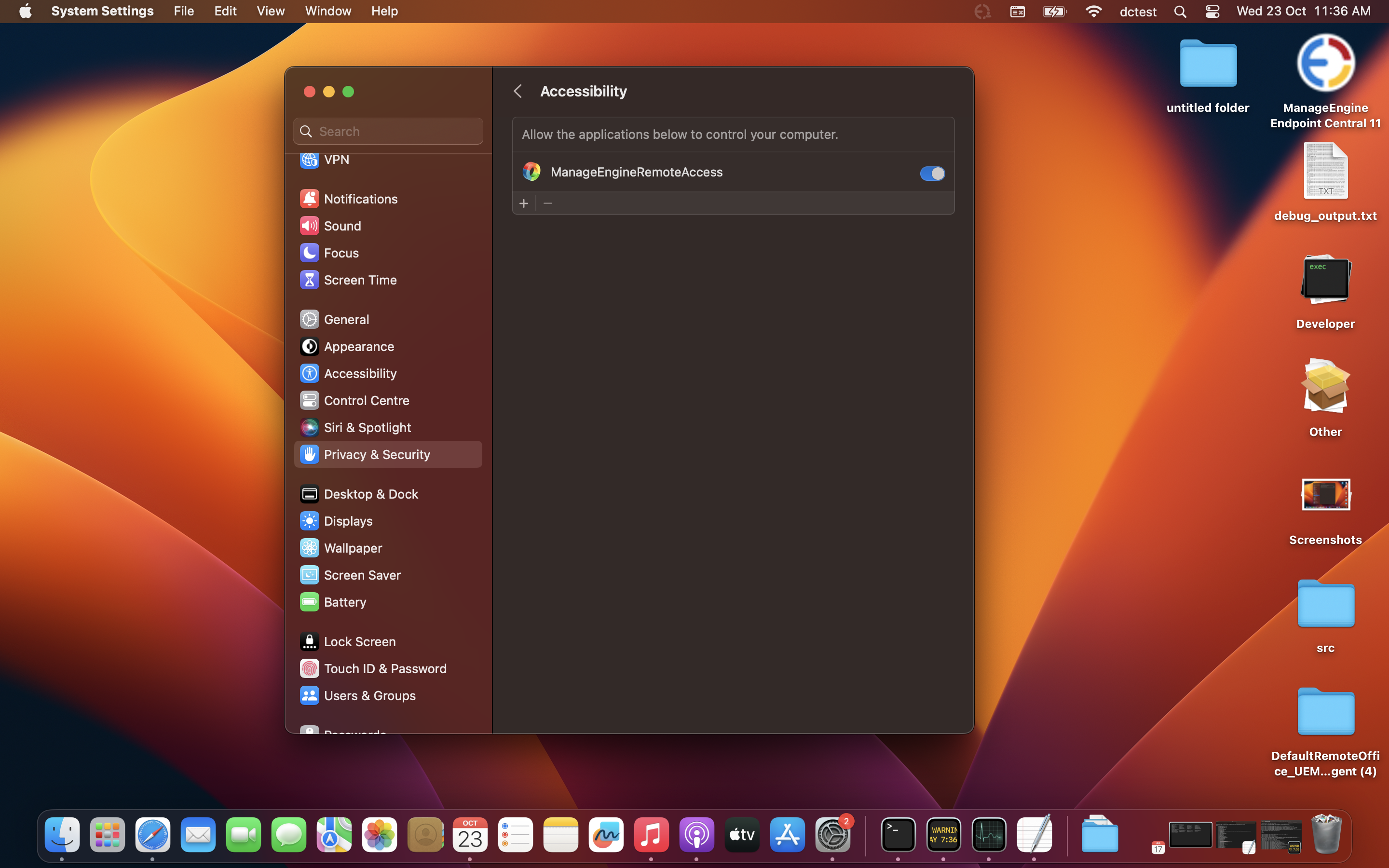
- Navigate to System Settings->Privacy & Security->Accessibility and enable access for "ManageEngineRemoteAccess" component.
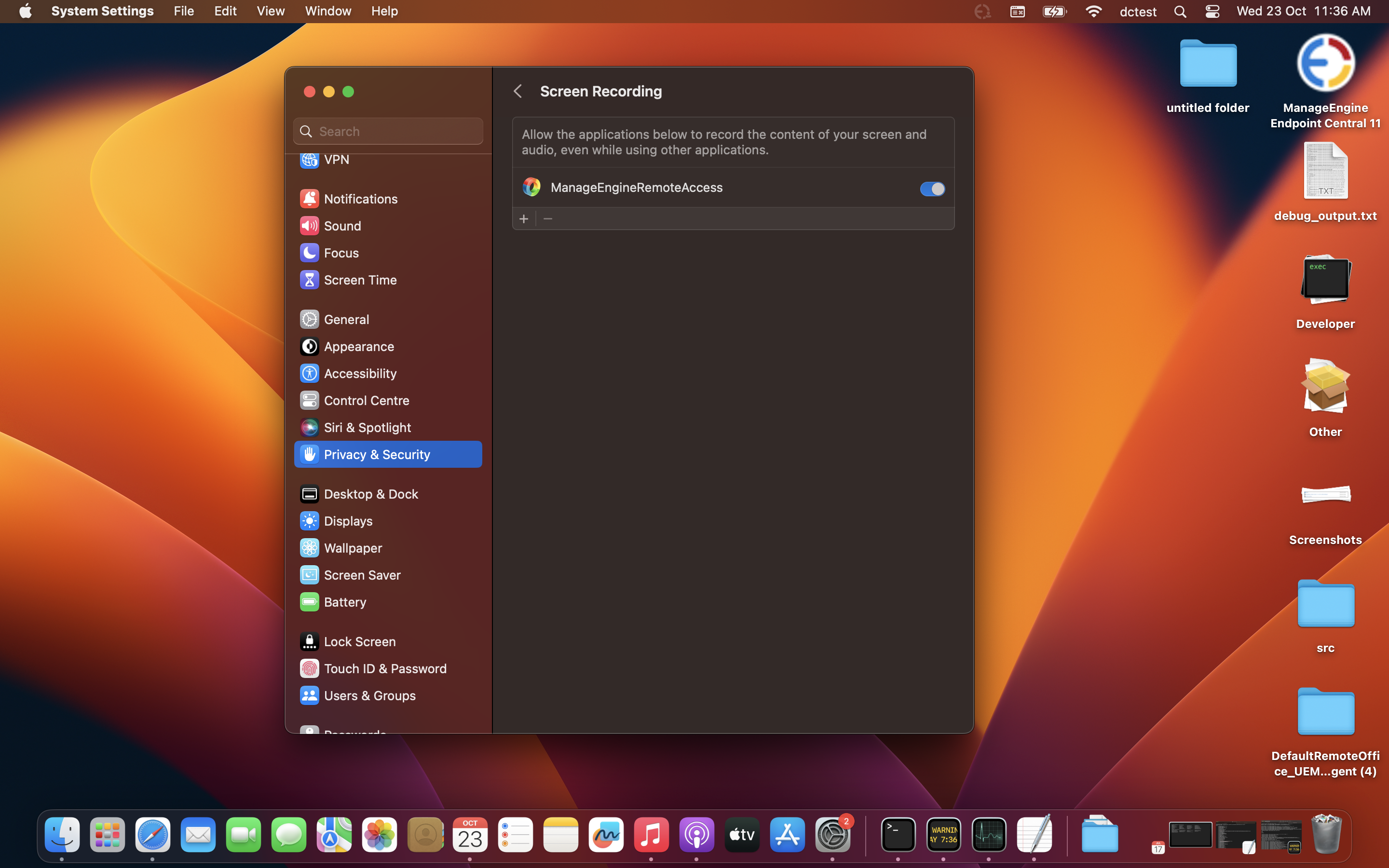
- Navigate to System Settings->Privacy & Security->Screen recording and allow the "ManageEngineRemoteAccess" component to record the contents of your screen.
- Under Mobile Device Management, select Management > Profiles.
- Click Create Profile and select MacOS/Apple.
- Provide the Profile name and click Continue.
- On the left tree, select Custom Configuration. Download the PPPC file, extract it and upload the PPPC .mobileconfig file.
- Save and Publish this profile.
- Navigate to Groups and Devices. Select the required group. Click Action and select Associate Profile.
- Select the profile you have just created and associate it.
- Permission for accessibility has been fully configured. Standard users will now have the ability to grant access for screen capturing.
You can now remotely troubleshoot macOS 13 Ventura computers in your network.
macOS 14 Sonoma
This issue can be resolved in two ways, either from the problematic machine or directly from the product console. Please choose the method:
- From the problematic machine
- From the product console
In the problematic Mac machine navigate to,
- Attempt to initiate remote control from the ManageEngine console. This will prompt the Mac to display "ManageEngineRemoteAccess" in the Accessibility settings, allowing you to grant necessary permissions.
- Navigate to System Settings->Privacy & Security->Accessibility and enable access for "ManageEngineRemoteAccess" component.
- Navigate to System Settings->Privacy & Security->Screen recording and allow the "ManageEngineRemoteAccess" component to record the contents of your screen.
- Under Mobile Device Management, select Management > Profiles.
- Click Create Profile and select MacOS/Apple.
- Provide the Profile name and click Continue.
- On the left tree, select Custom Configuration. Download the PPPC file, extract it and upload the PPPC .mobileconfig file.
- Save and Publish this profile.
- Navigate to Groups and Devices. Select the required group. Click Action and select Associate Profile.
- Select the profile you have just created and associate it.
- Permission for accessibility has been fully configured. Standard users will now have the ability to grant access for screen capturing.
You can now remotely troubleshoot macOS 14 Sonoma computers in your network.
macOS 15 Sequoia
This issue can be resolved in two ways, either from the problematic machine or directly from the product console. Please choose the method:
- From the problematic machine
- From the product console
In the problematic Mac machine, follow these steps:
- Attempt to initiate remote control from the ManageEngine console. This action will prompt the Mac to display "ManageEngineRemoteAccess" in the Accessibility settings, allowing you to grant the necessary permissions.
- Navigate to System Settings -> Privacy & Security -> Accessibility, and enable access for the "ManageEngineRemoteAccess" component.
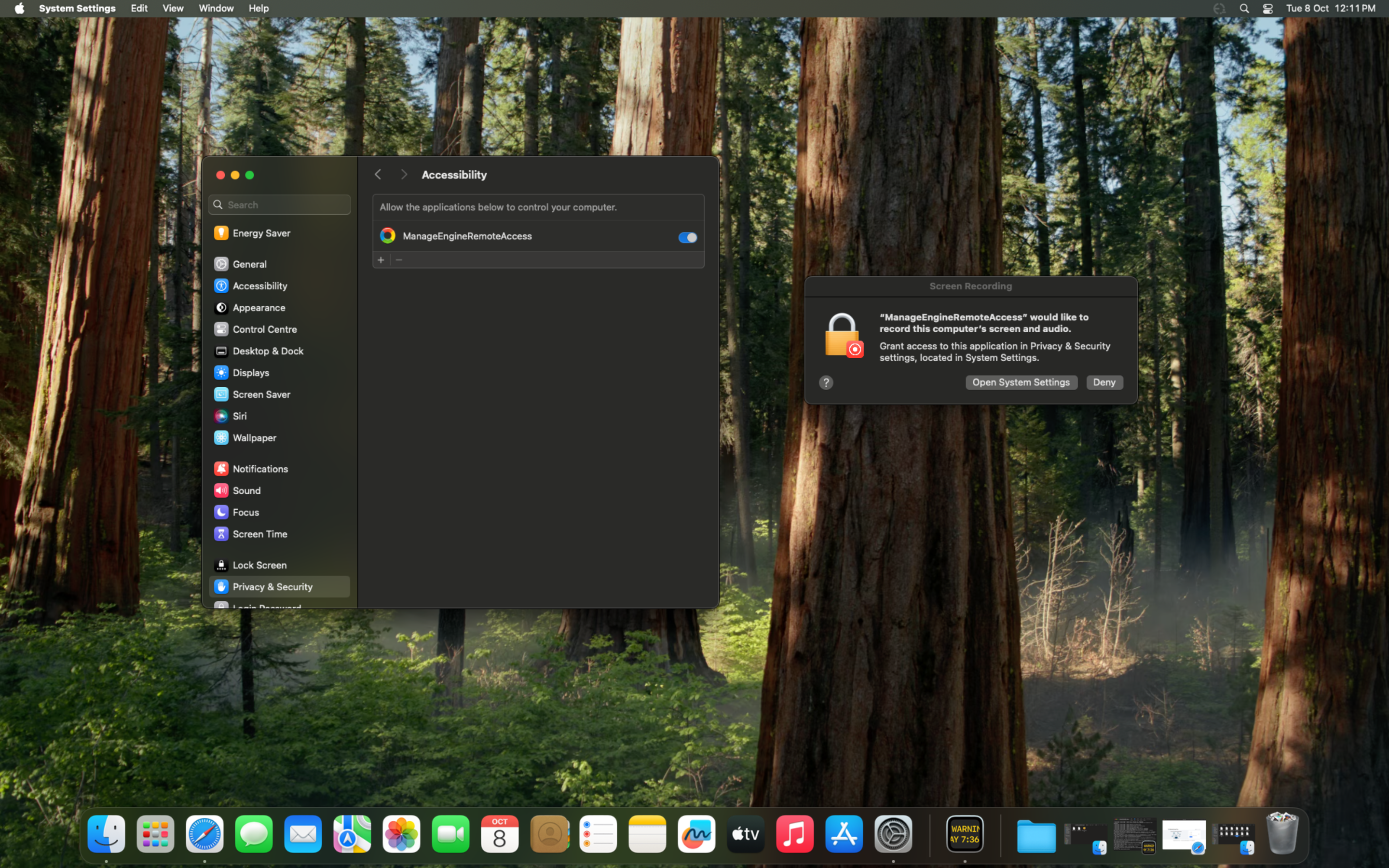
- Navigate to System Settings -> Privacy & Security -> Screen & System Audio Recording, and allow the "ManageEngineRemoteAccess" component to record the contents of your screen.
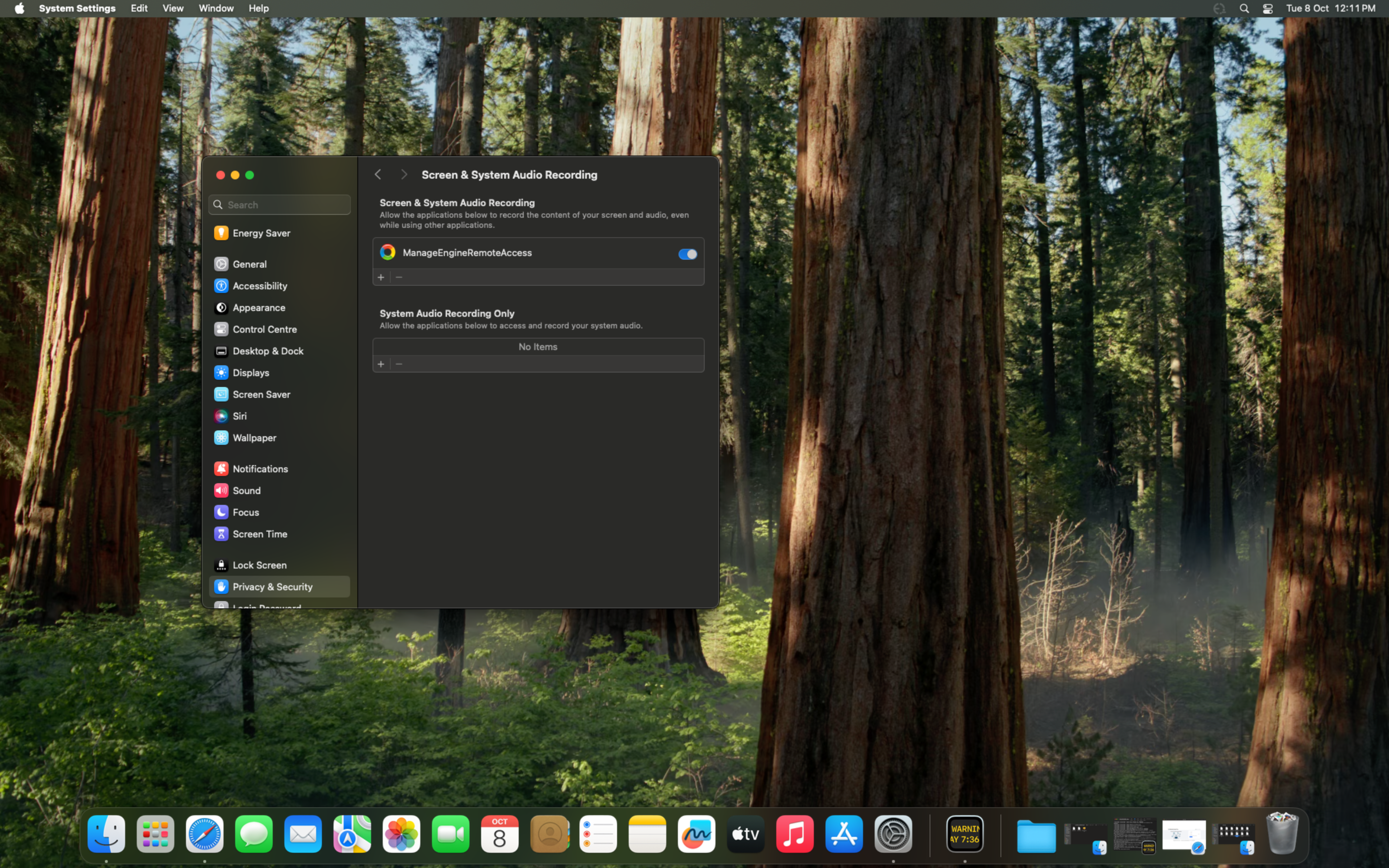
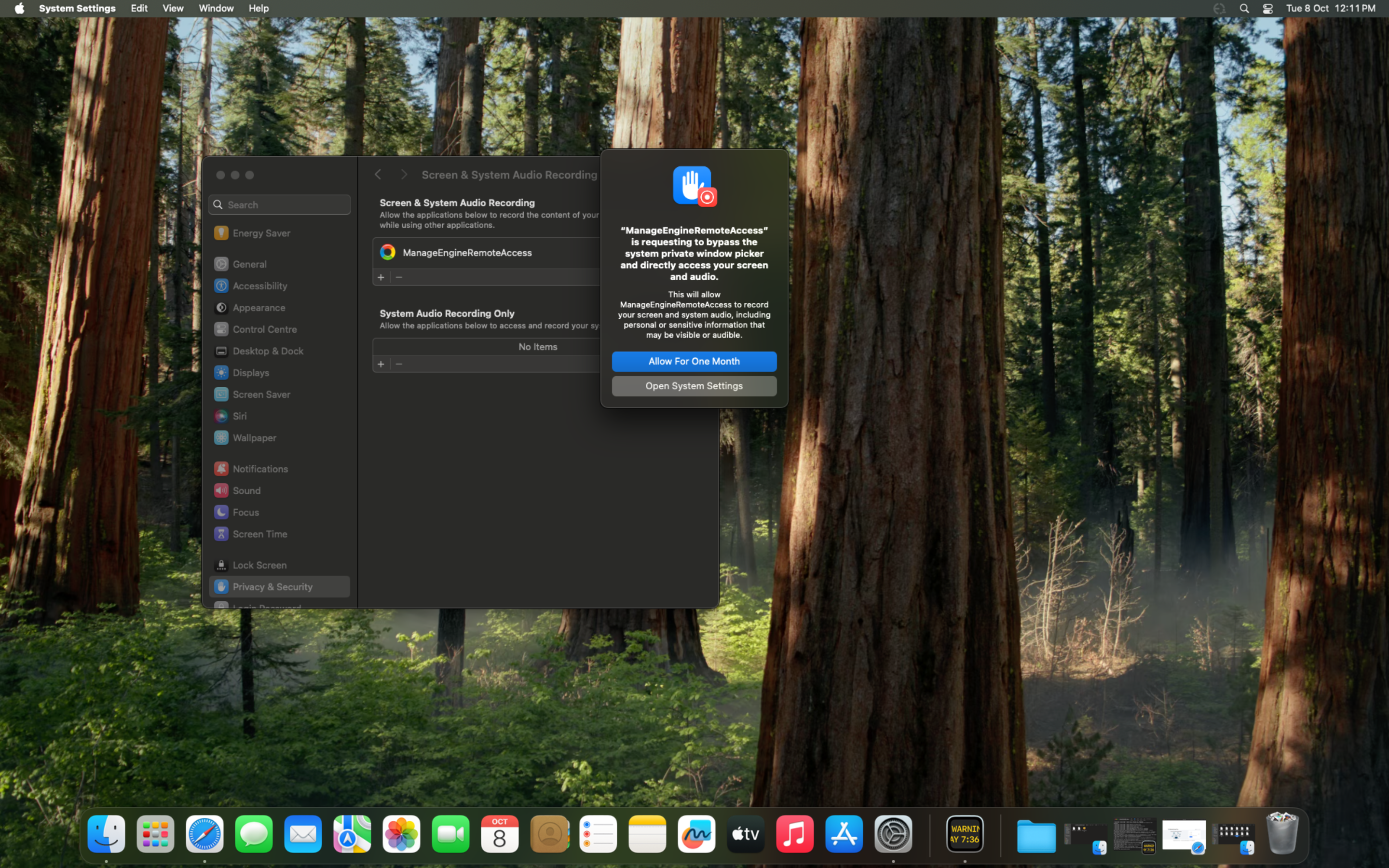
- Initiate a remote session again from the ManageEngine console. This step is necessary to ensure that all permissions are properly registered and ready for use. Follow the additional prompts for further access.
- When prompted, provide permission to bypass the system’s private window picker. This permission will allow direct access to screen and audio controls, which is essential for remote control functionality. Choose the option to "Allow for one month" to minimize future prompts.
- A final prompt will appear asking if you would like to allow "ManageEngineRemoteAccess" to find and communicate with devices on your local network. Select "Allow" to enable this access, as it is required for remote control features to work effectively.
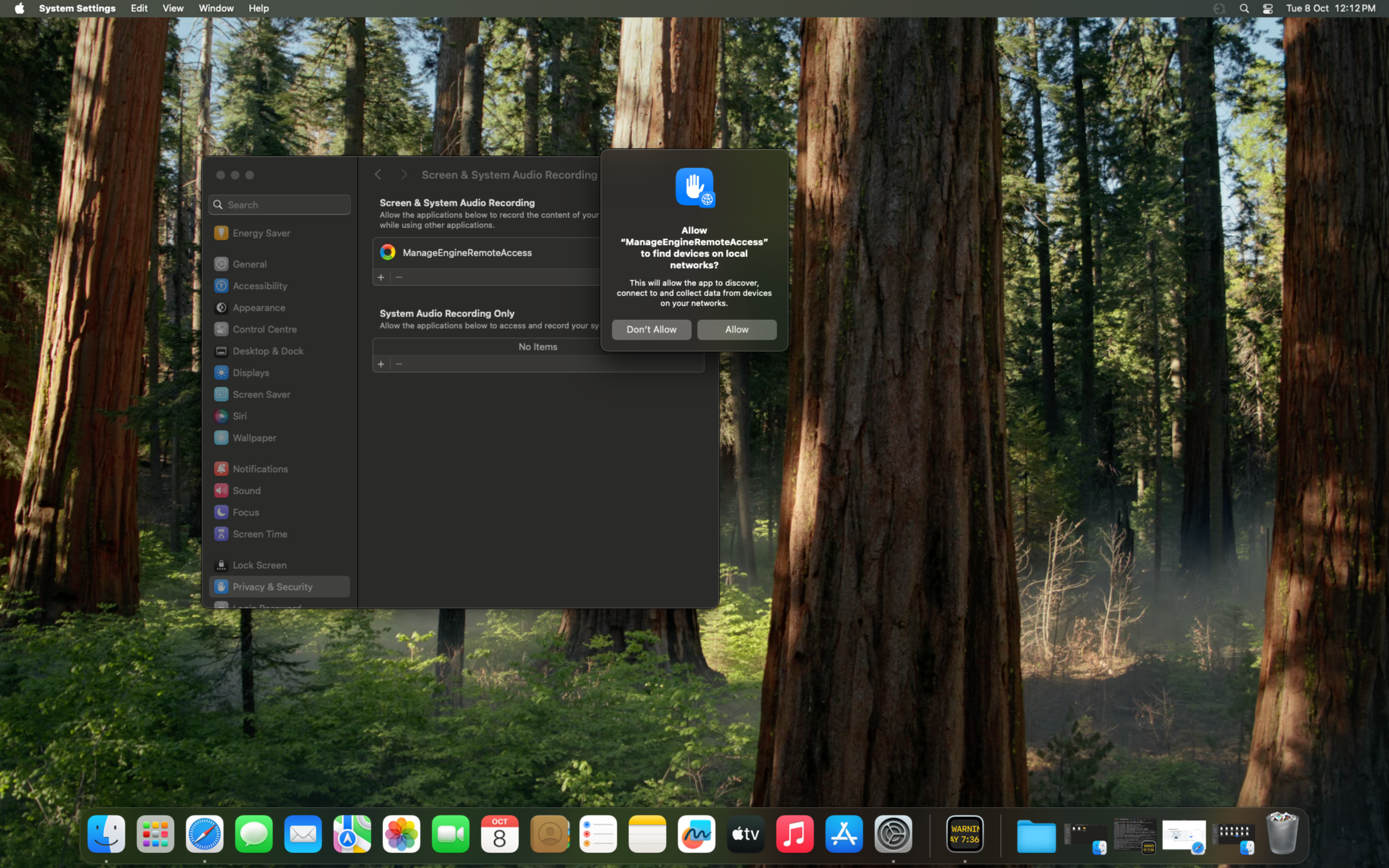
- Once all permissions are set, initiate the remote session once more to ensure that all access controls are active and functioning correctly.
- Under Mobile Device Management, select Management > Profiles.
- Click Create Profile and select MacOS/Apple.
- Provide the Profile name and click Continue.
- On the left tree, select Custom Configuration. Download the PPPC file, extract it and upload the PPPC .mobileconfig file.
- Save and Publish this profile.
- Navigate to Groups and Devices. Select the required group. Click Action and select Associate Profile.
- Select the profile you have just created and associate it.
- Permission for accessibility has been fully configured. Standard users will now have the ability to grant access for screen capturing.
You can now remotely troubleshoot macOS 15 Sequoia computers in your network.
macOS 26 Tahoe
This issue can be resolved in two ways, either from the problematic machine or directly from the product console. Please choose the method:
- From the problematic machine
- From the product console
In the problematic Mac machine, follow these steps:
- Attempt to initiate remote control from the ManageEngine console. This action will prompt the Mac to display "ManageEngineRemoteAccess" in the Accessibility settings, allowing you to grant the necessary permissions.
- Navigate to System Settings -> Privacy & Security -> Accessibility, and enable access for the "ManageEngineRemoteAccess" component.
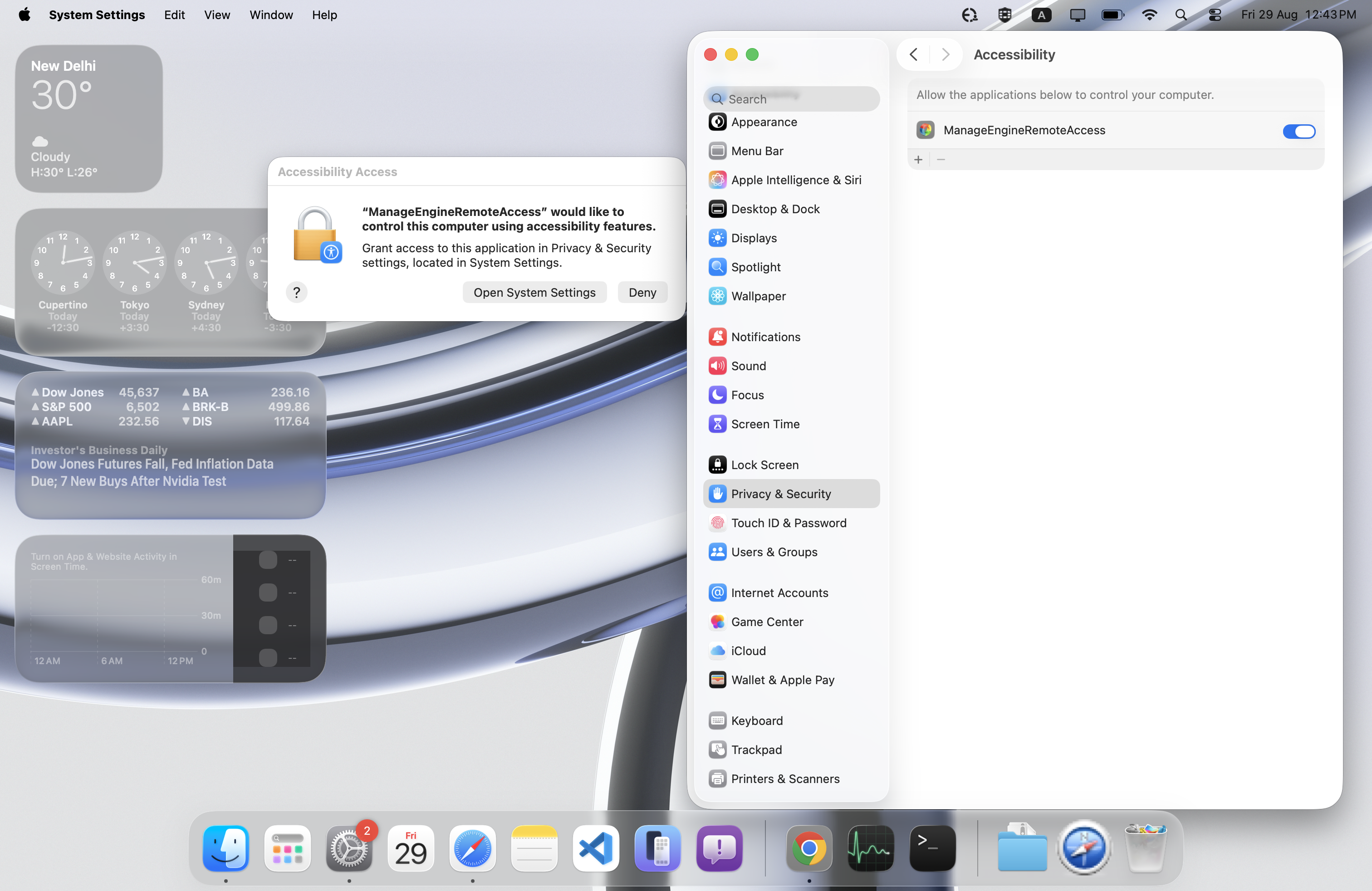
- Navigate to System Settings -> Privacy & Security -> Screen & System Audio Recording, and allow the "ManageEngineRemoteAccess" component to record the contents of your screen.
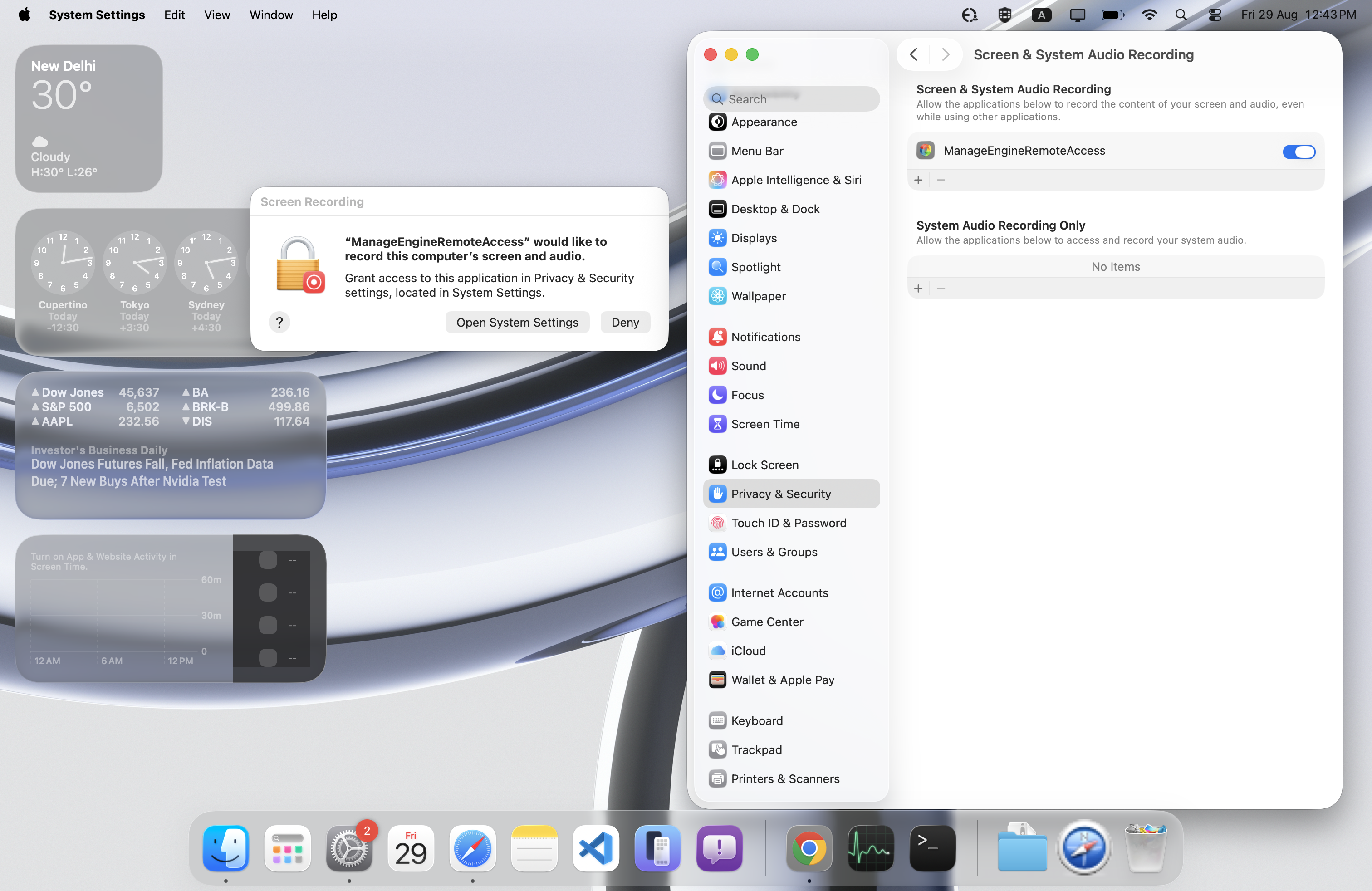
- Initiate a remote session again from the ManageEngine console. This step is necessary to ensure that all permissions are properly registered and ready for use. Follow the additional prompts for further access.
- When prompted, provide permission to bypass the system’s private window picker. This permission will allow direct access to screen and audio controls, which is essential for remote control functionality. Choose the option to "Allow for one month" to minimize future prompts.
- A final prompt will appear asking if you would like to allow "ManageEngineRemoteAccess" to find and communicate with devices on your local network. Select "Allow" to enable this access, as it is required for remote control features to work effectively.
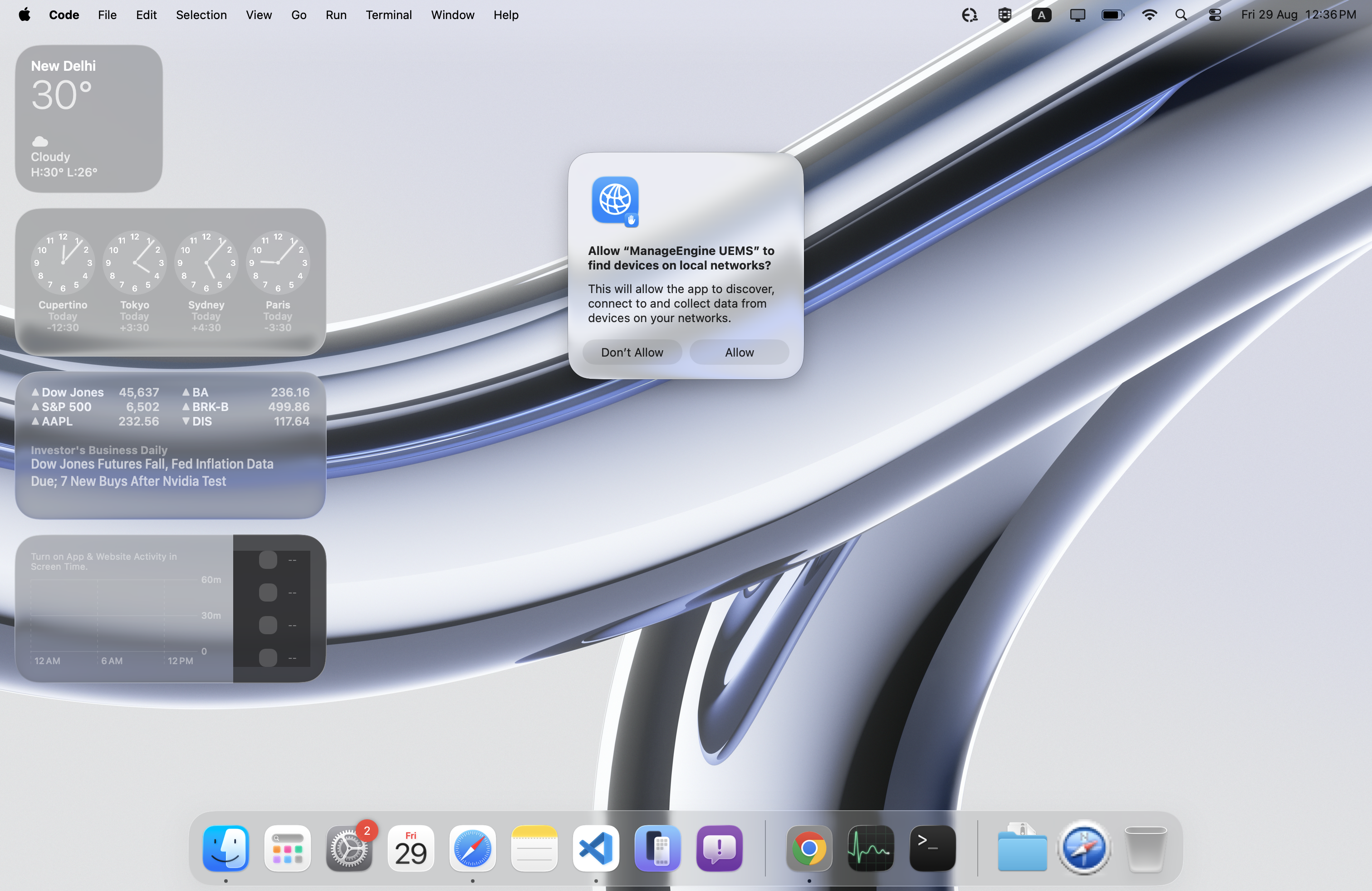
- Once all permissions are set, initiate the remote session once more to ensure that all access controls are active and functioning correctly.
Creating Profiles for Accessibility and Screen Recording
To configure permissions, you must create two separate profiles, one for Accessibility and another for Screen Recording.
Accessibility Profile
- Under Mobile Device Management, go to Management > Profiles.
- Click Create Profile and choose macOS/Apple.
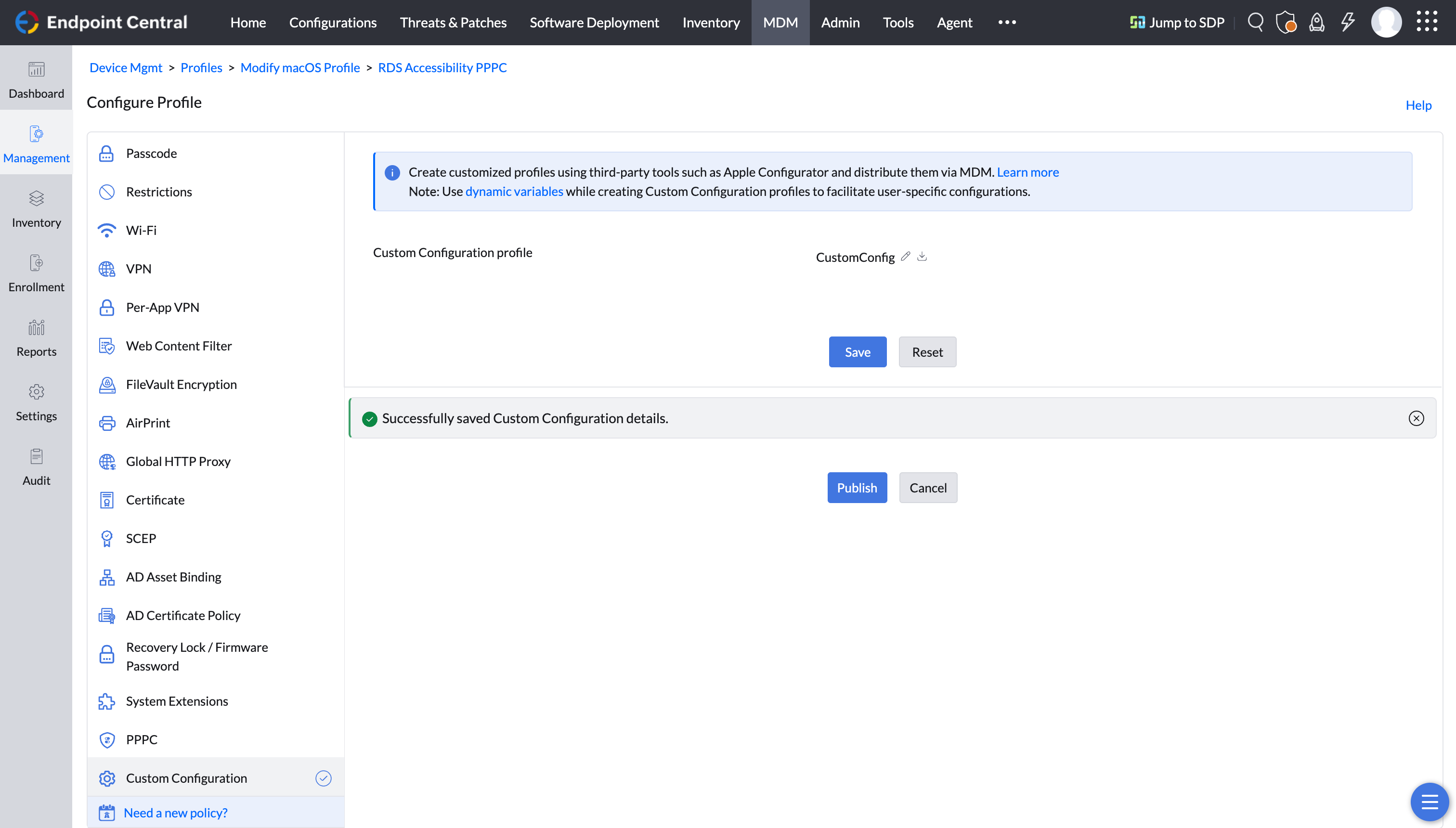
- Enter a Profile name (e.g., Accessibility Settings) and click Continue.
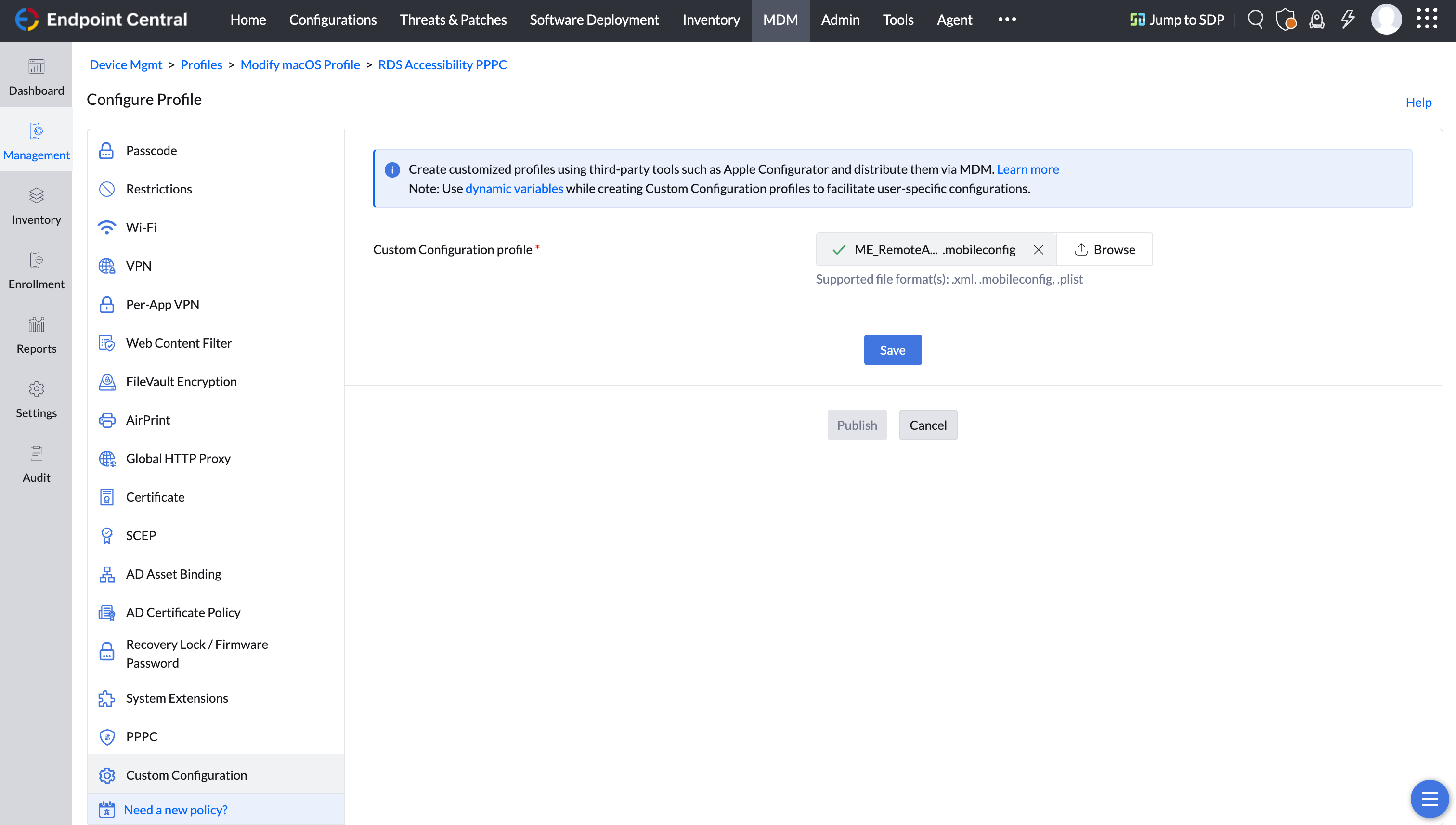
- In the left tree, select Custom Configuration.
- Download the PPPC file, extract it and upload the accessibility.mobileconfig file.
- Save and publish the profile.
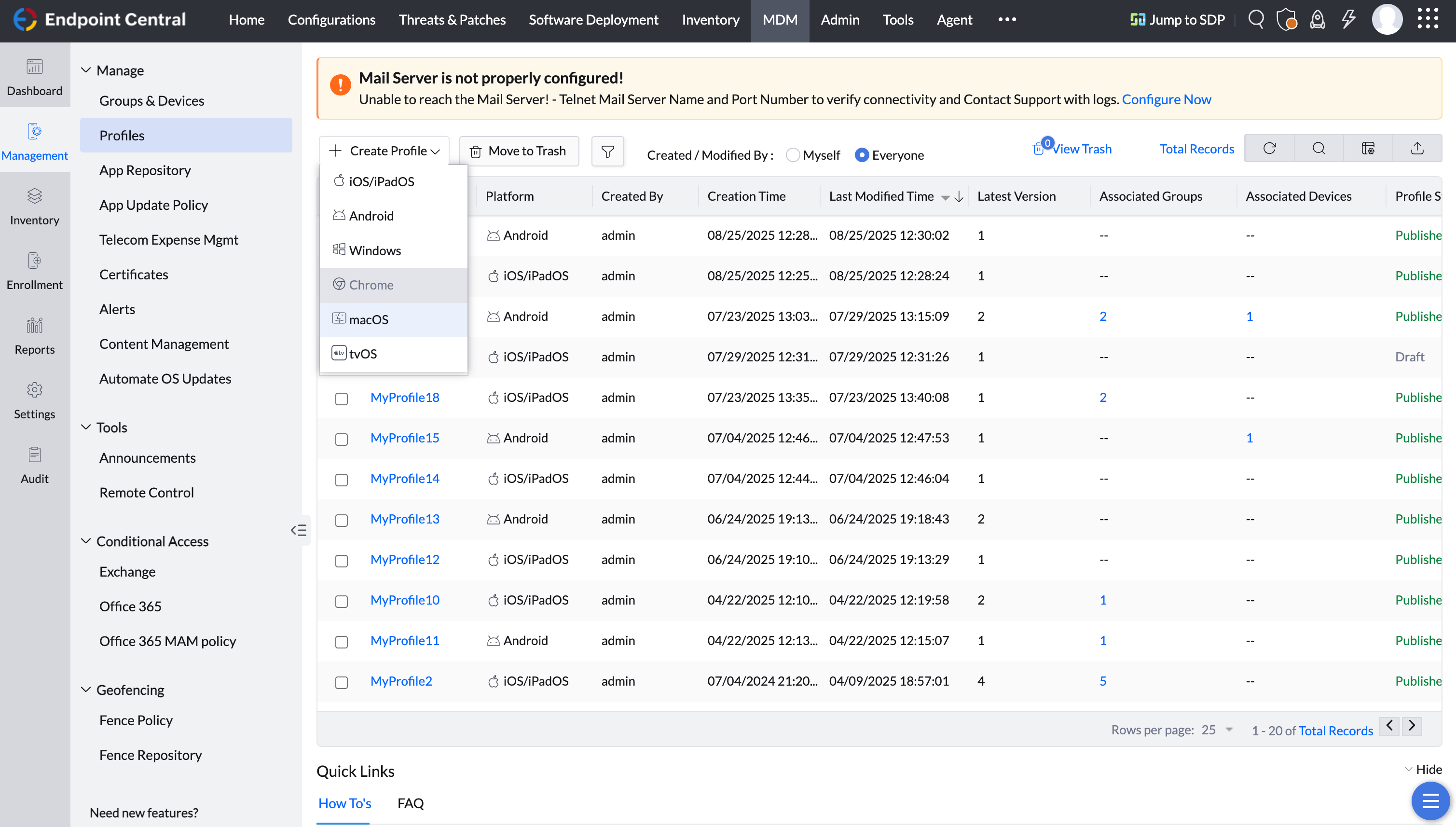
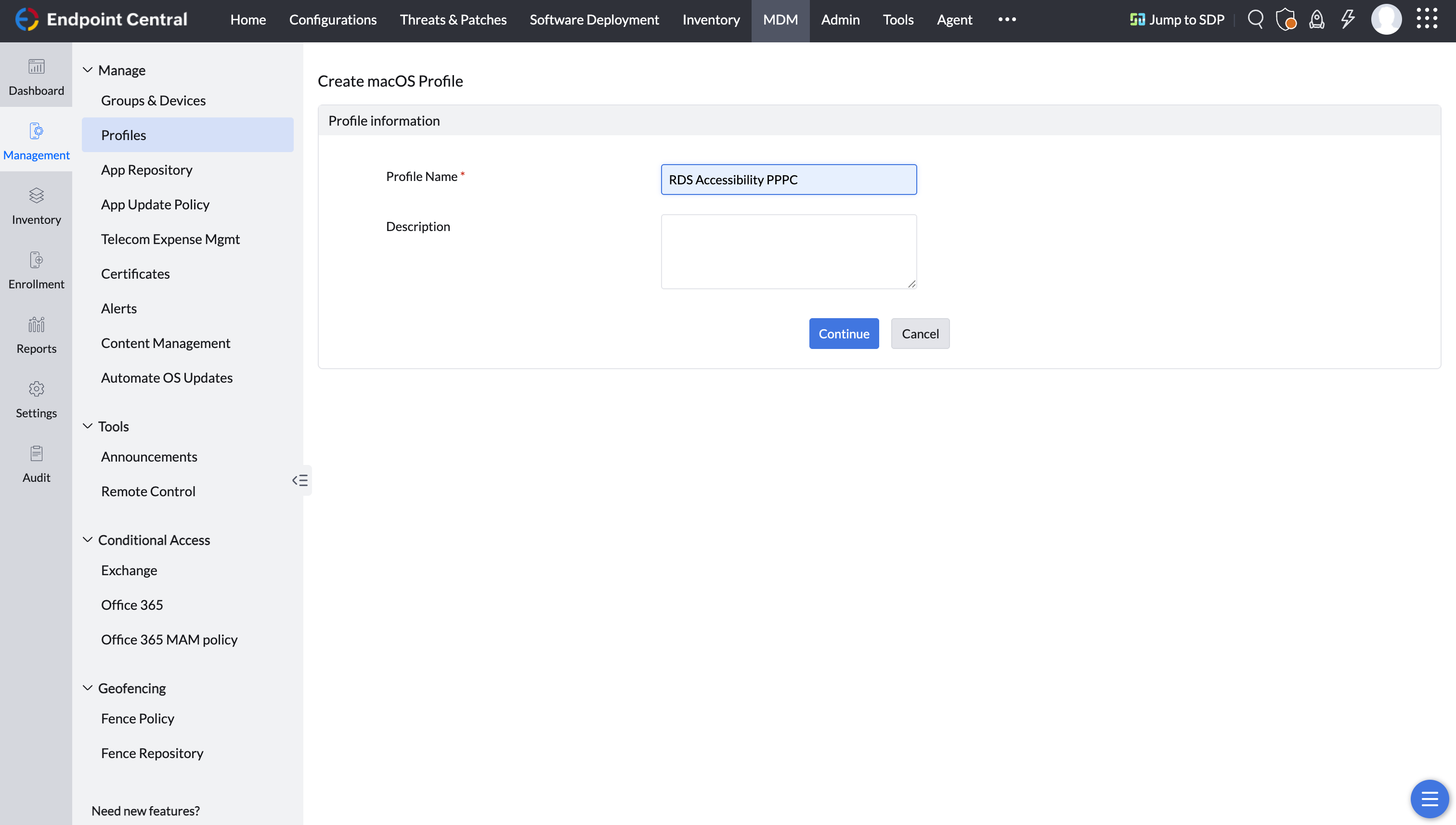
Screen Recording Profile
- Under Mobile Device Management, go to Management > Profiles.
- Click Create Profile and choose macOS/Apple.
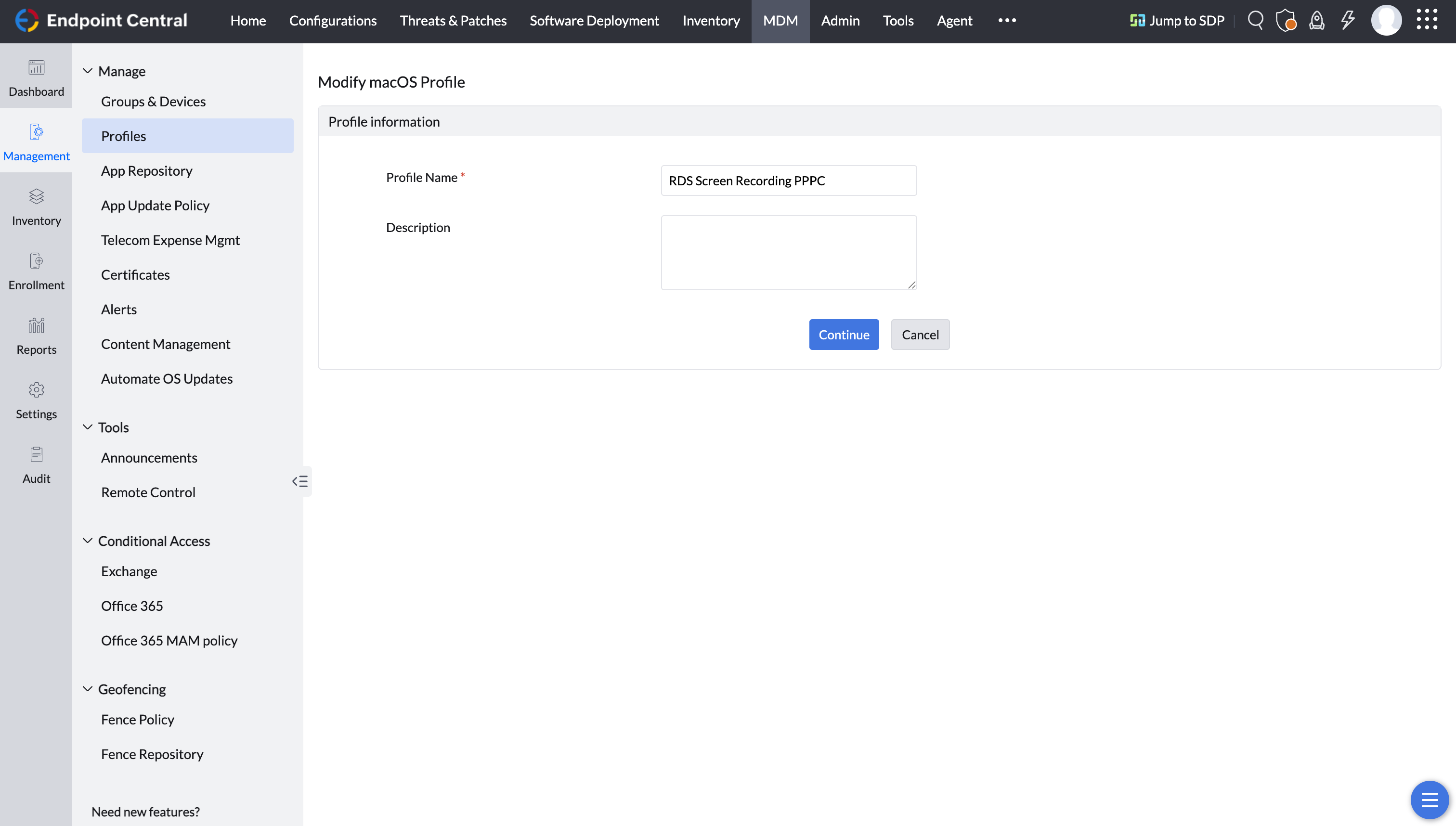
- Enter a Profile name (e.g., Screen Recording Settings) and click Continue.
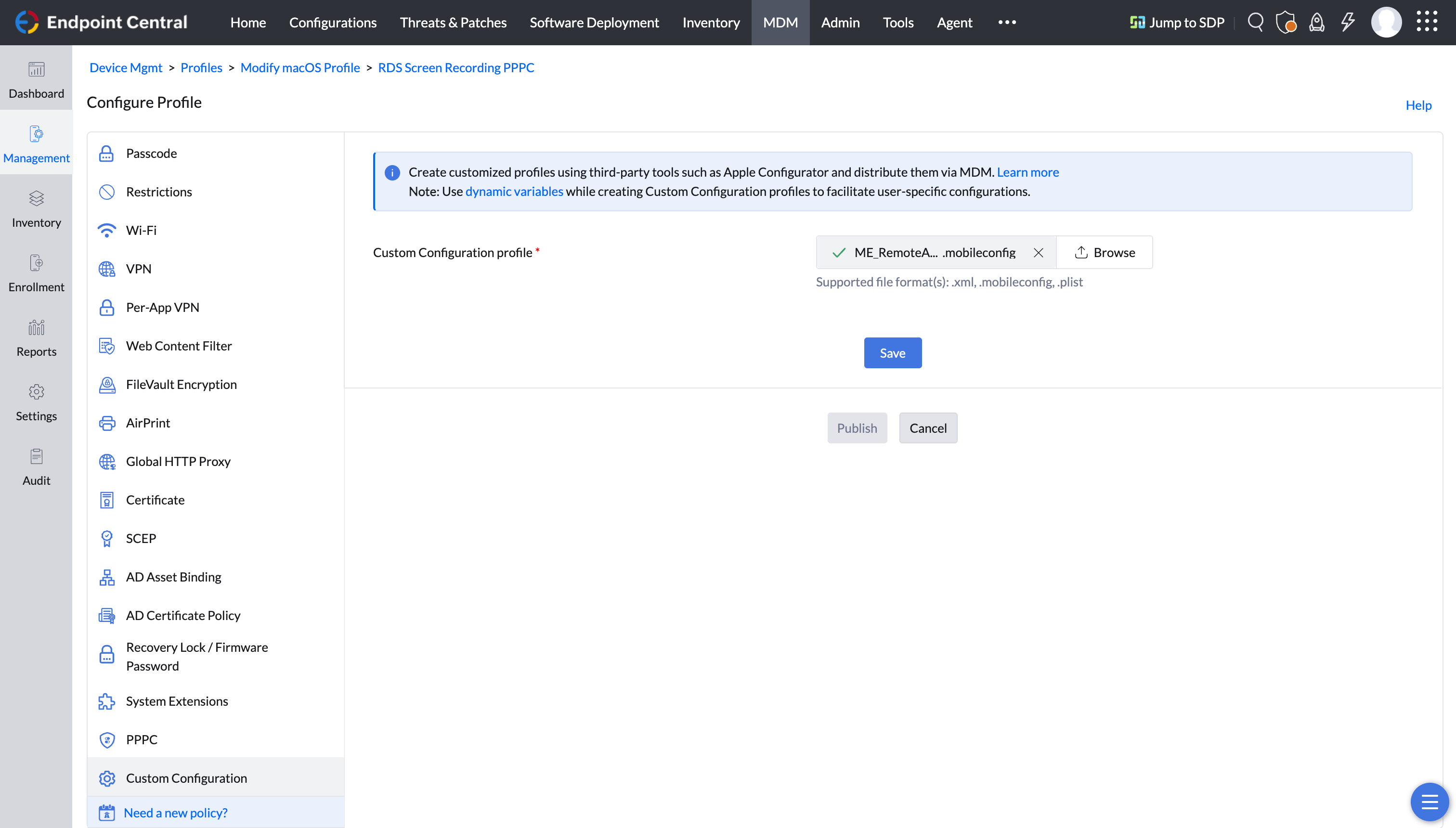
- In the left tree, select Custom Configuration.
- Download the PPPC file, extract it and upload the screenrecording.mobileconfig file.
- Save and publish the profile.
Associate Accessibility and Screen recording Profiles with Groups and Devices
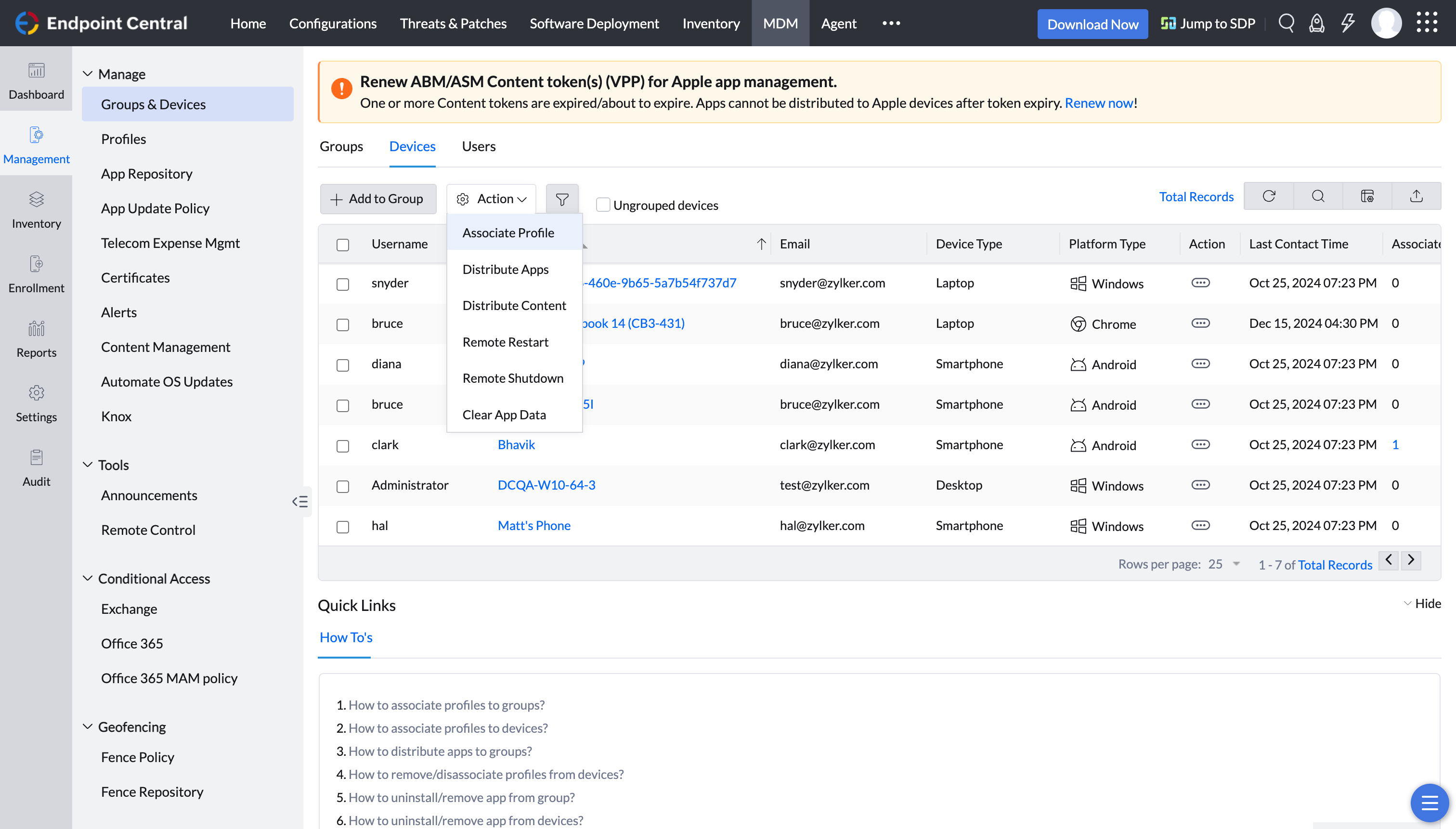
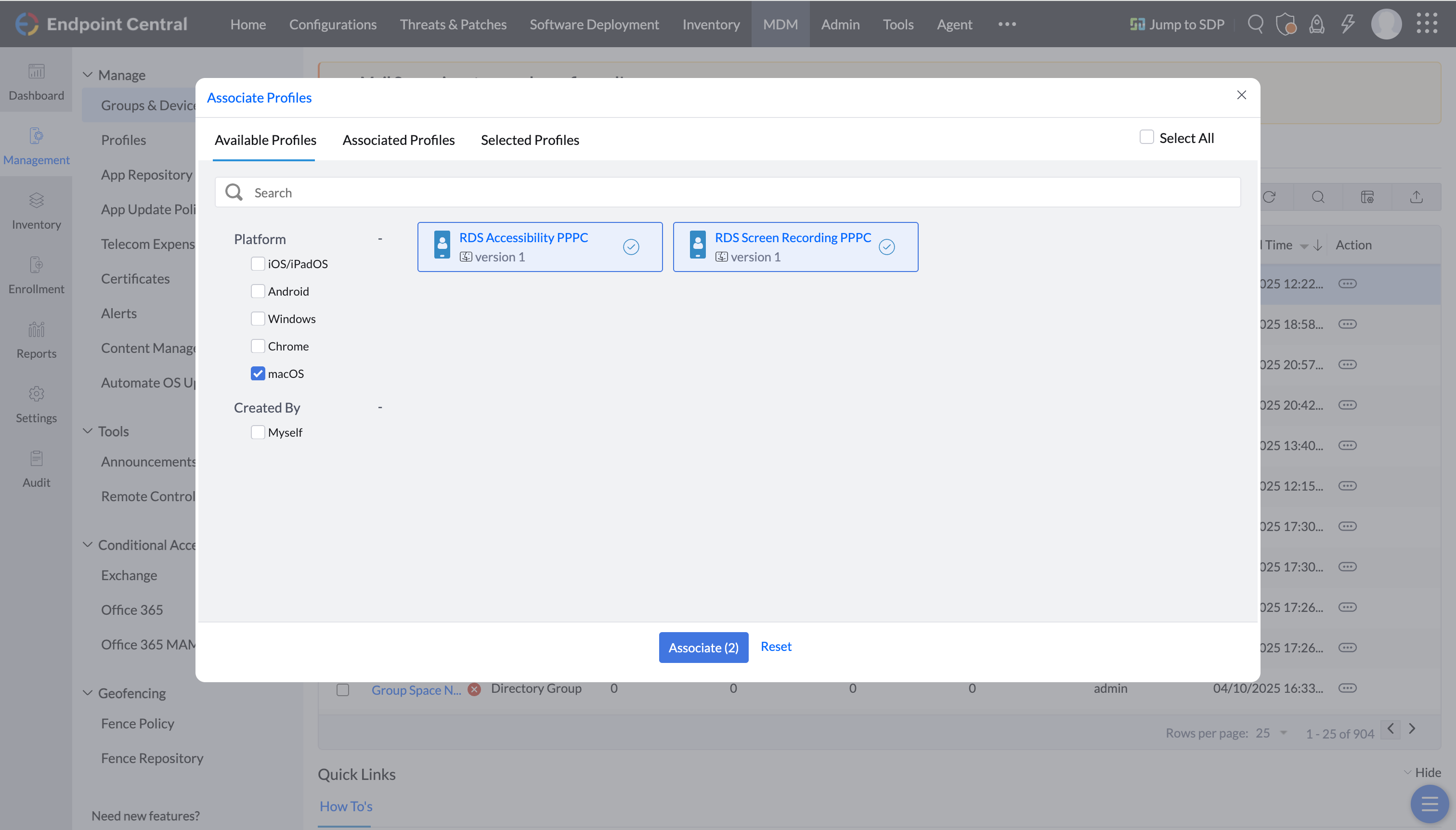
- Navigate to Groups and Devices. Select the required group. Click Action and choose Associate Profile.
- Select the profile you have just created (Accessibility or Screen Recording) and associate it.
- Permission for accessibility and screen recording has now been configured. Standard users will have the ability to grant access for screen capturing.
You can now remotely troubleshoot macOS 26 Tahoe computers in your network.
Endpoint Central Cloud
macOS 10.14 Mojave
This issue can be resolved in two ways, either from the problematic machine or directly from the product console. Please choose the method:
- From the problematic machine
- From the product console
In the problematic Mac machine navigate to,
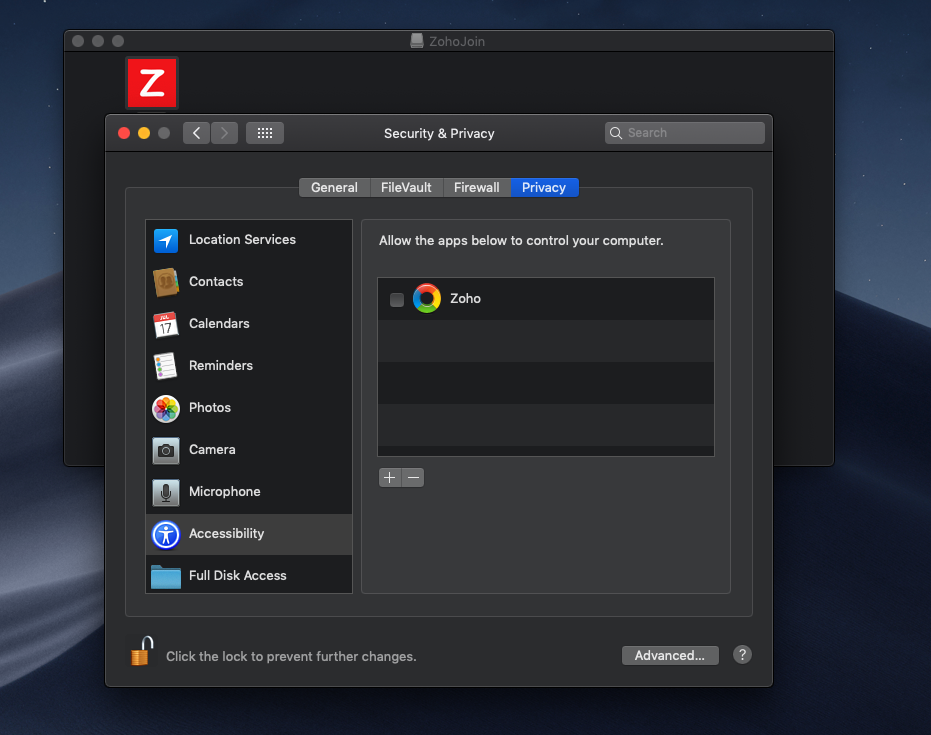
- System Preference -> Security and Privacy -> Privacy -> Accessibility -> Enable access for "Zoho" component. This will resolve the issue if you are using Mac OS version 10.14 - Mojave. If you are using the version 10.15 - Catalina, ensure you follow the next step as well.
- Under Mobile Device Management, select Management > Profiles.
- Click Create Profile and select MacOS/Apple.
- Provide the Profile name and click Continue.
- On the left tree, select Custom Configuration. Download the PPPC file, extract it and upload the PPPC .mobileconfig file.
- Save and Publish this profile.
- Navigate to Groups and Devices. Select the required group. Click Action and select Associate Profile.
- Select the profile you have just created and associate it.
- Permission for accessibility has been fully configured. Standard users will now have the ability to grant access for screen capturing.
You can now remotely troubleshoot macOS 10.14 Mojave computers in your network.
macOS 10.15 Catalina
This issue can be resolved in two ways, either from the problematic machine or directly from the product console. Please choose the method:
- From the problematic machine
- From the product console
In the problematic Mac machine navigate to,
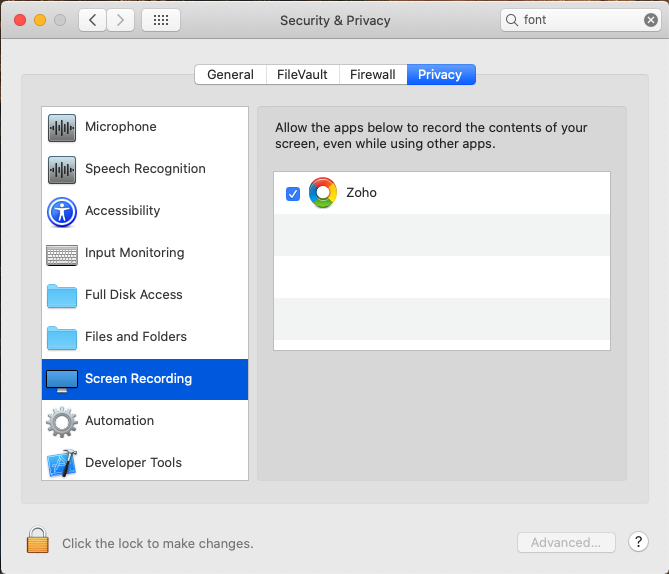
- System Preference -> Security and Privacy -> Privacy -> Accessibility -> Enable access for "Zoho" component.
- System Preference -> Security and Privacy -> Privacy -> Allow the "Zoho" component to record the contents of your screen.
Creating Profiles for Accessibility and Screen Recording
To configure permissions, you must create two separate profiles, one for Accessibility and another for Screen Recording.
Accessibility Profile
- Under Mobile Device Management, go to Management > Profiles.
- Click Create Profile and choose macOS/Apple.
- Enter a Profile name (e.g., Accessibility Settings) and click Continue.
- In the left tree, select Custom Configuration.
- Download the PPPC file, extract it and upload the accessibility.mobileconfig file.
- Save and publish the profile.
Screen Recording Profile
- Under Mobile Device Management, go to Management > Profiles.
- Click Create Profile and choose macOS/Apple.
- Enter a Profile name (e.g., Screen Recording Settings) and click Continue.
- In the left tree, select Custom Configuration.
- Download the PPPC file, extract it and upload the screenrecording.mobileconfig file.
- Save and publish the profile.
Associate Accessibility and Screen recording Profiles with Groups and Devices
- Navigate to Groups and Devices. Select the required group. Click Action and choose Associate Profile.
- Select the profile you have just created (Accessibility or Screen Recording) and associate it.
- Permission for accessibility and screen recording has now been configured. Standard users will have the ability to grant access for screen capturing.
You can now remotely troubleshoot macOS 26 Tahoe computers in your network.
macOS 11 Big Sur
This issue can be resolved in two ways, either from the problematic machine or directly from the product console. Please choose the method:
- From the problematic machine
- From the product console
In the problematic Mac machine navigate to,
- System Preference -> Security and Privacy -> Privacy -> Accessibility -> Enable access for "Zoho" component.
- System Preference -> Security and Privacy -> Privacy -> Allow the "Zoho" component to record the contents of your screen.
- Under Mobile Device Management, select Management > Profiles.
- Click Create Profile and select MacOS/Apple.
- Provide the Profile name and click Continue.
- On the left tree, select Custom Configuration. Download the PPPC file, extract it and upload the PPPC .mobileconfig file.
- Save and Publish this profile.
- Navigate to Groups and Devices. Select the required group. Click Action and select Associate Profile.
- Select the profile you have just created and associate it.
- Permission for accessibility has been fully configured. Standard users will now have the ability to grant access for screen capturing.
You can now remotely troubleshoot macOS 11 Big Sur computers in your network.
macOS 12 Monterey
This issue can be resolved in two ways, either from the problematic machine or directly from the product console. Please choose the method:
- From the problematic machine
- From the product console
In the problematic Mac machine navigate to,
- System Preference -> Security and Privacy -> Privacy -> Accessibility -> Enable access for "Zoho" component.
- System Preference -> Security and Privacy -> Privacy -> Allow the "Zoho" component to record the contents of your screen.
- Under Mobile Device Management, select Management > Profiles.
- Click Create Profile and select MacOS/Apple.
- Provide the Profile name and click Continue.
- On the left tree, select Custom Configuration. Download the PPPC file, extract it and upload the PPPC .mobileconfig file.
- Save and Publish this profile.
- Navigate to Groups and Devices. Select the required group. Click Action and select Associate Profile.
- Select the profile you have just created and associate it.
- Permission for accessibility has been fully configured. Standard users will now have the ability to grant access for screen capturing.
You can now remotely troubleshoot macOS 12 Monterey computers in your network.
macOS 13 Ventura
This issue can be resolved in two ways, either from the problematic machine or directly from the product console. Please choose the method:
- From the problematic machine
- From the product console
In the problematic Mac machine navigate to,
- Navigate to System Settings->Privacy & Security->Accessibility and enable access for "Zoho" component.

- Navigate to System Settings->Privacy & Security->Screen recording and allow the "Zoho" component to record the contents of your screen.

- Under Mobile Device Management, select Management > Profiles.
- Click Create Profile and select MacOS/Apple.
- Provide the Profile name and click Continue.
- On the left tree, select Custom Configuration. Download the PPPC file, extract it and upload the PPPC .mobileconfig file.
- Save and Publish this profile.
- Navigate to Groups and Devices. Select the required group. Click Action and select Associate Profile.
- Select the profile you have just created and associate it.
- Permission for accessibility has been fully configured. Standard users will now have the ability to grant access for screen capturing.
You can now remotely troubleshoot macOS Ventura computers in your network.
macOS 14 Sonoma
This issue can be resolved in two ways, either from the problematic machine or directly from the product console. Please choose the method:
- From the problematic machine
- From the product console
In the problematic Mac machine navigate to,
- Navigate to System Settings->Privacy & Security->Accessibility and enable access for "Zoho" component.
- Navigate to System Settings->Privacy & Security->Screen recording and allow the "Zoho" component to record the contents of your screen.
- Under Mobile Device Management, select Management > Profiles.
- Click Create Profile and select MacOS/Apple.
- Provide the Profile name and click Continue.
- On the left tree, select Custom Configuration. Download the PPPC file, extract it and upload the PPPC .mobileconfig file.
- Save and Publish this profile.
- Navigate to Groups and Devices. Select the required group. Click Action and select Associate Profile.
- Select the profile you have just created and associate it.
- Permission for accessibility has been fully configured. Standard users will now have the ability to grant access for screen capturing.
You can now remotely troubleshoot macOS 14 Sonoma computers in your network.
macOS 15 Sequoia
This issue can be resolved in two ways, either from the problematic machine or directly from the product console. Please choose the method:
- From the problematic machine
- From the product console
In the problematic Mac machine navigate to,
- Navigate to System Settings->Privacy & Security->Accessibility and enable access for "Zoho" component.
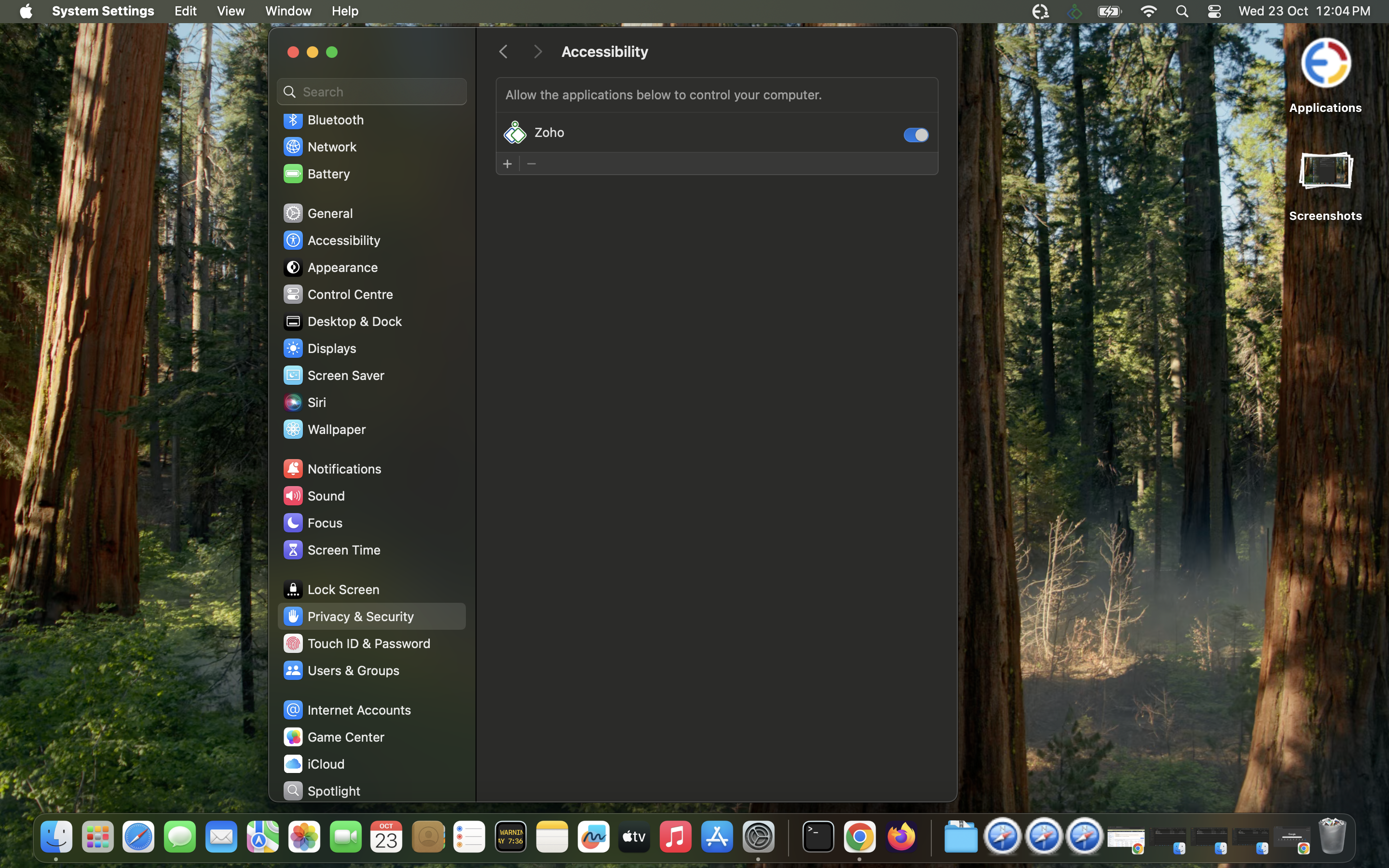
- Navigate to System Settings->Privacy & Security->Screen & System audio recording and allow the "Zoho" component to record the contents of your screen.
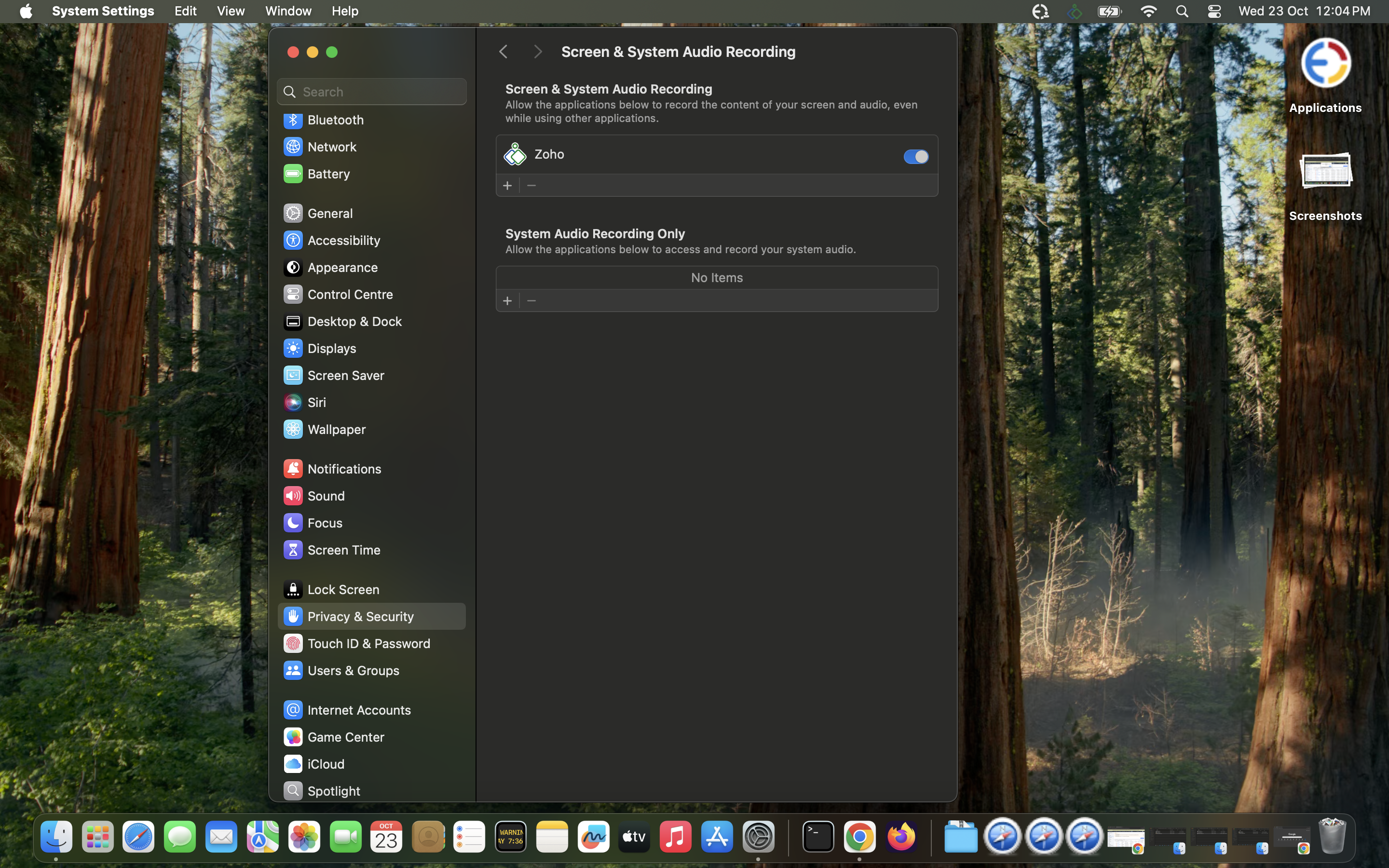
- Initiate a remote session again from the ManageEngine console. This step is necessary to ensure that all permissions are properly registered and ready for use. Follow the additional prompts for further access.
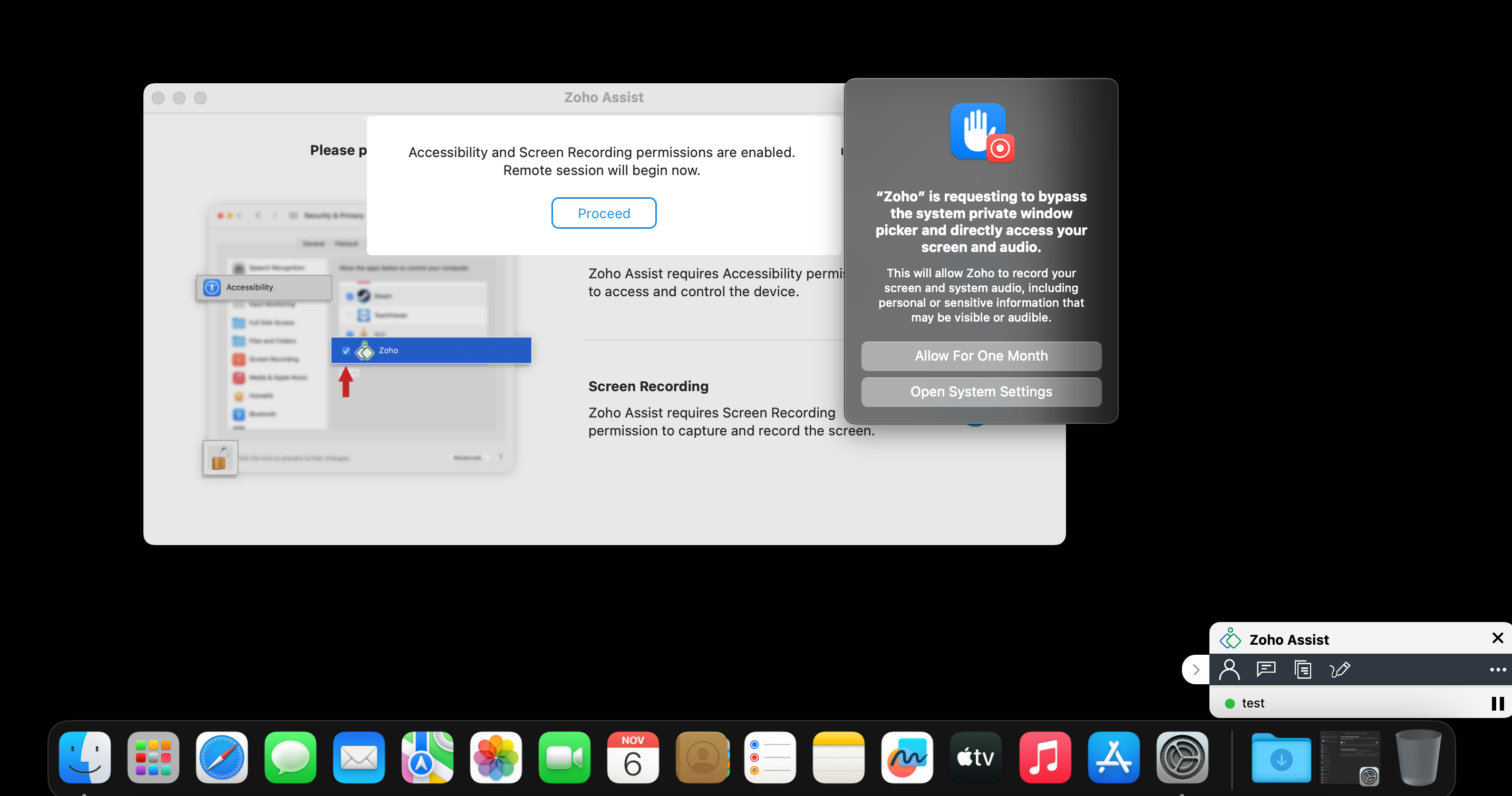
- When prompted, provide permission to bypass the system’s private window picker. This permission will allow direct access to screen and audio controls, which is essential for remote control functionality. Choose the option to "Allow for one month" to minimize future prompts.
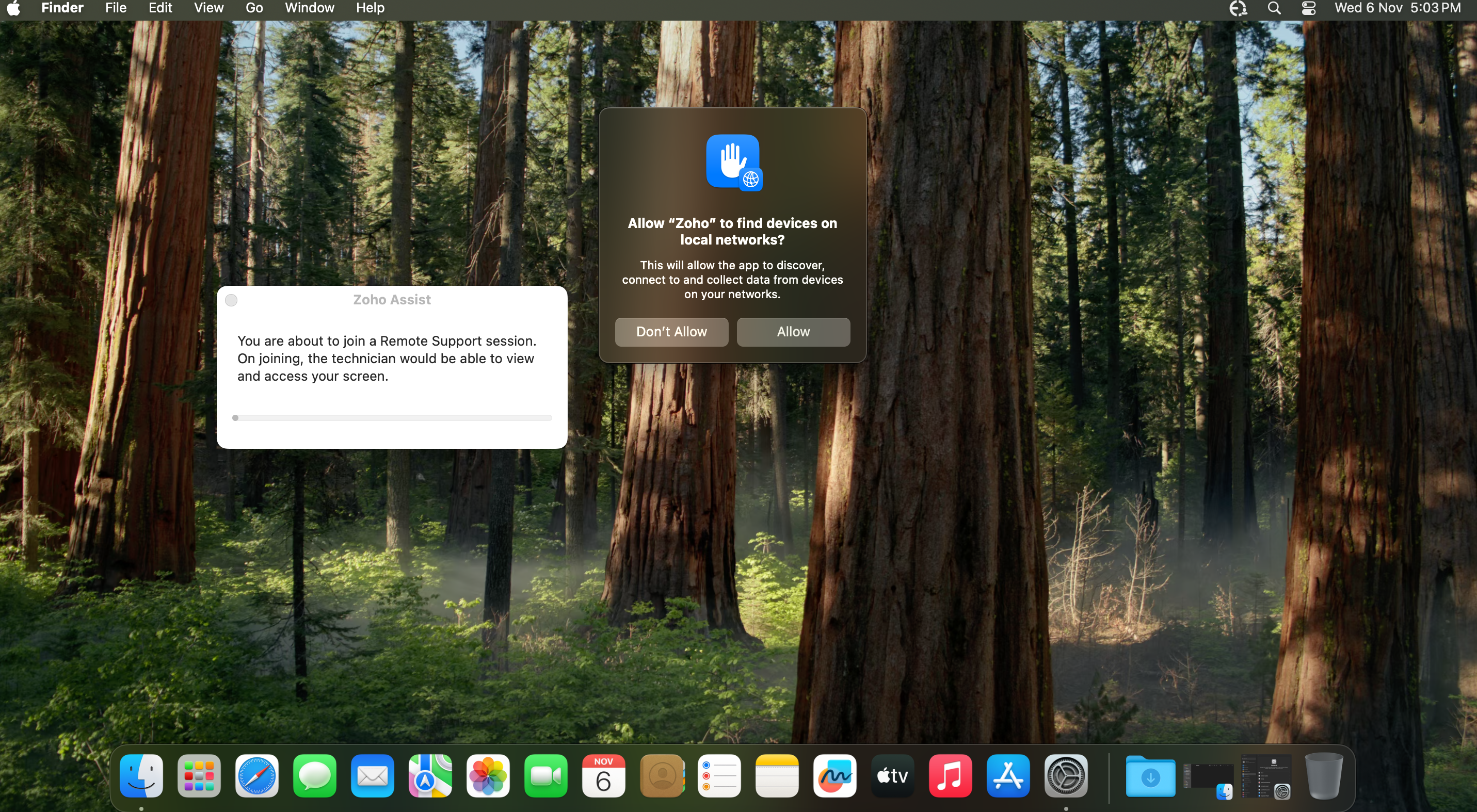
- A final prompt will appear asking if you would like to allow "Zoho" to find and communicate with devices on your local network. Select "Allow" to enable this access, as it is required for remote control features to work effectively.
- Once all permissions are set, initiate the remote session once more to ensure that all access controls are active and functioning correctly.
- Under Mobile Device Management, select Management > Profiles.
- Click Create Profile and select MacOS/Apple.
- Provide the Profile name and click Continue.
- On the left tree, select Custom Configuration. Download the PPPC file, extract it and upload the PPPC .mobileconfig file.
- Save and Publish this profile.
- Navigate to Groups and Devices. Select the required group. Click Action and select Associate Profile.
- Select the profile you have just created and associate it.
- Permission for accessibility has been fully configured. Standard users will now have the ability to grant access for screen capturing.
You can now remotely troubleshoot macOS 15 Sequoia computers in your network.
macOS 26 Tahoe
This issue can be resolved in two ways, either from the problematic machine or directly from the product console. Please choose the method:
- From the problematic machine
- From the product console
In the problematic Mac machine navigate to,
- Navigate to System Settings->Privacy & Security->Accessibility and enable access for "Zoho" component.
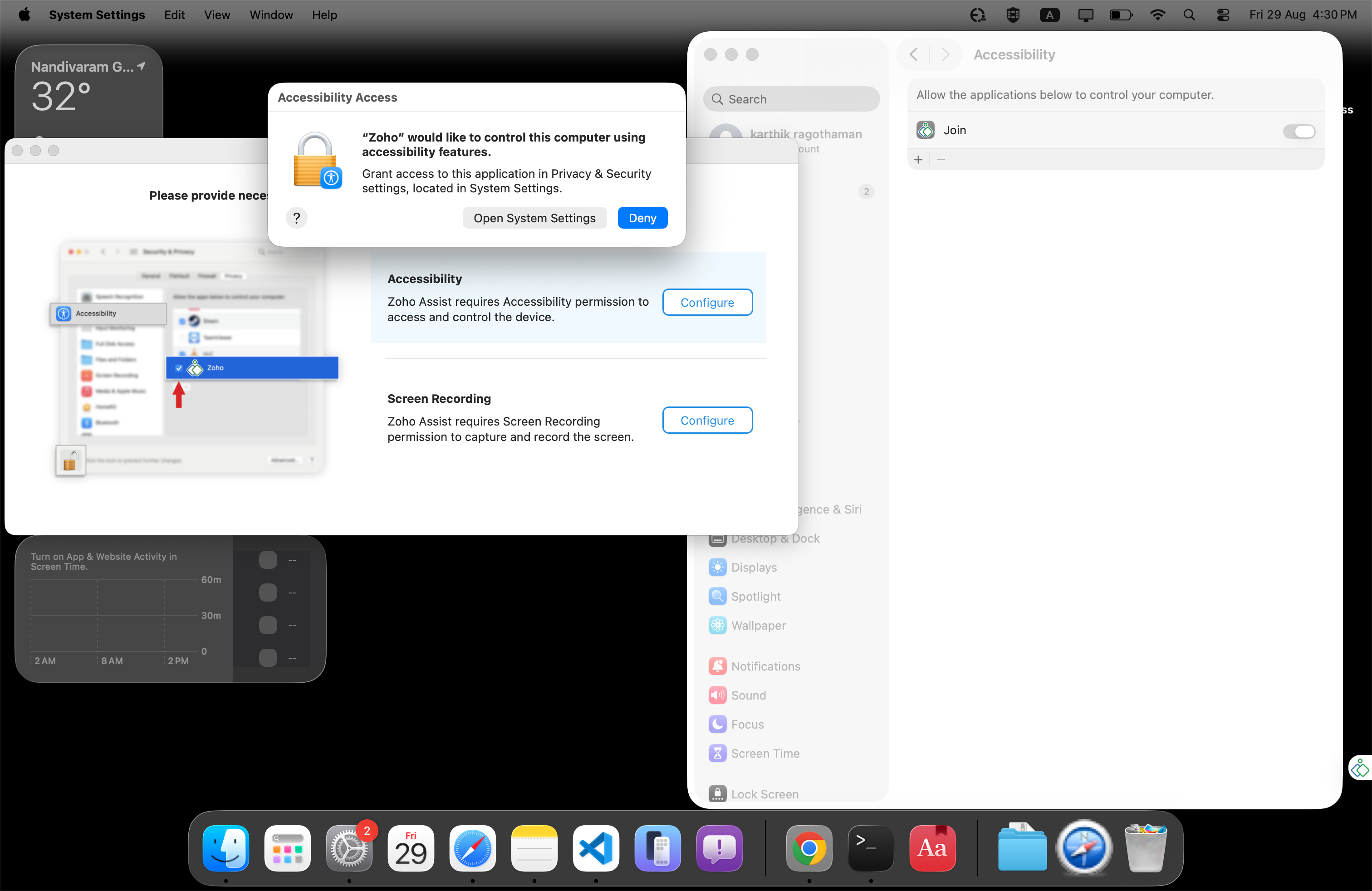
- Navigate to System Settings->Privacy & Security->Screen & System audio recording and allow the "Zoho" component to record the contents of your screen.
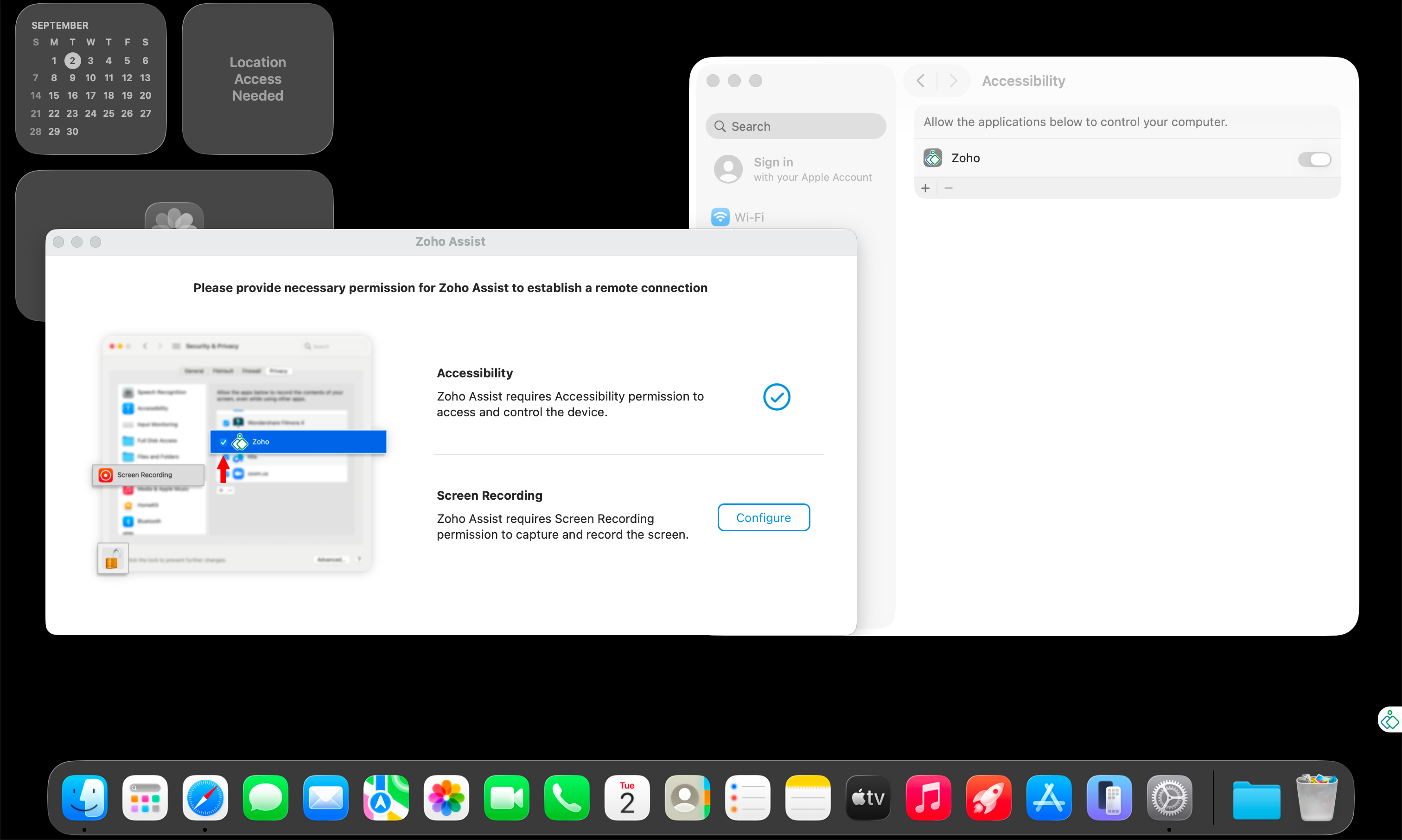
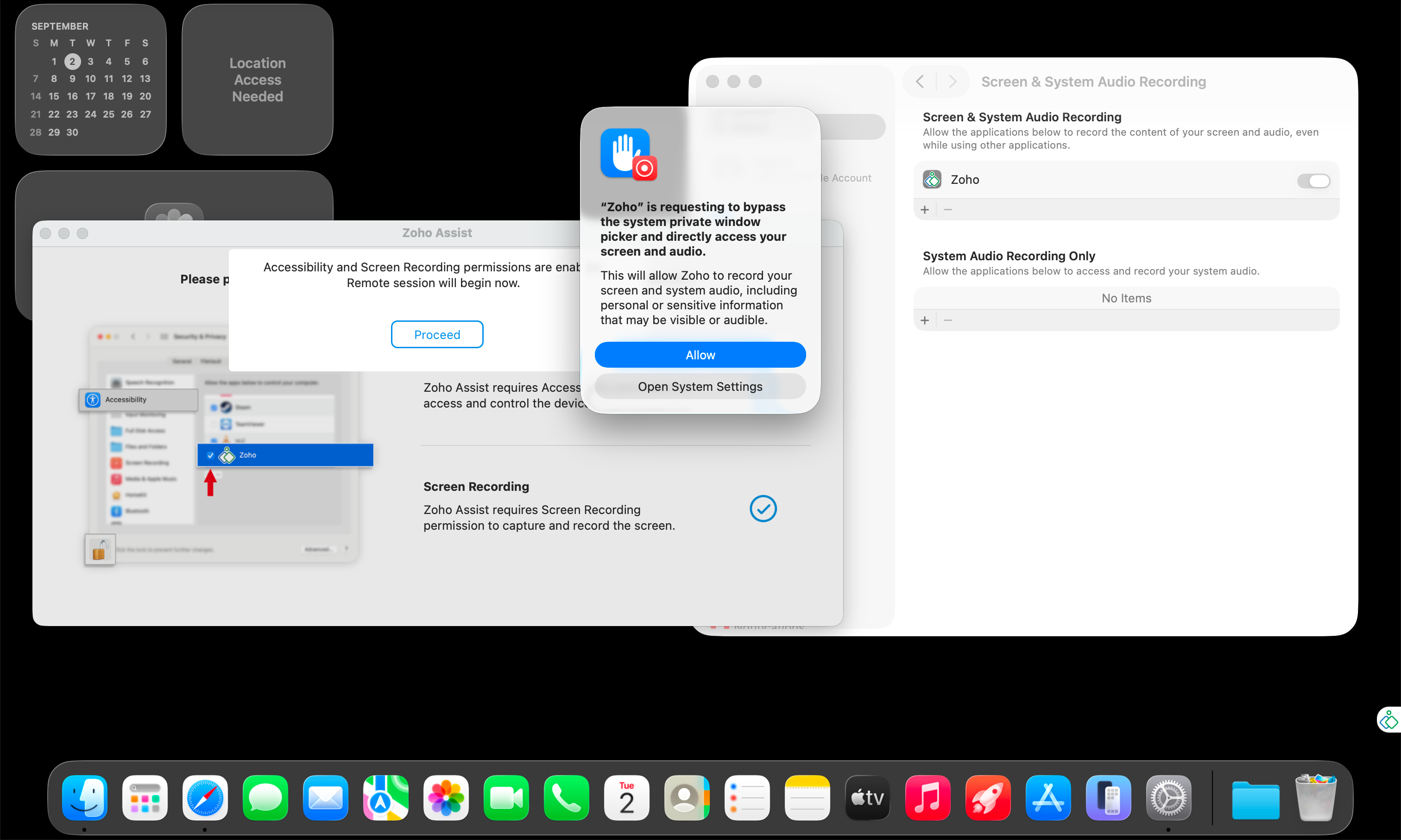
- Initiate a remote session again from the ManageEngine console. This step is necessary to ensure that all permissions are properly registered and ready for use. Follow the additional prompts for further access.
- When prompted, provide permission to bypass the system’s private window picker. This permission will allow direct access to screen and audio controls, which is essential for remote control functionality. Choose the option to "Allow for one month" to minimize future prompts.
- A final prompt will appear asking if you would like to allow "Zoho" to find and communicate with devices on your local network. Select "Allow" to enable this access, as it is required for remote control features to work effectively.
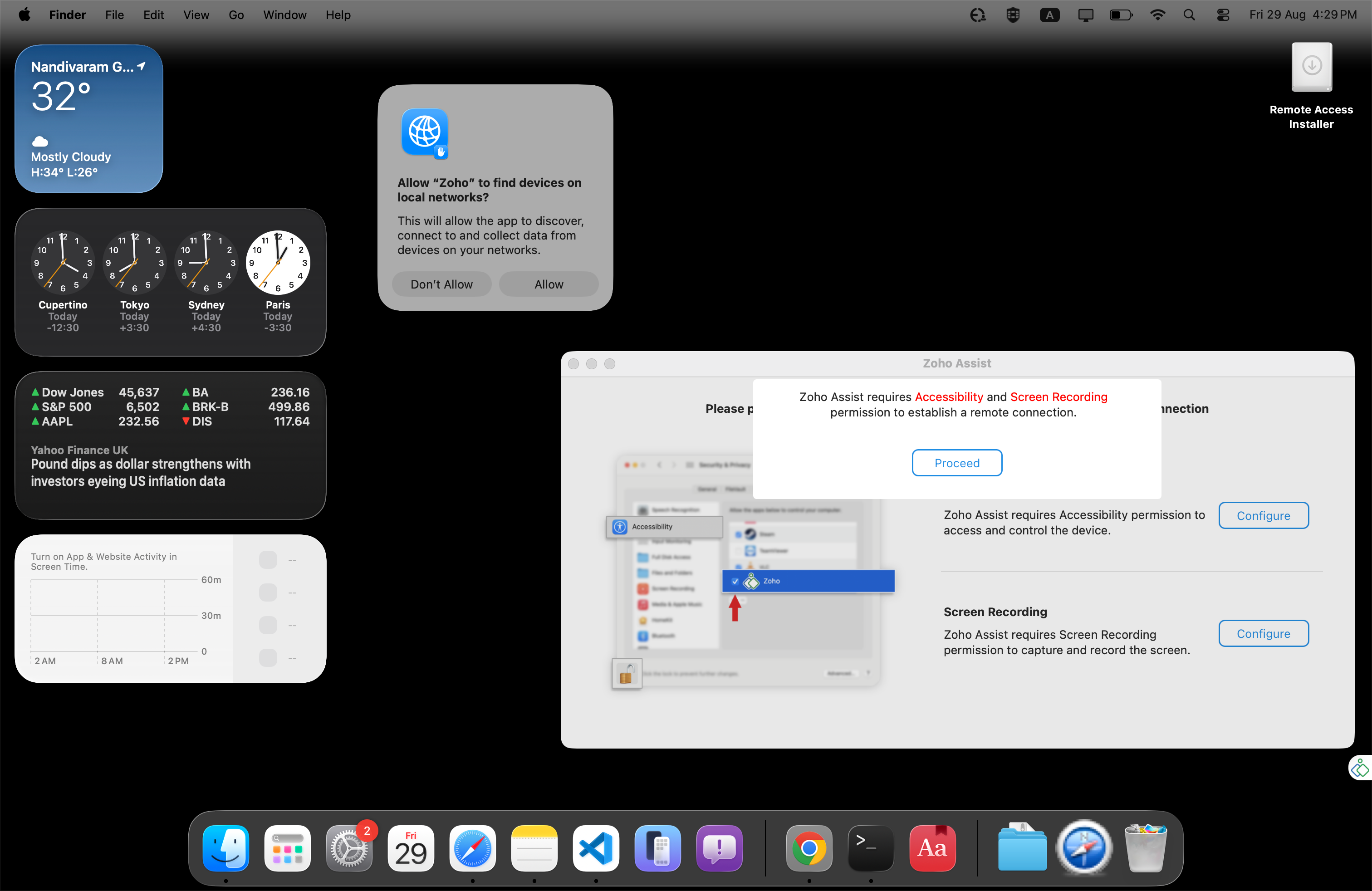
- Once all permissions are set, initiate the remote session once more to ensure that all access controls are active and functioning correctly.
Creating Profiles for Accessibility and Screen Recording
To configure permissions, you must create two separate profiles, one for Accessibility and another for Screen Recording.
Accessibility Profile
- Under Mobile Device Management, go to Management > Profiles.
- Click Create Profile and choose macOS/Apple.
- Enter a Profile name (e.g., Accessibility Settings) and click Continue.
- In the left tree, select Custom Configuration.
- Download the PPPC file, extract it and upload the accessibility.mobileconfig file.
- Save and publish the profile.
Screen Recording Profile
- Under Mobile Device Management, go to Management > Profiles.
- Click Create Profile and choose macOS/Apple.
- Enter a Profile name (e.g., Screen Recording Settings) and click Continue.
- In the left tree, select Custom Configuration.
- Download the PPPC file, extract it and upload the screenrecording.mobileconfig file.
- Save and publish the profile.
Associate Accessibility and Screen recording Profiles with Groups and Devices
- Navigate to Groups and Devices. Select the required group. Click Action and choose Associate Profile.
- Select the profile you have just created (Accessibility or Screen Recording) and associate it.
- Permission for accessibility and screen recording has now been configured. Standard users will have the ability to grant access for screen capturing.
You can now remotely troubleshoot macOS 26 Tahoe computers in your network.




