How to Deploy Microsoft Visual Studio
This document provides the steps required to deploy various editions of Microsoft Visual Studio to multiple computers using Endpoint Central.
System Requirements
Before you deploy the Microsoft Visual Studio, ensure that the computers to which you are deploying meet the system requirements prescribed by Microsoft. Refer to the documents given in the table for further details.
Microsoft Visual Studio Installation Methods
Microsoft Visual Studio can be installed using two methods:
- Offline Installation: Installation files are downloaded and stored in a shared folder. These files are used for installation. This allows installations without an active internet connection.
- Online Installation: During deployment, installation files are downloaded directly to the agent machines. It requires an active internet connection in the agent machines.
Steps to Deploy Microsoft Visual Studio Using Offline Installation Method
| Microsoft Visual Studio Versions | Command to be executed in Command Prompt | Command to be provided while creating a package |
|---|---|---|
| Visual Studio 2015 | vs_professional.exe --layout | "\\<Server-Path>\vs_professional_ENU.exe" /AdminFile "\\<Server-Path>\AdminDeployment.xml" /quiet /norestart |
| Visual Studio 2017 | vs_community.exe --layout | "\\<Server-Path>\VS2017\vs_setup.exe" --quiet --norestart |
| Visual Studio 2019 | vs_community.exe --layout | "\\<Server-Path>\VS2019\vs_setup.exe" --quiet --norestart |
| Visual Studio 2022 | vs_community.exe --layout | "\\<Server-Path>\VS2022\vs_setup.exe" --quiet --norestart |
| Visual Studio 2026 | vs_community.exe --layout | "\\<Server-Path>\VS2026\vs_setup.exe" --quiet --norestart |
Downloading the Installation Files
- Create a common network share to store the required installable file. Use Network Share to deploy the software to computers within your network and use HTTP upload to deploy software to computers within your network or computers present in Remote Office.NoteKindly note that the Network Share should have read permissions for everyone in the group and should be accessible from all the computers on which you intend to install.
- Create a new folder on the machine and download the Visual Studio installer file from the vendor's website. Save the installer file in the newly created folder.
- Open Command Prompt, navigate to the folder containing the installer, and run the command provided in the above table to download all the required installation files.
Command Format:
<FileName> --layout - Once the files are downloaded, copy the folder to a network share location.
- Finally, create a deployment package using these files and deploy it to the target machines.
Adding the Package
- In the Endpoint Central console, navigate to Software Deployment tab > Package Creation > Packages > Add Package > Windows.
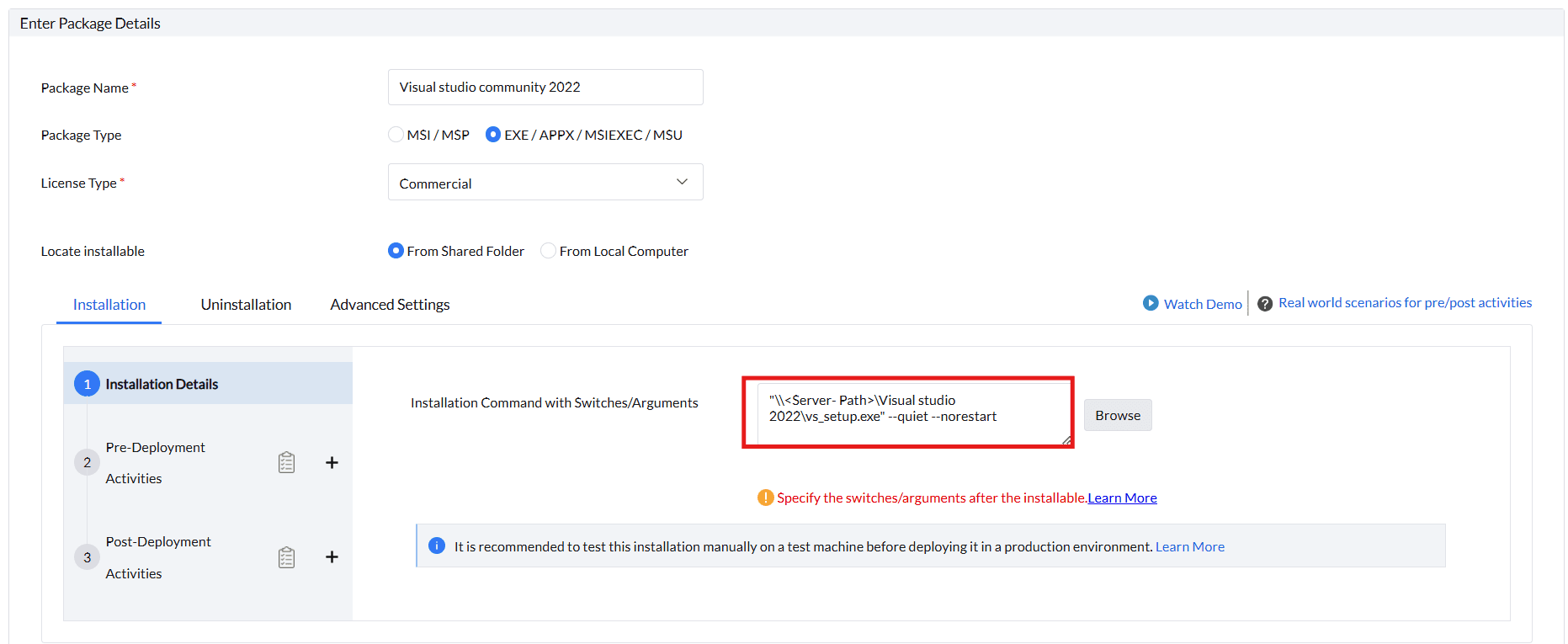
- Give an appropriate name for your package in the Package Name field.
- select the Package Type as EXE/APPX/MSIEXEC/MSU.
- Select the License Type as Commercial
- Select the Locate installable as From Shared Folder to deploy the Microsoft Visual Studio software using Network Share Path.
- Specify the Installation Command with Switches/Arguments as given in the table above based on the version you are installing.
- Click Add Package to create your package.
- You can view the created package under Packages.
Deploy to Target Computers
- Under Packages, select the package created and click on Install/Uninstall Software > Windows > Computer Configuration.
- Provide a Name and Description for the configuration.
- Configure the Deployment Policies, as per your requirement.
- Define the Target computers.
- Configure Execution Settings, as per your requirement.
- Select Enable notifications and Scheduler settings as per your requirements.
- Click Deploy/Deploy Immediately to deploy Microsoft Visual Studio.
You have now successfully deployed Microsoft Visual Studio using the offline installation method.
Steps to Deploy Microsoft Visual Studio Using Online Installation Method
| Visual Studio Version | Command to be provided while creating a package |
|---|---|
| Visual Studio 2017 | vs_community.exe --quiet --norestart |
| Visual Studio 2019 | vs_community.exe --quiet --norestart |
| Visual Studio 2022 | vs_community.exe --quiet --norestart |
| Visual Studio 2026 | vs_community.exe --quiet --norestart |
Downloading the Installation Files
Download the installer from the vendor's download page mentioned in the table.
Adding the Package
- In the Endpoint Central console, Navigate to Software Deployment tab > Package Creation > Packages > Add Package > Windows.
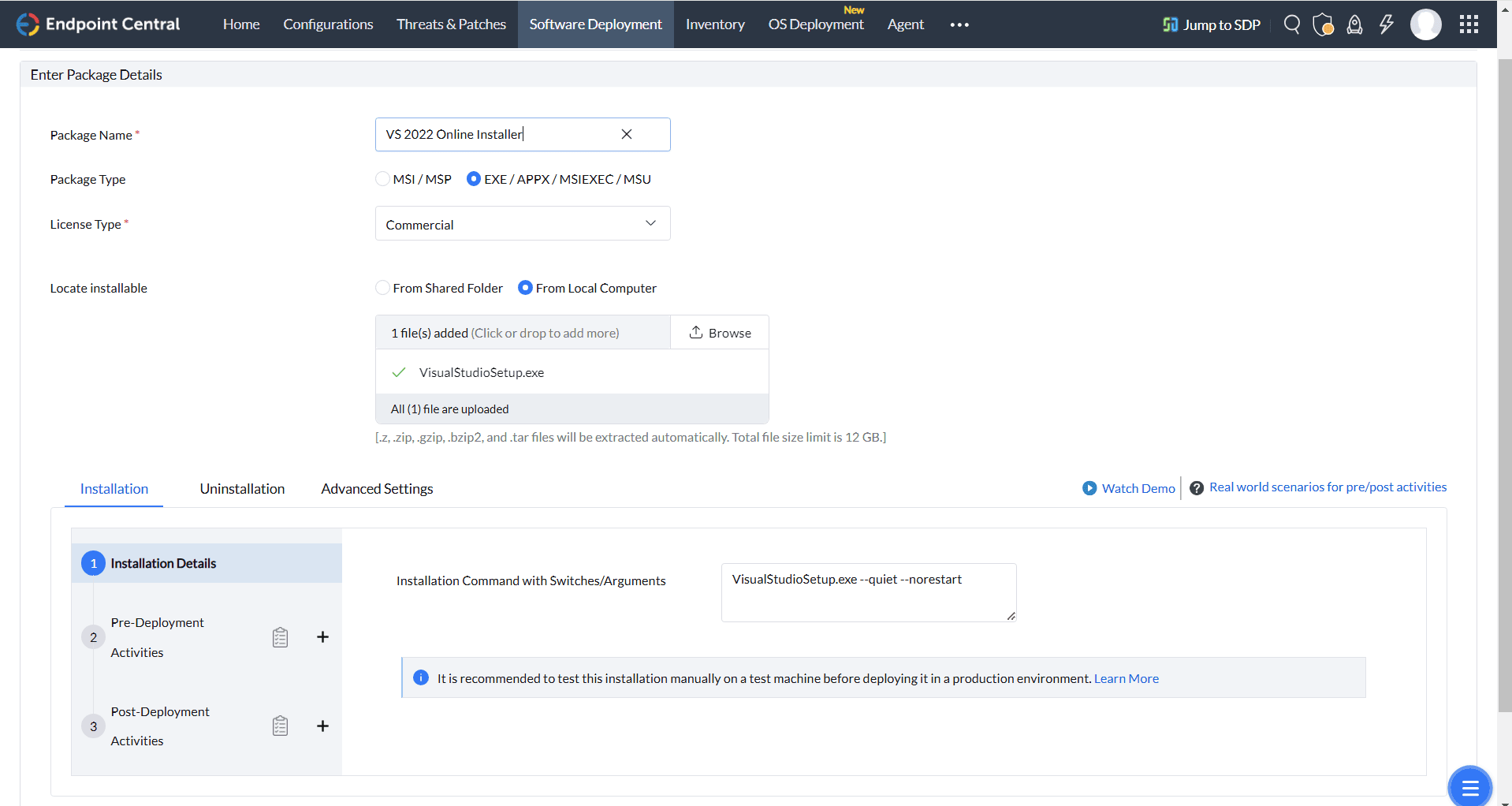
- Give an appropriate name for your package in the Package Name field.
- select the Package Type as EXE/APPX/MSIEXEC/MSU.
- Select the License Type as Commercial
- Select the Locate installable as From Local Computer and upload the downloaded file to deploy the Microsoft Visual Studio software using HTTP Path.
- Specify the Installation Command with Switches/Arguments as given in the table above based on the version you are installing.
- Click Add Packageto create your package.
- You can view the created package under Packages.
Deploy to Target Computers
- Under Packages, select the package created and click on Install/Uninstall Software > Windows > Computer Configuration
- Provide a Name and Description for the configuration.
- Configure the Deployment Policies, as per your requirement.
- Define the Target computers.
- Configure Execution Settings, as per your requirement.
- Select Enable notifications and Scheduler settings as per your requirements.
- Click Deploy/Deploy Immediately to deploy Microsoft Visual Studio.
You have now deployed Microsoft Visual Studio using an online installation.




