How to configure Active Directory Sync - SoM Policy?
This document provides a comprehensive guide to configure Active Directory Sync - Scope of Management (SoM) policy in Endpoint Central. It covers step-by-step instructions for enabling automatic detection and addition of new computers to the SoM, setting options for deleting removed computers from Active Directory, specifying sync targets within Active Directory, and configuring notification preferences.
How to Configure Detect and Add computers?
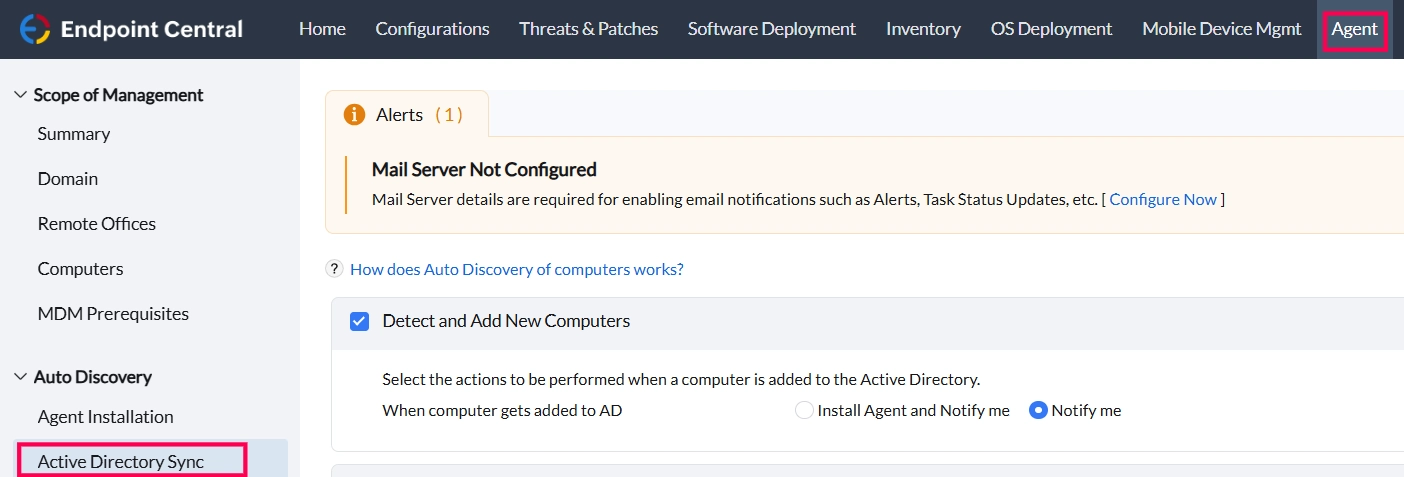
Navigate to Agent > Active Directory Sync > AD Sync Settings. This will open Active Directory Sync View.

- Enable "Detect and Add New Computers":
- If you select Install Agent and Notify me: Automatically installs the agent on new computers added to the Active Directory (AD) and sends email notifications.
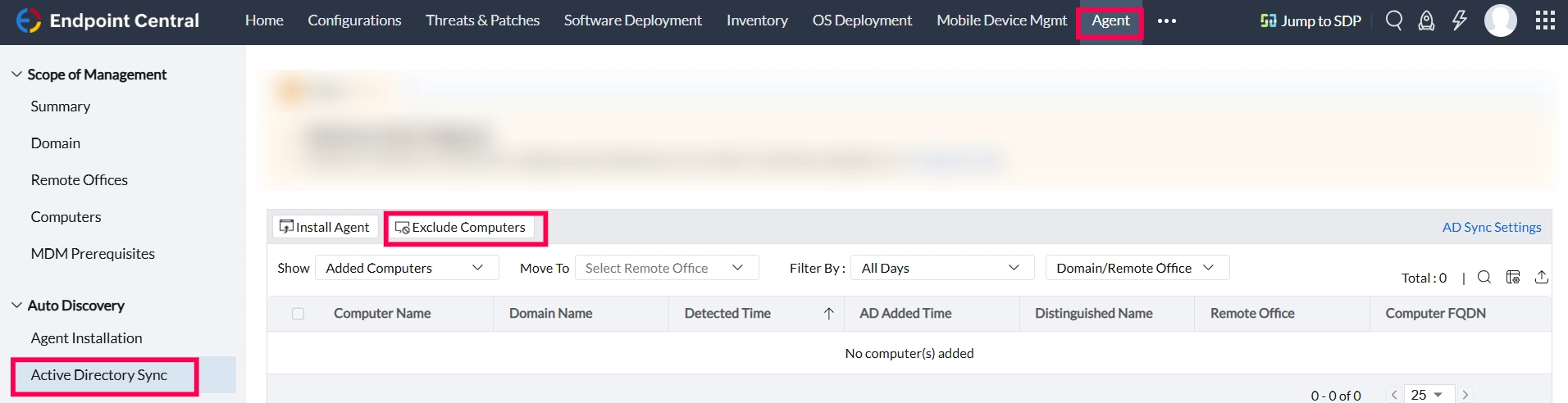
- If you select Notify me: Adds the new computers to the Scope of Management without installing the agent. You can view them under Agent > Active Directory Sync > View Sync Information > Show > Added Computers.
NoteIf IP scope for remote offices is not set, the local office agent will be installed on these new computers. This can be modified later.
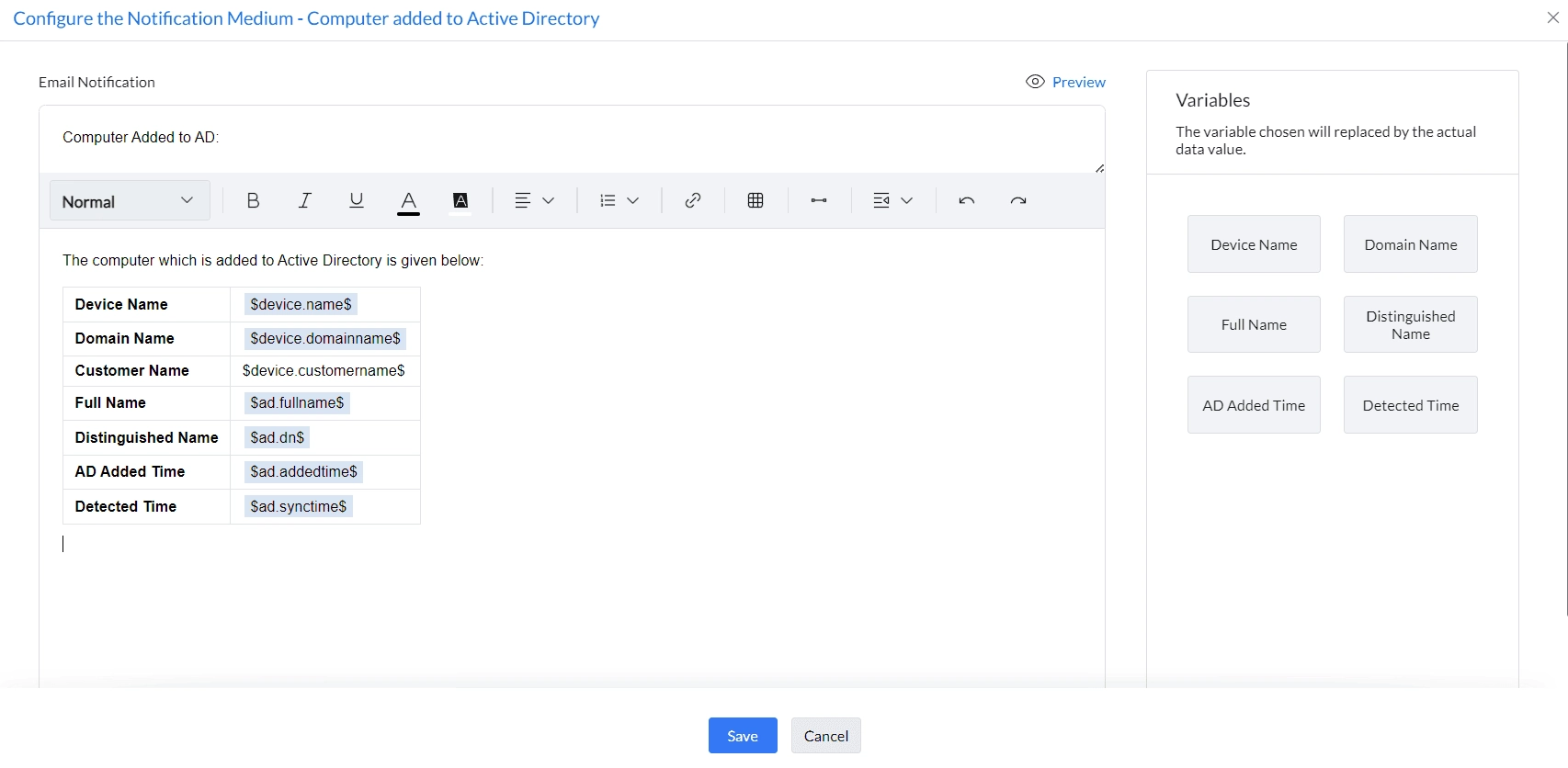
- If you select Configure: Opens a new window for adding variables to customize notifications.
How to Configure Delete Computers That Are Removed from Active Directory?
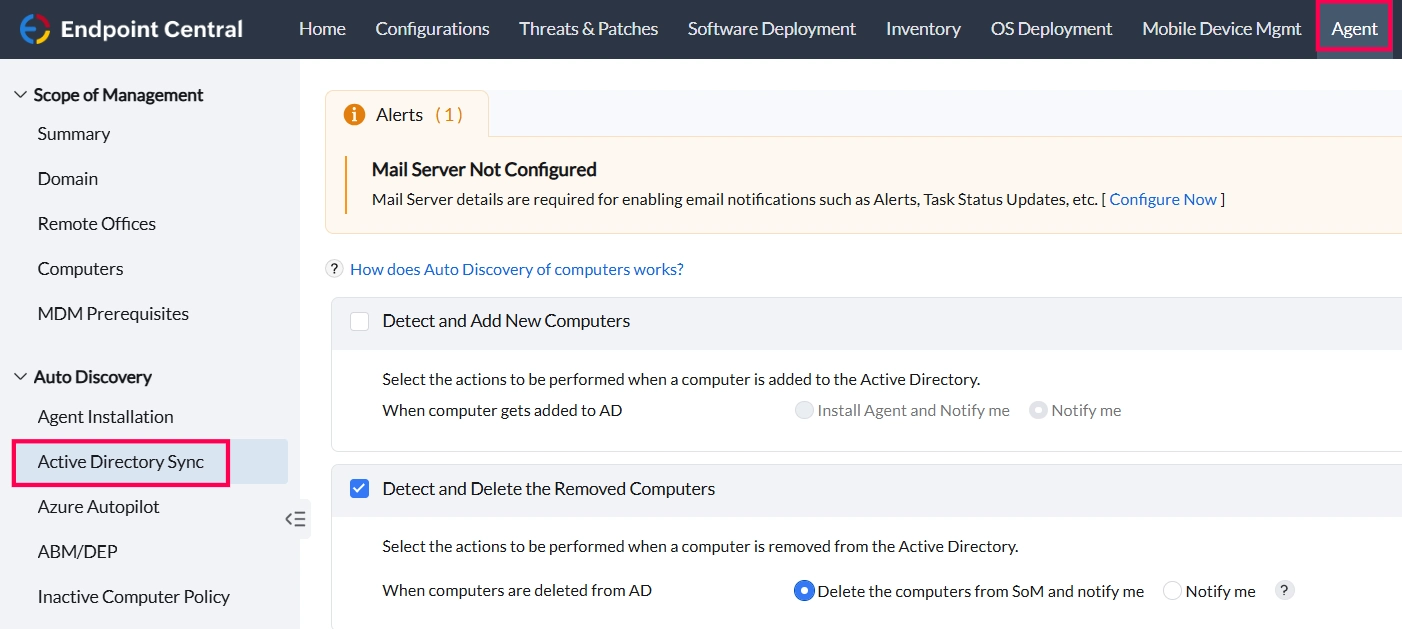
Navigate to Agent > Active Directory Sync > AD Sync Settings. This will open the Active Directory Sync view.
Deletion Options
- Enable Detect and Delete the Removed Computers:
- Delete the computers from SoM and Notify me:
Automatically removes computers deleted from AD from the Scope of Management during the next sync, with a notification.
- Notify me:
Sends a notification if computers are removed from AD without deleting them from the Scope of Management.
Configure Sync Settings
The discovery of computers from Active Directory for a specific domain depends on the configured sync schedule for that domain. To update or change the schedule, Navigate to Agent > Domains > Select the desired domain > Modify Sync Details
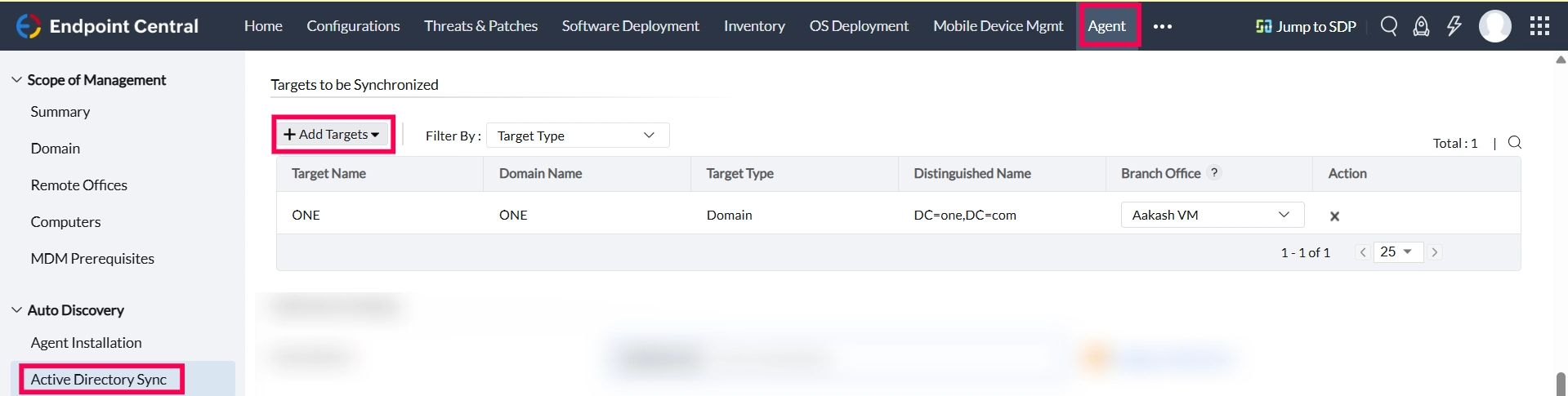
Set Targets to be synchronized
- Navigate to Agent > Active Directory Sync > Add Targets.
- Select synchronization targets by Domains, Organizational Units (OUs), or Groups within AD.
How to configure notification settings?
Configures specific email alerts to receive updates on changes and activities within the SoM, keeping administrators informed.
Navigate to Agent > Active Directory Sync > AD Sync Settings. This will open Active Directory Sync view.
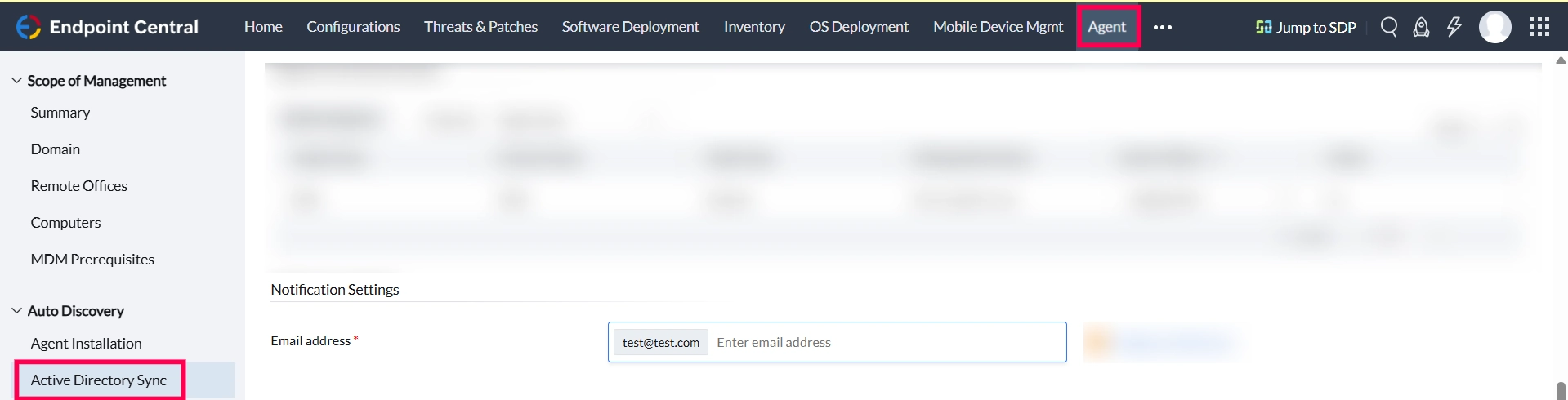
Under Notification Settings,
- Email Address: Enter the email address to receive notifications about changes in the Scope of Management. Kindly note that Mail server has to be configured to receive notifications.
Exclude Computers
If you do not want to install agents on specific computers that have been newly added to Active Directory, you can exclude them from agent deployment.
- Navigate to Agent > Active Directory Sync.
- Next to the Show option, select Added Computers.
- Choose the computers you want to exclude from agent installation.
- Click Exclude Computers to prevent agent deployment on these devices.
To view the excluded computers, go to Show and select Excluded Computers.