Entra ID OAuth Error Troubleshooting
Error - OAuth Removed
Problem Statement:
The OAuth configuration was removed from the Central Server.
Cause:
This occurs when the previously configured Azure OAuth credentials have been deleted or are no longer available on the central server.
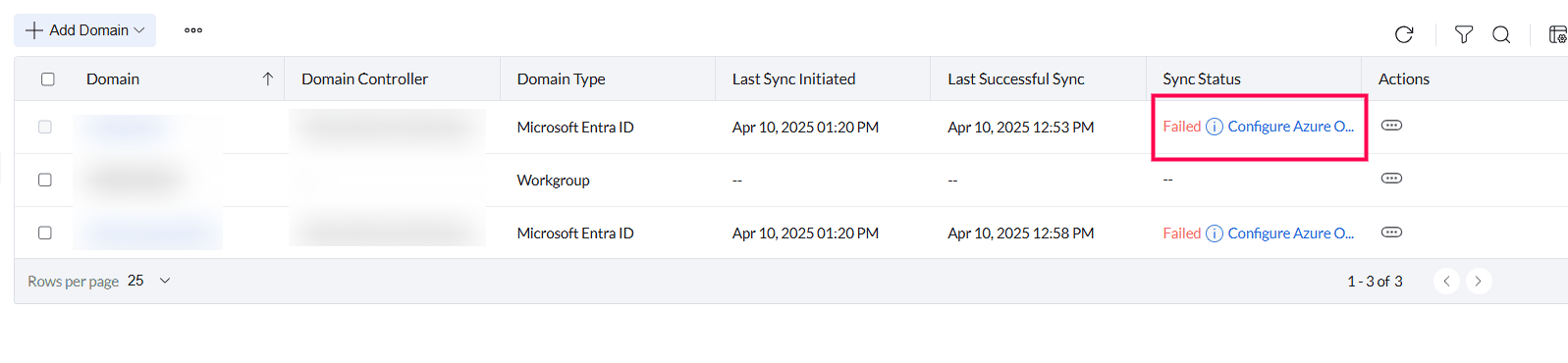
Steps to Resolve:
- Click Conifugre Azure OAuth, Popup will Appear.
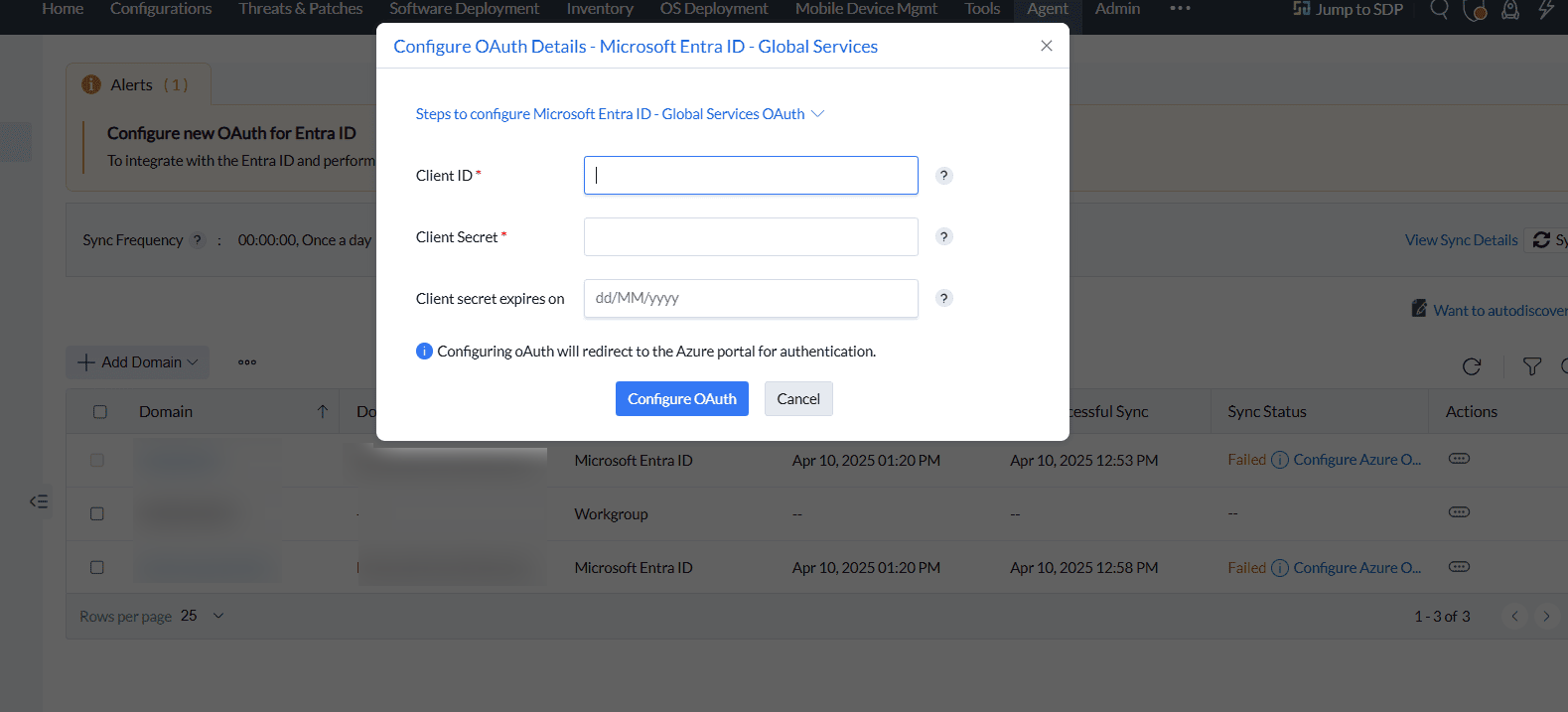
- Enter the client id and client secret and configure the OAuth.
- You will be redirected to the Azure portal for authentication.
- Domain authentication is completed, and the sync will proceed.
Error - Reauthenticate
Problem Statement:
The authentication session has expired or failed, requiring reauthentication.
Cause:
This issue happens when the OAuth token is invalid, expired, or rejected by Azure AD, often due to session timeout or manual revocation.
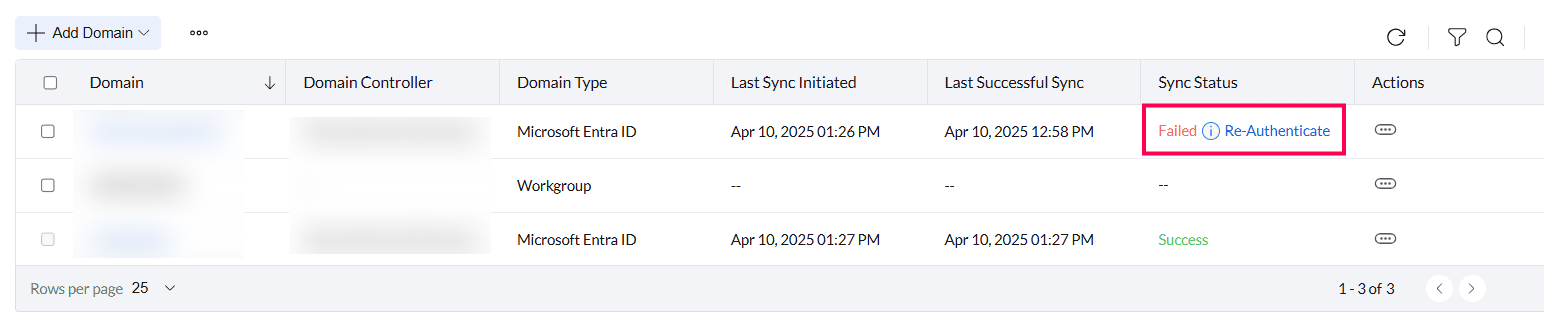
Steps to Resolve:
- After clicking the reauthenticate.
- You will be redirected to the Azure portal for authentication.
- Domain authentication is completed, and the sync will proceed.
Error - Invalid OAuth Client secret.
Problem Statement:
The provided OAuth client secret is incorrect or invalid.
Cause:
This happens when an incorrect client secret is used in the Azure OAuth configuration, resulting in authentication failure.
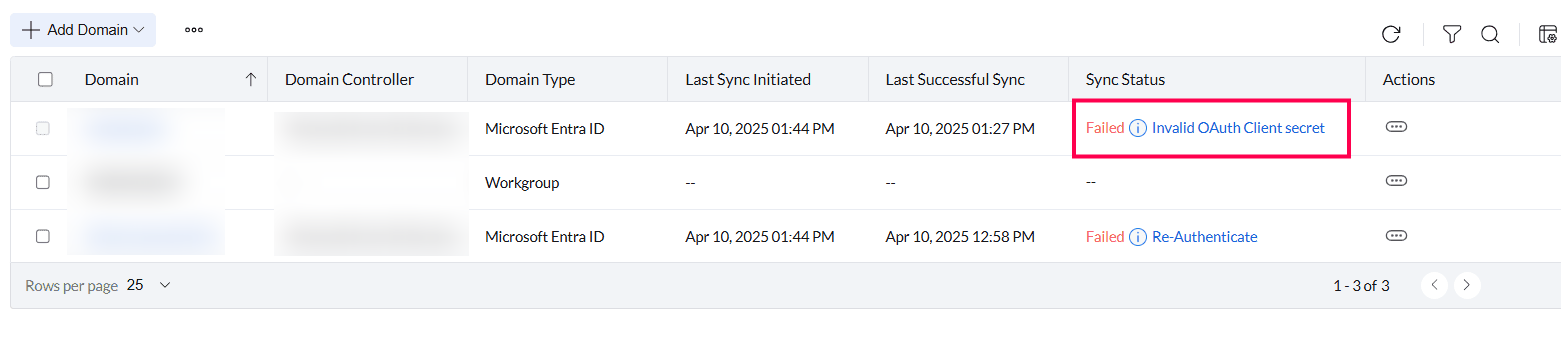
Steps to Resolve:
- Click Invalid OAuth Client secret, Modify OAuth details will shown.
- Enter the correct client secret and proceed with authenticating (click modify).
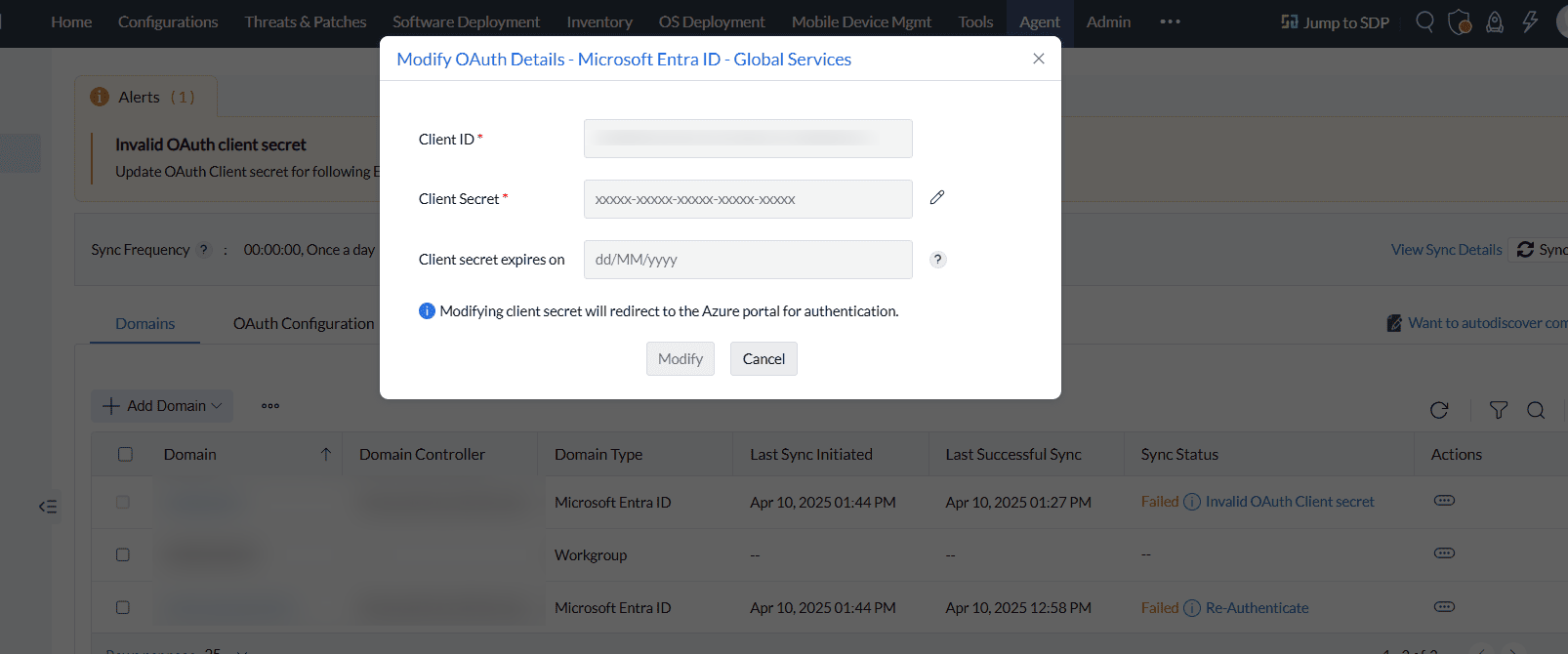
- Click Reauthenticate, You will be redirected to the Azure portal for authentication.




