How to Uninstall agent using Agent cleanup tool?
When an agent upgrade fails, the existing agent must be completely removed before a fresh installation can succeed. Uninstalling through the Control Panel does not remove all files, folders, and scheduled tasks left by the agent — AgentCleanupTool handles the full removal. This article covers cleanup after a failed agent upgrade or when the Central server has been uninstalled. The AgentCleanupTool can also be used to uninstall the agent when the uninstall OTP cannot be validated, for example because of an agent-server communication issue or after the maximum number of OTP attempts is reached. The tool uninstalls the agent without requiring the OTP, even when uninstall restriction is enabled in Agent Protection Settings.
If uninstalling the Endpoint Central agent through Control Panel fails with an “Internal error occurred” or a similar Windows Installer error, you may need to use the Agent Cleanup Tool instead. For Endpoint Central Cloud, contact support for assistance with obtaining the cleanup tool and providing the required DCAgent registry export.
- For Endpoint Central Cloud, contact support to obtain the AgentCleanupTool along with any one agent registry export.
- If the Central server has already been uninstalled and agents still remain on machines, contact support with an agent registry export — the support team will supply the correct cleanup tool.
- If you need a cleanup tool that remains valid beyond 48 hours, for example when decommissioning endpoints in bulk or migrating agents from another ManageEngine product, contact support with an agent registry export.
- To preserve the agent logs before you run the cleanup tool, see the Endpoint Central Windows Agent section of How To Send Logs To Support Team.
To collect agent information, navigate to the appropriate registry path for your Windows architecture.
32-bit Windows
HKEY_LOCAL_MACHINE\SOFTWARE\AdventNet\DesktopCentral\DCAgent64-bit Windows
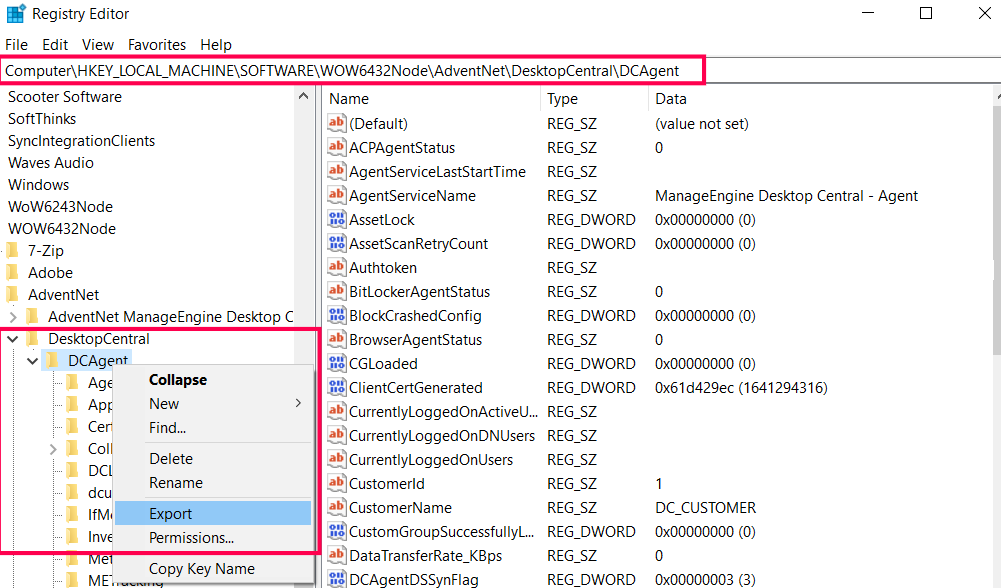
HKEY_LOCAL_MACHINE\SOFTWARE\WOW6432Node\AdventNet\DesktopCentral\DCAgentTo reach this path, open the Registry Editor by pressing Windows + R, typing regedit, and pressing Enter. Then export the key:
- Right-click the DCAgent key and select Export.
- Set Save as type to Registration Files (*.reg) and save the file.
- Compress the .reg file into a .zip file (not .rar or .7z) and attach it when you contact support.
The registry export can be taken from any machine on which the agent is installed and which is managed by the same Endpoint Central server. If the key is not present on the affected machine, export it from another machine.
If the Central server no longer exists and the DCAgent registry key is not present on any computer, a registry export cannot be taken and support cannot generate the AgentCleanupTool. As a fallback, check the 32-bit and 64-bit DCAgent registry paths given above and delete them if present. Then delete the following keys, if present, restart the computer, and retry the agent installation:
HKEY_CLASSES_ROOT\Installer\Products\F1322DA684FF95D4CA6204A5AF2ED37BHKEY_LOCAL_MACHINE\SOFTWARE\Classes\Installer\Products\F1322DA684FF95D4CA6204A5AF2ED37BHKEY_LOCAL_MACHINE\SOFTWARE\Microsoft\Windows\CurrentVersion\Installer\UserData\S-1-5-18\Products\F1322DA684FF95D4CA6204A5AF2ED37B
Manually deleting registry keys is not the recommended method, so use it only when no registry export is available. Back up the registry before you delete any keys.
A cleanup tool supplied by Support using an agent registry export is not subject to the 48-hour validity period. It can uninstall any installed version of the agent on computers managed by the server.
Step 1: Generate Cleanup Files
Download the AgentCleanupTool ZIP
Download Agent_Cleanup_Tool.zip to the machine where the Central server is installed.
In a Summary Server and Probe Server (distributed) setup, the machine where the Central server is installed is the Summary Server. Download and run the tool on the Summary Server, not on a Probe Server.
The ZIP contains all three components required for cleanup across platforms — you no longer need to download the macOS pkg or any other component separately.
- AgentCleanupTool.exe — main executable; run on the Central server to generate client-side cleanup files.
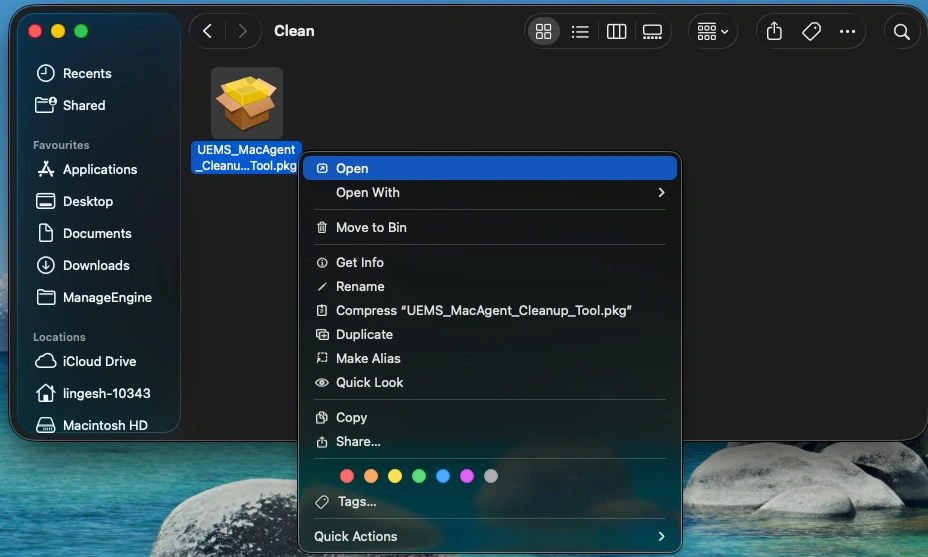
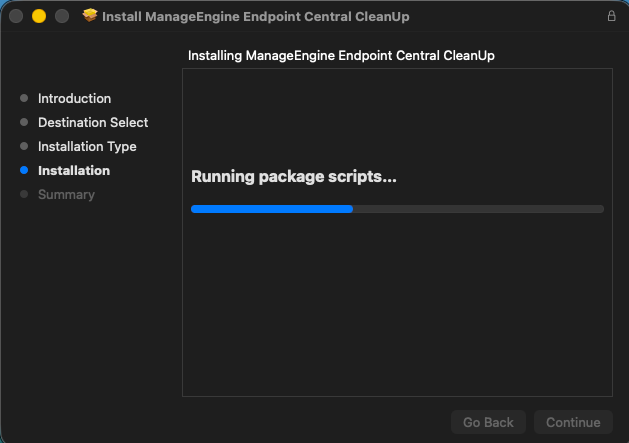
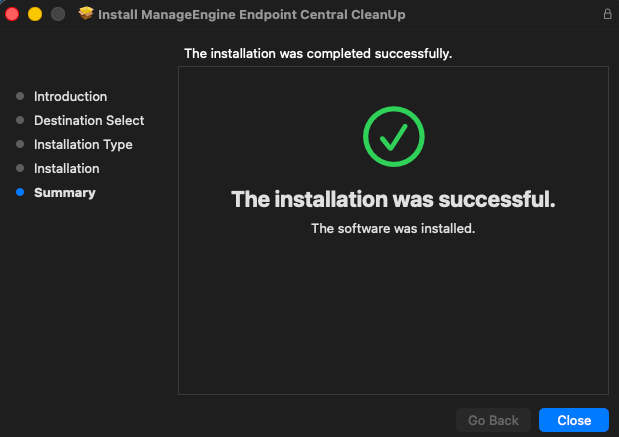
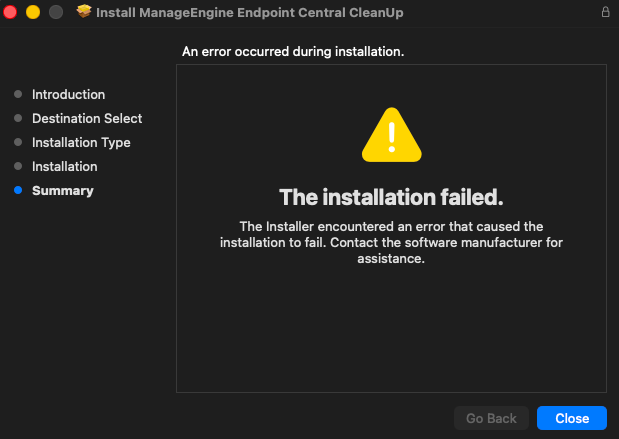
- UEMS_MacAgent_Cleanup_Tool.pkg — used for macOS agent cleanup.
- UEMS_LinuxAgent_Cleanup_Tool — used for Linux agent cleanup.
Generate client cleanup files
- Extract the ZIP and open Command Prompt as an administrator.
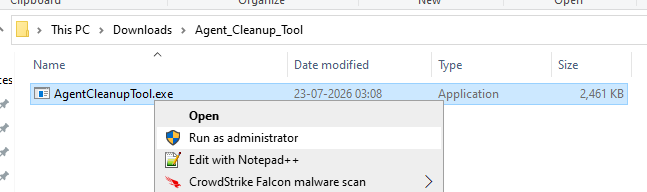
- Navigate to the directory where AgentCleanupTool.exe was extracted.
- Run the tool on the Central server machine:Command
AgentCleanupTool.exeWarningAgentCleanupTool.exe must be run on the machine where the Endpoint Central server is installed. In a Summary Server and Probe Server (distributed) setup, this is the Summary Server, even if the error names a Probe Server. If run on any other machine, an error will appear as shown below. For Endpoint Central Cloud, obtain the tool from support as described in Prerequisites instead of running this step.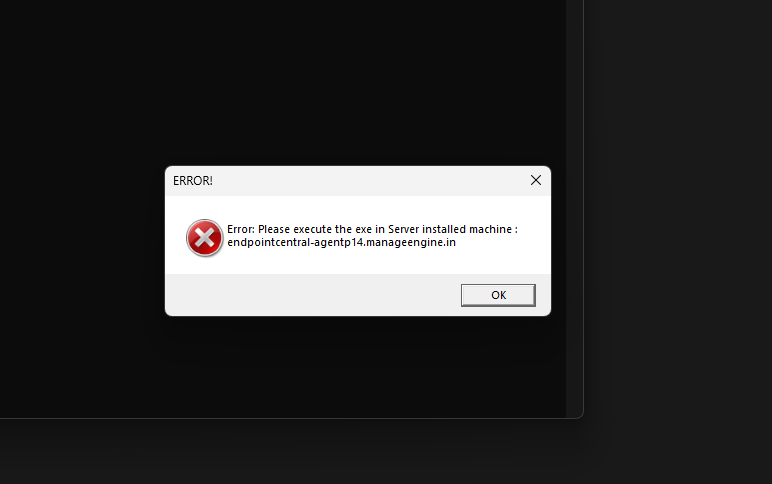
When run on the correct Central server machine, a SUCCESS dialog appears confirming that AgentCleanupToolClient.exe has been generated.
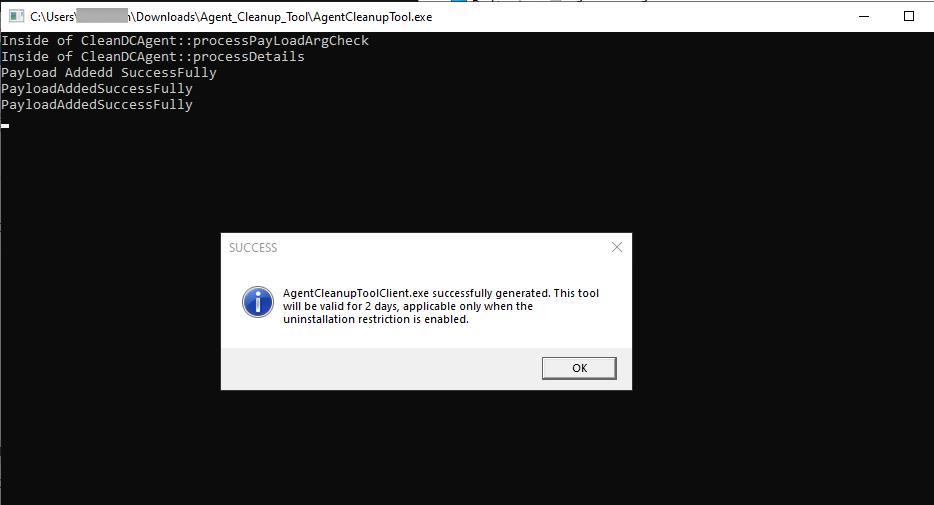
Click OK to proceed — this also triggers the generation of UEMS_MacAgent_UninstallInfo.plist for macOS agent cleanup and UEMS_LinuxAgent_UninstallInfo.json for Linux agent cleanup in the same directory.
- All generated files (AgentCleanupToolClient.exe, UEMS_MacAgent_UninstallInfo.plist, and UEMS_LinuxAgent_UninstallInfo.json) are valid for 48 hours only. If they expire, re-run AgentCleanupTool.exe on the Central server to regenerate them. The validity cannot be checked from the files themselves, so if you are unsure whether they are still valid, regenerate them.
- Do not rename any of the generated files. If AgentCleanupToolClient.exe is renamed, the tool stops with the error Error: Renamed AgentCleanupToolClient. The messages Failed To Read The Payload and Error: Renamed AgentCleanupToolSupport are shown for the same reason. A numeric suffix such as (1) or (2), which Windows adds when a file with the same name already exists in the folder, also counts as a rename, so confirm that the file is named exactly AgentCleanupToolClient.exe before you run it.
Step 2: Uninstall the Agent
Select your platform and follow the steps to remove the agent.
- Copy AgentCleanupToolClient.exe to the target Windows machine where the agent needs to be removed.
- Run AgentCleanupToolClient.exe as an administrator. If right-clicking the file and selecting Run as administrator does not work, open Command Prompt as an administrator and run AgentCleanupToolClient.exe from it.
- The tool runs silently. A Command Prompt window briefly opens and closes, and no confirmation dialog appears. If you run it from Command Prompt, the console shows Validation Success! Uninstallation of Agent begins. To confirm that the agent is removed, check that it is no longer listed under Programs and Features in the Control Panel. The tool also writes a log file named AgentUninstallation.log in the folder it is run from.
If AgentCleanupToolClient.exe displays Uninstall Restriction Enabled! Validation failed! Uninstallation of Agent wont occur, Security Error: Invalid ServerHashTime the cleanup tool does not match the computer. This can happen when:
- The generated files have expired.
- The files were generated by a server other than the one the computer currently reports to, for example after the computer is migrated to Endpoint Central Cloud.
- The agent registry key is no longer present on the computer, for example after a partial uninstall.
In each case, contact support with a fresh agent registry export to obtain a newly generated AgentCleanupToolClient.exe. If AgentCleanupToolClient.exe cannot be run even with administrator rights, contact support.
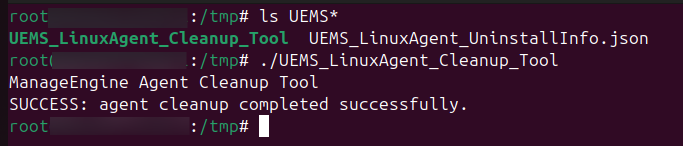
- From the extracted ZIP, locate UEMS_LinuxAgent_Cleanup_Tool.
- Copy both UEMS_LinuxAgent_UninstallInfo.json (generated in Step 1) and UEMS_LinuxAgent_Cleanup_Tool to the target Linux machine. Both files must be in the same folder.
- Run the cleanup tool using the following command:Command
chmod +x UEMS_LinuxAgent_Cleanup_Tool && ./UEMS_LinuxAgent_Cleanup_Tool

Remove the Computer from the Server
The AgentCleanupTool removes the agent software from the endpoint only. To remove the computer record from the Endpoint Central console, navigate to Agent → Computers, select the computers to remove, and choose Remove Computers.
After you reinstall the agent, if the computer does not appear in the list for approval, check the Re-Approve filter under Computer(s) for Approval.