Event ID 6008: Fix unexpected shutdown in Windows
Last updated on:In this page
What is event ID 6008?
Event ID 6008 is a System-log entry Windows writes on the next successful boot after an unclean shutdown. The default message reads:
The previous system shutdown at [time] on [date] was unexpected.
The key attributes:
- Log name: System
- Source: EventLog
- Level: Error
- Category: None
- User: N/A
The event doesn't tell you why the shutdown was unexpected. It only tells you the shutdown sequence didn't complete. Windows never got the shutdown initiated or clean stop markers before the machine went dark. That's why 6008 rarely appears alone. Something else caused the reboot; 6008 is the aftermath.
Event log monitoring tools enable monitoring such scenarios and their causes. Here are two things to know before you troubleshoot:
A single event ID 6008 after a known power blip or a forced power-cycle is normal. One occurrence is not, by itself, a reason to escalate.
Recurring event IDs 6008 are a red flag. Two or more within a week on the same host means something is failing, and you should treat it that way.
Unexpected shutdowns catching you off guard?
Track every Event 6008, see which servers went down, and get real time alerts when it happens again.
What causes event ID 6008?
Here are nine common causes for an unexpected shutdown:
| No. | Cause | What to look for |
|---|---|---|
| 1 | Power loss (main outage, uninterruptible power supply [UPS] drop, tripped breaker) | 6008 timestamp lines up with a facility power event; no dump file, no BSOD trace |
| 2 | Failing PSU | Repeated 6008 on the same host with no facility-side power event |
| 3 | Overheating (dust, dead fan, ambient AC failure) | Event 41 with BugcheckCode 0; BIOS thermal shutdown; no OS-level dump |
| 4 | RAM failure | 6008 alongside recurring 0x0000001A, 0x00000050, or 0x0000007E BSODs |
| 5 | Disk failure (bad sectors, SATA/NVMe faults) | Event ID 7 or event ID 51 in the System log; SMART warnings |
| 6 | Driver conflict (recent install or vendor update) | 6008 within a few days of a Device Manager change; Event 219 or 7000 nearby |
| 7 | Kernel crash/BSOD | Event 1001 (BugCheck) or event 41 (Kernel-Power) in the same window |
| 8 | Bad Windows update | 6008 clusters across hosts after a monthly update wave; event 20 in the neighborhood |
| 9 | Malware or forced reboot from a compromise | Unusual logons, new services, or scheduled tasks created around the 6008 timestamp |
How to troubleshoot and fix event ID 6008
Work through the steps in order. Each one narrows the fault domain before you touch the next.
1. Check surrounding events in Event Viewer
Open Event Viewer > Windows Logs > System. Filter by Event Sources: EventLog, Kernel-Power, and BugCheck. Then look for these IDs that occurred within a five-minute window before or after the 6008 timestamp:
- 6005: The Event log service was started. Marks the boot after the crash. Will always be present alongside 6008.
- 6006: The Event log service was stopped. Marks a clean shutdown. If 6006 is missing right before 6008, the shutdown was not orderly (which is expected).
- 41: Kernel-Power. Confirms the system rebooted without cleanly shutting down. The BugcheckCode field is the one that matters; a non-zero value points to a BSOD.
- 1001: BugCheck. Written when Windows generated a memory dump. Contains the stop code you'll need for step six.
If event 41 shows BugcheckCode 0x0 and PowerButtonTimestamp 0x0, the machine lost power hard. Jump to step two. If event 1001 is present, jump to step six.
2. Rule out power supply and battery issues
For hosts on a UPS: Pull the UPS event log. Most APC, Eaton, and Vertiv units record battery transfers, low-battery warnings, and self-test failures. Match those timestamps against your 6008 timestamps. A UPS that's silently on battery for 20 seconds a week is the single most common cause of "mystery" reboots on hardware that otherwise looks healthy.
For laptops: A battery past its useful life can trip an unexpected shutdown under load even when the AC is plugged in. Run powercfg /batteryreport and check Design Capacity against Full Charge Capacity. Under 50% design capacity is worth replacing.
For desktops without a UPS: Swap the PSU or bench-test it. A tester will tell you whether the rails are stable.
3. Check for overheating
Open the chassis. Look at the fans. A CPU fan choked with dust will throttle the processor until BIOS trips a thermal shutdown, which surfaces as event ID 6008 with no dump file at all. Run HWMonitor, HWiNFO, or Open Hardware Monitor for a few hours under normal load and watch idle and peak temperatures. Idle CPU above 60°C or peak above 90°C on a desktop chip usually points to a fan problem or dried thermal paste.
In server rooms, check ambient temperature history for the rack. An AC unit that stops cooling overnight will take down whichever host sits closest to the return.
4. Test hardware (RAM, disk, PSU)
Bad RAM is the second-most common hardware cause behind PSU. Run Windows Memory Diagnostic (mdsched.exe) during a maintenance window, or better, boot MemTest86 from a USB stick and let it run four full passes. One bad address is one too many.
For disks: chkdsk C: /f /r on the next reboot, and check SMART with CrystalDiskInfo. On servers, look for event ID 7 (The device has a bad block) and event ID 51 (An error was detected on device… during a paging operation). Either is a strong signal.
For PSU under sustained load: Workstations with heavy GPU draw will pass idle tests and fail when the GPU spikes. Load-test the PSU with the actual workload, not just at idle.
5. Update or roll back drivers
Correlate the 6008 date with recent driver changes. In Device Manager, right-click any recently updated device and check its Driver Date. Anything within a week of the first 6008 is a suspect. Roll it back.
For a broader sweep, enable Driver Verifier (verifier.exe) with the standard settings on non-Microsoft drivers only. Verifier will force a bugcheck if it catches a misbehaving driver, so run it on a lab machine or during scheduled downtime, and read the resulting dump per step six.
Storage and networking drivers cause the majority of driver-triggered 6008 events. GPU drivers on servers with iDRAC or iLO management can also trigger it, especially after a BIOS firmware update.
6. Analyze BSOD dump files
If step one turned up event 1001, there's a dump waiting. Standard locations:
- Minidumps: C:\Windows\Minidump\*.dmp
- Kernel dump: C:\Windows\MEMORY.DMP
Install WinDbg (part of the Windows SDK), open the dump, and run !analyze -v. The output names the faulting module in most cases. If the module is a third-party driver, go back to step five. If it's ntoskrnl.exe or hal.dll, the actual fault is usually elsewhere—the OS was the messenger, not the cause.
Common stop codes and where they point:
- 0x0000001A: MEMORY_MANAGEMENT (RAM or a driver mishandling memory)
- 0x00000050: PAGE_FAULT_IN_NONPAGED_AREA (RAM, disk, or driver)
- 0x0000007E: SYSTEM_THREAD_EXCEPTION_NOT_HANDLED (driver)
- 0x00000124: WHEA_UNCORRECTABLE_ERROR (hardware, usually CPU or motherboard)
- 0x0000009F: DRIVER_POWER_STATE_FAILURE (driver, very common on laptops)
7. Scan for malware
This isworth doing only after steps one through six come up empty and the 6008 pattern isn't tied to hardware or driver changes. Perform a full scan with Microsoft Defender first, then do a second pass with Malwarebytes or ESET. Check Scheduled Tasks for anything recent you didn't create, and pull the Security log for logons around the 6008 timestamp. A compromised host will sometimes forcibly reboot after a payload runs.
8. Review recent Windows updates
Open Settings > Windows Update > Update history, or run:
Get-WinEvent -LogName System | Where-Object {$_.Id -eq 19}
to list installed updates from the event log. If your first 6008 landed within 48 hours of an update, uninstall it with wusa /uninstall /kb:KBNumber and watch the host for a week. If the correlation holds across hosts, report the KB to Microsoft. Cumulative updates for Windows Server 2019, 2022, and 2025 have all shipped at least one build in the last two years that caused reboot loops on specific hardware. It's not paranoia—it's pattern recognition.
How to monitor and get alerted on event ID 6008
ManageEngine EventLog Analyzer picks up event ID 6008 through standard Windows log collection—agentless or agent-based, depending on your environment. Once the host is added, you can build an alert profile that fires the moment 6008 hits any monitored system.
How to set it up:
- Go to EventLog Analyzer > Alerts > Add Alert Profile.
- Set the criteria to Event ID = 6008, Log Type = System, and Source = EventLog. Name it something obvious like Unexpected Shutdown.
- Pick the notification path: SMS, email, or both.
- The security admin getting the notifications can use the details in the event alert message to check if this event was logged multiple times in the same system.
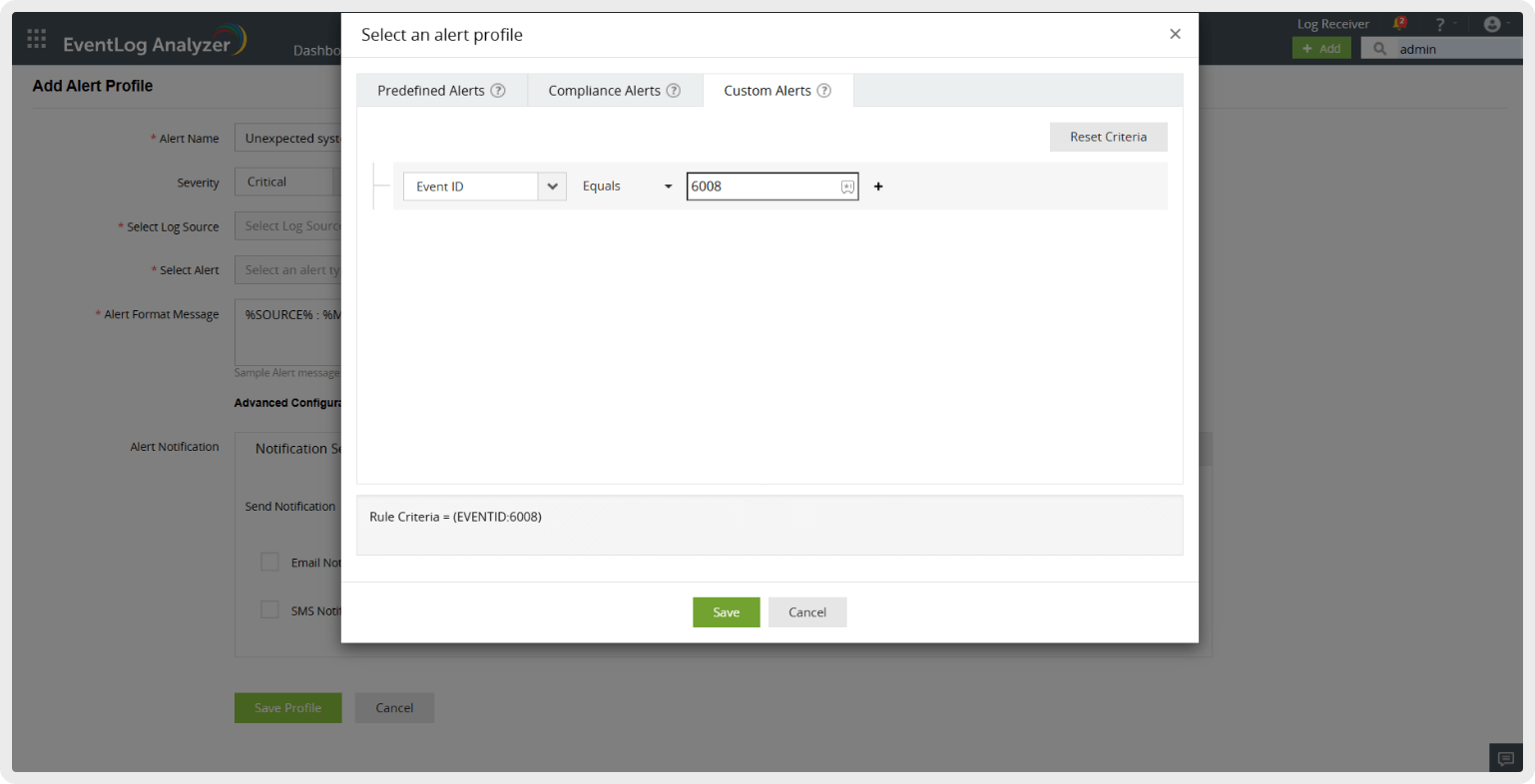
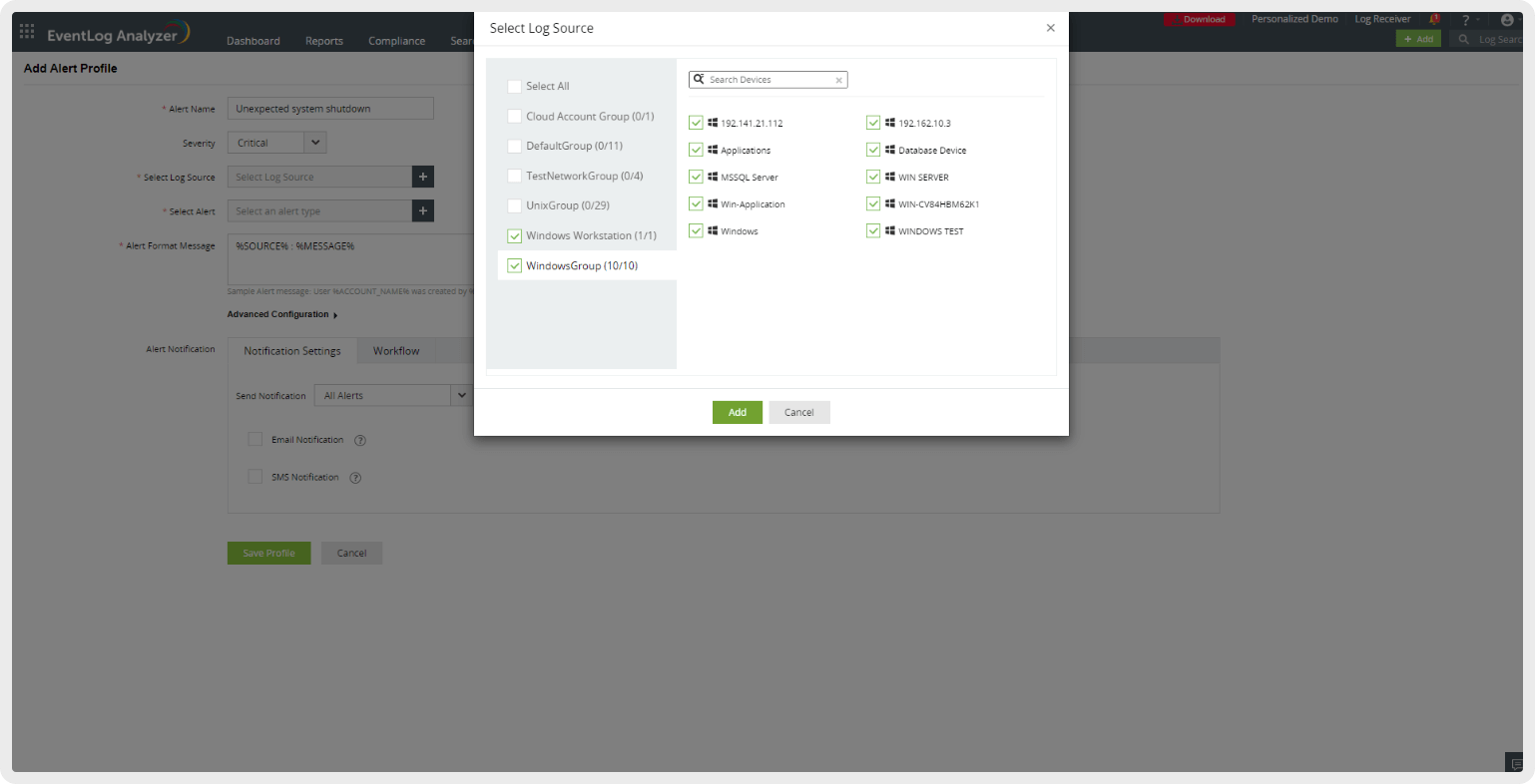
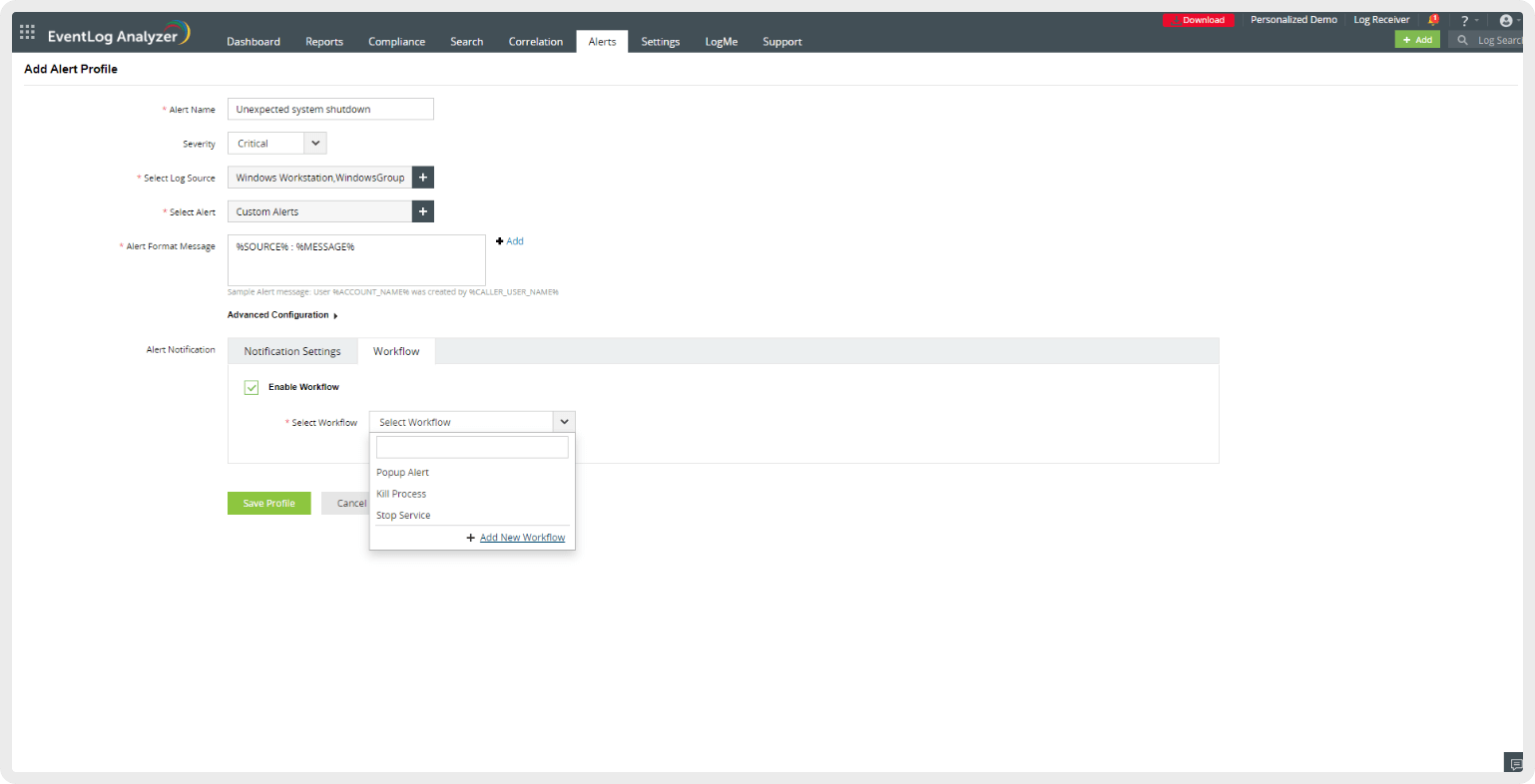
Diagnose and address unexpected system shutdowns effectively with EventLog Analyzer’s root cause analysis and real-time alerts.
Frequently asked questions
Is event ID 6008 serious?
A single 6008 event after a known power blip or a forced reboot isn't serious. Recurring 6008 events—two or more within a week on the same host—should be treated as a hardware or driver problem until proven otherwise.
What's the difference between event ID 6008 and event ID 6006?
Event ID 6006 is written when the Event Log service stops cleanly, meaning a normal orderly shutdown. Event ID 6008 is written on the next boot when the previous shutdown wasn't orderly—6006 was missing before the machine went dark. In practice: 6006 present = clean shutdown; 6008 without a preceding 6006 = unexpected reboot.
How do I fix "The previous system shutdown was unexpected"?
Check Event Viewer for events just before the 6008 entry. Analyze minidumps in C:\Windows\Minidump for BSODs, test RAM and PSU, monitor temperatures, update drivers and BIOS, run chkdsk /f /r, and disable Fast Startup to isolate power-state issues.
How do I solve "The system has rebooted without cleanly shutting down first"?
This is Kernel-Power Event 41. Check its BugcheckCode: nonzero means a BSOD—analyze the minidump. Zero usually indicates hardware failure, so test PSU, RAM, and temperatures; reseat power cables; update GPU drivers; and disable Fast Startup.