Remote Desktop Protocol (RDP) port
Last updated on:In this page
- What is RDP?
- -What is port 3389?
- -What is RDP used for?
- -How does RDP work?
- How to change RDP ports in Windows
- -Using Registry Editor
- -Using PowerShell
- Limitation of RDP and its alternates
- -Limitations of RDP
- -Alternates to RDP
- Best practices in securing RDP port
- How EventLog Analyzer helps in monitoring RDP ports
- -Key features for RDP security
- -How EventLog Analyzer helps with RDP security
What is RDP?
Remote Desktop Protocol (RDP) is a Microsoft-developed protocol that enables remote access and control of computers. It offers a secure, graphical interface for remote interactions, facilitating tasks like application management, file access, and system administration. RDP is widely used in IT support, remote work, and system administration, providing a reliable and efficient way to connect to remote systems. By establishing an encrypted connection over port 3389, RDP ensures secure data transmission, screen rendering, and keyboard input, making it a valuable tool for both organizations and individuals.
What is port 3389?
Port 3389 is the default port used by the RDP to establish remote connections. It facilitates communication between a client and a server, allowing users to control remote desktops. Operating over Transmission Control Protocol (TCP) and User Datagram Protocol (UDP), port 3389 ensures reliable data transfer and smooth remote sessions. As the standard RDP port, it's often configured in firewalls and routers to enable remote access within organizations.
What is RDP used for?
RDP enables remote control of a computer or server, commonly used for:
- Remote work: Allows employees to access work computers from any location, with full access to files and applications.
- IT support: Helps IT teams troubleshoot and fix issues remotely, speeding up resolutions.
- System administration: Enables admins to manage servers and perform tasks from afar, which is essential for enterprise setups.
- File and resource access: Provides users with remote access to files, printers, and network resources, streamlining collaboration across devices.
How does RDP work?
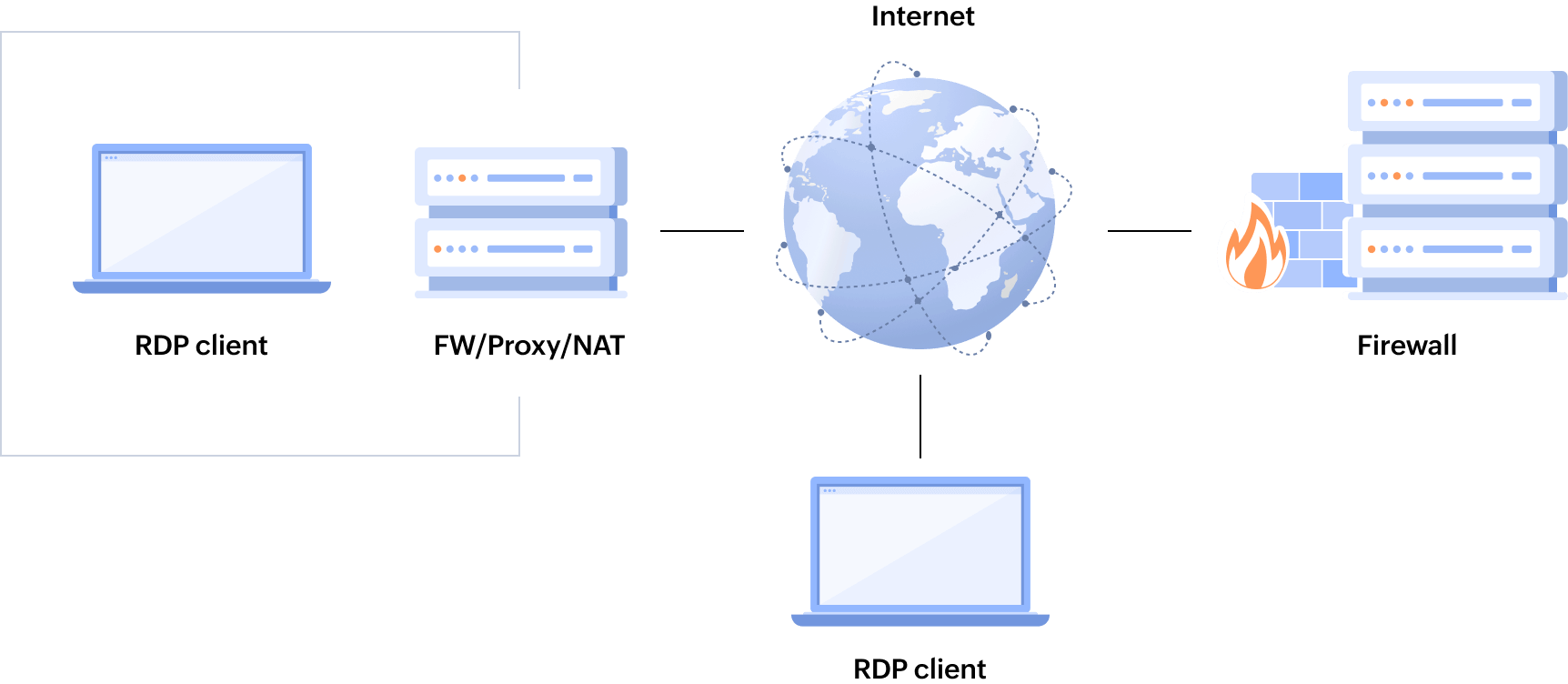
RDP allows a user to control a remote computer through a secure, encrypted connection. Here’s how it works:
- Connection initiation: The user opens an RDP client, enters the remote computer’s IP address, and starts a connection over port 3389.
- Authentication: The remote computer verifies the user’s credentials and establishes a secure session.
- Session setup: The server sends graphical data (desktop and applications) to the client for display.
- Data transmission: Keyboard and mouse inputs are sent to the server, while updates are sent back to the client.
- End of session: The session ends when the user logs out or disconnects, closing the remote connection.
How to change RDP ports in Windows
Changing the default RDP port (3389) can enhance security by making it harder for unauthorized users to access your system. Here's how to do it.
Using Registry Editor
- Open Registry Editor: Press the Windows key, type "regedit", then press Enter.
- Navigate to the RDP-Tcp key: Go to the following location:
HKEY_LOCAL_MACHINE\SYSTEM\CurrentControlSet\Control\Terminal Server\WinStations\RDP-Tcp\PortNumber - Edit the PortNumber:
- Double-click on the PortNumber entry.
- Change the value to your desired port number (e.g., 3390).
- Click OK.
- Restart your computer: This is necessary for the changes to take effect.
Using PowerShell
- Open PowerShell as Administrator.
- Run the following command, replacing "3389" with your desired port number:
Set-ItemProperty -Path "HKLM:\SYSTEM\CurrentControlSet\Control\Terminal Server\WinStations\RDP-Tcp" -Name PortNumber -Value 3390
Firewall rules: After changing the port, you'll need to adjust your firewall rules to allow incoming connections on the new port.
Remote Desktop Connection: When connecting to the remote computer, you'll need to specify the new port number in the Remote Desktop Connection client.
Limitations of RDP and its alternates
Limitations of RDP
RDP is useful for remote access but has the following limitations:
- Security risks: RDP’s default port (3389) is often exposed, making it vulnerable to scans and attacks. Without strong passwords or multi-factor authentication, it’s susceptible to brute-force attacks. Default encryption may also be insufficient for enterprise needs.
- Single-user limitation: RDP generally supports one user per session, restricting multiple simultaneous connections and potentially raising administrative costs.
- High bandwidth requirement: RDP demands stable, high bandwidth; low-bandwidth environments can result in lag, especially for graphics-intensive tasks.
- Compatibility issues: RDP is optimized for Windows, limiting functionality on non-Windows systems and reducing flexibility in mixed-OS setups.
Alternates to RDP
Due to security concerns with RDP port 3389, alternative remote access methods are often preferred:
- Virtual Network Computing (VNC): VNC offers a platform-independent, graphical interface for remote control using the Remote Frame Buffer (RFB) protocol, supporting diverse operating systems.
- Secure Socket Shell (SSH) port forwarding: SSH port forwarding secures remote desktop connections by encrypting the data, which is especially useful over public Wi-Fi networks.
Best practices in securing RDP ports
Here are some best practices to secure your RDP ports:
- Network security
- Restrict access: Limit RDP to authorized users and specific IPs.
- Firewall rules: Block RDP connections from untrusted sources.
- Network segmentation: Isolate RDP servers on a separate network.
- VPN: Require VPN use for secure remote access.
- Account security
- Strong passwords: Use strong, unique passwords for RDP accounts.
- Two-factor authentication: Implement two-factor authentication to add a layer of security.
- Account lockout policies: Configure account lockout policies to prevent brute-force attacks.
- The principle of least privilege: Grant users only the necessary permissions to perform their tasks.
- RDP configuration
- Change default port: Use a less common port instead of 3389.
- Disable unnecessary features: Turn off file transfers and remote app sharing.
- Enable network-level authentication (NLA): Add an extra layer of security by enabling NLA, which requires authentication before establishing a full RDP session.
- Regular security updates: Keep the RDP software and OS on each system up-to-date with security patches.
- Monitoring and logging
- Log monitoring: Monitor system and security logs for unusual activity.
- Intrusion detection systems (IDS): Implement IDS to detect and alert on malicious activity.
- Security information and event management (SIEM): Use SIEM to correlate security events and identify potential threats.
- Additional tips
- Security awareness training: Educate users about the risks of phishing attacks and social engineering.
- Regular security audits: Conduct regular security assessments to identify and address vulnerabilities.
- Consider alternative remote access solutions: Explore more secure options like SSH or VPNs for specific use cases.
By following these best practices, you can significantly enhance the security of your RDP environment and protect your systems from cyberattacks.
How EventLog Analyzer helps in monitoring RDP ports
ManageEngine EventLog Analyzer is a powerful log management tool that can significantly enhance the security posture of systems that rely on RDP. By effectively monitoring and analyzing system logs, it can detect and respond to potential threats associated with RDP.
Key features of EventLog Analyzer
- Real-time monitoring
- Log collection: Collect logs from various sources, including Windows event logs, syslog servers, and network devices.
- Real-time analysis: Analyze logs in real time to identify suspicious activities, such as failed login attempts, unauthorized access, and unusual network traffic.
- Security event correlation
- Correlating events: Correlate events from different sources to identify complex attack patterns.
- Identifying threats: Detect advanced threats, such as zero-day attacks, by analyzing behavioral patterns.
- Anomaly detection
- Baselining normal behavior: Establish a baseline of normal system behavior.
- Detecting deviations: Flag any deviations from the baseline, which could indicate malicious activity.
- Security reports and alerts
- Customizable reports: Generate detailed reports on security incidents, user activity, and system performance.
- Real-time alerts: Receive timely alerts for critical security events, such as unauthorized login attempts or data breaches.
- Integration with SIEM solutions
- Centralized security management: Integrate EventLog Analyzer with a SIEM solution—such as ManageEngine Log360—to gain a comprehensive view of security threats across the entire IT infrastructure.
How EventLog Analyzer helps with RDP security
ManageEngine EventLog Analyzer provides comprehensive monitoring and alerting for RDP activities, helping organizations enhance security and align defenses with the MITRE ATT&CK framework.
- Brute-force attack detection: Analyzes repeated failed login attempts to uncover credential-guessing activities associated with the Brute Force tactic.
- Unauthorized access identification: Monitors RDP logins and activities to detect threats related to the Valid Accounts technique.
- Unusual access patterns: Provides insights into activities like RDP over Reverse SSH Tunnel WFP and RDP Login from Localhost, identifying unconventional methods tied to the Lateral Movement and Defense Evasion techniques.
- Session hijacking prevention: Flags suspicious RDP redirection attempts using TSCON, addressing Credential Access and Privilege Escalation tactics.
- Configuration change monitoring: Tracks activities such as Netsh RDP port forwarding and port opening to detect Persistence or Defensive Evasion tactics.
- Exploitation detection: Specializes in identifying vulnerability exploits like CVE-2019-0708 (BlueKeep) and Exploitation of Remote Services, aligning with MITRE ATT&CK Initial Access techniques.
By offering actionable insights, EventLog Analyzer empowers organizations to detect threats early, align monitoring with MITRE ATT&CK techniques, and proactively address vulnerabilities, ensuring robust security for remote access environments.