Resolving WHEA uncorrectable errors
in Windows 10
Last updated on: In this page
The Windows Hardware Error Architecture (WHEA) uncorrectable error is a blue screen of death (BSOD) issue caused by hardware-related malfunctions. This usually signals that a hardware component has failed or is not functioning properly. Common causes include faulty memory, CPU issues, overheating, power supply problems, or corrupted device drivers. It can also stem from system file corruption or BIOS misconfigurations. Since this error often indicates a severe issue, addressing it promptly is crucial to prevent further damage or data loss.
Understanding the WHEA uncorrectable error in Windows 10
These errors often indicate underlying hardware issues that require immediate attention. Some common causes of WHEA errors include:
- Faulty hardware: Defective components, such as the CPU, RAM, motherboard, or storage devices, can be the primary culprits behind these errors. Over time, these components can experience wear and tear, leading to malfunctions or failures.
- Overheating: Excessive heat can cause hardware components to operate outside their optimal temperature range, leading to instability and potential damage. This is particularly common for components like the CPU and GPU, which generate significant heat during operation.
- Software conflicts: Incompatible or outdated drivers or software can interfere with hardware operations, causing WHEA errors. This can occur when software is not designed to work correctly with specific hardware configurations or when drivers are not updated to the latest versions.
- Power supply issues: A faulty power supply can deliver unstable or insufficient power to hardware components, causing them to malfunction or fail. This can be particularly problematic for high-performance systems that require a reliable and consistent power supply.

Troubleshooting WHEA uncorrectable errors in Windows 10
- There are different ways of troubleshooting the WHEA error. However, selecting the right method involves identifying the root cause of the issue. To identify the root cause, we recommend you check your system logs to get more details on the error. To do this, open the Event Viewer (search for Event Viewer in the Start menu).
- Navigate to Windows Logs > System .
- Look for entries related to WHEA errors. These entries will provide details about the affected component and error code.
The below methods will help you troubleshoot WHEA errors.
- Identify the faulty component
- You can pinpoint the problematic component by examining the Event Viewer data. If the error consistently indicates a specific component, it is probable that this component is the source of the issue.
- For example, if multiple errors are consistently linked to the CPU, it could be experiencing overheating or a hardware defect. Overheating can be caused by a variety of factors, such as insufficient cooling, excessive dust buildup, or a faulty cooling fan. Hardware defects, such as manufacturing defects or physical damage, can also lead to CPU errors. To determine the exact cause, you may need to perform additional diagnostics, such as checking CPU temperatures with a thermal imaging camera or running hardware stress tests.
- Check if the hardware failure is due to overheating
- Ensure proper airflow within your computer case. Remove any dust buildup.
- Use a thermal imaging camera or a temperature monitoring tool to check the temperatures of your CPU, GPU, and other components.
- In the event of excessive component temperatures, it is recommended to reapply thermal paste or replace the cooling solution. Thermal paste is a heat-conductive material that facilitates efficient heat transfer between a heat-generating component (such as a CPU or GPU) and a heat-dissipating device (such as a heat sink or water block) . In cases where a liquid cooling system is employed, the cooling solution, typically a mixture of water and antifreeze, plays a vital role in absorbing heat from the components. If the cooling solution becomes compromised or degraded, it may need to be replaced to maintain effective cooling performance. By addressing these factors, you can effectively prevent overheating and ensure the long-term reliability of your hardware.
- Update drivers
- Outdated drivers can cause hardware compatibility issues. Visit the manufacturer's website to download and install the latest drivers for your motherboard, graphics card, and other components.
- Test hardware components
- If you suspect a specific component, try isolating it. For example, if you suspect an issue with the RAM module, remove all but one and test the system. If the error persists, that RAM module is likely faulty.
- Consider using a hardware diagnostic tool to perform more in-depth tests.
- Check for software conflicts
- Temporarily disable any recently installed software or drivers to see if the error persists. If the error disappears, the newly installed software or driver might be causing the issue.
- Verify the power supply
- A faulty power supply can lead to unstable power delivery, causing hardware problems. If you suspect the power supply is the problem, try using a different one.
How ManageEngine EventLog Analyzer helps in identifying WHEA uncorrectable errors
EventLog Analyzer is a robust log management solution that centralizes the collection, monitoring, correlation, and archiving of logs across your network. It serves as an all-in-one tool to help organizations troubleshoot errors, enhance security, and ensure compliance with regulatory requirements.
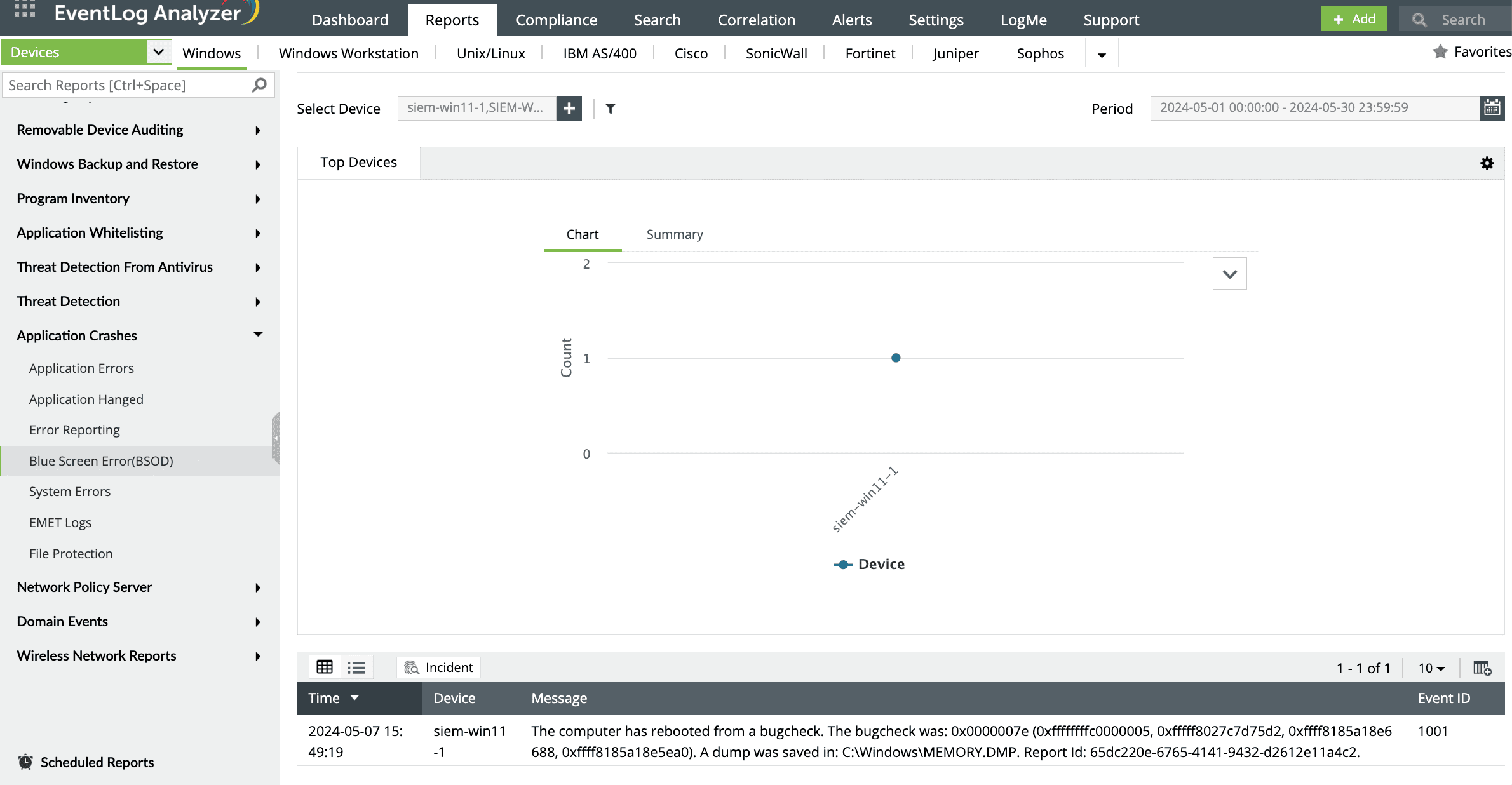
With EventLog Analyzer, you can generate ready-made reports that automatically analyze event logs, diagnosing common causes of BSOD errors, unexpected shutdowns, and system restarts. These reports are presented through intuitive visualizations, including a detailed table that clearly displays the source of forced shutdowns, along with the date and time of the event, in an easy-to-read format.