What are Windows event logs?
Last updated on:In this page
- What are Windows event logs?
- What is the difference between a log and an event?
- How does Windows event logging work?
- How important are event logs?
- What are the key components of event entries?
- What tools are available to access and view Windows event logs?
- - Using Windows Event Viewer
- - Using PowerShell
- - Using log management tools
- What are the best practices for using Windows event logs?
- How to optimize Windows event log management with EventLog Analyzer
Windows event logs are detailed records maintained by the Windows operating system that capture significant system, security, and application events. These logs provide a centralized repository for event recording and serve as an essential tool for diagnosing issues, monitoring system health, and enhancing security. This is done by documenting a wide range of activities, including system startups and shutdowns, hardware malfunctions, software errors, and user actions.
Each log entry includes critical details such as event severity (information, warning, error, or critical), date and time of occurrence, source of the event, and a unique event ID. This information aids in identifying potential issues and taking proactive measures to maintain system stability and security.

Let's learn more about how Windows event logs work, why they are essential, and more.
What is the difference between a log and an event?
While both events and logs may seem similar, they are not. Events are single data points, real-time and specific, while logs are structured records containing multiple events. In other words:
- Event: An event is a specific occurrence or action that happens on a system or application, such as a login attempt, a file being accessed, or an application error. Events are typically discrete and signify a single point of activity.
- Log: A log is a record or collection of records where events are written, usually in chronological order. Logs are essentially repositories of events, capturing detailed information about each occurrence for reference and analysis.
While Windows provides a native tool, Event Viewer, to filter, analyze, and search logs, Windows log analysis is much easier with third-party tools like ManageEngine EventLog Analyzer.
How does Windows event logging work?
Windows event logging involves several steps to ensure comprehensive tracking and analysis of system activities, which are as follows:
- Event generation: Events are generated when specific actions occur within the system, such as a user logging in, an application crashing, or a system startup. These actions can stem from various components, like system processes, security operations, or application behaviors.
- Event logging: You need to enable logging for specific events. When enabled in the respective consoles, these events are then written or logged into a specific Windows event log category, such as Application, System, Security, or custom logs. Each log type includes a category of events including:
- Application: Tracks activity and issues from installed programs.
- System: Records events from Windows system components.
- Security: Documents security-related activities, including login attempts and access control events.
- Event details: Each event in a log entry contains specific details, including event ID, source, severity, timestamp, and description.
- Storage and access: Windows event logs are locally stored and accessible through the system's Event Viewer, a built-in tool designed to view and search event records and organize and present various log types for efficient navigation and analysis.
Administrators can analyze these logs to detect patterns, diagnose problems, or identify security threats. While Windows Event Viewer itself doesn’t support direct alerting, notifications for specific events can be configured using the Task Scheduler by attaching tasks to events, such as sending an email or running a script.
For more advanced capabilities, tools like ManageEngine EventLog Analyzer enable real-time alerting across multiple sources, offering centralized monitoring and proactive notifications via email or SMS.
How important are Windows event logs?
Windows event logs play a crucial role in maintaining system integrity, security, and reliability. Here's why they are important:
- Troubleshooting: Event logs serve as a valuable tool for diagnosing system issues and errors. By examining event entries, administrators can pinpoint the root cause of problems and implement appropriate solutions.
- Monitoring: Continuous monitoring of event logs enables administrators to detect abnormal behavior, security breaches, and performance bottlenecks in real time. This proactive approach helps in identifying and mitigating potential threats before they escalate.
- Security: Event logs contain vital information about security-related events, such as failed login attempts, account modifications, and malware detections. By analyzing these logs, security professionals can identify security breaches, unauthorized access attempts, and other malicious activities.
- Performance optimization: Monitoring performance-related events in the event logs helps administrators identify resource utilization issues, application crashes, and other performance bottlenecks. This information enables them to optimize system performance and enhance the user experience.
- Compliance: Many regulatory standards and industry guidelines require organizations to maintain detailed logs of system activities for compliance purposes. Windows event logs facilitate compliance auditing by providing a comprehensive record of system events.
What are the key components of Windows event logs?
Each event entry in the Windows event log contains several key components that provide essential details about the event. These components typically include:
- Event ID: A unique identifier assigned to each event type, which helps in categorizing and filtering events based on their nature.
- Timestamp: The date and time when the event occurred, allowing administrators to establish a chronological sequence of events.
- Event source: The application, service, or component that generated the event, providing context about the origin of the event. Some of the commonly used event sources include:
- Windows event logs (application, system, security)
- Identity management systems (Active Directory, Entra ID), etc.
- Severity level: Indicates the importance or severity of the event, ranging from informational to critical , helping administrators prioritize their response. The different severity levels in Windows logs include:
- Information
- Definition: This level indicates that an event occurred successfully without any issues. Most logs contain information events, which serve as a record of routine operations.
- Purpose: Used for tracking normal operations and confirming that processes are functioning as expected.
- Verbose
- Description: Verbose logs provide detailed information about the progress or success of specific events. They are more granular than information logs and can include extensive details.
- Purpose: Useful for troubleshooting and understanding the flow of operations in applications.
- Warning
- Description: This level highlights potential problems that system administrators should monitor. Warnings do not indicate immediate issues but suggest that attention may be needed in the future.
- Purpose: Helps in proactive management by alerting administrators to possible future failures.
- Error
- Description: Error logs describe issues within the system or service that do not require immediate attention but indicate that something has gone wrong.
- Purpose: Provides insight into problems that need to be addressed to prevent further complications.
- Critical
- Description: This level denotes a significant issue within an application or system that requires urgent attention. Critical events often indicate failures that could lead to system downtime or data loss.
- Purpose: Alerts administrators to serious problems that must be resolved immediately to maintain system integrity and performance

- Information
- Description: A detailed description of the event, including relevant information such as error codes, error messages, and additional contextual data.
- User information: If applicable, the username or account associated with the event, providing insights into user actions and behaviors.
- Event data: Additional structured data specific to the event type, which may include parameters, error details, and other relevant information.
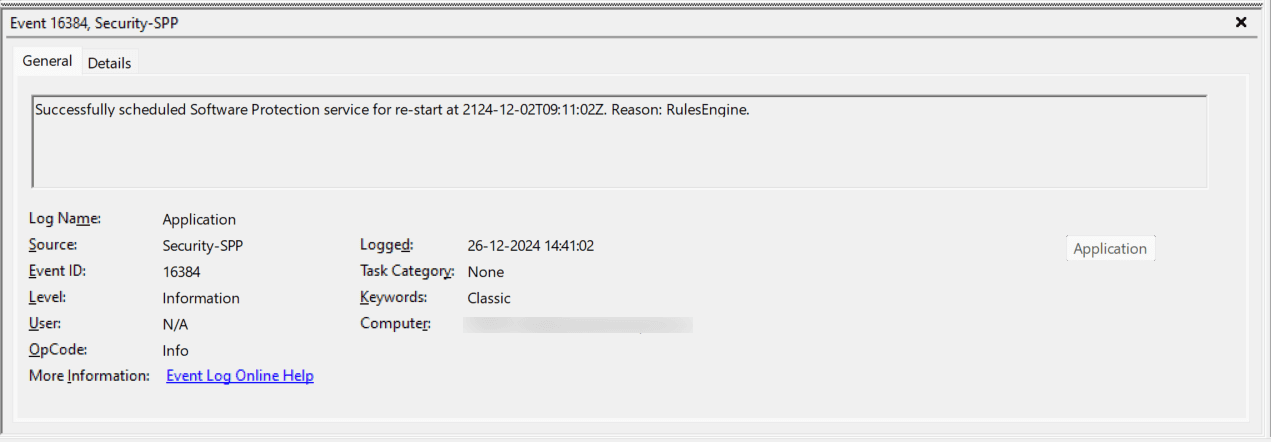
These components collectively enable administrators to identify, categorize, and analyze events efficiently, ensuring effective monitoring.
What tools are available to access and view Windows event logs?
Windows event logs are crucial for monitoring system activities and troubleshooting issues in Windows environments. Several tools exist to access and view these logs, each offering unique features and functionalities.
Method 1: Using Windows Event Viewer
A built-in Windows application that allows users to view event logs categorized into various types such as Application, Security, System, Setup, etc. With Event Viewer, users can filter, search, and analyze events, providing a user-friendly interface for monitoring system activities.
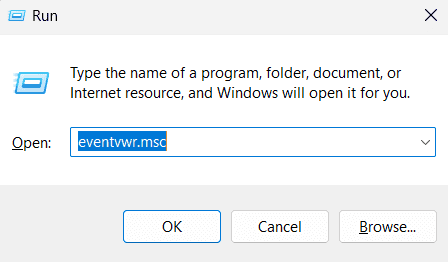
- Step 1: Using the Run dialog box, press Windows + R, type eventvwr, and hit Enter.
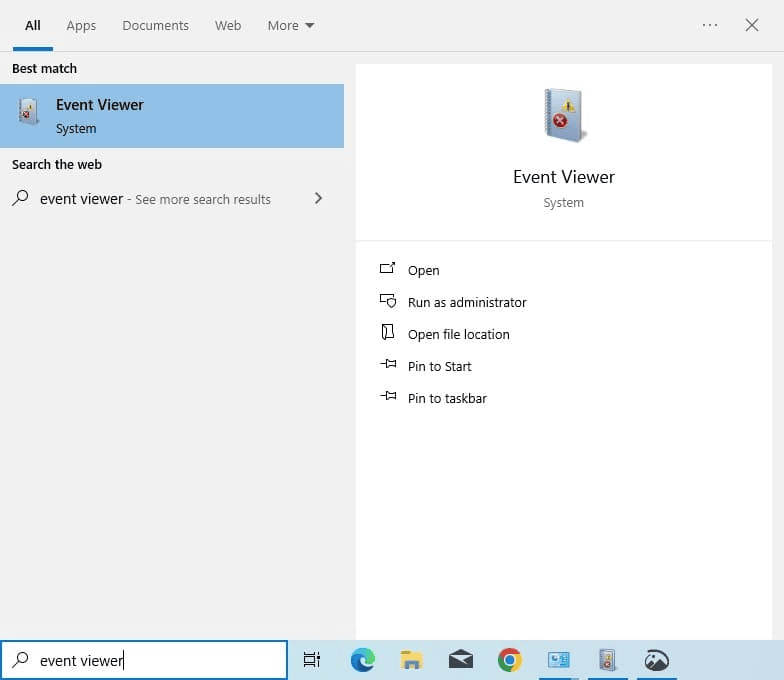
- Step 2: Click the Start menu and type Event Viewer in the search bar.
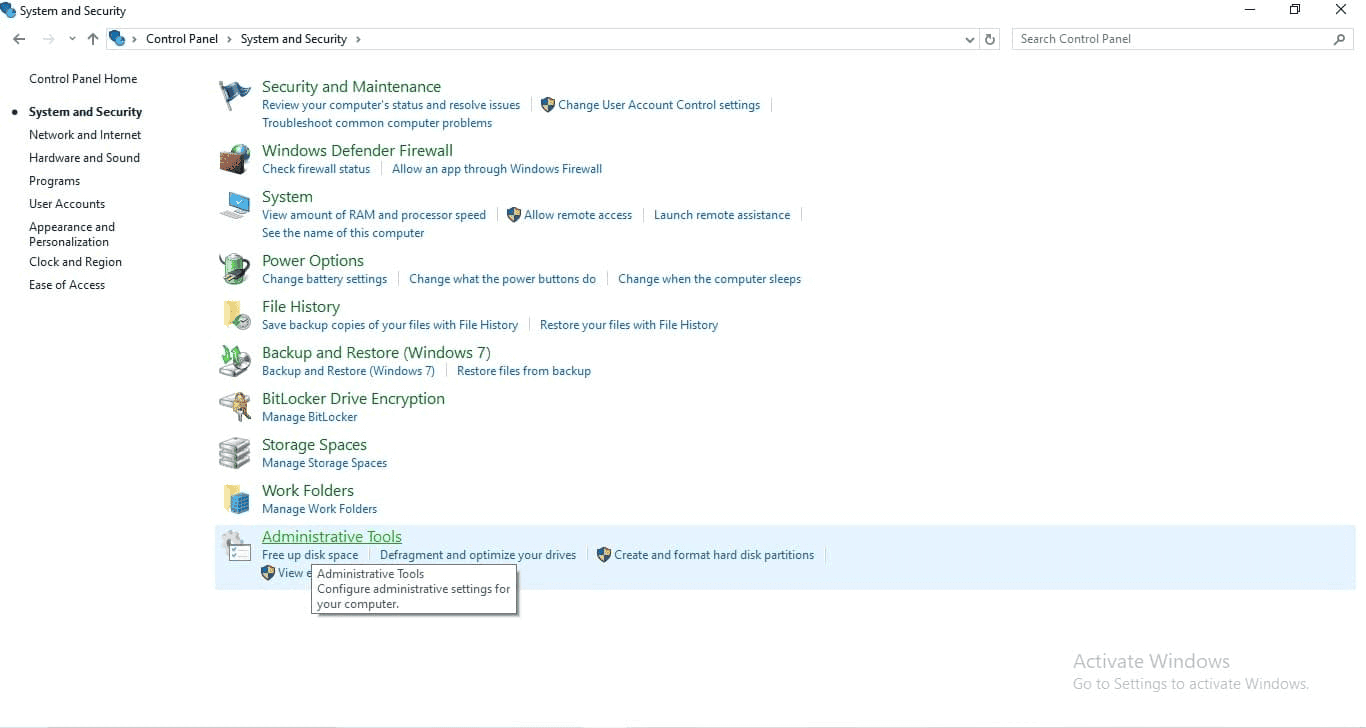
- Step 3: Open the Control Panel and navigate to System and Security > Administrative Tools > Event Viewer.
Method 2: Using PowerShell
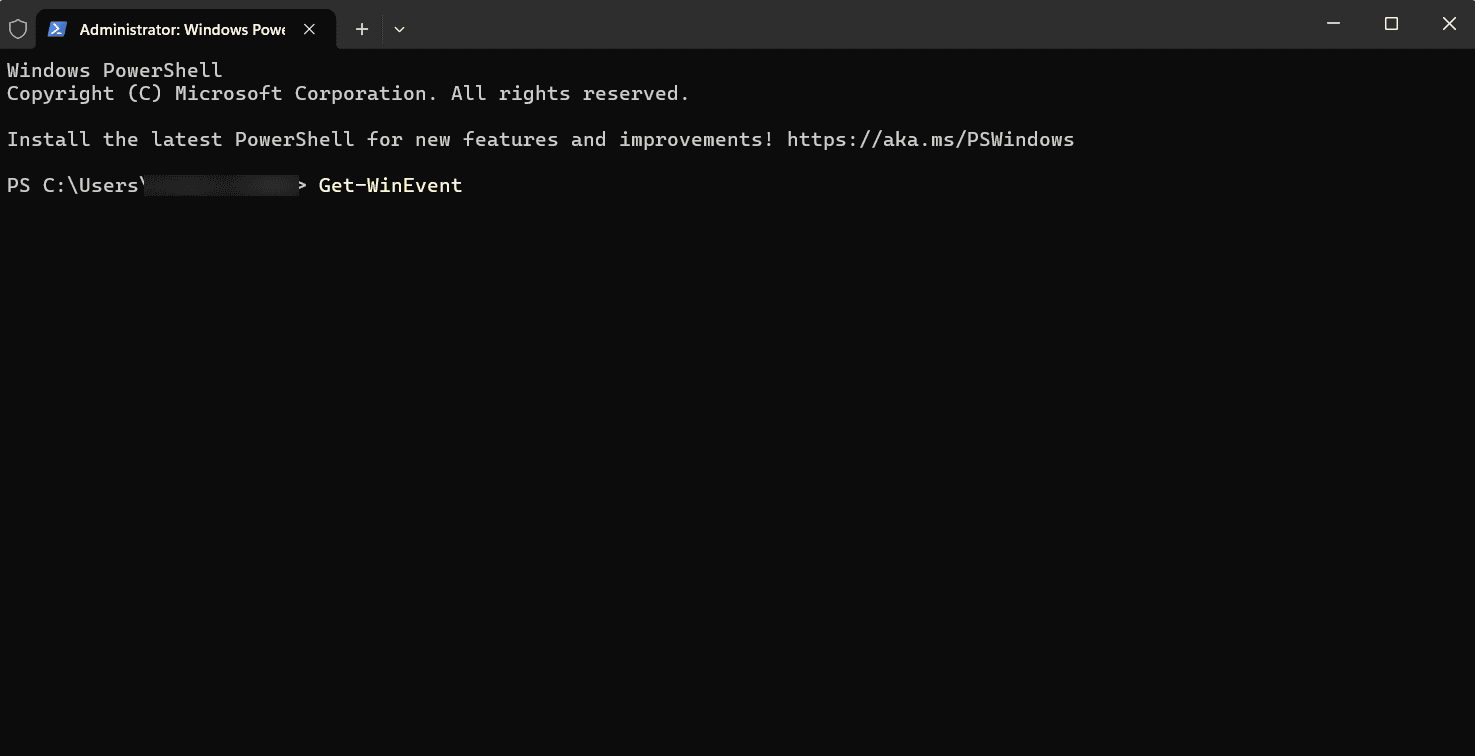
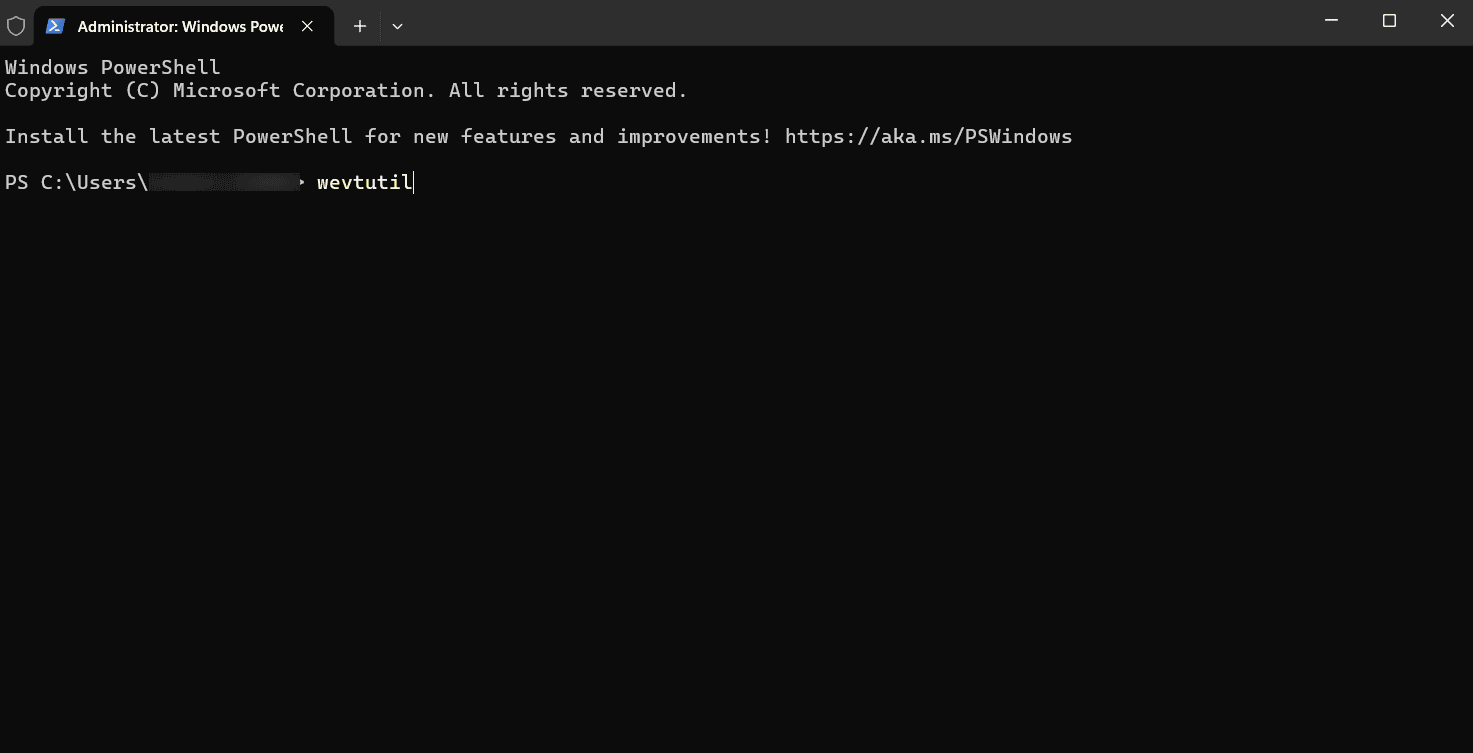
A command-line shell and scripting language that can be used to query event logs. It allows for complex queries using XML format to filter specific events based on criteria like time or type.
Key cmdlets:
- Get-WinEvent: Retrieves events from the event logs.
- wevtutil: A command-line utility for managing event logs, including exporting and clearing logs.
Method 3: Using log management tools
Log management tools like ManageEngine EventLog Analyzer provide enhanced capabilities for viewing and managing Windows event logs.
Each of the above-mentioned tools caters to different needs—from basic monitoring to complex analysis—making it essential for system administrators to choose the right tool based on their specific requirements.
Suggested reading: Check out our guide on viewing Windows event logs using Event Viewer.
What are the best practices for using Windows event logs?
Effective use of Windows event logs is crucial for monitoring system activities, troubleshooting issues, and enhancing security.
Here are some of the key guidelines to optimize the use of Windows event logs.
- Centralize log collection: Use a log management solution to centralize logs from multiple devices. This helps in tracking security events, system changes, and user activities across all endpoints.
- Set up alerts for critical events: Automate alerts for high-priority events such as failed login attempts, service failures, or changes to critical system settings. This reduces response times and enhances security.
- Utilize filters and lookup fields: Filters help you focus on specific event IDs, event sources, or keywords. For example, when collecting logs from cross-domains or workstations and sending them to servers, lookup fields can assist, although they have limitations.
- Enable audit policies: Configure detailed audit policies to capture important events related to user logins, object access, and system integrity. Ensure that audit policies align with compliance requirements (e.g., the GDPR).
- Regularly archive logs: Regularly archive logs to prevent data loss and maintain compliance with retention policies. Archiving also helps reduce the load on active log storage.
By following these best practices, you can streamline event log management and improve your system’s security posture.
How to optimize Windows event log management with EventLog Analyzer
Windows event logs provide critical insights into system activities, user actions, and potential security incidents. However, managing and analyzing these logs across multiple devices can be complex and time-consuming.
ManageEngine EventLog Analyzer is a log management and IT compliance tool that helps you effortlessly transform your raw event log data into actionable insights, streamline security operations, and ensure compliance with industry standards.
Here's how:
Centralized log collection: EventLog Analyzer simplifies log collection from Windows servers and workstations across your network and stores logs in its central server.
- System logs: Tracks performance and errors.
- Security logs: Logs logon attempts, policy changes, and privilege escalations.
- Application logs: Generated by installed applications.
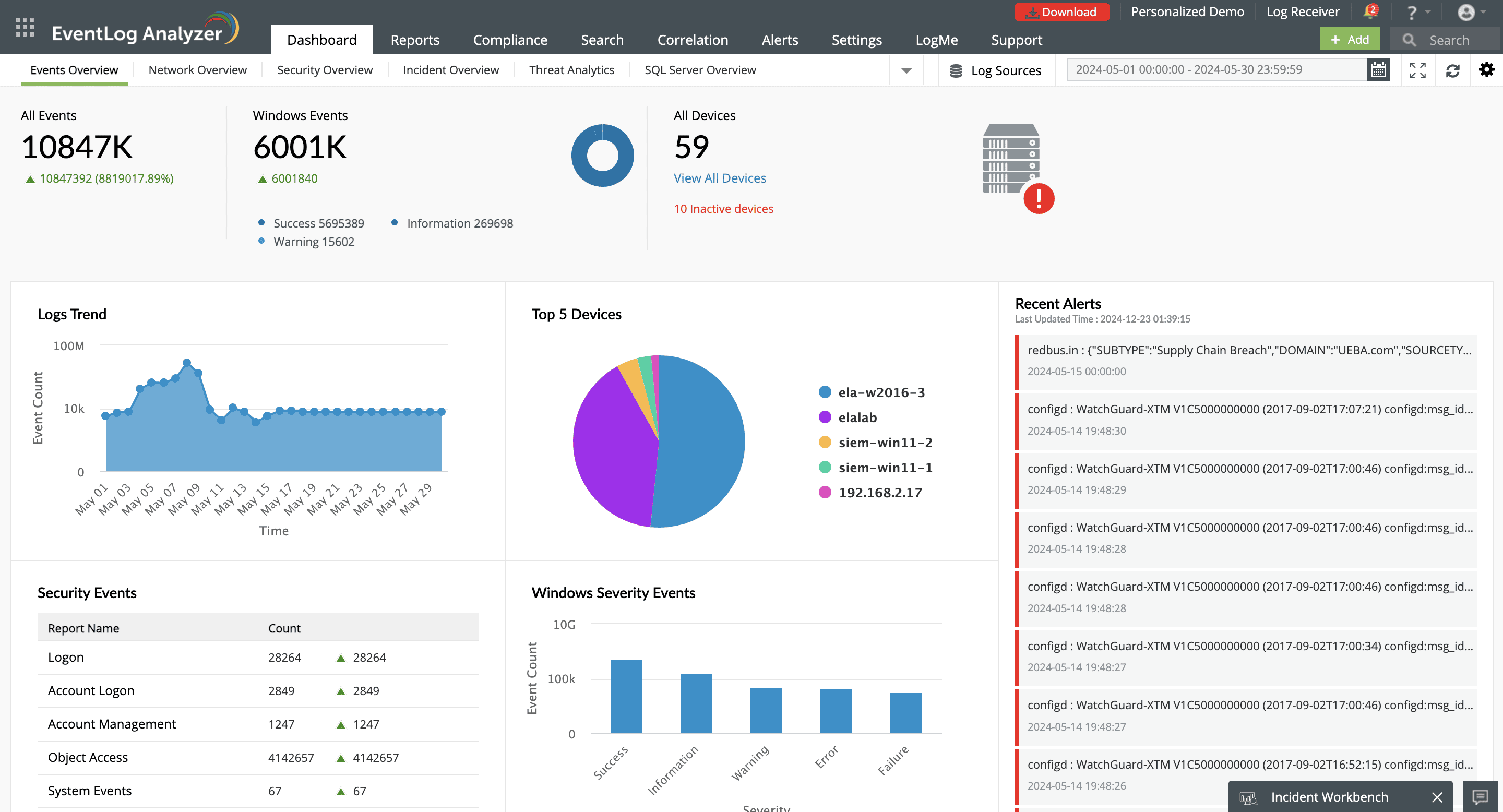
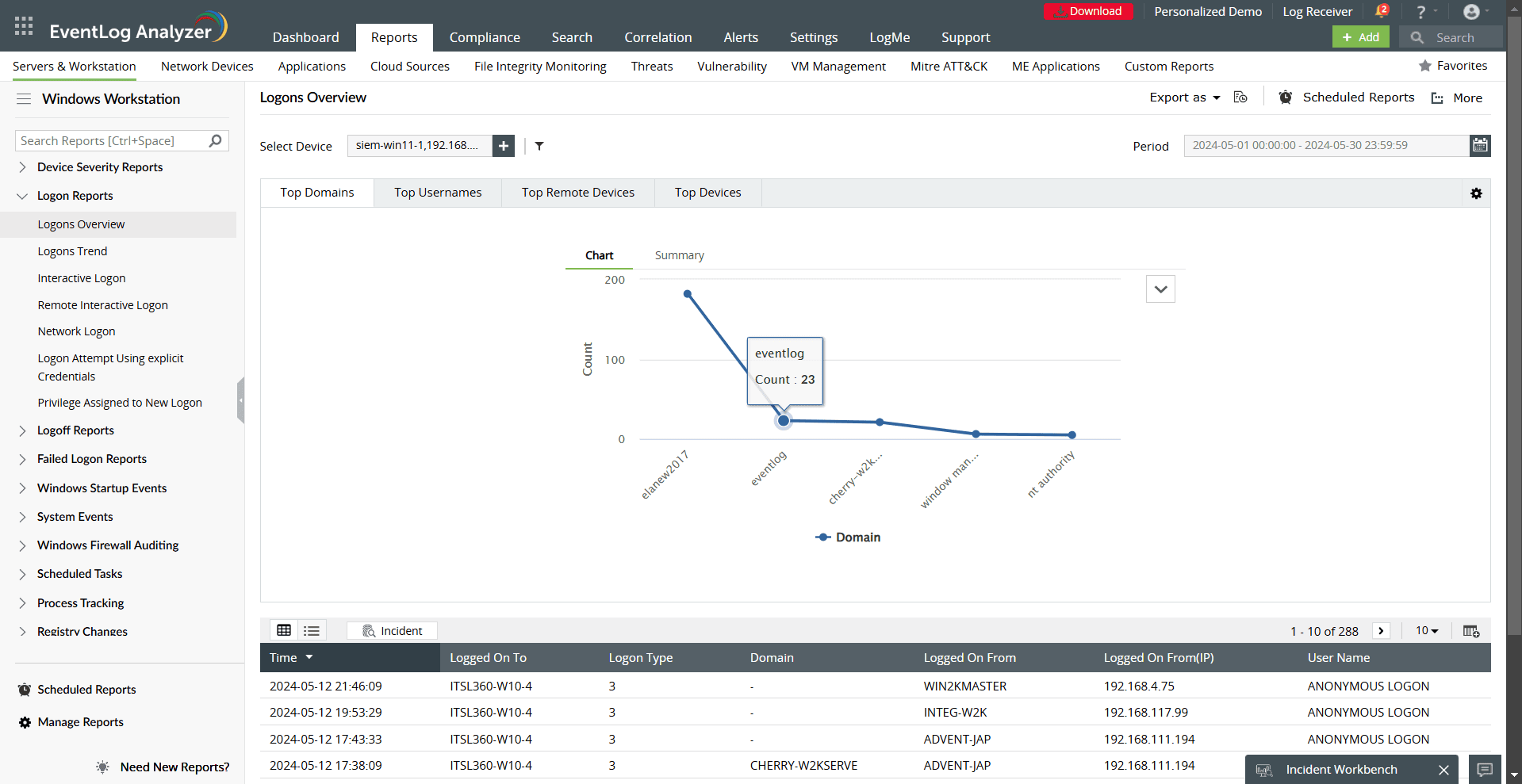
Comprehensive monitoring with relevant reports: EventLog Analyzer offers detailed reports to monitor user activities, security events, and system changes. Some essential reports include:
- Logon/Logoff Reports: Track successful user logins and logoffs to detect unauthorized access or usage patterns.
- Failed Logon Reports: Identify failed login attempts due to password expiration, account expiration, lockouts, or incorrect credentials.
- Interactive Logon and Remote Interactive Logon: Monitor physical and remote access activities, which are crucial for remote workforce oversight.
- Privilege Assigned to New Logon: Detect elevation of privileges to prevent unauthorized changes.
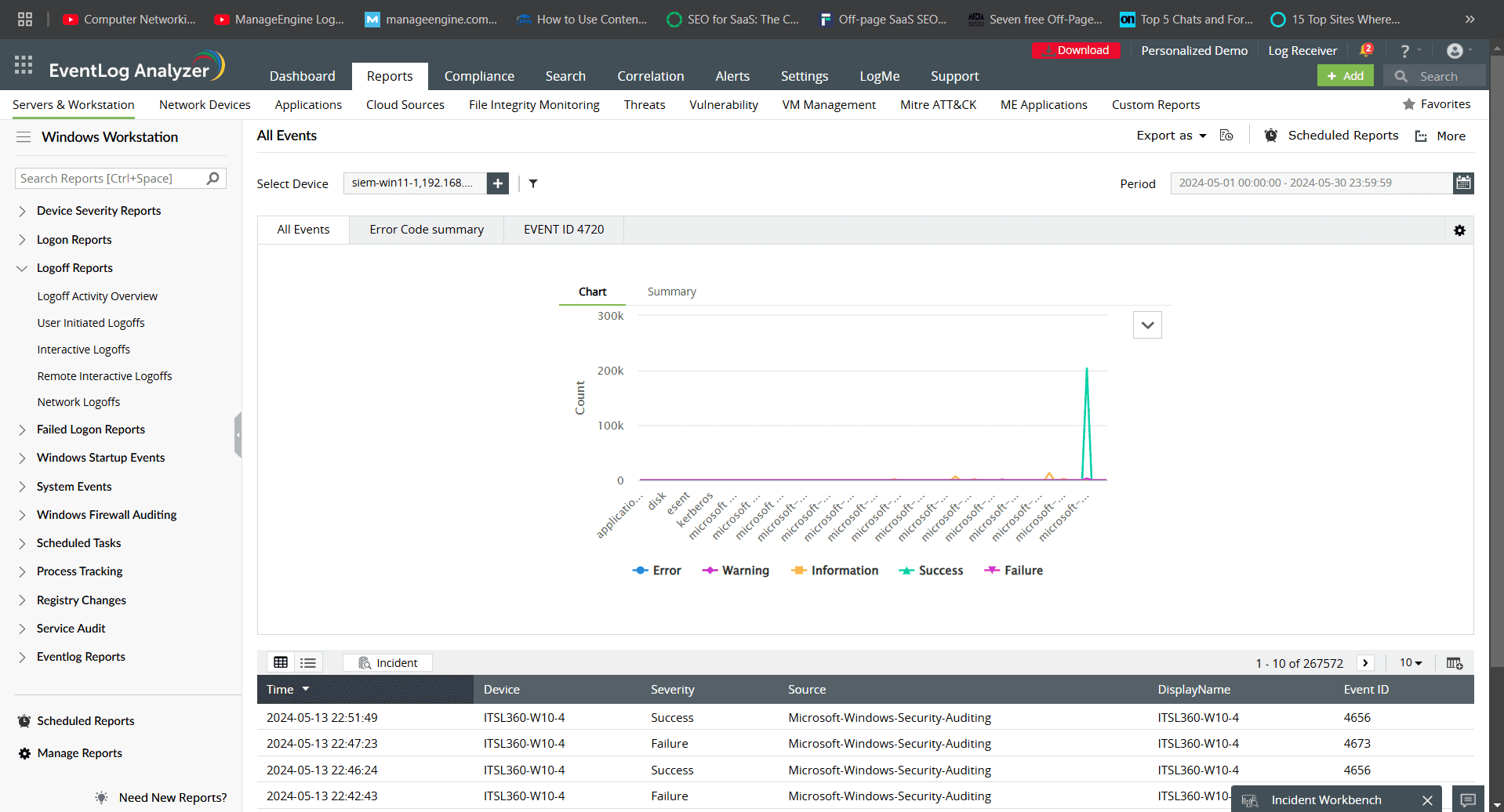
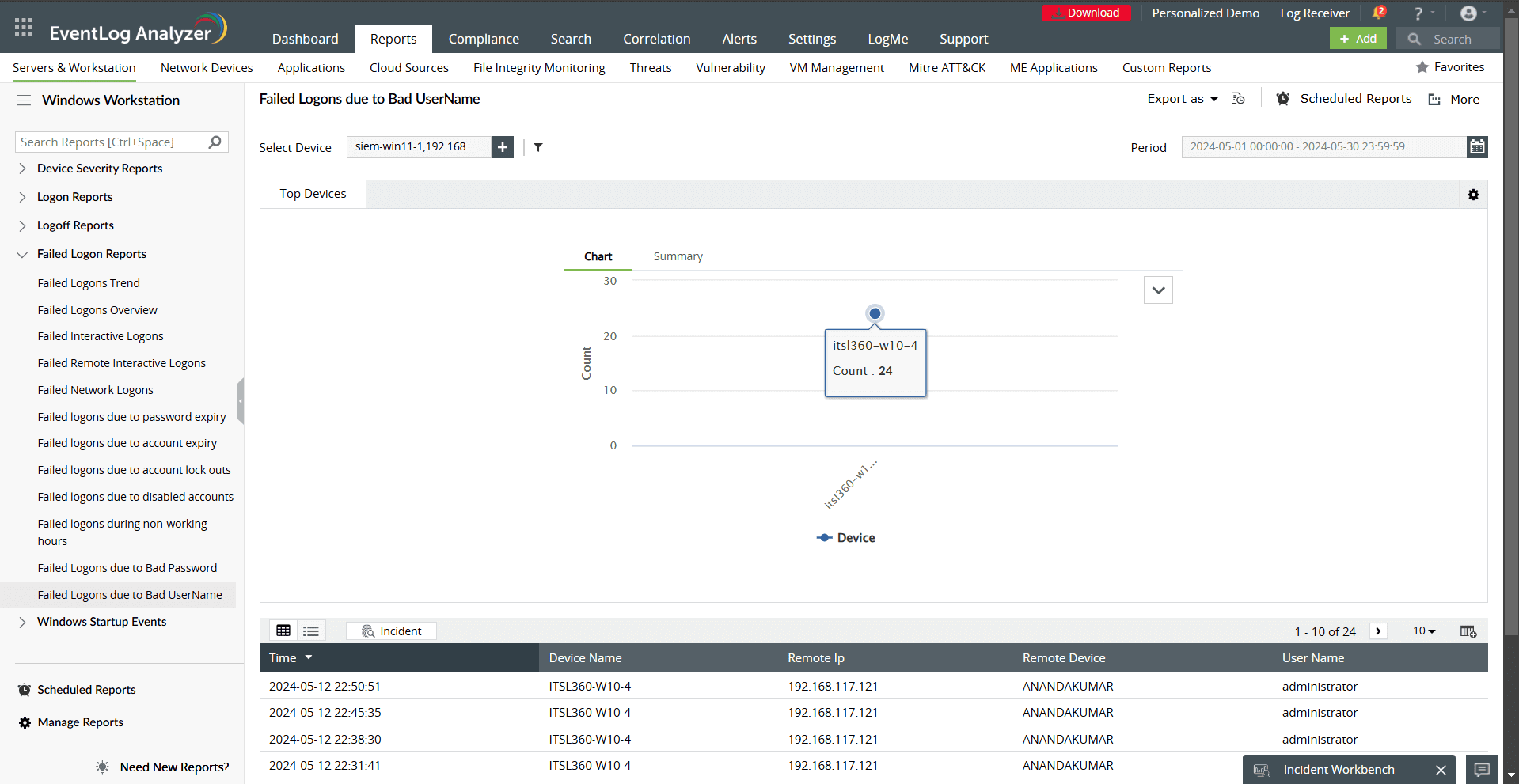
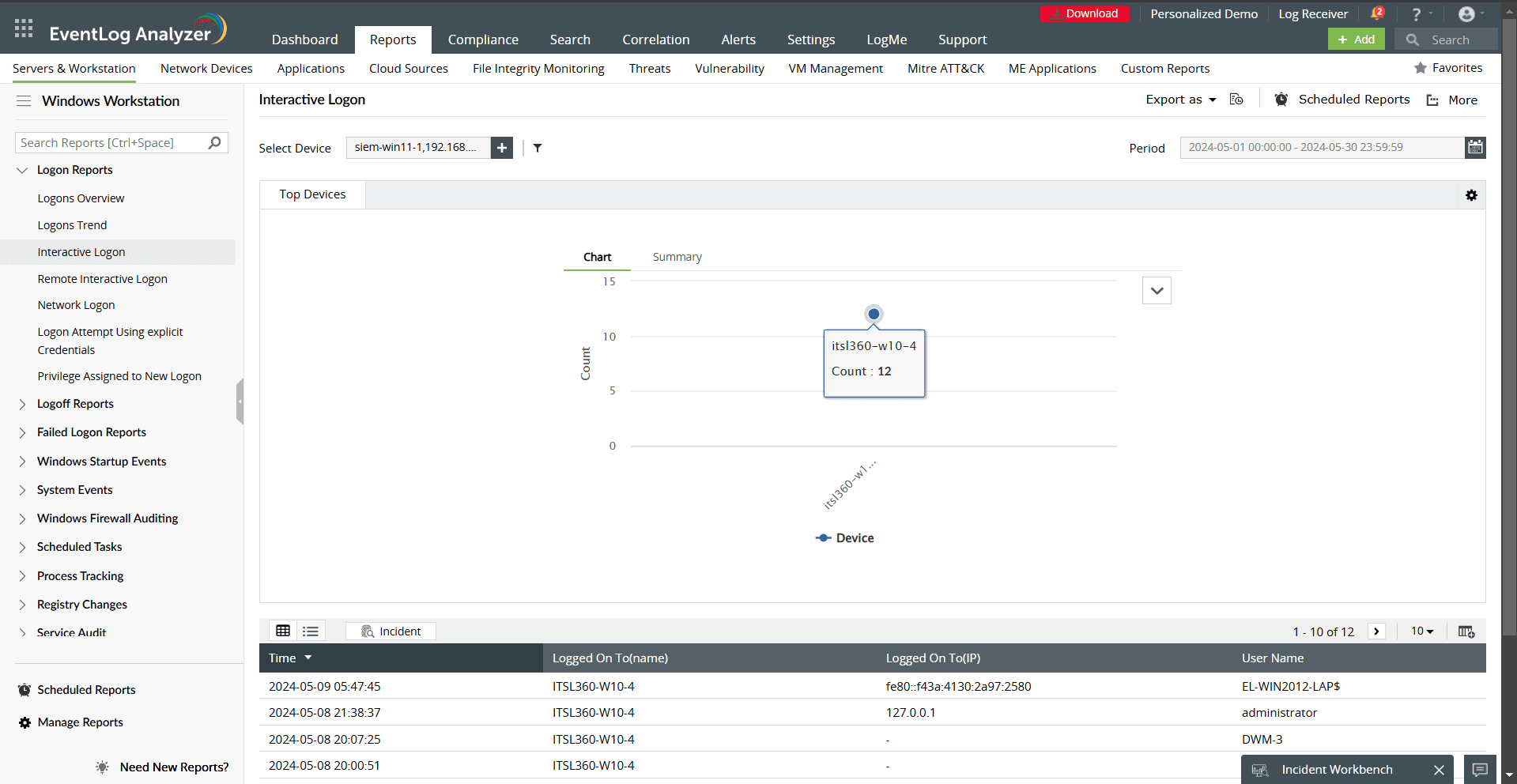
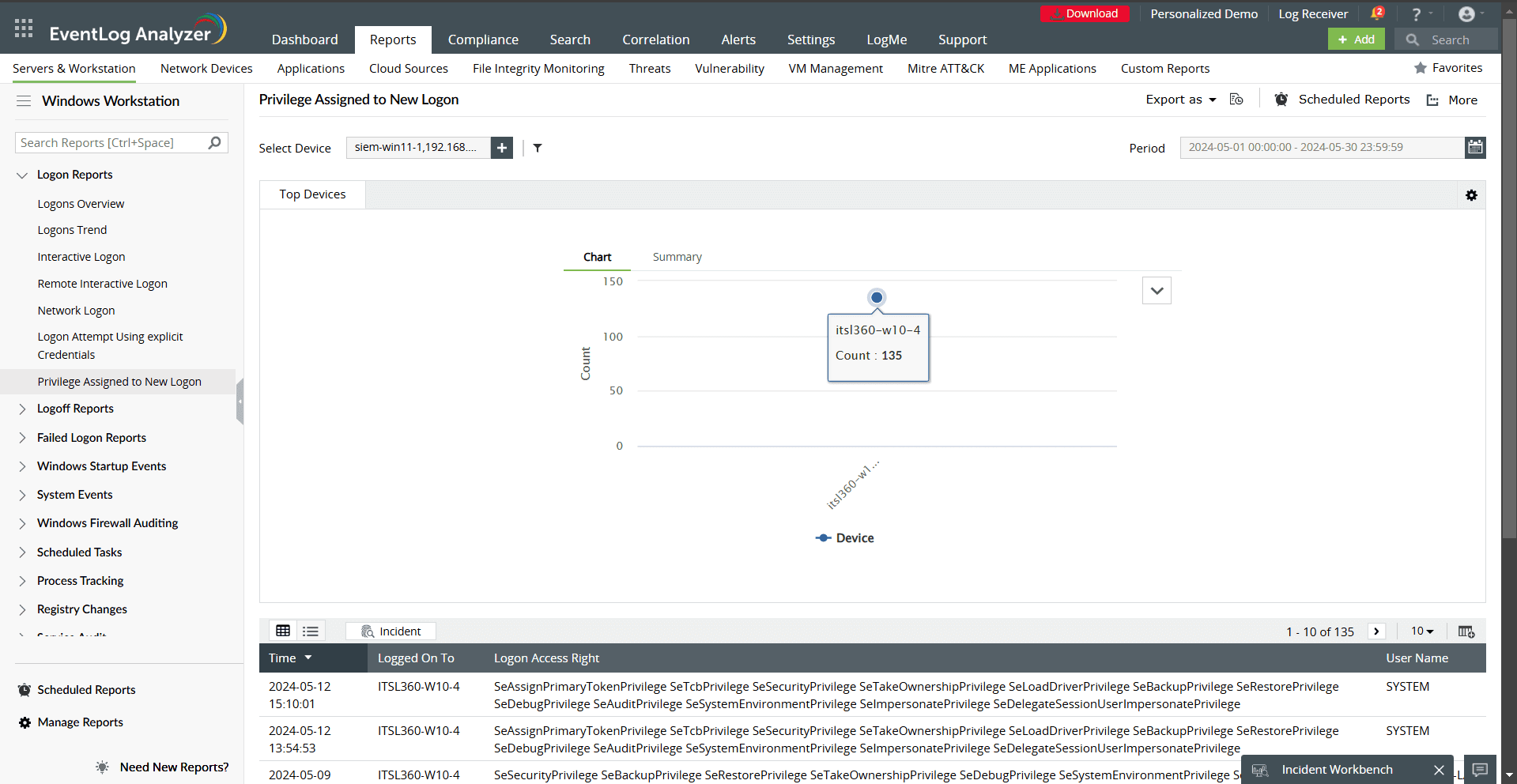
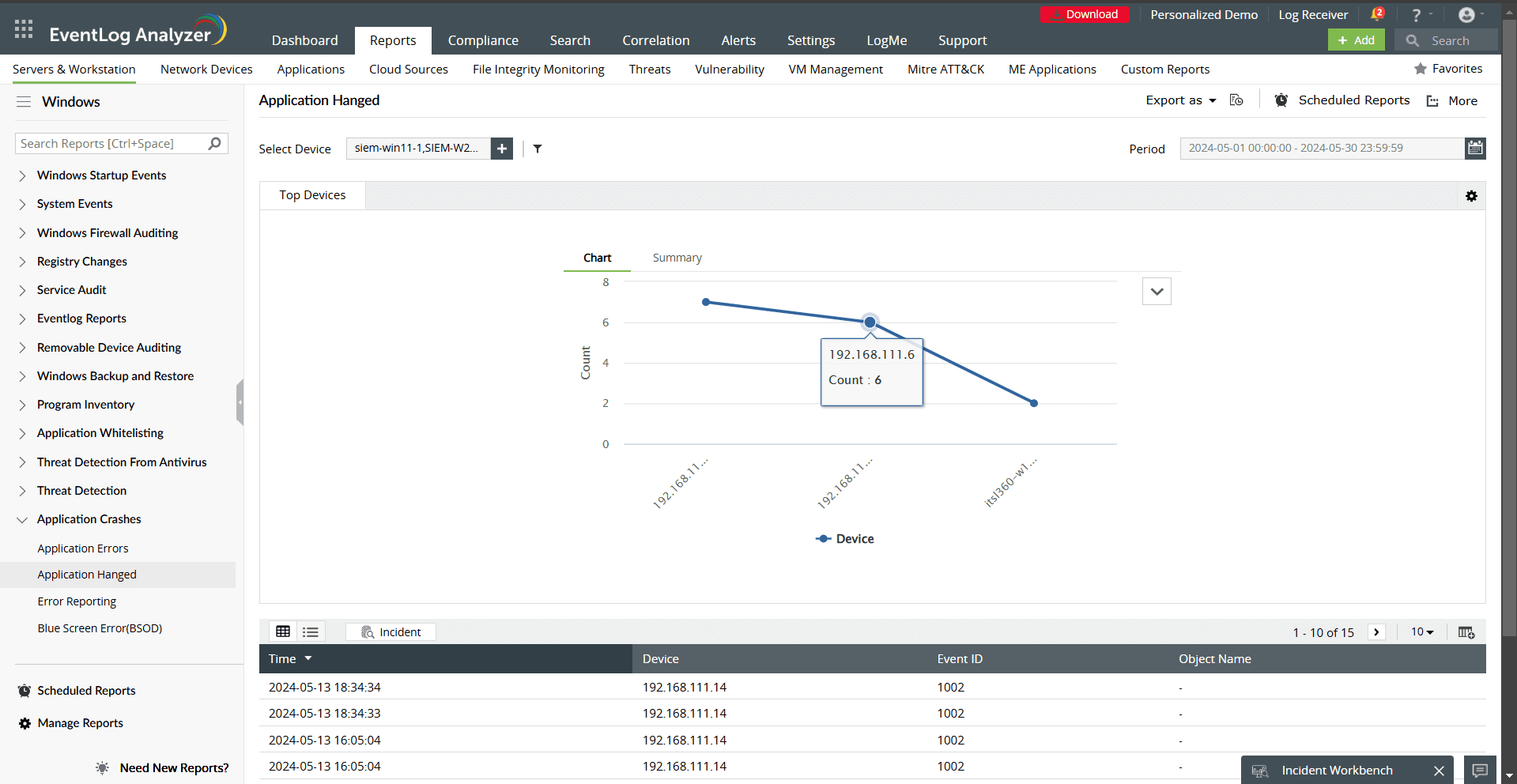
- Application Errors/Hanged: Detect software issues affecting system performance.
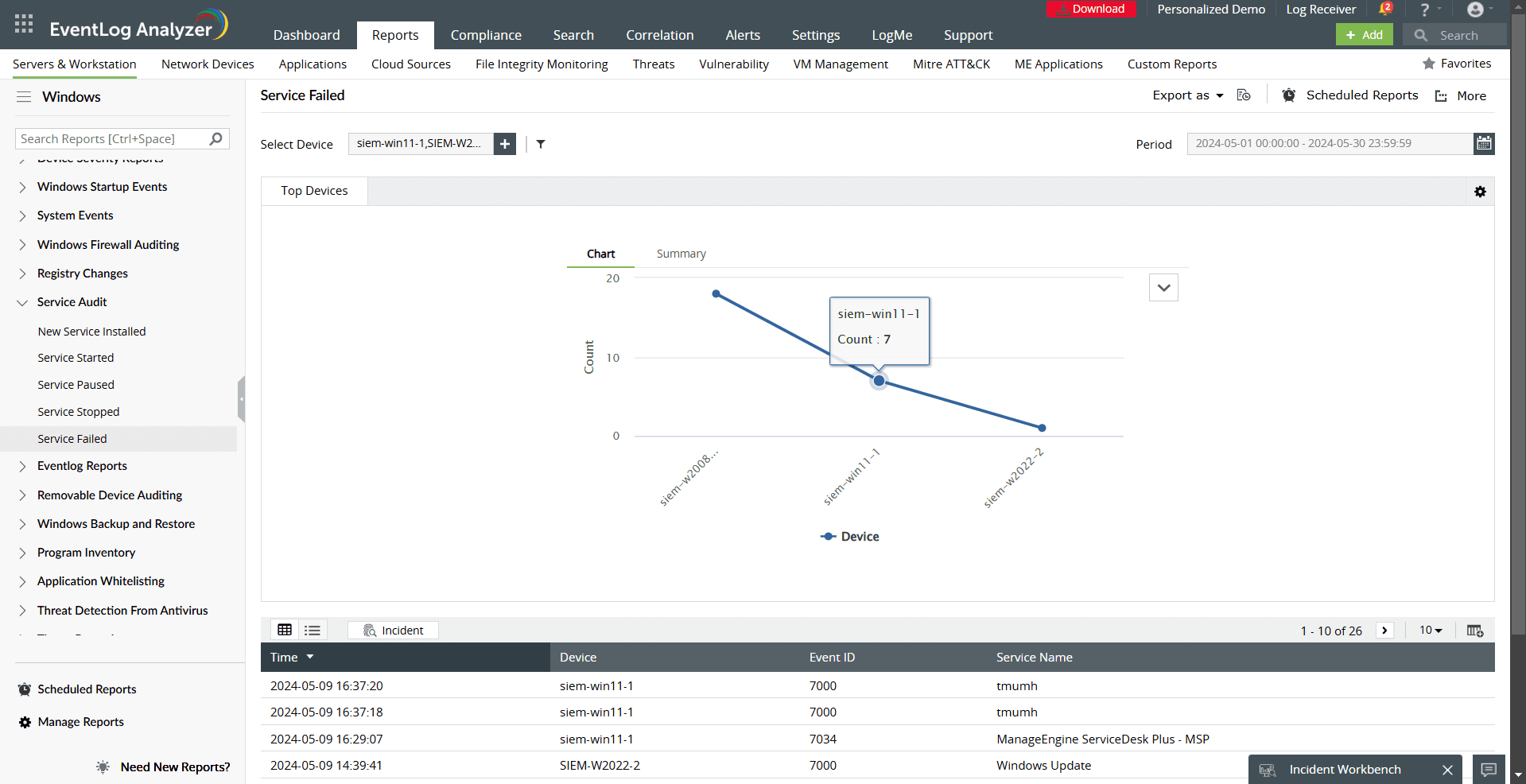
- Service Started/Paused/Stopped/Failed: Monitor critical services to ensure smooth system operations.
Threat detection and response
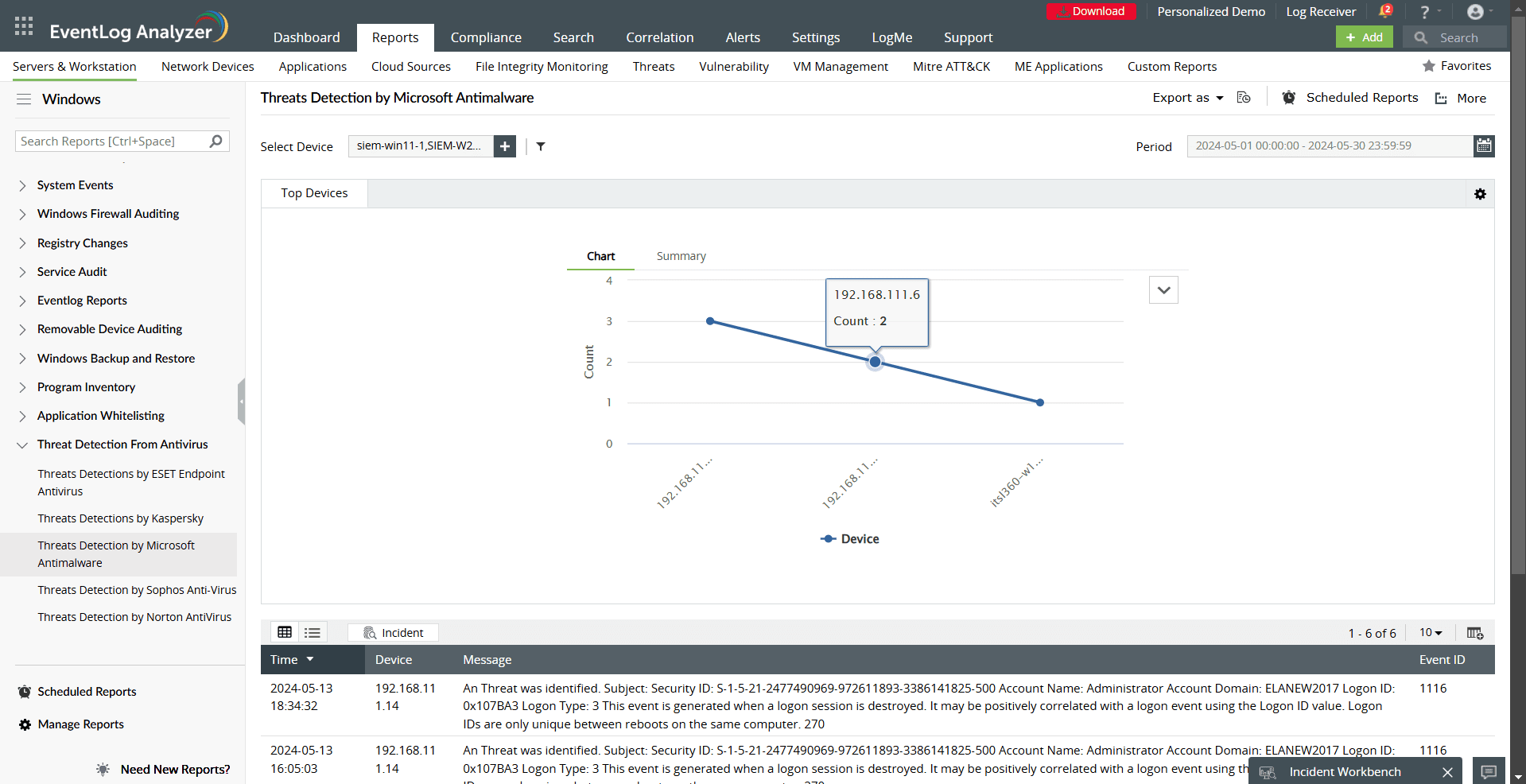
- Threat Detection by Microsoft Antimalware: Highlight endpoint security events to prevent data breaches.
Advanced analytics and alerts: With customizable alerts and detailed visual dashboards, EventLog Analyzer enables proactive incident management by detecting anomalies like:
- Multiple failed logons due to bad passwords (e.g., brute-force attacks).
- Non-working hours activity (indicating potential insider threats).
- Privilege escalations or changes to trusted domains.
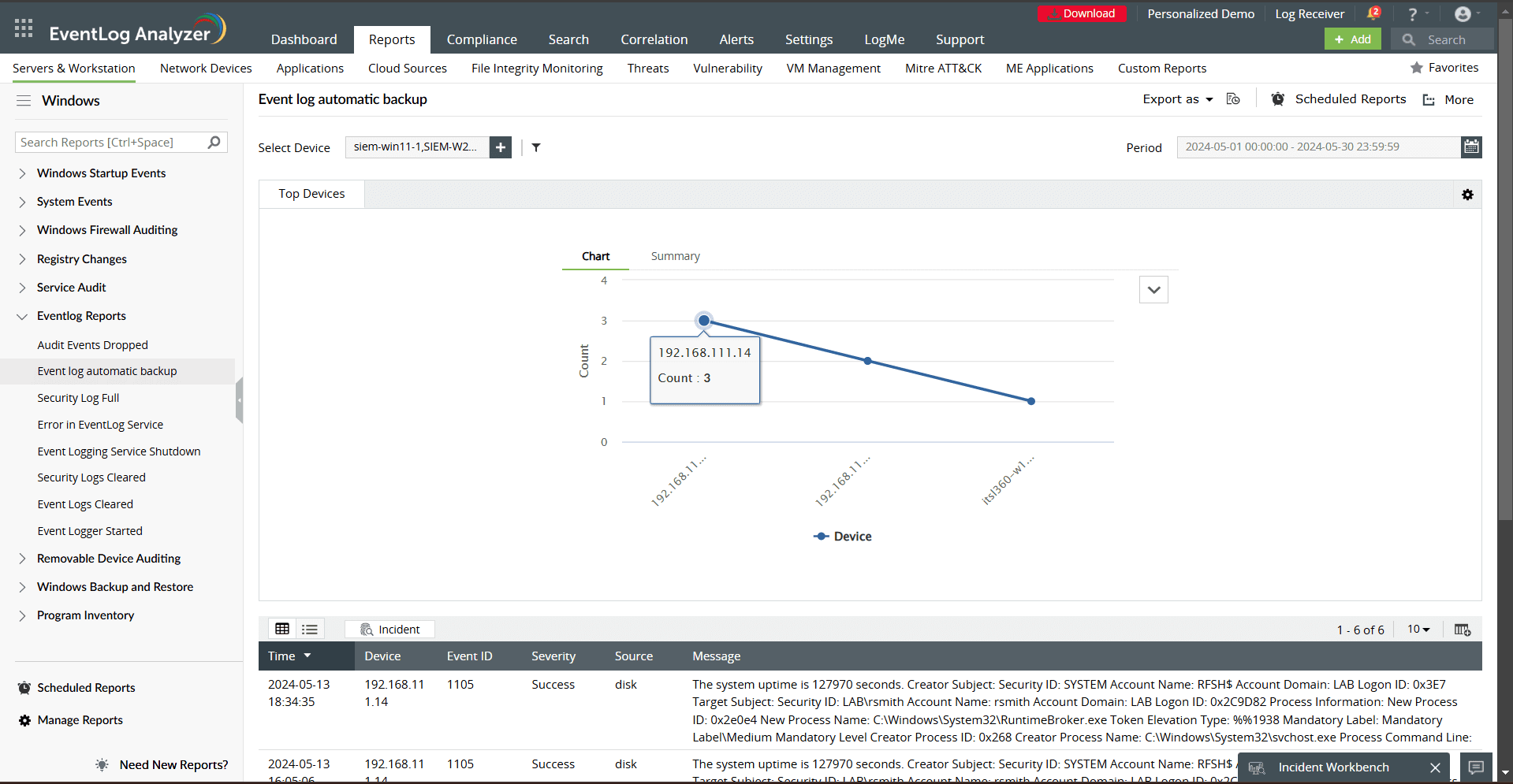
Automated compliance reporting: EventLog Analyzer simplifies compliance reporting for standards like the PCI DSS, HIPAA, and the GDPR by generating prebuilt, ready-to-use compliance reports. Reports such as Event log automatic backup and Security Log Full ensure audit readiness by showcasing adherence to logging and retention policies.
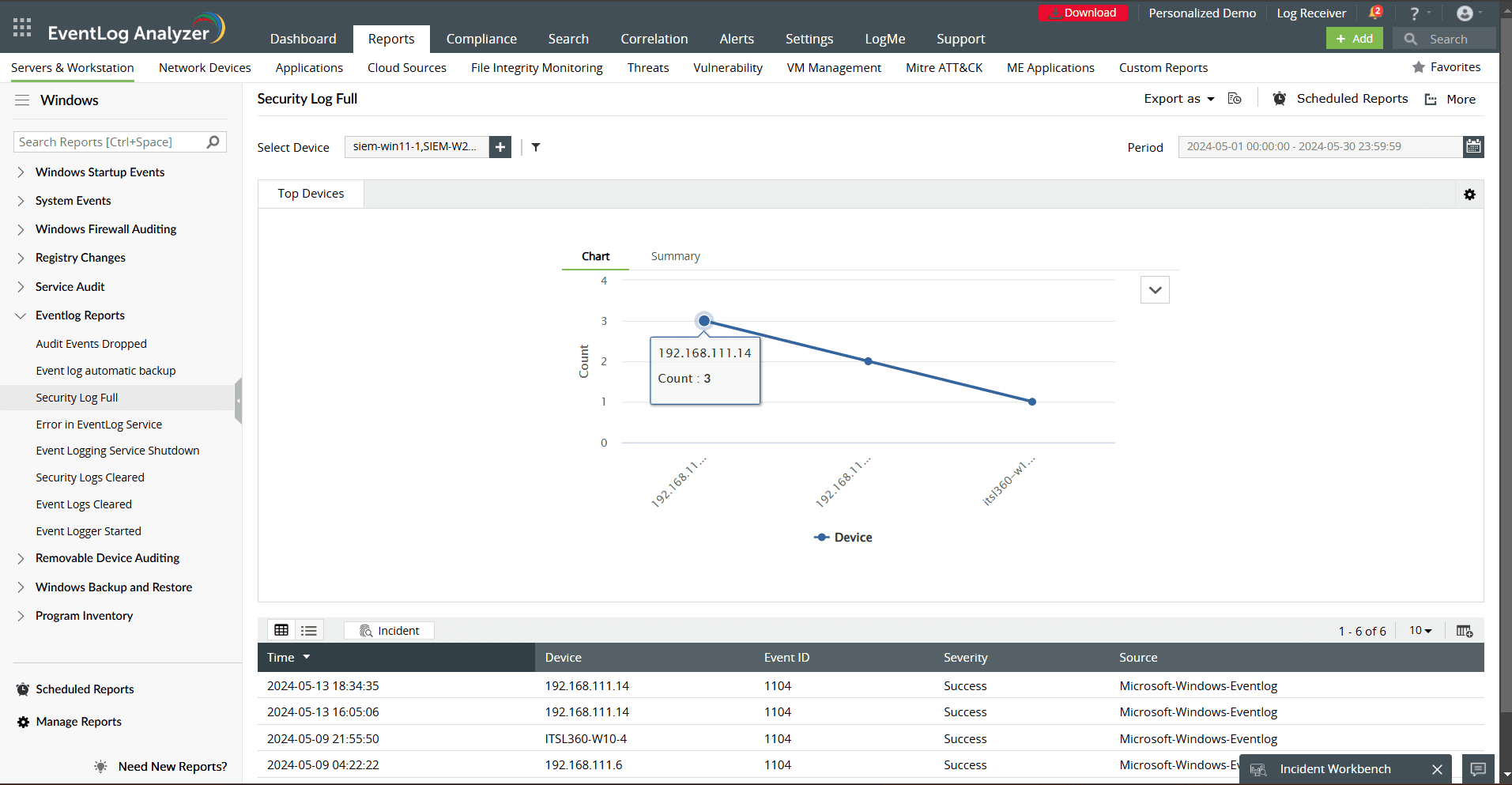
By utilizing EventLog Analyzer, you can effectively manage logs, monitor your Windows activity in real time, and streamline your security operations.