How to setup a syslog server on Windows: A step-by-step guide
Last updated on:In this page
- Why deploy a syslog server on Windows?
- How to configure a Windows server as a syslog server
- Considerations for choosing the right syslog server for Windows
- Steps to configure a Windows server as a syslog server using EventLog Analyzer
- Best practices to optimize the performance of a Windows-based syslog server
Why deploy a syslog server on Windows?
Setting up a dedicated syslog server on a Windows server allows you to centralize log collection and analysis. It might seem counterintuitive to deploy a syslog server on Windows, especially when the latter has its own robust event log system. However, there are compelling reasons why many organizations choose to implement a syslog server, even within the Windows environment.
Need a syslog server for Windows?
EventLog Analyzer collects Windows syslogs and keeps them all in one place.
Reasons why enterprises choose to deploy a syslog server on Windows
- For organizations that are primarily a Windows shop, with a large existing base of Windows servers, Active Directory, and Windows-trained staff, deploying a Windows-based syslog server is a natural fit. Their minimal syslog environment will send logs to the central Windows server for analysis.
- Introducing a new OS, like Linux, solely for a syslog server would require additional training, new management tools, and a different skillset. In this scenario, organizations may decide to leverage their existing Windows environment for centralized log management.
- Many commercial syslog server solutions designed for Windows offer better integration with other Microsoft technologies such as AD for user authentication, SQL Server for database storage, or PowerShell for automation.
- If an organization already uses Windows-based tools for other aspects of IT management (e.g., system monitoring, patch management, backup), running the syslog server on Windows can contribute to a more unified management console and workflow. This reduces the number of disparate systems and interfaces the IT staff needs to interact with daily.
- While Windows has its own event logs, getting them into a centralized syslog system often requires a forwarder (like NXLog or a vendor-specific agent). When the collector is Windows-based, the integration and management of these Windows-to-syslog forwarding agents can sometimes be more streamlined or better supported by the Windows-based syslog server application. This creates a native feel for collecting Windows event logs alongside other syslog sources.
Learn more about syslogs
How to configure a Windows server as a syslog server
A Windows server becomes a syslog server by installing dedicated syslog server software. This software can act as a listener, receiving syslog messages that typically arrive on UDP port 514, or TCP/TLS on other ports for secure transmission, from various devices, processing them, and then storing them in a structured way for analysis.
There are various commercially available syslog servers for Windows. If you want to try out a free syslog server for Windows, explore ManageEngine EventLog Analyzer.
Prerequisites for configuring a syslog server on a Windows machine
- A Windows server machine: A dedicated server is recommended for production environments (e.g., Windows Server 2019, 2022). Ensure it has:
- Sufficient RAM and CPU (depends on expected log volume).
- Ample disk space: Logs can consume significant storage. Plan for growth and retention policies.
- Network connectivity: The server needs to be accessible from all devices that will send logs.
- Administrative privileges: You'll need an administrator account to install and configure the software.
- Firewall access: The Windows Firewall (or any other network firewall) must allow inbound connections on the syslog port(s).
- Configure Windows Firewall: Even if the installer adds rules, it's good practice to verify or manually create them.
- Open Windows Defender Firewall with Advanced Security (search for it in the Start Menu).
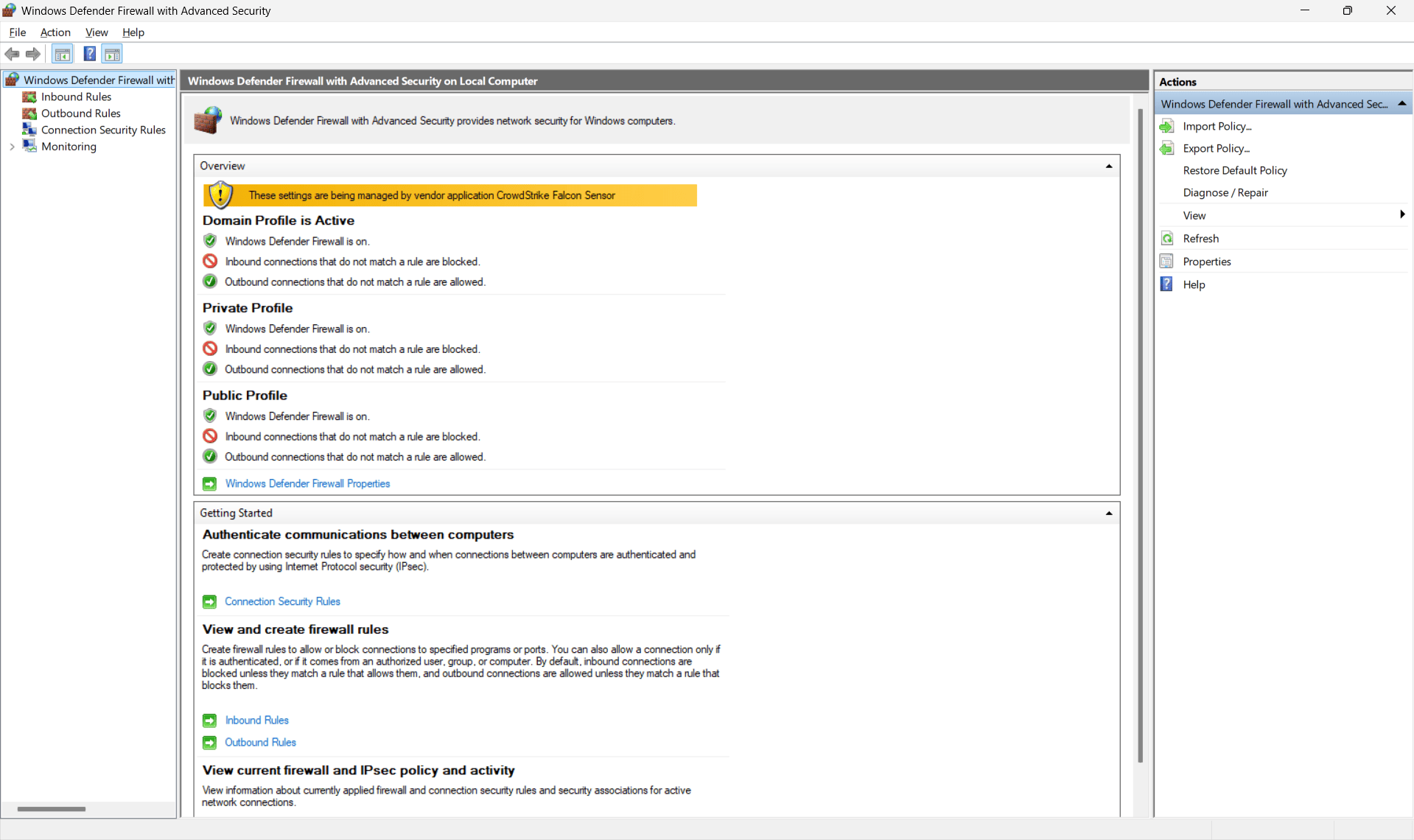
- In the left pane, select Inbound Rules.
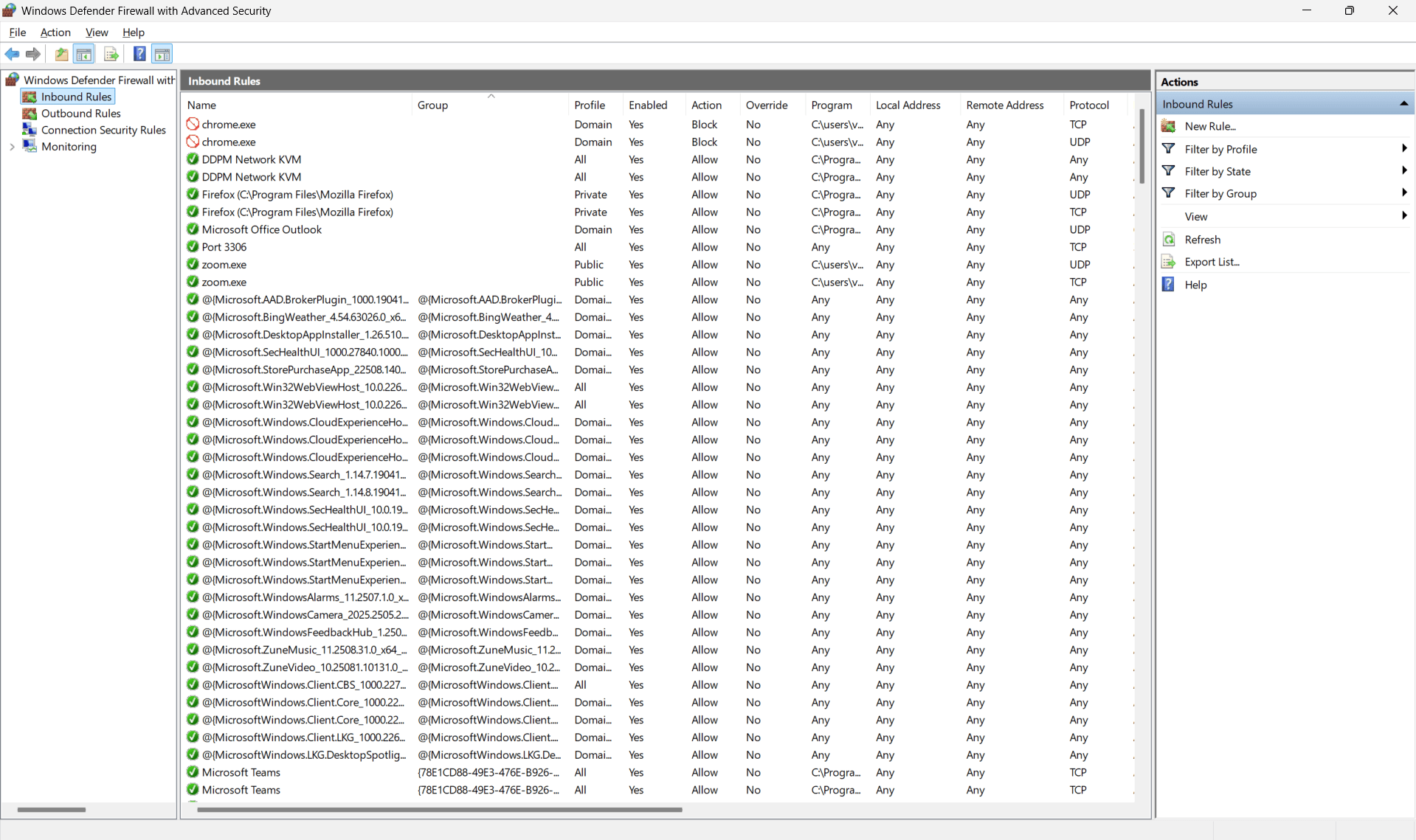
- In the right pane, click New Rule....
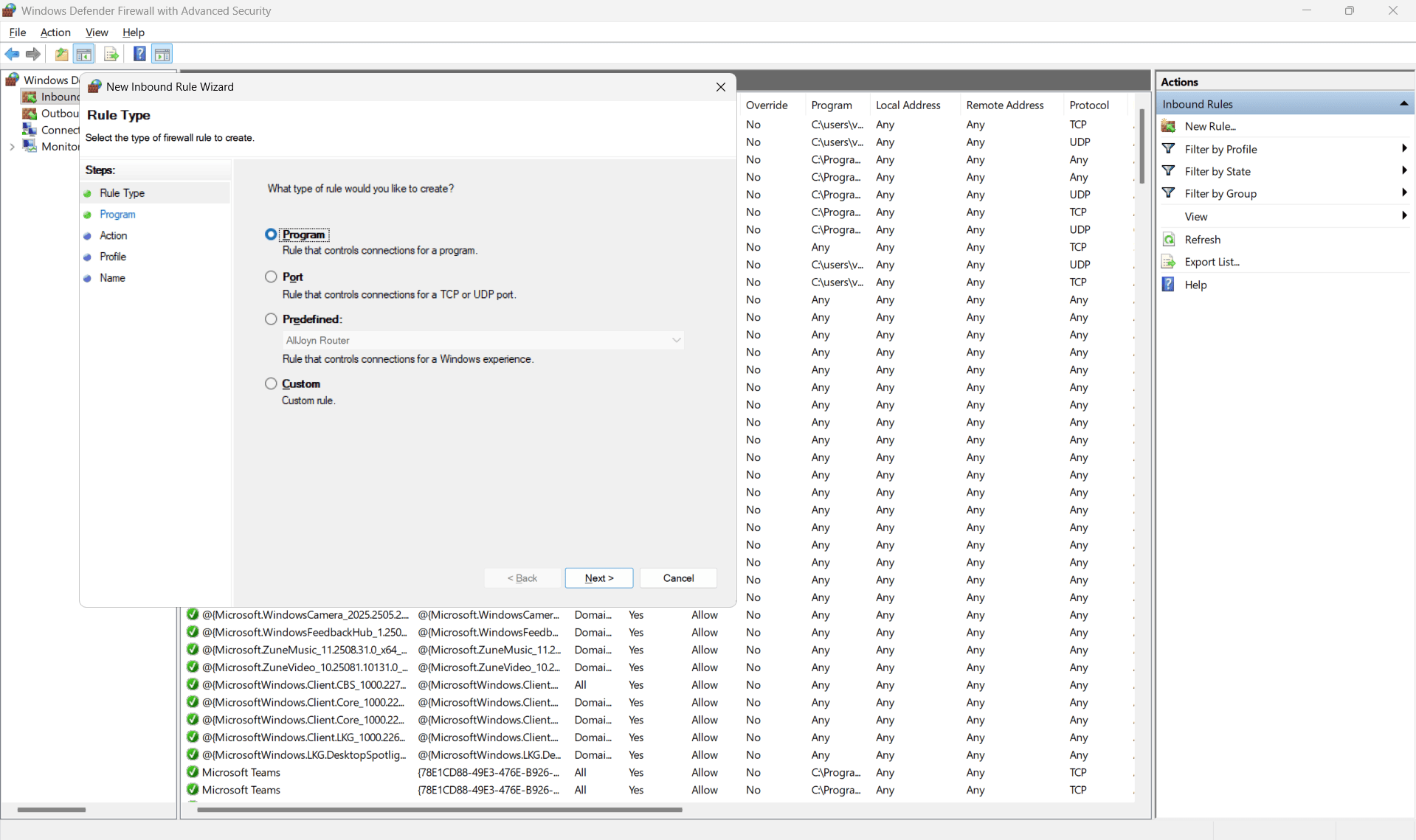
- Rule Type: Select Port and click Next.
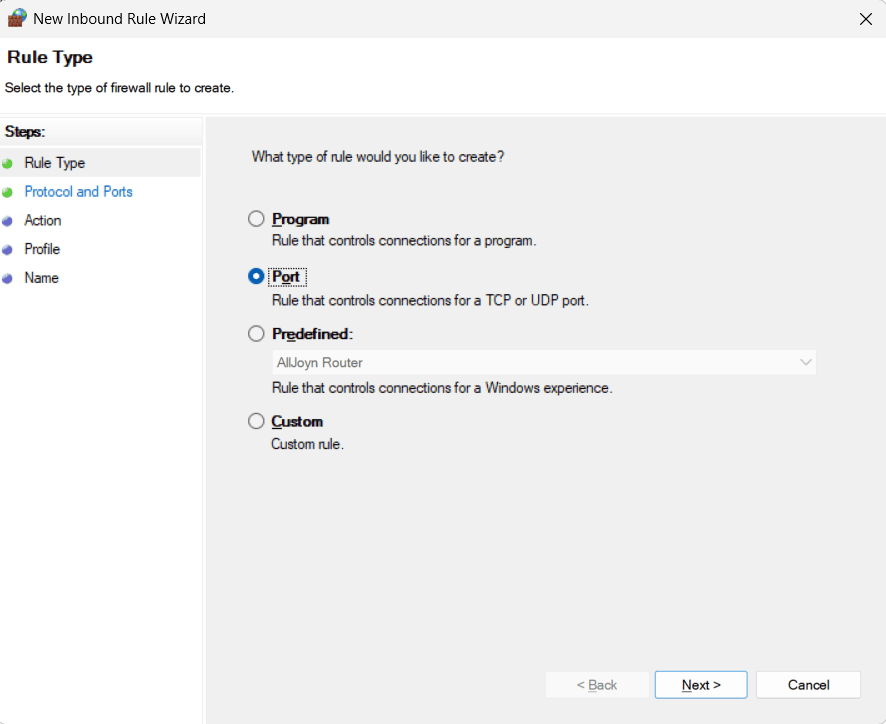
- Protocol and Ports:
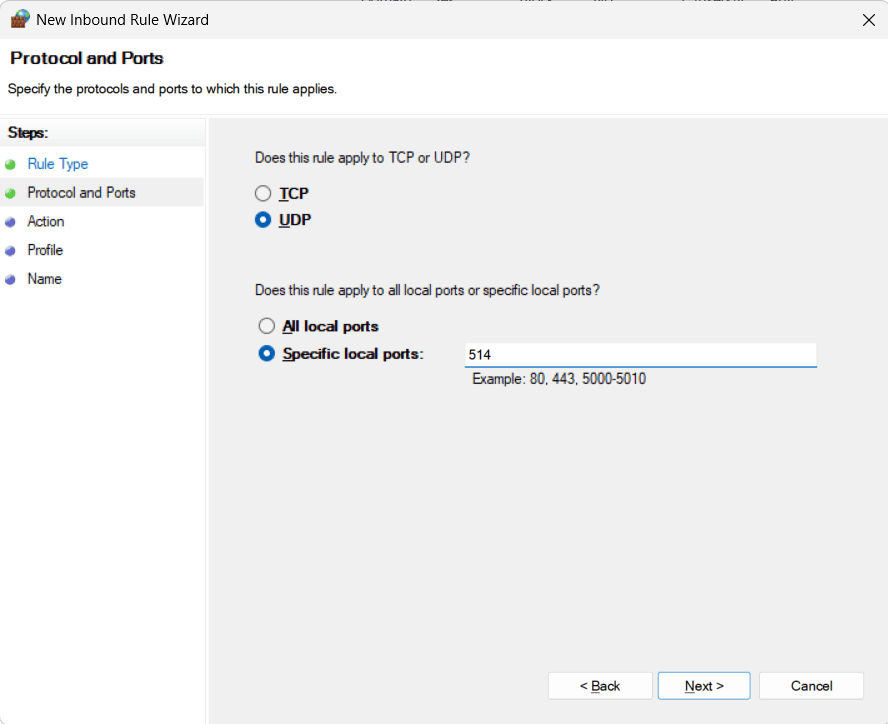
- Choose UDP and enter 514 for Specific local ports. UDP 514 is the standard, unencrypted syslog port.
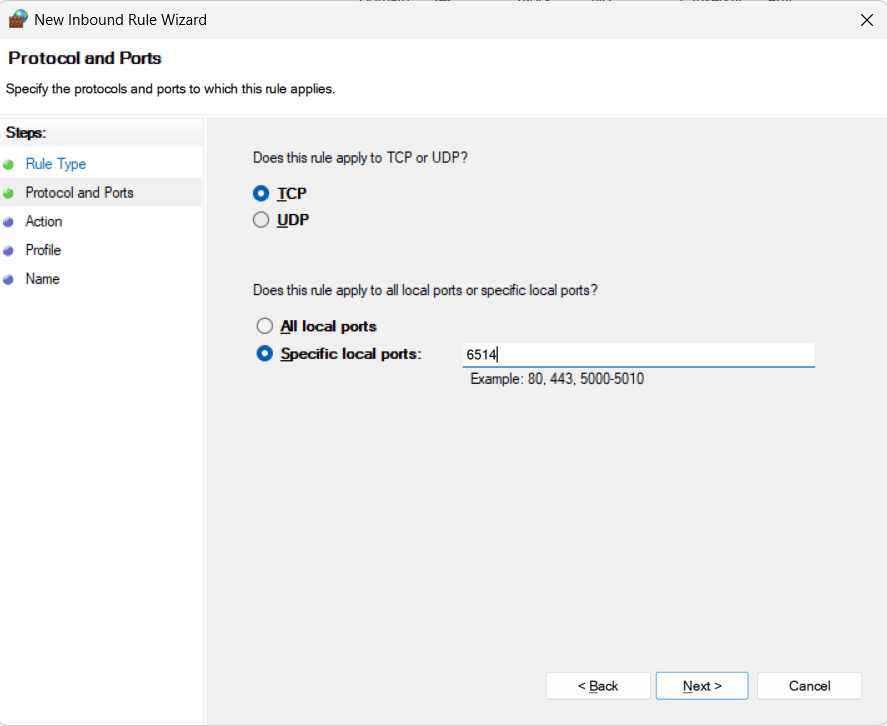
- If you plan to send logs over TCP or secure TLS, you'll need to create additional rules for TCP on port 514 (for standard TCP syslog) or 6514 (for secure syslog over TLS, if supported by your software).
- Choose UDP and enter 514 for Specific local ports. UDP 514 is the standard, unencrypted syslog port.
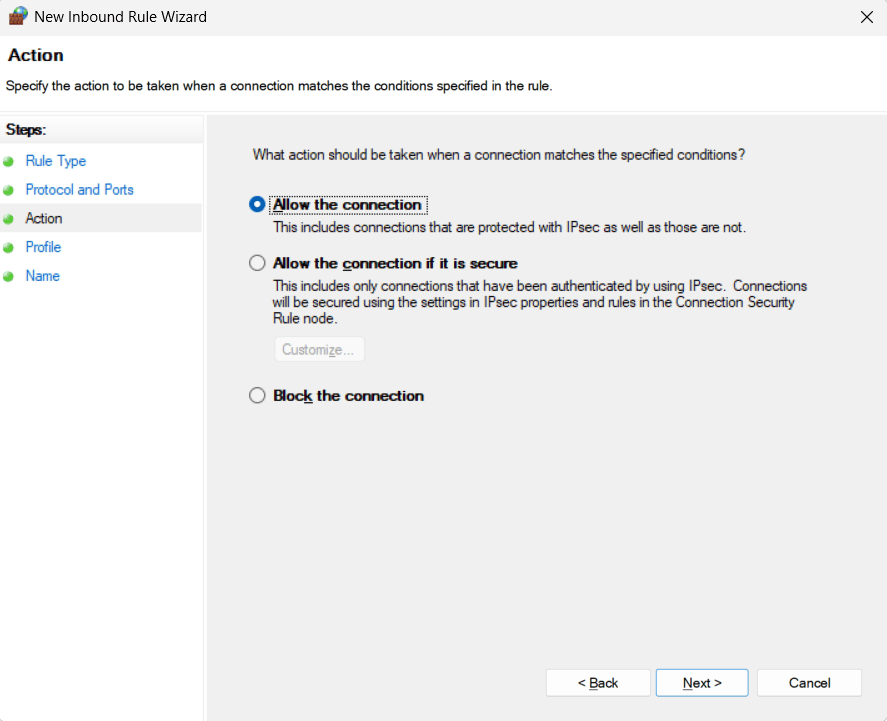
- Action: Select Allow the connection and click Next.
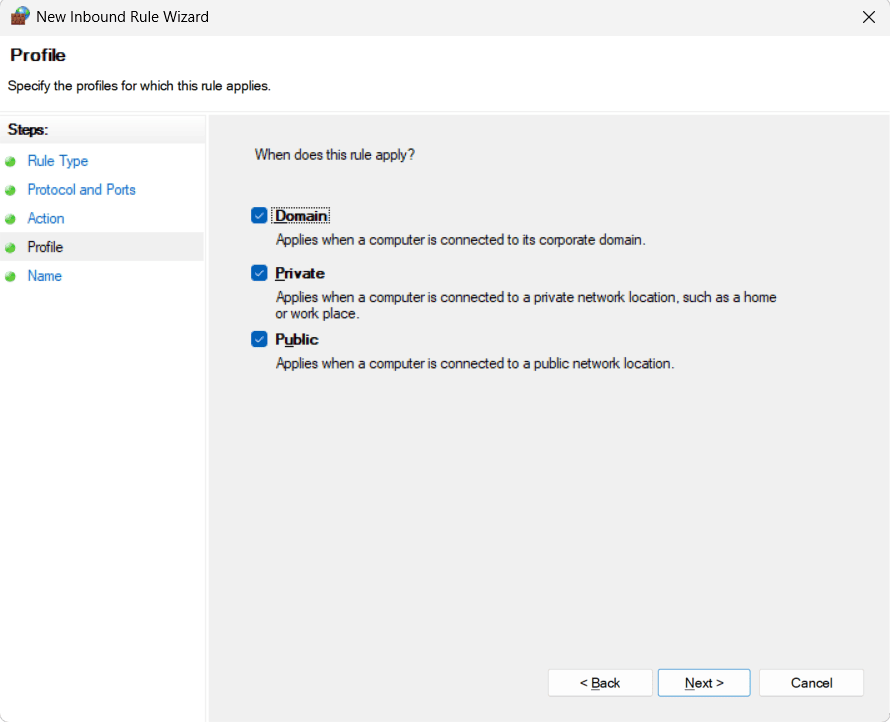
- Profile: Select the network profiles where the rule should apply (e.g., Domain, Private, Public). For most internal syslog servers, Domain and Private are sufficient. Click Next.
- Name: Give the rule a descriptive name (e.g., Syslog Inbound UDP 514). Click Finish.
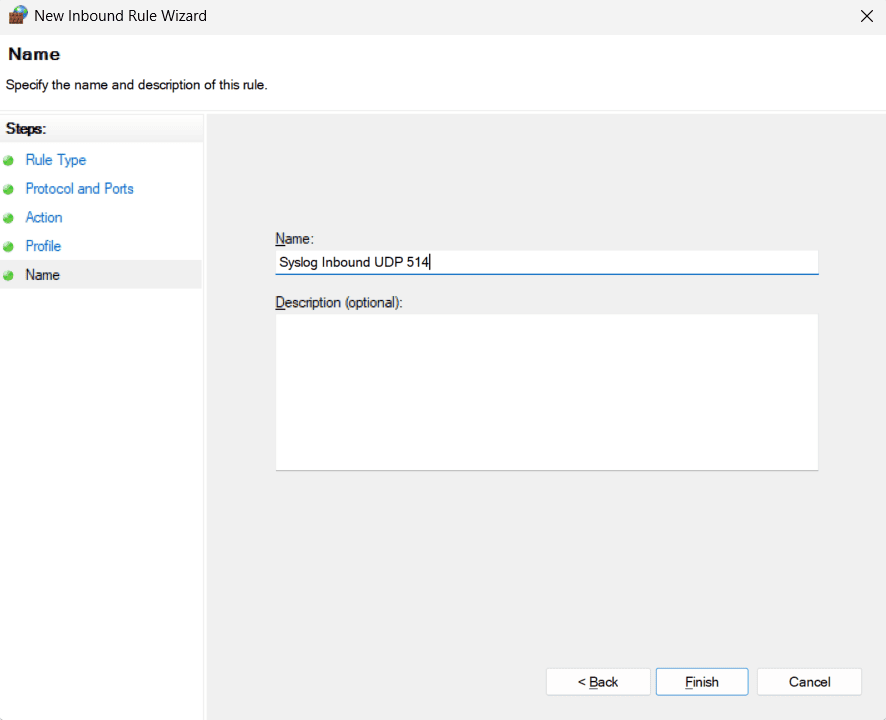
- Repeat for any other necessary ports or protocols.
- Open Windows Defender Firewall with Advanced Security (search for it in the Start Menu).
- Configure Windows Firewall: Even if the installer adds rules, it's good practice to verify or manually create them.
Before you begin
Choosing the syslog server software is the most crucial step, as Windows servers don't have a built-in option. Popular choices include:
- ManageEngine EventLog Analyzer: Available in both free and paid versions, EventLog Analyzer is a comprehensive and easy-to-use log management solution with a built-in syslog server. The solution supports 700+ log formats out of the box, providing security auditing reports, alerts, dashboards, and custom log retention. This syslog server tool comes with an option to be deployed on both Linux and Windows machines and is equipped with correlation, predefined reports and alerts to monitor critical security and operational events.
- Syslog Watcher: A dedicated syslog server for Windows.
- NXLog: Primarily a log forwarder or collector, NXLog can also be configured to act as a syslog receiver.
- Kiwi Syslog Server: Available in both free and paid versions, this is an easy-to-use syslog server tool.
Considerations for choosing the right syslog server for Windows
- Log volume: How much log data do you expect to receive per second or per day? Can the selected syslog server tool handle the peak events?
- Capabilities: Does the server offer real-time alerting, reporting, dashboards, archival, and correlation?
- Scalability: Can the tool horizontally scale with your growing network?
- Cost: Weigh free vs. paid licenses and limitations in the free trials.
- Ease of use: Consider GUI vs. command-line configuration for basic operations such as searching, viewing logs, and generating reports.
Steps to configure a Windows server as a syslog server using EventLog Analyzer
- Download and install EventLog Analyzer in the Windows server of your choice. Check the prerequisites for installation here.
EventLog Analyzer has a 30-day, fully functional, free trial with technical assistance for deployment. The solution also offers a Free edition that can collect, process, analyze, and retain logs from up to five log sources.
- Run the installer as an administrator. Follow the on-screen prompts. We recommend you to choose EventLog Analyzer to install as a Windows service. This ensures that the syslog server starts automatically with the OS and runs in the background without a user logged on.
- Configure syslog listener ports. EventLog Analyzer allows you to listen and receive syslogs via both TCP and UDP ports. By default, this syslog server tool listens to the ports 513 and 514. The solution also lets you configure additional listener ports to collect syslogs across your network.
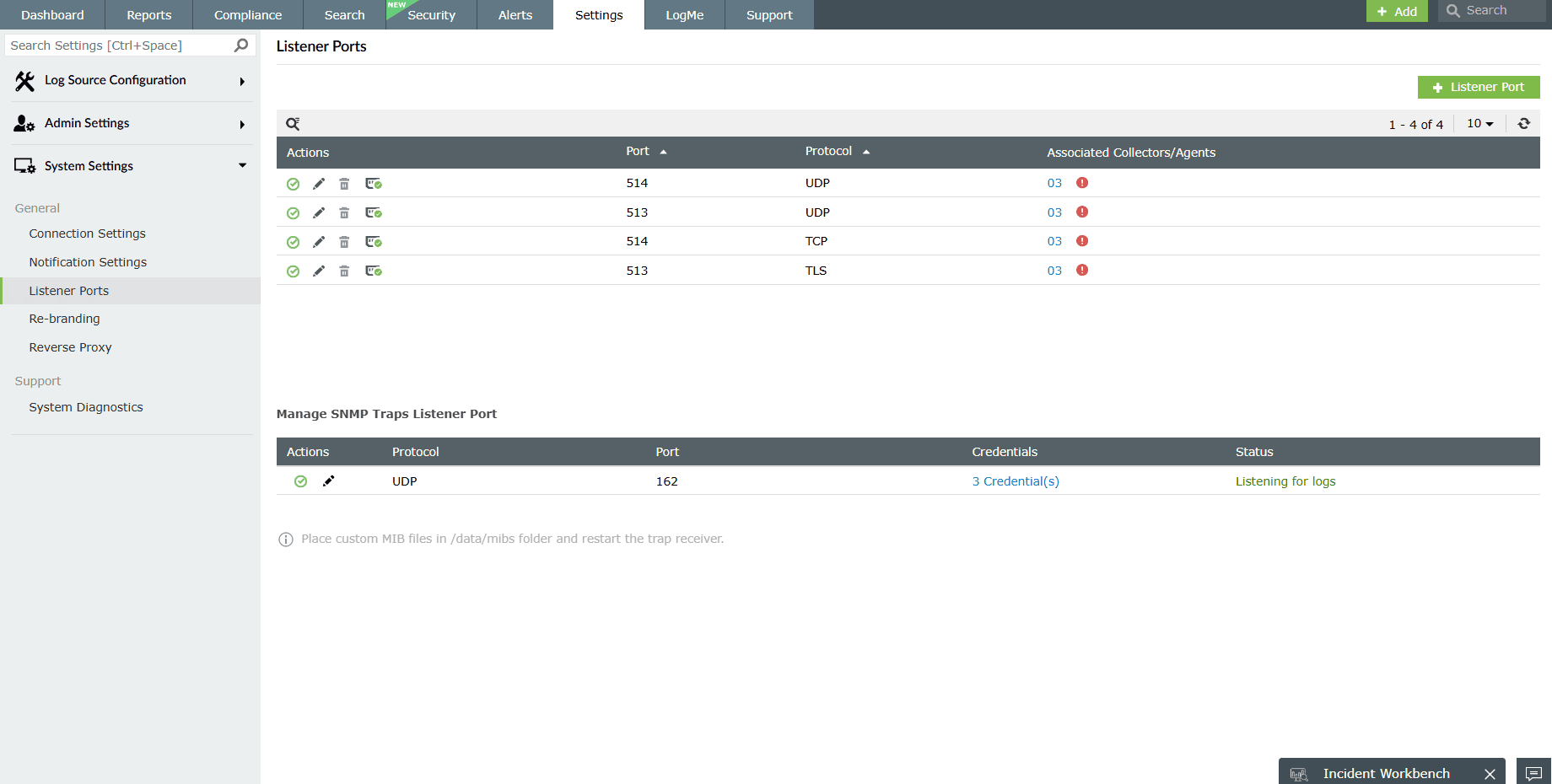
- After verifying the configuration of listener ports, ensure you configure your syslog device to send its logs to EventLog Analyzer.
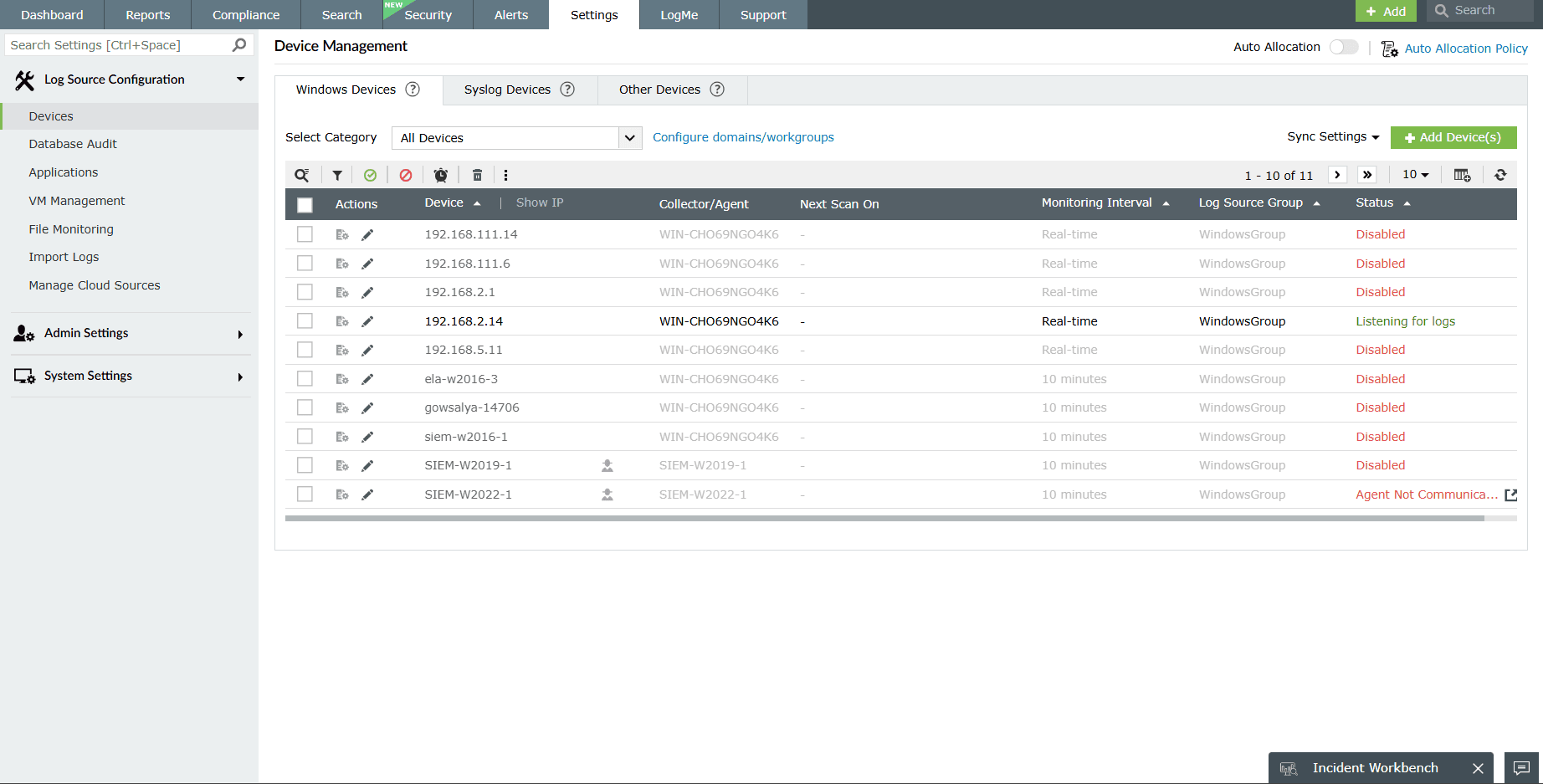
- EventLog Analyzer's built-in syslog server receives the syslog packets and attempts to determine the source IP address, resolve it to its corresponding name, and automatically add the device for monitoring. This ensures that multiple syslog devices are monitored from the Windows server without requiring manual involvement.
EventLog Analyzer automatically discovers Windows and other devices too. Given the IP or CIDR range, the solution discovers and lists all the devices and you can easily add them for monitoring. A single console for monitoring different log sources, including Windows, syslog devices, Linux, Unix servers, and applications, is available with a fully functional, 30-day trial.
- Configure devices to send logs to EventLog Analyzer, your Windows-based syslog server. Once you set up the listener ports in EventLog Analyzer, you can configure the syslog devices to send logs to this Windows-based syslog server. This will make your Windows server a central syslog server.
- For Network Devices (routers, switches, firewalls): Access the device's management interface (CLI or web GUI) and look for the logging, syslog, or diagnostic settings. Specify the IP address of the Windows server where EventLog Analyzer is configured. To learn more about setting up your devices to send their syslogs to EventLog Analyzer, see the Syslog configuration guide.
- For collecting Windows logs, EventLog Analyzer provides you both agentless and agent-based options. Automatically discover the Windows devices and add them for monitoring. To learn more about adding devices for monitoring in EventLog Analyzer, see the Windows device configuration guide.
- Application logs are collected and monitored by EventLog Analyzer through one-time or scheduled imports. The solution supports different business-critical applications like databases, web servers, and SaaS by default and also has a custom log parser that will parse any human-readable log format.
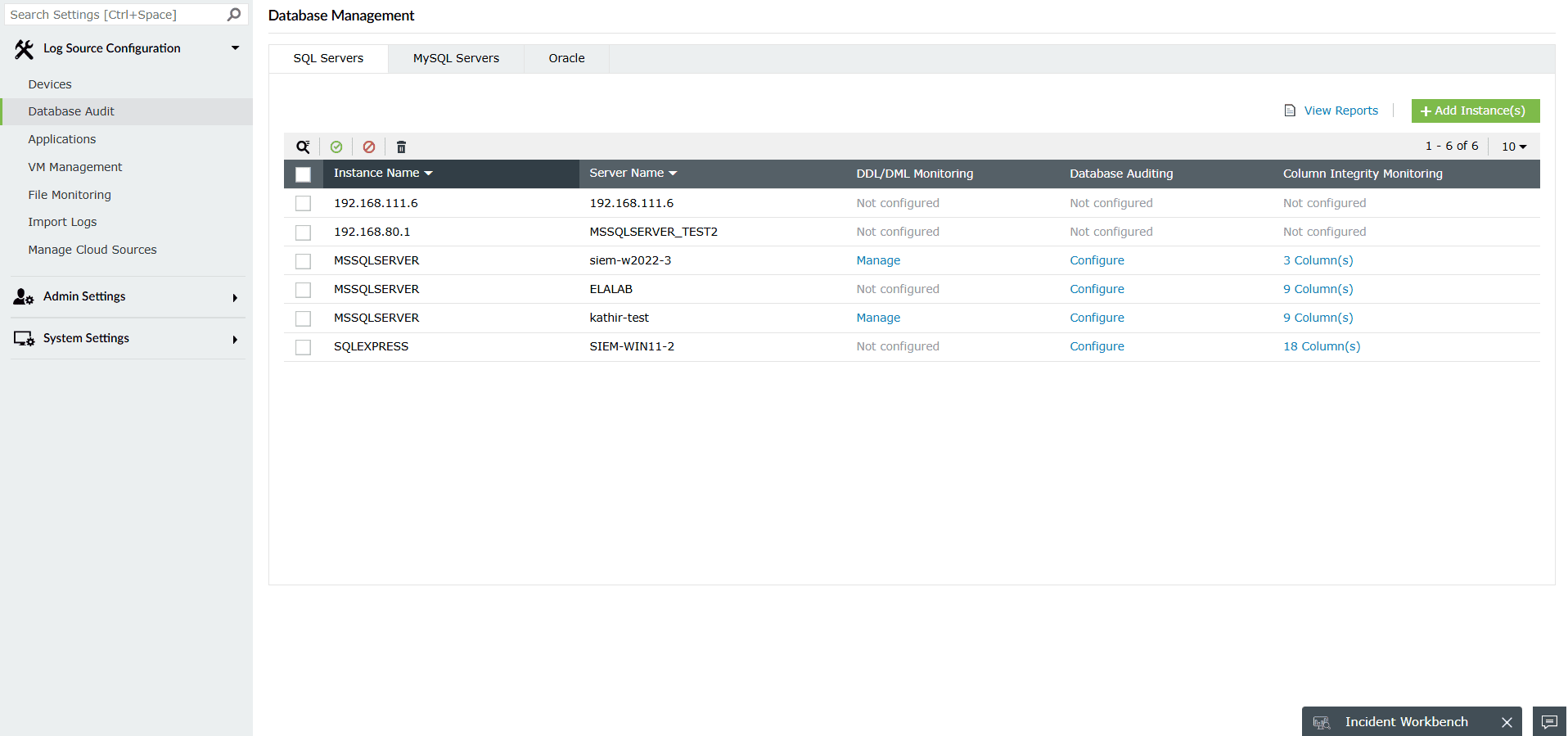
Learn more on the log formats supported and how to configure the different logs in EventLog Analyzer.
Best practices to optimize the performance of a Windows-based syslog server
- Log file location: Specify a directory on a drive with ample space for log storage.
- Log rotation: Configure how frequently new log files are created to prevent single log files from becoming unmanageably large.
- Retention policy: Define how long logs should be kept before being archived, compressed, or deleted. This is crucial for managing disk space and meeting compliance requirements. If you have space constraints, you can alternatively store the logs on cloud or secondary storage devices.
- Message filters: Set up filters to categorize, discard, or highlight messages based on criteria like source IP, hostname, syslog facility, severity level, or keywords in the message count.
- Monitor and maintain: Regularly check the CPU, memory, and disk utilization of your Windows syslog server. Keep the syslog server software updated with the latest patches and versions for security and performance.
- Log review: Regularly review the collected logs to identify potential security incidents, operational issues, or compliance concerns. Adjust your filtering, alerts, and retention policies as your needs evolve.
- Backup: Implement a robust backup strategy for your syslog server's configuration, and more importantly, its stored log data.