How to Download Windows 10 ISO file & create installation media?
The Windows 10 ISO file is a disk image used to load WinPE components into target computers. It can be mounted on a CD/DVD to boot computers or uploaded to virtual machines for imaging and deployment.
A Windows 10 ISO file is a complete disk image containing all files needed to install or reinstall Windows 10. It can be used to create installation media on USB drives or DVDs.
According to Microsoft, a Windows 10 ISO file includes all data necessary to install Windows 10 on any supported device.
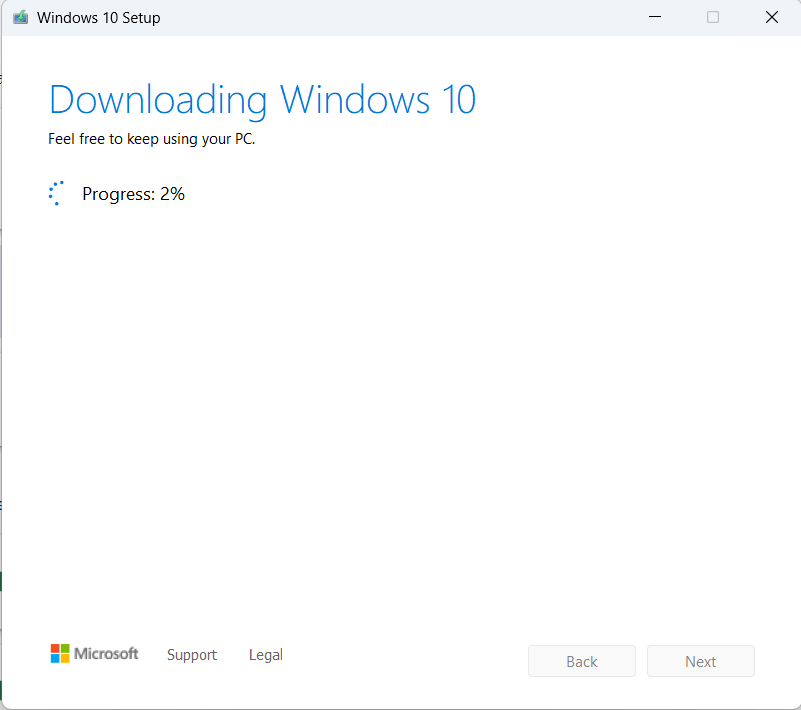
Follow these steps to download and create a Windows 10 installation media using the Media Creation Tool:
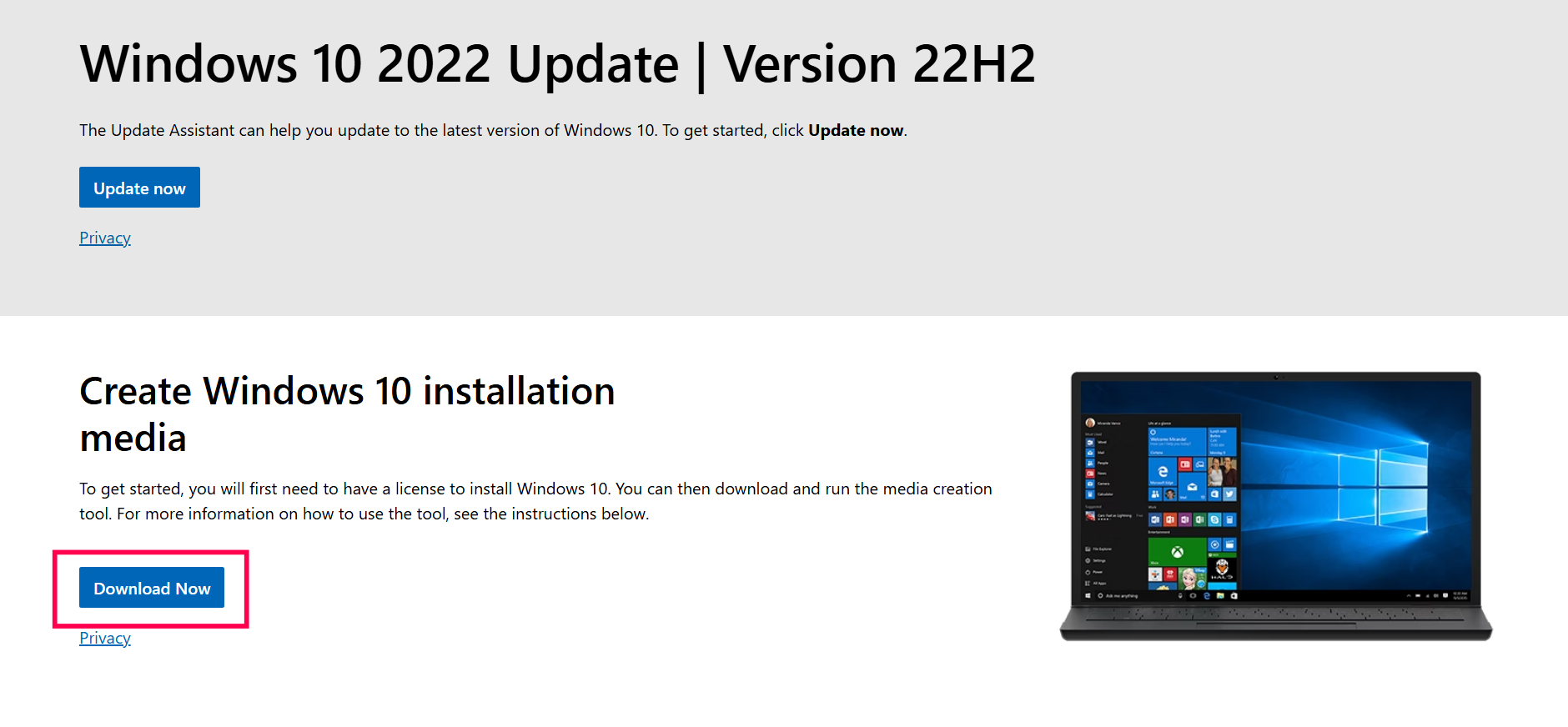
- Download the Media Creation Tool from the Microsoft website under Create Windows 10 installation media.
- Click Download to start downloading the tool.
- Run MediaCreationTool_22H2.exe and accept the license terms.
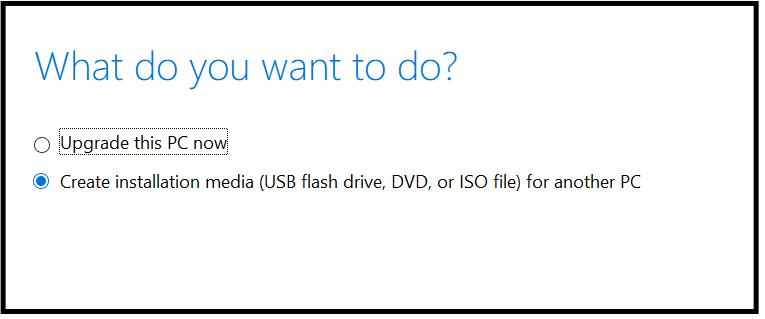
- Select Create installation media (USB flash drive, DVD, or ISO file) for another PC and click Next.
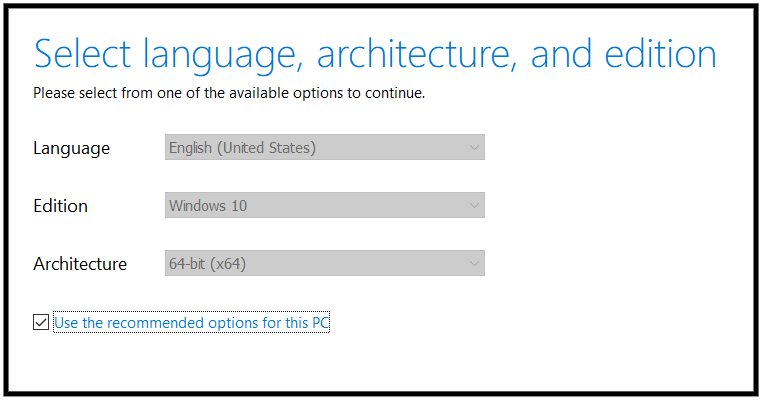
- Choose the preferred language, edition, and architecture, then click Next.
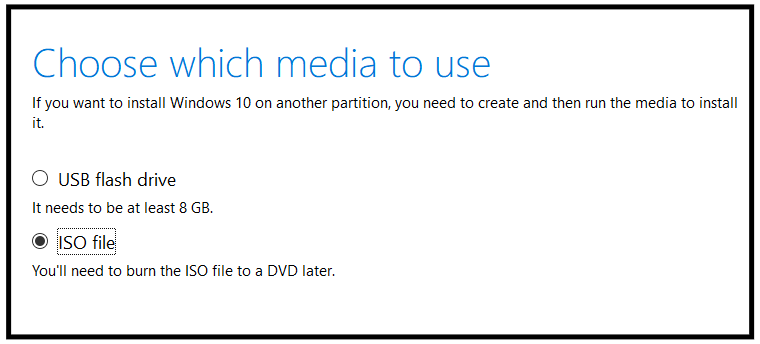
- Select ISO file and click Next.
- Click Save to download the Windows 10 bootable ISO.
The Media Creation Tool doesn’t allow customizations. OS Deployer allows you to customize the Windows 10 image, including the applications to be installed, computer name, SID, user profiles, and much more. You can also deploy the Windows 10 image to multiple computers simultaneously right from your desk.
- Windows 11, 10, 8, 7, XP
- Windows Server 2003 and above
Image a Windows 10 machine with the required applications to create an ISO image. The image will be stored in the repository and deployed to target machines using the Windows ISO file. Map the image to a deployment template and schedule the process using a deployment task.
For more details, refer to the imaging process guide.
Create a bootable ISO media containing the WinPE tool and required drivers:
- In the Deploy tab, click Create Bootable Media under the Deploy Image section.
- Select For ISO option.
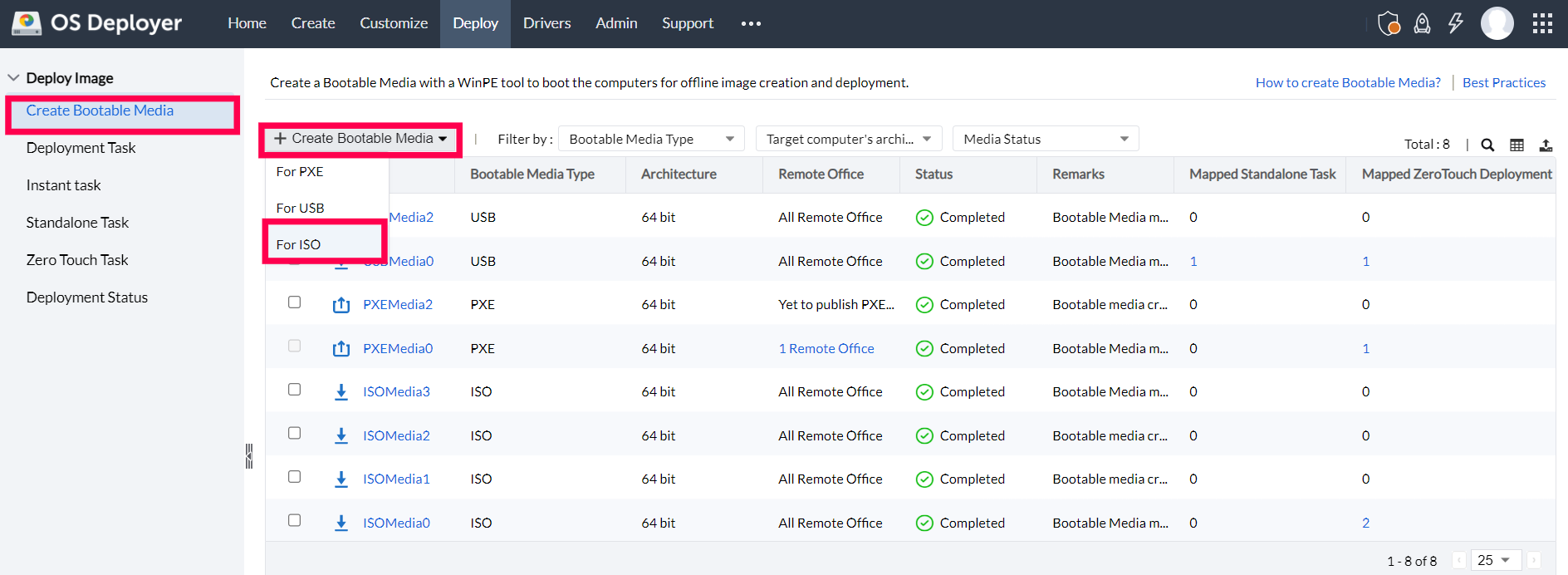
- Enter a bootable media name.
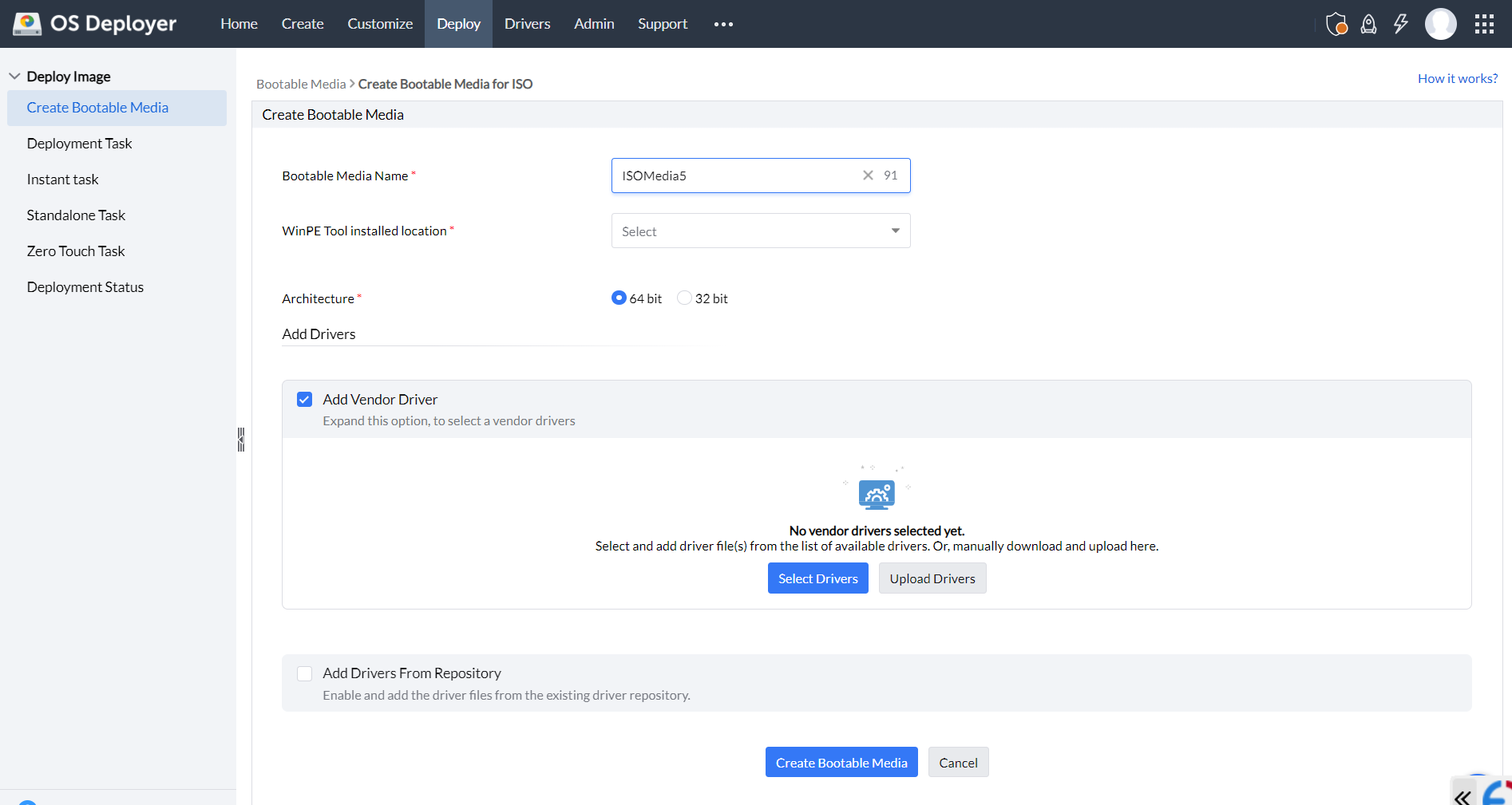
- Select the WinPE tool location or download it if not installed.
- Choose the system architecture (32-bit or 64-bit).
- Add required drivers:
- Option 1: Select vendor drivers (recommended)
- Click Select drivers to download vendor drivers (Dell, Lenovo, HP) directly to the server.
- Option 2: Upload drivers manually
- If offline, use Upload drivers to add vendor drivers downloaded separately.
- Option 1: Select vendor drivers (recommended)
- To use existing repository drivers:
- Enable Add drivers from repository → Select network & hard disk drivers.
- Search drivers by hardware ID, storage type, or model, then save.

- Click Create Bootable Media.
Once the bootable media is created, go to Action → Download Media to download the ISO file. You can burn or copy it to CD/DVD/USB using third-party tools.
- Insert the CD/DVD into the target computer.
- Access the Boot Order menu and select the CD/DVD drive under LEGACY BOOT or UEFI BOOT.
- Select the correct boot option based on your created image.
- For virtual machines, upload the ISO file directly for imaging and deployment.