Configuring MS SQL using Group Managed Service Account (gMSA) or Managed Service Account (MSA)
This guide details the steps required to configure ADSelfService Plus using a gMSA or MSA in MS SQL server.
Prerequisites
- ADSelfService Plus version 6500 or later is required. If you are using a version earlier than 6500, update to the latest version by installing the appropriate service pack.
- ADSelfService Plus must be installed as a service. Refer to this page for instructions on running ADSelfService Plus as a service.
- The MS SQL server should already be configured to work with ADSelfService Plus. For detailed configuration steps, please refer to this guide.
- The user account currently logged into the Windows server (where ADSelfService Plus is installed and the configuration changes are being made) must have sysadmin and db_owner permissions for the ADSelfService Plus database on the MS SQL Server. Additionally, the gMSA or MSA being used must also have these permissions.
Configuration steps
- Open the Services console (press the Windows key, type services.msc in the search bar, and press Enter). Search for the ManageEngine ADSelfService Plus service. Right-click the service and select Stop.
- Copy the database_params.conf file from <ADSelfService_Plus_installation_ directory>/conf. This will serve as a backup of the database configuration.
- Run ChangeDB.bat from <ADSelfService_Plus_installation_ directory>/bin.
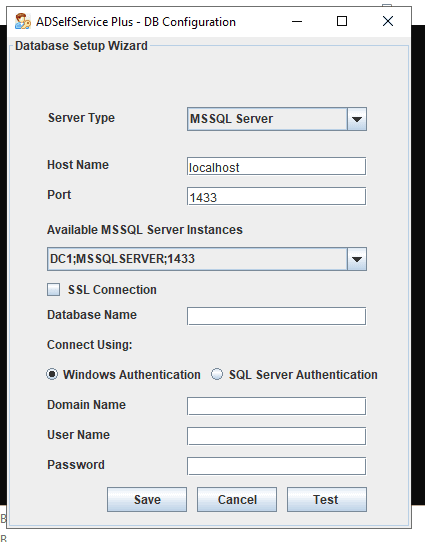
- In the Database Setup Wizard, that appears:
- Select MSSQL Server as the Server Type.
- Enter the Hostname, Port, Database Name, and choose the appropriate MS SQL server instance.
- Select Windows Authentication in the Connect Using field, and enter the Domain Name and credentials of the user currently logged in to the Windows server mentioned in the Prerequisites in the Username and Password fields.
- Click Save.
- Back in the Services console, right-click on ManageEngine ADSelfService Plus service, and select Properties.
- In the pop-up window that appears, navigate to the Log On tab, and select the This account option.
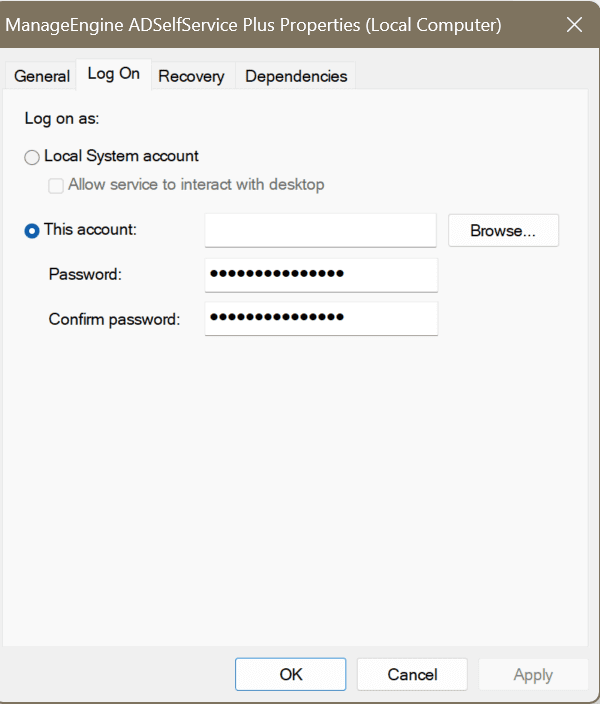
- Click Browse. In the Select User or Service Account pop-up, enter the gMSA or MSA. Clear the Password and Confirm password fields, and then click OK.
- Start the ADSelfService Plus service. Your MS SQL database will now be accessed using the gMSA or MSA.
Note: The configured gMSA or MSA will take precedence over the credentials displayed in the database_params.conf file.
Highlights of ADSelfService Plus
Allow Active Directory users to self-service their password resets and account unlock tasks, freeing them from lengthy help desk calls.
Get seamless one-click access to 100+ cloud applications. With enterprise single sign-on, users can access all their cloud applications using their Active Directory credentials.
Intimate Active Directory users of their impending password and account expiry via email and SMS notifications.
Synchronize Windows Active Directory user passwords and account changes across multiple systems automatically, including Microsoft 365, Google Workspace, IBM iSeries, and more.
Strong passwords resist various hacking threats. Enforce Active Directory users to adhere to compliant passwords by displaying password complexity requirements.
Enable Active Directory users to update their latest information themselves. Quick search features help admins scout for information using search keys like contact numbers.

 Free Edition