Log Collection Filters
In this page:
Overview
Log Collection Filters in Log360 Cloud allow admins to control and streamline the log ingestion process by specifying which logs should be collected or excluded based on log source, log format, and custom-defined conditions. You can create filters for both device groups and cloud sources. This ensures that only relevant and necessary log data is processed, stored, and analyzed.
Filters support logical operators like AND and OR, allowing you to combine multiple criteria.
This page explains how to create, configure, and manage Log Collection Filters to help optimize storage usage, improve processing efficiency, and retain actionable, security-relevant data.
Creating a Log Collection Filter
- Log in to your Log360 Cloud account.
- Go to the Settings tab and select Admin.
- In the left pane, navigate to Data Storage and click Log Collection Filters
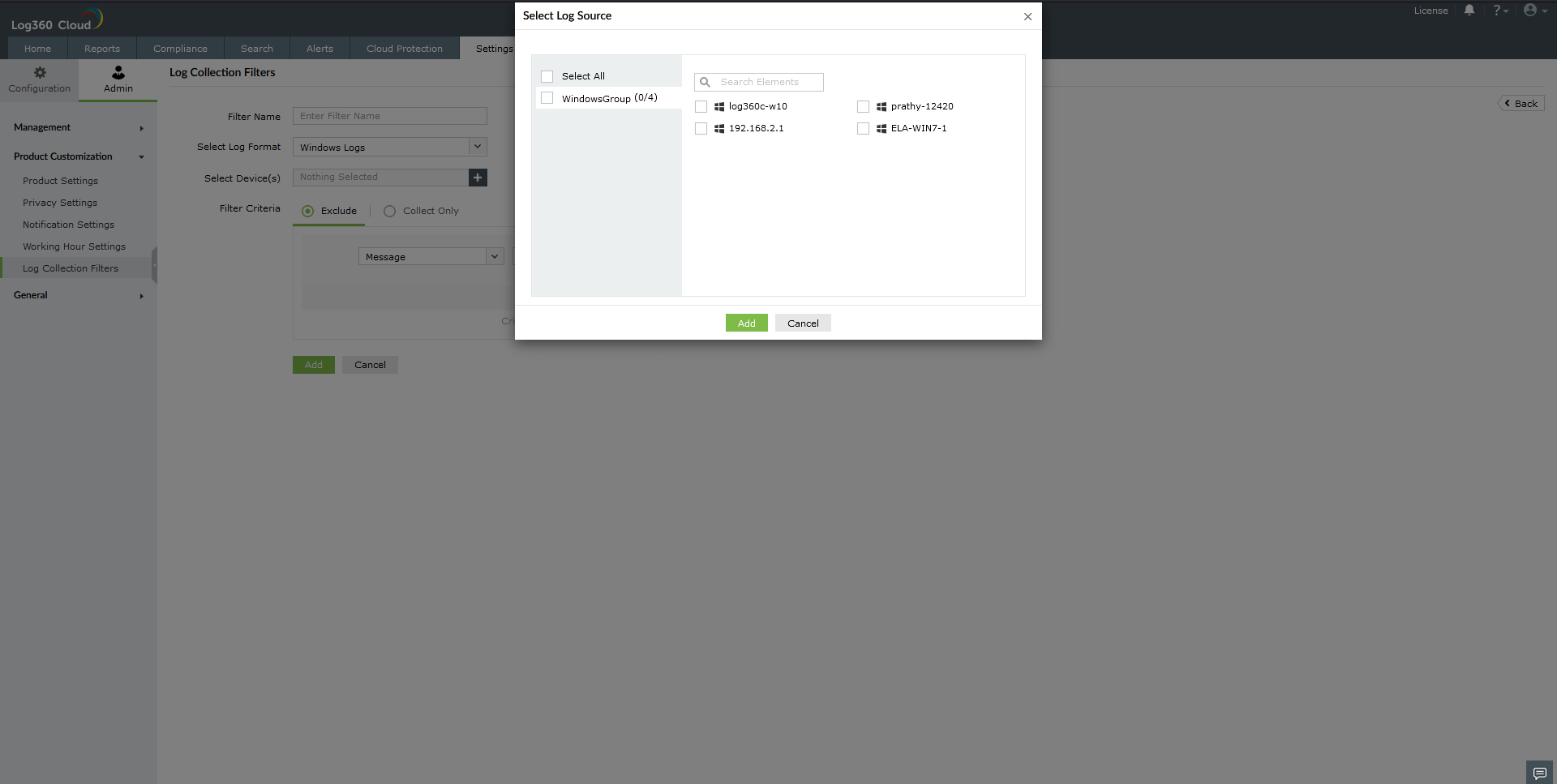
Figure 1: Navigating to Log Collection Filters
- Click + Add New Filter in the top right corner.
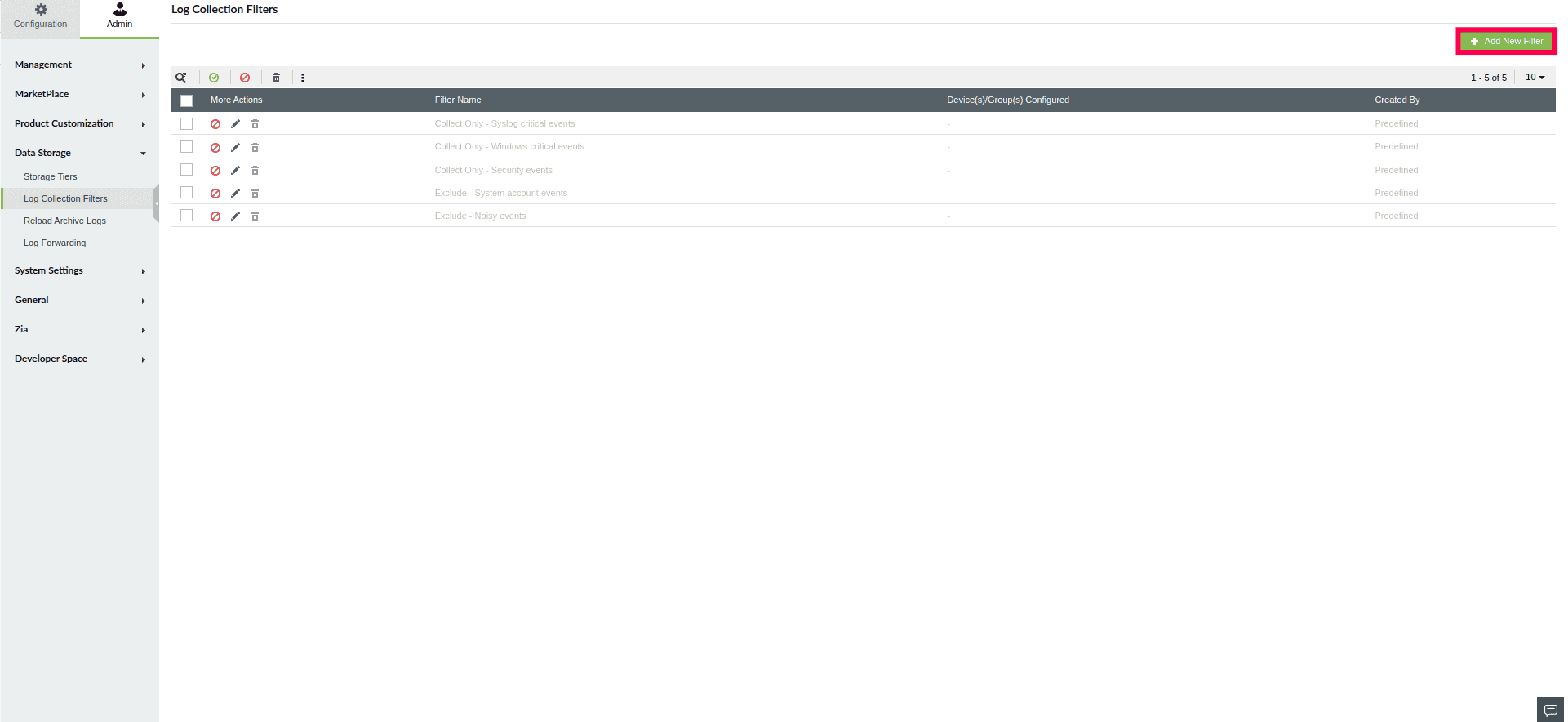
Figure 2: Adding a new filter
- Enter a unique name for the filter in the Filter Name field.
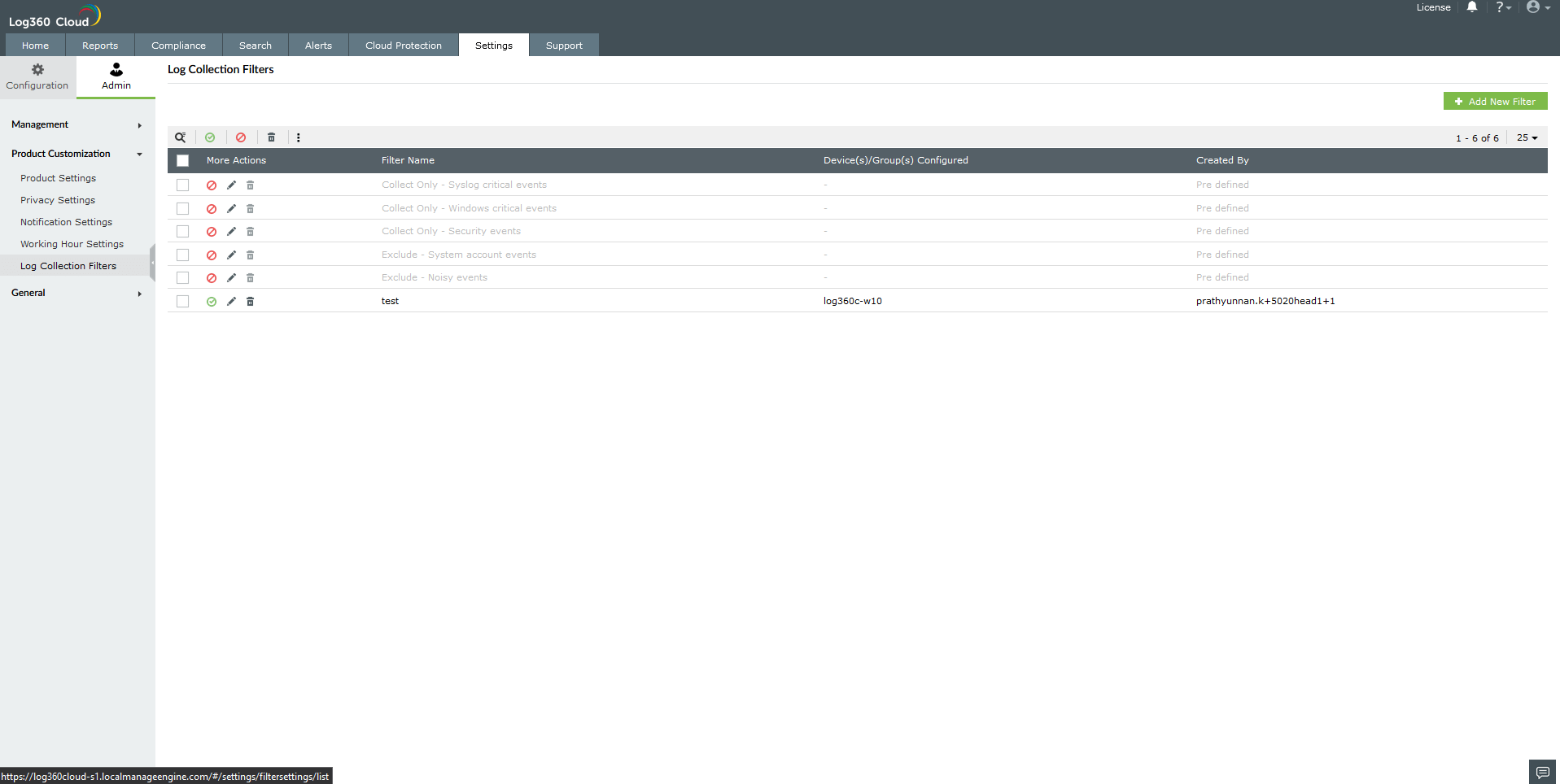
Figure 3: Configuring a log collection filter
- In the Select Log Format drop-down menu, choose the appropriate log format.
NOTE: Cloud sources can also be selected from the Log Format drop-down.
- Click the
 icon to select Log Sources.
- In the pop-up window, select the desired device groups or Cloud Sources. You can also use the Search Elements bar to locate specific sources.
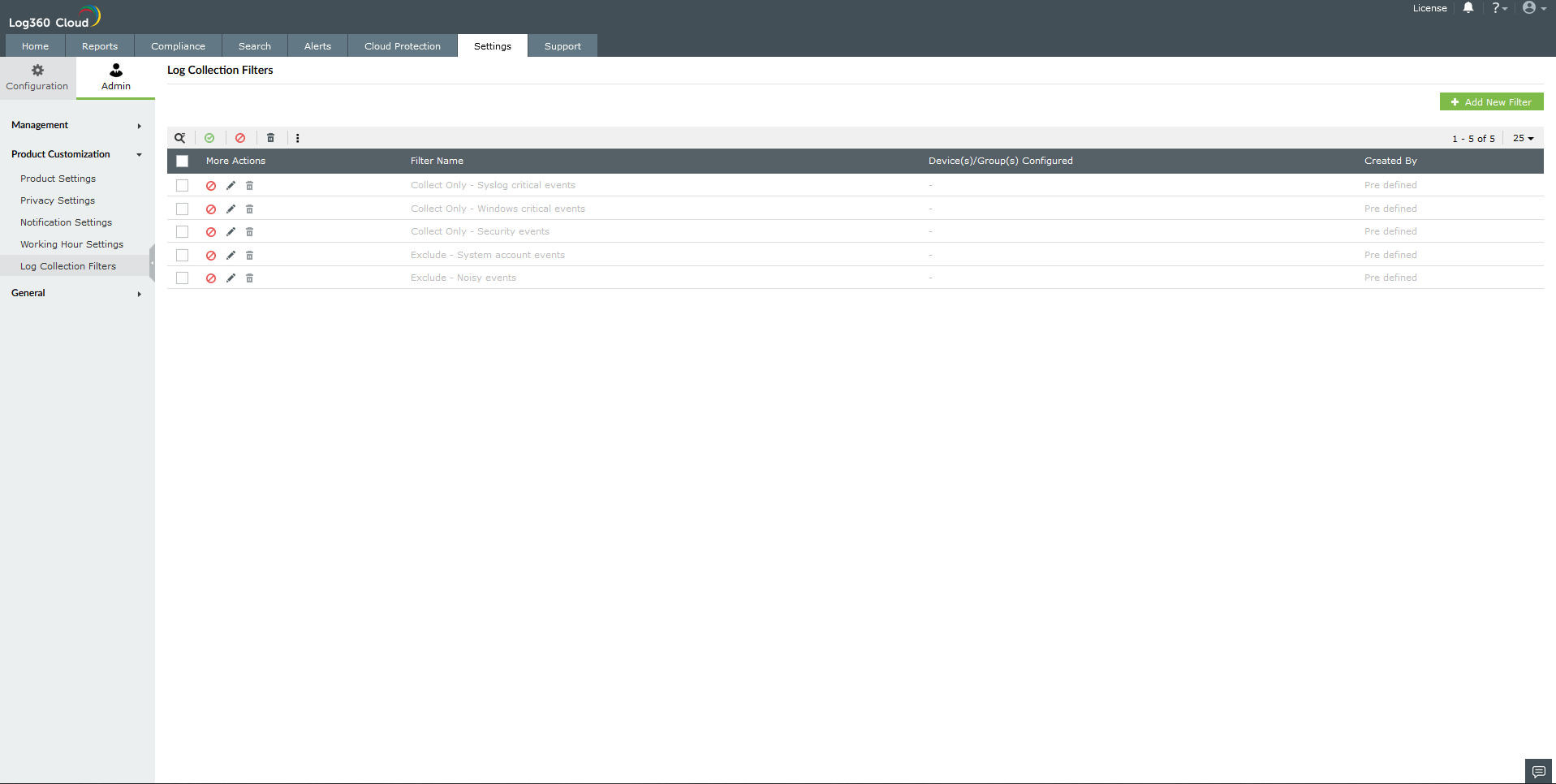
Figure 4: Selecting a log source
- Click OK to confirm your selection.
- Using Filter Criteria, you can define the conditions that determine which logs should be collected or excluded. Choose one of the following options:
- Exclude: Omit logs that match the specified criteria.
- Collect Only: Include only logs that match the specified criteria.
NOTE: A filter can be configured to perform only one action, either Exclude or Collect Only. To apply both actions for the same set of devices or log sources, you must create two separate filters: one for exclusion and another for inclusion.

Figure 5: Configuring a log collection filter
- Click the
 icon to add additional filter criteria. You can combine multiple conditions using logical operators:
- AND means all conditions in the group must be true for a log to match.
- OR means at least one condition in the group must be true for a log to match.

Figure 6: Adding additional filter criteria
- To create advanced filters, click + Add Group to define multiple groups of conditions. Each group can be configured with its own set of criteria and logical operators.

Figure 7: Adding a group
- Click Add to save the configurations.
Managing Log Collection Filters
To enable or disable a log collection filter:
- In the Log Collection Filter page, select a filter from the list.
- Click the
 icon to disable the filter.
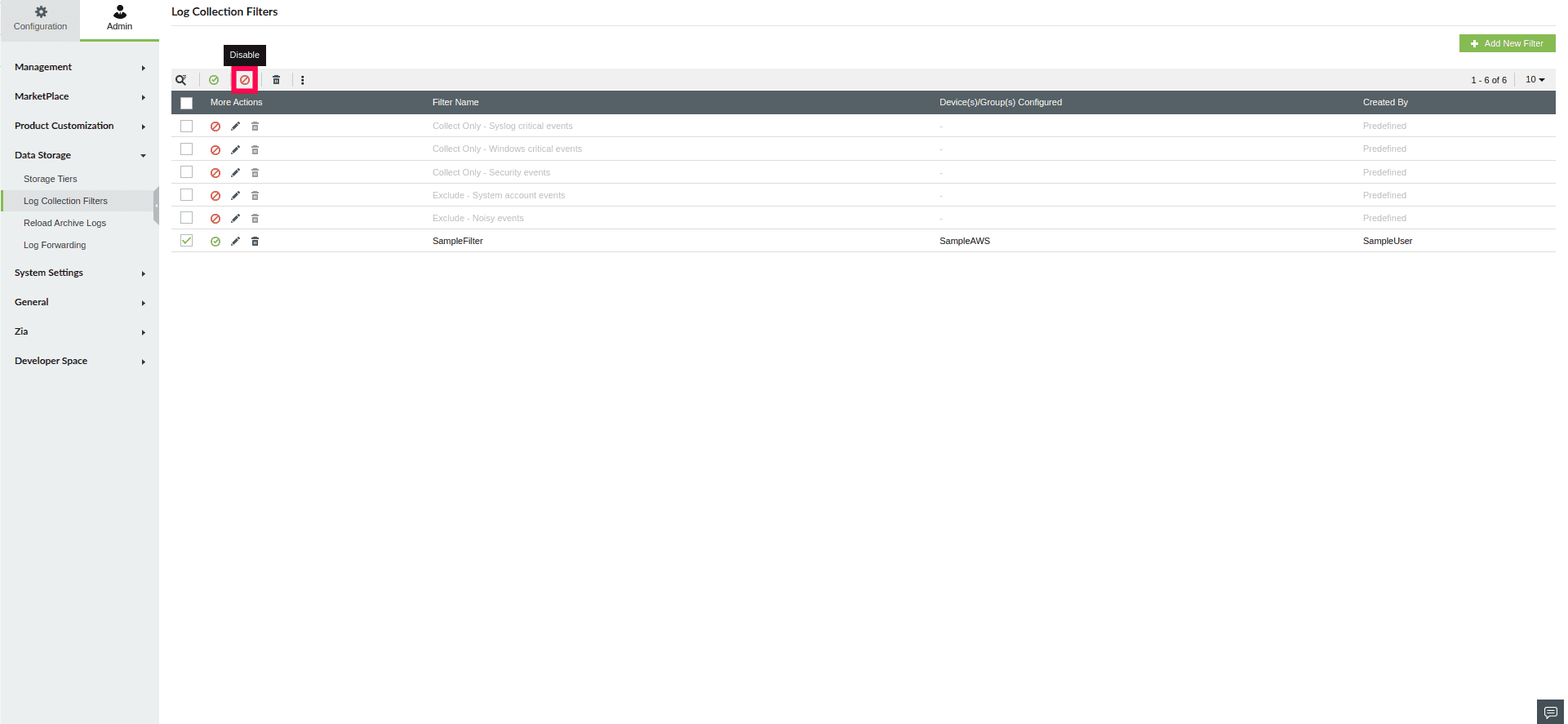
Figure 8: Disabling a log collection filter
- To enable a filter, select a disabled filter and click the
 icon
icon

Figure 9: Enabling a log collection filter
To delete a filter:
- Select the filter you want to remove.
- Click the
 icon.
icon.
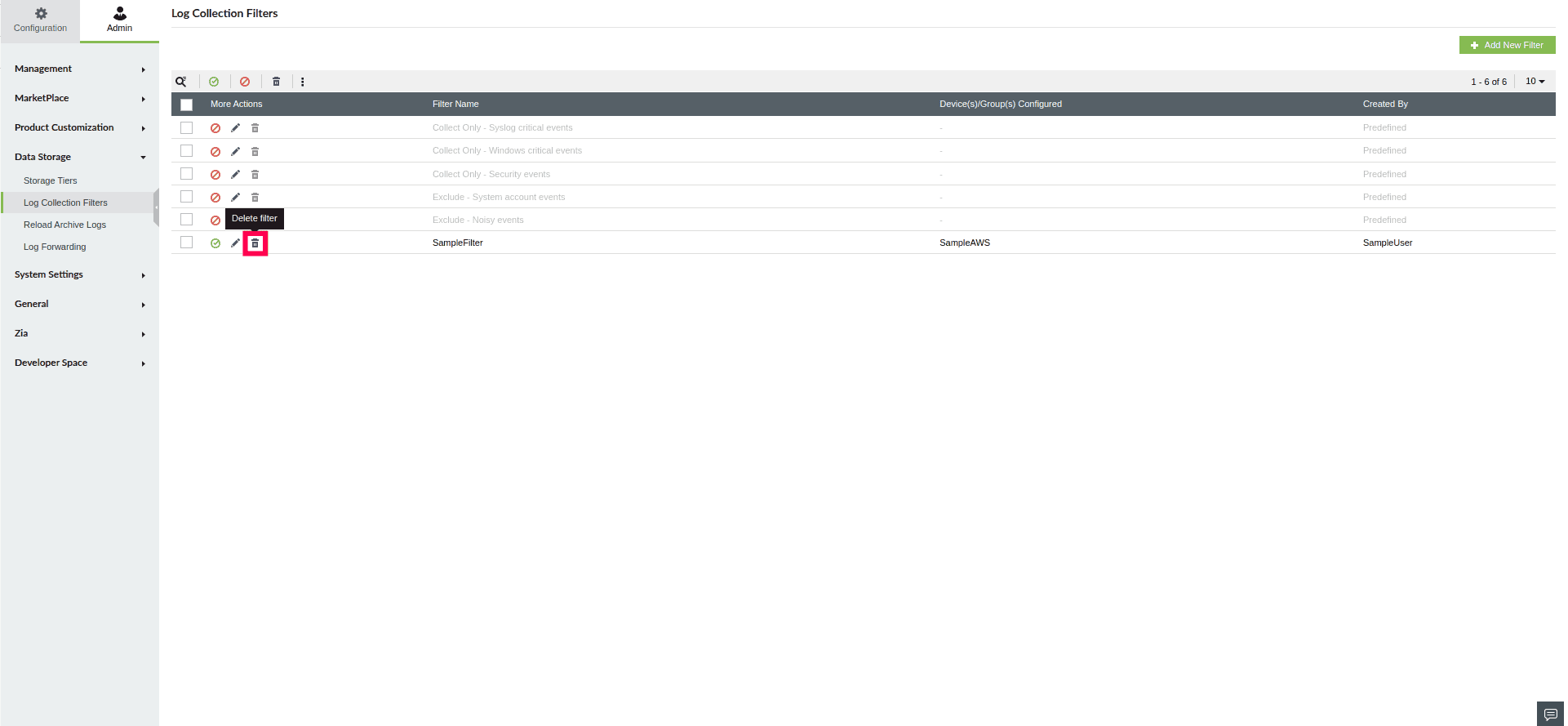
Figure 10: Deleting a log collection filter
- A confirmation pop-up will appear. Click Yes to confirm and permanently delete the filter.
NOTE: Predefined filters cannot be deleted.
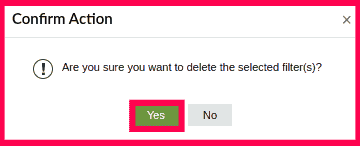
Figure 11: Confirming deletion of the log collection filter
To search for a filter:
- Click the Search icon at the top-left corner of the filter table.
- Enter the filter name in the search bar.

Figure 12: Searching for a filter
- The table will automatically update to display filters that match the entered keyword.
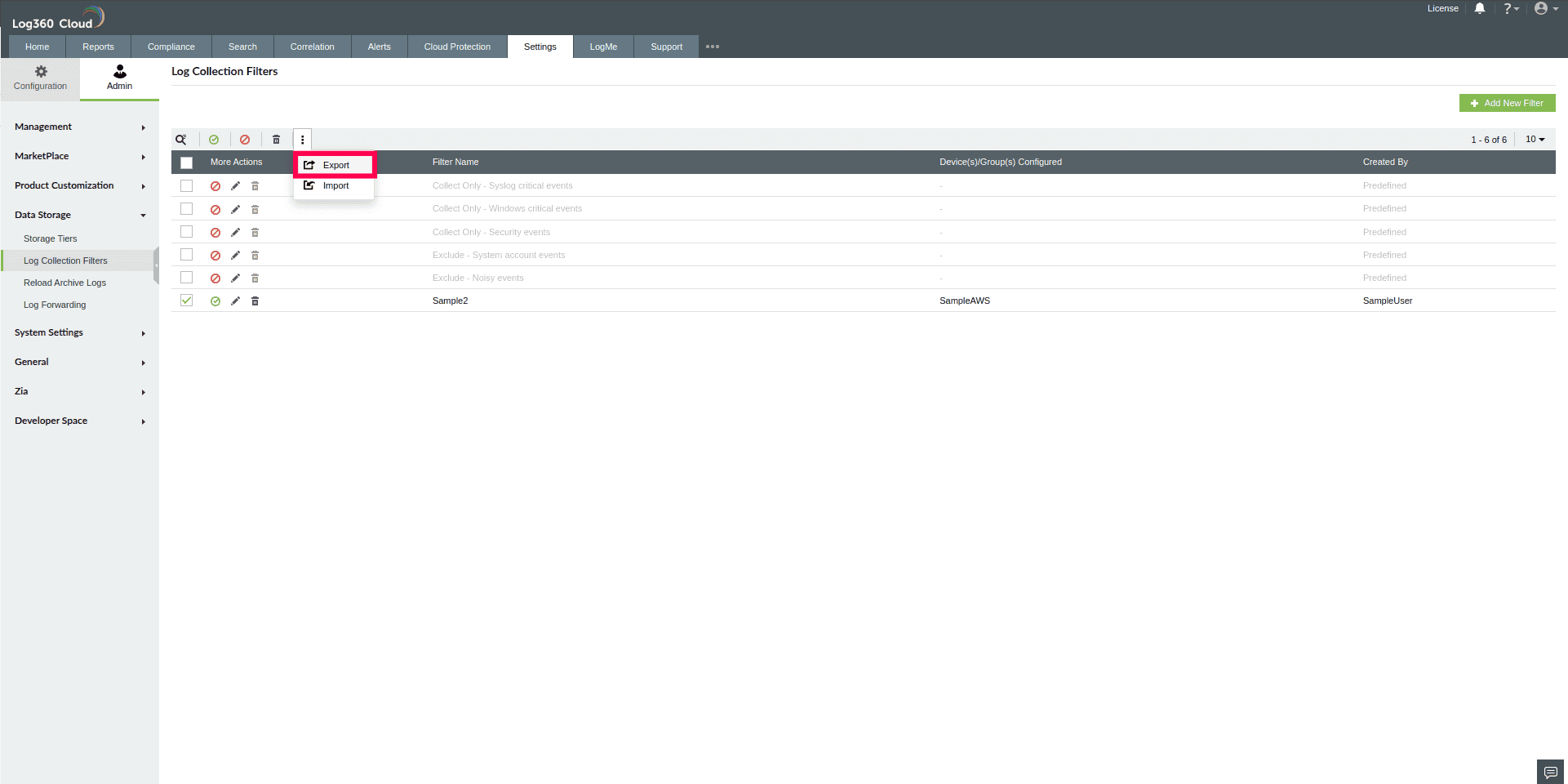
To export a filter:
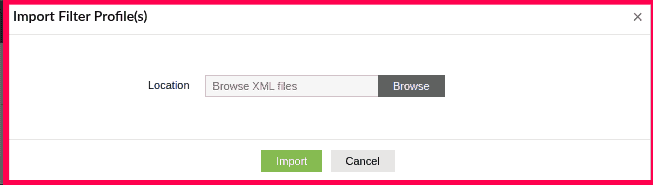
To import filters:
To edit an existing filter:
- Click the
 icon next to the filter you want to update.
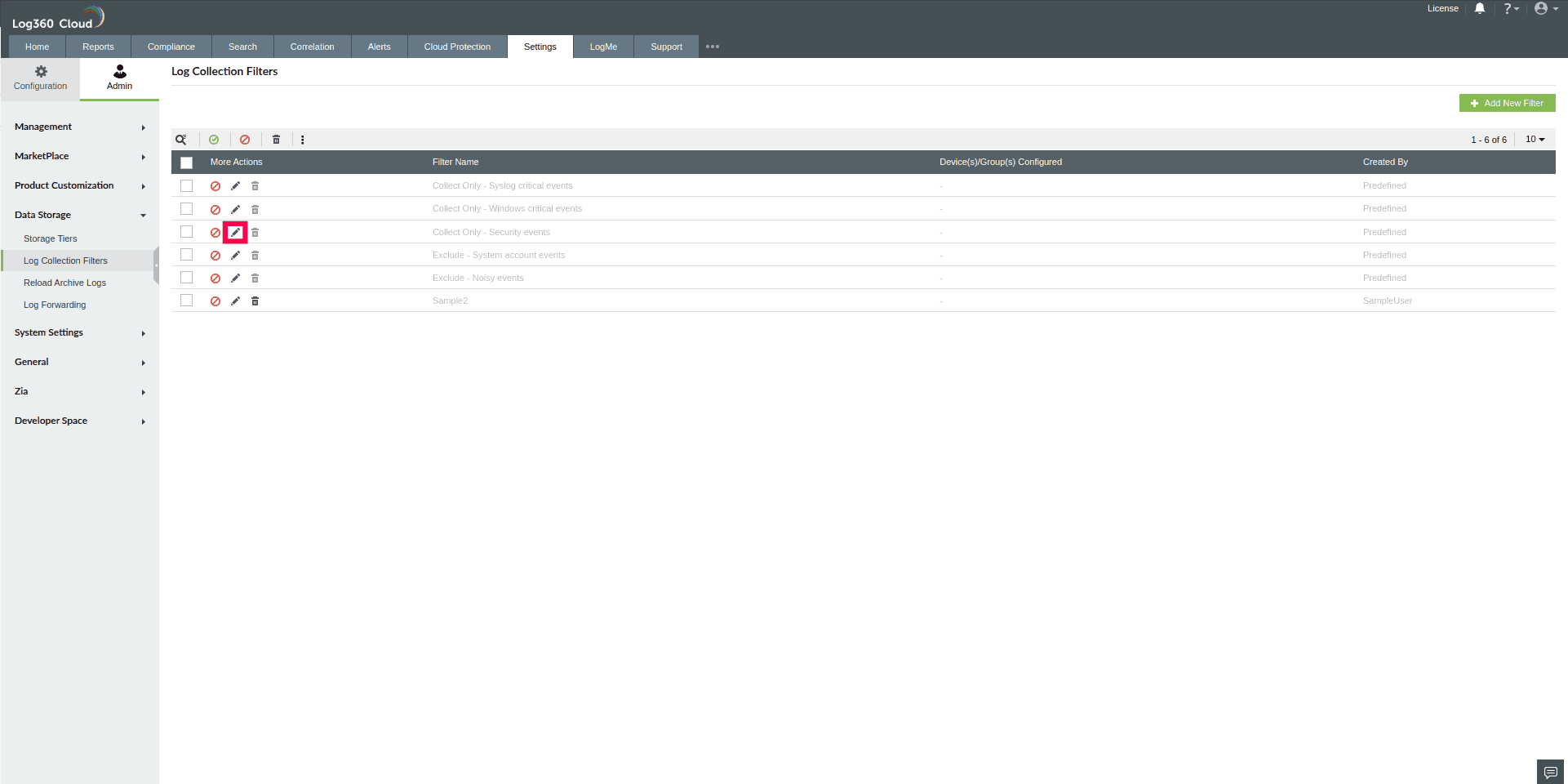
Figure 15: Editing a filter
- You can modify the Filter Name, Log Sources, and Filter Criteria.
NOTE: You cannot edit the filter criteria of predefined filters. However, you can modify the associated device(s) or device group(s) in predefined filters.
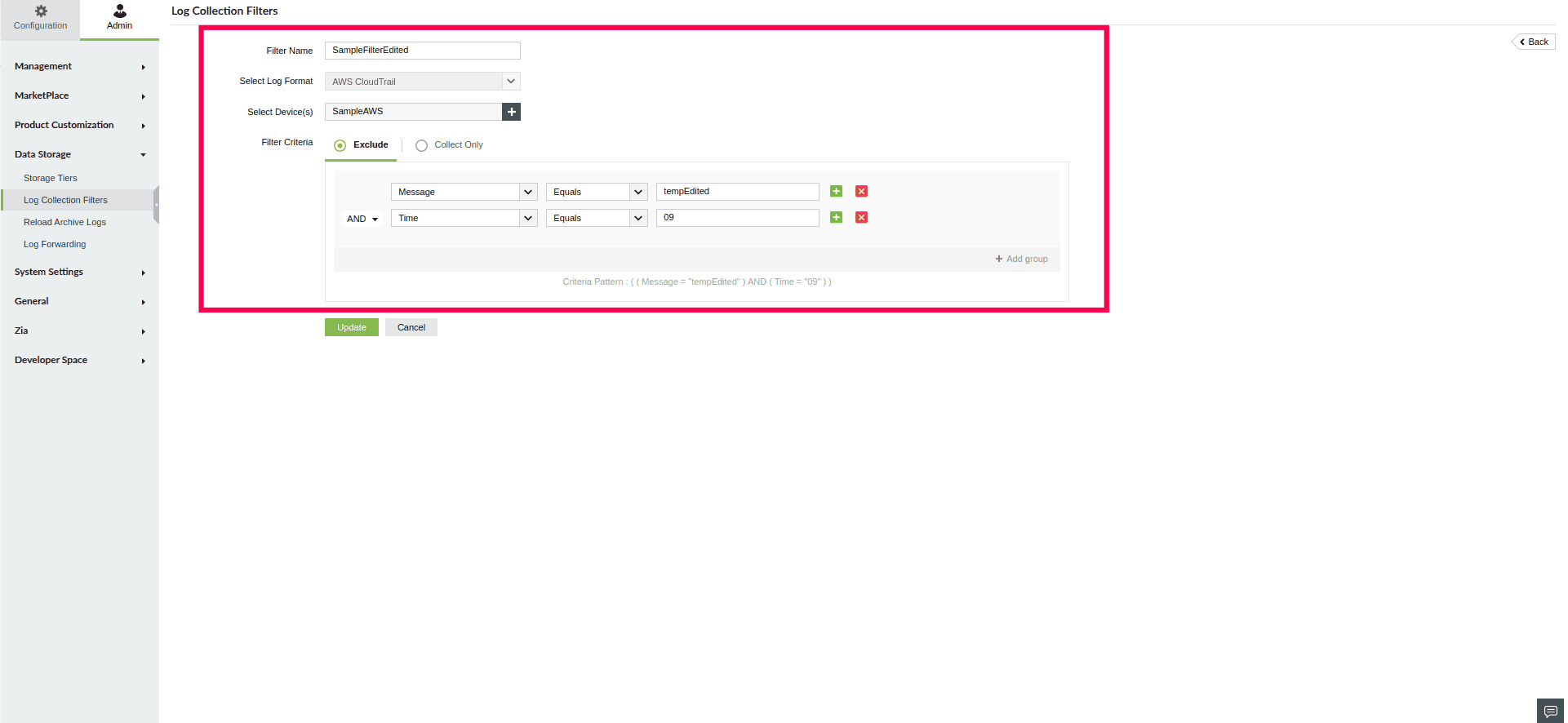
Figure 16: Editing a filter
- Click Update to save the changes.

 icon and choose Export.