MSSP Customer Portal MFA
Customer Portal MFA provides an essential security layer, enabling Customer App Account Admins to enforce multi factor authentication for all portal accounts. This measure is crucial for protecting the sensitive data stored within the portal and the information of its users.
Accessing Portal MFA:
The option to enforce portal MFA can be found in the Portal User Management Page.
- Go to Settings -> Admin -> Portal User Management.
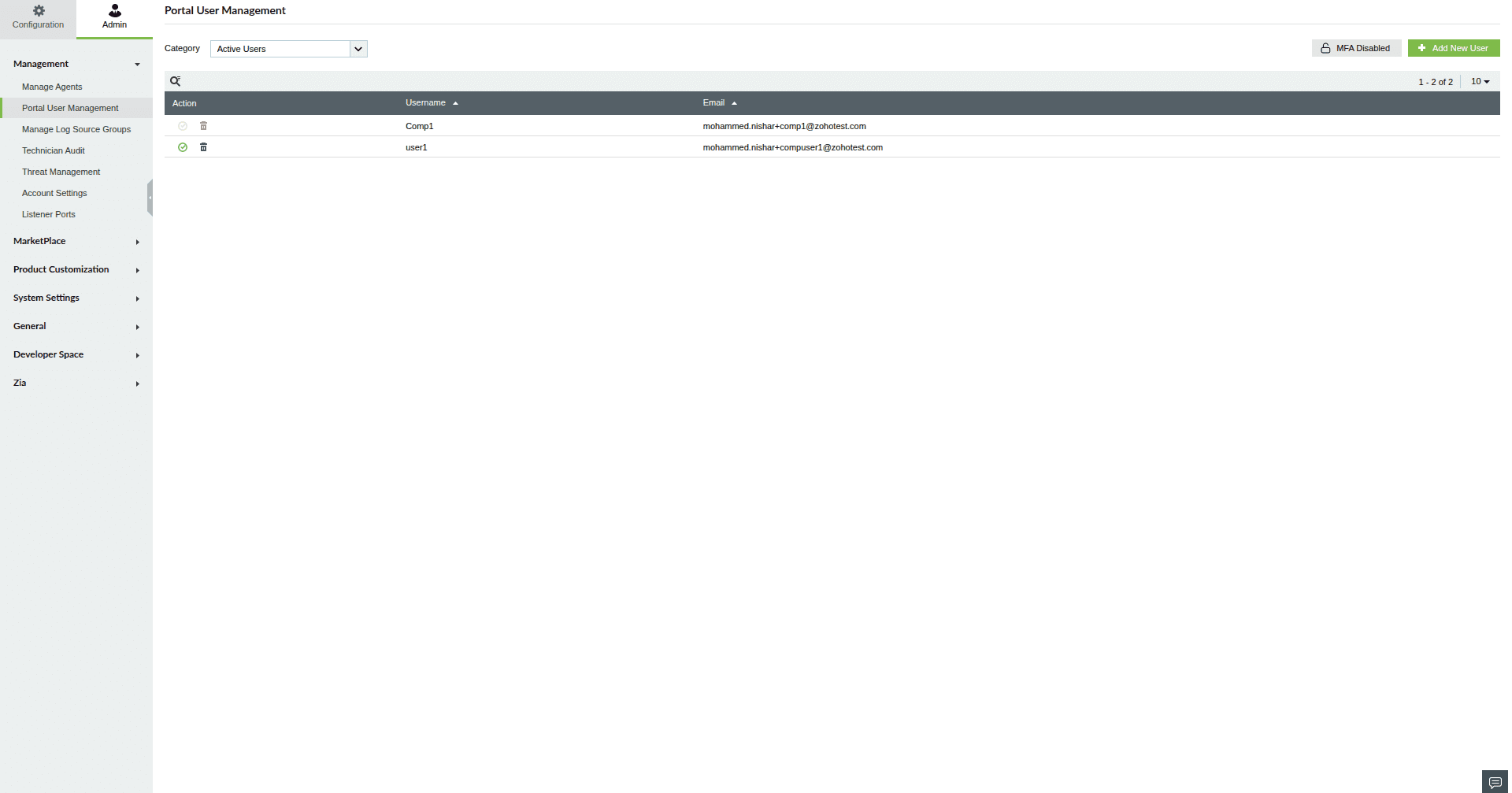
- Find the option to enable/disable portal MFA on the top right corner, next to the add user button.

Note: Customer Portal MFA will be enabled by default in the portal. Only the MSSP Admin or the technicians associated with that customer will have the permission to enable or disable MFA.
Enabling the Portal MFA
- Go to Portal User Management and click the MFA Status button on the top right corner to change its status.
- Confirm the action by clicking Proceed.
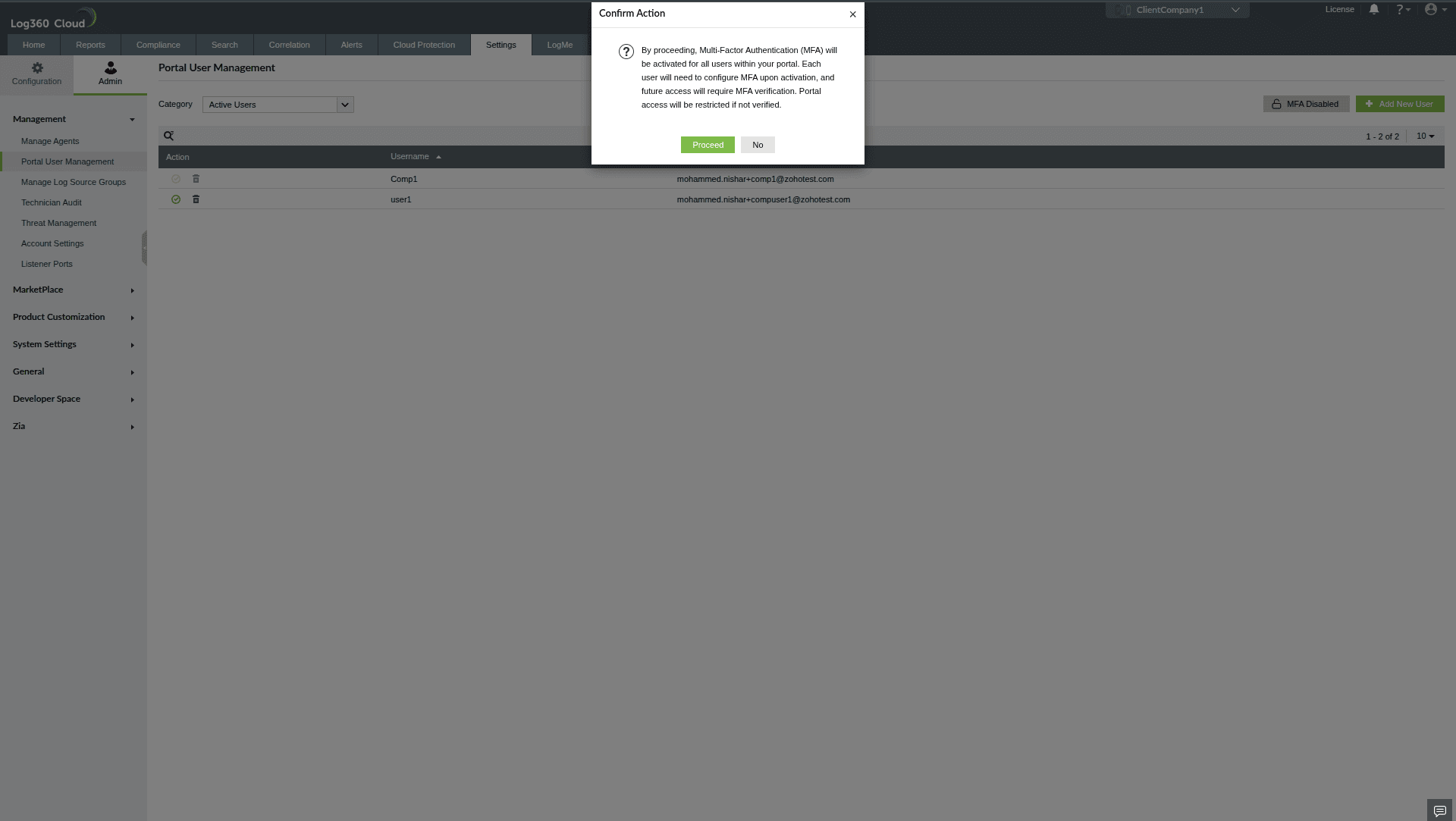
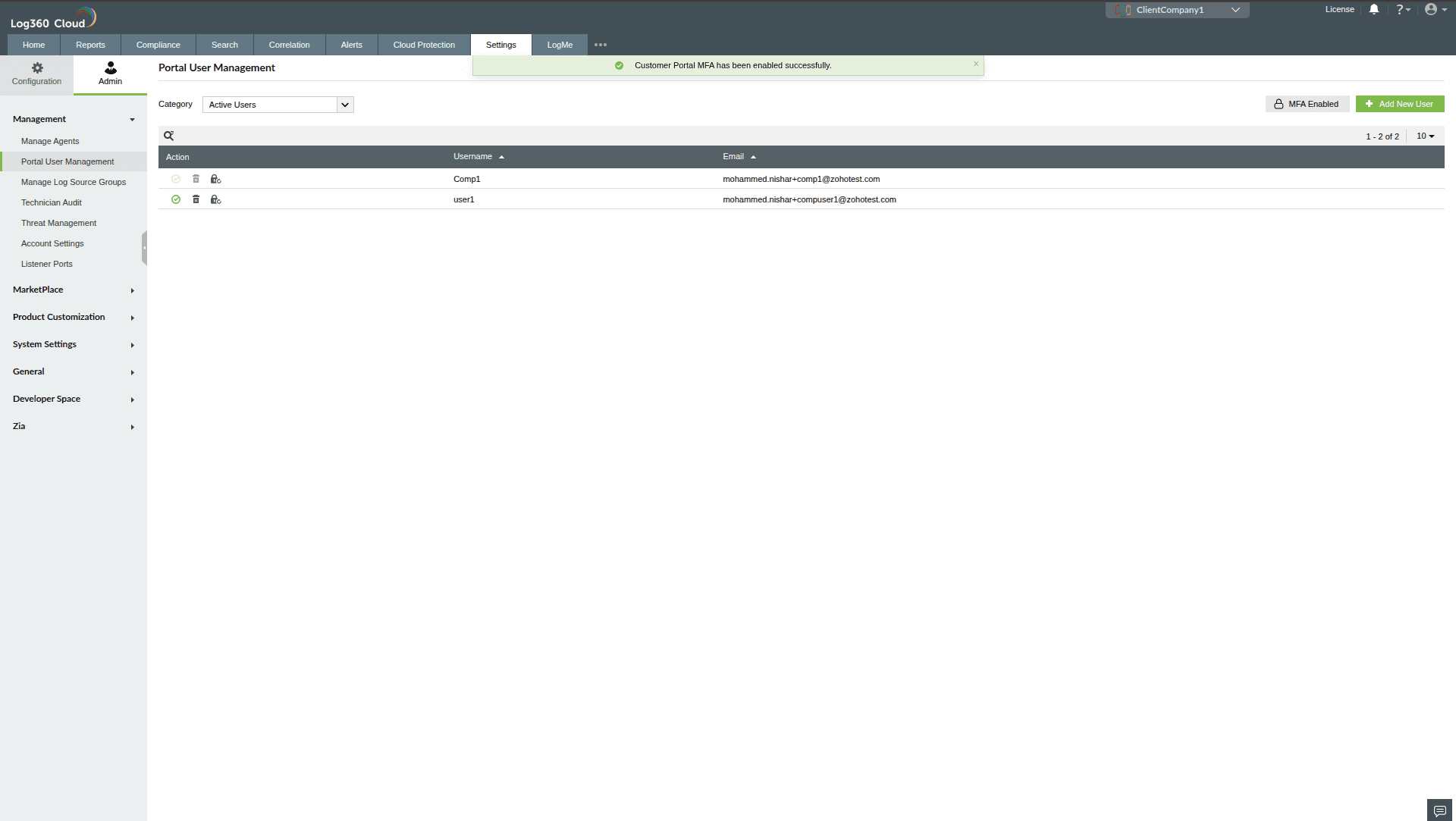
Note: MFA will be enabled at the portal level. Users need to authenticate/configure MFA to access the portal.
Disabling the Portal MFA
- Go to Portal User Management and click the MFA Status button to change its status.

- Confirm the action by clicking Proceed.
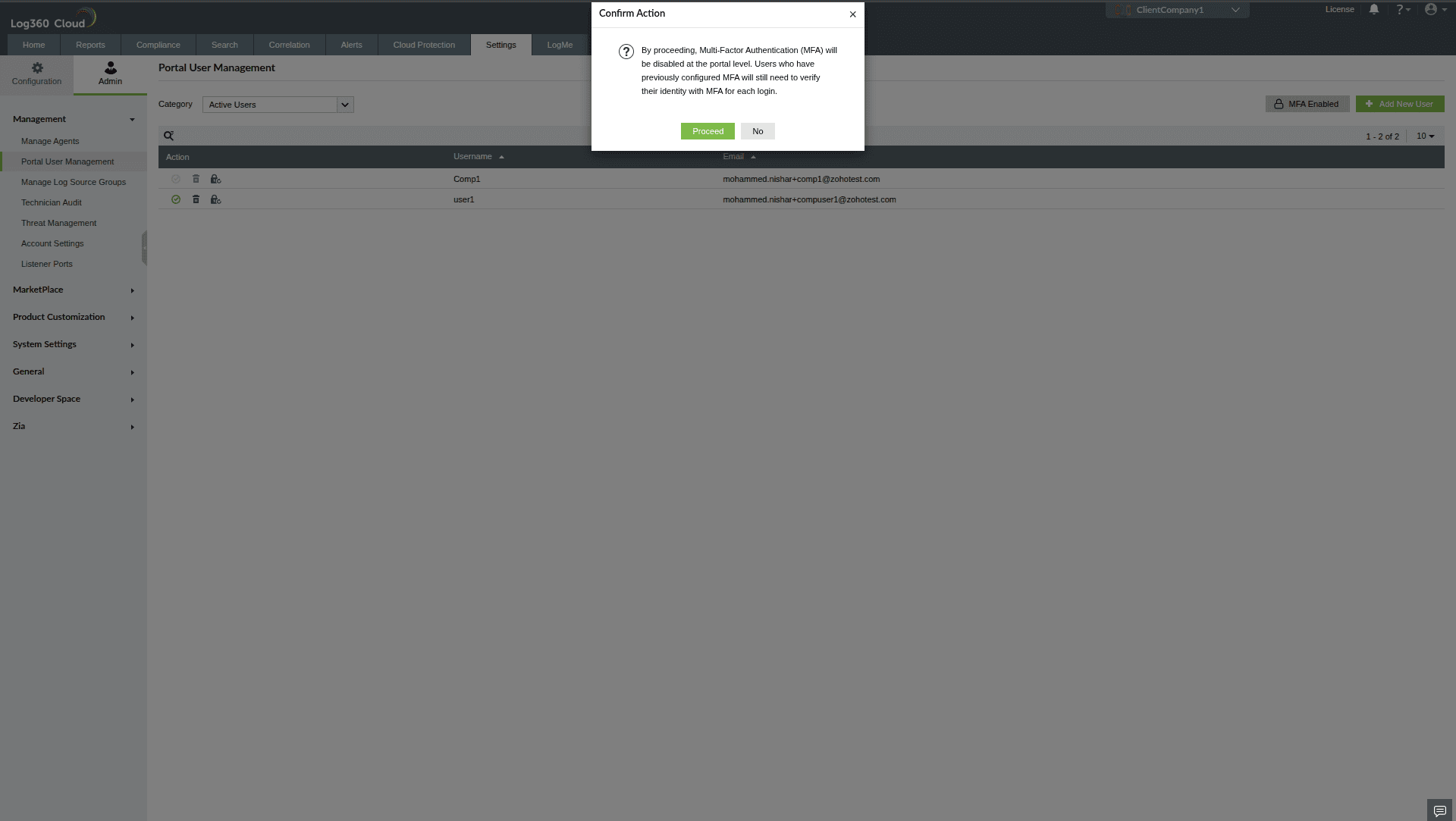

MFA will be disabled at the portal level. New users and those who have not previously configured MFA for their accounts will be able to access the portal without requiring MFA authentication.
Note: If a user has previously configured MFA for their portal account, they will still need to authenticate with MFA to access the portal, even after the portal MFA policy has been disabled.
Resetting User MFA Configuration:
- If a user who has configured MFA encounters authentication issues, or has lost the device on which their MFA was set up, we provide an option to reset their MFA configuration.
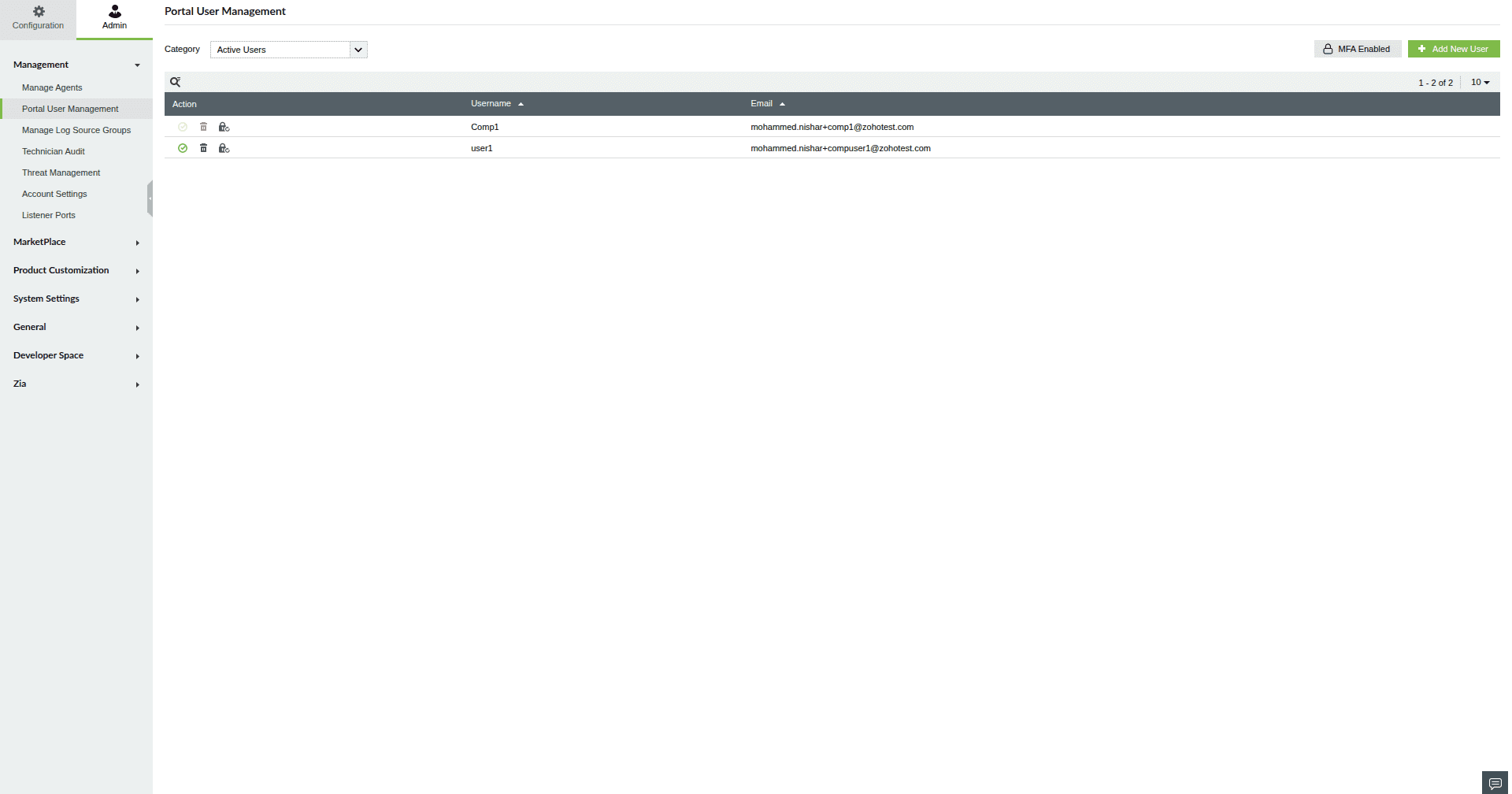
- To reset a user's MFA configuration, simply click the Reset User MFA icon located in the Actions column.

- Confirm the action by clicking Proceed.
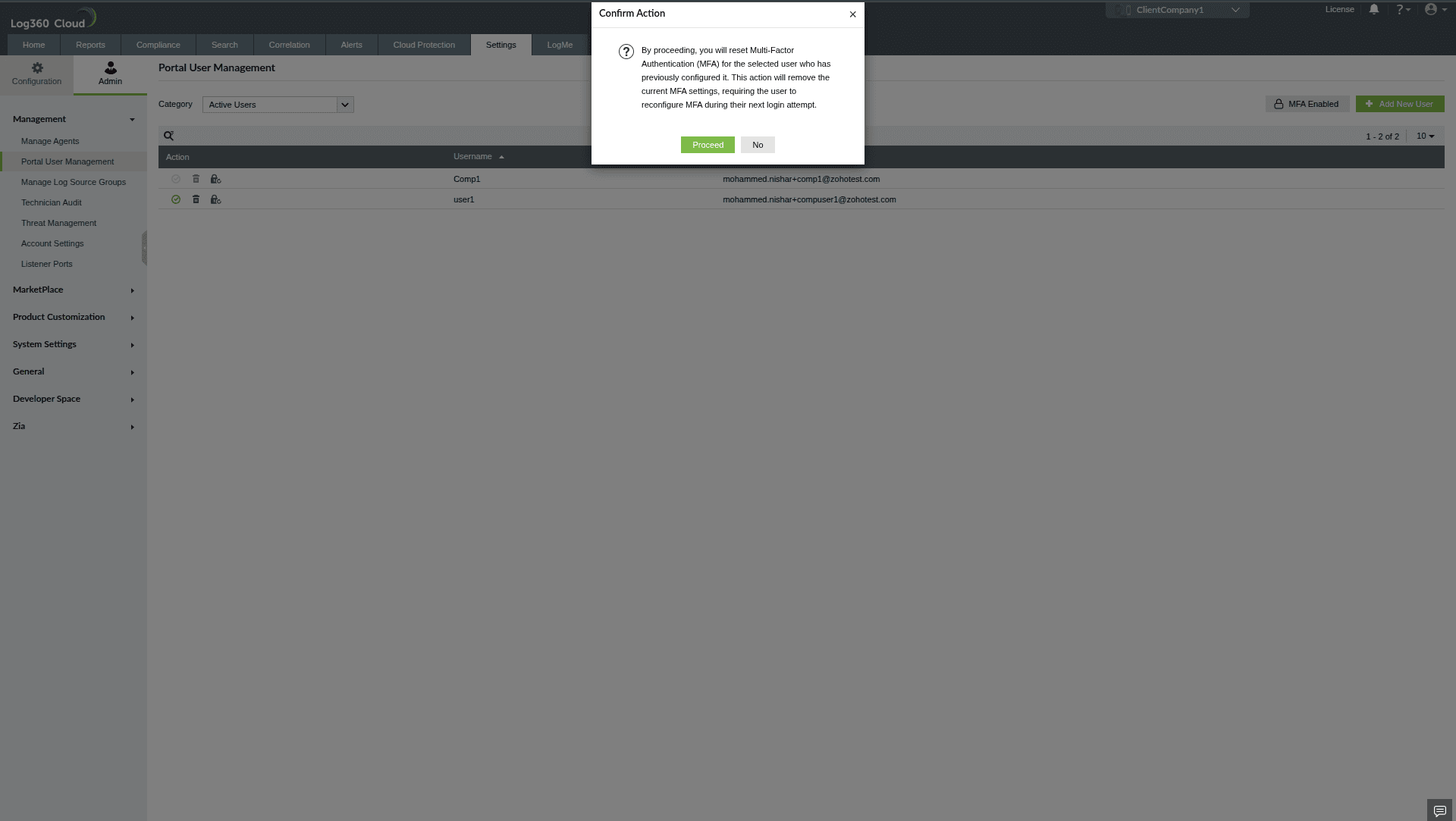
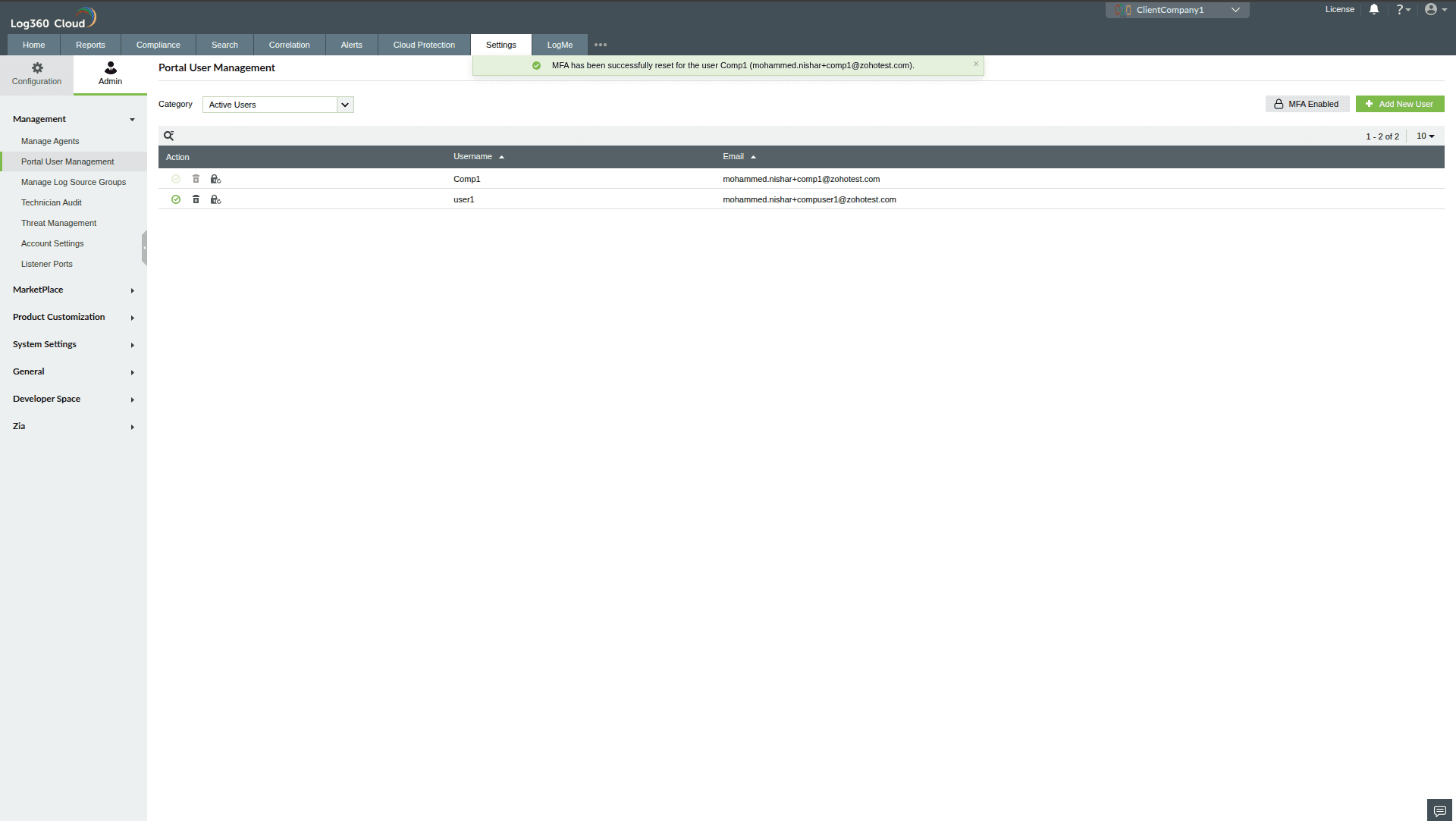
Once the MFA is reset, when the user tries signing in, an email will be sent with their respective portal domain to reconfigure their MFA.
Note: The option to configure MFA will be available only if the customer portal’s MFA policy is enabled at the time the user logs in or accepts the portal invitation. In case a user loses access to their authenticator or the device used for MFA, an option to reset their MFA configuration is available. However, the ability to reconfigure MFA after the reset depends on the customer portal’s MFA policy status at the time of the user’s next login.