Log360 Cloud MSSP Dashboard
Last updated on:
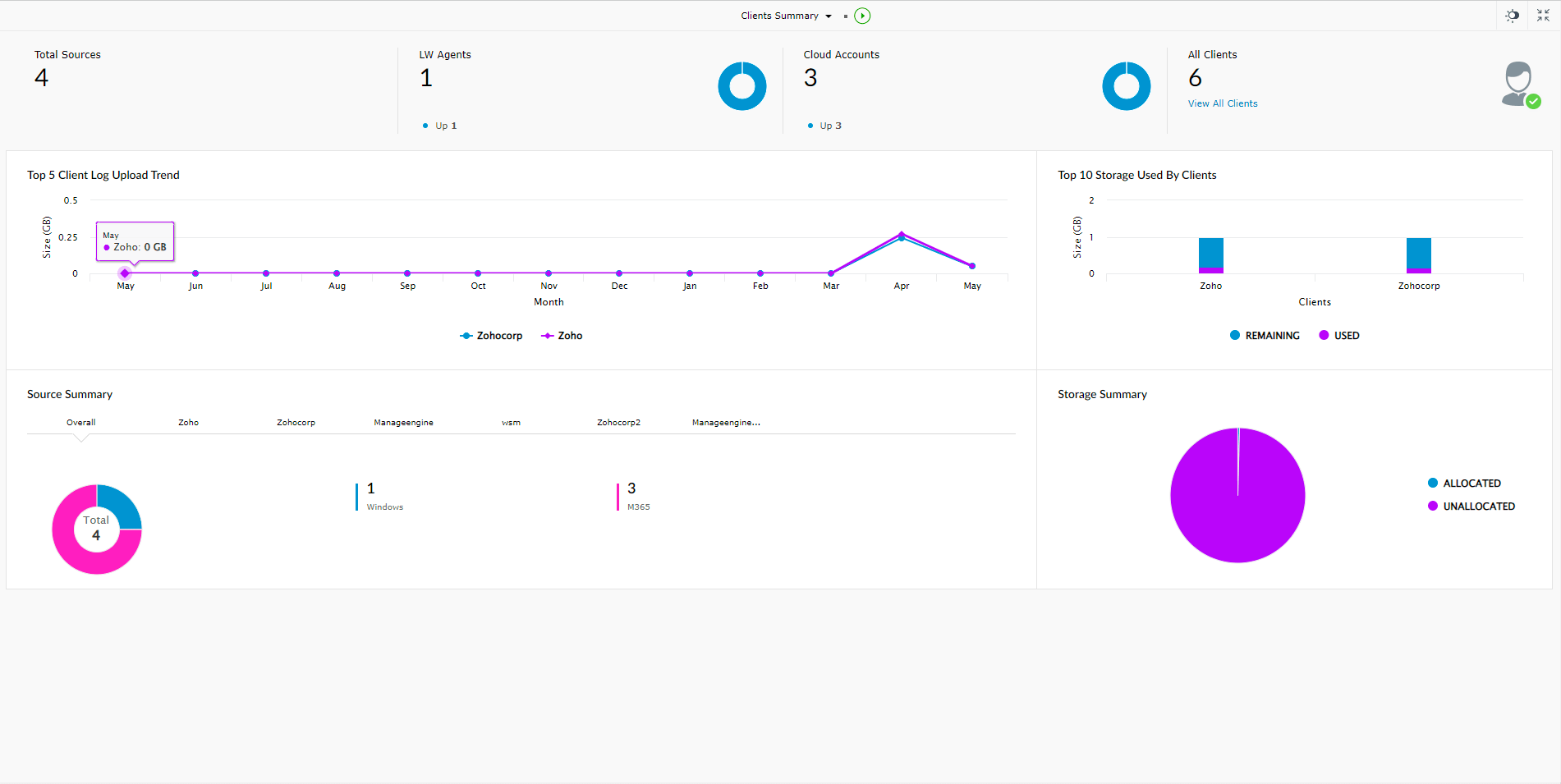
Log360 Cloud MSSP edition provides a near real-time dashboard that provides resource allocation and usage data of all the Customers at a glance. This dashboard is accessible only to the Admin by default.
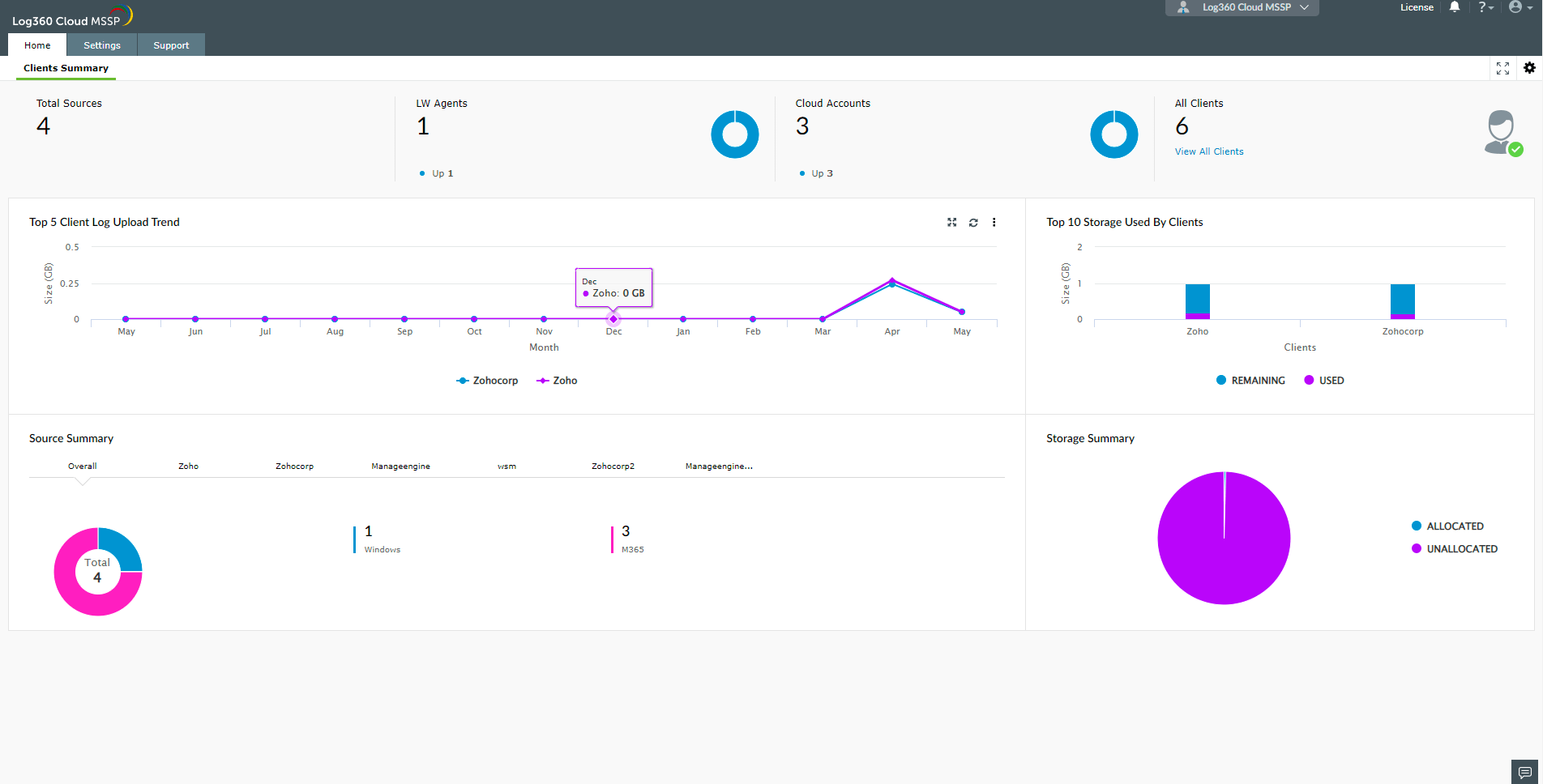
The widgets on this dashboard are as explained below:
| Widget Name | Widget function |
|---|---|
| Top panel |
Total sources: Total number of log sources for all Customers combined. LW agents: Total number of lightweight agents deployed across all customer environments. Cloud accounts: Total number of cloud sources configured across customer environments. All Customers: Displays the total number of Customers. The View All Customers option lets you view the list of all Customers. |
| Top 5 customer Log Upload Trend | This widget showcases the monthly logging trends of all Customers. The x-axis represents the time range. The y-axis represents the volume of log data uploaded by each customer in GB. Each customer is represented by a different color in the line graph. |
| Source Summary | This widget shows the number and type of log sources from each customer environment. |
| Storage Summary | Shows the unallocated and allocated percentage of the total storage space. |
| Storage used by Customers (Top 10, in the order of usage) | Shows the amount of used and allocated storage for individual Customers. |
To customize the dashboard, you have the following options:
To add a new tab to the dashboard,
- In the Log360 Cloud MSSP dashboard, click the
 icon on the top-right corner and select Add Tab.
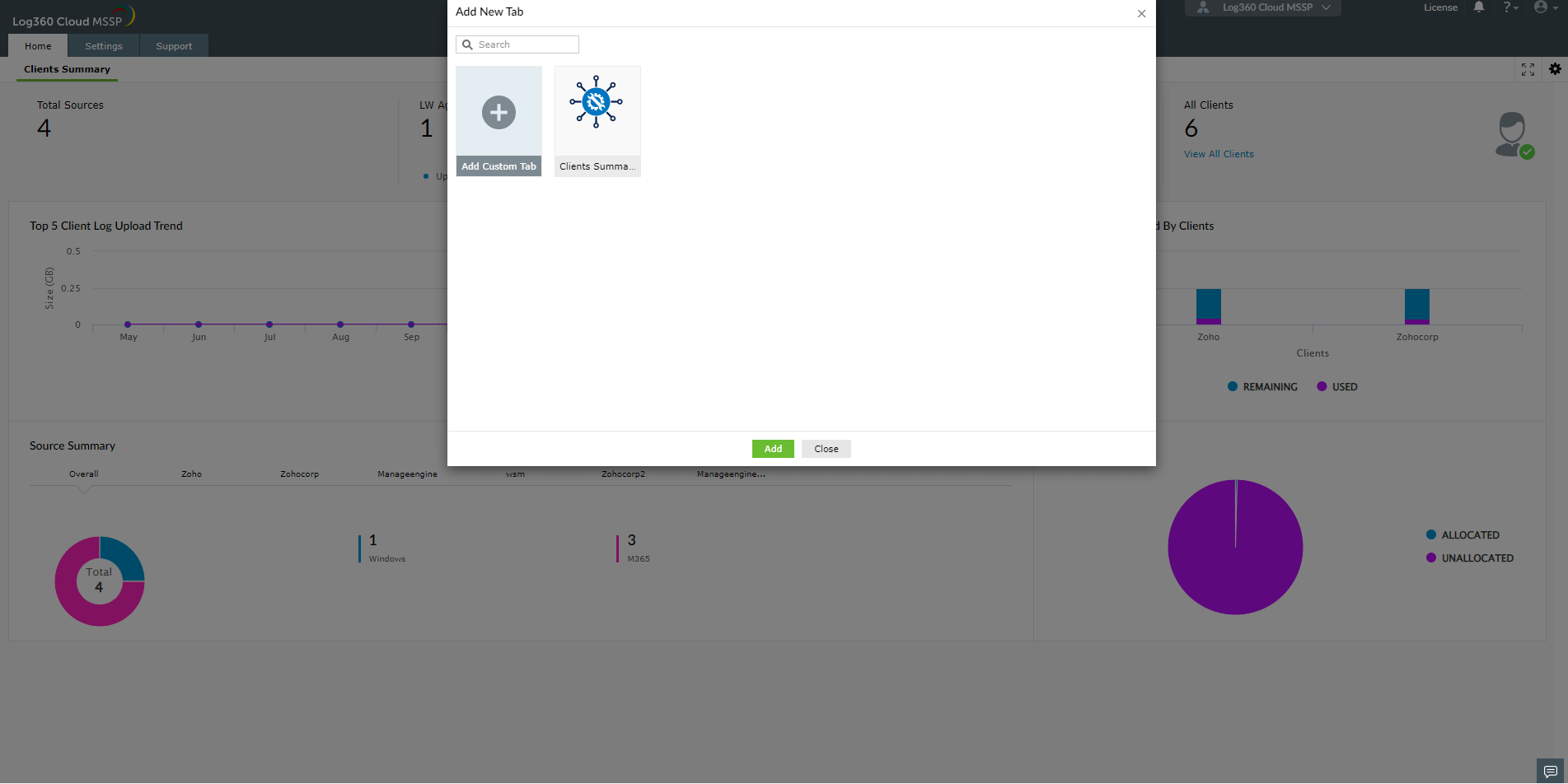
- In the pop-up box that appears, click Add Custom Tab and enter a name for the tab, before clicking Add.
- Navigate to the new tab and click Add Widget to start adding widgets of your choice.
To add a new widget,
- In Log360 Cloud's MSSP dashboard, navigate to the tab to which you want to add a new widget and click the icon on the top-right corner.
- Click Add Widget and in the pop-up box that appears, select the widget, widget type, chart type, chart color, and a display name for the widget.
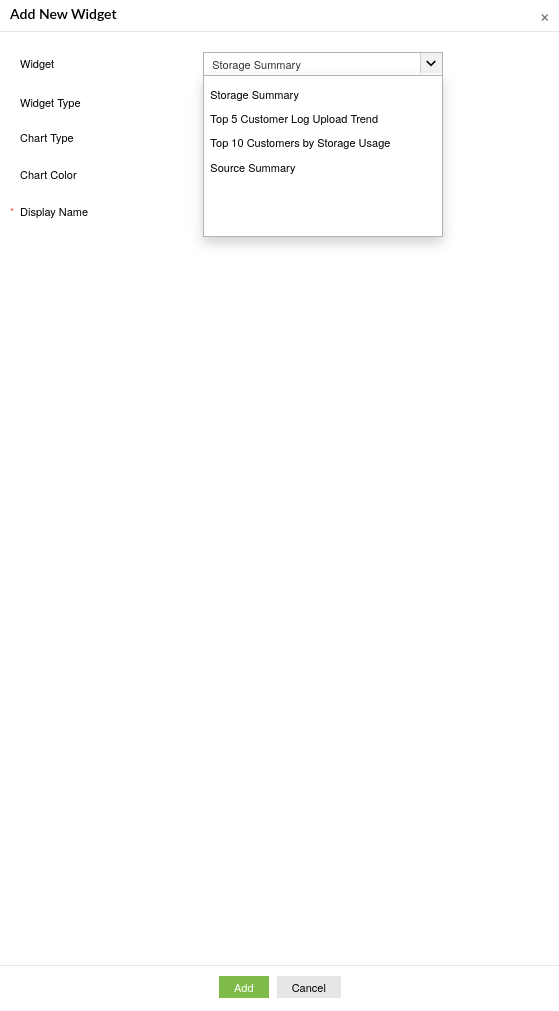
- Once you've entered all the details, click Add.
To reorder the widgets in a tab,
- In Log360 Cloud MSSP's dashboard, navigate to the tab whose widgets you want to reorder and click the icon on the top-right corner and click Reorder Widgets.
- Click and drag the tabs to wherever you want to place them and drop them. Click Save.
To view the dashboard in full screen,
- In Log360 Cloud MSSP's dashboard, click the
 icon on the top-right corner.
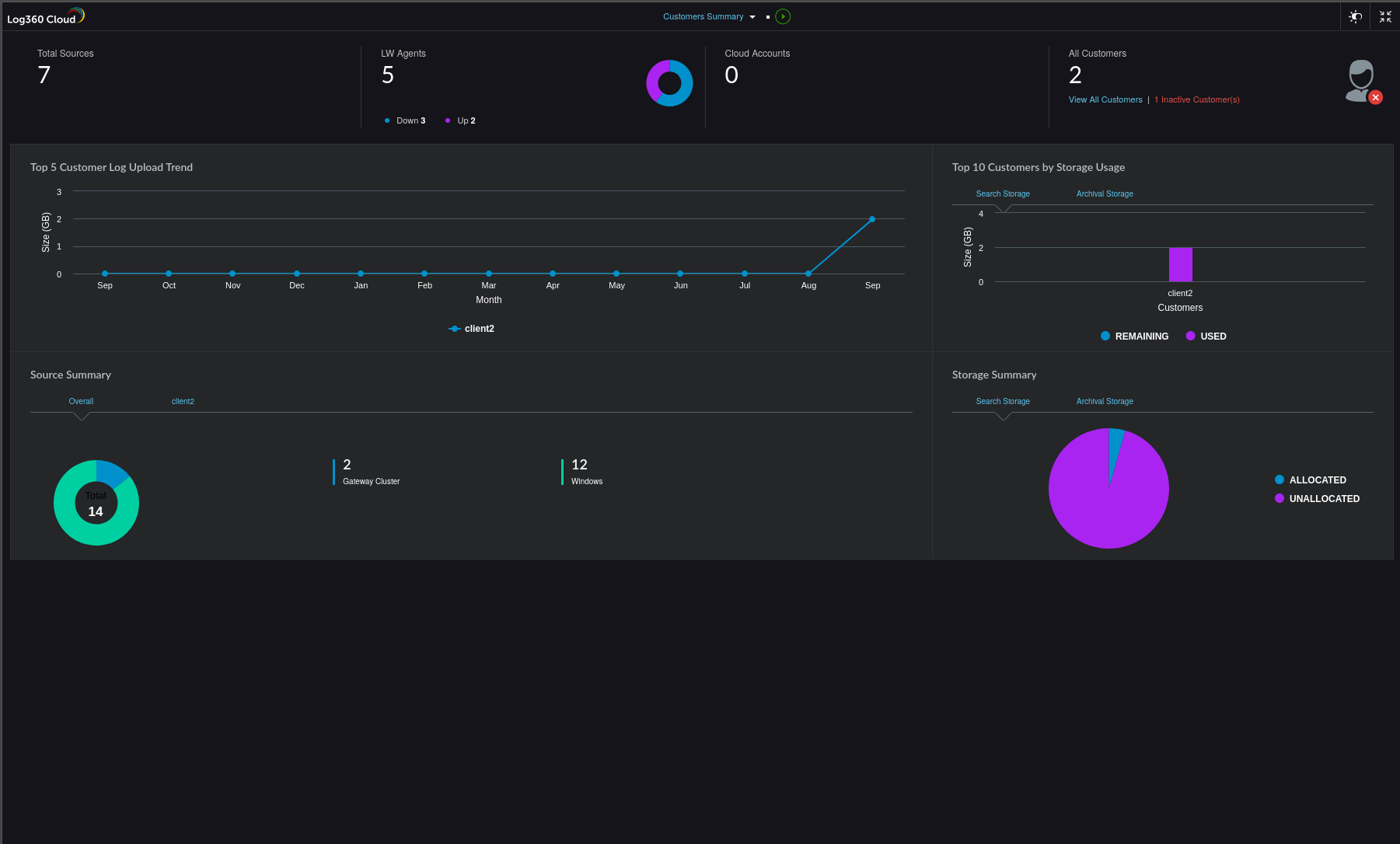
 - In the full screen view, you can view a slideshow of the tabs by clicking the play icon next to the name of the tab.
- You can also switch to dark mode by clicking the toggle button at the top-right corner.
- To go back to the normal viewing mode, click the
 icon.
icon.
Customer Dashboard:
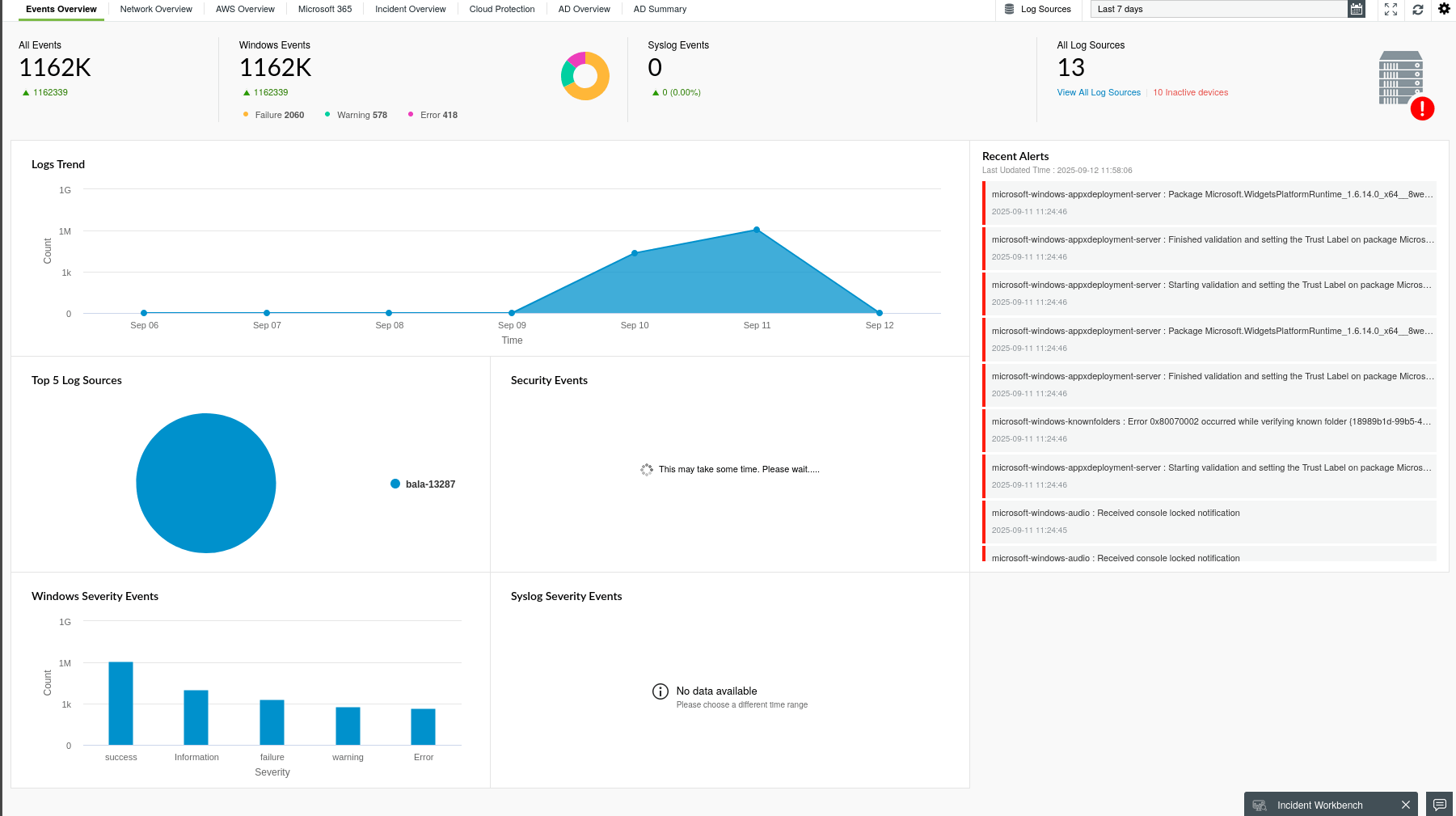
Every MSSP customer has a near real-time dashboard that presents security data in the form of graphs and charts. The dashboard helps you discern anomalies quickly, investigate threats and attack patterns, and get insights from log trends.
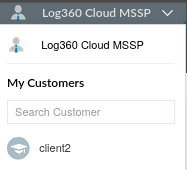
To navigate to the Customer Dashboard, click on Log360 Cloud MSSP dropdown on the top grey panel and choose the customer you want to view, as shown in the image below.
This dashboard is accessible only to technicians who have permission to view the customer data. Since it is customizable, the technician can add widgets to monitor parameters specific to the customer requirements.