Shortcuts for web applications on desktop| Computer Configuration
Table of Contents
- What is a shortcut?
- How to create shortcuts for web applications on the desktop of all client computers using default browser?
- How to create/delete shortcuts for web applications using any browser?
What is a shortcut?
Shortcuts are links that point to documents, programs, files on a computer or web addresses (for example, www.google.com). Shortcuts in Endpoint central can be created and accessed using default browsers or any browsers of your choice. For example, Mozilla firefox shortcut, Google chrome shortcut and so on.
How to create shortcuts for web applications on the desktop of all client computers using default browser?
- In Endpoint Central Console, navigate to Configurations tab --> Add Configurations --> Configurations--> Windows
- Select Shortcut and choose Computer
- Specify the name and description for the configuration
- In the configure shortcut criteria,
- Select action: create/ delete
- Choose action: Internet shortcut
To create an internet shortcut using a default browser,
- Enter the name of the shortcut
- Enter the target URL of the application
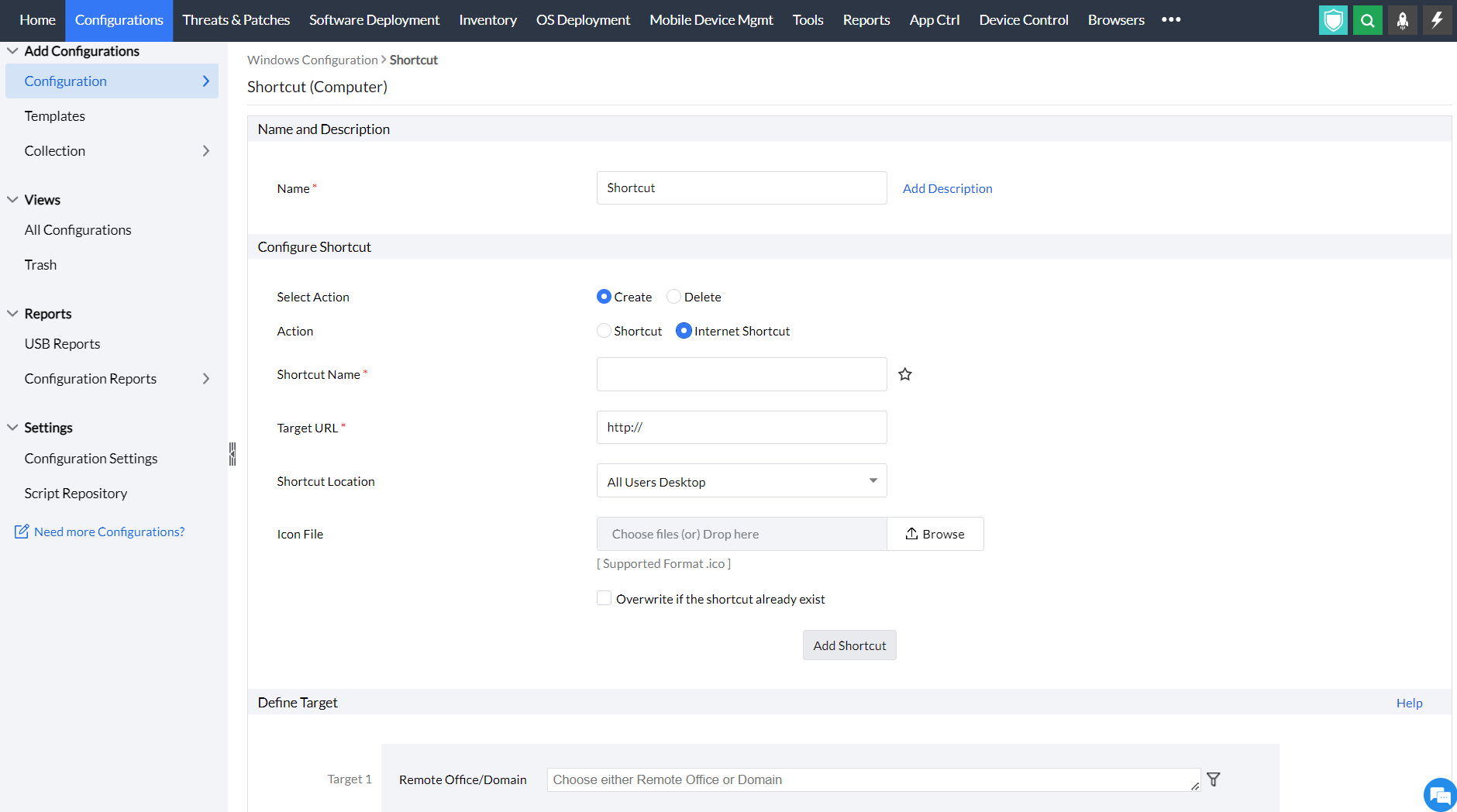
- Provide the location for your shortcut. The location can be any of the following:
- All Users Desktop: Refers to the desktop common for all the users.
- All Users Start Menu: Refers to the start menu common for all users.
- All Users Programs Group: Refers to the Start --> Programs group common for all the users.
- All Users Startup Group: Refers to the Start --> Programs --> Startup group common for all the users.
- Custom Location: This configures the target location for the shortcut as specified by the technician. While configuring user based shortcuts, make sure to enter the accurate user folder path (Example: C:\Users\User-folder).
- Select an icon image for your shortcut(optional)
- Define the target
- Specify retry options if required and deploy the configuration.
- You can also enable notifications to receive emails based on the specified frequency.
- Click on the Deploy button to deploy the configuration in the target machines
- To save the configuration as draft, click Save as
To delete an internet shortcut using a default browser,
- Select action: Delete
- Choose Action: Internet Shortcut
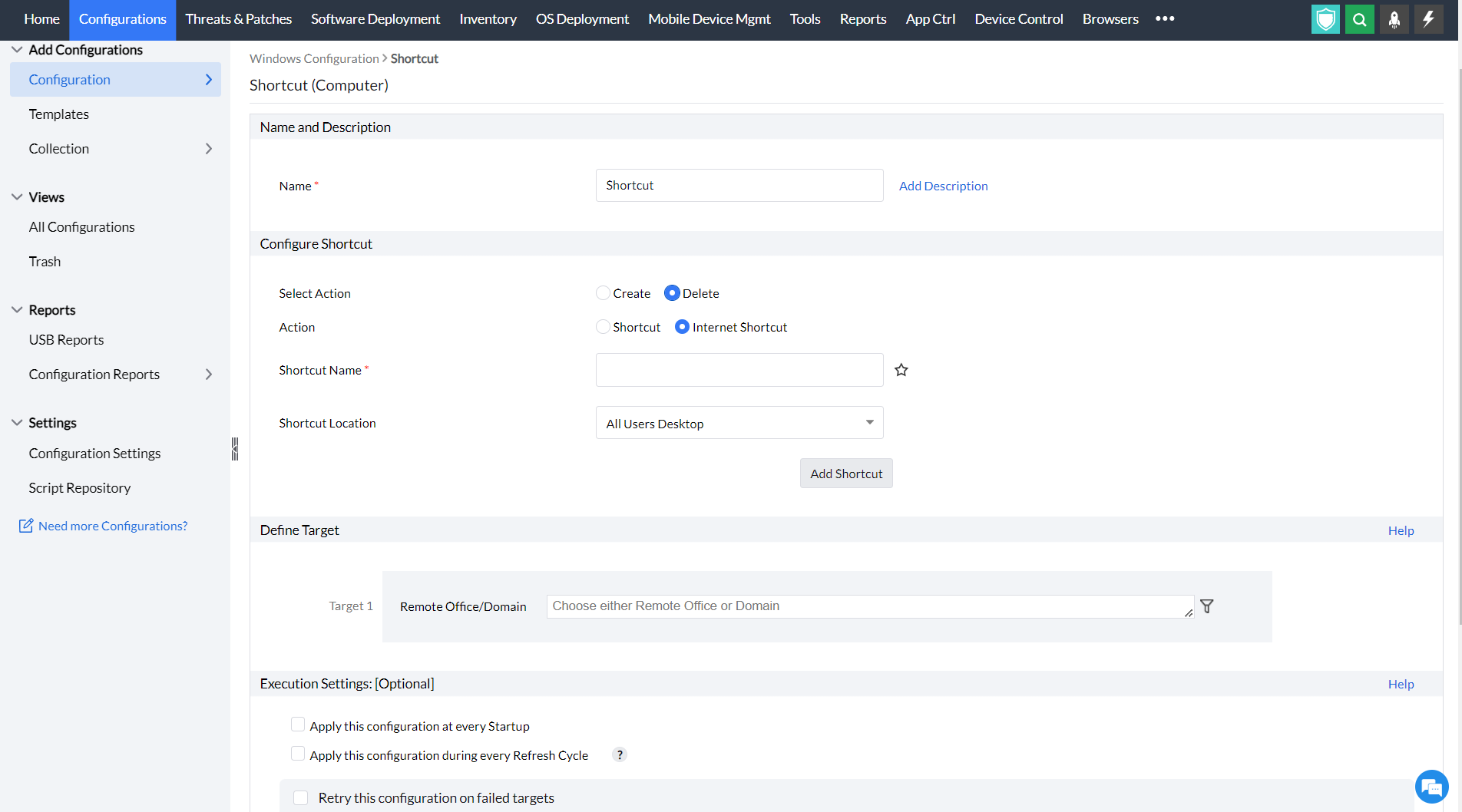
- Enter the shortcut name
- Provide the location for your shortcut. The location can be any of the following:
- All Users Desktop: Refers to the desktop common for all the users.
- All Users Start Menu: Refers to the start menu common for all users.
- All Users Programs Group: Refers to the Start --> Programs group common for all the users.
- All Users Startup Group: Refers to the Start --> Programs --> Startup group common for all the users.
- Custom Location: This configures the target location for the shortcut as specified by the technician. While configuring user based shortcuts, make sure to enter the accurate user folder path (Example: C:\Users\User-folder).
- Define the target
- Specify retry options if required and deploy the configuration.
- You can also enable notifications to receive emails based on the specified frequency.
- Click on the Deploy button to deploy the configuration in the target machines
- To save the configuration as draft, click Save as
How to create shortcuts for web applications using any browser?
- In Endpoint Central Console, navigate to Configurations tab --> Add Configurations --> Configurations--> Windows
- Select Shortcut and choose Computer
- Specify the name and description for the configuration
To create shortcuts for web applications using any browser,
- Enter the name of the shortcut
- Browse the target application
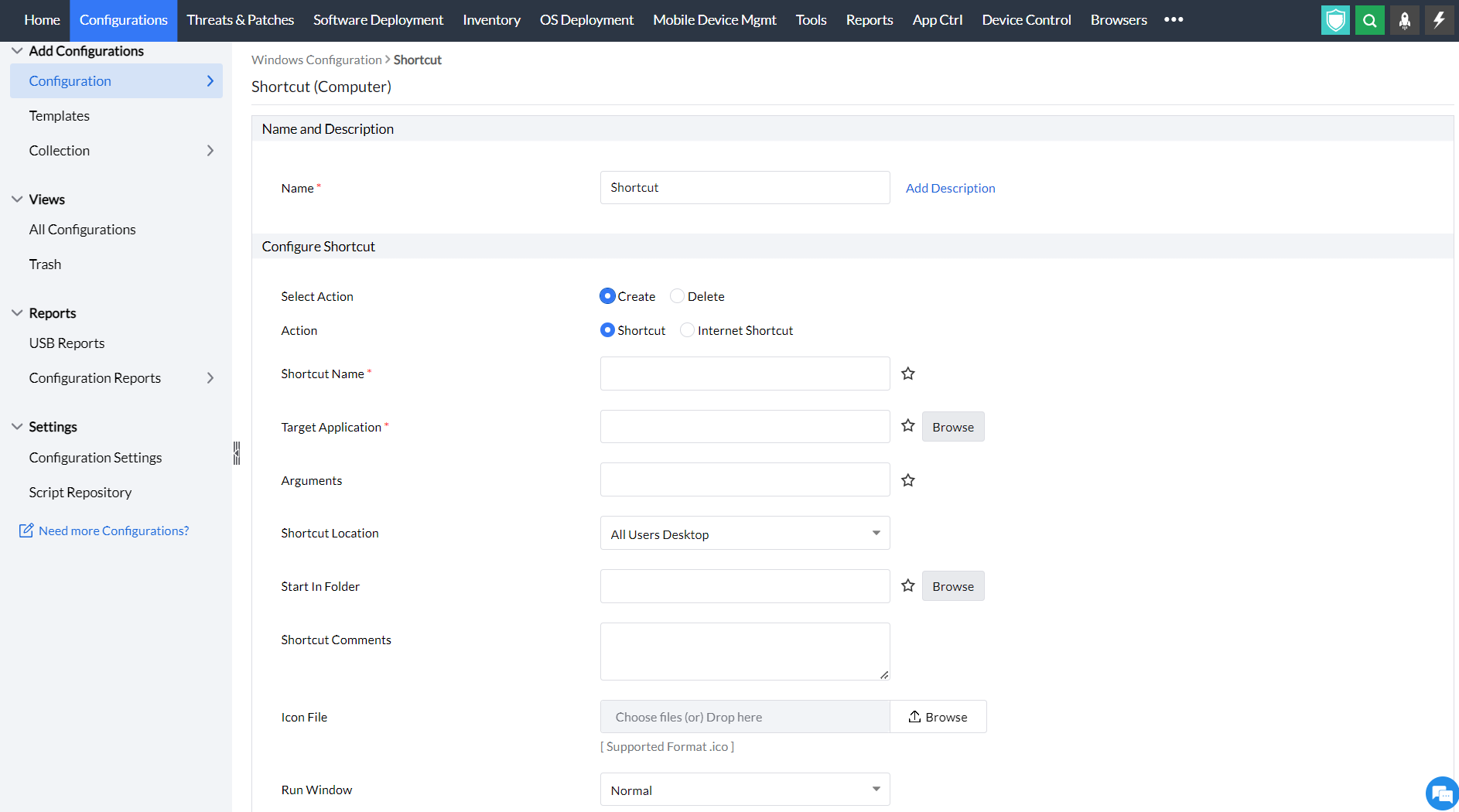
- Enter the arguments
- Provide the location for your shortcut. The location can be any of the following:
- All Users Desktop: Refers to the desktop common for all the users.
- All Users Start Menu: Refers to the start menu common for all users.
- All Users Programs Group: Refers to the Start --> Programs group common for all the users.
- All Users Startup Group: Refers to the Start --> Programs --> Startup group common for all the users.
- Custom Location: This configures the target location for the shortcut as specified by the technician. While configuring user based shortcuts, make sure to enter the accurate user folder path (Example: C:\Users\User-folder).
- Browse the folder from where the application has to be started in the Start in folder
- Add the shortcut comments
- Select an icon image for your shortcut(optional)
- Choose how the run window should appear as: Normal/Minimized/Maximized
- You also have an option to overwrite the shortcut if it already exists and an option to run as admin
- Click Add shortcut
- Define the target
- Specify retry options if required and deploy the configuration.
- You can also enable notifications to receive emails based on the specified frequency.
- Click on the Deploy button to deploy the configuration in the target machines
- To save the configuration as draft, click Save as
To delete shortcuts for web applications using any browser,
- Select action: Delete
- Choose Action: Shortcut
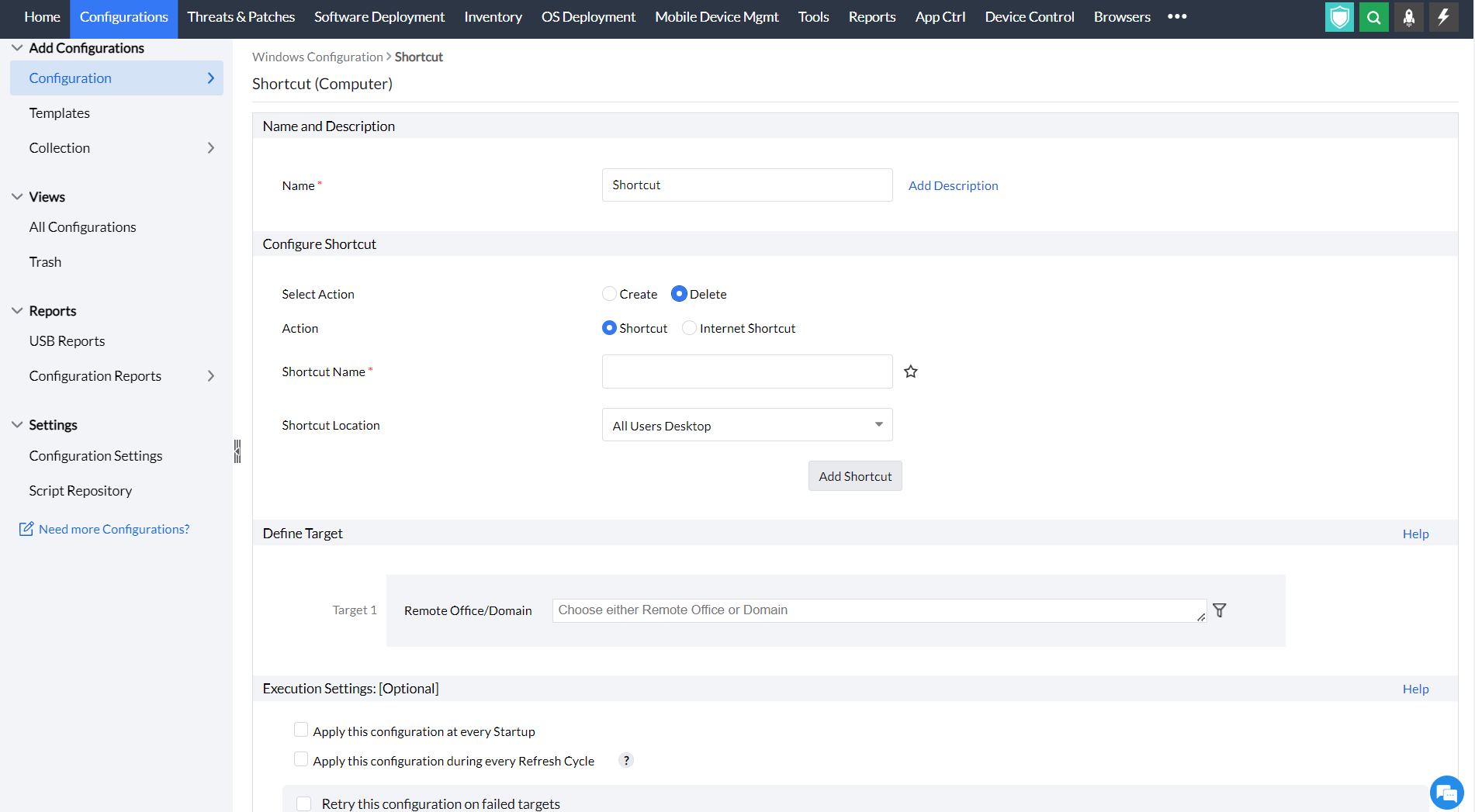
- Enter the shortcut name
- Provide the location for your shortcut. The location can be any of the following:
- All Users Desktop: Refers to the desktop common for all the users.
- All Users Start Menu: Refers to the start menu common for all users.
- All Users Programs Group: Refers to the Start --> Programs group common for all the users.
- All Users Startup Group: Refers to the Start --> Programs --> Startup group common for all the users.
- Custom Location: This configures the target location for the shortcut as specified by the technician. While configuring user based shortcuts, make sure to enter the accurate user folder path (Example: C:\Users\User-folder).
- Define the target
- Specify retry options if required and deploy the configuration.
- You can also enable notifications to receive emails based on the specified frequency.
- Click on the Deploy button to deploy the configuration in the target machines
- To save the configuration as draft, click Save as
You have successfully learnt to create and delete shortcuts in Endpoint Central




