

The following methods can be used to start the product -
On starting the product, the client is automatically launched in the default browser.
The following processes are started along with the product:
Note: When the product is initially started or updated to the latest version in machines with activated firewall, Windows will pop-up security alerts that it has blocked any of the above mentioned programs. Click 'Allow access' and proceed.
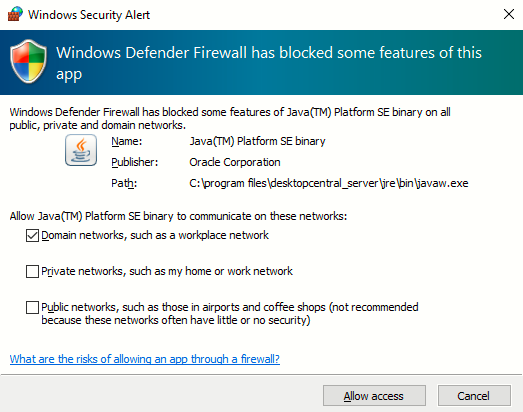
Fig: Java Alert

Fig: Zulu Alert
To launch the client,
Open a web browser and type http://hostname:8020(if enforced https then https://hostname:8383/) in the address bar. Here the hostname refers to the DNS name of the machine where the central server is running.
Specify the user name and password in the respective fields and click Login.
When you login to the product for the first time, perform the following steps:
Define the scope of management - Scope can be limited to a small set of computers or the whole domain.
Define and apply configurations to either users or computers. The applied configurations will take effect during user logon for user configurations and during reboot for computer configurations.


