Patch Management Software - Setting Up Configuring Automated Patch Deployment

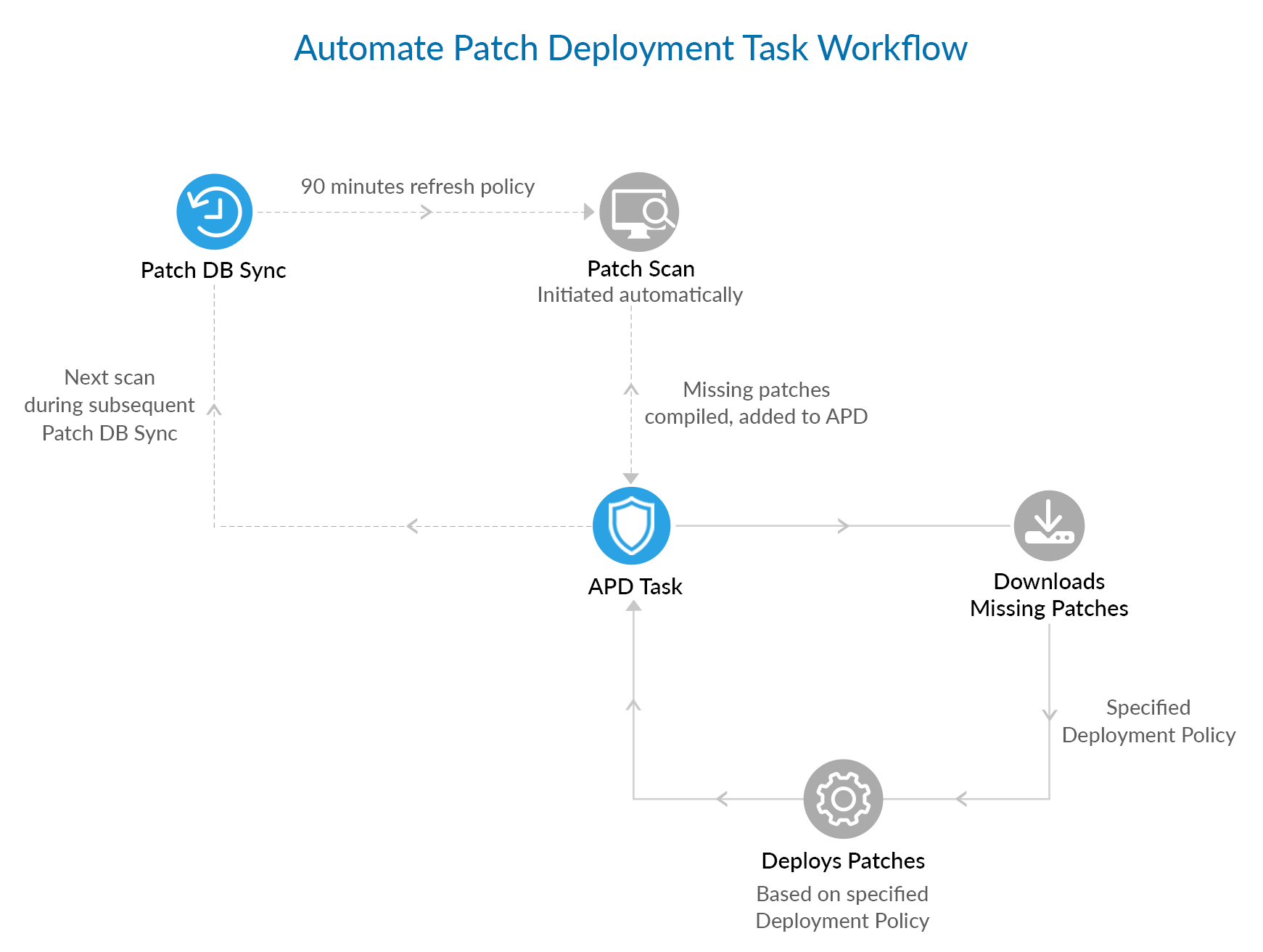
Desktop Central allows automating Patch Management at various levels. For example, Administrators can:

  1. Choose to scan the systems in the network to detect the missing patches.
  2. Scan and download the missing patches.
  3. Scan, download, and deploy the missing patches.

All the above operations can be done for specific set of target computers like few systems will only be scanned, few other systems will be automatically patched and so on.

Follow the steps below to create scheduled tasks for automating patch management using Desktop Central:

  1. Click the Admin tab to invoke the Admin page.
  2. Click Automate Patch Deployment link available under Patch Settings
  3. Click Add Scheduled Task button and specify the following:
    1. Specify a name for the task
    2. Select the deployment option from any of the following:
      • Scan the Systems to Identify the Missing Patches: This is the default option, which scans your network to detect the vulnerable applications.
      • Scan the Systems and Download the Missing Patches: Use this option to detect the vulnerable systems/applications in your network and download the corresponding fixes from the Microsoft website.
      • Download the Missing Patches and Draft the Patch Configuration: Use this option to automatically download the missing patches from the Microsoft website and create a draft of the Patch Configuration.
      • Automatically Download and Deploy the Missing Patches: Use this option to scan the systems periodically to identify the missing patches, download the patches from the Microsoft website, and deploy the patches to the computers.
    3. After selecting the required option, the next step is to schedule the frequency to scan the systems. You have the following options to schedule:
      • Daily - to schedule the scan to run everyday. You need to specify the starting time and starting day.
      • Weekly - to schedule the scan to run on specific day(s) in a week. You need to specify the starting time and the day(s) on which the scan has to be run.
      • Monthly - to schedule the scan to run on a specific day every month(s). You need to specify starting time, select a day and select a month/months.
      • If you wish a mail to be sent upon successful completion of the task, select the Notify when Task Finishes check box and provide the email address. You can specify multiple email addresses as comma separated values.
    4. The next step is to select the target computers for which the above operations has to be performed. The target chosen can be a whole domain, site, OU, Group or specific computers. You can also exclude computers from the chosen targets based on specific criteria.
    5. After adding the required target computers, click Create Task.

Repeat the above steps to create more tasks.

It is advisable to schedule the Vulnerability Database synchronization prior to scanning the network systems so that the latest patch information will be available for comparison.

Top
See also : Patch Management Architecture, Patch Management Life Cycle, Scan Systems for Vulnerability, Patch Reports
Copyright © 2005-2012, ZOHO Corp. All Rights Reserved.
ManageEngine