

When it comes to software management, one integral part is to choose between software that can be used and unused. However, prohibiting a software is dynamic in nature. A software is allowed to use for a specific users while the same is restricted for some users. IT admins are now in the state to prohibit certain software however, allow the same for certain users. Endpoint Central's Prohibit Software let's IT admins achieve this with few clicks. Check these steps on how to customize the prohibit software rules for your enterprise needs.
The first step is to add a software that you wish to prohibit. Once added, during every inventory scan the agent checks for that software and updates the server of the same. If the post configurations are enabled, the configured implementations will take place. To add a software:
Navigate to Prohibit Software under the Inventory view. This will list the details of all the software that are already prohibited, if configured already.
Click Add Prohibited Software. This will open the Add Prohibited Software dialog listing all the software detected in the managed computers. You should have scanned the Windows systems at least once to have the details of the software here.
After adding all the software, click Update. The software gets added to the prohibited list.
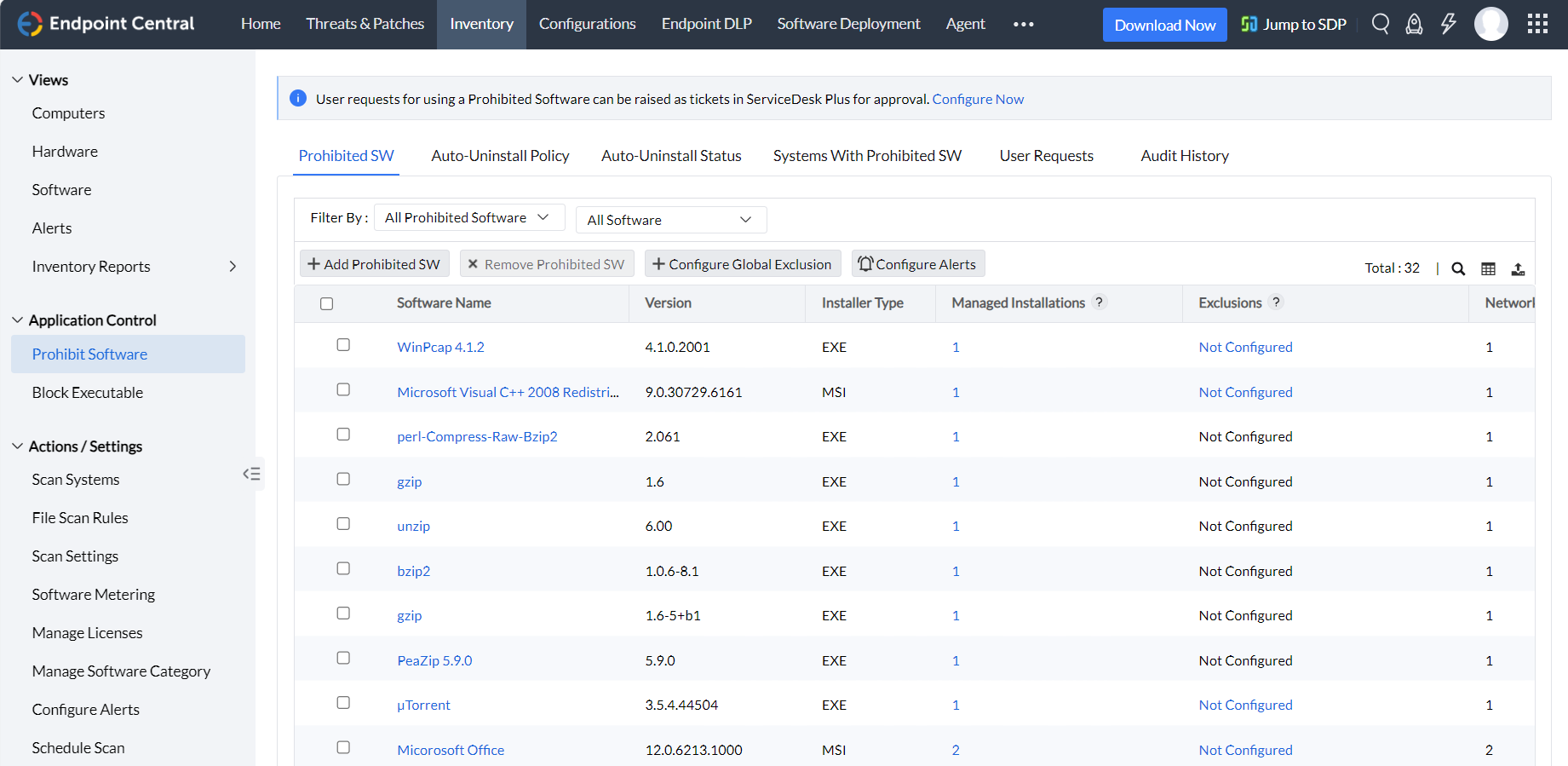
To remove a prohibited software, select the software that you wish to remove from the prohibited list and click Remove Prohibited Software to eliminate the selected software from the prohibited software list.
When a prohibit software is added, you can add some auto-uninstallation settings to automatically uninstall that software, when found on the targeted computers. The uninstallation will happen during the subsequent refresh-cycle. Follow the steps given below to configure the Auto-Uninstall Policy:
Select the Auto-Uninstall Policy tab.
Select Enable Automatic Uninstallation check box.
Select Notify User before Uninstalling check box and specify any custom message in case you want to prompt to the user before the software uninstallation.
Note: The user will be notified with an Alert message during logon and whenever the agent detects prohibited software. This functionality will be applicable only if the Notify User Settings is configured.
Specify the wait-window for the software uninstallation. Say if you want to remove the software three days after it has been detected, then mention 3 in the text box provided.
Click on Save to save changes.
Auto-Uninstallation option is available by default for .msi applications and for .exe applications, silent switches are required for uninstallation. The following steps will guide you through the Auto-Uninstallation of .exe based software applications.
Select the Prohibited SW tab and click on Not Configured link under Uninstall command against the .exe application that needs to be uninstalled..
The Add/Edit Uninstall Command window pops up.
Choose Pre-fill Uninstall Command or I will specify myself
Pre-fill Uninstall Command - Selecting this option will fetch the uninstall command of the application from the Add/Remove programs and will be displayed here. Only the silent switch needs to be specified.
I will specify Myself - Uninstall command and the silent switch should be entered manually. It is recommended to test the uninstallation command manually to verify its correctness.
Click Save to save the settings.
Verify the status in Auto Uninstallation Status Tab (This uninstallation will happen based on Auto-Uninstall Policy configured)
Under Auto Uninstallation Status select Detailed View to see the status and remarks.
You can choose to uninstall a software by configuring auto uninstall policy. However, this will not prevent users from installing a software/application. Once this software is installed, it will get uninstalled automatically.
Under certain circumstances, a software that is prohibited will be required by a specific department to work on. For instance, when social media applications and software are predominantly restricted, some departments might require that to boost your work. Under such cases, you can configure an Exclusion to allow those specific users to access this software. You can create a custom group comprising specific computers or can add individual computers to the Exclude list. The following steps will help you exclude groups:
Navigate to Prohibit Software under Inventory view. This will list the details of all the software that are already prohibited.
Select the checkbox corresponding to the specified software and click the link under Exclusions column. This opens the Add Exclusions dialog.
Select whether to exclude custom groups or computers and select the groups/computers and move it to the Excluded list.
Click here to watch the video:
This feature is supported only for customers, who use Endpoint Central version (10.0.192) or above.
From the agent tray icon, end-users can find the list of prohibited software in their network and choose to rise requests to use specific prohibited software based on their needs.
These requests can be handled from the product's web console -> Inventory -> Prohibit Software -> User Requests.
If you have integrated Endpoint Central with ServiceDesk Plus (Version 9203 or above),
The requests to use prohibited software can be resolved only from ServiceDesk Plus console. Know how to resolve requests in ServiceDesk Plus here.
To associate the requests to use prohibited software to ServiceDesk Plus templates, from Endpoint Central navigate to admin tab -> under integration settings, ServiceDesk Plus -> Select the "Send requests for using Prohibited Software as tickets to ServiceDesk Plus for approval" option and provide the ServiceDesk Plus template name.
Once the technician approves the request, users will be allowed to install and use the requested software.
Similar to excluding computers and custom groups for individual software, you can create a global exclusion list of computers. Computers that are added to the Global Exclusion list, either manually or via custom groups, applies to all the software. This means all these computers can have any of the software that have been marked as prohibited.
To configure global exclusion, click the Configure Global Exclusion button and select the required computers/custom group of computers and save.


