Remote Shutdown / Restart ToolRemote Shutdown Tool


Remote Shutdown tool of Desktop Central provides options to shutdown, restart, lock, hibernate systems from remote, which is very useful for administrators.

Add Computers to Shutdown/Restart

Before adding computers to shutdown/restart, please ensure that you have specified a common credential to perform these actions in all the computers. To specify a credential, visit the Add Computers page.


To add computers to the list, follow the steps below:

  1. Click the Add Computers button

  2. Select a Domain/Workgroup to view the computers.

  3. Select the computers to add and click OK.

  4. The selected computers gets added to the table below.

  5. Repeat steps two and three for adding computers from other domains/workgroups.

To remove computers from the list, select the computers and click Remove Computers.

Shutdown Options

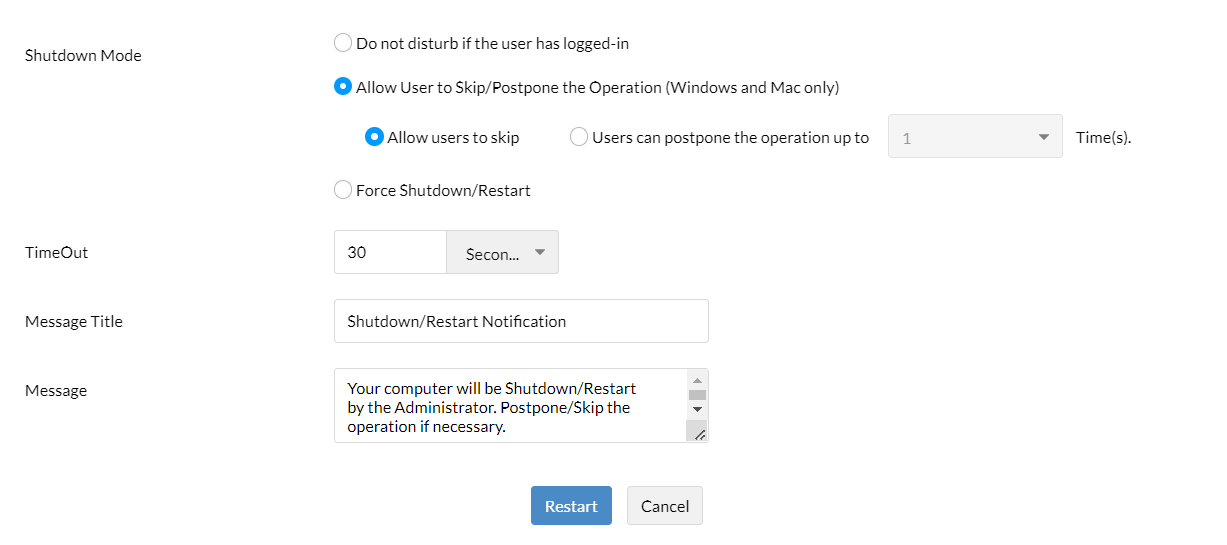
When you try to shutdown or restart a computer, you need to specify the following options for shutting down:

Supported Operations

You can perform the following operations on a remote computer:

Shutdown

  1. Add computers to the list

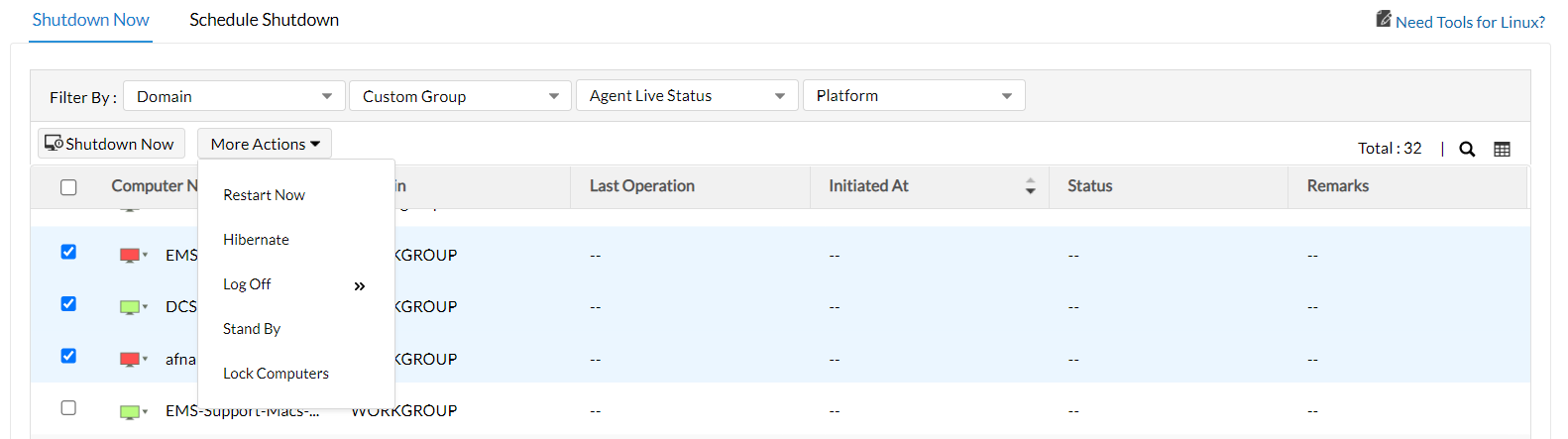
  2. Select the computers from the list and click Shutdown Now

  3. Specify the shutdown options and click Shutdown.

  4. Click Yes to confirm

Restart

  1. Add computers to the list

  2. Select the computers from the list and click Restart Now

  3. Specify the shutdown options and click Restart.

  4. Click Yes to confirm

Hibernate

  1. Add computers to the list

  2. Select the computers from the list and select Hibernate from More Actions list.

  3. Click Yes to confirm.

Stand by

  1. Add computers to the list

  2. Select the computers from the list and select Stand by from More Actions list.

  3. Click Yes to confirm.

Lock Computers

  1. Add computers to the list

  2. Select the computers from the list and select Lock Computers from More Actions list.

  3. Click Yes to confirm.

Viewing the Status of the Operation

The Remote Shutdown tool provides the following status values:

Scheduling Shutdown

While it is possible to shutdown/restart/lock computers manually, it is also possible to schedule this to happen at periodic intervals.

Creating and Scheduling Shutdown Tasks

To create a Shutdown task, follow the steps below:

Step 1: Define Task

  1. Select the Tools tab from the Desktop Central client. This opens the list of tools that can be run on the network machines.

  2. Click the Remote Shutdown tool listed under the Windows Tools category. This opens the Remote Shutdown tool.

  3. Select the Schedule Shutdown tab. This will list all the Shutdown tasks that have been created.

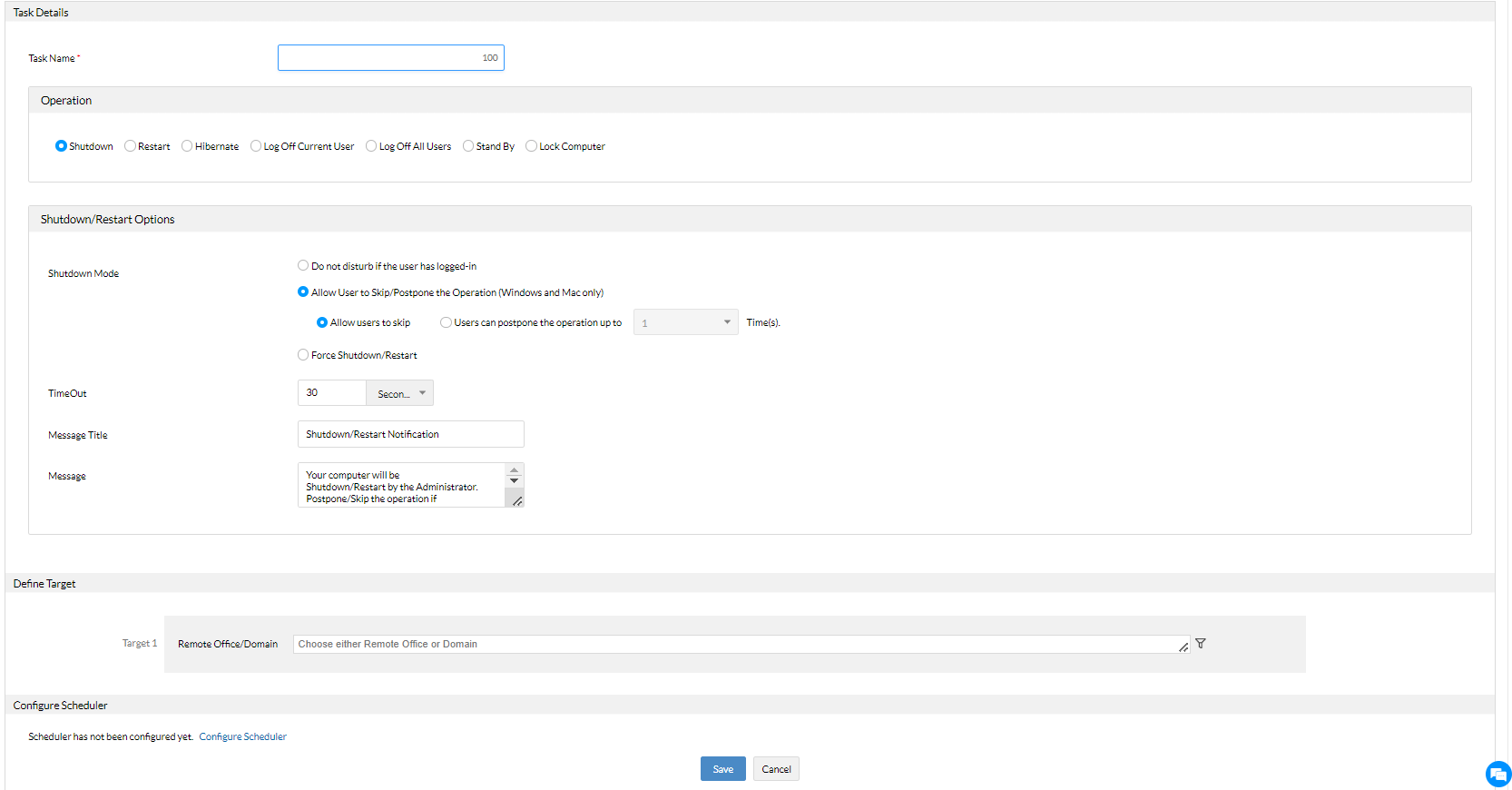
  4. Click Add Shutdown Task and specify the following:

    1. Provide a name of the task

    2. Select the operation that has to be performed: Shutdown, Restart, Hibernate, Stand By, Lock Computer.

    3. When you select Shutdown or Restart options, you need to specify the Shutdown/Restart Options:

      1. Shutdown Mode: This could be either of the following:

        • Normal: Select this option to close all the applications properly before shutting down the computer.

        • Forced: Select this option to terminate all the applications before shutting down the computers.

      2. Timeout: Specify the time in seconds to display a warning message in all the client computers before shutting down. Specify zero to skip the message and shutdown immediately.

      3. Shutdown Message: Specify the message to be displayed in all the computers before shutting down.

Step 2: Add Computers

  1. Click Add Computers button to choose the computers for this task.

  2. The selected computers gets added to the table below.

Step 3: Configure Scheduler

  1. Once: To run the task only once. You need to specify the date and time.

  2. Daily: To run the task daily. Specify the time and duration to run the task.

  3. Weekly: To run the task on specific day(s) in a week. Specify the time, start date, and days on which the task has to be run.

  4. Monthly: To run the task specific day every month(s). You need to specify starting time, select a day and select a month/months.

Step 4: Deploy Task

  1. Click the Save Task button to deploy this task. The tasks will be run at the scheduled time and interval. The status of the tasks and its execution history can be verified from the Task Details page.

Viewing and Modifying Shutdown Tasks

To view the Shutdown tasks that have been created, follow the steps below:

  1. Select the Tools tab from the Desktop Central client. This opens the list of tools that can be run on the computers.

  2. Click the Remote Shutdown tool listed under the Windows Tools category. This opens the Remote Shutdown tool.

  3. Select the Schedule Shutdown tab. This will list all the Shutdown tasks that have been created and scheduled.

  4. To modify a task,

    1. Click the Modify Task icon from the Actions column of the corresponding task.

    2. This opens the Modify task page. You can add/remove computers, change the task options, and the scheduled time as required.

    3. Click Save Task to effect the changes.

  5. To Delete a task, click the Delete Task icon from the Actions column of the corresponding task.

Viewing Shutdown Task Status

To View the status of the Shutdown tasks that have ben created, follow the steps below:

  1. Select the Tools tab from the Desktop Central client. This opens the list of tools that can be run on the computers.

  2. Click the Remote Shutdown tool listed under the Windows Tools category. This opens the Remote Shutdown tool.

  3. Select the Schedule Shutdown tab. This will list all the Shutdown tasks that have been created and scheduled.

  4. Click the Task name to view the status of the computers in that task.


Copyright © 2005-2009, ZOHO Corp. All Rights Reserved.
ManageEngine