Adding Scripts to Script Repository
What is a Custom Script Configuration?
Custom script configuration in Endpoint Central enables administrators to establish and manage essential settings and tasks for their organization. This includes actions like disabling Windows auto update, setting the date format, blocking applications, changing file owners, adding sudo users, changing user password, moving files, etc. These configurations can be applied on Computers/Users for Windows, Mac, and Linux operating systems. These scripts offer more flexibility compared to standard options, allowing you to run scripts tailored to your specific requirements. They can be scheduled to run during User Logon, Computer Startup, Subsequent Logon/Startup, Refresh Cycle, or just Once. It is important to select the configuration type as Computer/User based on the script's behavior.
In Endpoint Central, scripts must be added to the Script Repository before being deployed to end-machines. You can choose from the predefined script templates or add your own scripts to the repository manually.
Supported Languages for Custom Script
- Windows supported script types - vb, js, ps1, cmd, msi, jse, exe, bat, vbe, vbs, wsf, wsc, wsh, reg.
- Mac supported script types - sh, scpt, pl, py, command.
- Linux supported script types - sh, bash, ksh, csh, tcsh, py.
How to Add a Script from Templates
Script Templates are pre-made scripts containing popular and commonly used scripts that are easily customizable and deployable. Endpoint Central offers a wide range of script templates in its built-in repository, with over 300+ scripts available.
- To access the list of script templates in the Endpoint Central console, go to Configurations > Settings > Script Repository > Templates. Once the scripts from the Templates is added to the script repository, you can deploy these scripts as per your requirement.
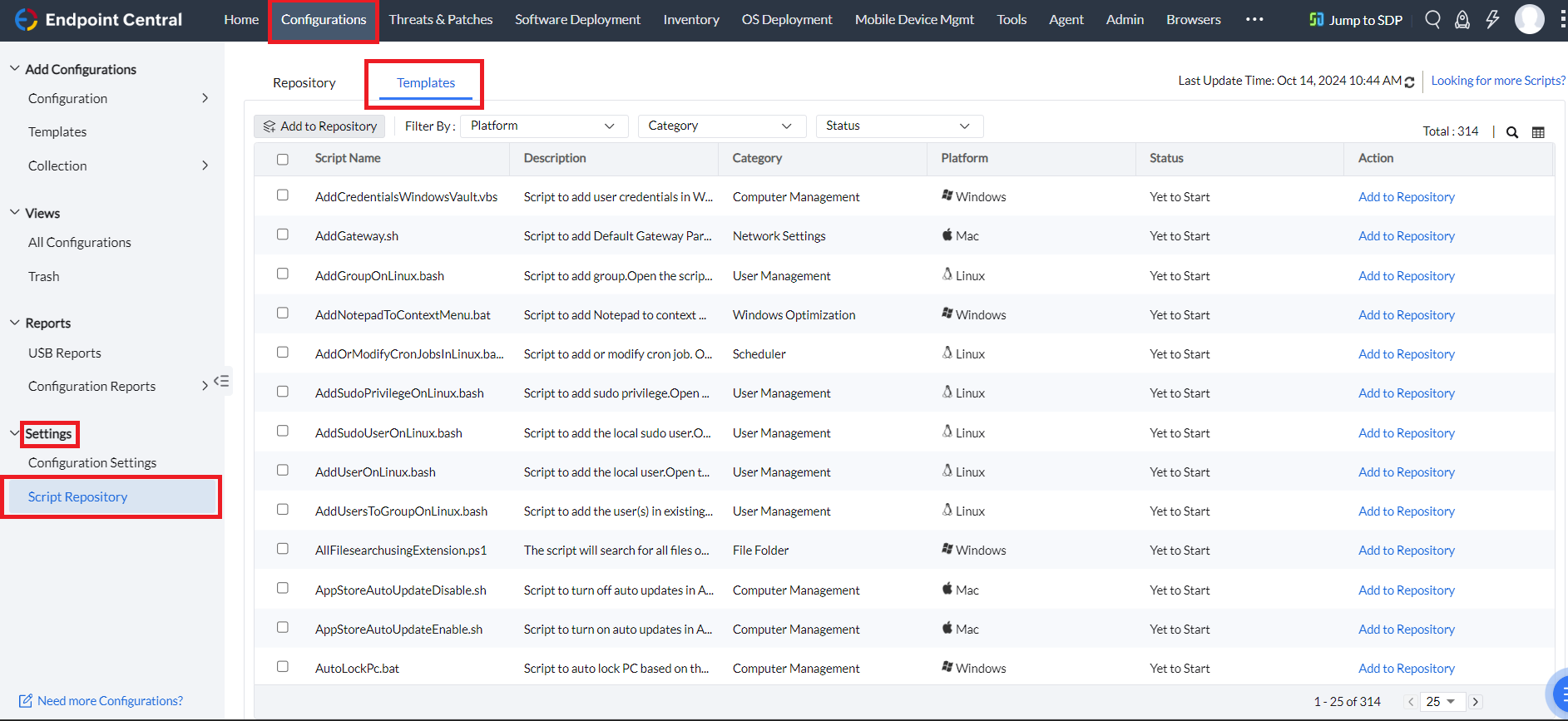
- You can filter the scripts based on specific Platform and/or Category, and search for the scripts that meet your requirements.

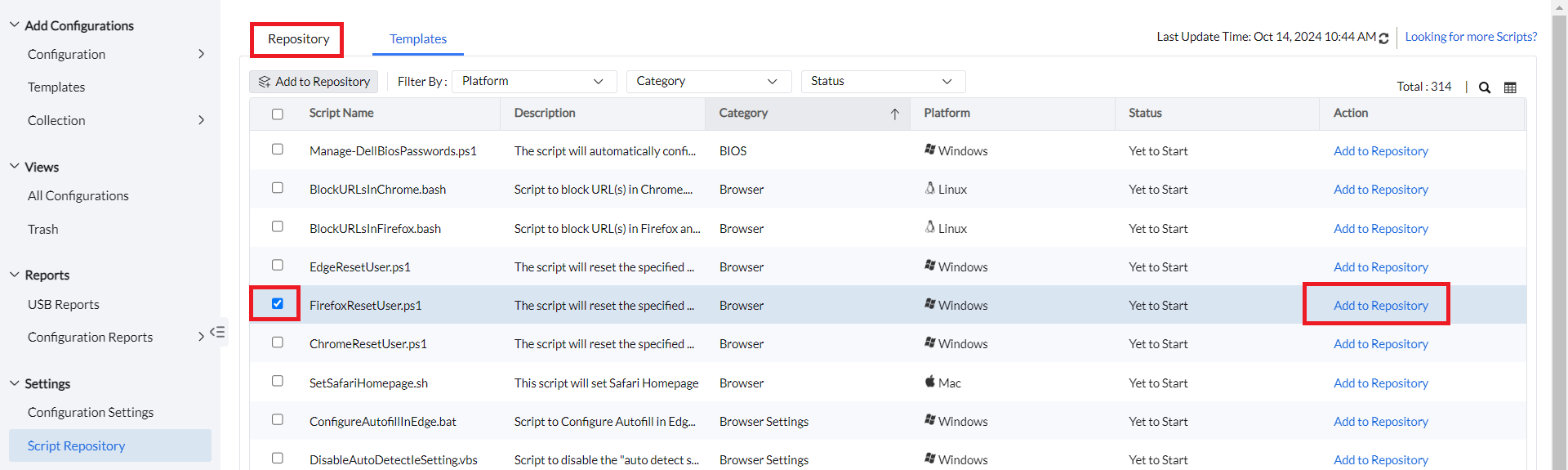
- Once you select the Script based on your requirement and click on the Add to Repository option, the script will be added to the Repository. You can check this in the RepositoryTab.
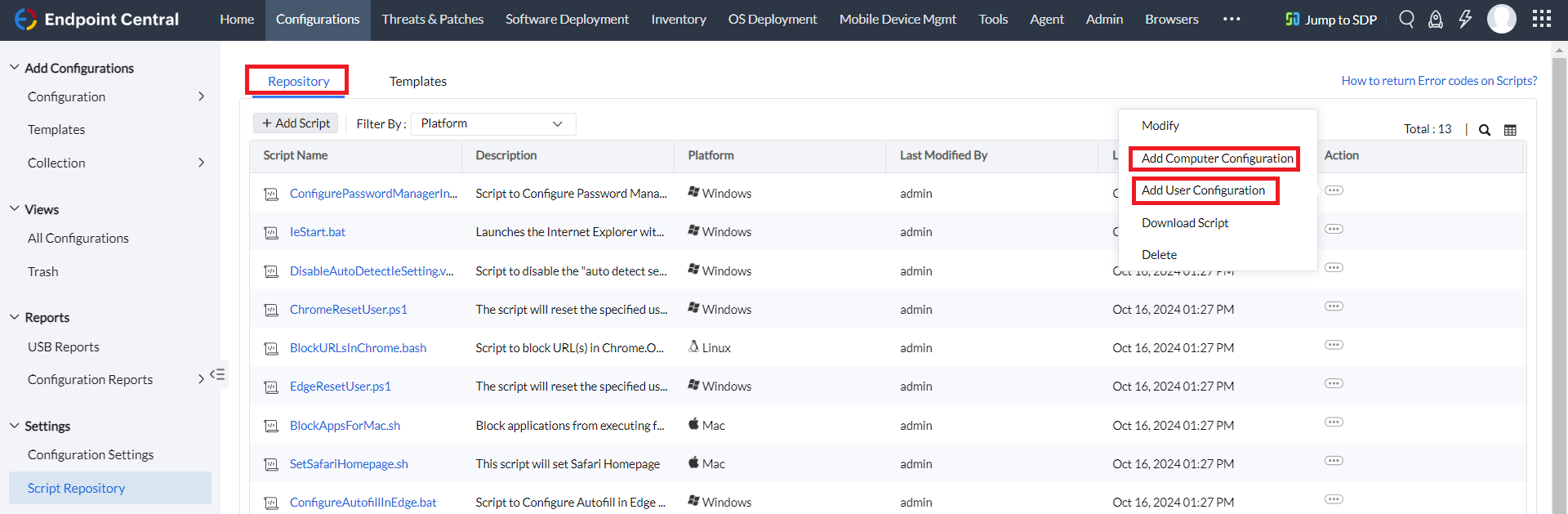
- Once the script is added in the Repository, you can deploy the script using the options Add Computer Configuration and Add User Configuration based on the script's behavior.
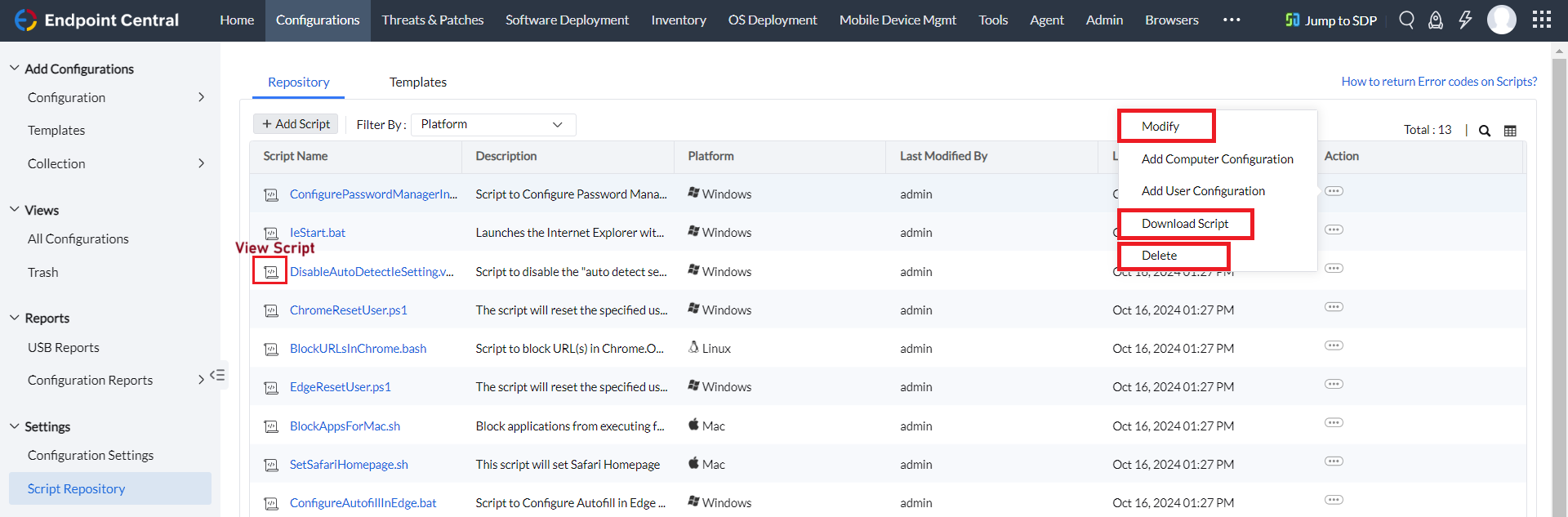
- You can View, Edit,Modify, Download, or Delete the added script as per your requirement.
How to Add a script Manually
- You can upload your own scripts to the repository by navigating to Configurations > Script Repository > Add Scriptin the Endpoint Central console.
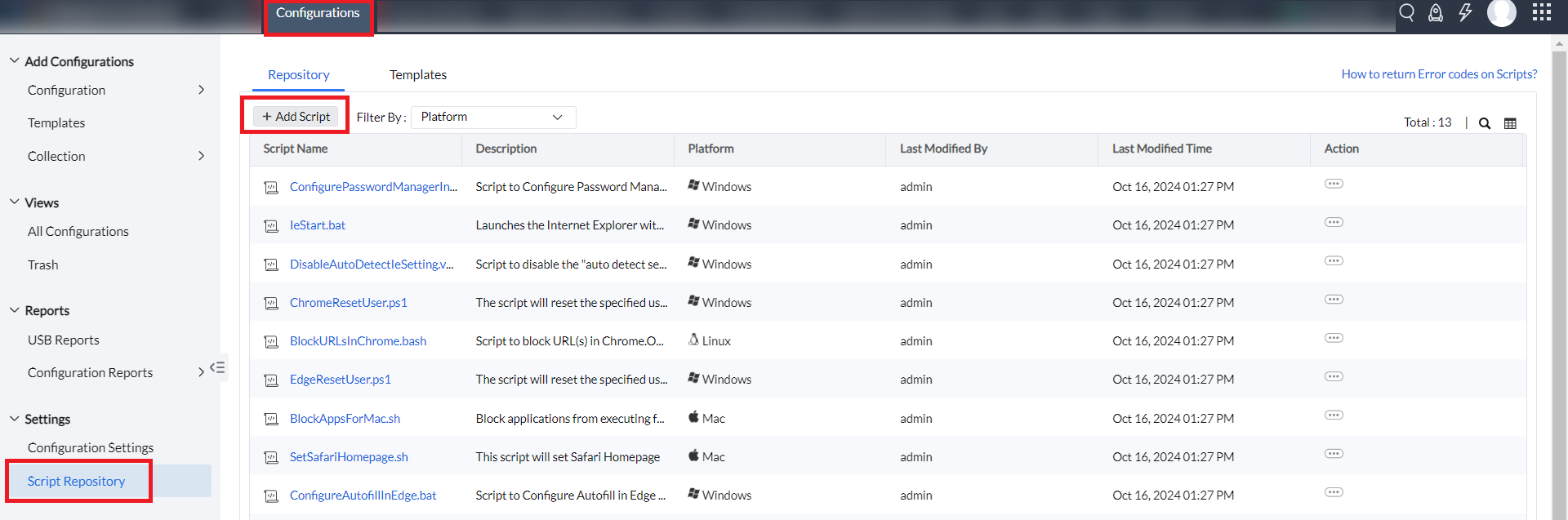
- You can Edit, Delete, or Download the scripts you have uploaded.
Note: It is recommended to test the script manually on a test machine before deploying it using Endpoint Central.
If the script requires user input during execution, it will not proceed automatically in Endpoint Central without user interaction. For example, if the script includes a "pause" command, it will only continue execution when the user manually presses the "Enter key" on the keyboard.
Related Documents
- Windows Computer Custom Script Configuration
- Windows User Custom Script Configuration
- Mac Computer Custom Script Configuration
- Mac User Custom Script Configuration
- Linux Computer Custom Script Configuration



