|
You are required to configure the following settings before you connect to a remote computer:
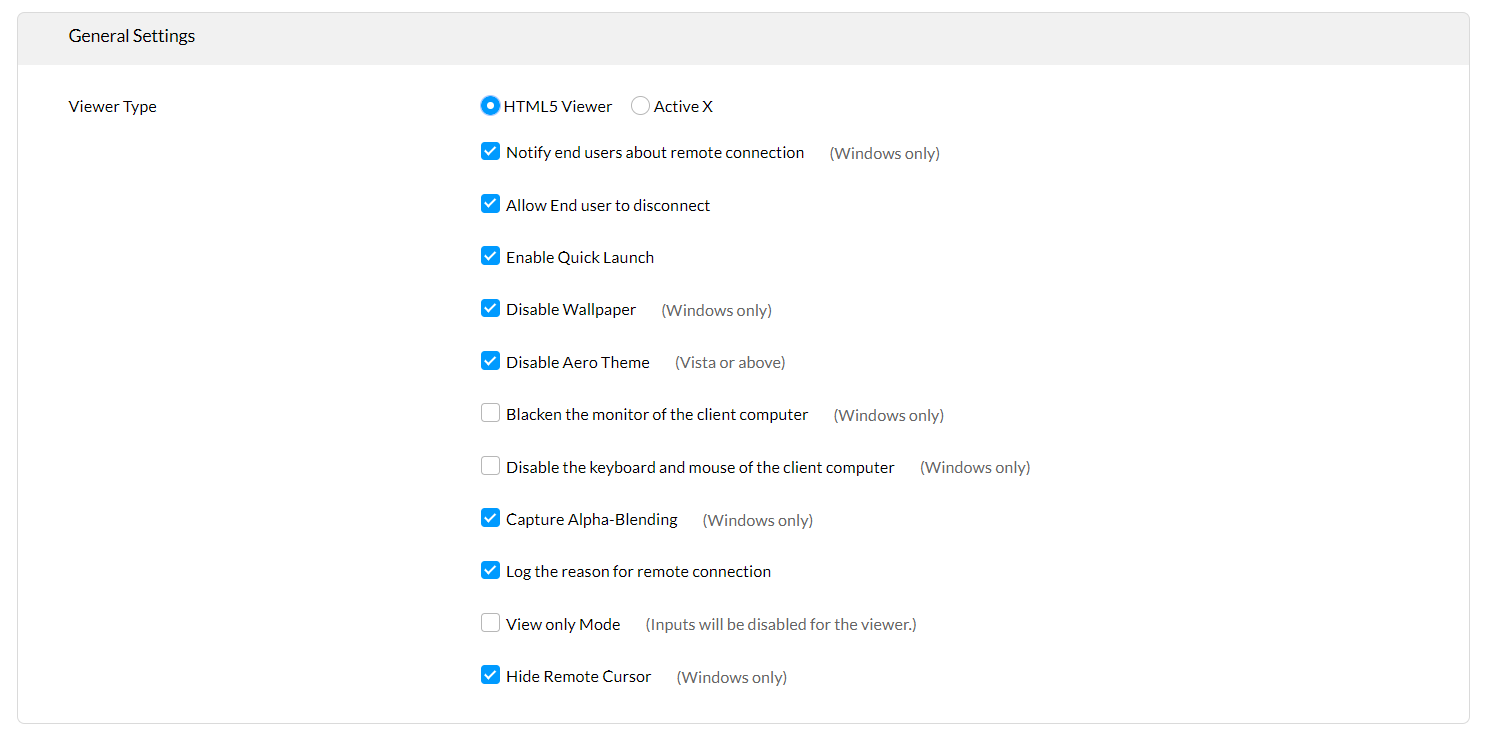
You can make general settings using the Settings tab to enable the option to:
Select the type of viewer you want to use to view the computer that you will access remotely. You can choose either an ActiveX viewer or a Java viewer.
Notify users that you have connected remotely to their computer.
Disable the wallpaper set by the user during a remote connection.
Disable the Aero theme during a remote connection. This is only applicable for computers that have the Microsoft Windows Vista operating system, and later versions, installed in them.
Ensure that a reason is entered while connecting remotely to a computer.
Blacken the user's monitor during a remote connection. This ensures that the user does not see the changes that are made by the administrator.
Lock the keyboard and the mouse of the client computer during remote administration. You can use this option when you want to take full control of the user's computer to complete a task.
Capture alpha-blending. This enables you to capture transparent windows.
View-only mode. You can only view remote computers using this mode. You cannot give any inputs or make changes in the computer that you are viewing. You are required to disable the following options to use the view-only mode:
Notify users upon sharing
Blacken the monitor of the client computer during a remote connection
Lock the keyboard and mouse of the client computer during a remote connection
Capture alpha-blending
User confirmation
Using Other Settings While Using the View-only Mode
This section comprises information about how other settings will work when the view-only mode has been enabled:
If you want to view a computer silently, ensure that all the other options like locking a keyboard, capture alpha-blending, notifying a user and user confirmation are disabled.
If the Make User Confirmation Permanent option is enabled, the view-only mode option will be disabled automatically.
Configuring General Settings
To configure remote computer settings, follow the steps given below:
|
You must have administrator privileges to make the settings given below. |
Click the Tools tab
Click Remote Control
Click the Settings tab
In the General Settings section, make the following settings:
Select the type of viewer
|
The viewer you choose will be the default option for all the users and they can change it if required. |
Check the required checkboxes
Click Save Changes
You have configured the general settings.
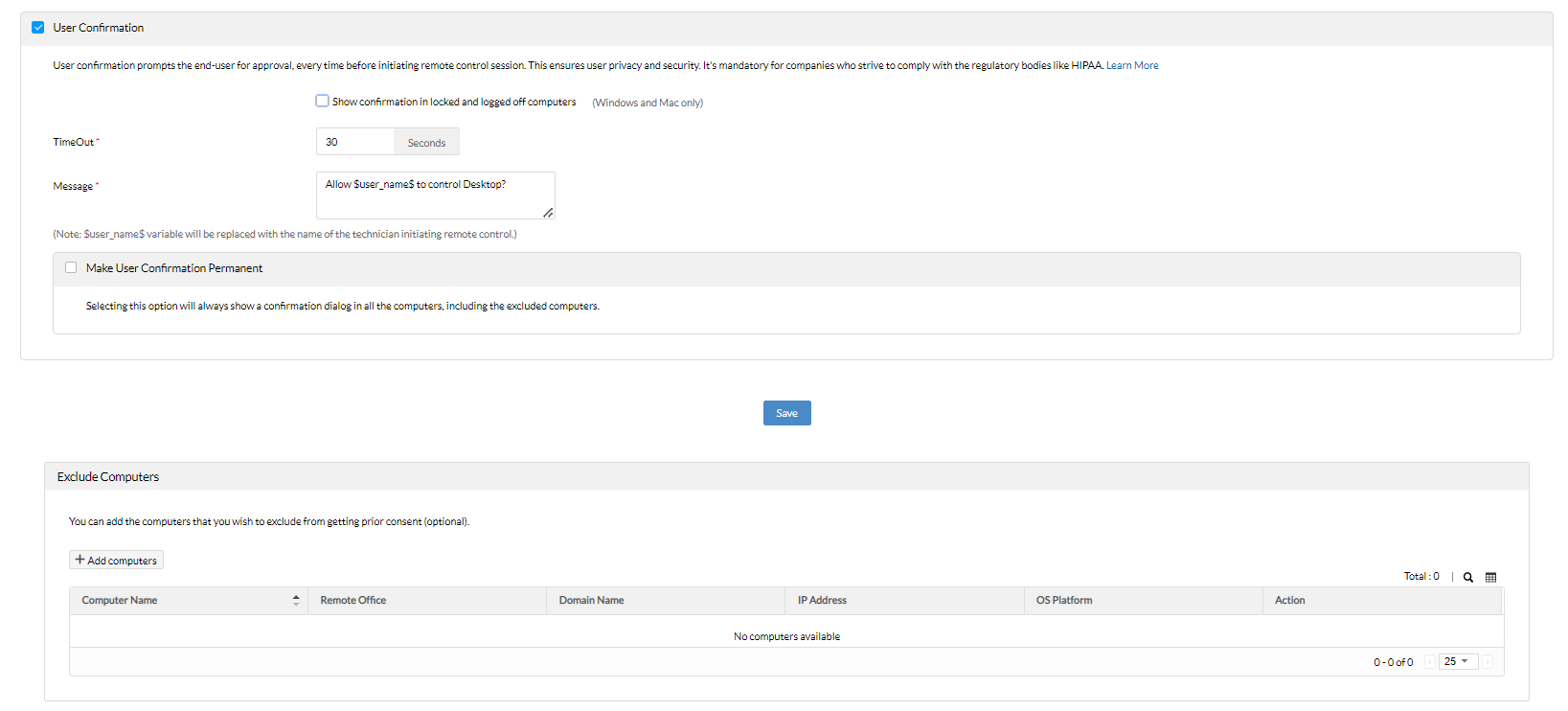
You can send users a message asking for permission to connect remotely to their computers. This option allows you to get confirmation from a user before connecting to their computer. Only Desktop Central users with administrative privileges can configure this option.
If a user is logged in, Desktop Central sends a remote-connection confirmation request for the user's approval. Remote connection is established only if the user approves the request within 30 seconds. If the user does not approve the request within 30 seconds, the remote connection is not established automatically.
If a user is not logged in, the remote connection is established without waiting for a confirmation from the user.
You can also do the following:
Set the amount of time you want to give the user to approve the request to allow a remote connection
Enter the text that you want the user to see when prompted for confirmation to allow remote control
Check the Always Prompt checkbox to send a user-confirmation message to users even if they have logged off or in locked state
Exclude computers from receiving a user-confirmation message
Making User Confirmation Permanent
One of the prerequisites required to comply with HIPAA is to protect user privacy. Therefore, it is mandatory to get the approval of users before connecting remotely to their computers. Making user confirmation permanent will ensure that you always get the user's consent before establishing a remote connection.
If you choose to make user confirmation permanent you cannot revert the settings.
Using Other Settings After Making User Confirmation Permanent
This section comprises information about how other settings like Always Prompt and Exclude Computers will work when user confirmation has been made permanent.
If you enable the Make User Confirmation Permanent option. All the computers in your network will receive a user-confirmation message before a remote connection is established.
If you check the Exclude Computers checkbox after you have enabled the Make User Confirmation Permanent option, the following actions will take place:
All computers in your network will receive a user-confirmation message
Computers in the Exclude Computers list will not receive a user-confirmation message
If you check the Always Prompt checkbox after you have enabled the Make User Confirmation Permanent option, the following actions will take place:
All computers in your network will receive a user-confirmation message
Computers that are locked and users that have logged off will receive a user-confirmation message
If you check both the Always Prompt and Exclude Computers checkbox after you have enabled the Make User Confirmation Permanent option, the following actions will take place:
All computers in your network will receive a user-confirmation message
Computers in the Exclude Computers list will not receive a user-confirmation message
Computers that are locked and users that have logged off will receive a user-confirmation message
Steps
This section comprises steps required to do the following:
Configure user-confirmation settings
Exclude computers from receiving a user-confirmation message before a remote connection is established
Configuring User-confirmation Settings
To configure user confirmation settings, follow the steps given below:
Click the Tools tab
Click Remote Control
Click the User Confirmation tab
Check the User Confirmation checkbox
|
You can check the Always Prompt checkbox to send a user-confirmation message to users even if they have logged off or in locked state. |
Enter the amount of time you want to give the user, to approve the request to allow a remote connection, in the Time-out box
Enter a customized message to display on the user's screen asking for approval for a remote connection, in the Confirmation Message box
Click Save Changes
You have configured the user confirmation settings.
You can also exclude computers from receiving a user-confirmation message. When you exclude computers from receiving user-confirmation messages, you can connect to them immediately, without an approval from the user.
If you have made the user-confirmation option permanent, check the Exclude Computers checkbox to ensure that the computers in the Exclude Computers list do not receive a user-confirmation message before a connection is established.
To exclude computers from receiving a user confirmation message requesting users to allow a remote connection, follow the steps given below:
Click the Tools tab
Click Remote Control
Click the User Confirmation tab
In the Exclude Computers section, click Add Computers
Filter computers as required. For example, you can filter the computers by domain
Select the computers that should not receive a confirmation message before you connect remotely to them
Click OK
These settings will be effective only when you check the User Confirmation checkbox.
Screen recording enables you to record the entire remote control session that can be used for auditing purposes. Given below are the operation performed when you have enabled screen recording:
When you connect to a computer, the Desktop Central Agent on the computer to which you connect will check for the available hard disk space for saving the video.
If sufficient space is available, the session and recording will start and a notification will be displayed on the client computer that this session is being recorded (configurable)
After the session is completed, the recorded video is uploaded to the Desktop Central Server. The recorded video is available under the History tab available within the Remote Control tool.
To enable and configure Screen Recording, follow the steps below:
Click the Tools tab
Click Remote Control
Select the Screen Recording tab
Select the "Enable Screen Recording" check box and specify the following
Select the required Codec that have to be used for compression and decompression of the video. If the selected Codec is not available on the remote computer, the default codec will be used.
Chose the Frames per Second. The higher the frames per second will give you a smooth mouse movements, while it also increases the size of the video. If it is just for auditing purposes, it is better to leave it with the default value.
Choose the required color quality. Higher the color quality will gives broader range of color depth, but also increases the size of the video.
Specify the maximum storage size for the recorded videos. When the storage limit exceeds, the previously recorded files are automatically deleted to free the space.
Specify what should be done when there is no enough space on the remote computer when the session is in progress. You can either choose to stop the recording and continue with the session or disconnect the session.
If you wish to notify the users that the remote control session is being recorded, select the "Enable User Notification" checkbox and specify the message and notification duration. If you want the notification be permanently displayed throughout the session, select "Always show a notification when recording is in progress" option.
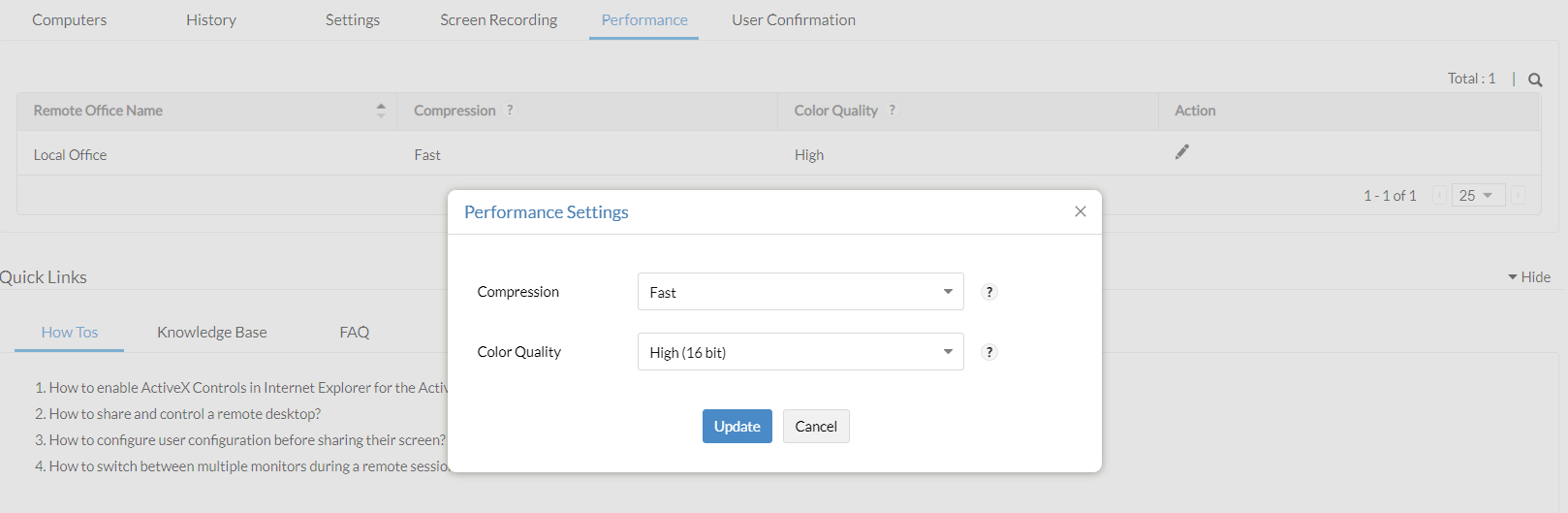
You can configure the following performance settings to increase the performance of remote connectivity:
Compression Settings
Compression settings include the following options:
Fast: Use this option, when you want the rendering to be faster. The compression ratio will be lower and will consume higher bandwidth comparatively.
Best:
Use this option, when you want to optimize bandwidth utilization.
The compression ratio will be higher and the User Interface
(UI) rendering will be comparatively slower.
Color-quality Settings
Selecting an appropriate color-quality level enables you to use your bandwidth effectively during a remote session. Lowering the level of the color quality will decrease the consumption of your bandwidth. This will ensure effective bandwidth consumption.
Default Settings
The default settings for performance settings are as follows:
Compression Settings
For LAN (local offices): Fast
For WAN (remote offices):Best
Color Quality
For LAN (local offices): High (16 bit)
For WAN (remote offices):High (16 bit)
Configuring Performance Settings
To configure performance settings, follow the steps given below:
Click the Tools tab
Click Remote Control
Click the Performance tab
Click
in the Action column against
the name of the required computer
Select the required settings for the following from the dropdown boxes:
Compression
Color Quality
Click Save
You have configured the performance settings as required.
You can enhance the security of remote control feature by using idle session time out feature. When no actions are performed on the remote computer, the session is said be 'idle'. You can specify a maximum time limit for the remote session to be idle. when the idle time limit exceeds the specified time, the session gets disconnected and remote machine will be locked automatically. To configure the idle session settings follow the steps mentioned below;
Click the Tools tab
Select Remote Control
Click Settings tab
Click the check box to enable Idle Session Settings
Specify the maximum time limit allowed for the remote session to be idle.
Specify the action that needs to be performed while the idle session exceeds the specified time. Click to enable one of the below mentioned options;
Disconnect the remote connection
Disconnect and lock the remote connection
Click Save Changes.
You have configured the idle session settings successfully.
|