|
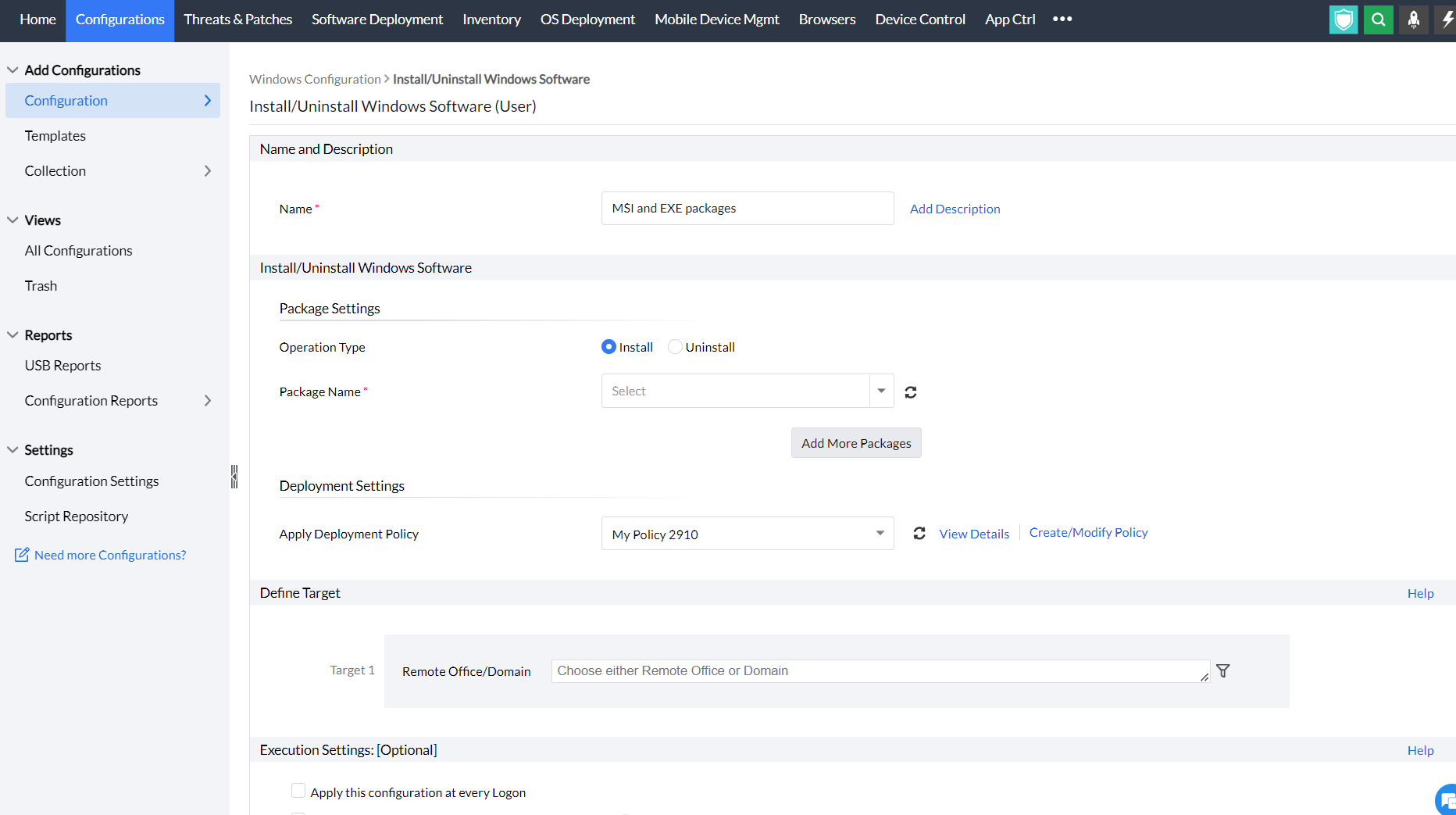
The Software Installation configuration helps you to install MSI and EXE packages remotely to specific users of several computers of the Windows network from a central location.
Provide a name and description for the Software Installation Configuration.
You have an option to install either an EXE or an MSI package
Install MSI Package
Select the Installer type as MSI and specify the following values:
Parameter
Description
MSI Package Name
This will list all the MSI packages that are available in the Software Repository. Select the MSI that has to be installed.
Run As
The user as whom the MSI has to be installed.
Password
Password for the user as whom the MSI has to be installed.
Confirm Password
Confirm the password
Operation Type
To specify how the installation should happen. Select any of the following options:
Install Completely: Selecting this option will install the application automatically during next GPO update or user logon or system startup.
Assign: Selecting this option will create all the necessary shortcuts and registry entries. The application will be installed only when the user tries to open the application or during system startup, whichever is earlier.
Remove: Selecting this option remove (uninstall) the application from the system
Redeploy: Selecting this option will re-install the application.
Copy
You have an option to copy the installables to the client machines before installing them. Select the required option:
None: Selecting this option will not copy the installation files.
Copy file to client machines: Will copy the exe or the msi file alone as specified in the software package to the client machines.
Copy folder to client machines: Will copy the entire directory that has the installation file to the client machines.
Click Add More Packages to install/uninstall additional software.
Note:You can also uninstall a previous version of the software either by running a pre-installation script (should be specified while creating a package) or by selecting the Operation Type as Remove. In the latter case, you need to add two packages, one to remove the older version and the other to install the new version.
Specify the Scheduler details for installing the software:
Parameter
Description
Installation / Uninstallation Option
Specify whether the installation/uninstallation should happen during or after user login:
During Login: Select this option if the software has to be installed/uninstalled during the user login.
After Login: Select this option if the software has to be installed/uninstalled after the user login but within 90 minutes.
During or After Login: Either of the above, whichever is earlier
Schedule Time to Perform the Operation
Select his option and specify the data and time after which the installation should begin. It may be noted that the installation/uninstallation will still be based on the Operation Type selected, but this will begin after the time specified here.
Reboot Policy
Do not reboot: Select this option if the client computers should not be rebooted after installing the software.
Force Reboot when the user has logged in: Select this option to force the user to reboot the computer. Specify the time within which the client machines will be rebooted and the message that has to displayed in the client machines.
Force Shutdown when the user has logged in: Select this option to force the user to shutdown the computer. Specify the time within which the client machines will be shutdown and the message that has to displayed in the client machines.
Allow user to skip Reboot: Select this option to allow users to reboot later. Specify the message that has to displayed in the client machines.
Allow user to skip Shutdown:Select this option to allow users to shutdown later. Specify the message that has to displayed in the client machines.
Install EXE Packages
Select the Installer type as EXE and specify the following values:
Parameter
Description
EXE Package Name
This will list all the EXE packages that are available in the Software Repository. Select the EXE that has to be installed.
Run As
The user as whom the EXE has to be installed.
Password
Password for the user as whom the EXE has to be installed.
Confirm Password
Confirm the password
Operation Type
To specify how the installation should happen. Select any of the following options:
Install: Selecting this option will install the application automatically during next GPO update or user logon or system startup.
Remove: Selecting this option remove (uninstall) the application from the system
Copy the Source File & Folder to client machines
Selecting this option will copy all the necessary installables to the client machines.
Click Add More Packages to install/uninstall additional software.
Note:You can also uninstall a previous version of the software either by running a pre-installation script (should be specified while creating a package) or by selecting the Operation Type as Remove. In the latter case, you need to add two packages, one to remove the older version and the other to install the new version.
Specify the Scheduler details for installing the software:
Parameter
Description
Installation / Uninstallation Option
Specify whether the installation/uninstallation should happen during or after user login:
During Login: Select this option if the software has to be installed/uninstalled during the user login.
After Login: Select this option if the software has to be installed/uninstalled after the user login but within 90 minutes.
During or After Login: Either of the above, whichever is earlier
Schedule Time to Perform the Operation
Select his option and specify the data and time after which the installation should begin. It may be noted that the installation/uninstallation will still be based on the Operation Type selected, but this will begin after the time specified here.
Reboot Policy
Do not reboot: Select this option if the client computers should not be rebooted after installing the software.
Force Reboot when the user has logged in: Select this option to force the user to reboot the computer. Specify the time within which the client machines will be rebooted and the message that has to displayed in the client machines.
Force Shutdown when the user has logged in: Select this option to force the user to shutdown the computer. Specify the time within which the client machines will be shutdown and the message that has to displayed in the client machines.
Allow user to skip Reboot: Select this option to allow users to reboot later. Specify the message that has to displayed in the client machines.
Allow user to skip Shutdown:Select this option to allow users to shutdown later. Specify the message that has to displayed in the client machines.
Using the Defining Targets procedure, define the targets for deploying the Windows Installer Configuration.
Click the Deploy button to deploy the defined Windows Installer Configuration in the defined targets. The software installation for the selected targets will happen as scheduled.
To save the configuration as draft, click Save as Draft.
|
See Also: Managing Configurations and Collections, Viewing Configuration Reports, Defining Targets |
|